The community portal
The portal is a fast single-page app. It works on phones, supports right-to-left languages and has a dark mode. The left column holds the navigation and the spaces list, the centre shows the feed or page, and a right rail shows short community cards. The header greets the member and shows search, notifications, the colour mode button and the account menu. On Home, logged-in members see their own activity: posts, comments, likes received and spaces joined.
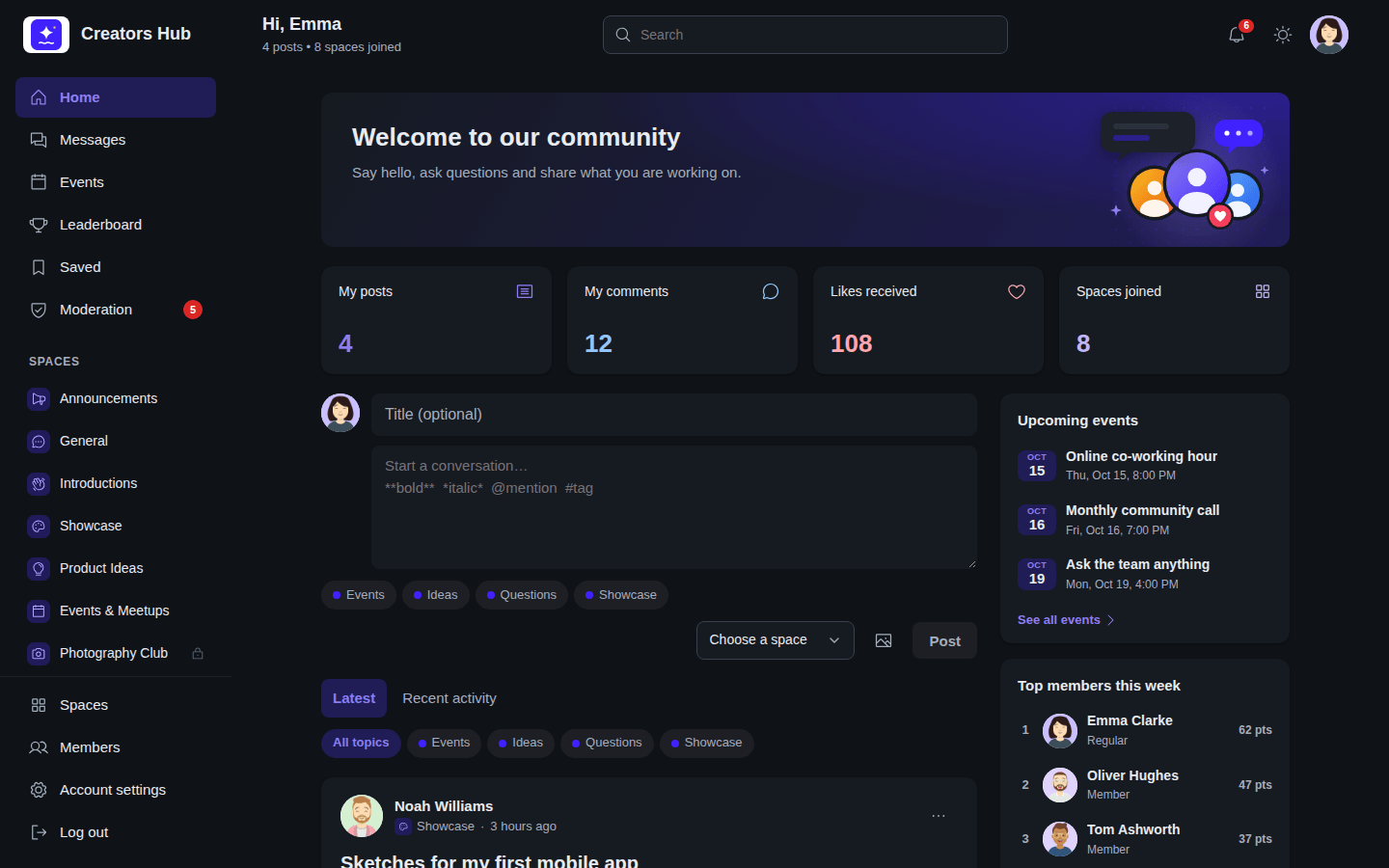
Dark mode.
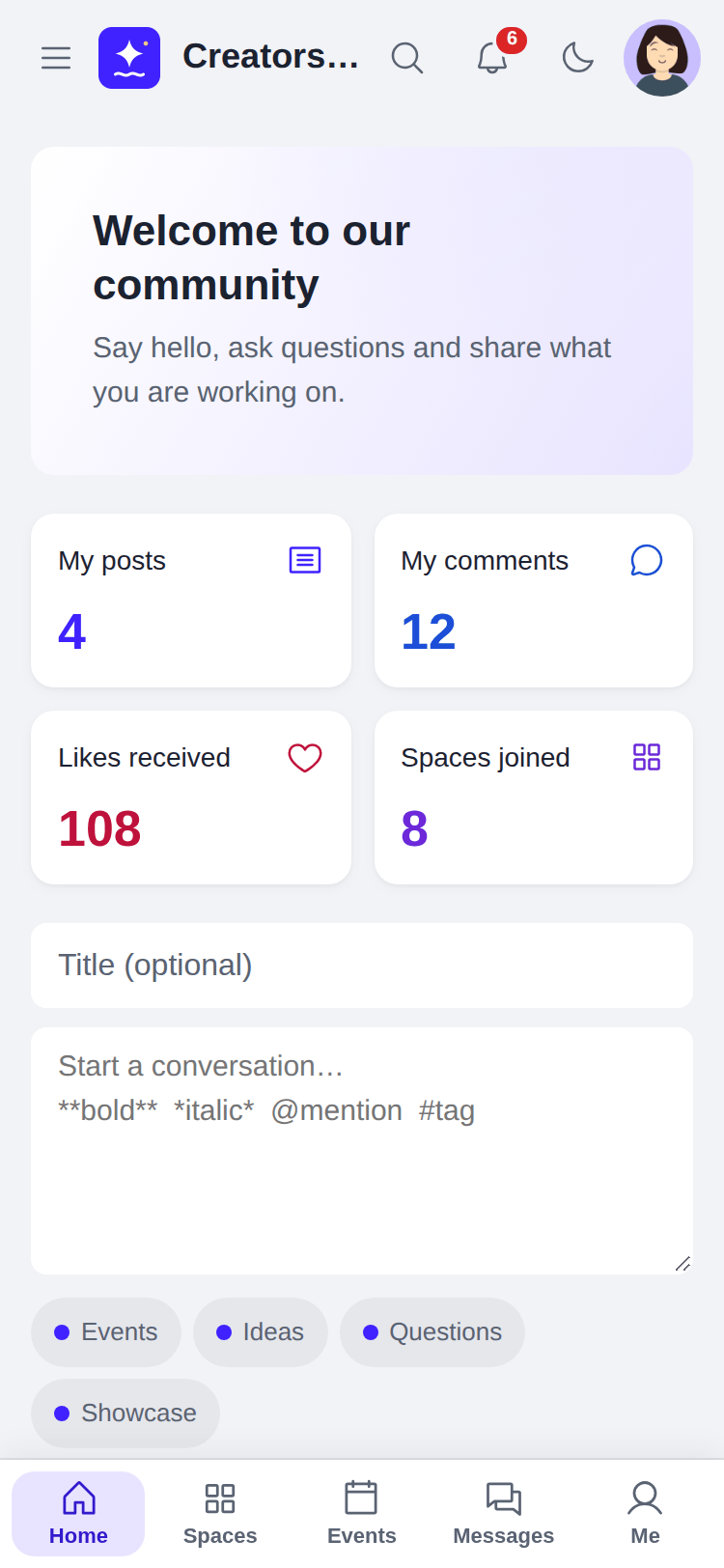
The portal on a phone.
Where things are
Section titled “Where things are”On a computer screen the portal has three columns.
Left: the navigation.
- At the top: Home, Messages (for active members, when messages are on), Events (when events are on), Leaderboard (for active members, when the leaderboard is on) and Saved (for active members). Add-ons can add items here; SpaceBay Pro adds Shop. Moderators and administrators also see Moderation, with a count of items to review.
- In the middle, a scrolling list of your spaces under their group headings. Invitations come first, and a lock marks spaces that are not public.
- Pinned at the bottom, always in view: Spaces, Members (for active members, when the member directory is on) and, for logged-in members, Account settings and Log out.
Centre: the feed or page. On Home this is the post box and the feed. The header above it greets the member and shows search, notifications, the colour mode button and the account menu. Visitors who are not logged in see Log in and, when sign-up is open, Join.
Right: the rail. On Home it holds short cards that fill in after the page loads:
| Card | Logged-in members | Visitors who are not logged in |
|---|---|---|
| Upcoming events | The next 3, with a See all events link. | The same, unless the community is members-only. |
| Top members this week | The top 5 with their points, and See the leaderboard. Only when the leaderboard is on. | Not shown. |
| New members | Up to 5 recent members, and See all members. Only when the member directory is on. | Not shown. |
| Your spaces | Up to 6 spaces you joined, or other spaces if you have joined none, and Browse all spaces. | Titled Spaces: up to 6 spaces, and Browse all spaces. |
A card with nothing to show is left out. On a space page the rail shows About this space (description, number of members, who can join and the date it was created) and the space’s upcoming events. On the Events page it shows Up next. On medium-sized screens the rail moves below the feed, and on phones it is hidden on Home.
On phones the left column opens from the Menu button, and a tab bar at the bottom of the screen shows Home, Spaces, Events (when events are on), Messages (for active members, when messages are on) and Me. Visitors see Log in instead of Me. The bar slides out of the way while you type in a text box.
On Home, logged-in members also see their own activity: posts, comments, likes received and spaces joined.
 SpaceBay
 Build a community, activity feed, group chat and events on your own WordPress site.
Get SpaceBay Pro
