Login and signup
SpaceBay has its own pages for logging in, signing up and resetting a password. They use your logo, brand colour and dark mode, and work on phones.
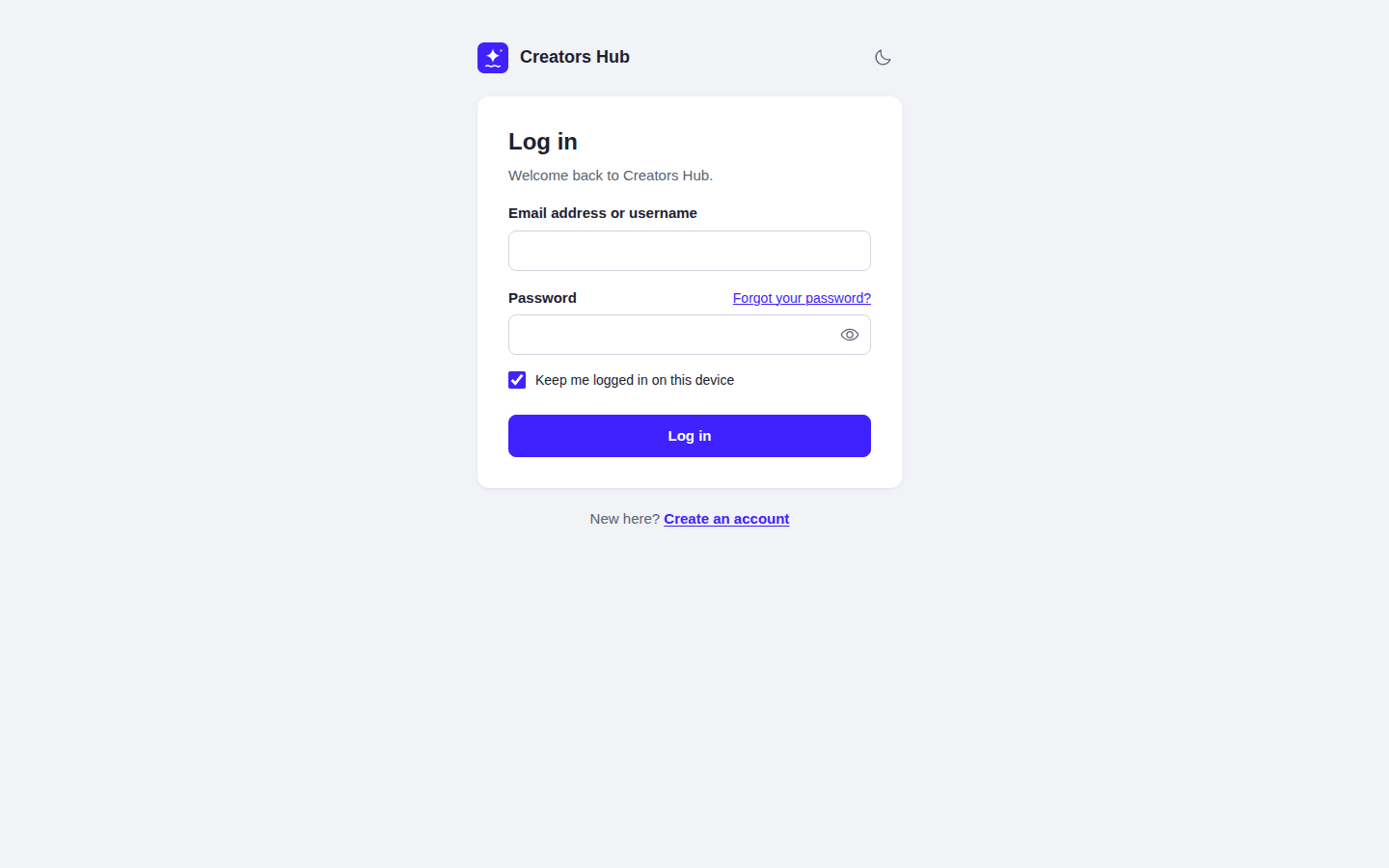
The login page at yoursite.com/community/login.
| Page | Address | What it does |
|---|---|---|
| Log in | /community/login | Email address or username and password, with “Keep me logged in on this device”. Members return to the page they came from. |
| Create an account | /community/signup | The signup form. New members are logged in right away and receive a welcome email. |
| Forgot your password? | /community/login/forgot | Emails a link that works for 24 hours. The link opens a page in the community to choose a new password. |
The Log in and Join buttons in the community lead to these pages. In a members-only community, visitors see the login page instead of the community. The WordPress login page (wp-login.php) keeps working, so you can always log in there as well.
The signup form
Section titled “The signup form”Go to SpaceBay → Settings → Login and signup and turn on Let people sign up. The signup form asks for Name, Email address and Password. Passwords need at least 8 characters.
Terms tick box. Enter the address of your terms under Terms page. The form then shows an “I agree to the terms” tick box with a link to them, and people must tick it to create an account. Leave the address empty to hide the tick box.
- The username, which is also the profile address, is the name plus 4 random characters (for example
jane-doe-k3x9). The email address is not used. - To check new members before they can post, turn on Approve new members under Moderation. The signup page then tells people that a moderator reviews new accounts.
- New members get the role set in WordPress under Settings → General → New User Default Role. The site administrator receives the usual WordPress email about each new user.
- On a network of sites, signing up only works when the network administrator allows new accounts (Network Admin → Settings → Allow new registrations).
To stop spam signups, the form has a hidden field that only automated signups fill in, and one network address can create at most 5 accounts an hour.
Password and security for members
Section titled “Password and security for members”Members change their password under Account settings → Password and security. They enter their current password first. Changing the password logs out their other devices.
Looking for the extra fields? The signup form builder is a Pro feature.
 SpaceBay
 Build a community, activity feed, group chat and events on your own WordPress site.
Get SpaceBay Pro
