Feed and posts
Members post in the spaces they belong to. The Home feed shows posts from every space the member can read, newest first; Recent activity puts posts with new comments first. Each space has its own feed on its Posts tab, where pinned posts stay at the top.
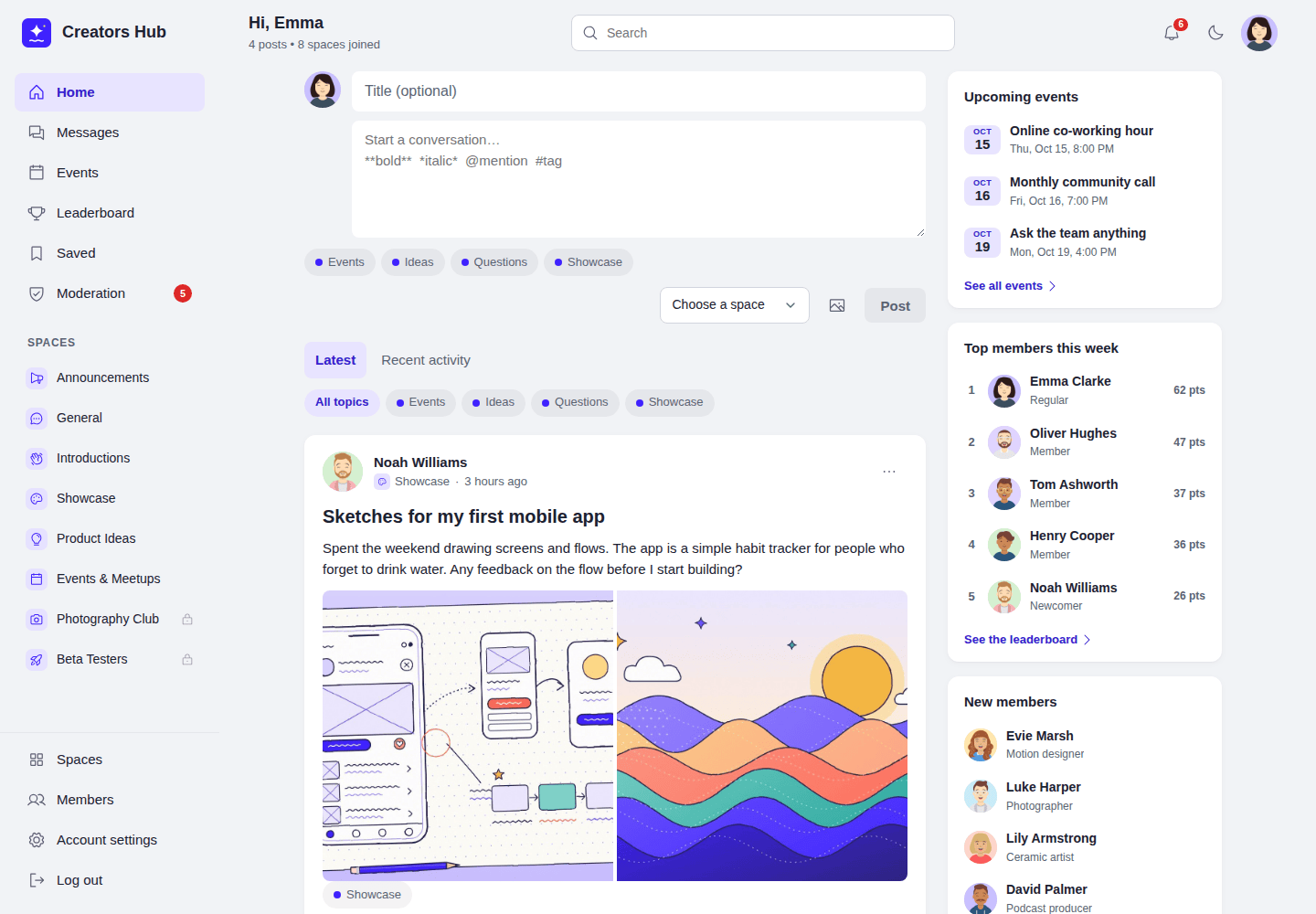
The home feed.
Writing a post
Section titled “Writing a post”- Click the post box, write, choose a space and press Post. Ctrl or Cmd + Enter also posts.
- The Title (optional) field is always shown above the text. Fill it in to give the post a heading, or leave it empty.
- The image button, next to Post, adds up to 10 JPG, PNG, GIF or WebP images. Large photos are resized and their hidden data, such as GPS location, is removed.
- Choose up to three topics.
- Type
@and a name to mention a member.
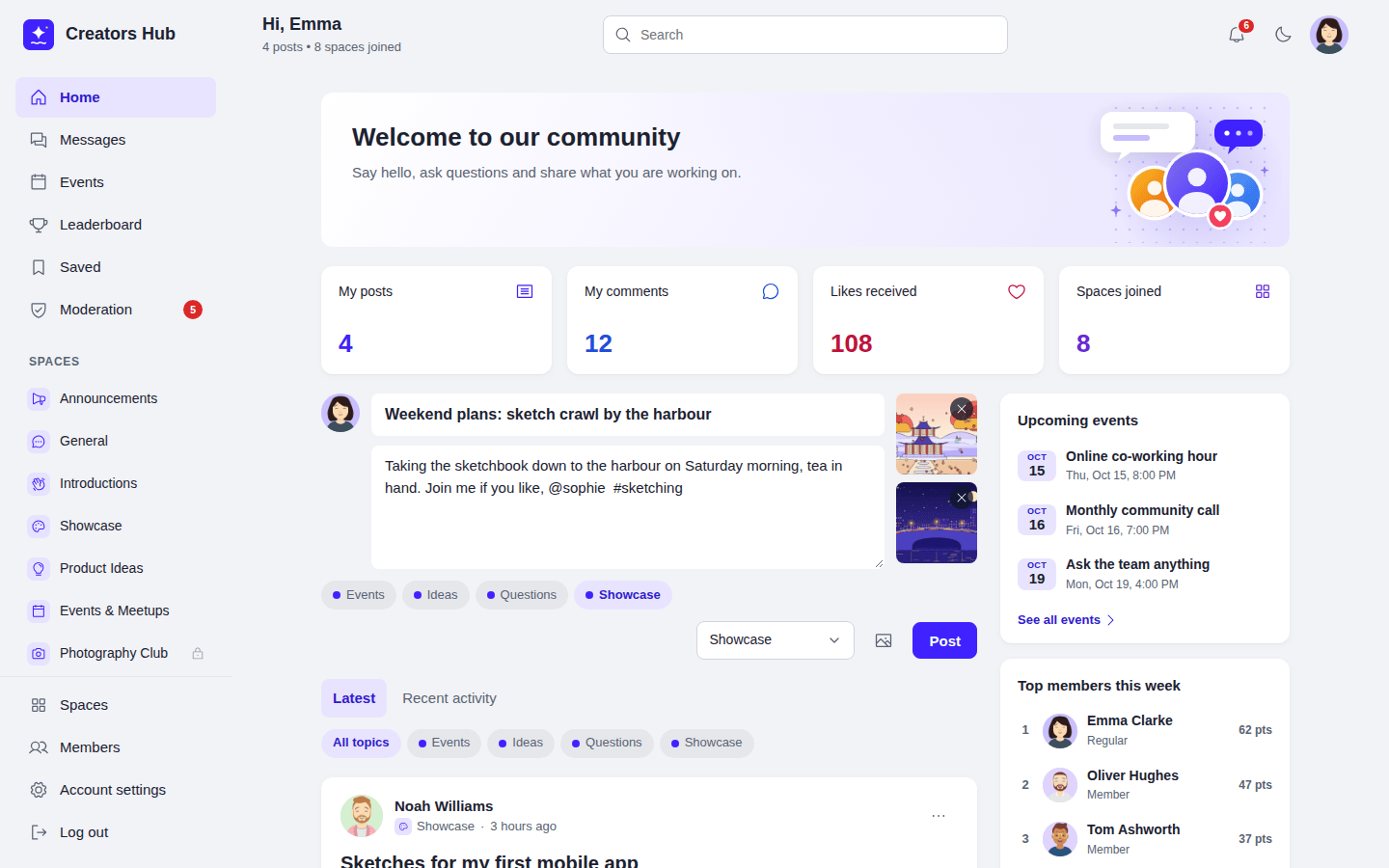
The post box with images, topics and a mention.
| Type | To get |
|---|---|
**bold** | bold |
*italic* or _italic_ | italic |
`code` | code |
Lines starting with - or 1. | A list |
Lines starting with > | A quote |
@name | A mention linking to the member |
#word | A hashtag |
| A web address | A link |
Link previews and videos
Section titled “Link previews and videos”YouTube and Vimeo links show a video player. Nothing is loaded from YouTube or Vimeo until someone presses play. Other links show a preview card with the page title, description and image when Show link previews is on in Settings. To build the card, your site requests the linked page once and stores the result for a day. Turn the setting off if you do not want your site to contact linked websites.
Who can post
Section titled “Who can post”Active members of a space can post. In a space’s details, Who can start posts can be set to Only space admins and moderators, which suits announcement spaces; members can still like and comment. Authors can edit and delete their own posts. Space admins, moderators and WordPress administrators can edit, delete and pin any post in the space.
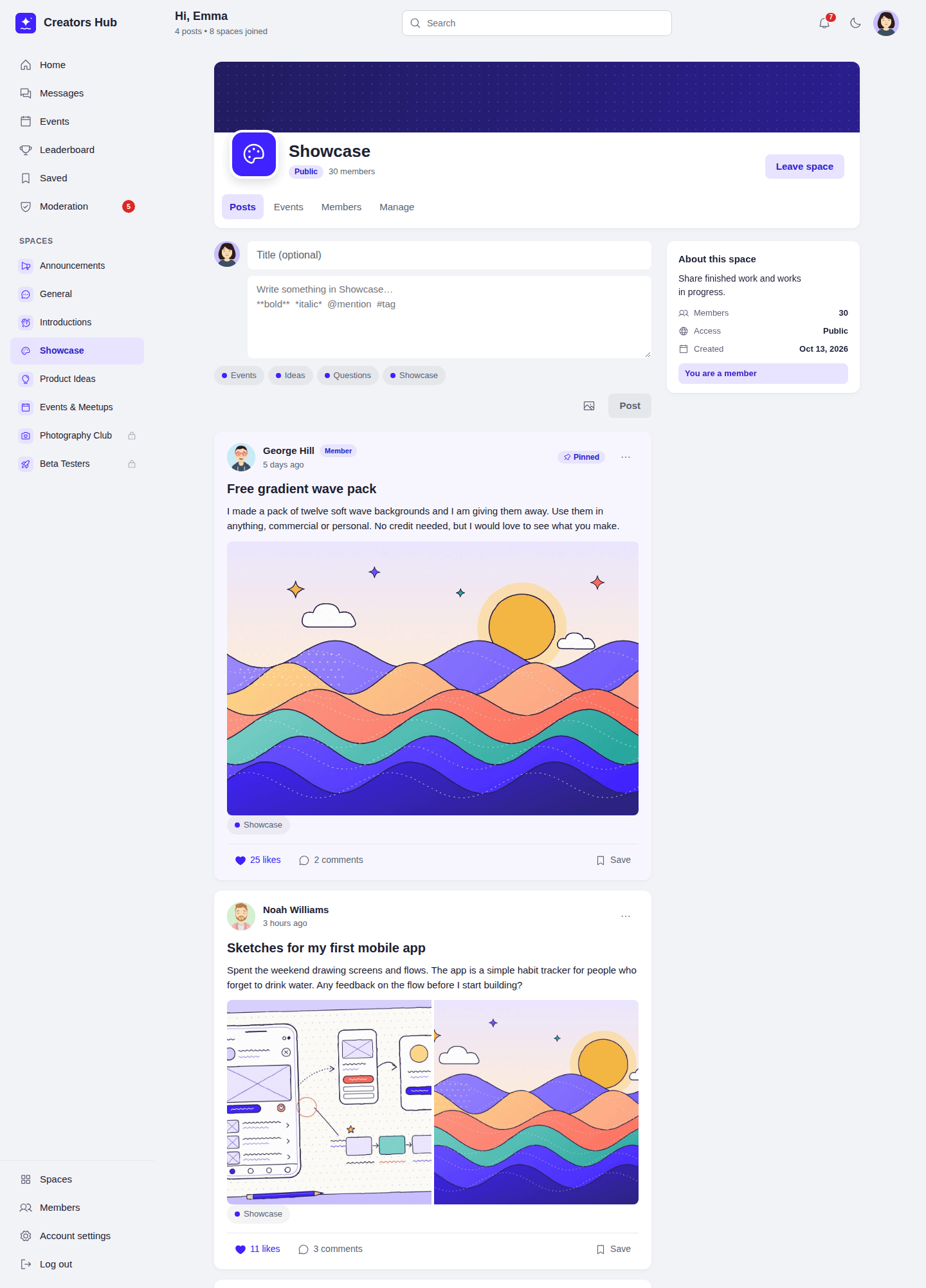
A space feed with a pinned post.
Comments, likes and saved posts
Section titled “Comments, likes and saved posts”Members of a space comment on its posts and reply to comments. Replies nest up to 5 levels deep, with a top-level comment counting as level 1. A reply to a comment on the last level appears next to that comment instead of below it. Developers can change the limit with the spacebay_comment_max_depth filter. Members can like posts and comments, and Save any post they can read; saved posts appear on the Saved page, which only they can see.
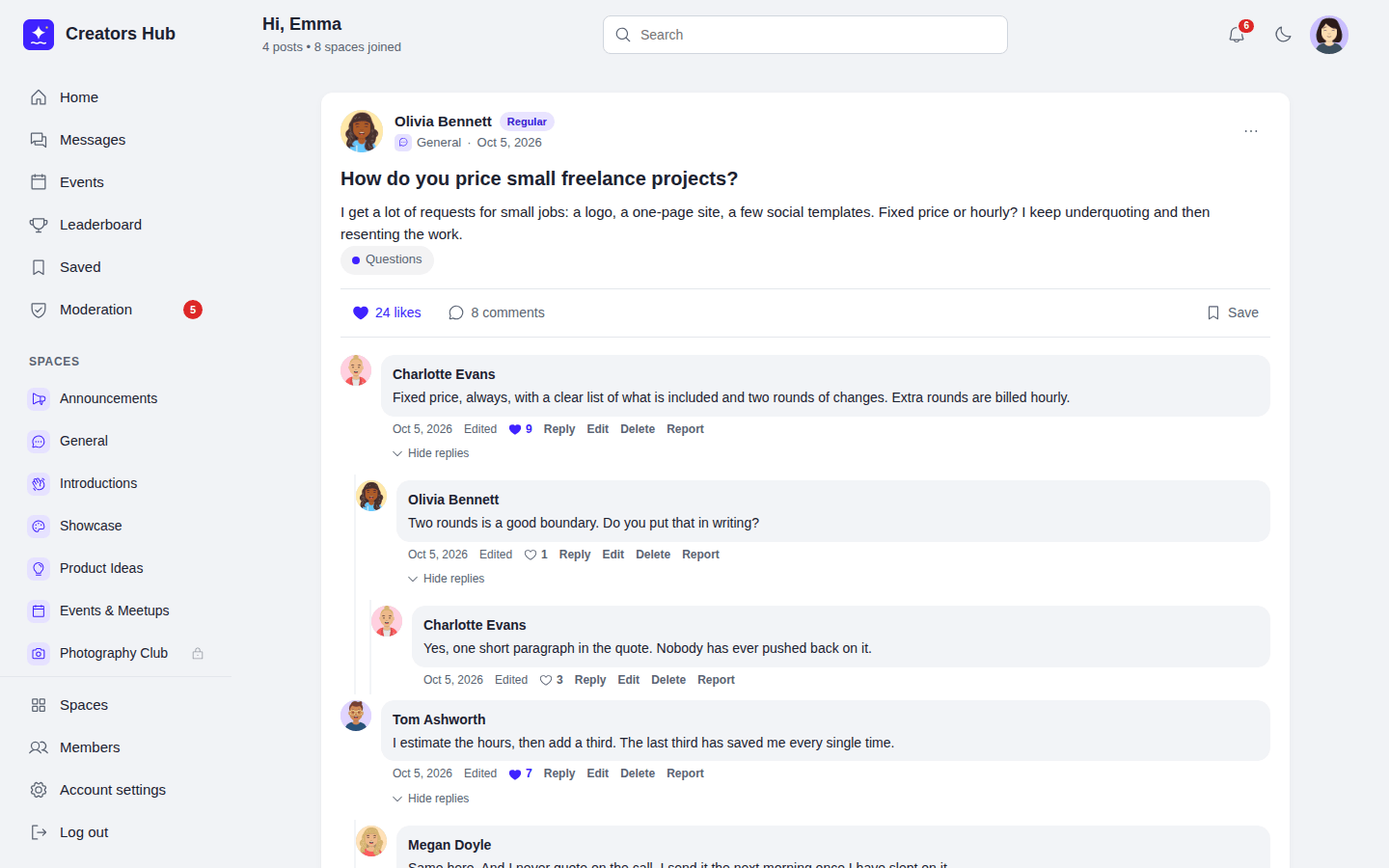
Comments and nested replies.
Authors can edit and delete their own comments. Space admins, moderators and WordPress administrators can edit and delete any comment in the space. What happens to the replies depends on who deletes:
- When a space admin, moderator or WordPress administrator deletes a comment, every reply below it is deleted too.
- When the author deletes their own comment, replies from other members are kept and move up to the deleted comment’s parent, or to the top level if it had none. The author’s own direct replies are deleted with the comment, and the replies to those move up as well.
- When a member’s account is erased through the privacy tools, their comments are deleted the same way, so other members’ replies stay.
To slow down spam, a member can publish 5 posts and 20 comments per minute. WordPress administrators are not limited. Developers can change the limits with the spacebay_rate_limit filter.
Topics and hashtags
Section titled “Topics and hashtags”Create topics such as Questions, Ideas or Events in SpaceBay → Topics. Members add up to three topics to a post, and everyone can filter the home feed by topic. Hashtags are created automatically from #words in posts; clicking one shows every post with that hashtag.
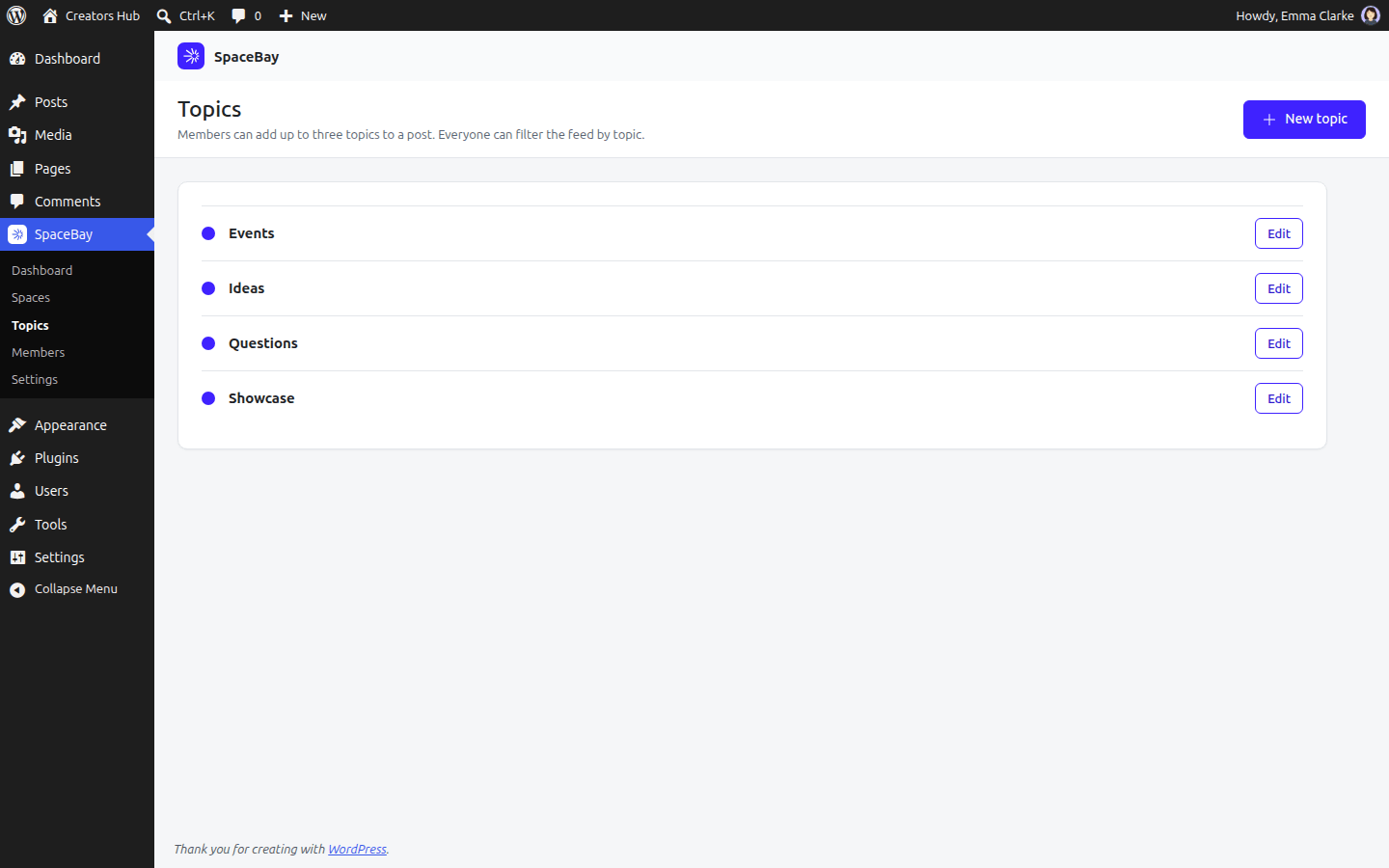
SpaceBay → Topics.
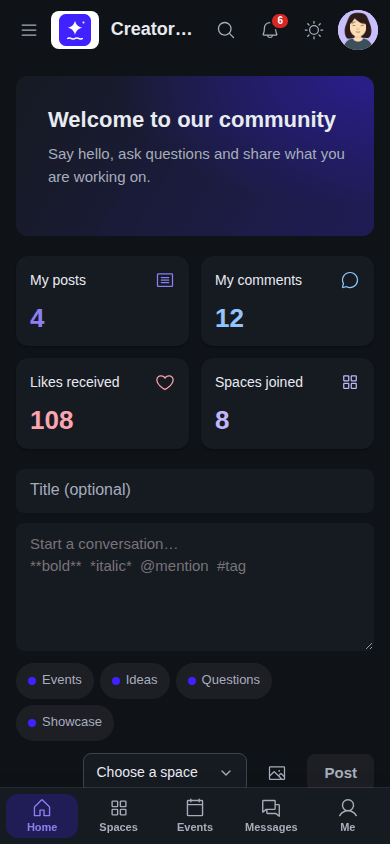
The feed on a phone, in dark mode.
 SpaceBay
 Build a community, activity feed, group chat and events on your own WordPress site.
Get SpaceBay Pro
