Member shops
Members can open a shop on their profile and show what they make or sell. Every product has a name, an optional price, up to four photos, a description and a link to the page where people buy it: their own online store, a marketplace page or a social page. The button on the product opens that page in a new tab. SpaceBay never takes payments and has no cart or checkout.
Shop settings
Section titled “Shop settings”Go to SpaceBay → Settings → Shops. Shops are off until you turn on Member shops.
| Setting | Default | What it does |
|---|---|---|
| Member shops | Off | Members can ask to open a shop on their profile. |
| New products | Approve each product | See below. |
| Products per shop | 50 | The most products one member can have, including those waiting for review. A number from 1 to 1000. |
| Shop page | On | Adds Shop to the community menu, with every published product and a search. |
New products can be handled in two ways:
- Approve each product (default): new products, and changes to the name, price, text, photos or link of a product, wait until an admin approves them.
- Publish automatically: products show right away.
In both modes, a product with a blocked word waits for review, and a product an admin rejected only comes back after an admin approves it. Shop names with blocked words are refused.
Opening a shop
Section titled “Opening a shop”- The member opens their profile, clicks the Shop tab and then Ask to open a shop. They can give a shop name and say what they will sell.
- Admins get a notification. Under SpaceBay → Shops → Shop requests (or on the member’s Shop tab) they click Approve or Refuse with a reason the member sees.
- The member gets a notification and can add products with Add product.
Admins can also open a shop for a member who never asked (Sellers or Shop requests tab, Open a shop for a member) and get their own shop right away. Other members see a Shop tab on a profile once that shop has a published product.
Trusted sellers
Section titled “Trusted sellers”On the Sellers tab, switch on Trusted for a seller whose products should show without review, even when every product needs approval.
Reviewing products
Section titled “Reviewing products”SpaceBay → Shops → Products to review lists the products waiting for you, with their link so you can check it first. Click Approve, or Reject with a reason the seller sees. If the seller changes a product while you look at it, SpaceBay asks you to check it again before approving. Admins can also review from the product itself in the community.
Showing products in the feed and in spaces
Section titled “Showing products in the feed and in spaces”Products always show in the seller’s shop and on the Shop page. To show a product to more people, open All products, click Where it shows and tick The main feed (Home) and any spaces. Chosen products show in a row called “From our members’ shops” at the top of Home or of the space. Members only see it in a space they can read. A product that goes back to review leaves these places until it is approved again.
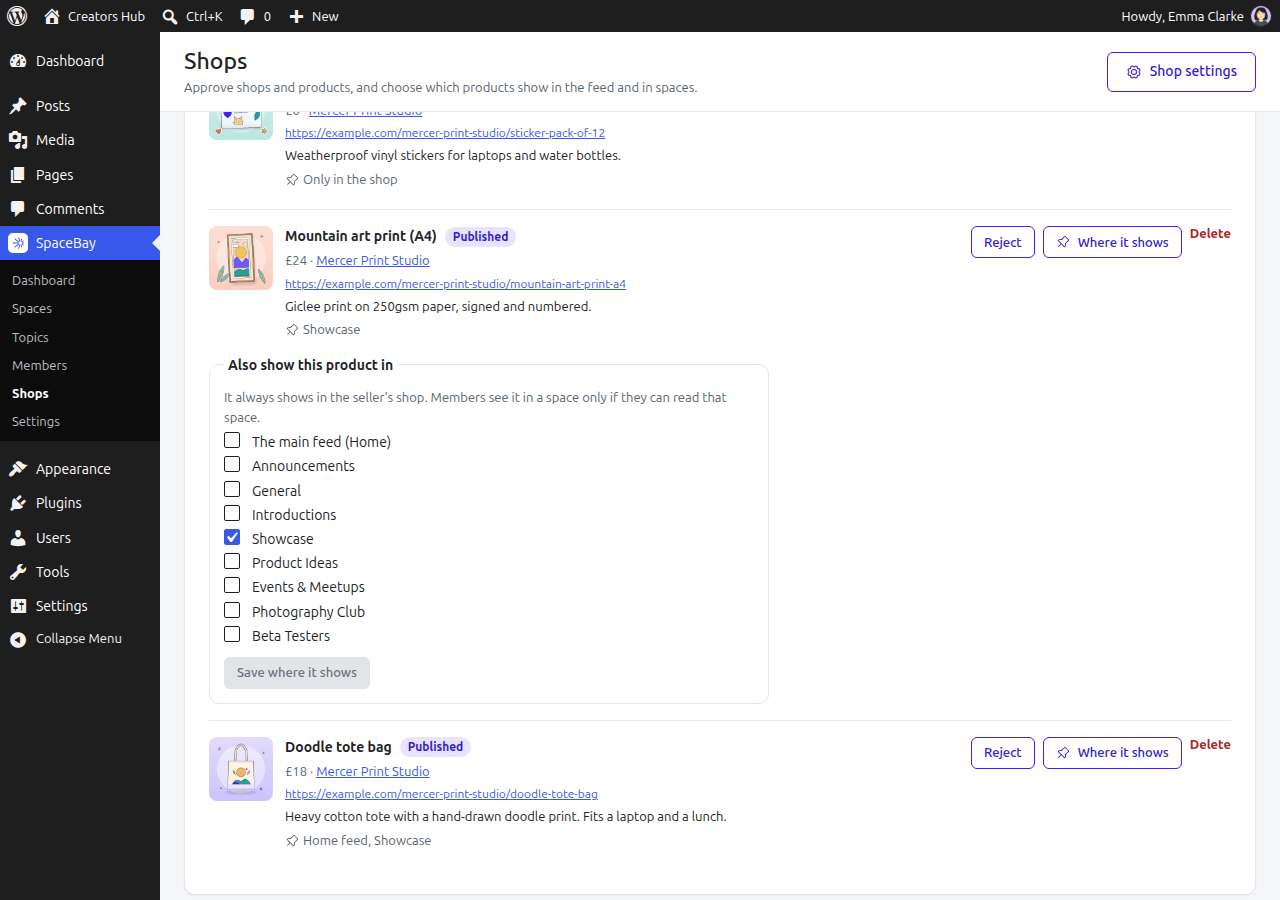
SpaceBay → Shops, All products, with “Where it shows” open.
Closing a shop
Section titled “Closing a shop”On the Sellers tab, Close shop hides every product of that shop. The seller sees your reason and can still delete their products. Open shop again brings everything back. Products of suspended members and of members with a hidden profile are also hidden.
The Shop page
Section titled “The Shop page”With Shop page on, the community menu has a Shop link with every published product and a search. Each product has its own link (for example /community/shop?product=12) to share.
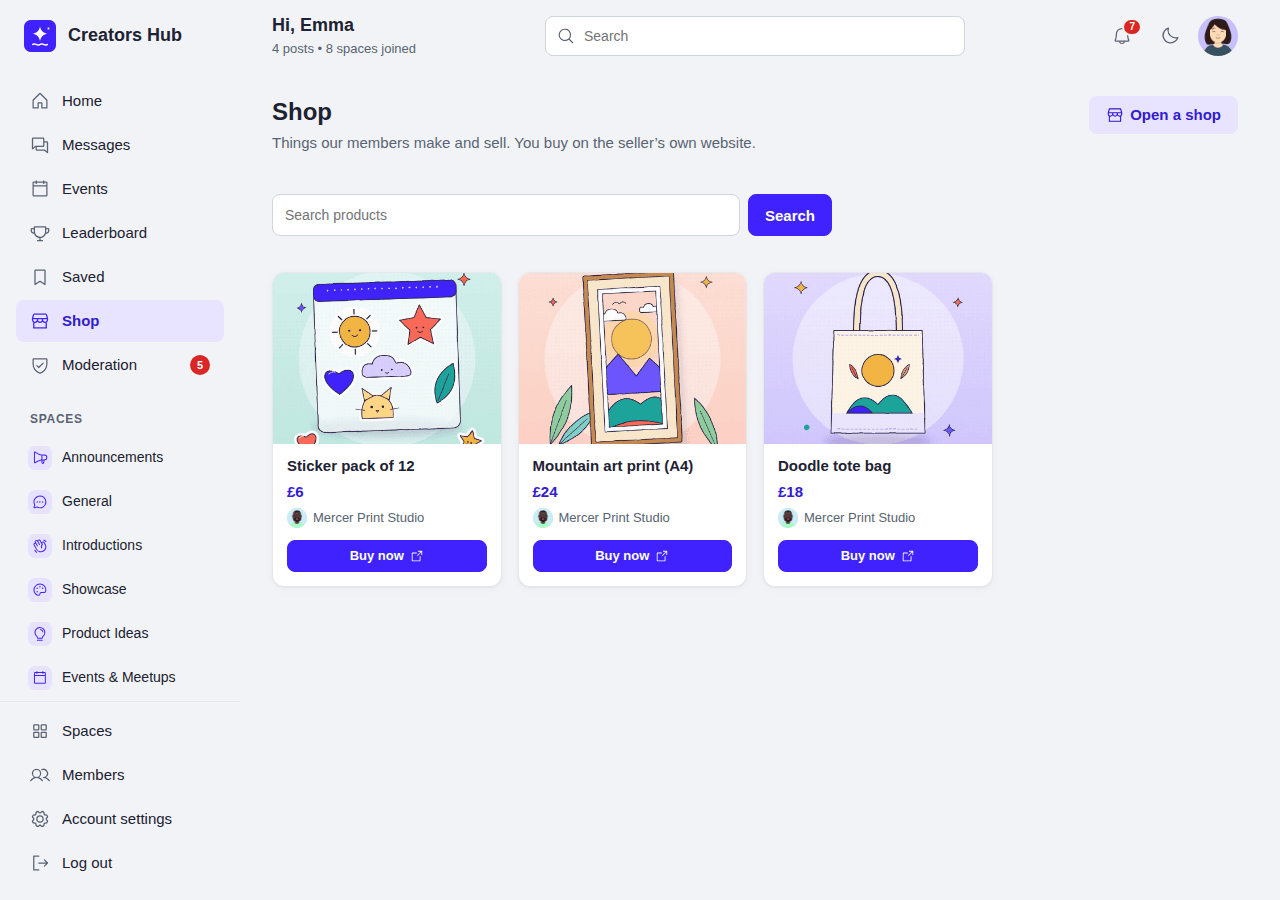
The Shop page.
Privacy. Shops and products are part of the WordPress personal data export and erasure. Deleting a member deletes their shop, products and photos.
 SpaceBay
 Build a community, activity feed, group chat and events on your own WordPress site.
Get SpaceBay Pro
