Spaces and groups
Spaces are where members meet. Create them in SpaceBay → Spaces, or with Create space on the Spaces page of the community. Space groups organise spaces under headings in the community sidebar. Use the arrows to change the order.
Each space has an icon from a set of 28 line icons (announcements, chat, ideas, events, photos and more), or the first letter of its name. Icons are drawn in one colour, so they always match your brand. Spaces created with an emoji in earlier versions show the matching icon automatically.
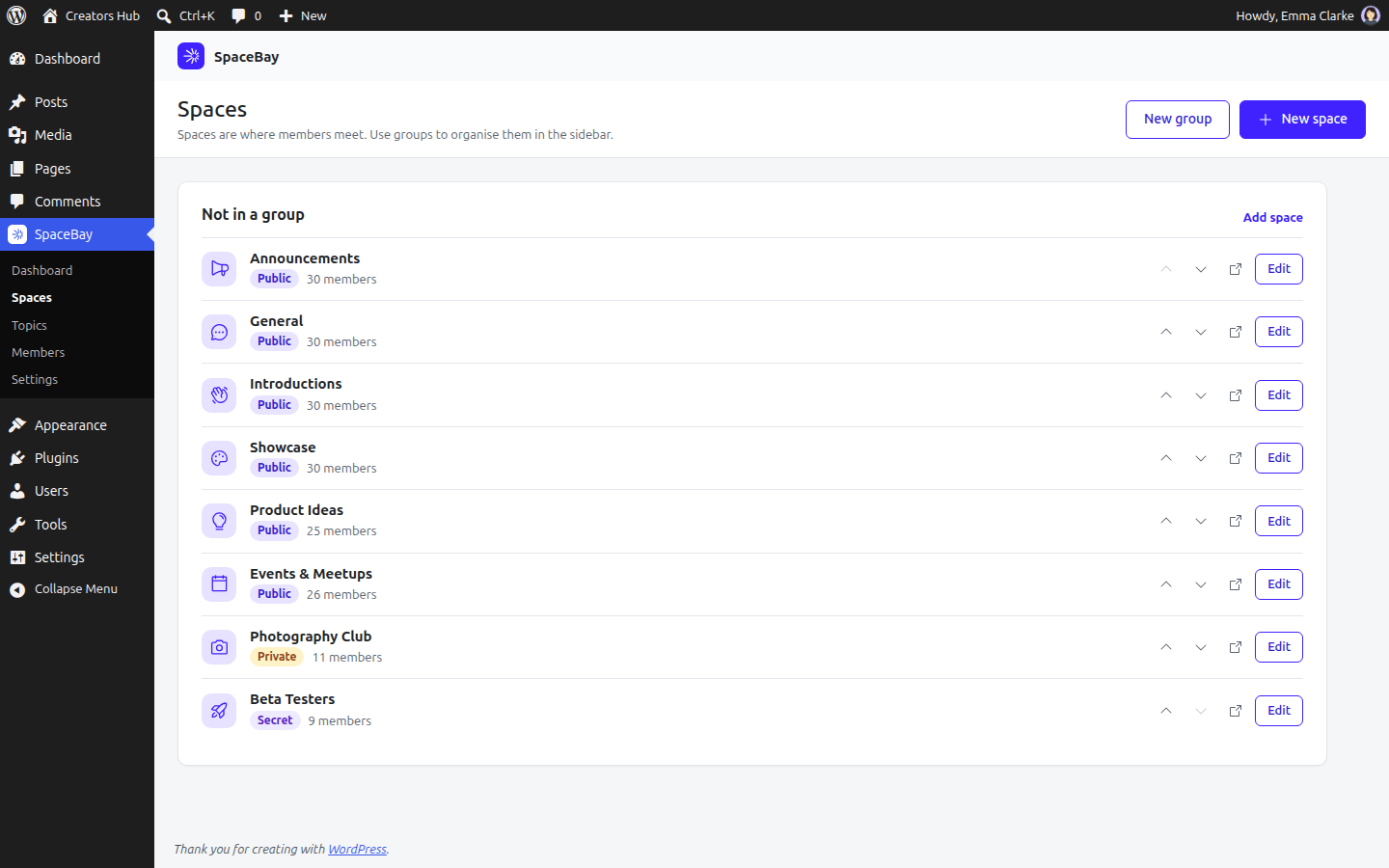
SpaceBay → Spaces.
| Privacy | Who sees it | Who reads posts | How people join |
|---|---|---|---|
| Public | Everyone who can open the community | Everyone | Click Join space |
| Private | Everyone who can open the community | Members only | Ask to join, then a space admin approves |
| Secret | Members and invited people only | Members only | By invitation only |
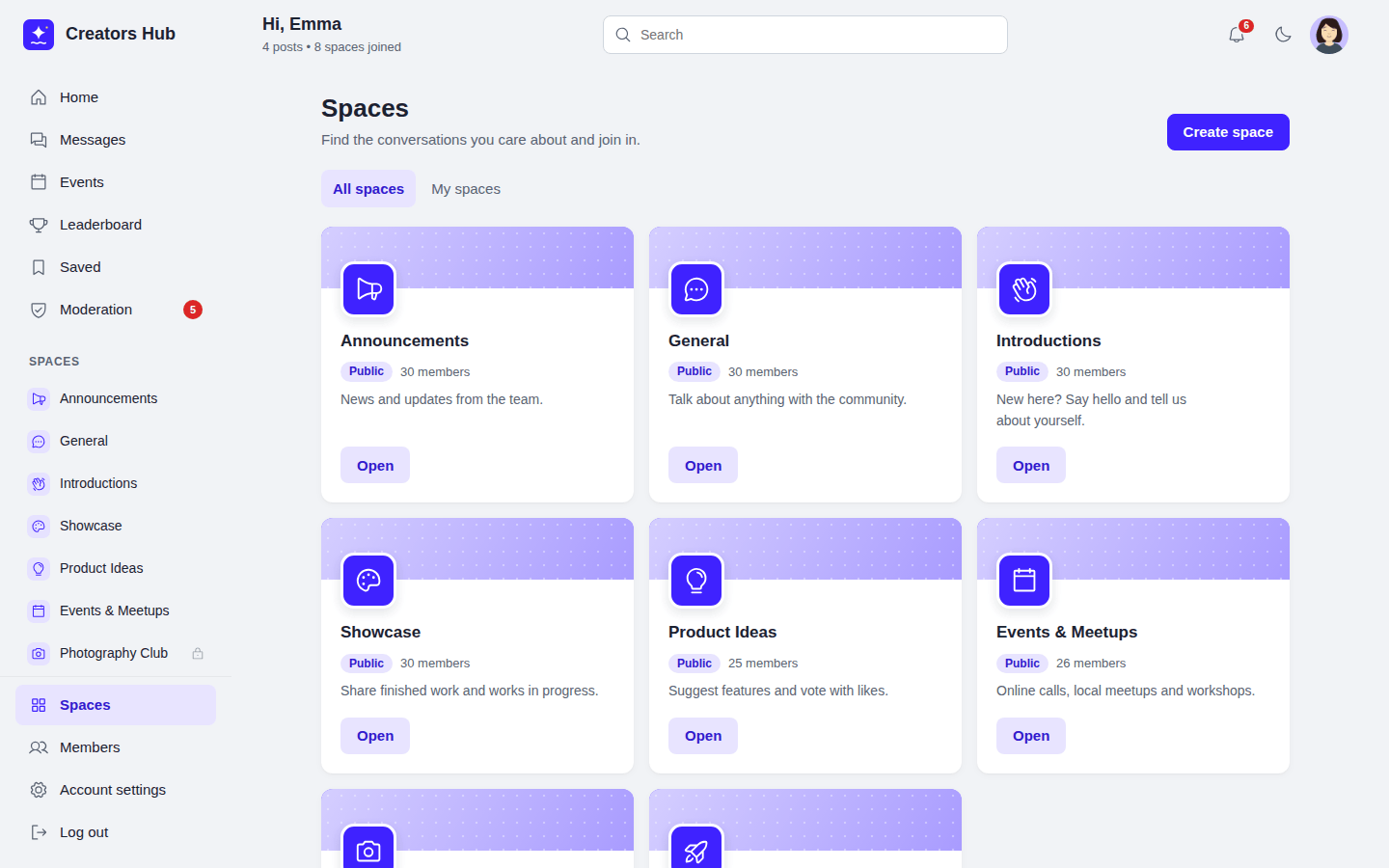
Members browse spaces and join them.
In the portal, the left navigation lists the spaces a member can see under their group headings, with a lock on spaces that are not public. The Spaces link is pinned at the bottom of that column and opens this page. A space page has tabs for Posts, Events, Members and, for space admins, Manage. Its right rail has an About this space card with the description, the member count, who can join, the creation date and the viewer’s status (for example “You are a member”), and below it the space’s upcoming events. On a phone the right rail is not shown and the bottom tab bar has a Spaces tab. See the community portal.
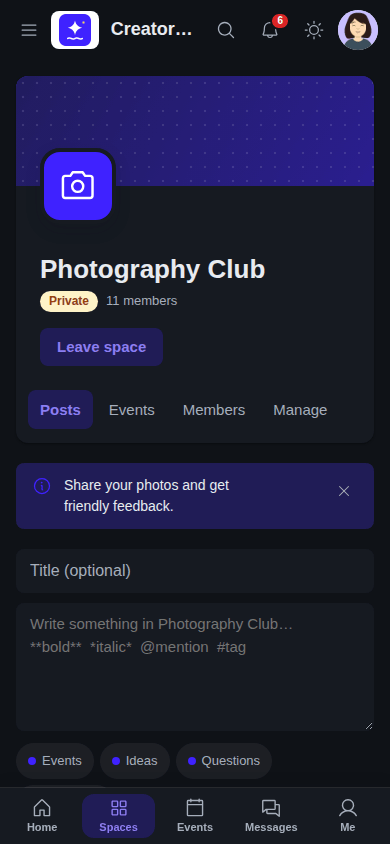
A private space on a phone, in dark mode.
Space roles
Section titled “Space roles”| Role | Can do |
|---|---|
| Admin | Edit the space, approve requests, invite, change roles, block and remove members. |
| Moderator | Moderate content in the space. |
| Member | Read and take part. |
Whoever creates a space becomes its first admin. A space always keeps at least one admin. WordPress administrators manage every space, and only they can archive a space, delete it or move it to another group.
Managing a space
Section titled “Managing a space”Space admins open the space and choose Manage to approve join requests, invite members, see open invitations, unblock members and edit the space details. Blocking an invited person withdraws the invitation.
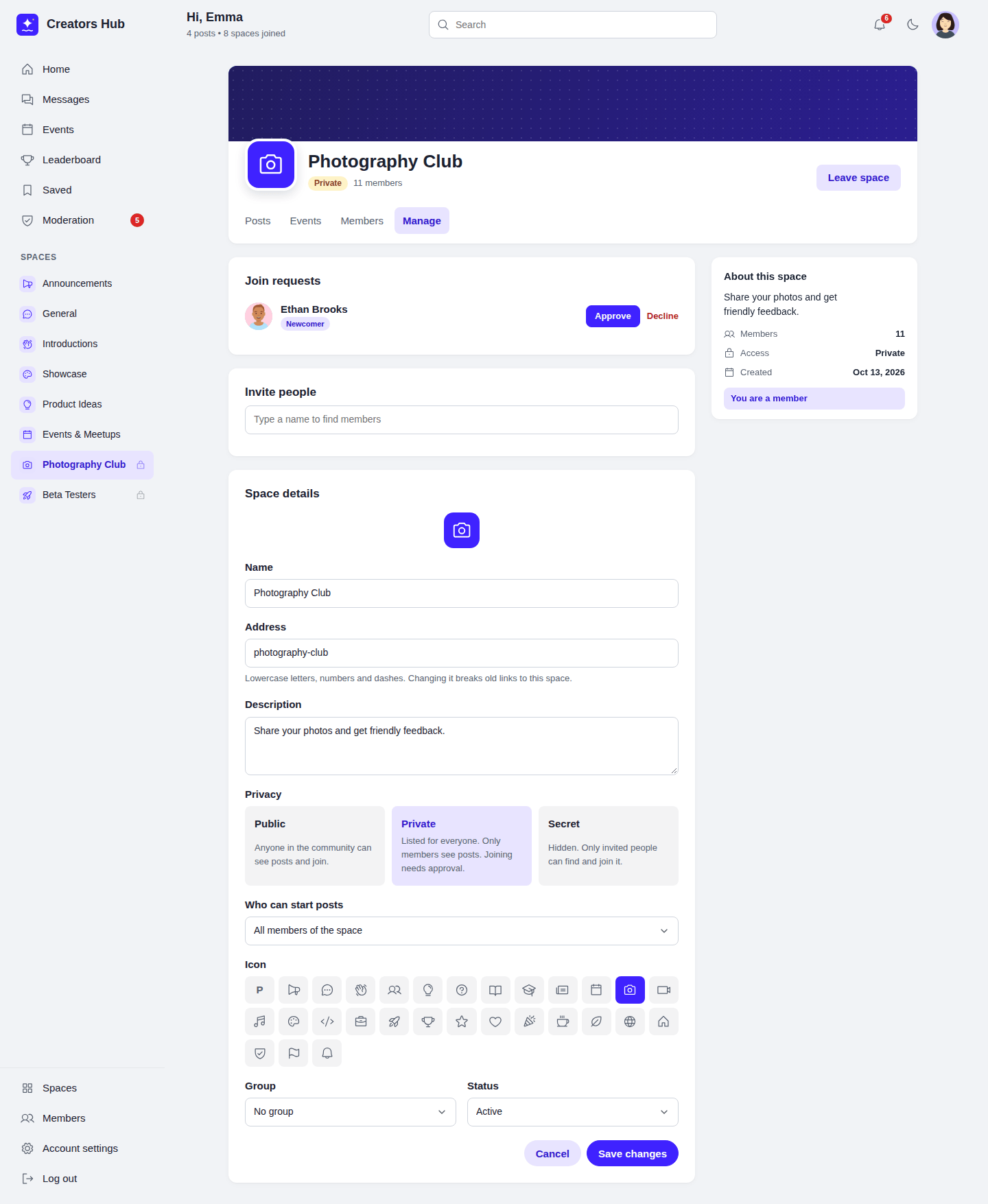
The Manage tab of a space.
Archived spaces are hidden from people who are not members and do not accept new members.
 SpaceBay
 Build a community, activity feed, group chat and events on your own WordPress site.
Get SpaceBay Pro
