Two-factor authentication
With two-factor authentication a password alone is not enough to log in. After the password, the member enters a 6-digit code. Choose the policy under Settings → Login and signup:
| Policy | What happens |
|---|---|
| Off | Members log in with their password only. This is the default. |
| Optional | Each member can turn it on under Account settings → Password and security. With Require it for admins and moderators, those accounts always need a code. |
| Required for everyone | Every member needs a code at each login. |
Members can get their code in two ways. You choose which ones are on offer:
- Authenticator app. The member scans a QR code once with an app such as Google Authenticator, Microsoft Authenticator or Authy (or types the key shown next to it). The app then shows a new code every 30 seconds. This is the safest way and needs no email.
- Code by email. A code is sent to the member’s email address at each login. It works for 10 minutes. A new code can be requested after 30 seconds.
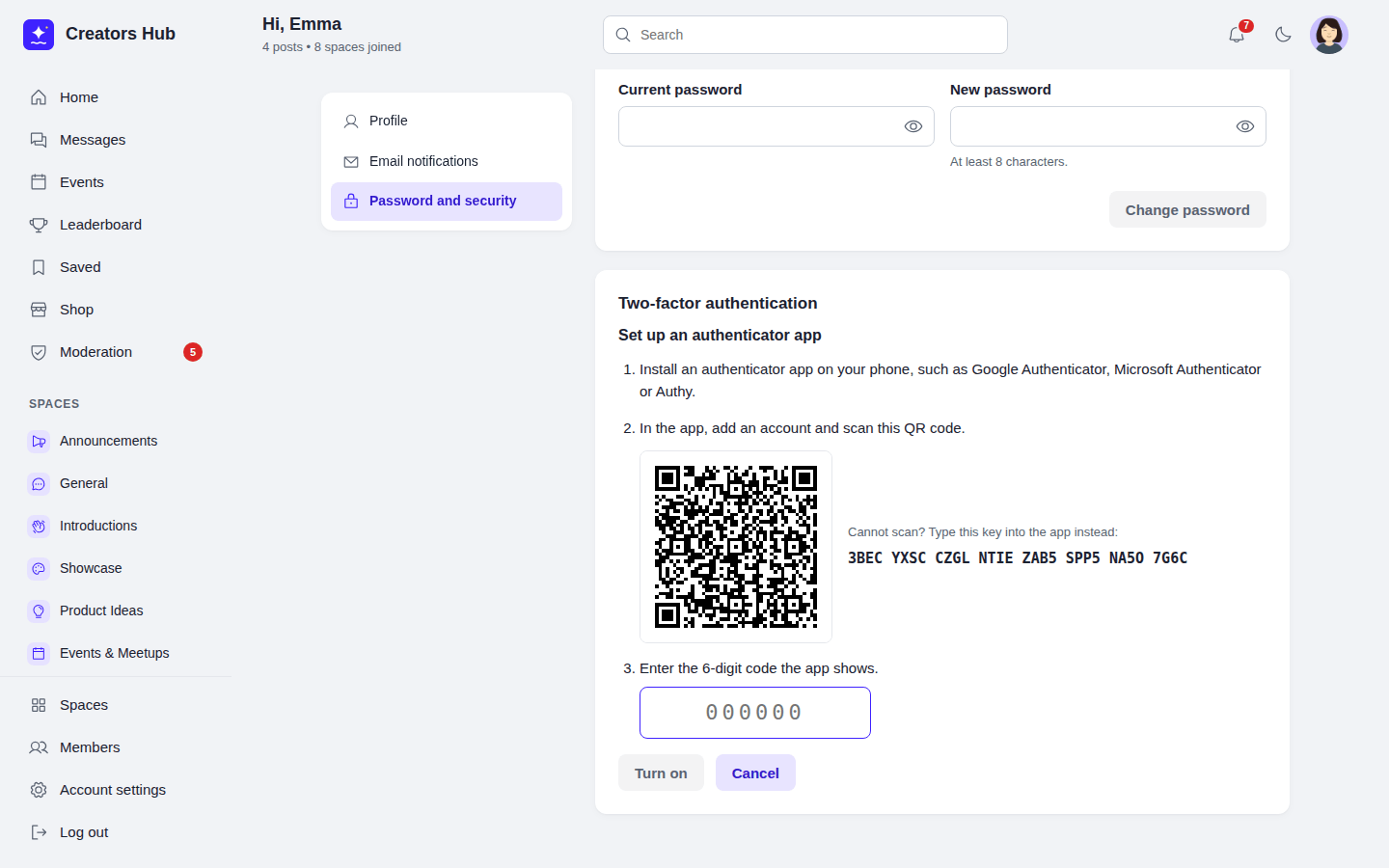
A member sets up an authenticator app.
- Backup codes. When a member turns two-factor authentication on, they get 10 backup codes to copy or download. Each works once at login, for example when their phone is lost. They can create new codes at any time.
- Required members without an app. When email codes are on offer, they get a code by email until they set up an app. With Authenticator app only, they see a “Protect your account” page (
/community/secure-account) and must set up the app before they can use the community. - Changes need the password. Turning it on or off and creating new backup codes ask for the current password. Turning it on logs out the member’s other devices.
- The WordPress login page is protected too. A member with two-factor authentication who logs in on
wp-login.php(or on a form of another plugin that uses the WordPress login) is sent to the code step before they are logged in. Password logins over XML-RPC are refused for these accounts; application passwords keep working for apps.
When someone is locked out
Section titled “When someone is locked out”- A member lost their phone and backup codes: go to Users in WordPress, point at the member and select Reset two-factor. They can log in with their password and set it up again. With WP-CLI:
wp spacebay two-factor reset <user>. To see how a member logs in:wp spacebay two-factor status <user>. - You are locked out yourself (for example, the policy requires codes by email and emails do not arrive): add this line to
wp-config.phpabove “That’s all, stop editing”, log in, fix the cause and remove the line again:define( 'SPACEBAY_DISABLE_TWO_FACTOR', true );
Before you require codes by email, check that emails from your site arrive: log out and use Forgot your password?. An SMTP plugin makes delivery reliable.
Good to know:
- Two-factor authentication needs the community login pages. When you turn those off, it is switched off as well.
- If you change the security keys (salts) in
wp-config.php, authenticator apps have to be set up again, because their keys are stored encrypted with those salts. - On a network of sites the policy is set per site. Someone who logs in on another site of the network where no code is required is logged in on every site, so use the same policy on each site.
- Plugins that log people in without the WordPress login form (some social login plugins) are not covered by the code step.
 SpaceBay
 Build a community, activity feed, group chat and events on your own WordPress site.
Get SpaceBay Pro
