---
title: "Member shops"
description: "Let members open a shop on their profile and list products that link to their own store. SpaceBay never takes payments."
---
Members can open a shop on their profile and show what they make or sell. Every product has a name, an optional price, up to four photos, a description and a link to the page where people buy it: their own online store, a marketplace page or a social page. The button on the product opens that page in a new tab. **SpaceBay never takes payments** and has no cart or checkout.
Video (28 s): a member adds a product with a photo to their shop.
## Shop settings
Go to **SpaceBay → Settings → Shops**. Shops are off until you turn on **Member shops**.
| Setting | Default | What it does |
| --- | --- | --- |
| Member shops | Off | Members can ask to open a shop on their profile. |
| New products | Approve each product | See below. |
| Products per shop | 50 | The most products one member can have, including those waiting for review. A number from 1 to 1000. |
| Shop page | On | Adds **Shop** to the community menu, with every published product and a search. |
New products can be handled in two ways:
- **Approve each product** (default): new products, and changes to the name, price, text, photos or link of a product, wait until an admin approves them.
- **Publish automatically**: products show right away.
In both modes, a product with a [blocked word](/spacebay/user-guide/moderation/) waits for review, and a product an admin rejected only comes back after an admin approves it. Shop names with blocked words are refused.
## Opening a shop
1. The member opens their profile, clicks the **Shop** tab and then **Ask to open a shop**. They can give a shop name and say what they will sell.
2. Admins get a notification. Under **SpaceBay → Shops → Shop requests** (or on the member's Shop tab) they click **Approve** or **Refuse** with a reason the member sees.
3. The member gets a notification and can add products with **Add product**.
Admins can also open a shop for a member who never asked (**Sellers** or **Shop requests** tab, **Open a shop for a member**) and get their own shop right away. Other members see a Shop tab on a profile once that shop has a published product.
## Trusted sellers
On the **Sellers** tab, switch on **Trusted** for a seller whose products should show without review, even when every product needs approval.
## Reviewing products
**SpaceBay → Shops → Products to review** lists the products waiting for you, with their link so you can check it first. Click **Approve**, or **Reject** with a reason the seller sees. If the seller changes a product while you look at it, SpaceBay asks you to check it again before approving. Admins can also review from the product itself in the community.
## Showing products in the feed and in spaces
Products always show in the seller's shop and on the Shop page. To show a product to more people, open **All products**, click **Where it shows** and tick **The main feed (Home)** and any spaces. Chosen products show in a row called “From our members' shops” at the top of Home or of the space. Members only see it in a space they can read. A product that goes back to review leaves these places until it is approved again.
*SpaceBay → Shops, All products, with “Where it shows” open.*
## Closing a shop
On the **Sellers** tab, **Close shop** hides every product of that shop. The seller sees your reason and can still delete their products. **Open shop again** brings everything back. Products of suspended members and of members with a hidden profile are also hidden.
## The Shop page
With **Shop page** on, the community menu has a **Shop** link with every published product and a search. Each product has its own link (for example `/community/shop?product=12`) to share.
*The Shop page.*
**Privacy.** Shops and products are part of the WordPress personal data export and erasure. Deleting a member deletes their shop, products and photos.
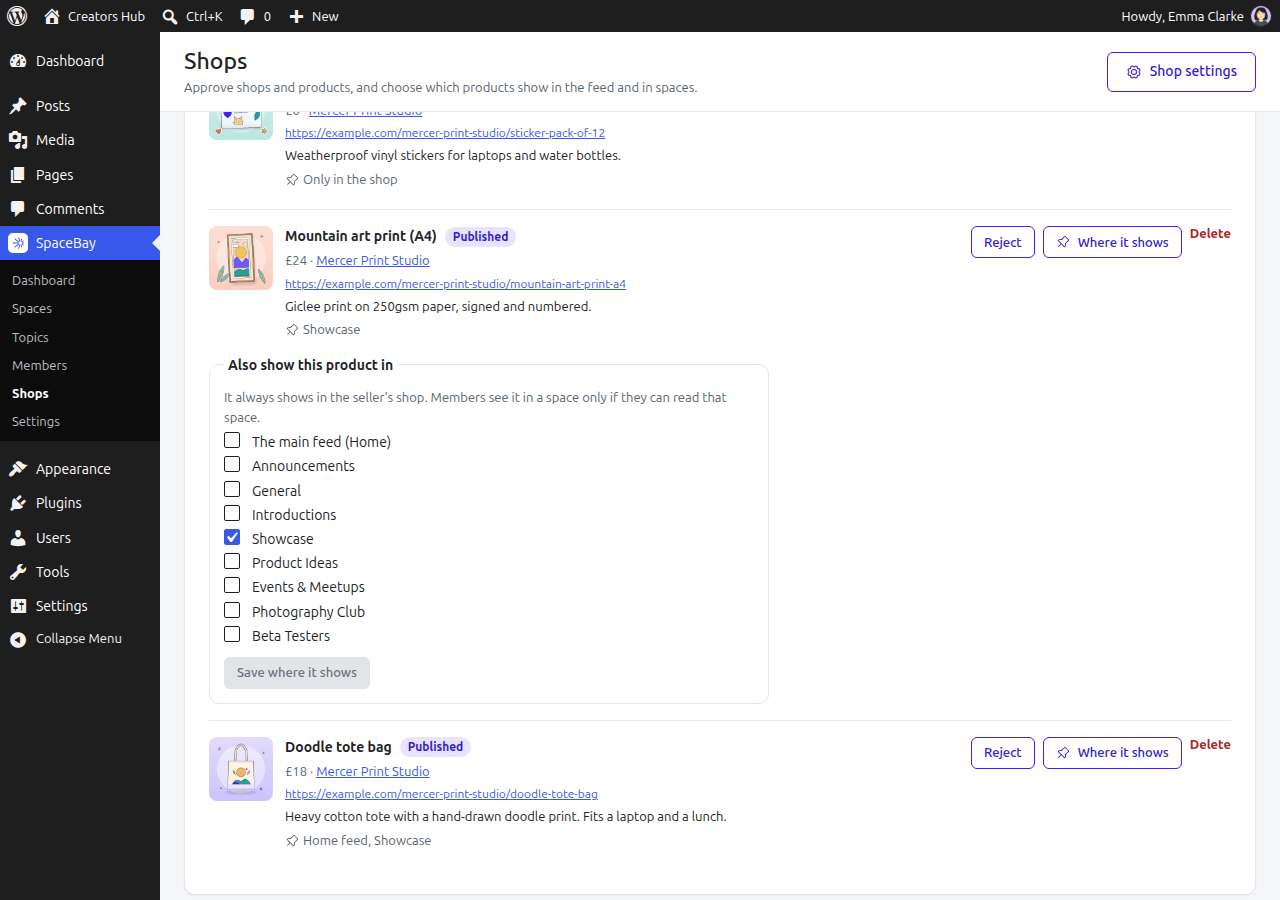 *SpaceBay → Shops, All products, with “Where it shows” open.*
## Closing a shop
On the **Sellers** tab, **Close shop** hides every product of that shop. The seller sees your reason and can still delete their products. **Open shop again** brings everything back. Products of suspended members and of members with a hidden profile are also hidden.
## The Shop page
With **Shop page** on, the community menu has a **Shop** link with every published product and a search. Each product has its own link (for example `/community/shop?product=12`) to share.
*SpaceBay → Shops, All products, with “Where it shows” open.*
## Closing a shop
On the **Sellers** tab, **Close shop** hides every product of that shop. The seller sees your reason and can still delete their products. **Open shop again** brings everything back. Products of suspended members and of members with a hidden profile are also hidden.
## The Shop page
With **Shop page** on, the community menu has a **Shop** link with every published product and a search. Each product has its own link (for example `/community/shop?product=12`) to share.
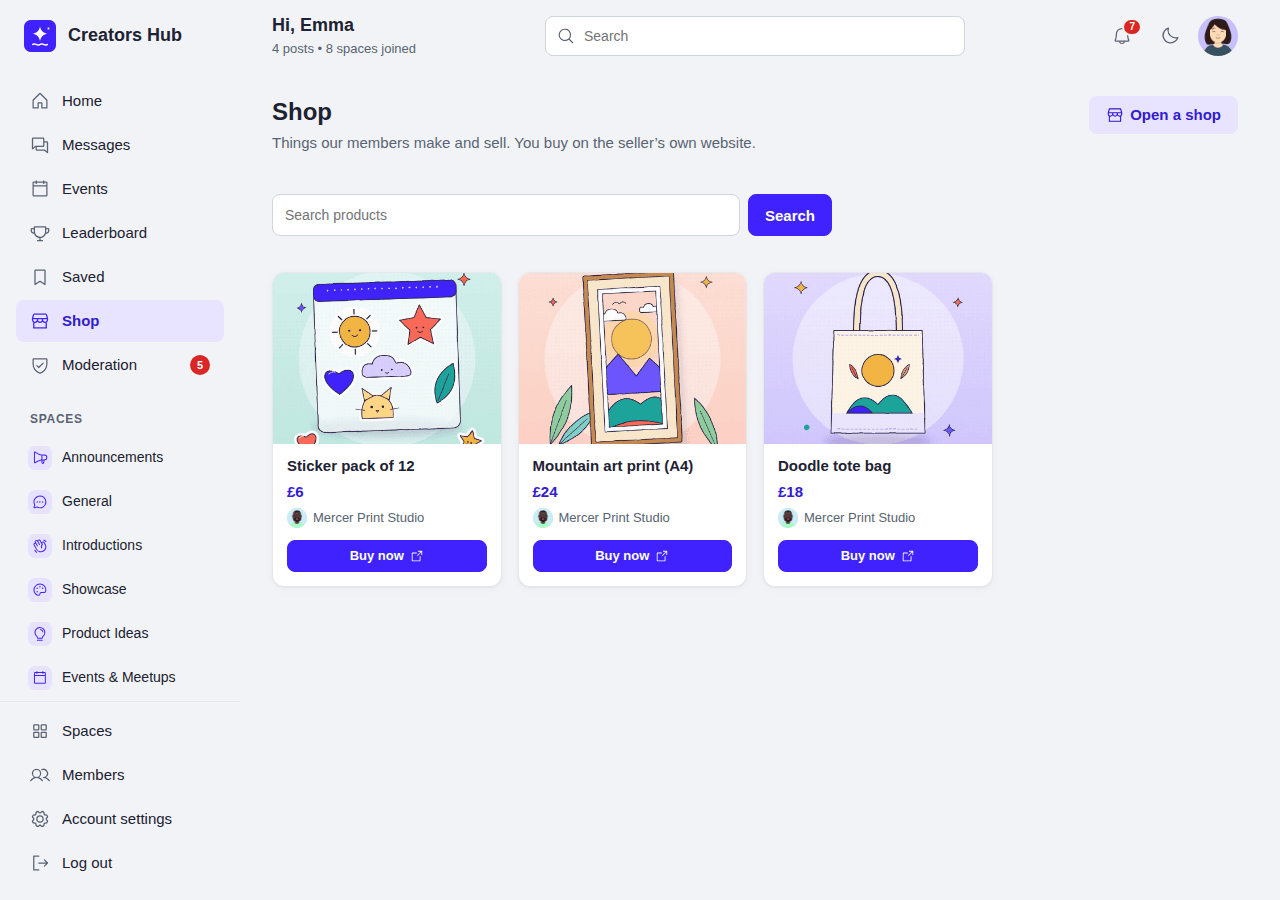 *The Shop page.*
**Privacy.** Shops and products are part of the WordPress personal data export and erasure. Deleting a member deletes their shop, products and photos.
*The Shop page.*
**Privacy.** Shops and products are part of the WordPress personal data export and erasure. Deleting a member deletes their shop, products and photos.