
Managing Stock Items
This page covers creating, editing, adjusting, and deleting your Global Stock Items from both the centralized inventory modal and directly inline within the Addon Builder.
Opening the Inventory Manager
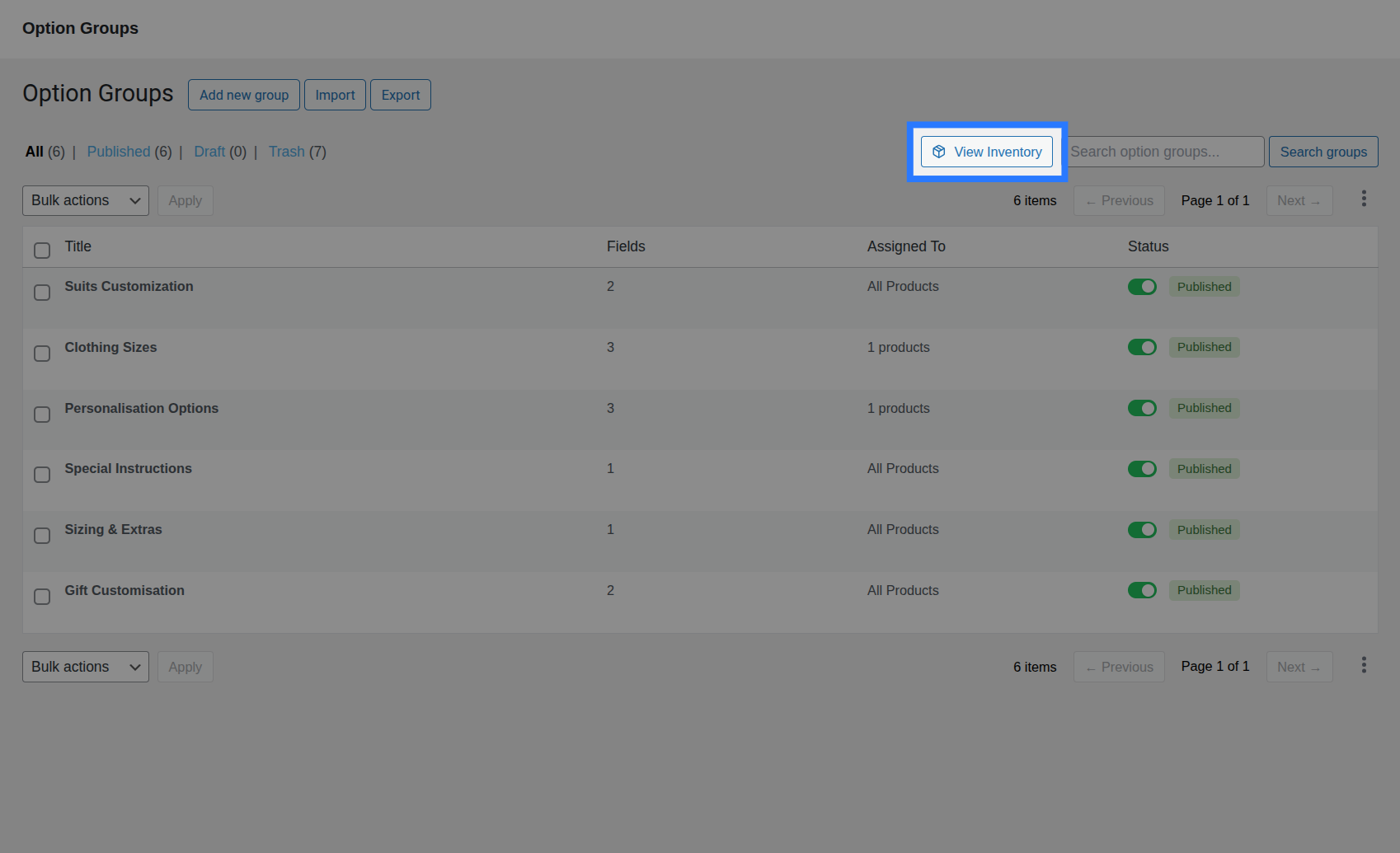
The inventory manager is a centralized dashboard accessible from your main Option Groups page:
- Navigate to Products → Options in your WordPress admin sidebar.
- Click the View Inventory button (📦 icon) located in the top-right controls toolbar.
- The inventory manager opens as an overlay modal, allowing you to manage all global stock pools without leaving the page.
Creating a New Item
To add a new global inventory pool to your store:
- Click the Add Item button at the top of the inventory modal.
- Complete the configuration form:
- Name: Enter a unique, descriptive internal name for the stock pool (e.g.
Gift Wrap Sheets,Laser Engraving Slots). Make it specific enough to identify what resource it tracks. - Stock Count: Enter the starting available inventory level. Decimals are supported, allowing for fractional stock tracking (e.g.
150.5meters of fabric or pounds of material). - Allow Backorders: Toggle this switch to control out-of-stock behavior. When enabled, customers can continue selecting this option even if stock reaches
0or negative values. If disabled, Smart Product Options and Addons blocks selection and checkouts as soon as stock is depleted.
- Name: Enter a unique, descriptive internal name for the stock pool (e.g.
- Click the Save button.
The new inventory item is created in the database and immediately appears at the top of your list table, ready to be linked to fields.
Editing Stock Count & Backorders
Keep your stock pools up-to-date by adjusting their details directly in the table:
Adjusting Stock Count
To update the available inventory level:
- Locate the item in the inventory modal table.
- Click either the Adjust Stock text button on the right-side Action column, or click the numeric stock status value itself.
- The stock status text transforms inline into a number input field with a checkmark (✓) button.
- Enter the new stock value and click the ✓ button (or press Enter). The change is saved instantly. To discard the edit, press Escape.
Toggling Backorders
To change backorder permissions:
- Locate the item in the inventory modal table.
- Under the Backorders column, click the status badge (shows either Allowed in blue or Denied in grey).
- The badge toggles instantly on click, communicating the update immediately to the backend.
::: note Immutable Pool Names To prevent broken references or developer confusion, the internal Name of a Global Stock Item cannot be edited after creation. Choose names carefully when creating new pools. :::
Adjusting Stock After Manual Refunds
If you manually refund or return items outside of WooCommerce's standard order cancellation flow (e.g. a manual customer service replacement), remember to open this modal and manually increment the stock count. Smart Product Options and Addons only automatically restores inventory during the official woocommerce_order_status_cancelled or woocommerce_order_status_refunded events.
Deleting Stock Items
To protect integrity and prevent breaking linked option groups, Smart Product Options and Addons does not expose a delete action for inventory pools in the admin dashboard.
If you have a stock pool that is no longer needed:
- Simply unlink it from any option settings in the Addon Builder.
- The pool will remain in the database as a dormant inventory item, but will not impact frontend behavior or perform any active stock checks.
- If permanent deletion is absolutely required, it must be performed directly in your WordPress database by removing the corresponding row from the
wp_smart_product_options_addons_inventorytable. Ensure all option links are removed first.
Creating Items Inline from the Builder
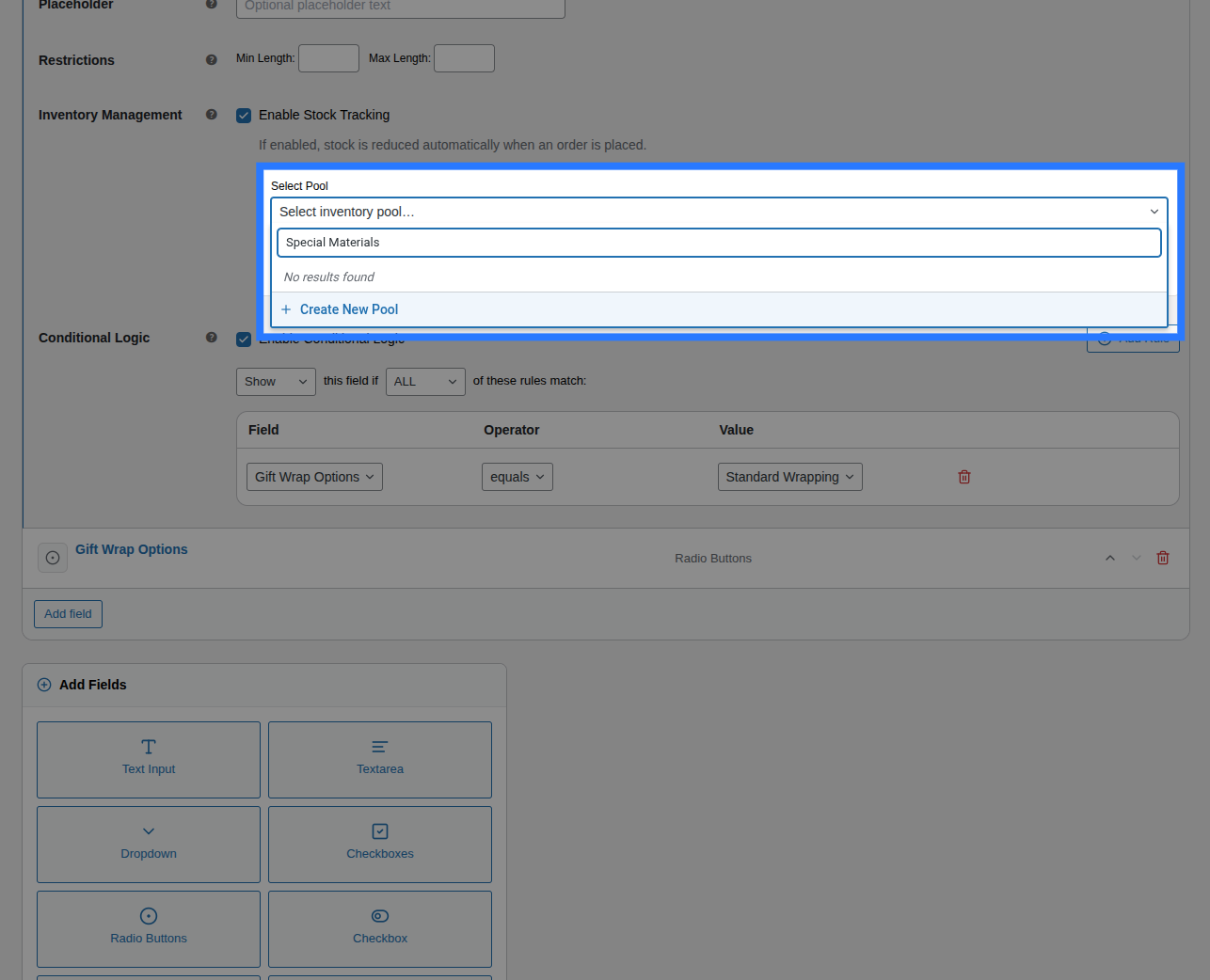
You do not need to pre-create all your inventory pools in the modal first. Smart Product Options and Addons lets you create stock items dynamically while you are building your fields:
- Inside the Addon Builder, open the configuration panel of any field.
- Switch to the Stock tab.
- Toggle Enable Stock Management on.
- Click into the Inventory Item search select box and start typing the name of the new stock item you want to create.
- If no matching item exists, a special option appears at the bottom of the dropdown: Create new "[name]".
- Click that option. Smart Product Options and Addons immediately creates the new global stock pool with a starting count of
0and links it to your field.
You can configure the starting stock count or enable backorders for this newly created item later by opening the main inventory modal.
Manually Adjusting Stock
The inventory modal allows you to adjust stock counts to any integer or decimal value at any time. This manual control is useful in several scenarios:
- Receiving New Stock: Simply edit the item and add the new arrival count to the current number.
- Temporarily Suspending Options: Set the stock count to
0and toggle backorders off. This instantly disables the option on the frontend of all products that link to it. - Production Cycle Resets: Reset stock counts to maximum capacity at the start of a new week or month if you have rolling production caps (e.g. resetting a weekly "Engraving Slots" pool back to
50every Monday).
Viewing Current Stock Levels
The table in the inventory modal always displays the live current count as recorded in the database. This value accounts for all completed checkout orders that have permanently deducted stock.
- Available Stock vs. Cart Reserved: The stock count shown in the modal table is the absolute count in your database. It does not subtract items that are currently sitting in active, unpurchased customer carts.
- Real Availability Checks: While the table shows the absolute database value, the frontend product page and add-to-cart validations do account for cart reservations. If a customer is viewing the product page, Smart Product Options and Addons subtracts active reservations to determine if they can select the option.