
Order Management
Smart Product Options and Addons automatically attaches the customer's selected options to every WooCommerce order. No manual setup or custom development is required — the options data is captured, calculated, and saved seamlessly during the checkout process.
How Options Appear on Orders
When a customer selects options and adds a product to their cart, those choices are temporarily stored in the customer's WooCommerce cart session under the key smart_product_options_addons_addons.
Upon successful checkout, this session data is transformed into permanent order item metadata attached directly to the specific WooCommerce order line item.
In the WooCommerce Admin Order Screen
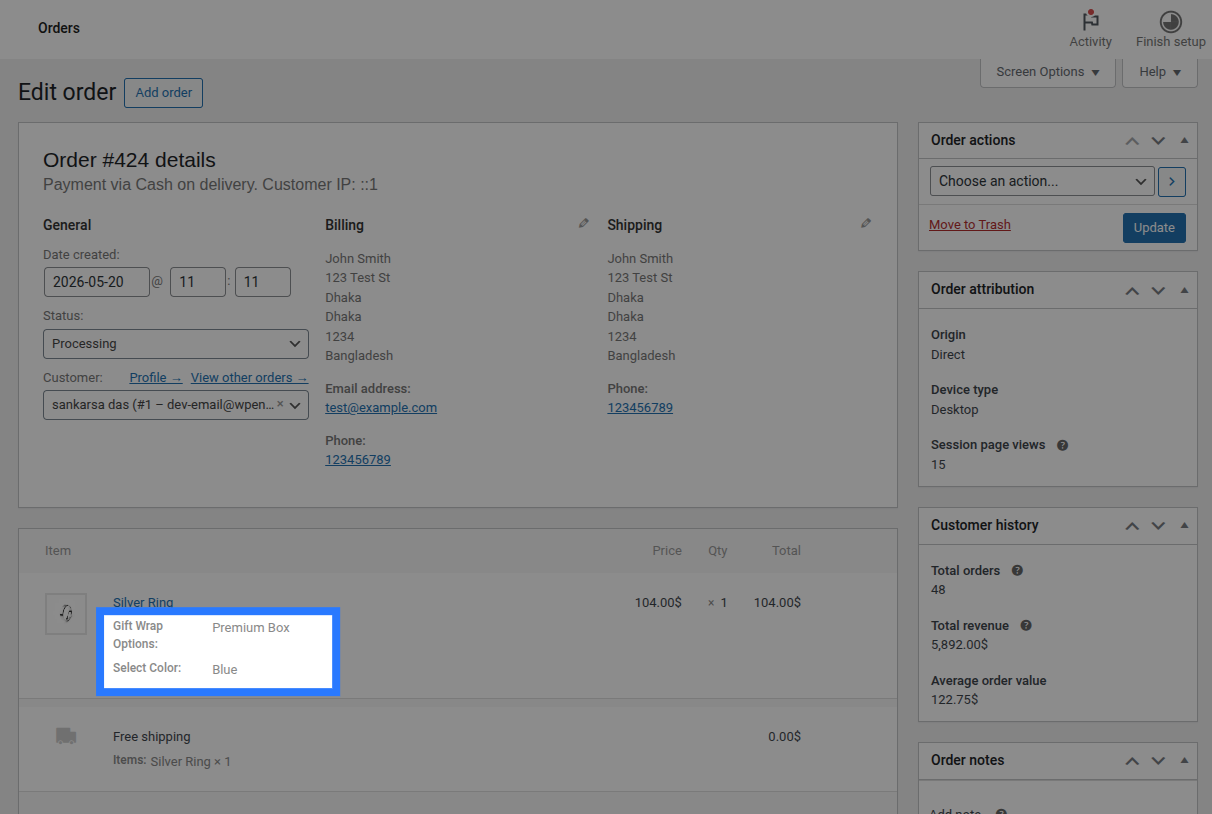
When viewing any order containing Smart Product Options and Addons selections, the customer's choices are displayed directly below the product name in the Order Items admin panel:
- Text, Area, Number, and Email fields: Display the field's label followed by the customer's typed value (e.g.
Engraving Text: Happy Birthday!). - Choice-based fields (Dropdowns, Radios, Checkboxes, Swatches): Display the field's label followed by the text label of the selected choice (e.g.
Gift Wrap?: Yes). - File Upload fields: Display the field's label followed by a clickable, secure URL pointing directly to the uploaded file in your WordPress uploads folder (e.g.
File Upload: https://site.com/wp-content/uploads/smart-product-options-addons/design.png).
Options in Cart and Checkout pages
Before the order is completed, Smart Product Options and Addons displays selected options on frontend transactional pages:
- Cart Page: Each selected option appears as a formatted list row beneath the product title in the cart table.
- Checkout Page: The option rows are mirrored in the checkout order review table, giving the customer a final chance to verify their selections before paying.
Pricing on Orders
Smart Product Options and Addons bakes option pricing adjustments directly into the product line item price rather than adding them as separate order fees.
- Unified Price Calculations: If a
$50.00product has a+$5.00option checked, WooCommerce treats the product price as$55.00inside the cart and checkout. - Receipt Totals: The invoice displays the item at
$55.00(or$110.00for quantity 2), with the option labels listed below to explain the surcharge.
Maximum System Compatibility
By modifying the product line item price directly instead of generating separate "fee lines", Smart Product Options and Addons maintains 100% compatibility with:
- Tax Calculators: Tax calculation plugins (like WooCommerce Tax or TaxJar) compute taxes correctly on the adjusted total.
- Payment Gateways: Gateways (like Stripe, PayPal, or Authorize.Net) process the exact checkout total without mismatch errors.
- Invoicing Plugins: PDF Invoice generators print the correct product pricing automatically.
Stock Reduction on Order Completion
For options linked to a Global Stock Item, Smart Product Options and Addons triggers stock deductions during WooCommerce's stock reduction hook (woocommerce_reduce_order_stock):
- Checkout Check: Smart Product Options and Addons does a final live stock check at checkout submit.
- Hook Trigger: Once payment is authorized and WooCommerce reduces catalog stock, Smart Product Options and Addons intercepts the action.
- Inventory Deduction: The quantities saved in the order item metadata are permanently deducted from the corresponding rows in the
wp_smart_product_options_addons_inventorytable.
Stock Restoration on Cancellation
If a customer cancels their order or a store admin manually changes the status to Cancelled or Refunded, Smart Product Options and Addons automatically returns the inventory to the global stock pool:
- Trigger: The restoration runs during the
woocommerce_order_status_cancelledandwoocommerce_order_status_refundedhook triggers. - Read Stock Intents: Smart Product Options and Addons reads the
_ob_stock_intentsmetadata attached to the order line items to know exactly how much inventory to add back. - Duplicate Prevention: To prevent restoring stock twice if an order status is toggled back and forth, Smart Product Options and Addons writes a
_ob_stock_restoredflag on the order once the restoration completes.
Viewing Order Metadata Directly
For developers, custom integration developers, or troubleshooting purposes, Smart Product Options and Addons stores its raw data on the order line items inside the database:
- Option Display Meta: The selected options are stored as standard line item metadata, where the key is the Field Label and the value is the Selected Value (e.g.
Engraving Text→Happy Birthday!). _ob_stock_intents: A serialized array stored on the line item meta. It maps the Option IDs to their linked Global Stock Item IDs and the deduction amounts. This is used by Smart Product Options and Addons during status transitions to know how much stock to return on cancellation.
You can view these keys using a database client, a WooCommerce meta viewer plugin, or via WP-CLI:
# Get the stock intent metadata for a specific order item
wp db query "SELECT meta_value FROM wp_woocommerce_order_itemmeta WHERE order_item_id = <item_id> AND meta_key = '_ob_stock_intents'"