Pricing Strategies
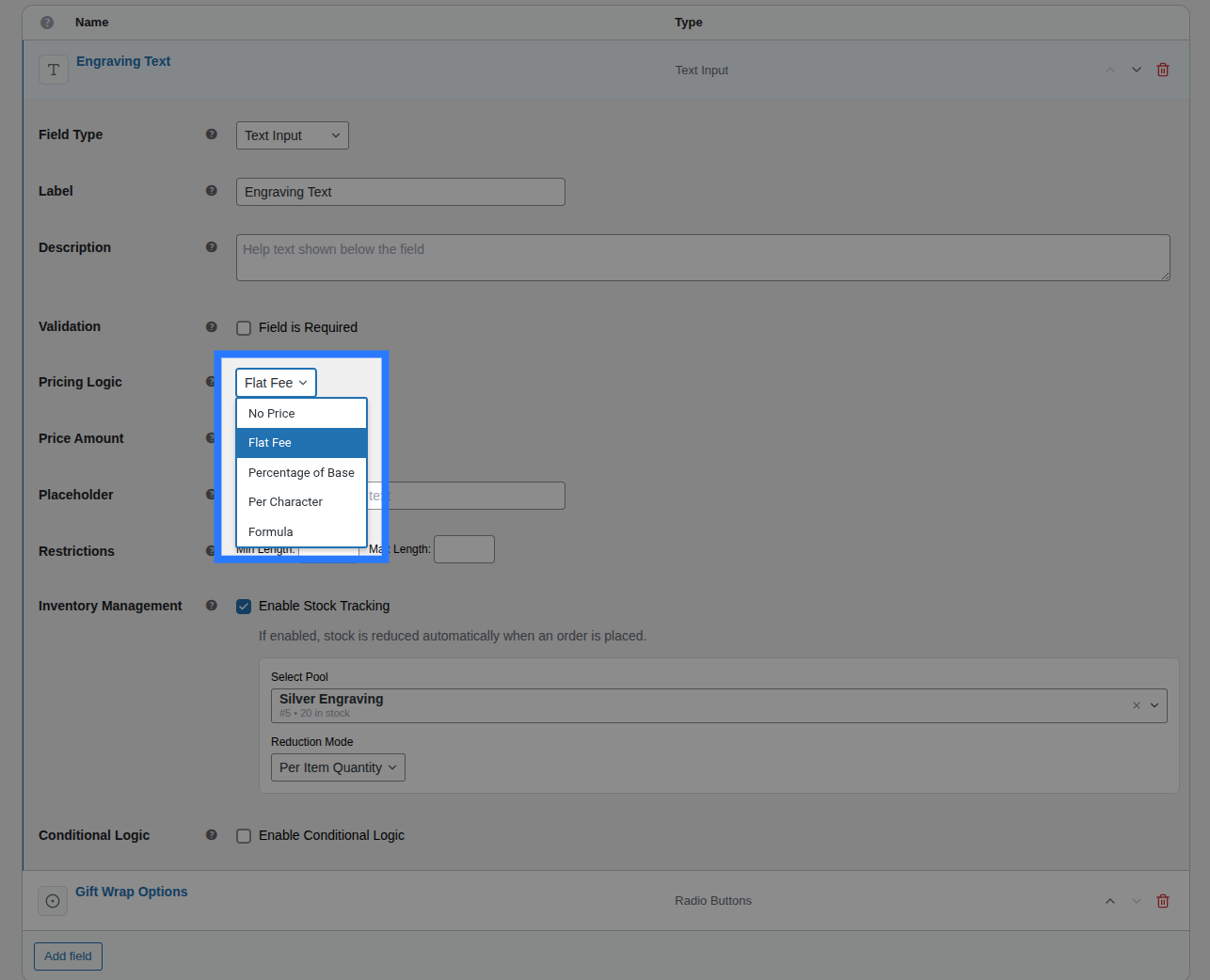
Smart Product Options and Addons supports five pricing strategies that control how a price adjustment is calculated for a field or individual choice. Every field has a Price Type setting in its Pricing tab (or option configuration accordion), and each strategy does something distinct.
Overview of Strategies
Rather than a simple lookup, here is how each strategy behaves and where it is best utilized:
- None: The field collects data but adds no extra charge to the cart. Best for gathering informational selections (e.g. engraving placement, gift message contents) without charging the customer.
- Flat Fee: Adds a fixed surcharge to the product. Best for one-off physical items or service surcharges (e.g. adding a gift box or rush handling).
- Percentage: Adds a dynamic surcharge calculated as a percentage of the product's base price. Best for optional value-adds that scale with the item value (e.g. extended warranty or premium material grades).
- Character Count: Calculates a live price adjustment based on the length of text typed. Best for custom engravings, monograms, or printed text inputs.
- Math Formula: Evaluates a custom mathematical expression at cart add time. Best for complex calculations that depend on quantity, numeric input, or character length (e.g. charging per square inch, tiered copy fees, or quantity-scaled pricing).
None
No price is applied. The field collects customer selections or text entries but adds $0.00 to the cart.
- Admin Configuration: Select None from the Price Type dropdown. No amount field is shown.
- Use Case Example: A text input asking for
Engraving Font Choiceor a select dropdown asking forDelivery Instructions. - Frontend Display: No price label is shown next to the options or fields on the product page.
Flat Fee
Adds a fixed, static surcharge to the product price whenever the field is filled or the choice is selected.
- Formula:
price delta = configured_amount - Admin Configuration:
- Set Price Type to Flat Fee.
- Enter the numerical value (e.g.
5.00) in the Price Amount input. 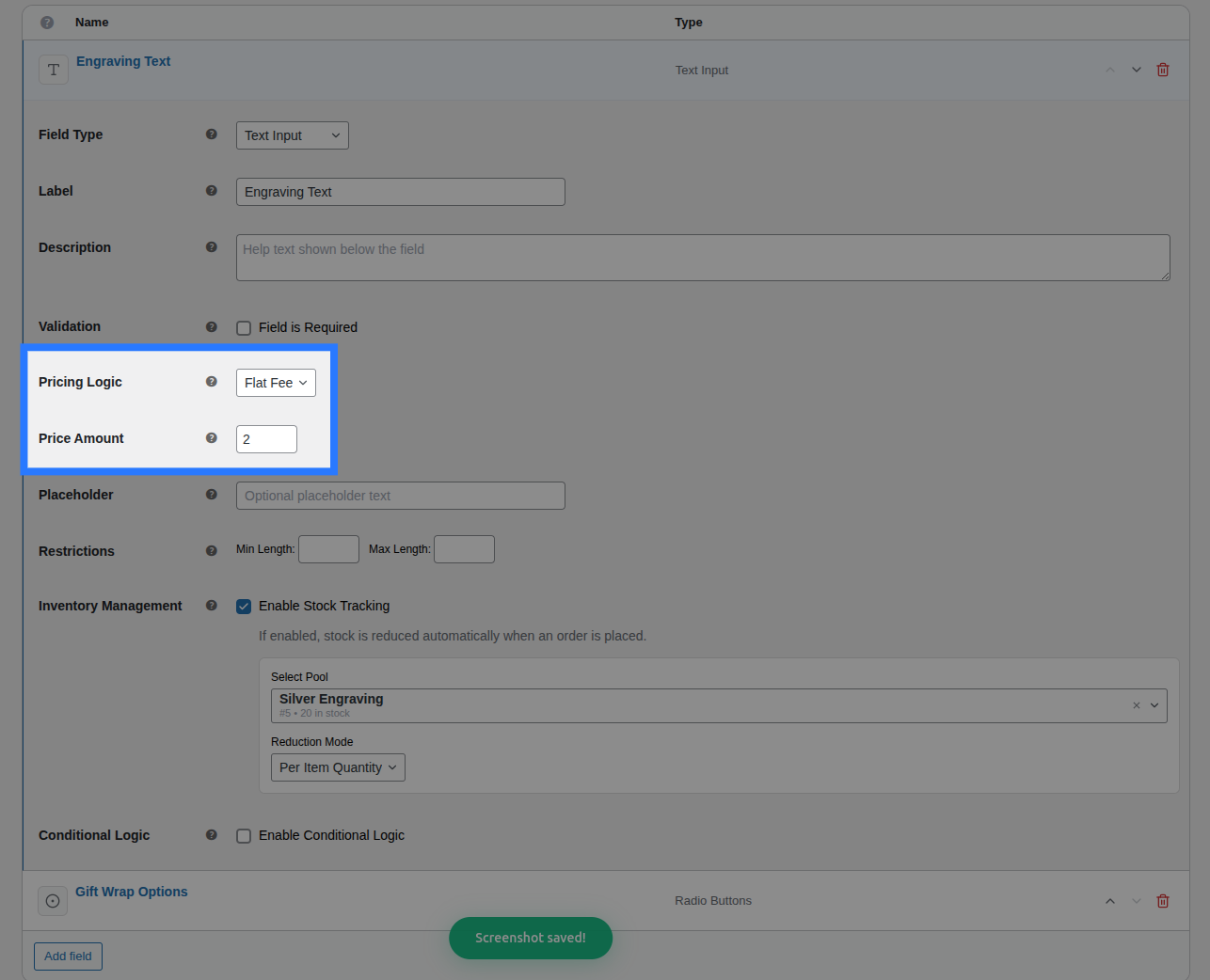
- Use Case Example: A checkbox for
Add Gift Wrappingcharging a flat+$5.00. - Works on: All field types (Text, Textarea, Number, Email, File Upload, Radio Buttons, Dropdown, Checkboxes, Swatches).
- Frontend Display: The price adjustment is formatted using your WooCommerce store's currency settings:
Gift Wrapping (+ $5.00)
Percentage
Adds a dynamic charge calculated as a percentage of the product's base price.
- Formula:
price delta = base_price * (percent / 100) - Admin Configuration:
- Set Price Type to Percentage.
- Enter the percentage number (e.g.
10for 10%) in the Price Amount input. 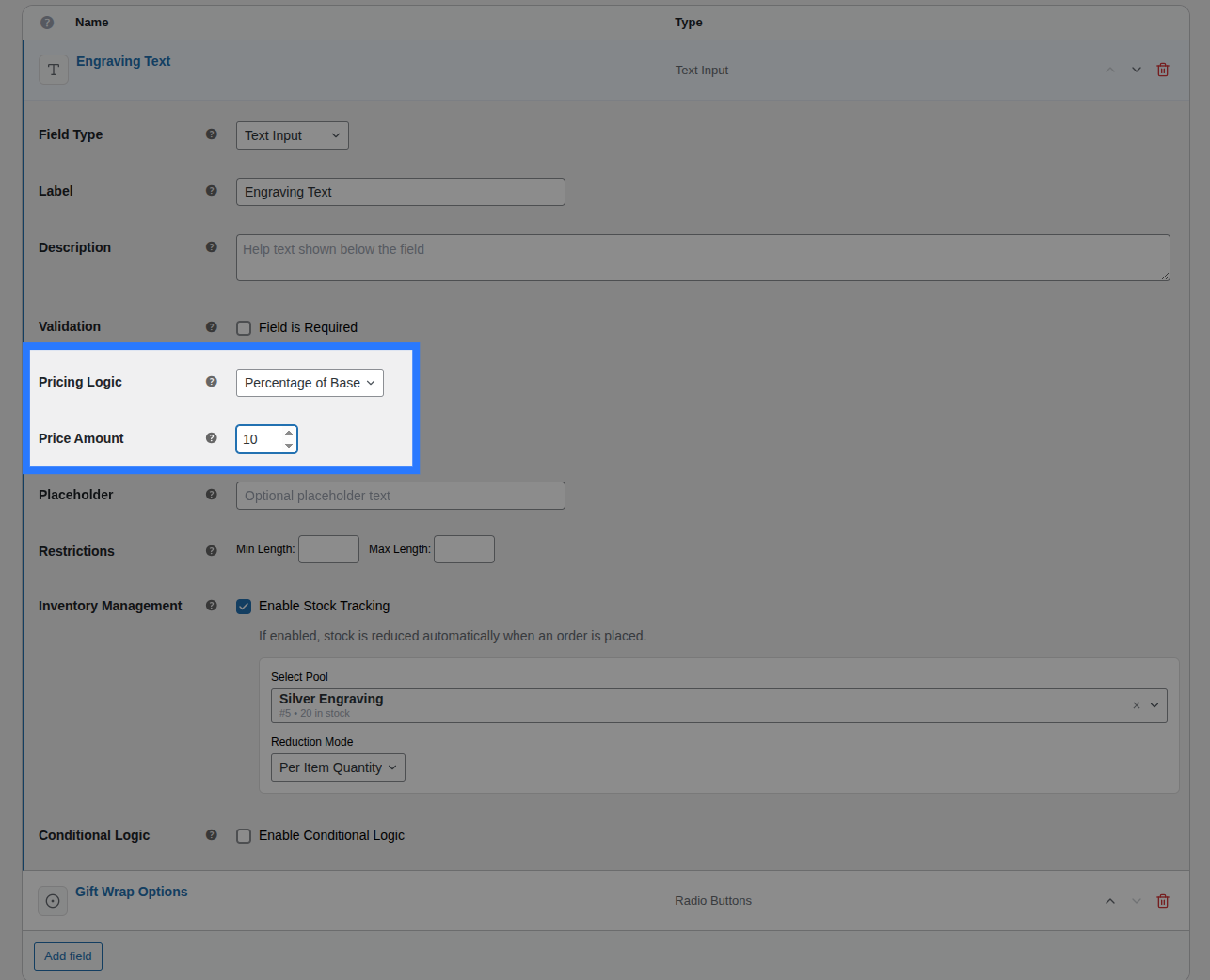
- Use Case Example: A
Priority Processingselection that adds10%to the base price of whatever product it's attached to. - Frontend Display: The price adjustment is appended as a percentage:
Priority Handling (+ 10%)
Base Price Only (Non-Compounding)
The percentage is calculated strictly against the product's base price — not the running cart total or other custom option surcharges. If you have a $100.00 product with a 10% option and a flat $5 option, the 10% option adds exactly $10.00, even if both are checked. Adding multiple percentage-priced options will not compound them.
Character Count
Multiplies a per-character rate by the number of characters the customer types. The surcharge updates live on the frontend as the customer types.
- Formula:
price delta = character_count * configured_rate(whitespace and punctuation are counted). - Admin Configuration:
- Set Price Type to Character Count.
- Enter the per-character rate (e.g.
0.50for 50 cents per letter) in the Price Amount input. 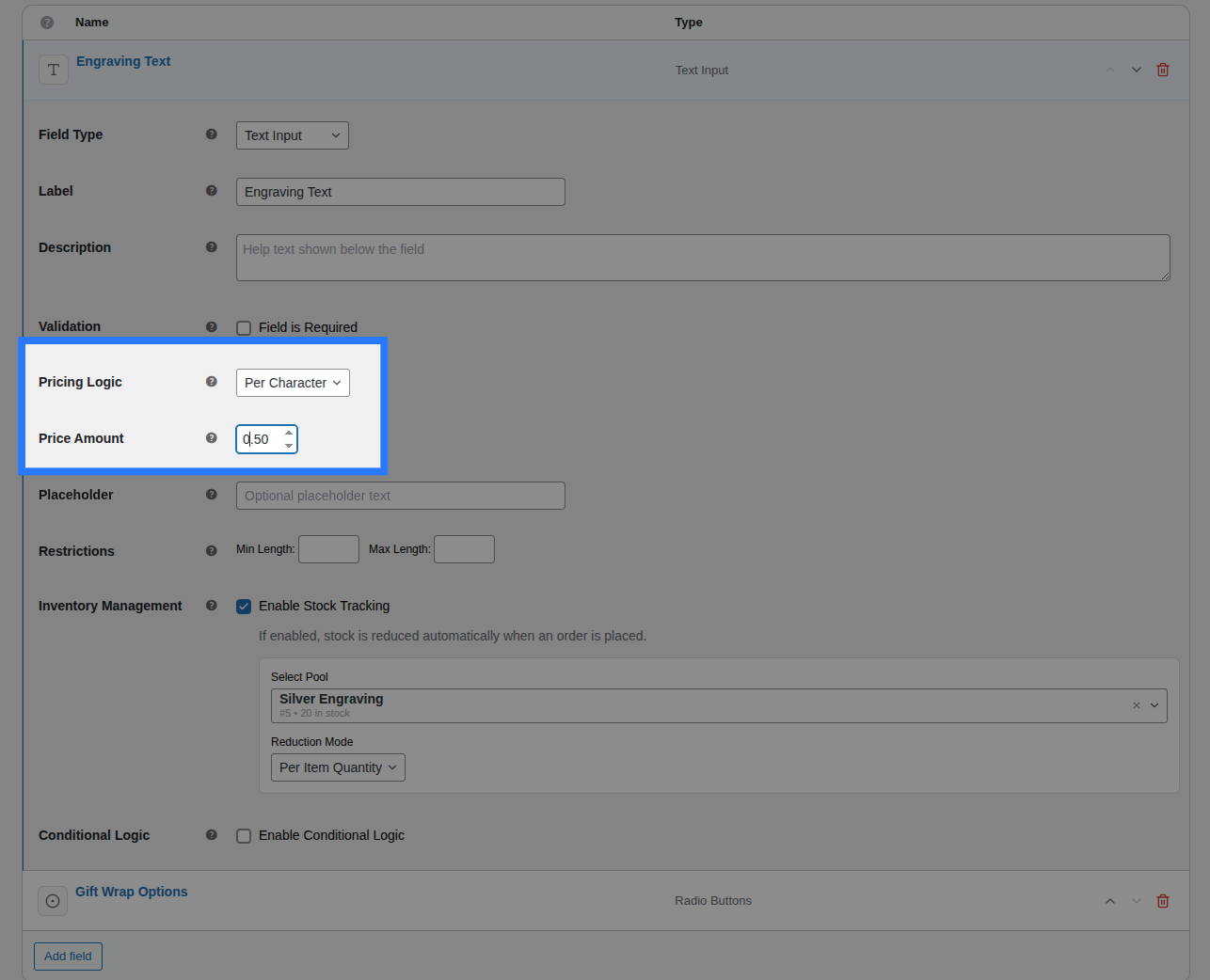
- Use Case Example: A Text Input for
Monogram Engravingthat charges$0.50per character. TypingSarahadds5 * $0.50 = +$2.50to the product price. - Works on: Text Input, Textarea, Number Input, Email Input (any field accepting typed input).
- Frontend Display: The rate is appended to the label:
Engraving Text (+ $0.50 / character)
Math Formula
Evaluates a custom mathematical expression at cart add time using the built-in MathParser library. This is Smart Product Options and Addons's most powerful pricing strategy, letting you build complex calculations using placeholders.
- Admin Configuration:
- Set Price Type to Math Formula.
- Enter the formula expression (e.g.
[char_count] * 0.50) in the Formula Expression input box. 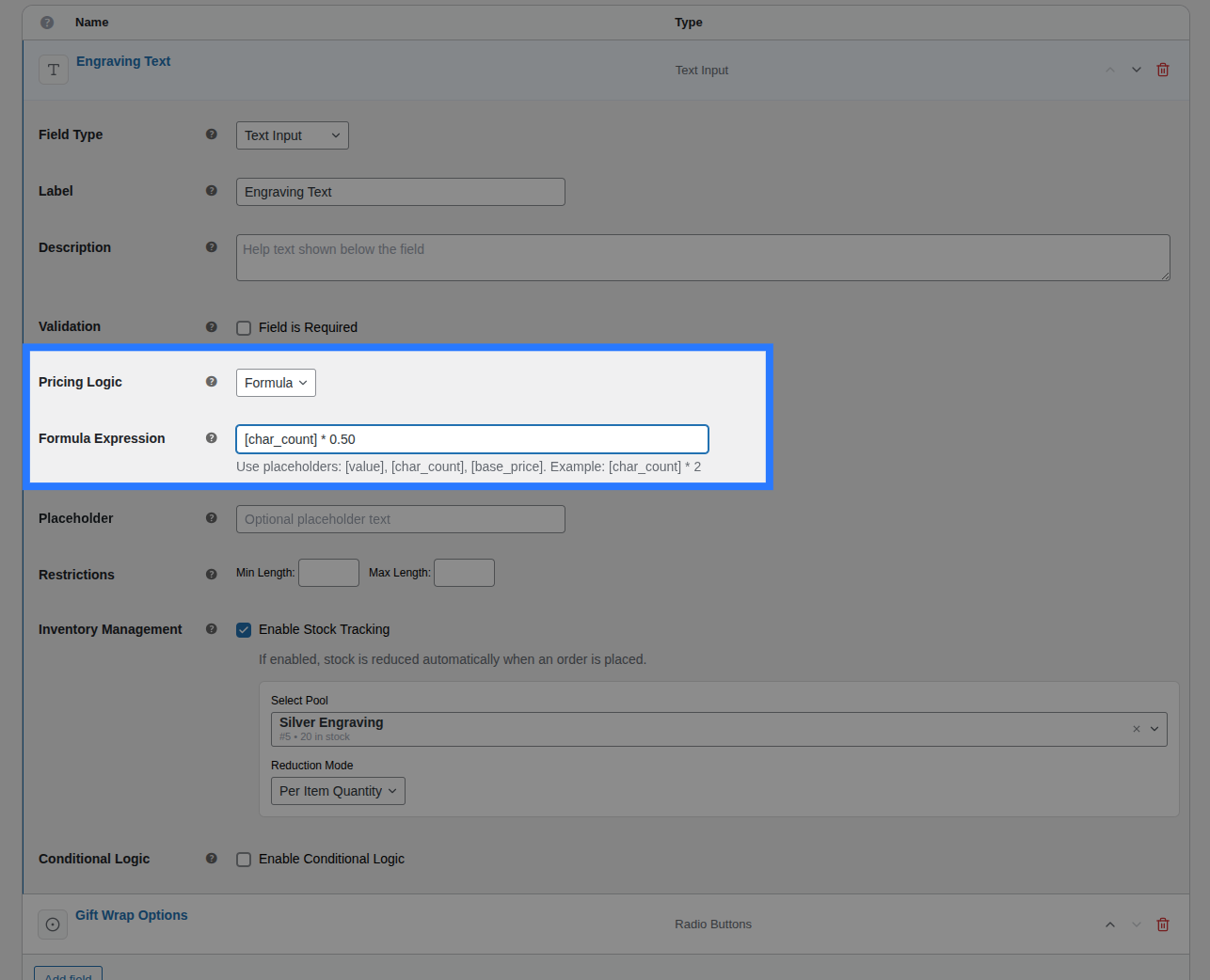
- Frontend Display: The field displays a dynamic notice indicating that the cost depends on input:
Custom Print Size (Dynamic)
Supported Placeholders
You can use the following variables in brackets inside your formulas:
[base_price]or[price]: The product's original base price before any custom option surcharges.[quantity]: The line item quantity the customer is adding to the cart.[char_count]: The number of characters currently typed into the text field (ideal for tiered engraving rates).[value]: The customer's entered numeric input. This is only available on Number Input fields.
Supported Operators
You can use standard mathematical operators and grouping parentheses to control the order of operations:
+— Addition-— Subtraction*— Multiplication/— Division( )— Grouping (parentheses are evaluated first)
Formula Examples & Use Cases
- Charge per character:
[char_count] * 0.50— Charges$0.50per character typed. - Percentage plus a flat base fee:
([base_price] * 0.05) + 2.00— Charges 5% of the product price plus a flat$2.00setup fee. - Charge per custom count (Number field):
[value] * 3.00— Let's say you have a number field for "Extra Copies". The customer enters4, adding4 * $3.00 = +$12.00to the price. - Surcharges that scale with order quantity:
[quantity] * 1.50— Charges$1.50per item ordered. - Multi-factor calculation:
[char_count] * [quantity] * 0.25— Charges$0.25per character, multiplied by the number of products ordered.
Calculation Safety & Fallbacks
To prevent broken checkouts or database errors from invalid formula strings, Smart Product Options and Addons runs a multi-step safety routine before evaluating any formula:
- Placeholder Replacement: Replaces all
[...]placeholders with their real numeric values. If a placeholder is not supported on the current field type (e.g.[value]on a text input), it is replaced with0. - Character Sanitization: Strips all characters except numbers,
+,-,*,/,.,(,), and spaces to block malicious code injection. - Division by Zero: Detects division-by-zero expressions (e.g.,
5 / 0) and returns$0.00safely. - Silent Failure: If the formula syntax is invalid and cannot be parsed by MathParser, Smart Product Options and Addons catches the error and silently returns a
$0.00surcharge rather than showing PHP errors or crashing the cart page.
Test Your Formulas
Because formula errors silently default to a $0.00 surcharge, always test your custom formula expressions on a staging site to verify they calculate the expected values before publishing them live.
Where Pricing Is Applied
Depending on the field type, pricing is configured either at the field level or at the individual option/choice level.
Field-Level Pricing
For fields that don't have multiple options (Text, Textarea, Number, Email, File Upload), pricing is configured in the Pricing tab of the field's row. The configured price adjustment applies whenever the field is filled or completed.
Option-Level Pricing
For choice-based fields (Dropdown, Radio Buttons, Checkboxes, Color Swatch, Image Swatch), pricing is configured on each individual option/choice within the General tab.
This allows you to assign different pricing strategies and amounts to different selections:
Small— Flat Fee:0.00Medium— Flat Fee:5.00Large— Flat Fee:10.00XL— Percentage:15(15% of product price)
Surcharge Compounding
If a choice-based field also has a price configured in its main Pricing tab (field-level pricing), the field-level pricing is ignored as soon as any individual option has its own price set. Option-level pricing takes absolute precedence.
Frontend Price Summary (Live Totals)
All price adjustments are calculated in real time in the browser as the customer interacts with your fields.
- Live Calculations: As soon as a user selects a checkbox, chooses a dropdown option, or types in a character-count text box, the pricing engine computes the adjustments.
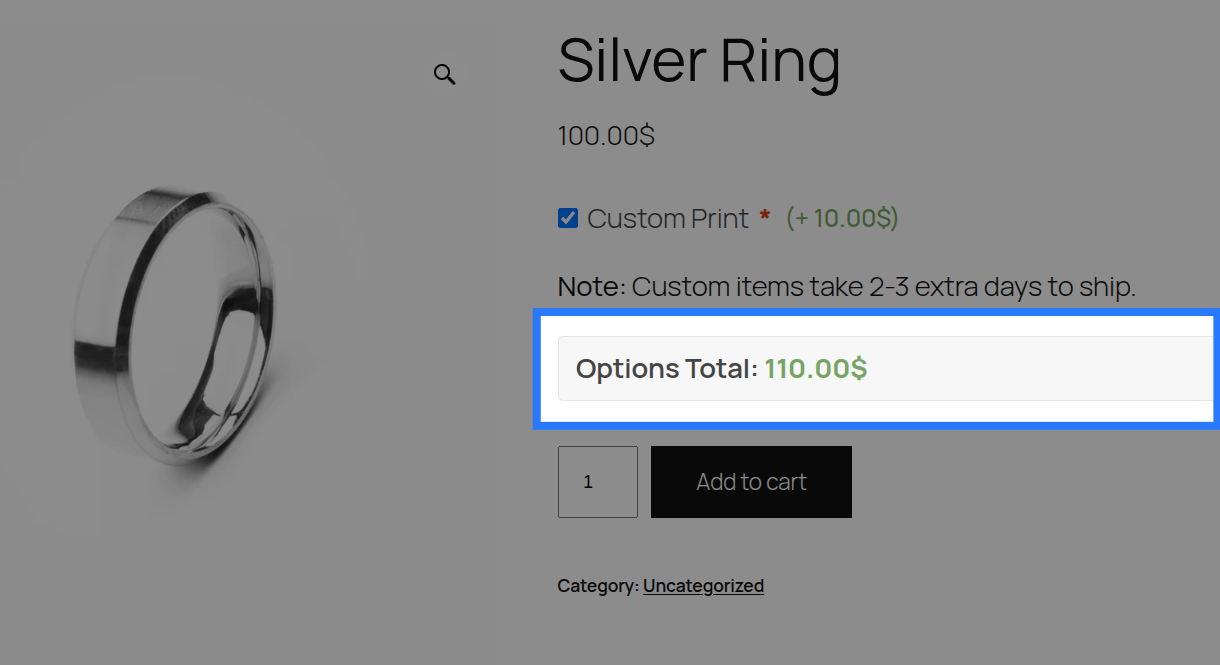
- Totals Block: Smart Product Options and Addons displays a detailed summary block directly above the Add to Cart button. This block breaks down the calculations so the customer knows exactly what they are paying:
- Product Price: The base price of the item.
- Options Total: The sum of all active option surcharges.
- Total Price: The final price (Base + Options).