
Color Swatches
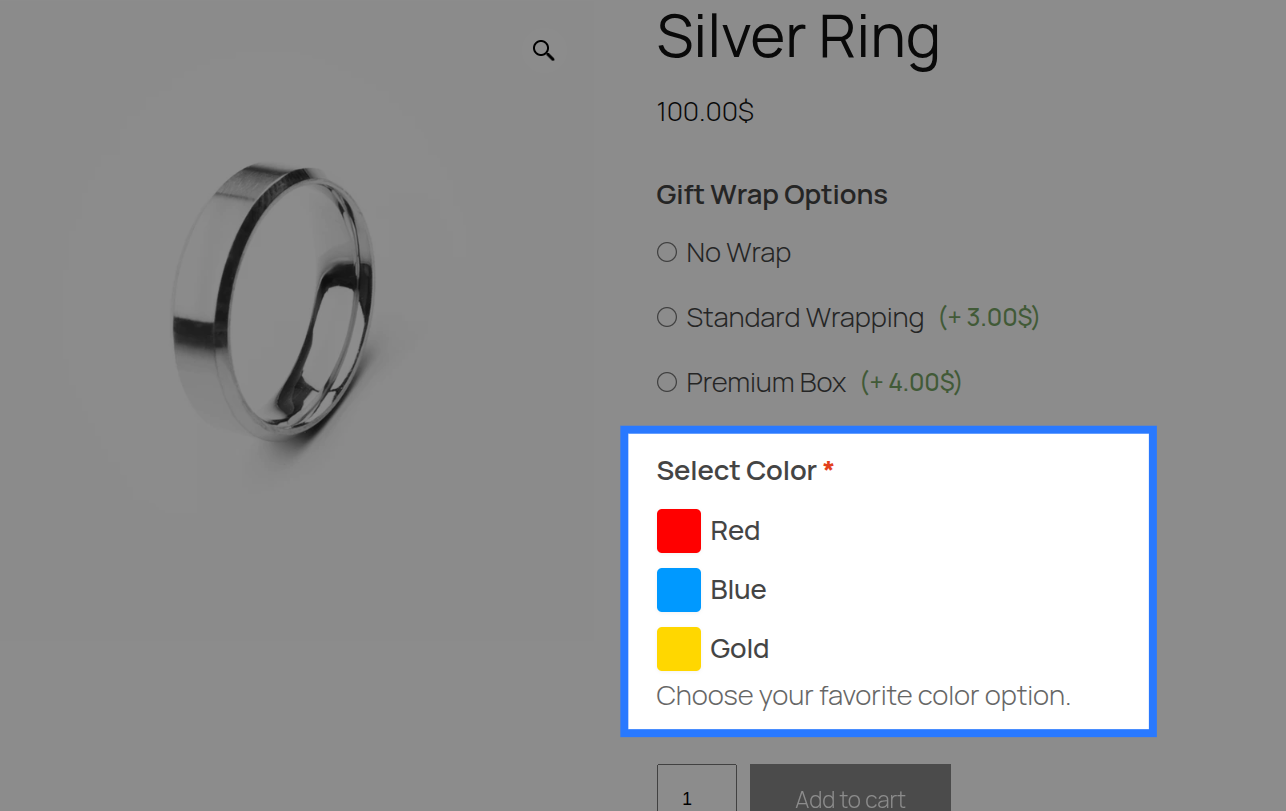
Color Swatches present choices as small colored squares or circles that customers click to select. Only one swatch can be active at a time (single choice). Each swatch maps to a hex color value; the visual color is rendered automatically by CSS.

When to Use
- Product color selection (when not using WooCommerce variations)
- Thread, ribbon, or ink color for personalised products
- Paint or finish color for custom orders
- Any single-choice selection where a colored visual is clearer than a dropdown label
Configuration Settings
When you add a Color Swatch field in the Addon Builder, you can configure the following inputs across different sections:
General Settings
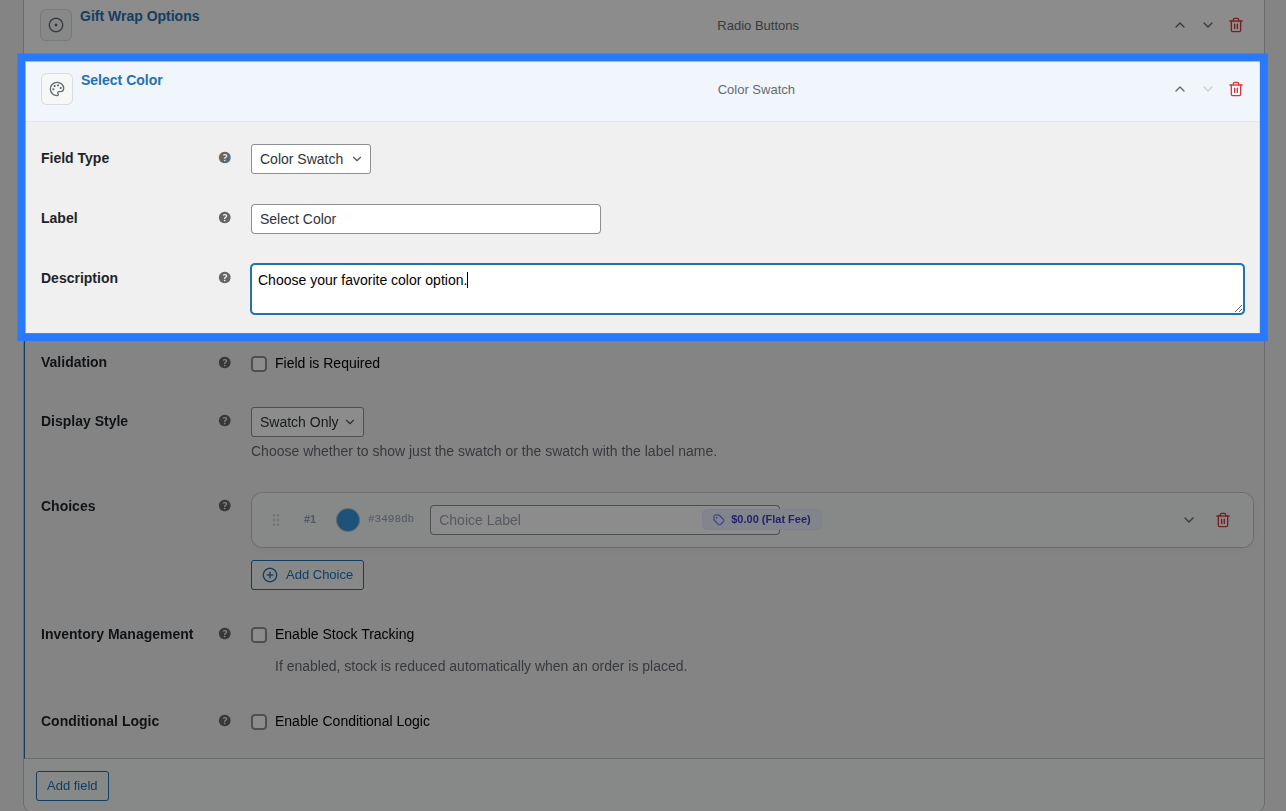
- Label: The main heading shown above the swatches. Used to identify the field group in the cart and order details.
- Description: Additional helper text shown below the swatches. Useful for providing instructions.
Options Configuration
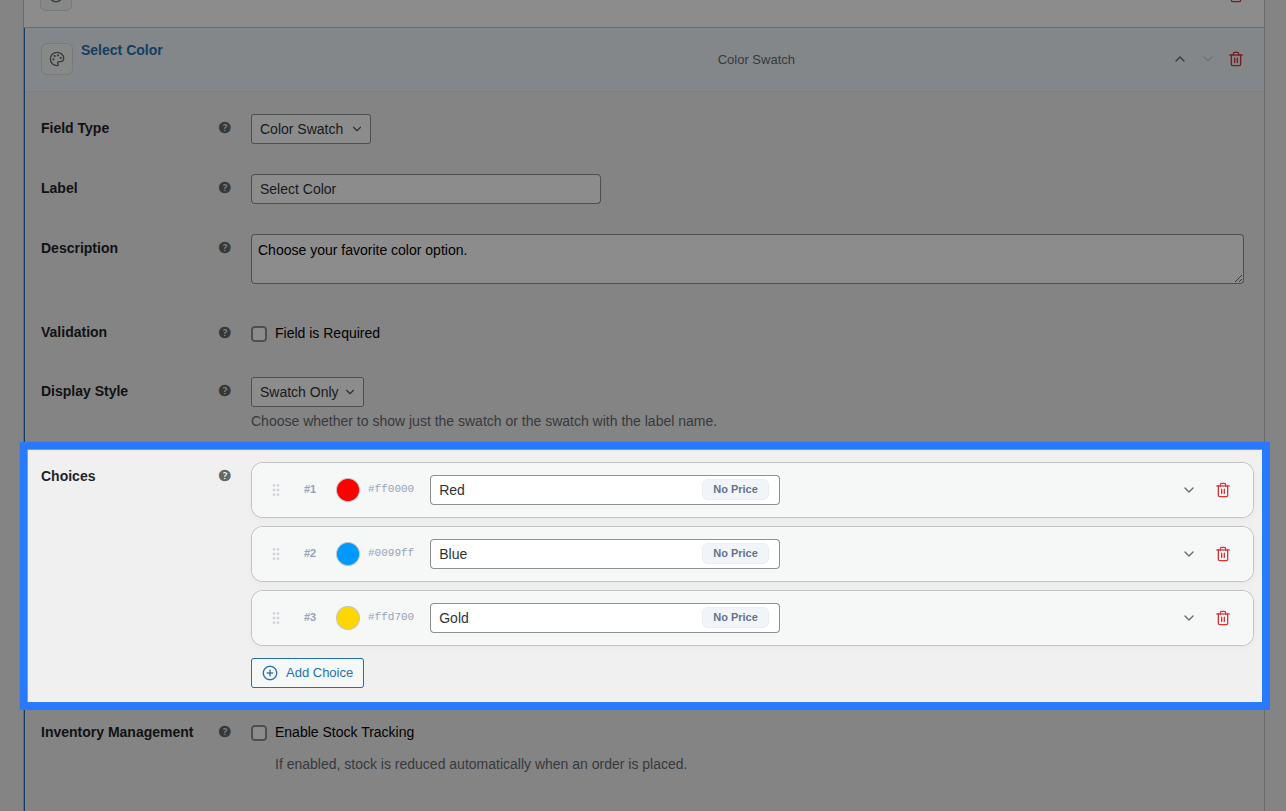
Within the main Options block, you define the actual color choices by clicking the Add Choice button. For each choice card in the list, you have access to inline inputs and an expandable settings panel.
Inline Editor (Always Visible):
- Drag Handle: Use the left-side grip icon to drag and drop choices to reorder how they appear on the frontend.
- Color Picker: Click the circular color bubble to open a visual picker, or type the exact Hex/RGBA code (e.g.
#1B3A6B). - Label: The primary text shown next to the swatch on the frontend, and in the cart (e.g.
Navy Blue). - (System Value): Smart Product Options and Addons automatically generates a system-friendly
valuebehind the scenes by lowercasing your Label and replacing spaces with underscores.
Expanded Settings Panel: Click the downward chevron icon on the right side of any choice card to expand its advanced settings:
- Price Type: Choose how this specific color is priced (
None,Flat Fee,Percentage, orFormula). Read the Pricing Guide → - Price Amount / Formula Expression: Appears if a price type is selected. Enter the monetary surcharge or the dynamic math formula.
- Weight (kg): Enter a numeric value to add physical shipping weight to the cart when this option is ticked.
- Stock Tracking: A toggle that, when enabled, opens the per-option inventory controls. Read the Stock Linking Guide →
- Select Pool: Choose which Global Stock Item to link this color to.
- Reduction Mode: Choose how stock is deducted (
Per Item Quantity,Per Line Item, orFormula).
Validation
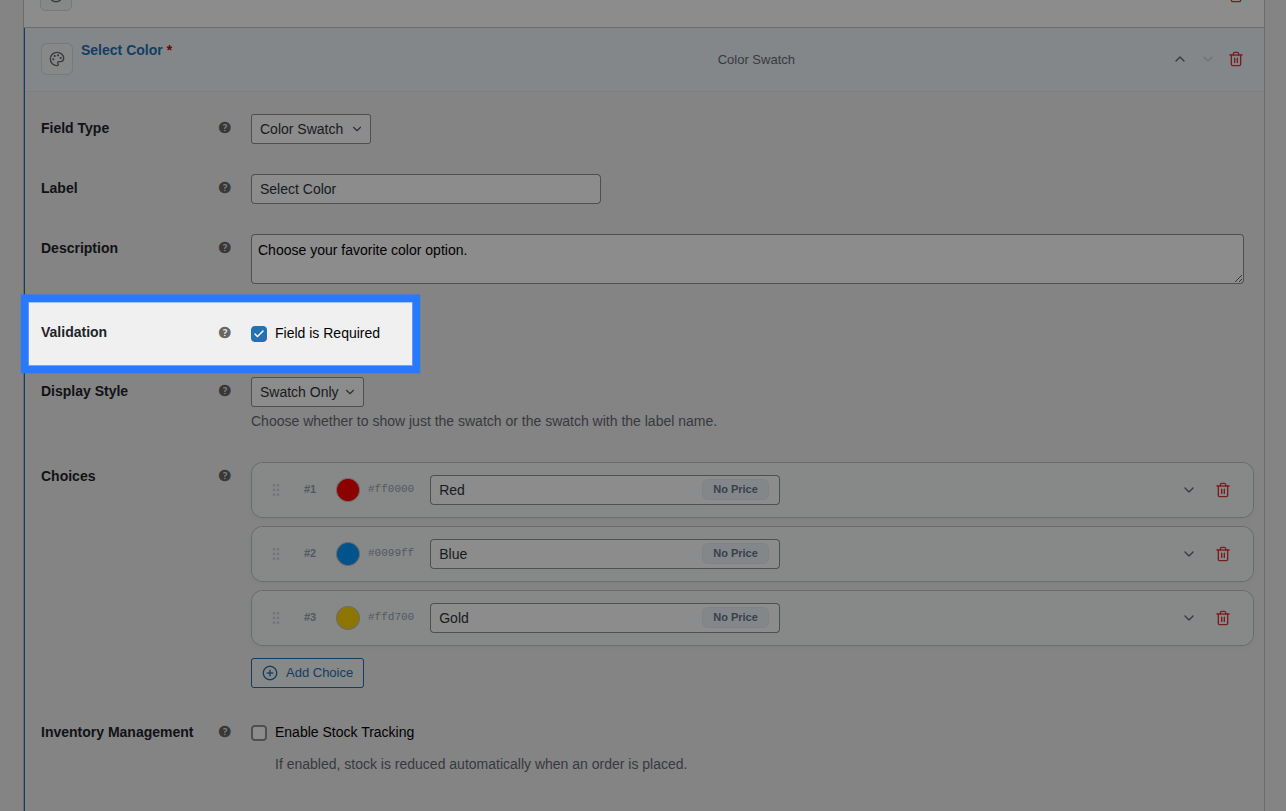
- Field is Required: A checkbox toggle. When enabled, the customer is forced to click and select a color before they are allowed to add the product to their cart.
Display Style
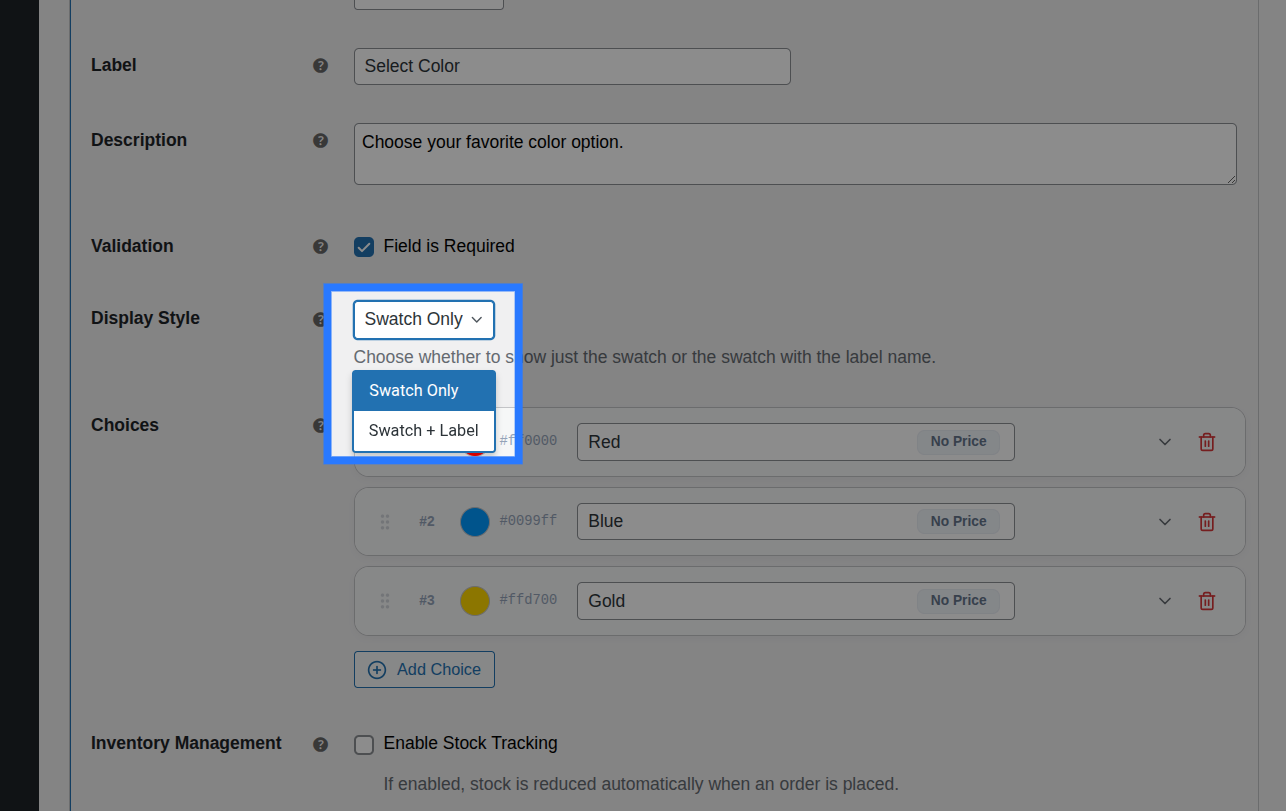
You can choose how swatches are presented visually on the frontend product page:
Swatch Only: Renders only the colored box or circle. The swatch name appears as a tooltip on hover.
Swatch + Label: Renders both the colored box/circle and its descriptive text label.
Swatch Appearance (Global Settings)
Note: The physical shape and size of the swatches are controlled globally across your entire store to ensure design consistency. Go to WooCommerce → Settings → Products → Options to configure:
- Color Swatch Size: Default is
32px. - Color Swatch Roundness: Change the
border-radius. Use50%for perfect circles, or4pxfor rounded squares.
Pricing Logic
Smart Product Options and Addons choice fields (like Color Swatches) do not support field-level pricing. Instead, pricing is configured individually per option within the General tab under the Options Configuration block.
Option-Level Pricing: Set specific price surcharges on individual choices (e.g., "+$5.00 for Gold") by expanding the choice card and selecting a Price Type:
- Price Type: (None, Flat Fee, Percentage, or Math Formula).
- Price Amount / Formula Expression: The fee applied when this specific option is selected.
Master the Pricing Engine
Smart Product Options and Addons includes multiple pricing strategies, including dynamic math formulas. We've created a dedicated guide to explain all of them in detail.
Conditions
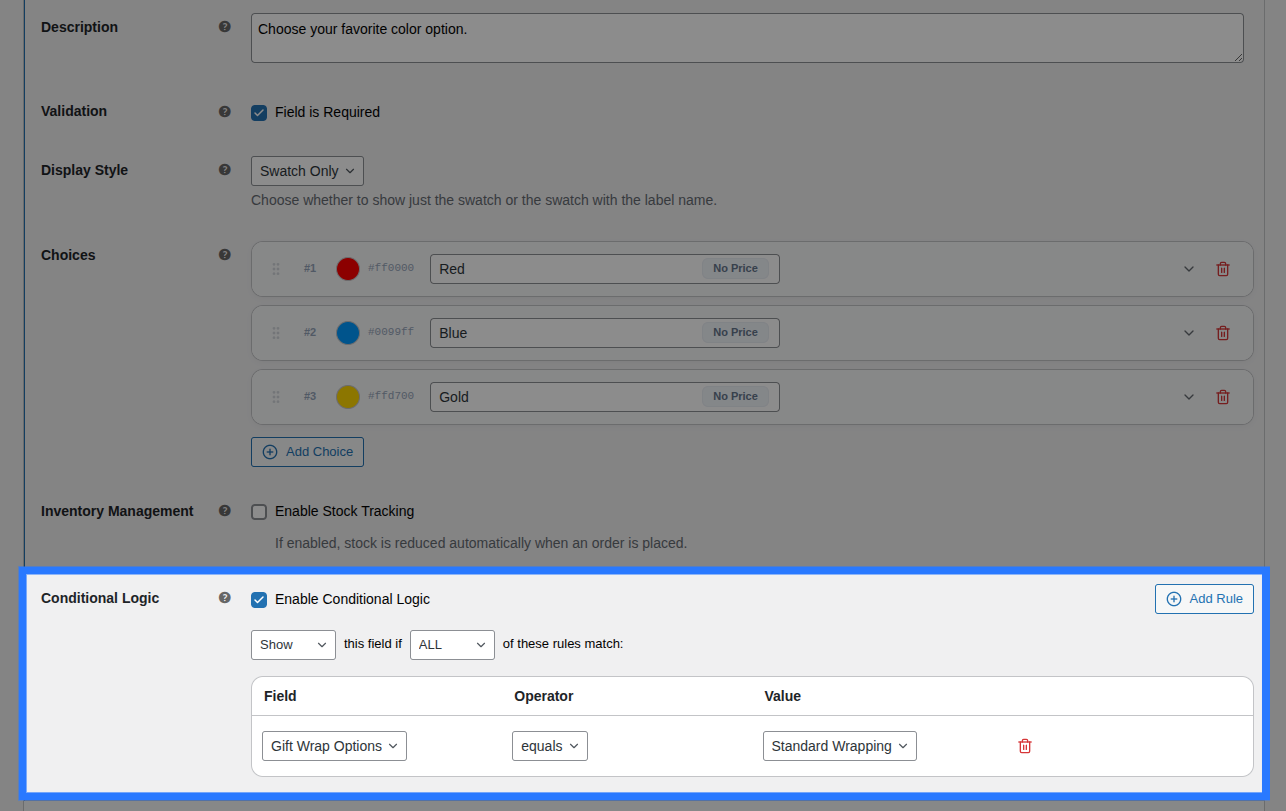
Open the Conditions tab to dynamically show or hide this swatch group based on what the customer has selected in other fields.
Available Inputs:
- Enable Conditional Logic: Toggle to turn conditions on or off.
- Action: Choose whether to Show or Hide this field when conditions are met.
- Match Type: Choose ALL (every rule must match) or ANY (at least one rule must match).
- Rules: Define the specific field to watch, the comparison operator, and the value to check against.
Example: Show the "Thread Color" swatches only if the customer checks the "Add Embroidery" checkbox.
Learn More About Conditions
Conditional logic lets you build dynamic, branching forms that adapt as the customer interacts. See the full list of operators and examples in our detailed guide.
Stock
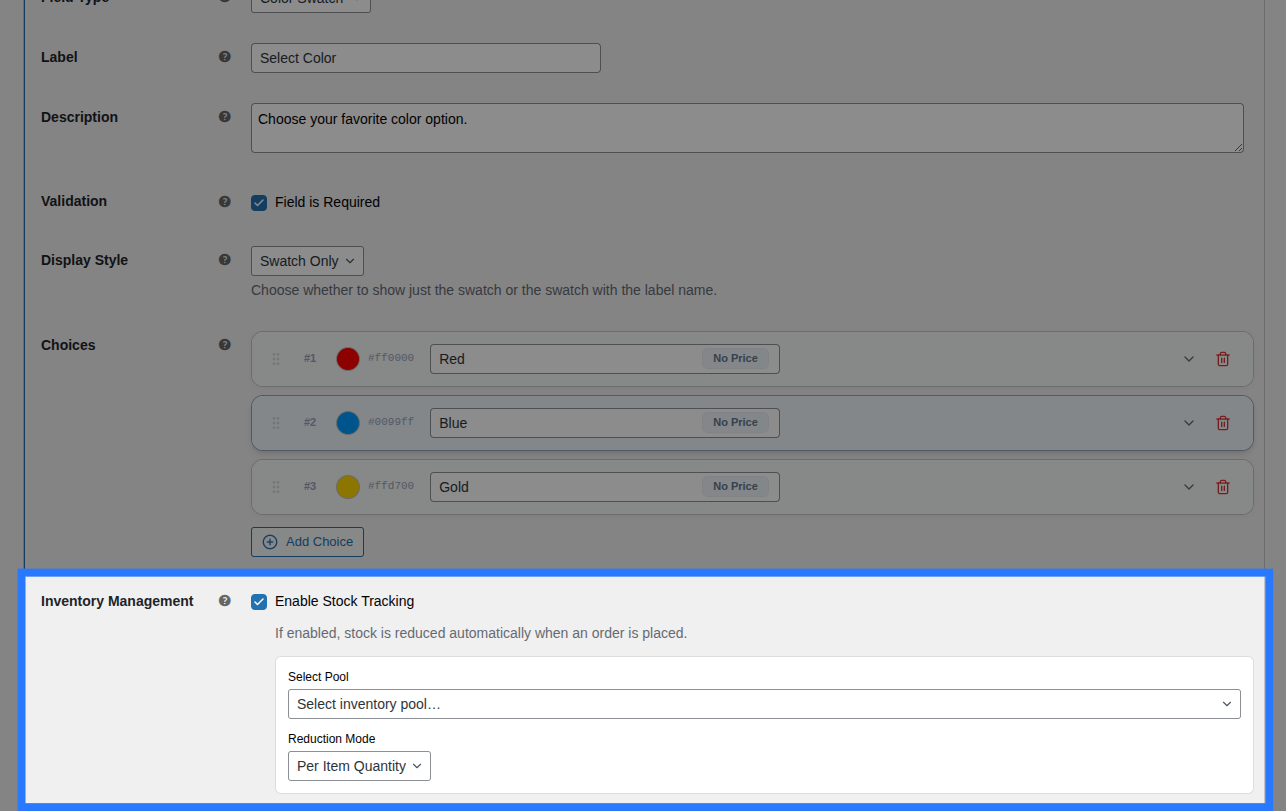
Because a Color Swatch field contains multiple distinct options, stock is linked per option instead of for the whole field.
Open the Stock tab to link individual colors to their respective inventory pools.
Available Inputs:
- Enable Stock Management: Toggle to activate inventory tracking.
- Per-Option Links: You will see a row for every color you created. For each row, you can select an existing Global Stock Item and define the Reduction Mode (Per Item Quantity, Per Line Item, or Formula).
Option-Level Stock Visibility
If you enable Stock Tracking inside any individual choice card under the General tab, it activates option-level stock. When this happens, the field-level Stock tab shown above is automatically hidden in the backend to prevent conflicting inventory rules.
Example: Link "Midnight Black" to an inventory item with 50 slots, and "Pearl White" to one with 200.
Global Stock Management
Smart Product Options and Addons lets you share stock pools across multiple options and products, complete with cart-reservation to prevent overselling.
Example & Frontend Display
To see how this comes together, let's look at a common scenario: Selecting a thread color for custom embroidery. You want customers to pick one color, and you charge an extra $2.00 specifically if they choose the "Metallic Gold" thread.
You would configure the Color Swatch field like this:
- Label:
Thread Color - Display Style:
Swatch Only - Option 1: Label
Navy Blue, Color#1B3A6B, Price TypeNone - Option 2: Label
Crimson Red, Color#DC143C, Price TypeNone - Option 3: Label
Metallic Gold, Color#D4AF37, Price TypeFlat Fee, Price Amount2.00
Frontend Product Page View: With those settings, here is how the field renders on your product page for customers to interact with:
When a customer clicks a swatch and adds the product to their cart, Smart Product Options and Addons validates that the submitted value exactly matches one of the allowed options you defined, preventing forged submissions.
Cart & WooCommerce Order View: The field label and the text label of the chosen color (not the hex code) will appear clearly on the cart page, checkout, and in your WooCommerce admin order screen exactly like this:
Thread Color: Metallic Gold