
Linking Options to Stock
Any field — or individual choice within a choice field — can be linked to a Global Stock Item. When linked, selecting that field or choice consumes from the stock pool. This allows you to track and limit availability for physical resources (like wrapping paper, custom boxes, or premium materials) and digital capacity limits (like daily booking slots or design reviews).
Linking a Field to Stock
Open the field in the Addon Builder and switch to the Stock tab in the field configuration panel.
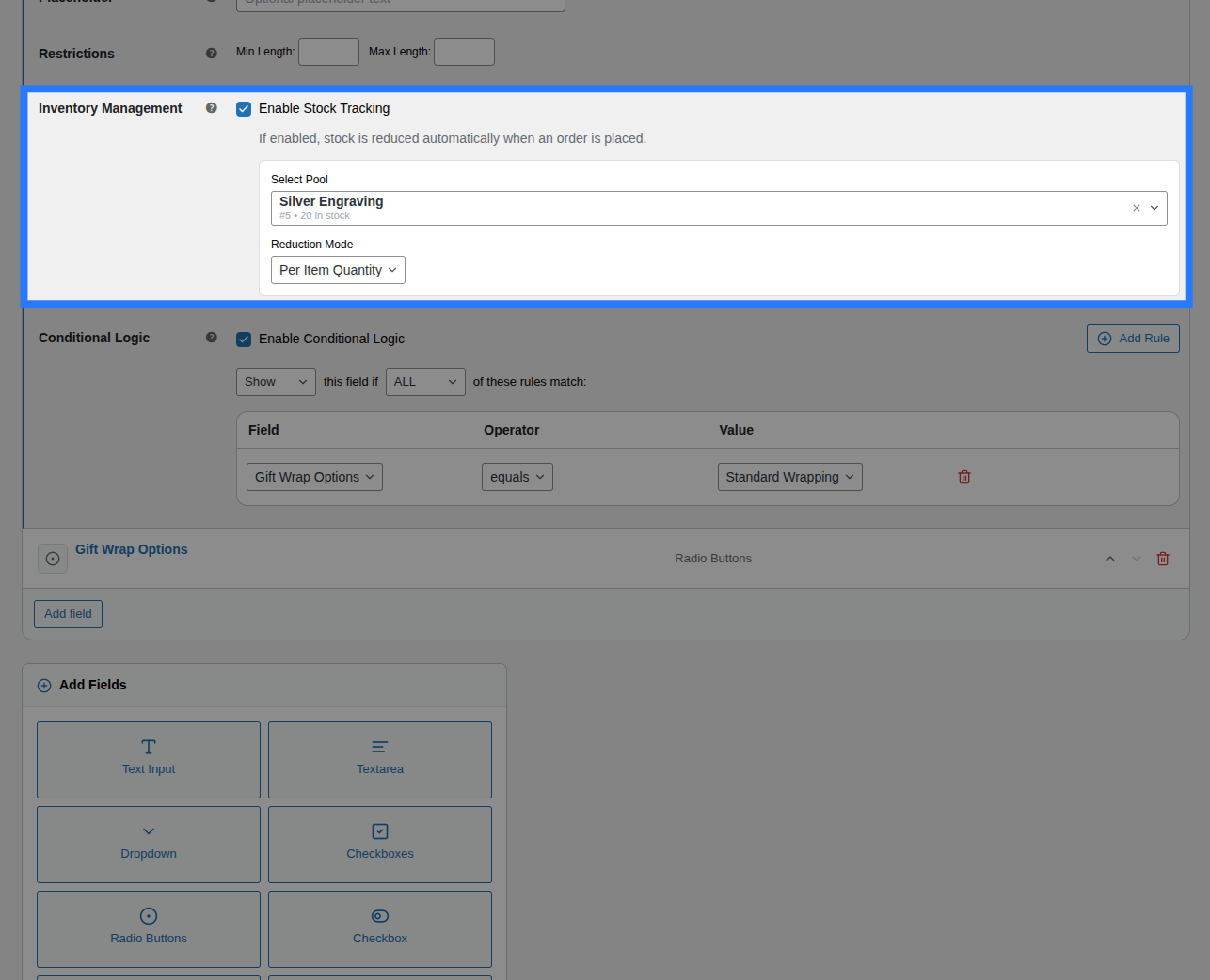
- Step 1 — Enable Stock Management: Toggle the Enable Stock Management switch to on. This activates stock tracking for the field and opens the configuration inputs.
- Step 2 — Select or Create an Inventory Item: Click the inventory search box. You can search existing Global Stock Items by typing their name, or create a brand-new item inline by typing a name and clicking the Create new "[name]" button.
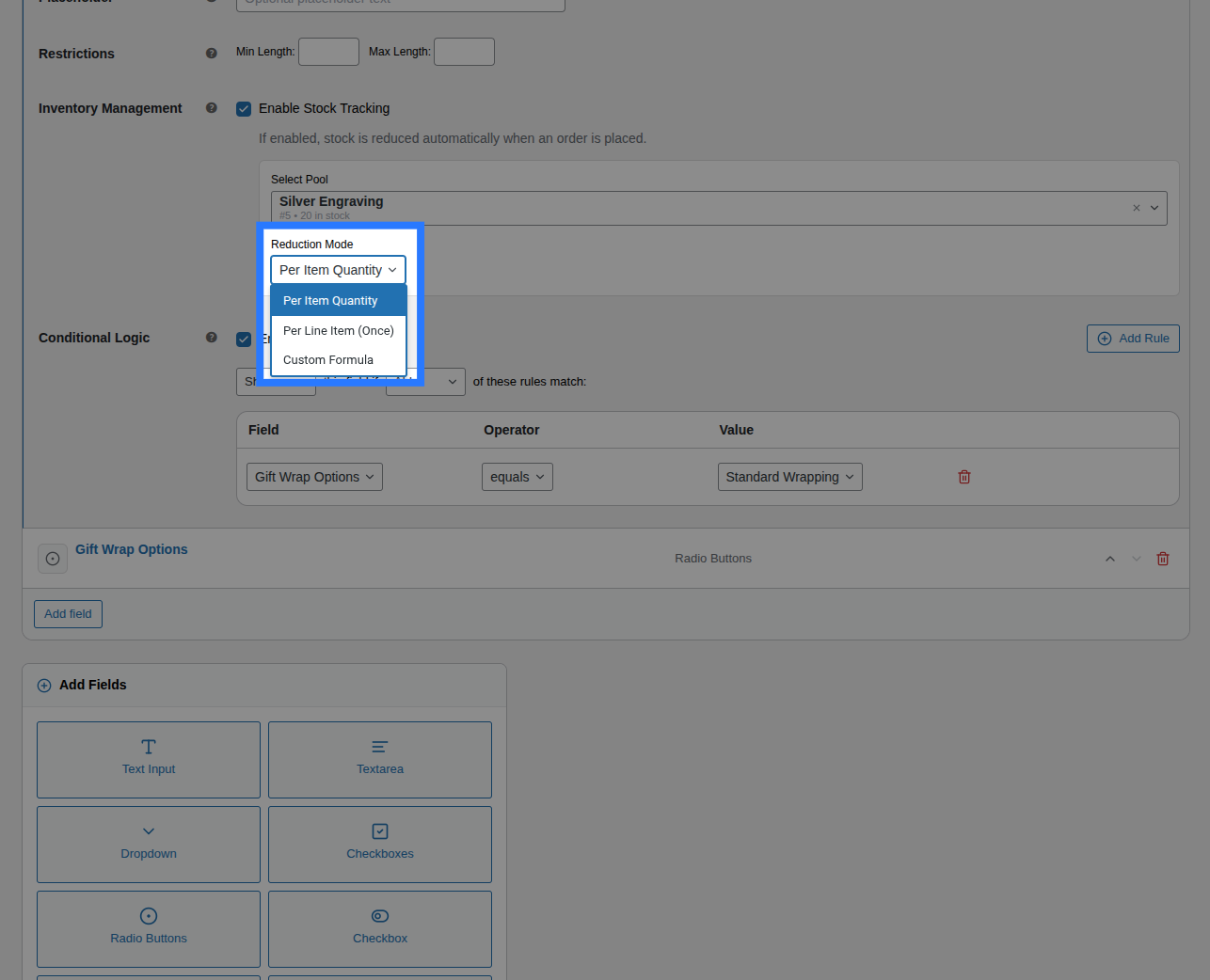
- Step 3 — Set the Reduction Mode: Choose how stock is deducted when an order is placed. The options are:
- Per Item Quantity: Surcharge stock scales with the number of products ordered. (e.g. buying 3 mugs deducts 3 items from stock). This is the default.
- Per Line Item: Surcharge stock always deducts exactly 1 item, regardless of how many products the customer orders.
- Custom Formula: Allows you to define a mathematical expression to calculate the stock deduction dynamically.
Linking Individual Options to Stock
For choice-based fields (Select Dropdown, Radio Buttons, Checkboxes, Color Swatch, Image Swatch), each individual option can be linked to its own stock item. This is managed inside the General tab of the choice field, under the configuration accordion for each choice option.
Open a choice field → expand an option → switch to the Stock sub-tab:
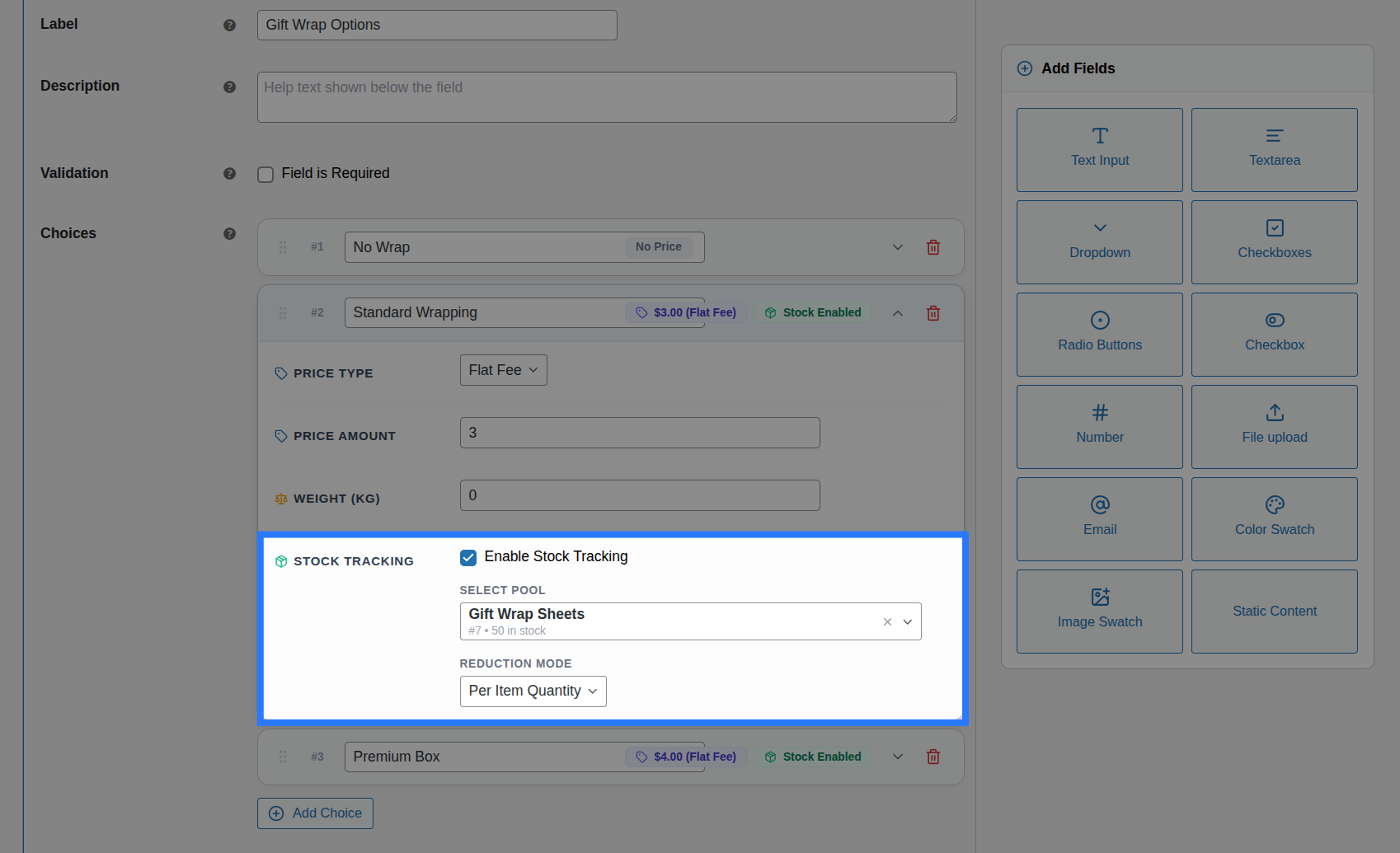
This allows fine-grained control over your inventory:
- Specific Stock Pools: The "Red Ribbon" choice option depletes the "Red Ribbon" global stock pool, while the "Blue Ribbon" choice option depletes the "Blue Ribbon" pool.
- No Stock Association: A "No Ribbon" choice option has its stock management toggled off, so selecting it has no impact on inventory.
- Shared Pools: Multiple options can link to the same stock pool if they consume the same physical resource (e.g. both a "Large Box" and "Gift Wrapping" option could link to a "Cardboard Boxes" stock pool).
Reduction Modes Explained
Per Item Quantity (default)
Stock is deducted relative to the number of items the customer adds to the cart.
- Deduction Formula:
stock deducted = 1 * cart_quantity - Example: You link an option to a
Gift Wrapping Paperstock pool. The customer adds3of the product to their cart with gift wrapping selected. Upon successful checkout, Smart Product Options and Addons deducts exactly3units from the stock pool.
Per Line Item
Stock is deducted as a flat 1 unit per cart line item, ignoring the product quantity ordered.
- Deduction Formula:
stock deducted = 1(always) - Example: You offer a
Custom Design Reviewoption that consumes a designer's time slot. The customer orders5personalized mugs in a single cart line, but you only need to perform one design review for the entire order. Choosing Per Line Item mode deducts exactly1unit from the stock pool.
Custom Formula
Allows you to calculate stock deduction using a mathematical formula.
- Formula Configuration: When you select "Custom Formula" from the Reduction Mode dropdown, a formula input field is revealed.
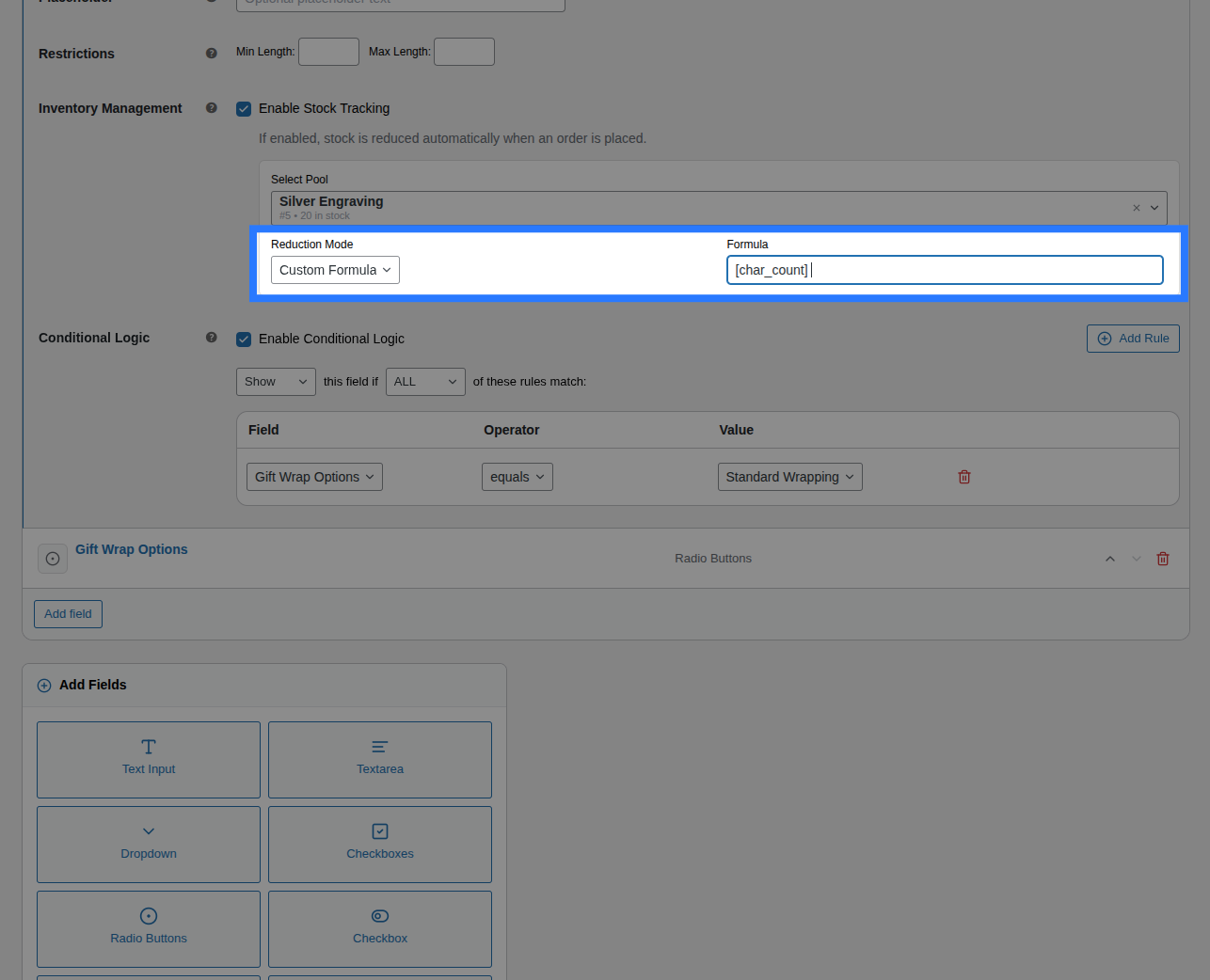
- Available Variables:
qty: Represents the cart line item quantity of the product being ordered.val: Represents the customer's entered numeric value. This variable is only valid on Number Input fields.
- Formula Examples:
qty * 2— Deducts exactly2units from stock for every single product quantity ordered.val— Deducts the exact number the customer types into the field. For example, if you have a number input labeled "Quantity of extra cupcakes" and the customer enters6, exactly6cupcakes are deducted from your cupcakes stock pool.qty * val— Deducts the product order quantity multiplied by the custom number input value.
Cart-Reserved Stock
Smart Product Options and Addons accounts for stock already held in other customers' carts when checking option availability. This real-time reservation system prevents overselling when multiple customers are shopping simultaneously:
- Adding to Cart: When a customer adds an item with a linked option to their cart, Smart Product Options and Addons reserves those stock units.
- Live Inventory Check: If another customer views the product page, the available stock shown and validated is the total stock minus any reserved stock currently in active carts.
- Expiration: If a customer does not checkout, the cart reservation naturally expires (according to your WooCommerce cart expiration settings) and the reserved units are automatically released back to the global pool.
Out-of-Stock Behaviour
When a Global Stock Item reaches 0 (or falls below the required amount for a selection) and Allow Backorders is disabled for that stock item, Smart Product Options and Addons blocks further orders:
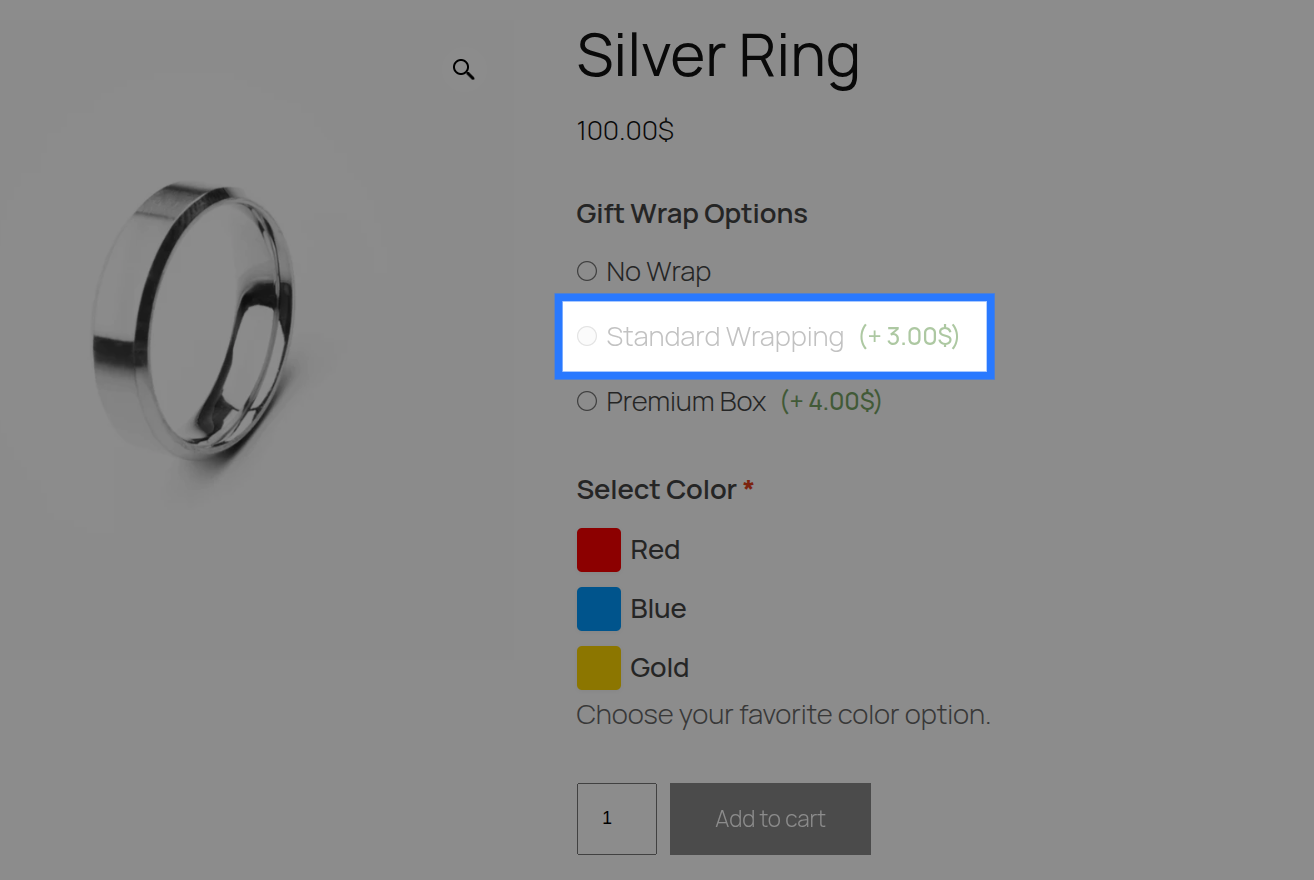
- On the Product Page: The linked option is marked visually as unavailable on the frontend. Checkbox or radio choices are disabled and append a
(Out of stock)label, dropdown items are disabled inside the select box, and swatches are crossed out and unclickable. - Add to Cart Validation: If a customer bypasses the frontend UI or attempts to submit an out-of-stock selection, Smart Product Options and Addons intercepts the request during the
woocommerce_add_to_cart_validationhook and blocks the action with a clear error notice. - Checkout Validation: A final inventory check is run at checkout. If another customer completed their purchase and depleted the stock pool while the user had the item in their cart, the checkout process is halted with an error notice requesting the customer remove or adjust the option.
Allow Backorders
If Allow Backorders is enabled on the Global Stock Item, the option remains selectable on the product page and checkout is never blocked. The stock count is allowed to go into negative numbers (e.g. -3) to track how many items must be backordered.
Restoring Stock on Cancellation
Smart Product Options and Addons ensures that inventory is never lost when orders are cancelled:
- Stock Intents Metadata: When an order is placed, Smart Product Options and Addons records the exact stock deductions in the order line item metadata under the key
_ob_stock_intents. - Automatic Restore: If an order's status is changed to Cancelled or Refunded, Smart Product Options and Addons hooks into WooCommerce order status transition events, reads the stock intent metadata, and automatically returns the deducted quantities to their respective global stock pools.
- Double-Restoration Protection: To prevent duplicate stock restoration from webhook retries or manual status changes, Smart Product Options and Addons marks the order with a
_ob_stock_restoredflag once stock has been returned. Subsequent status changes will not trigger another restoration.