
Managing Option Groups
The Option Groups list is the main dashboard for Smart Product Options and Addons. Navigate here via Products → Options in your WordPress admin menu.
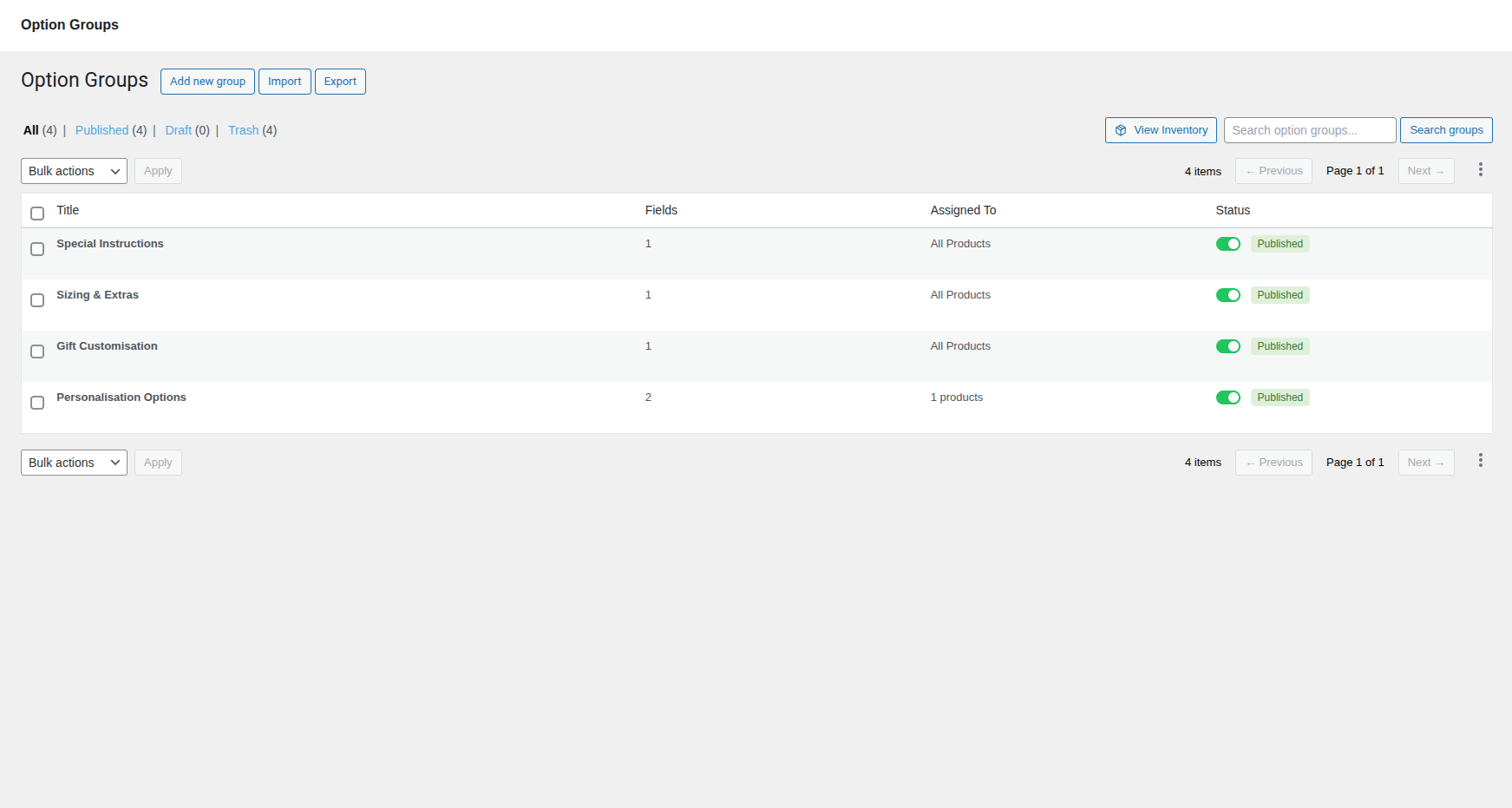
Page Header
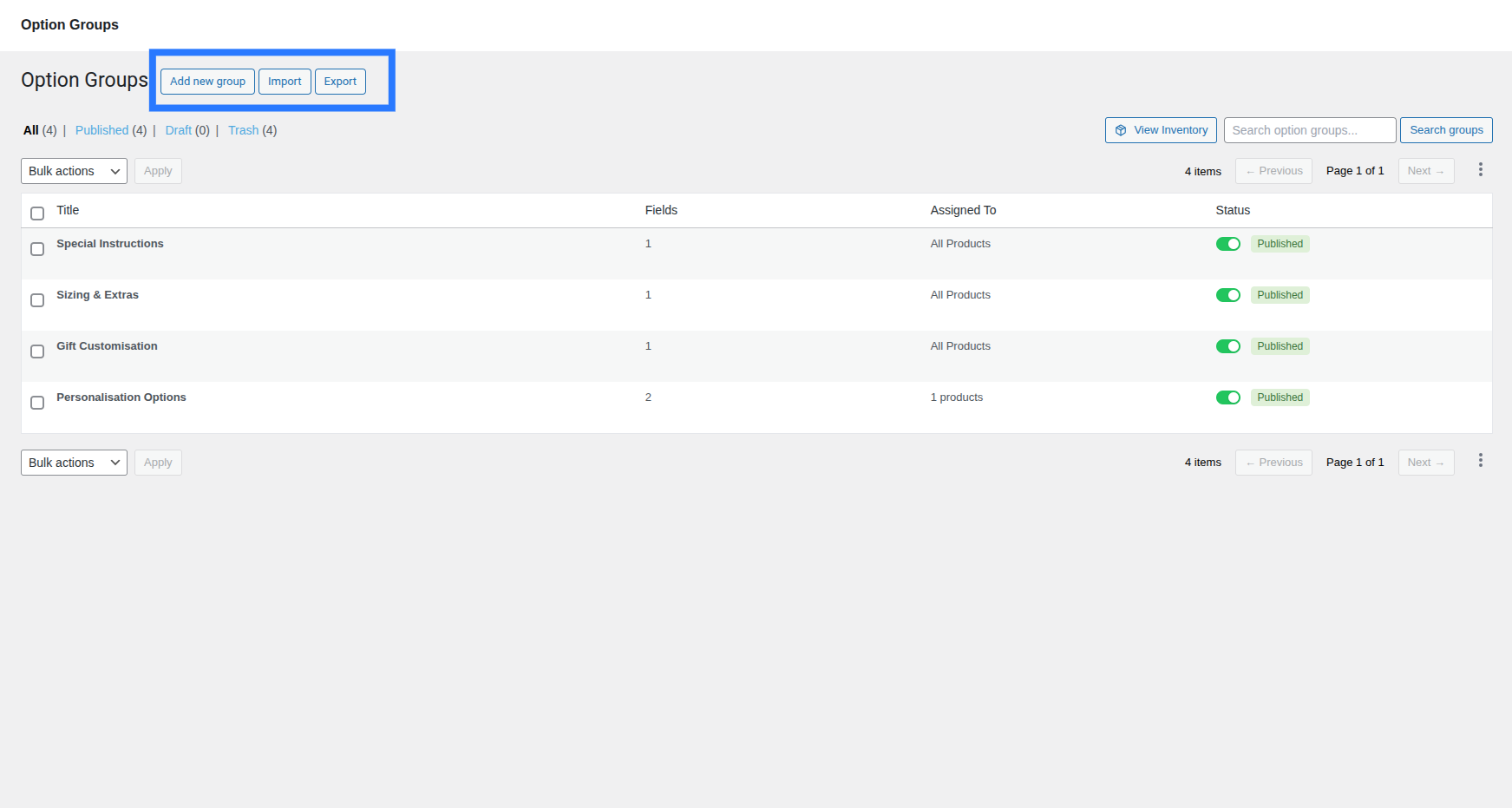
The top of the page contains a WordPress-style heading row with several quick-action buttons:
- Option Groups (title): The page heading. This is always visible.
- Add new group: Click this link to open a fresh Addon Builder and start creating a new option group from scratch.
- Import: Click to expand an inline Import panel directly below the header. Drag and drop or upload a previously exported
.jsonfile to restore or migrate your option groups. - Export: Click to expand an inline Export panel below the header. Select which entities (
Option Groups,Inventory Pools,Plugin Settings) to bundle and download as a single.jsonfile for backups or migrations.
Import & Export
Both panels toggle inline — clicking one closes the other. For full instructions on format, compatibility, and best practices, see the dedicated guide.
Status Filters
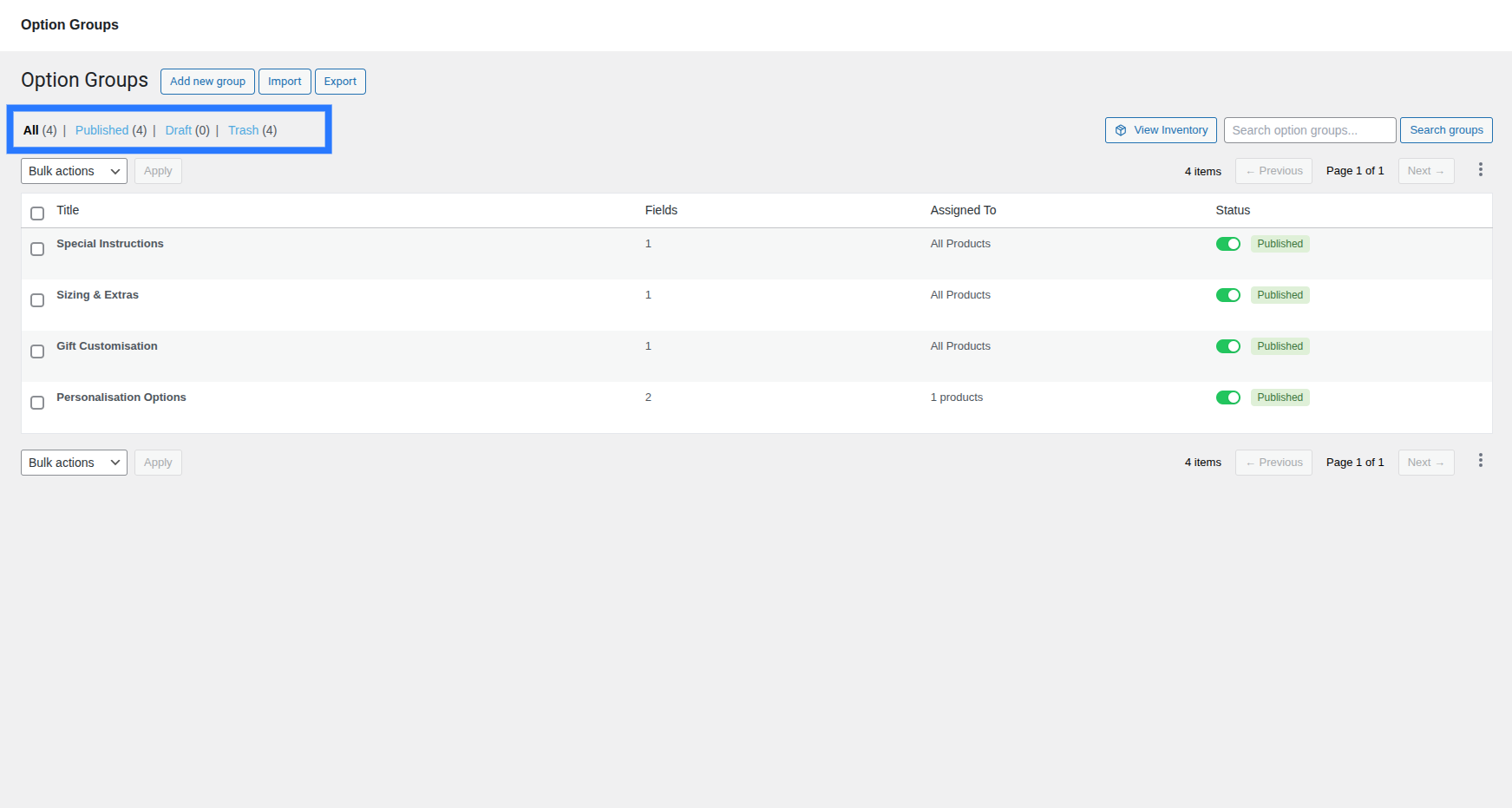
Above the table you'll find quick filter tabs that let you narrow the list by status. Each tab shows its item count in parentheses:
- All — Shows every group regardless of status (Published + Draft).
- Published — Only groups that are currently live and visible on product pages.
- Draft — Only groups that are saved but hidden from customers.
- Trash — Groups that have been soft-deleted. This tab only appears when the trash contains at least one group.
Click any tab to filter the list instantly — no page reload required.
The List Table
Each row in the table represents one Option Group. By default, you see several columns:
- Title: The internal name of the group. Click the title text to open it in the Addon Builder for editing.
- Fields: A count of how many fields (inputs, swatches, etc.) are configured inside the group.
- Assigned To: A summary of where the group is routed — e.g., "All Products", "3 categories", "2 products".
- Status: A live toggle switch. Flip between Published and Draft with a single click — the change takes effect immediately via the API, no page reload needed.
Column Visibility Customization
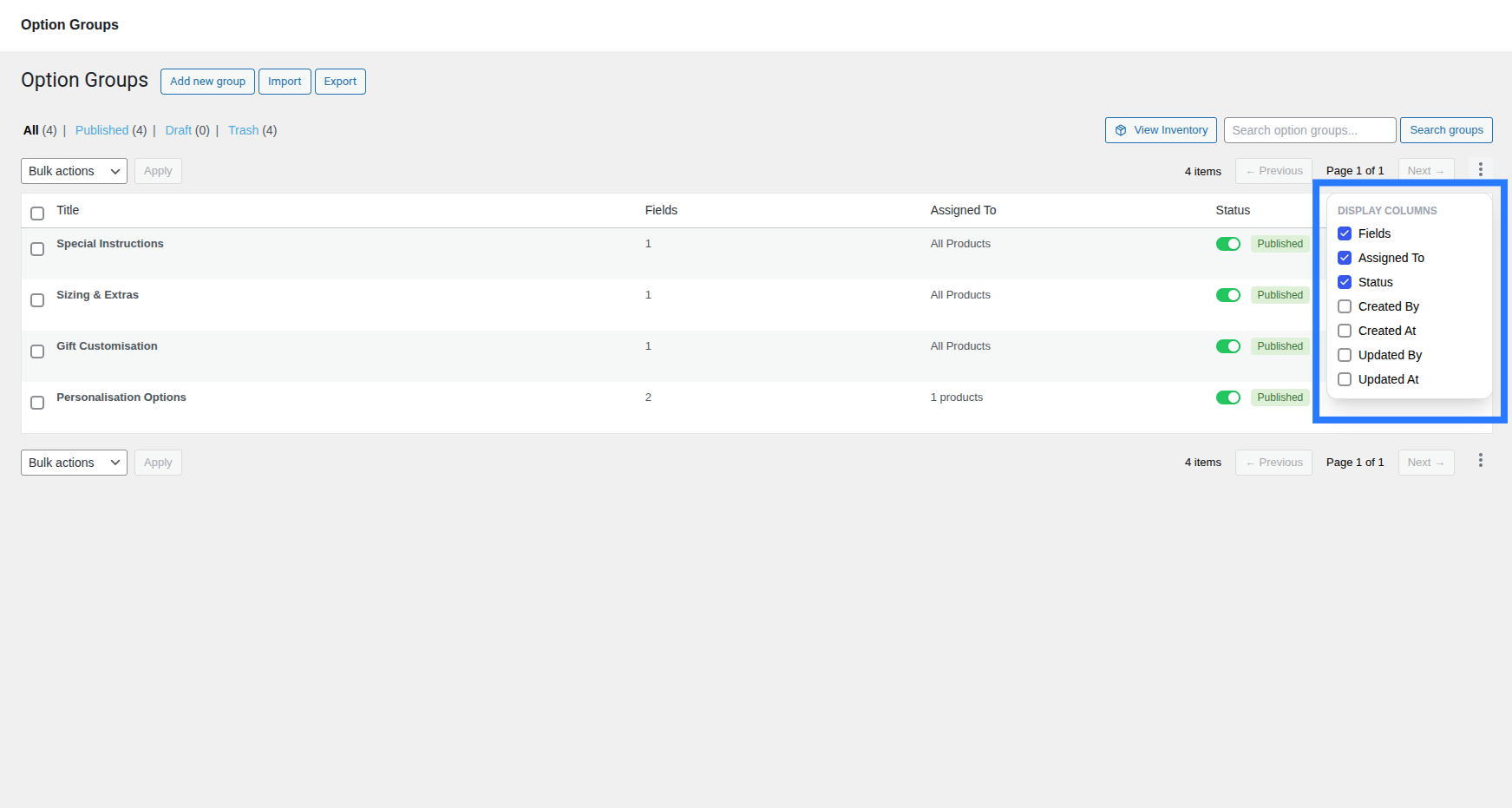
You can fully customize which columns are displayed using the column picker settings menu — click the vertical dots icon (⋮) at the top-right of the table header. The dropdown allows you to selectively show or hide any of the following columns:
- Fields — Field count within the group.
- Assigned To — Assignment routing summary.
- Status — Live toggle switcher.
- Created By — The WordPress user who originally created the group.
- Created At — The date and time the group was first saved.
- Updated By — The WordPress user who last modified the group.
- Updated At — The date and time of the most recent update.
Toggle any column on or off. Your preferences will persist automatically for your session.
Searching Groups
Use the search box in the top-right area (next to the View Inventory button) to find groups by name:
- Type your search query into the text input.
- Press Enter on your keyboard, or click the Search groups button.
- The table filters to show only groups whose titles match your query.
- Clear the search box and press Enter again to reset the view.
Row Actions
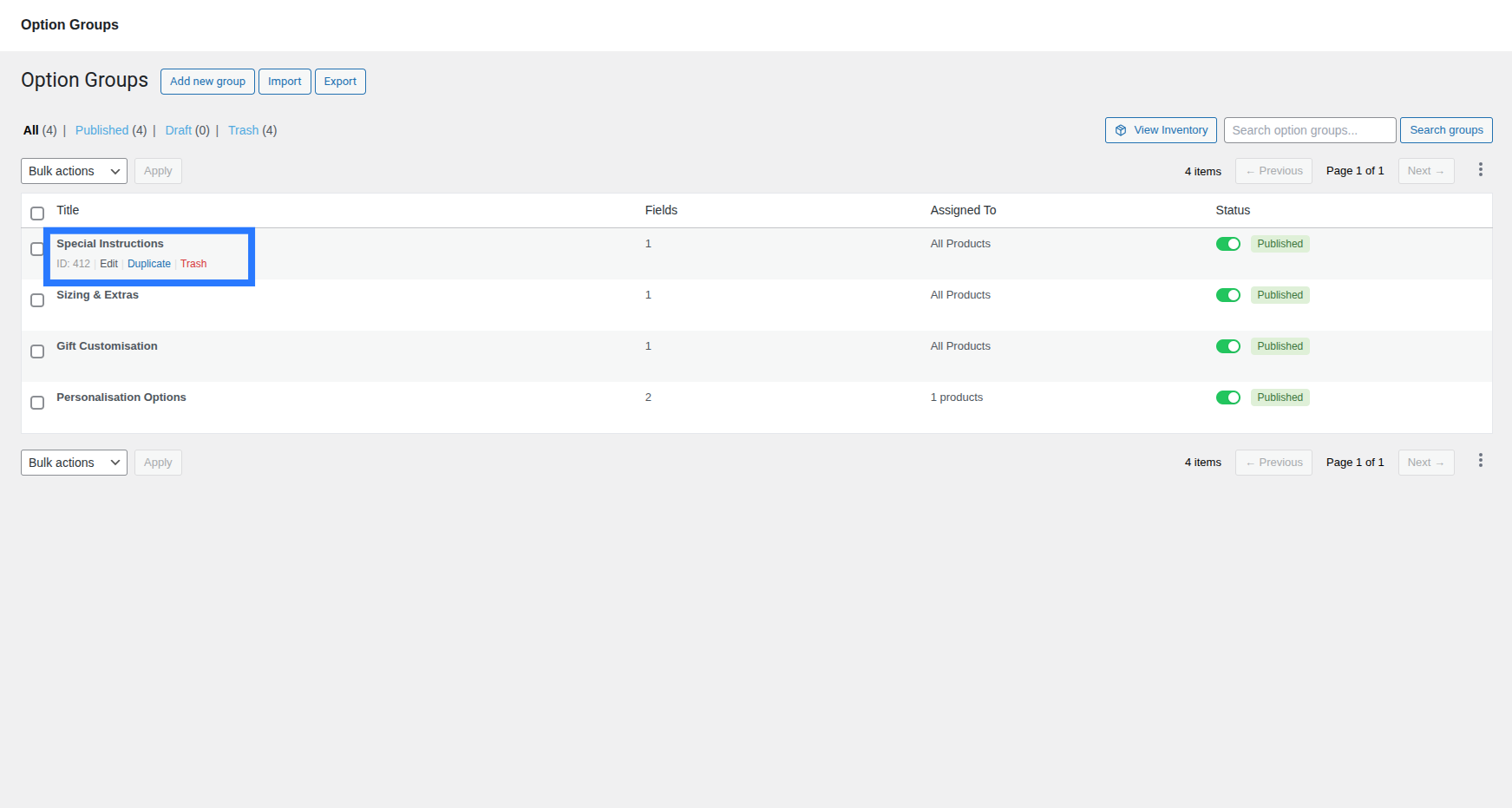
Instead of old-school text links hidden under the title, Smart Product Options and Addons uses a sleek, modern inline actions column with quick-action icons:
Normal view (All / Published / Draft):
- Edit (Pencil Icon): Click to open the group in the Addon Builder.
- Duplicate (Copy Icon): Instantly duplicate the group — copying all fields, settings, and assignment rules — with "(Copy)" appended to the title.
- Delete (Trash Icon): Soft-deletes the group, moving it to the Trash tab.
Trash view:
- Restore (Undo Icon): Move the group back to its previous status (Published or Draft).
- Delete Permanently (Trash Icon): Erase the group and all its assignment rules from the database. This action cannot be undone.
Permanent Deletion
The "Delete Permanently" action is irreversible. A confirmation modal will always appear before final deletion, with the focus defaulting to the "Cancel" button for safety.
Bulk Actions
To perform an action on multiple groups at once:
- Select groups by checking the boxes on the left of each row. Use the header checkbox to Select All visible groups on the current page.
- Choose an action from the Bulk actions dropdown:
- Normal view: Publish, Draft, or Move to Trash.
- Trash view: Restore or Delete Permanently.
- Click Apply.
A count indicator below the dropdown shows how many groups are currently selected (e.g., "3 of 12 selected").
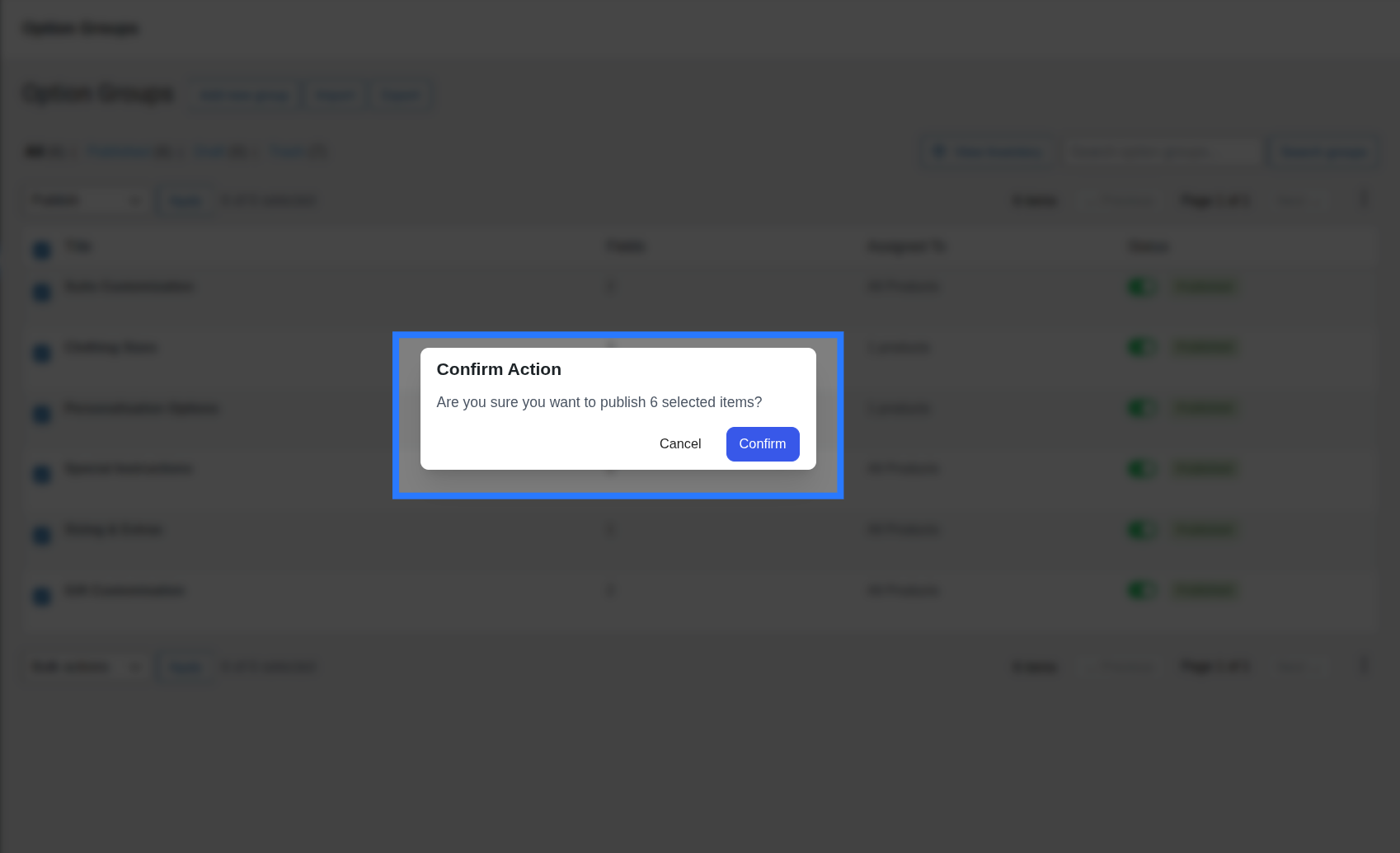
A confirmation modal always appears before any destructive action (Move to Trash, Delete Permanently). For destructive actions, the modal uses a red "Confirm" button and auto-focuses the "Cancel" button to prevent accidental deletion.
Pagination
Results are paginated at 20 groups per page. The pagination controls appear both above and below the table:
- Item count: Shows the total number of groups matching the current filter (e.g., "12 items").
- ← Previous / Next →: Navigate between pages.
- Page indicator: Displays the current page and total pages (e.g., "Page 1 of 3").
View Inventory
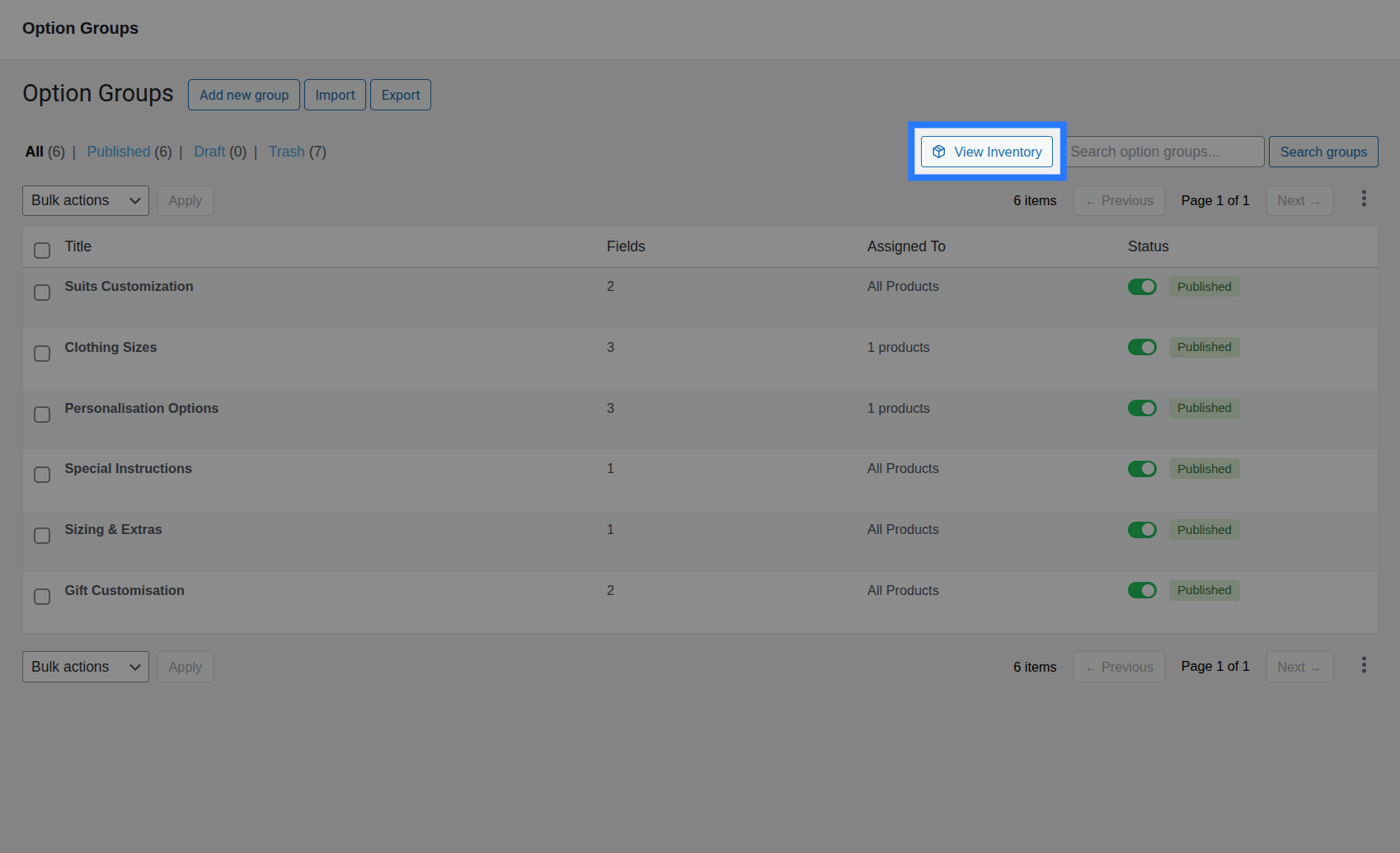
Click the View Inventory button (📦 icon) in the top-right controls area to open the Global Stock Inventory modal directly from the list page — without navigating away. This gives you a quick overview of all your stock pools, their current quantities, and linked options.
Quick Stock Access
This is a shortcut to the same inventory data available in the full Stock management section. Use it when you just need a quick glance at inventory levels while managing your groups.