
Static Content
Static Content outputs a fixed block of HTML directly on the product page. It is a display-only element — customers cannot interact with it, it produces no cart data, and it never appears on orders.
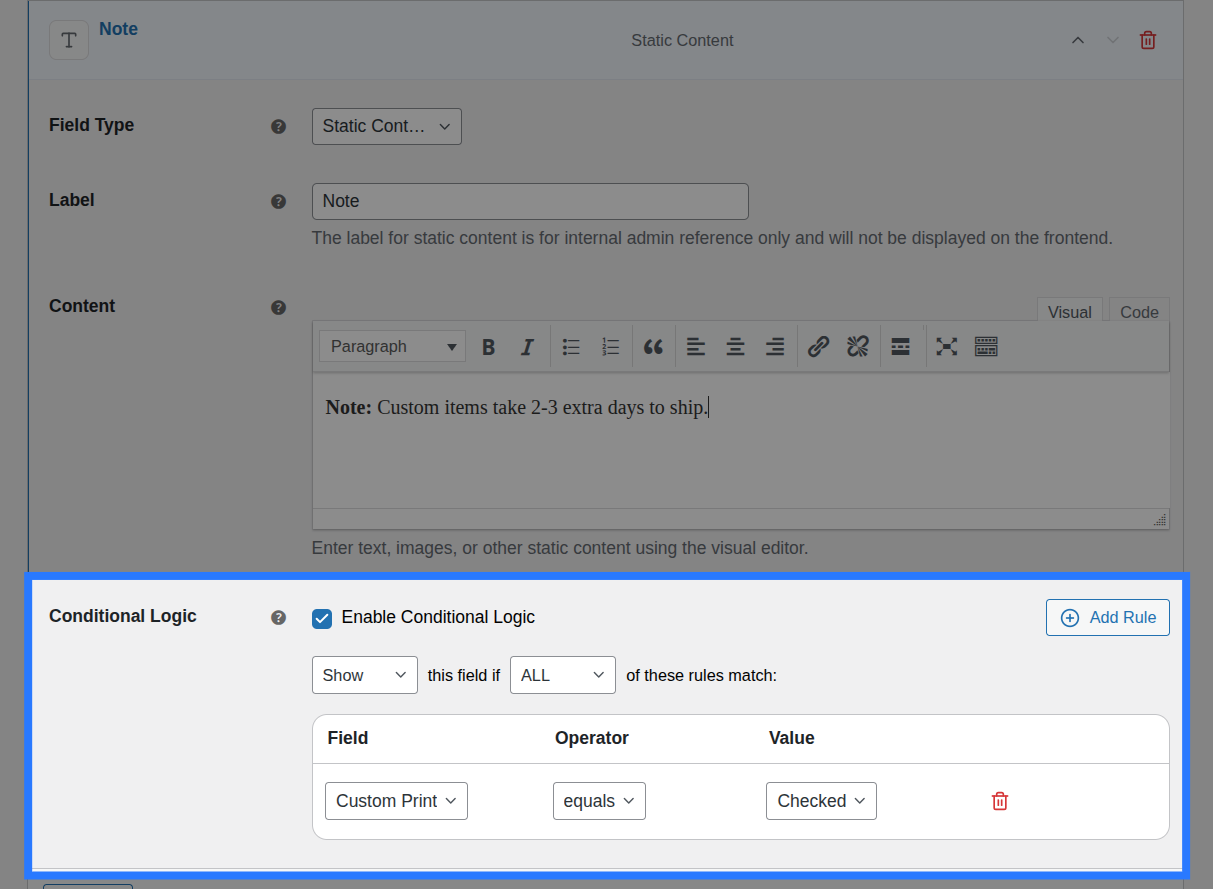
When to Use
- Section headings to divide a long group into logical parts
- Informational banners (e.g. "⚠️ Allow 3–5 business days for custom orders")
- Horizontal dividers between groups of fields
- Terms or instructions the customer should read before selecting options
- Decorative separators or callout blocks
Configuration Settings
When you add a Static Content field in the Addon Builder, you can configure the following inputs across different sections:
General Settings
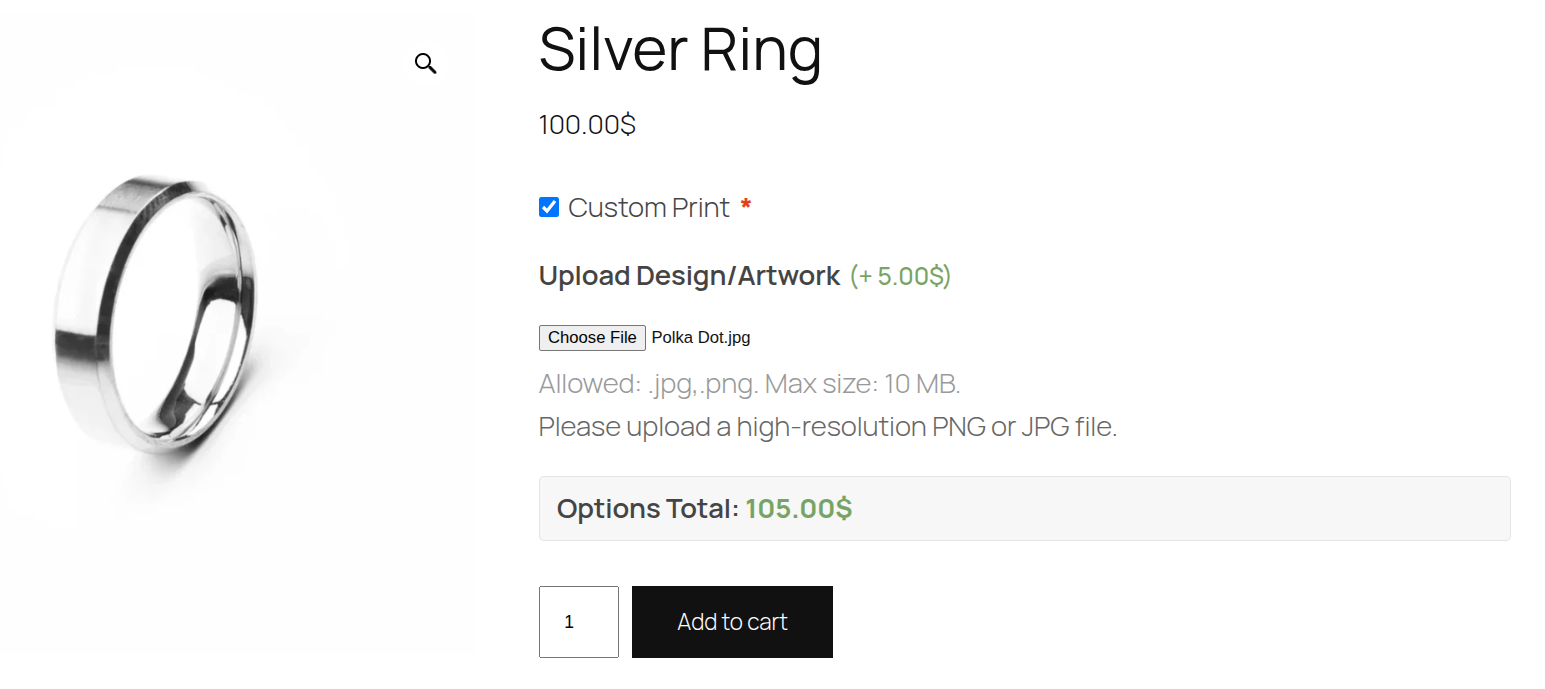
- Label: An internal, admin-only name used to identify this block within the Addon Builder. This label is never shown on the frontend.
- Content: The raw HTML to render on the product page.
HTML is Output Directly
The content is rendered exactly as you type it. Use standard HTML tags: <h4>, <p>, <strong>, <em>, <ul>, <li>, <hr>, <div>, etc.
Do not include <script> tags or event attributes (onclick, onmouseover, etc.).
Unsupported Features
Because this field is display-only, it does not support several standard tabs:
- Validation: There is no user input to validate.
- Pricing: The field cannot carry a charge or discount.
- Stock: The field cannot be linked to inventory pools.
Conditions
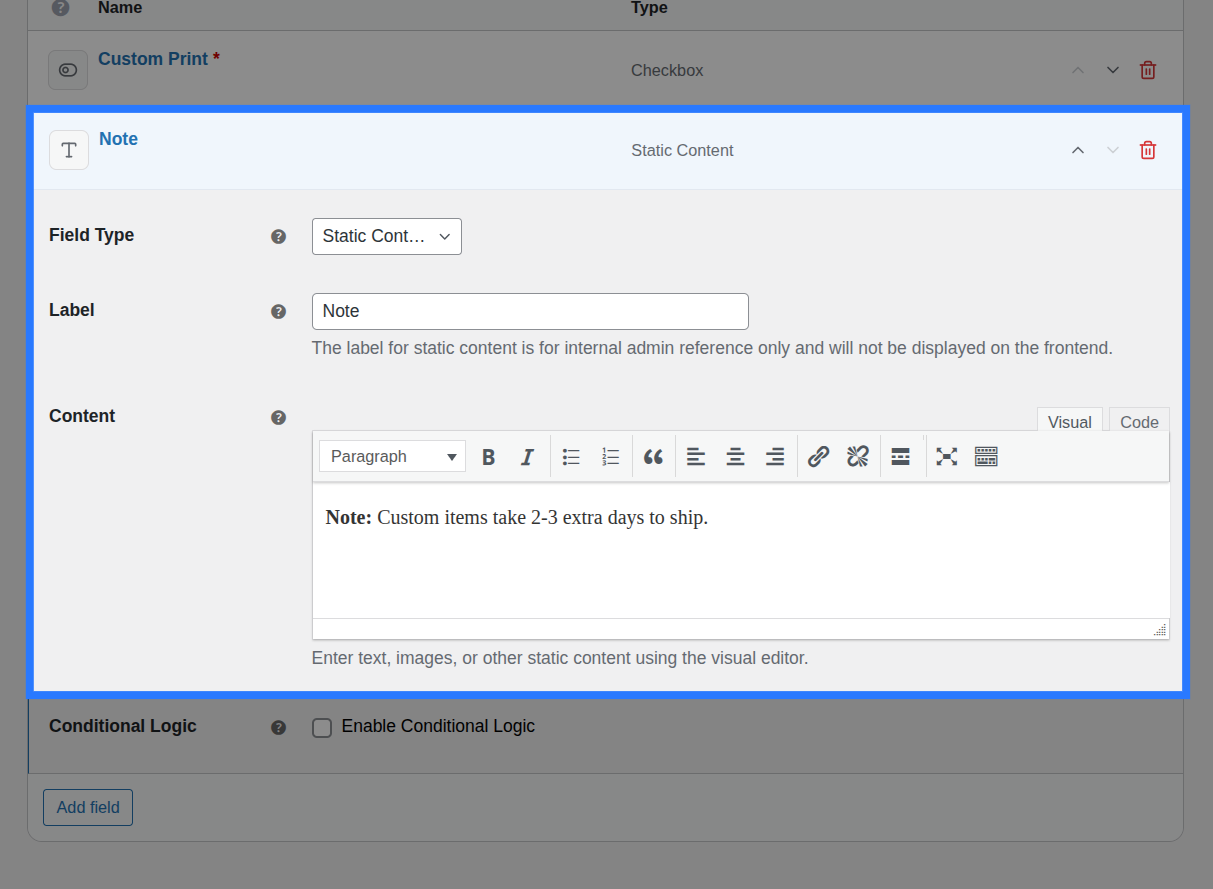
Static Content fields fully support the Conditions tab. This is incredibly useful for showing dynamic warning banners or instructions based on what the customer has selected elsewhere.
Available Inputs:
- Enable Conditional Logic: Toggle to turn conditions on or off.
- Action: Choose whether to Show or Hide this HTML block when conditions are met.
- Match Type: Choose ALL (every rule must match) or ANY (at least one rule must match).
- Rules: Define the specific field to watch, the comparison operator, and the value to check against.
Example: Show a yellow <div style="background:#fff3cd;">Custom orders take 3-5 days</div> notice banner only when the customer selects "Custom Embroidery" from a Select Dropdown.
Learn More About Conditions
Conditional logic lets you build dynamic interfaces that respond to customer choices. See the full list of operators and examples in our detailed guide.
Examples & Frontend Display
Because the Static Content field takes raw HTML, you can style it to match your theme or create specific visual components.
Section Heading:
<h4 style="margin: 0 0 4px;">Personalisation Options</h4>
<p style="margin: 0; color: #666; font-size: 0.875em;">
  All fields below are optional.
</p>
Notice Banner:
<div
  style="background:#fff3cd;border-left:4px solid #ffc107;padding:10px 14px;border-radius:4px;"
>
  <strong>Custom orders take 3–5 business days.</strong>
  Rush options are available below.
</div>
Horizontal Divider:
<hr style="border:none;border-top:1px solid #e0e0e0;margin:8px 0;" />Info List:
<ul style="padding-left:1.2em;margin:6px 0;">
  <li>Engraving is permanent — please double-check spelling</li>
  <li>Maximum 30 characters per line</li>
  <li>Emojis are not supported</li>
</ul>
Cart & Order Display: Static Content fields are never saved to the cart or order. They exist entirely as display elements on the product page and disappear completely once the product is added to the cart.