
File Upload
Lets customers attach a file to their order — artwork, a logo, a design brief, or any other document. Files are validated on upload and stored securely in your WordPress uploads folder.
When to Use
- Custom print artwork upload (logo, design, photo)
- Design brief or specification document
- Photo for personalised products (photo books, mugs, canvas)
- Any order requiring a customer-submitted file
Configuration Settings
When you add a File Upload field in the Addon Builder, you can configure the following inputs across different sections:
General Settings
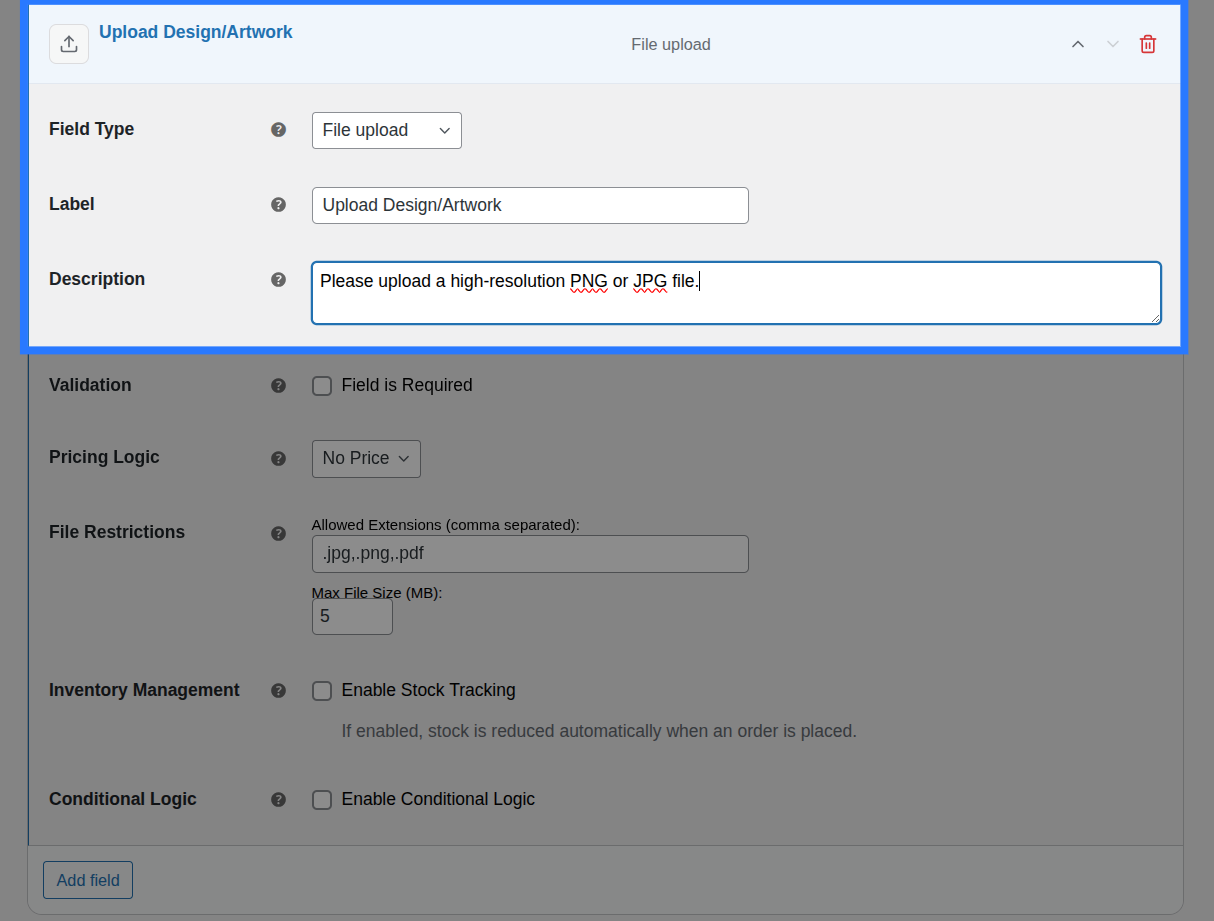
- Label: The main heading shown above the file input. Used to identify the field in the cart and order details.
- Description: Additional helper text shown below the input. Useful for providing instructions (e.g. "Please upload a high-resolution PDF").
Validation
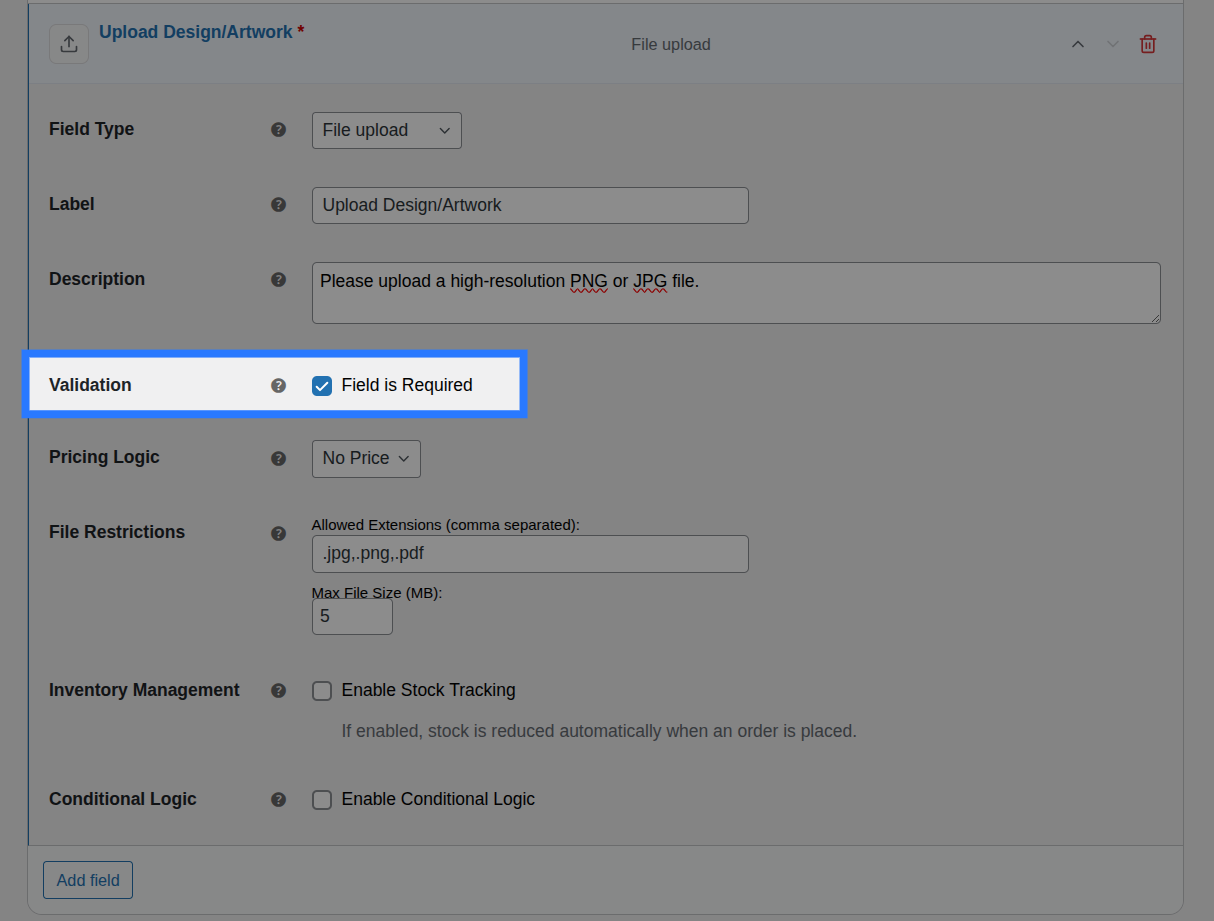
- Field is Required: A checkbox toggle. When enabled, the customer is forced to select and attach a file before they are allowed to add the product to their cart.
Restrictions
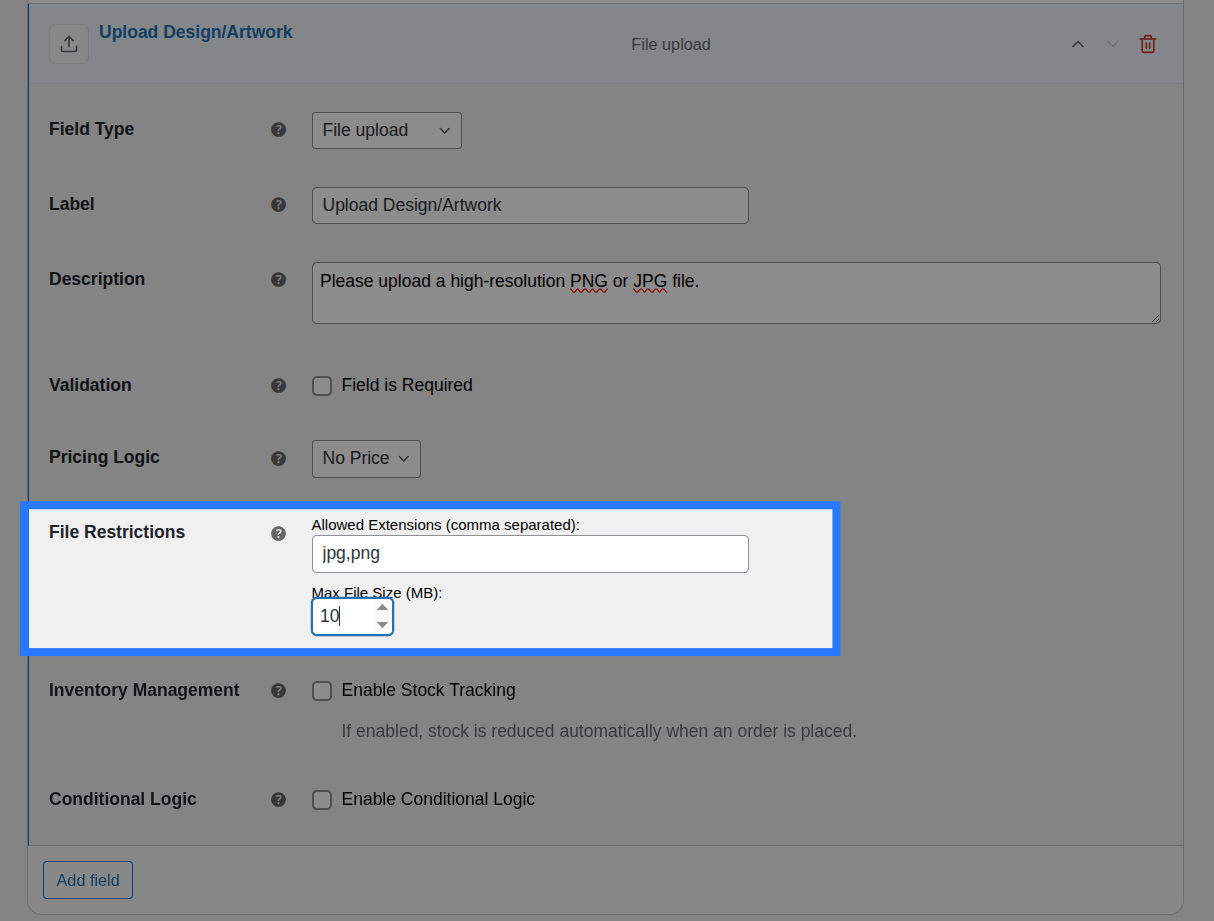
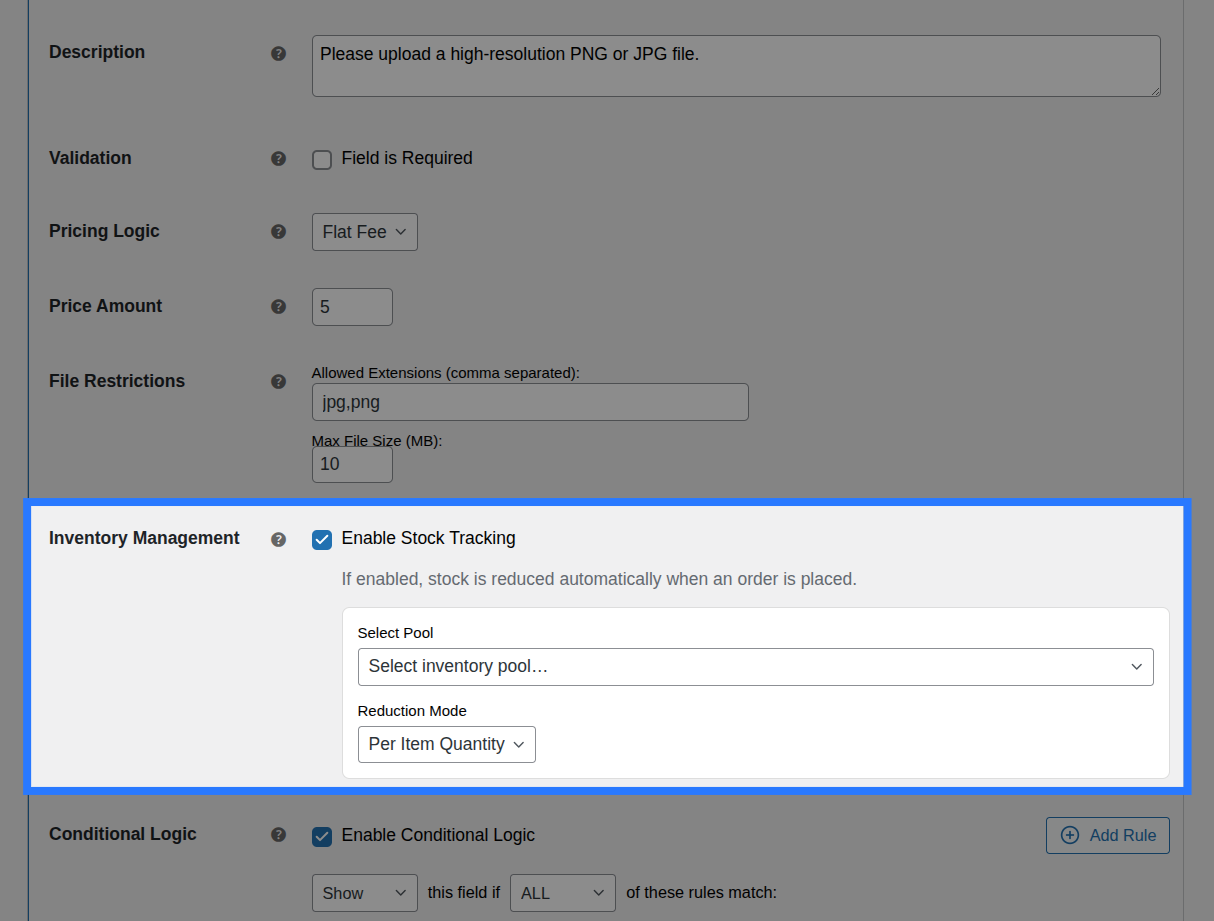
- Allowed Types: A comma-separated list of file extensions the customer is allowed to upload (e.g.,
.jpg,.png,.pdf,.svg). Files with unlisted extensions will be rejected on both the frontend and server. - Max File Size: The maximum permitted file size in megabytes (MB). The default is
5.
Allowed Types Format
List extensions with leading dots, comma-separated, with no spaces: .jpg,.jpeg,.png,.gif,.pdf,.ai,.eps,.svg
Server Limits Apply
Your PHP upload_max_filesize and post_max_size directives are the hard ceiling. Even if you set 50 MB in Smart Product Options and Addons, the server won't accept more than its PHP configuration allows. Check Tools → Site Health → Info → Server to verify your hosting limits.
Pricing Logic
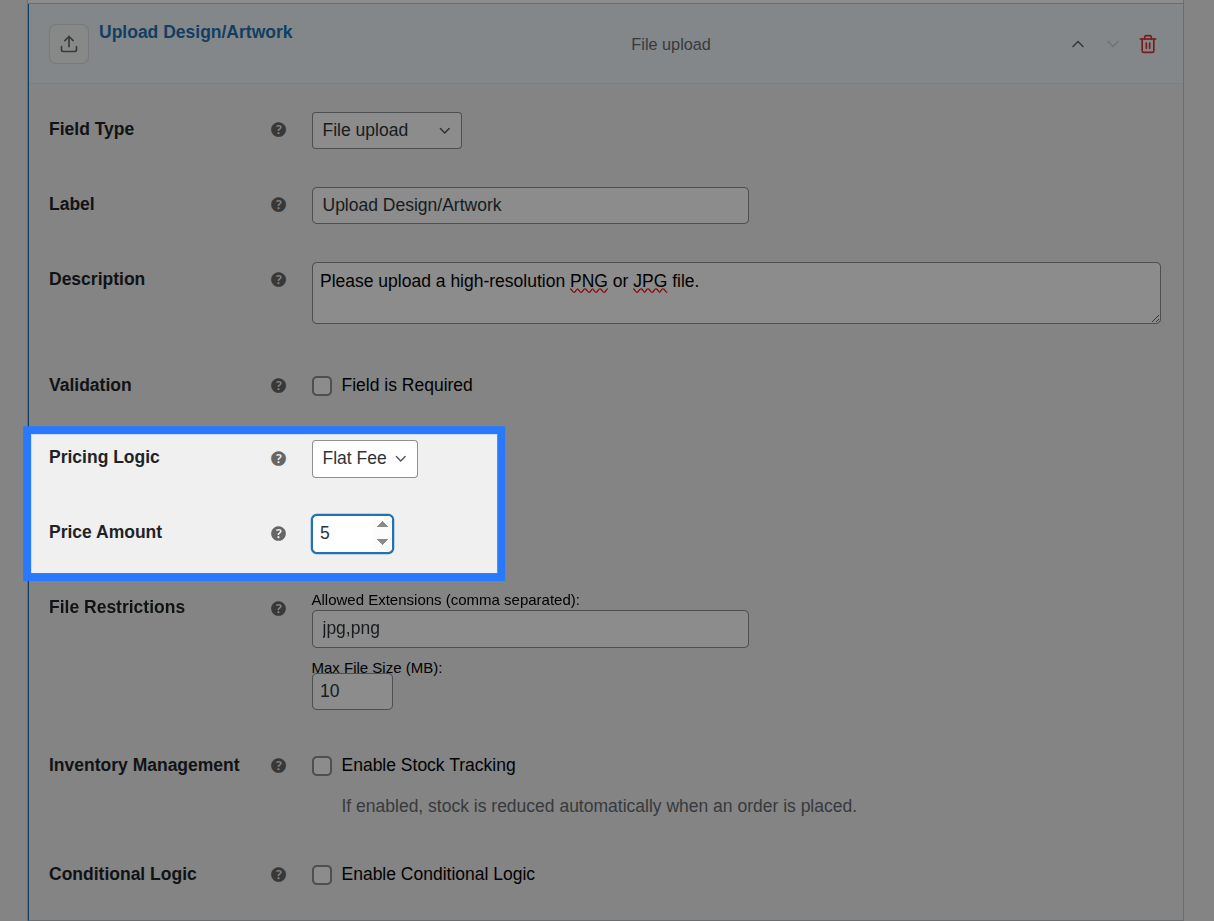
Open the Pricing tab to apply a flat charge when the customer uploads a file. This is useful for artwork handling or setup fees.
Available Inputs:
- Price Type: (None, Flat Fee, Percentage, Math Formula).
- Price Amount / Formula Expression: The fee applied when a file is successfully attached to the field.
Master the Pricing Engine
Smart Product Options and Addons includes five different pricing strategies, including dynamic math formulas. We've created a dedicated guide to explain all of them in detail.
Conditions
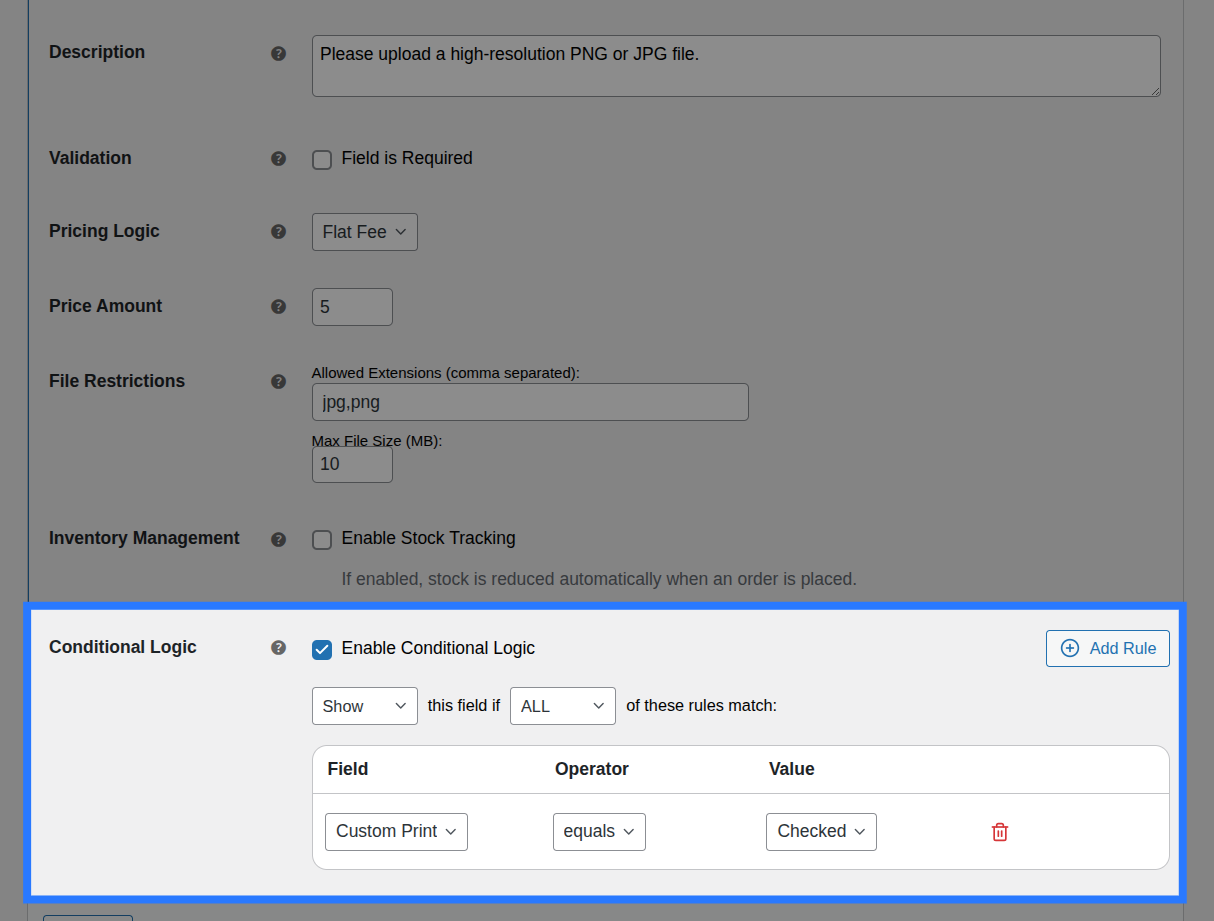
Open the Conditions tab to dynamically show or hide this upload field based on what the customer has selected in other fields.
Available Inputs:
- Enable Conditional Logic: Toggle to turn conditions on or off.
- Action: Choose whether to Show or Hide this field when conditions are met.
- Match Type: Choose ALL (every rule must match) or ANY (at least one rule must match).
- Rules: Define the specific field to watch, the comparison operator, and the value to check against.
Example: Only show the "Upload Logo" field if the customer ticks a "Custom Print (+$10)" checkbox. When hidden, the field is excluded from validation, ensuring customers are not blocked by a hidden required field.
Learn More About Conditions
Conditional logic lets you build dynamic, branching forms that adapt as the customer interacts. See the full list of operators and examples in our detailed guide.
Example & Frontend Display
To see how this comes together, let's look at a common scenario: Selling custom printed coffee mugs. You want the customer to optionally upload their own artwork, and you charge a $5.00 setup fee if they do.
You would configure the File Upload field like this:
- Label:
Custom Artwork - Allowed Types:
.jpg,.png,.pdf - Max File Size:
10 - Pricing:
Flat Fee, Amount5.00
Frontend Product Page View: With those settings, here is how the field renders on your product page. The allowed types and max size are clearly printed below the button to help the customer:
When a customer attaches a file and adds the product to their cart, Smart Product Options and Addons validates the file extension and size securely via AJAX before passing it to the server.
File Storage: Files are securely stored in the standard WordPress uploads directory: wp-content/uploads/YYYY/MM/filename.ext(Note: Smart Product Options and Addons does not clutter your WordPress Media Library with these customer uploads. The raw URL is saved directly to the order metadata).
Cart & WooCommerce Order View: The field label and the file name will appear clearly on the cart page and checkout:
Custom Artwork: my-company-logo.pdfIn the WooCommerce admin order screen, the full URL is stored so you can click through to download the file:
Custom Artwork: https://yoursite.com/wp-content/uploads/2026/05/my-company-logo.pdf