
Tools
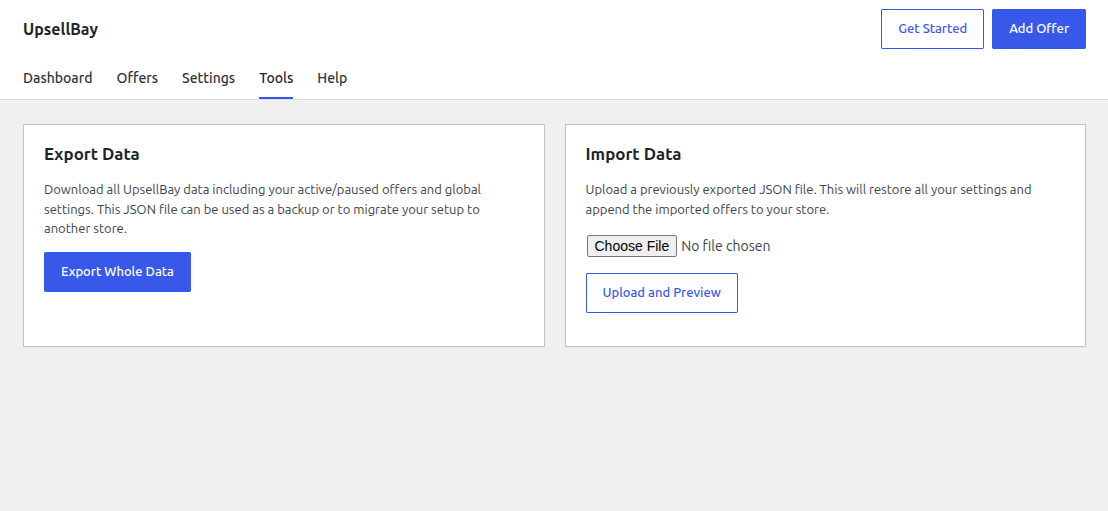
The Tools tab in UpsellBay provides a robust data migration system. Whether you are moving from a staging site to production, sharing templates between stores, or simply taking a backup, the Tools page handles it all. The Tools tab is provided by UpsellBay Pro.
Export Data
Section titled “Export Data”The Export tool generates a complete, structured JSON file of your UpsellBay setup.
What is exported?
- All Active and Paused Offers (including their rules, discounts, and placement configurations).
- Global Plugin Settings (including placement toggles, limits, and style tokens).
- Note: Analytics, logs, and sensitive data (like license keys) are not exported.
To export, simply click Export Whole Data. A .json file (e.g., upsellbay-export-YYYY-MM-DD.json) will be downloaded to your computer.
Import Data
Section titled “Import Data”The Import tool allows you to safely upload an exported .json file and restore your setup. The process uses a two-step preview system to ensure you have full control before any data is saved to your store.
Step 1: Upload and Preview
Section titled “Step 1: Upload and Preview”- Choose the
.jsonfile you previously exported. - Click Upload and Preview.
- UpsellBay will analyze the file and present a summary of what was found (e.g., Global Settings and the number of Offers).
Step 2: Import Preferences
Section titled “Step 2: Import Preferences”On the Preview screen, you can configure exactly how the incoming data should be handled:
-
Import global settings: Checked by default if settings exist in the file. Uncheck this if you only want to import offers without overwriting your store’s current styling and configurations.
-
Append “(Import)” to offer titles: Check this if you want to easily distinguish the newly imported offers from your existing ones.
-
Duplicates Handling: If an imported offer has the exact same title as an offer already on your store, you can choose a strategy. The list shows Skip importing offers that already exist first, so that is what the field selects unless you change it:
- Skip importing offers that already exist: Ignores the incoming offer.
- Create duplicate offers: Imports the offer alongside the existing one.
- Overwrite existing offers with the same title: Updates the existing offer with the incoming configuration.
If an import request is sent without this field (for example by a script), the server creates duplicates. The dropdown always sends a value, so this only affects direct requests.
Import does not remap IDs. Product, category, and tag IDs in an offer, including those in its targeting rules, are imported exactly as exported, so they point at the right items only when the target store uses the same IDs. After importing onto a different store, open each offer, choose the products and targeting again, and only then enable it. Remapping by SKU is planned for a later release.
Once you are satisfied with your preferences, click Confirm Import to apply the changes.