
Creating an Offer
The Add Offer Screen
Section titled “The Add Offer Screen”The Add/Edit Offer screen is organized into sections:
- Required basics
- Targeting rules
- Discount
- Display settings
- Schedule and priority
- Advanced metadata
This page explains every field in the order merchants see it.
Replace with: the full Add Offer screen with all sections expanded.
Required Basics
Section titled “Required Basics”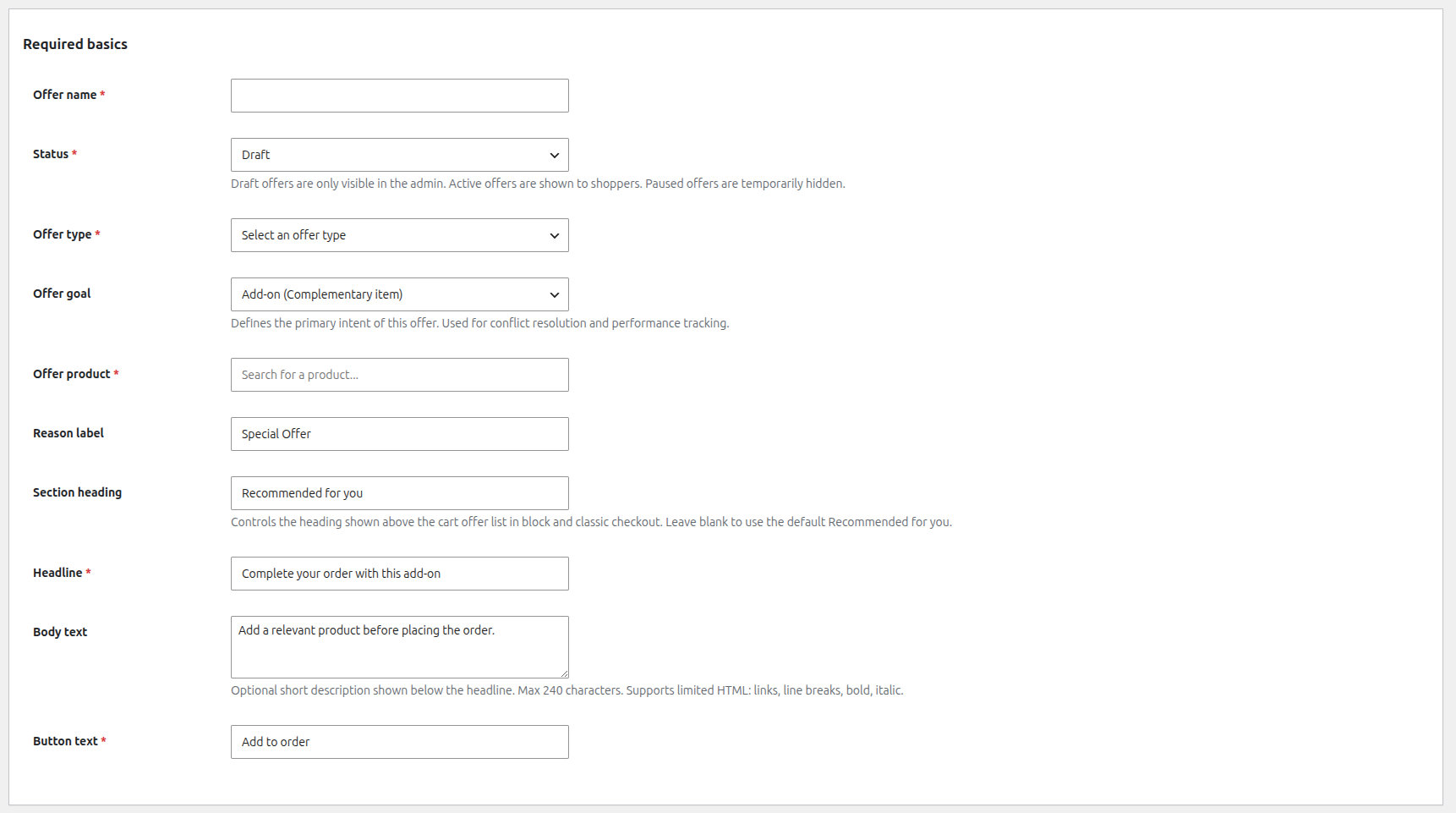
Offer name
Section titled “Offer name”Internal name only. Shoppers do not see this.
Status
Section titled “Status”Draft: safe working state while buildingActive: eligible to show to shoppersPaused: temporarily disabled without deleting the setup
An offer must be Active before shoppers can see it.
Offer type
Section titled “Offer type”Determines where the offer belongs:
Checkout bumpProduct page offerCart offerThank-you follow-on offer
Offer goal
Section titled “Offer goal”The goal describes the intent of the offer:
Add-onUpgradeProtectionThreshold HelperFollow-on
It helps with conflict detection and reporting interpretation.
Offer product
Section titled “Offer product”The WooCommerce product shoppers add from the offer.
Important behaviors:
- required for live offers
- must exist, be purchasable, and be in stock
- checkout bump and thank-you offers require a simple product or variation
- subscription products cannot receive UpsellBay discounts
Reason label
Section titled “Reason label”A short supporting label such as Recommended, Exclusive, or Most Popular.
Section heading
Section titled “Section heading”Controls the heading shown above the cart offer list in block and classic checkout. Leave blank to use the default Recommended for you.
Headline
Section titled “Headline”Primary shopper-facing message. Required for live offers.
Body text
Section titled “Body text”Optional short description below the headline. Supports limited formatting.
Button text
Section titled “Button text”The call to action shoppers click. Required for live offers.
Targeting Rules
Section titled “Targeting Rules”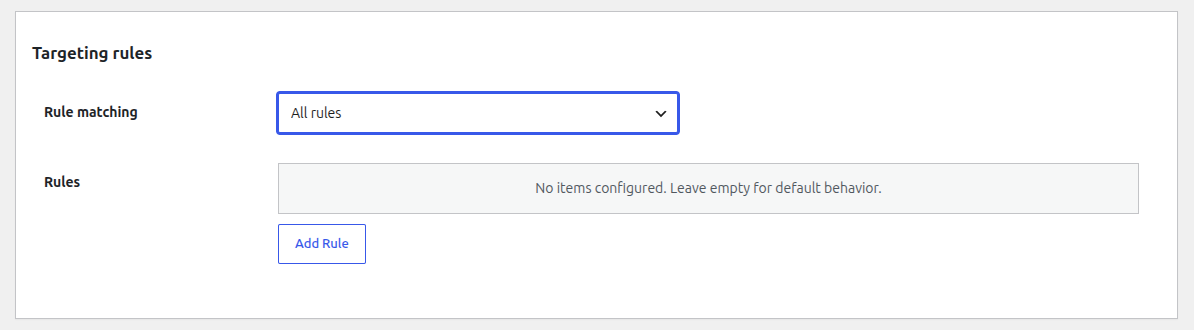
Rule matching
Section titled “Rule matching”Controls how multiple rules work together:
All rulesAny rule
Rules are edited through the visual builder and stored as structured JSON.
When creating rules that target specific products (such as “Cart contains product” or “Viewed product”), you can seamlessly select multiple products within a single rule. The dropdown utilizes a native WooCommerce search interface equipped with infinite scrolling, allowing you to easily browse large catalogs. Selected products clearly display their name, ID, and price to ensure accurate targeting.
Full rule types are documented in Targeting Rules.
Discount
Section titled “Discount”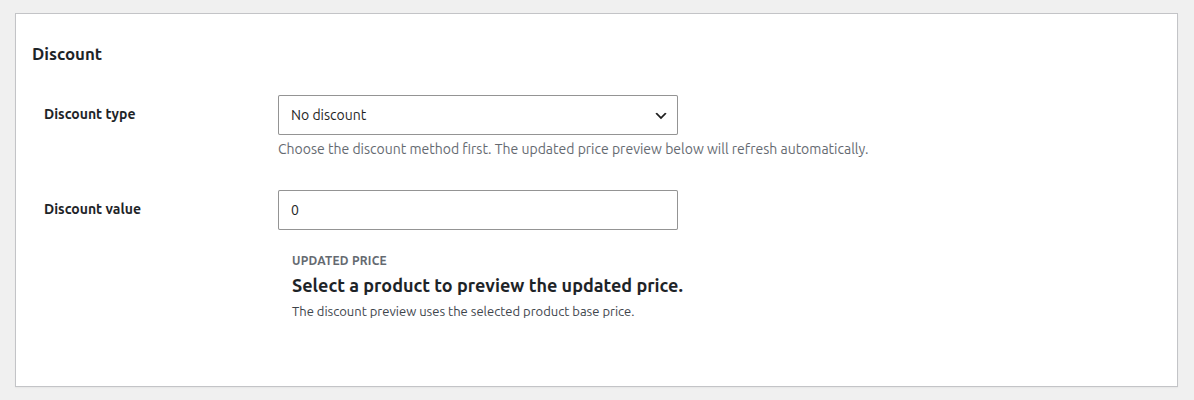
Discount type
Section titled “Discount type”Options:
No discountPercentageFixed amount offFixed offer price
Discount math is calculated server-side. Percentage discounts cannot exceed 100.
Discount value
Section titled “Discount value”The numeric input used by the selected discount type.
Display Settings
Section titled “Display Settings”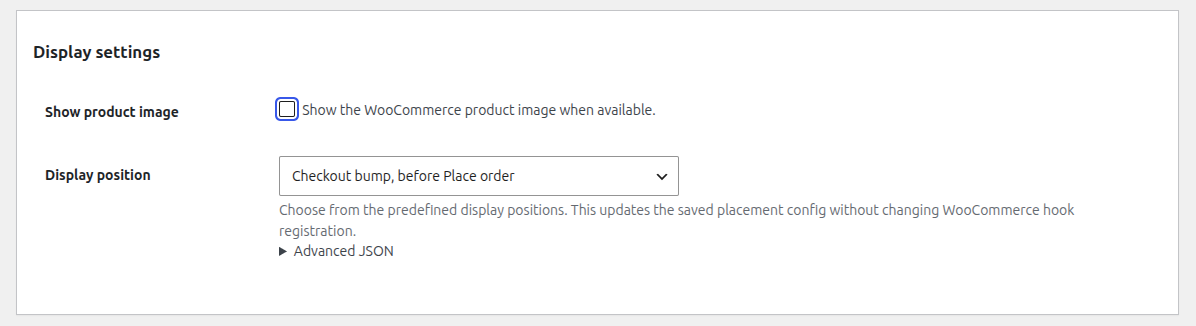
Show product image
Section titled “Show product image”Toggles whether UpsellBay should render the WooCommerce product image when available.
Display position
Section titled “Display position”Each offer type has one expected predefined position:
- Checkout bump ->
before_submit - Product page offer ->
after_add_to_cart - Cart offer ->
after_cart_table - Thank-you offer ->
order_received_actions
Advanced JSON
Section titled “Advanced JSON”Advanced users can preserve extra placement keys here.
Schedule and Priority
Section titled “Schedule and Priority”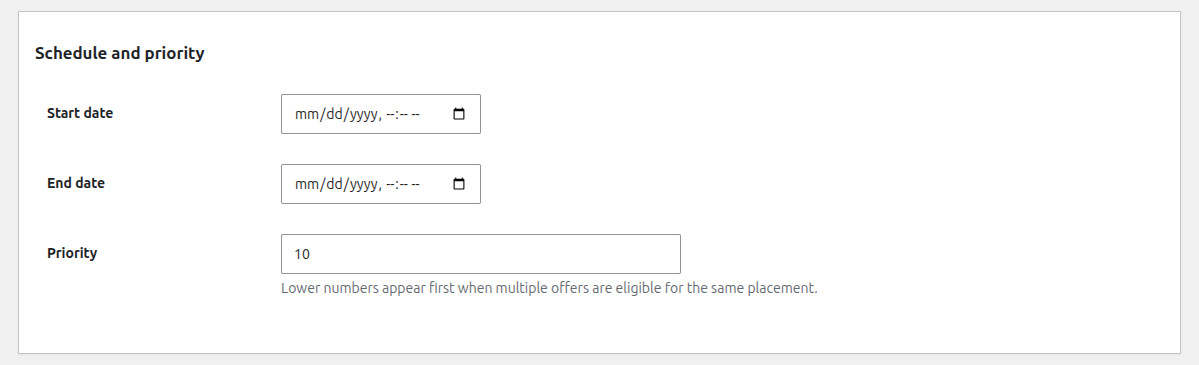
Start date
Section titled “Start date”Optional start timestamp.
End date
Section titled “End date”Optional end timestamp. End date must be after start date.
Priority
Section titled “Priority”Lower numbers win when multiple eligible offers compete for the same placement.
Advanced Metadata
Section titled “Advanced Metadata”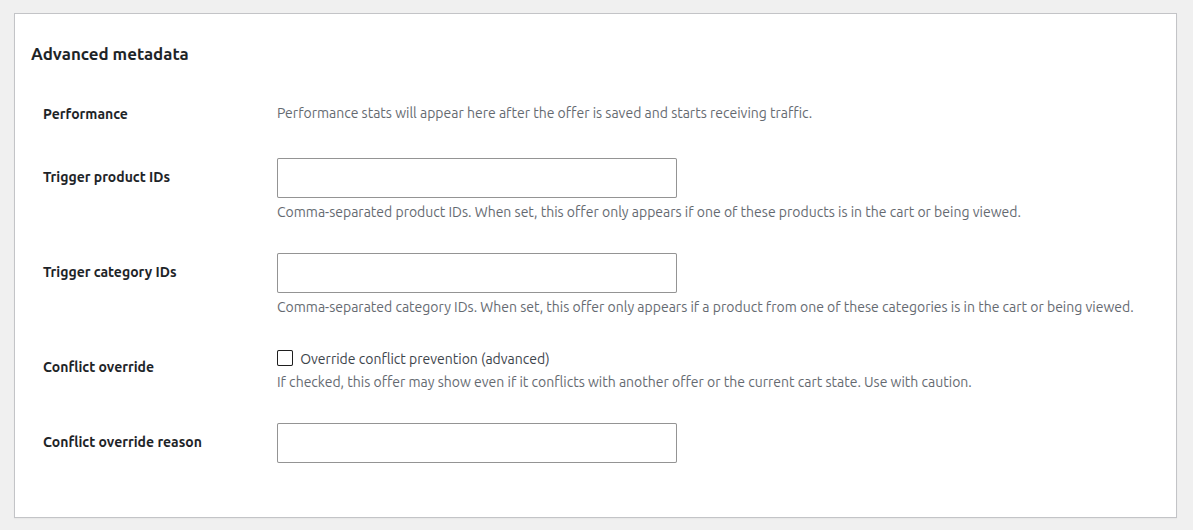
Performance
Section titled “Performance”Read-only summary after the offer has been saved and starts receiving traffic.
Trigger product IDs
Section titled “Trigger product IDs”Comma-separated WooCommerce product IDs used as a direct trigger filter.
Trigger category IDs
Section titled “Trigger category IDs”Comma-separated WooCommerce category IDs used as a direct category trigger filter.
Conflict override
Section titled “Conflict override”Allows a merchant to bypass conflict prevention. Use only when the overlap is intentional.
Conflict override reason
Section titled “Conflict override reason”Required justification when override is enabled for an active offer.