
Offers Overview
What The Offers Screen Does
Section titled “What The Offers Screen Does”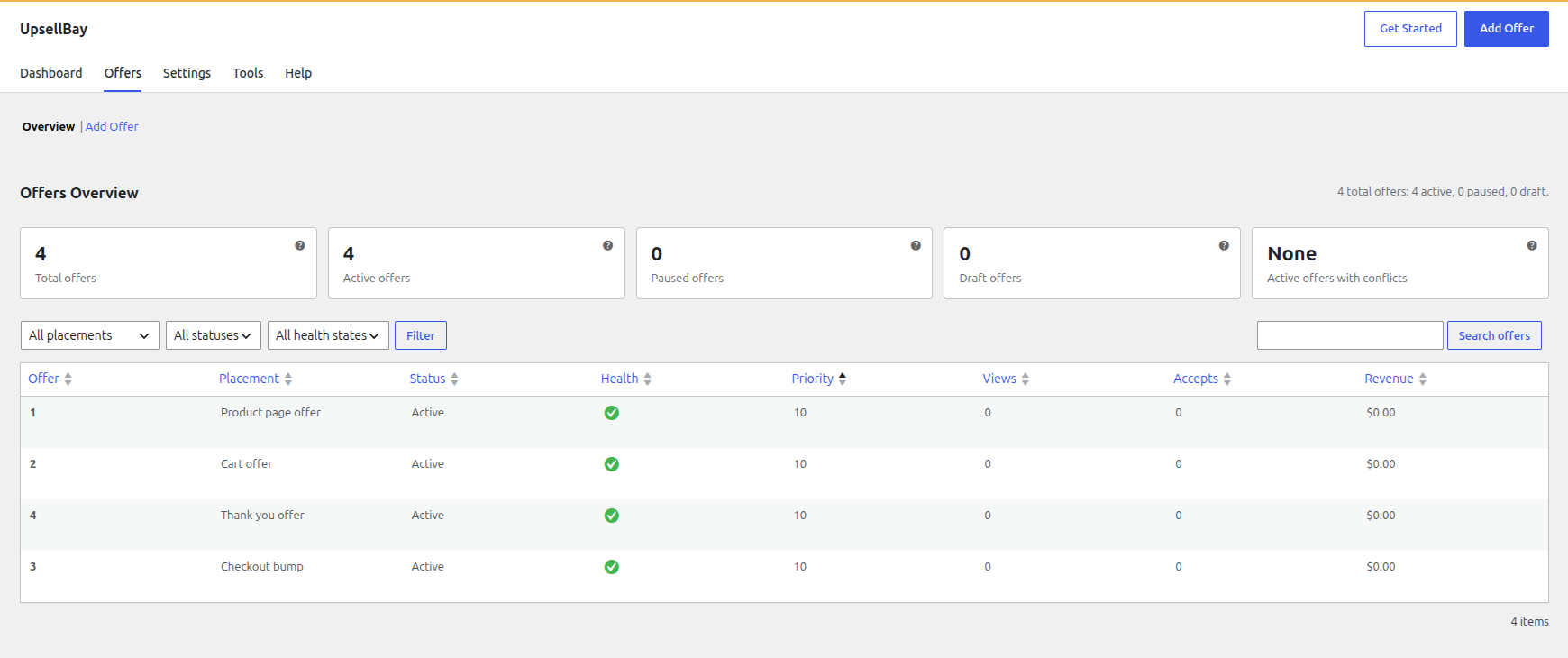
The Offers tab is your central hub for merchandising operations. It provides a comprehensive view of all your upsell campaigns, allowing you to easily:
- Create and configure new offers.
- Search and filter your existing campaigns.
- Monitor health and placement at a glance.
- Preview how offers appear directly on the storefront.
- Manage offer lifecycles (activate, pause, edit, delete).
Understanding the Offers Table
Section titled “Understanding the Offers Table”The table provides key insights into your active campaigns.
Displays the internal title of the offer. Hovering over a row reveals quick actions:
- Edit: Opens the visual builder to modify the offer.
- View Live: Launches a new tab to preview the offer in its designated storefront location.
- Delete: Permanently removes the offer.
Placement
Section titled “Placement”Indicates the specific storefront location where the offer is designed to render (e.g., Product Page, Cart, Checkout, Thank You).
Status
Section titled “Status”Reflects the current operational state of the offer:
- Draft: The offer is safely saved but not eligible to be shown.
- Active: The offer is live and will render when its targeting rules are met.
- Paused: The offer is temporarily disabled without losing its configuration.
Health
Section titled “Health”The Health column provides proactive conflict detection to ensure a smooth shopper experience:
- A green success icon indicates no known conflicts.
- A warning icon indicates potential placement crowding, a priority tie, or funnel overlap. Note: This is an indicator to review your setup, not a guarantee of failure.
Priority
Section titled “Priority”Determines which offer wins when multiple active offers compete for the same placement. Lower numbers indicate higher priority (e.g., an offer with priority 1 will display over an offer with priority 10).
Performance Metrics
Section titled “Performance Metrics”Quick-reference metrics to gauge offer success without opening detailed reports:
- Views: How many times the offer was rendered.
- Accepts: How many times the offer was successfully added to an order.
- Revenue: The total attributed revenue generated directly by the offer.
Navigating and Filtering
Section titled “Navigating and Filtering”Manage large catalogs of offers easily using the table controls:
- Search: Find offers by title or key terms.
- Filters: Narrow the view by specific Placements, Statuses, or Health states.
- Sorting: Click column headers to sort by title, status, priority, views, accepts, or revenue.
Offer Lifecycle Management
Section titled “Offer Lifecycle Management”Draft State
Section titled “Draft State”Use Draft while you are actively configuring copy, establishing rules, or testing discount logic. Drafts are completely hidden from the storefront.
Active State
Section titled “Active State”Active offers are immediately eligible to render. They will be displayed to shoppers as long as the placement is valid, the targeting rules are met, and the offered product is available.
Paused State
Section titled “Paused State”Use Paused to temporarily halt an offer (e.g., seasonal promotions) while retaining all historical analytics and configuration.
Preview Behavior
Section titled “Preview Behavior”Clicking View Live utilizes placement-aware preview logic to take you to the exact spot the offer renders:
- Product offer: Links directly to the offered product’s page.
- Cart offer: Links to the cart page.
- Checkout bump: Links to the checkout page.
- Thank-you offer: Links to the most recent qualifying WooCommerce order receipt (when available).