
Log
What The Log Page Documents
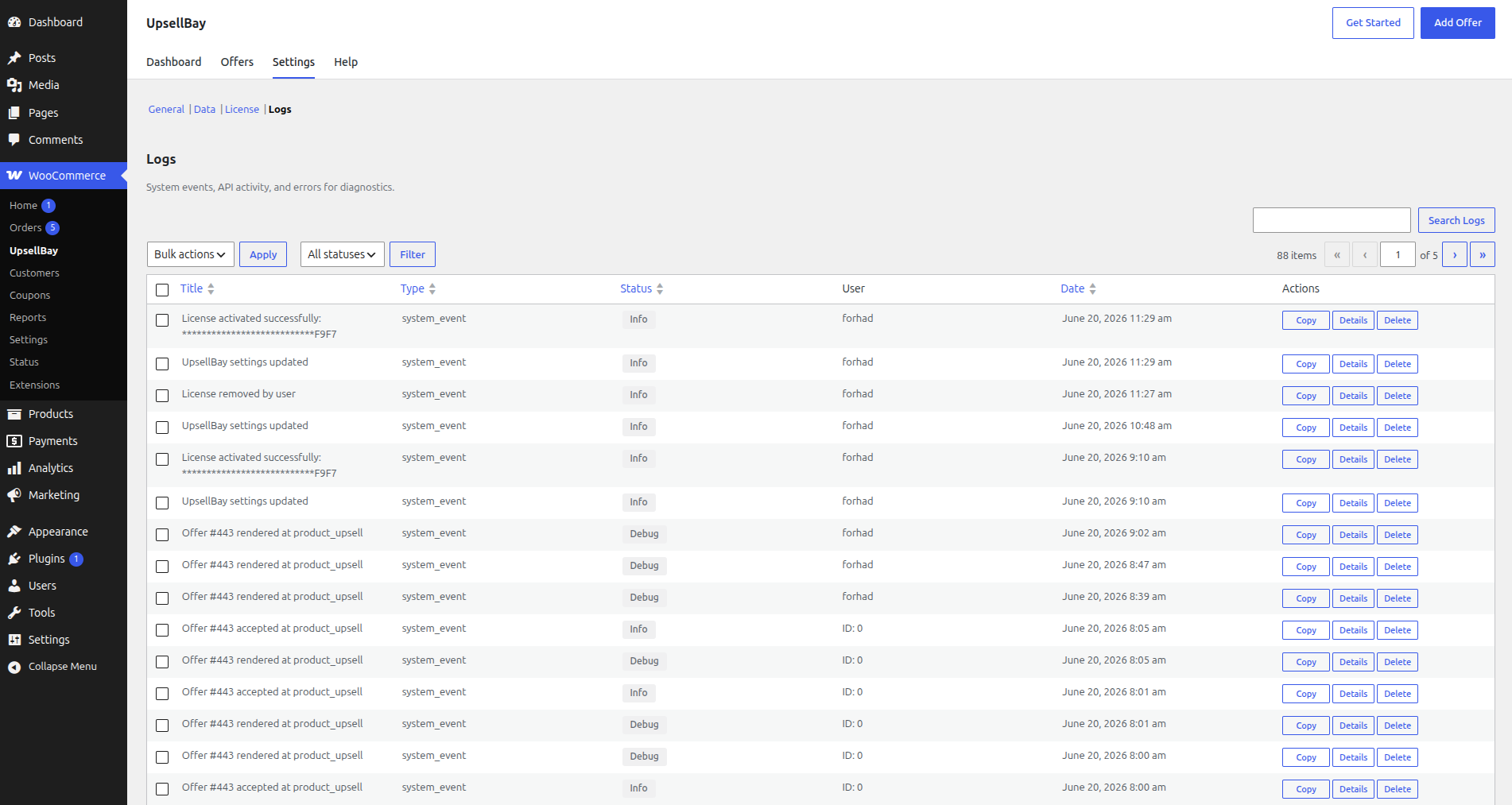
Section titled “What The Log Page Documents”This page documents WooCommerce -> UpsellBay -> Settings -> Logs.
Even though the admin section is named Logs, this documentation page focuses on the single operational log system that UpsellBay uses for diagnostics and support.
What The Logs Section Is For
Section titled “What The Logs Section Is For”The Logs section is a diagnostic workspace for operators, QA reviewers, agencies, and support teams.
Use it when:
- an offer fails to behave as expected
- you need more context for an internal bug report
- support asks for a sanitized event trail
- a license or API event needs deeper inspection
- you want to remove stale diagnostic entries after an issue is resolved
What it is not for:
- shopper-facing notifications
- marketing messages
- everyday campaign management
What The Logs System Records
Section titled “What The Logs System Records”Depending on the event, logs may include:
- title
- log type
- status level
- user reference
- created date
- related object references
- description
- request data
- response data
- metadata
The plugin records diagnostic context so issues can be investigated without exposing the full license key in the normal admin interface.
Working With The Logs Table
Section titled “Working With The Logs Table”The logs view supports:
- search
- status filtering
- sortable columns
- single-item deletion
- bulk deletion
- opening a detailed log view
- copy-to-clipboard export from individual records
Why this matters:
- you can narrow large log lists quickly
- support teams can focus on a specific status or event family
- stores can keep the diagnostics table useful instead of noisy
Table Columns
Section titled “Table Columns”Short human-readable description of the recorded event.
Use it to quickly spot the event you care about before opening full details.
The event family or category associated with the log entry.
Use it to separate system, API, license, or other operational activity.
Status
Section titled “Status”Severity-style badge that helps you judge urgency at a glance.
Typical statuses include informational and warning states as well as higher-severity error states.
Why it matters:
- errors and warnings usually deserve review first
- informational entries help reconstruct what happened before a failure
Shows the recorded user when one is available.
Use it when you need to know whether an event was triggered by a specific admin action rather than background processing.
Shows when the event was recorded.
Use it to line events up with support reports, changes, imports, or license actions.
Actions
Section titled “Actions”Each row can expose actions such as:
CopyDetailsDelete
These are the fastest path for inspection, sharing, and cleanup.
Log Detail View
Section titled “Log Detail View”The detailed view includes:
- title
- date
- type
- status
- IP address and user ID when recorded
- related object references
- description
- request, response, and metadata payloads when available
Why open the detail view:
- to inspect the full event context
- to confirm what request or response data was captured
- to create a support-ready summary from one specific event
Support Export
Section titled “Support Export”The detail screen includes a copy-to-clipboard report so you can hand a support-ready summary to your team without manually reformatting the event details.
Use it when:
- opening a support ticket
- handing a bug to engineering or QA
- documenting a reproducible issue internally
Deleting Logs
Section titled “Deleting Logs”The Logs section supports both single-item deletion and bulk deletion.
When to delete logs:
- after a support case is resolved
- when old noise is making review harder
- when a staging environment should be cleaned up
When not to delete logs yet:
- before an active issue is fully documented
- while support is still waiting on evidence
How Logs Relate To Data Retention
Section titled “How Logs Relate To Data Retention”The Data settings section controls Log retention days. That setting decides how long log entries stay available before retention cleanup should remove stale records.
Use the relationship this way:
- retention settings define the default lifecycle
- the Logs page gives you manual inspection and cleanup tools
Recommended Workflow
Section titled “Recommended Workflow”For most teams:
- search or filter by severity first
- open the detail view for the most relevant event
- copy the support export before deleting anything
- keep log retention long enough to cover normal troubleshooting windows