
Installation
UpsellBay is two plugins that work together:
- UpsellBay - Order Bump for WooCommerce (the free plugin) provides the checkout bump, the offer editor, the setup wizard, and the Offers list and dashboard.
- UpsellBay Pro (
upsellbay.zip, distributed by WPAnchorBay) builds on the free plugin. It adds the product page, cart, and thank-you offers, the Tools tab, the License and Logs settings sections, and Pro analytics.
UpsellBay Pro does not run on its own. Install and activate the free plugin first, then Pro. Install both like normal WordPress plugin ZIPs and activate them from the WordPress admin.
Before You Install
Section titled “Before You Install”Confirm the store meets the Requirements, especially WooCommerce and PHP versions.
Install from WordPress Admin
Section titled “Install from WordPress Admin”Install and activate WooCommerce and the free UpsellBay plugin first. Then get the UpsellBay Pro ZIP (upsellbay.zip) from the WPAnchorBay site, your purchase email, or the marketplace you purchased from, and follow these steps:
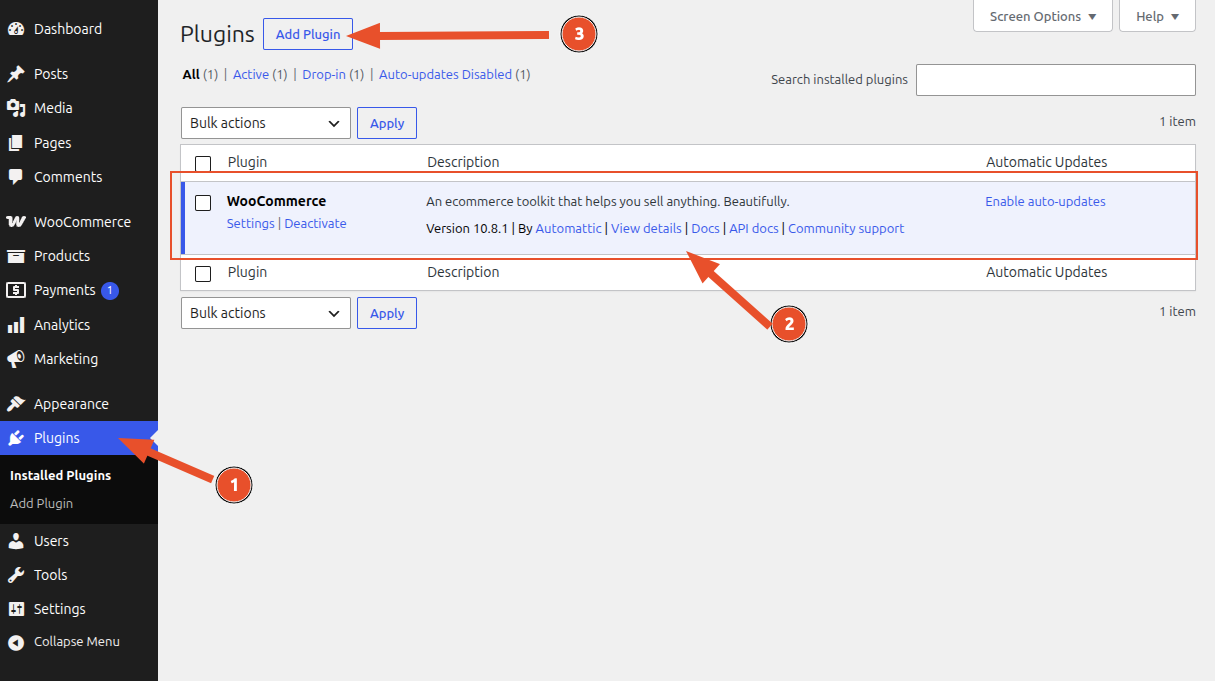
- In WordPress admin, go to Plugins.
- Make sure you have already installed WooCommerce and activated it.
- Click Add New.
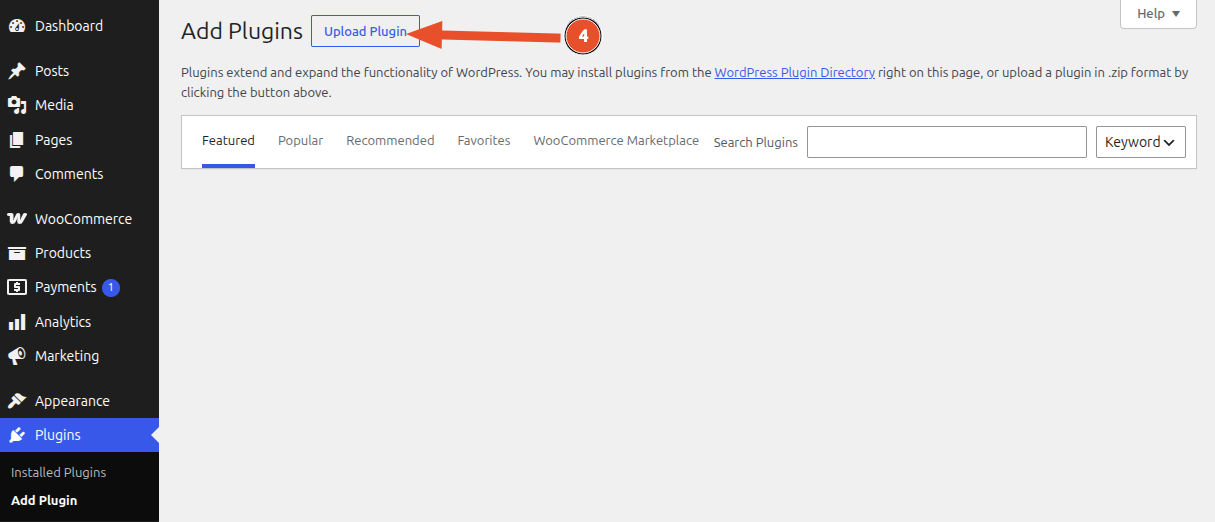
- Click Upload Plugin.
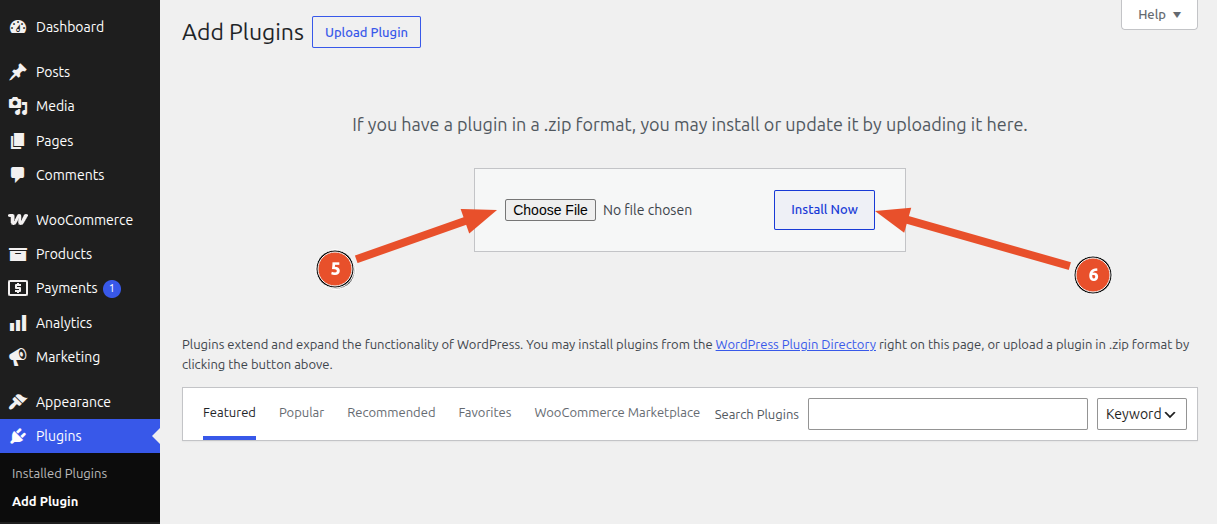
-
Choose the UpsellBay ZIP (
upsellbay.zip) file. -
Click Install Now.
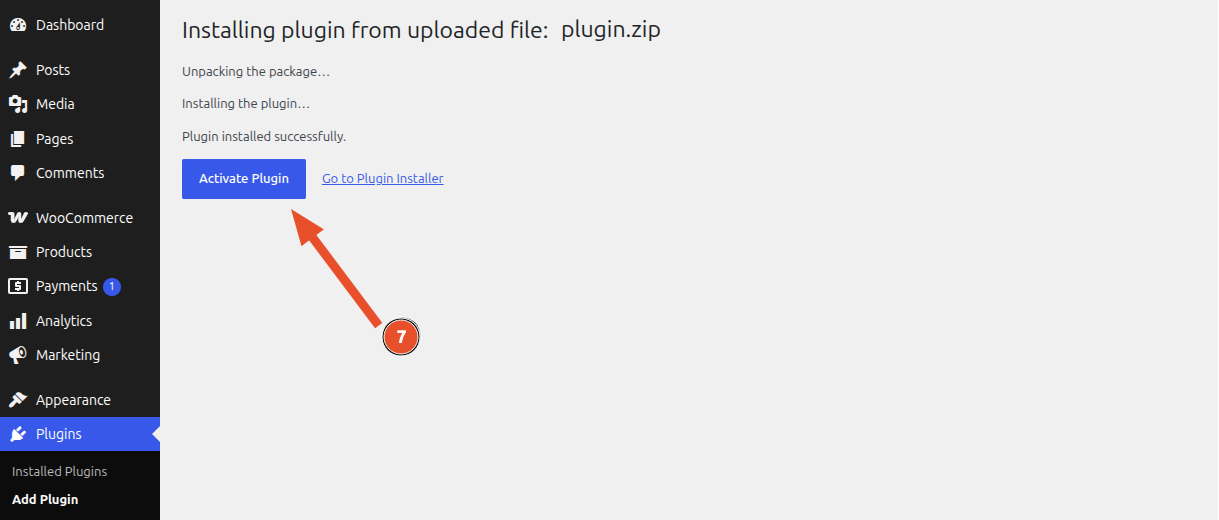
- Click Activate Plugin.
After Activation
Section titled “After Activation”When the free plugin is activated, UpsellBay saves its default settings and registers the private offer post type.
You can go to the UpsellBay dashboard by clicking on the Overview link on the UpsellBay row of the plugins list.
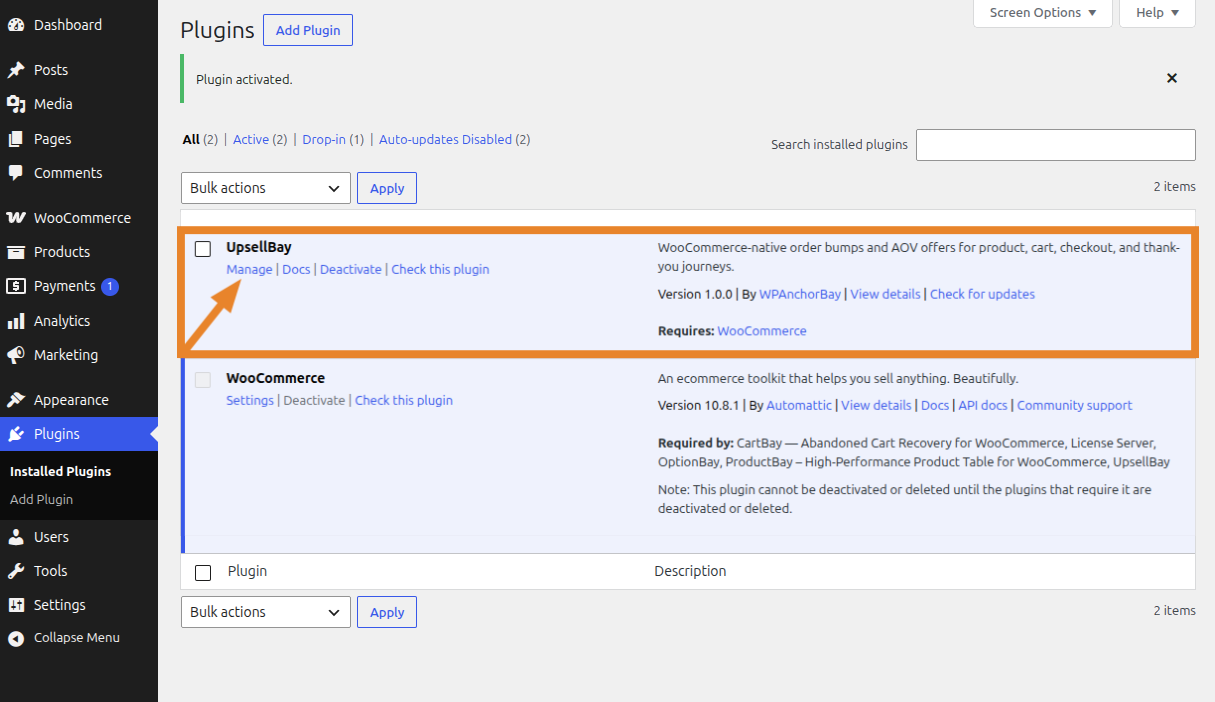
UpsellBay appears in:
There are several ways to access UpsellBay:
- WordPress Admin Direct:
WooCommerce > UpsellBay - From Plugins Page:
Plugins > UpsellBay > Manage
Verify Installation:
- Confirm
WooCommerce > UpsellBaycan be found and opens. - Confirm no WooCommerce-missing notice appears.
- Continue to Setup Wizard.
Updating UpsellBay
Section titled “Updating UpsellBay”UpsellBay Pro uses a private updater connected to the WPAnchorBay license server. Activate a valid license key under Settings -> License to receive updates. See License Activation.