
Checkout Bump
What is a Checkout Bump?
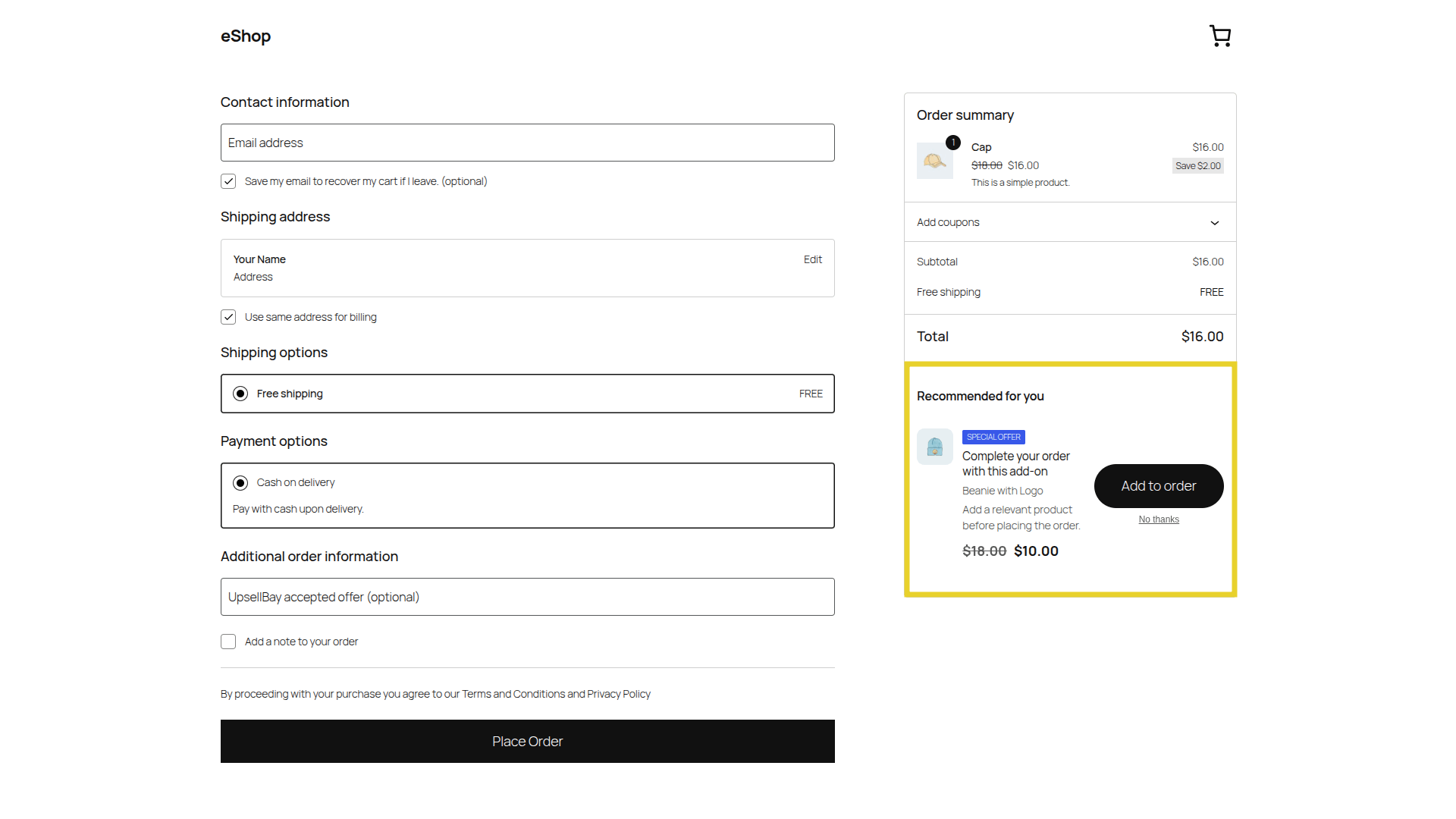
Section titled “What is a Checkout Bump?”A Checkout Bump is a low-friction, impulse-buy offer presented directly on the checkout page, usually right before the “Place Order” button. It consists of a simple checkbox, a compelling headline, and a short description.
Because the customer has already decided to purchase and entered their payment information, adding a checkout bump requires zero extra steps—just a single click.
How it Works
Section titled “How it Works”- Eligibility Check: When the customer reaches the checkout page, UpsellBay instantly evaluates your active bump rules (e.g., minimum cart total, specific products in cart).
- Seamless Rendering: The offer is rendered natively within the WooCommerce checkout flow, inheriting your active theme’s styling and typography so it looks like a built-in feature.
- Frictionless Addition: The customer simply checks the box. UpsellBay utilizes an AJAX request to instantly add the product, apply any associated discounts, and recalculate the order total without ever reloading the page.
- One discounted unit: The discount applies to one unit of the bump product. If the quantity is raised, the other units are charged at the product’s regular price.
- Ticked bump stays visible: After the box is ticked, the bump stays on screen ticked so the customer can see it is applied and untick it.
- Eligibility is rechecked on accept: An offer that has expired, has not started yet, or whose trigger products are not in the cart cannot be accepted, even by a direct request. Pausing or deleting an offer, or turning offers off or test mode on, removes its discount from carts that already hold it.
- Single Transaction: The customer clicks “Place Order,” seamlessly purchasing the original cart contents plus the bump item in a single, unified transaction.
How to Create a Checkout Bump
Section titled “How to Create a Checkout Bump”Follow these steps to create your first Checkout Bump:
1. Core Configuration
Section titled “1. Core Configuration”Go to WooCommerce > UpsellBay > Offers and click Add Offer.
- Offer name: An internal name to identify the offer in your admin.
- Offer type: Select Checkout bump.
- Status: Set to Active (or Draft if you want to test it first).
- Offer goal: Select the intent of your offer (e.g., Add-on for a complementary item).
- Offer product: Search and select the exact product you want to recommend to shoppers.
2. Triggers and Rules
Section titled “2. Triggers and Rules”UpsellBay needs to know when to show this offer. You can set this up using basic triggers or advanced rules.
- Trigger product IDs: Enter comma-separated product IDs.
- Trigger category IDs: Enter comma-separated category IDs.
For more complex logic, leave triggers empty and use Rules:
- Rule matching: Choose whether the customer must meet All rules or Any rule.
- Rules Builder: Create conditions like cart subtotals, specific user roles, stock statuses, or customer order counts.
3. Display and Content
Section titled “3. Display and Content”Customize how the offer looks and feels to the shopper:
- Headline: The main title of your offer.
- Body text: Optional short description (max 240 characters) shown below the headline. Keep this punchy for checkout bumps.
- Button text: N/A for standard checkbox checkout bumps, but useful if using alternative layouts.
- Show product image: Check to display the offered product’s thumbnail image inside the bump box.
- Hide if in cart: Check this to automatically hide the offer if the customer has already added the offered product to their cart.
4. Pricing and Discounts
Section titled “4. Pricing and Discounts”Incentivize the customer to take action:
- Discount type: Choose between No discount, Percentage, Fixed amount off, or Fixed offer price.
- Discount value: Enter the numeric value. The live preview will automatically show you the updated price based on your selection.
5. Finalizing
Section titled “5. Finalizing”- Priority: If multiple checkout bumps are eligible, the one with the lower priority number wins.
- Start / End date: Optionally schedule your offer to run during a specific timeframe.
Click Save offer. If your status is Active, the checkout bump will immediately start showing on the checkout page!
The Sales Psychology
Section titled “The Sales Psychology”Checkout bumps operate on the highly effective principles of Impulse Purchasing and Frictionless Buying:
- High Intent: The customer is at the absolute peak of their buying intent. They have their wallet out and are ready to finalize.
- Low Commitment: Checkout bumps are most effective when they are inexpensive, “no-brainer” add-ons that require zero additional research or decision-making.
- The “While I’m At It” Effect: Framing the offer as an exclusive, one-time convenience (“Add rush processing,” “Include a protective case”) significantly boosts conversion rates because it leverages the momentum of the primary purchase.
What Can Go Wrong
Section titled “What Can Go Wrong”- Too Expensive: Bumps should generally be 10-20% of the total order value. Offering a $100 bump on a $20 order creates friction and causes cart abandonment.
- Irrelevant Offers: Offering a generic product that doesn’t complement the main purchase will lead to low conversion rates.
- Too Much Text: The checkout page is not the place for long sales letters. If the customer has to stop and read a paragraph, they might rethink their entire purchase. Keep the copy short and punchy.
- Placement Blindness: If the bump looks exactly like a standard terms and conditions checkbox, it will be ignored.
How This Helps Your Business
Section titled “How This Helps Your Business”Checkout bumps have one of the highest conversion rates of any upsell strategy (often 10-30%). Because the customer acquisition cost (CAC) has already been paid to get them to the checkout page, the revenue generated from a checkout bump is almost entirely pure profit, dramatically increasing your Average Order Value (AOV) with minimal effort.