
Product Page Offer
What is a Product Page Offer?
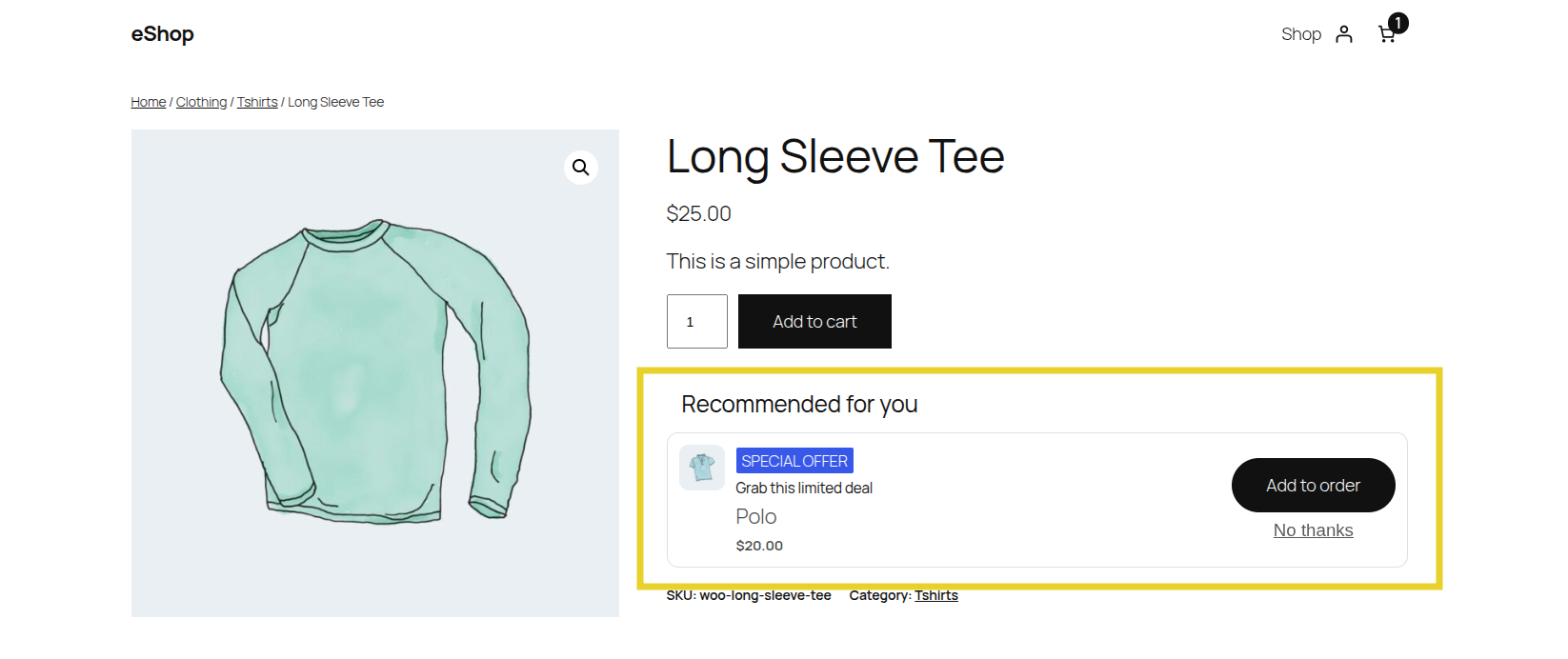
Section titled “What is a Product Page Offer?”A Product Page Offer is an upsell or cross-sell presented directly on the single product page, typically just below the “Add to Cart” form. It encourages the customer to bundle additional, related items with the main product before they even reach the cart.
How it Works in UpsellBay
Section titled “How it Works in UpsellBay”- Contextual Evaluation: When a customer views a product page, UpsellBay checks if there are any active offers specifically targeted at that product or category using Triggers or Rules.
- Native Placement: The offer is seamlessly injected in the “Product page, after add-to-cart form” area by default, feeling like a built-in feature of your theme.
- Smart Redundancy Prevention: UpsellBay automatically prevents an offer from showing on its own product page (e.g., offering a product on its own page). You can also configure the offer to hide if the customer already has the offered item in their cart.
- Discount Engine: You can apply native percentage, fixed amount, or fixed price discounts to incentivize the bundle.
How to Create a Product Page Offer
Section titled “How to Create a Product Page Offer”Follow these steps to create your first Product Page Offer:
1. Core Configuration
Section titled “1. Core Configuration”Go to WooCommerce > UpsellBay > Offers and click Add Offer.
- Offer name: An internal name to identify the offer in your admin.
- Offer type: Select Product page offer.
- Status: Set to Active (or Draft if you want to test it first).
- Offer goal: Select the intent of your offer (e.g., Add-on for a complementary item, or Upgrade for a better version).
- Offer product: Search and select the exact product you want to recommend to shoppers.
2. Triggers and Rules
Section titled “2. Triggers and Rules”UpsellBay needs to know when to show this offer. You can set this up using basic triggers or advanced rules.
- Trigger product IDs: Enter comma-separated product IDs. The offer will only appear if the customer is viewing one of these specific products.
- Trigger category IDs: Enter comma-separated category IDs. The offer will appear if the customer is viewing a product from these categories.
For more complex logic, leave triggers empty and use Rules:
- Rule matching: Choose whether the customer must meet All rules or Any rule.
- Rules Builder: Create conditions like cart subtotals, specific user roles, stock statuses, or customer order counts.
3. Display and Content
Section titled “3. Display and Content”Customize how the offer looks and feels to the shopper:
- Headline: The main title of your offer (e.g., “Frequently Bought Together”).
- Body text: Optional short description (max 240 characters) shown below the headline.
- Button text: The call-to-action on the button (e.g., “Add for $10”).
- Show product image: Check to display the offered product’s thumbnail image.
- Hide if in cart: Check this to automatically hide the offer if the customer has already added the offered product to their cart. Uncheck if you want to allow them to add multiple quantities.
4. Pricing and Discounts
Section titled “4. Pricing and Discounts”Incentivize the customer to take action:
- Discount type: Choose between No discount, Percentage, Fixed amount off, or Fixed offer price.
- Discount value: Enter the numeric value. The live preview will automatically show you the updated price based on your selection.
5. Finalizing
Section titled “5. Finalizing”- Priority: If multiple offers are eligible for the same product page, the one with the lower priority number wins.
- Start / End date: Optionally schedule your offer to run during a specific timeframe.
Click Save offer. If your status is Active, the offer will immediately start showing on the designated product pages!
The Sales Psychology
Section titled “The Sales Psychology”Product Page Offers leverage two core psychological principles:
- Anticipating Needs: By offering batteries for a flashlight or a memory card for a camera, you solve a future problem immediately, reducing friction.
- Perceived Value via Bundling: Presenting the offer with a targeted discount shifts the customer’s mindset from “Should I buy this?” to “Look at the great deal I’m getting.”
What Can Go Wrong
Section titled “What Can Go Wrong”- Irrelevant Recommendations: Offering a premium upgrade when the user is looking at a budget option can create cognitive dissonance. Make sure the offer logically matches the original product.
- Information Overload: The product page is already full of details, reviews, and specs. Keep your offer concise so it doesn’t overwhelm the buyer or clutter the layout.
- Distracting from the Main Product: If the offer takes too much attention away from the primary “Add to Cart” button, you risk confusing the buyer and losing the initial sale entirely.
How This Helps Your Business
Section titled “How This Helps Your Business”Product page offers are fantastic for capturing the customer’s attention early in their journey. By showcasing complementary items right at the point of initial intent, you can increase your Average Order Value (AOV) before the customer even reaches the cart, effectively expanding the basket size at the very first touchpoint.