

Engine Logic & Automation
The Engine Logic tab is the “brain” of NotifyBay. It defines the powerful background rules that dictate when emails are dispatched, how stock is allocated to eager buyers, and how your revenue is tracked.
NotifyBay doesn’t just “blast” emails; it uses a sophisticated automation engine designed to maximize sales while maintaining a premium customer experience.
1. Smart Restocking (Fair-Play)
Section titled “1. Smart Restocking (Fair-Play)”If you have 500 people on a waitlist but only restock 10 items, emailing everyone simultaneously causes frustration. 490 people will click through only to find the item sold out again—sometimes within seconds.
Fair-Play Restocking ensures a better experience by drip-feeding notifications based on your actual physical inventory.
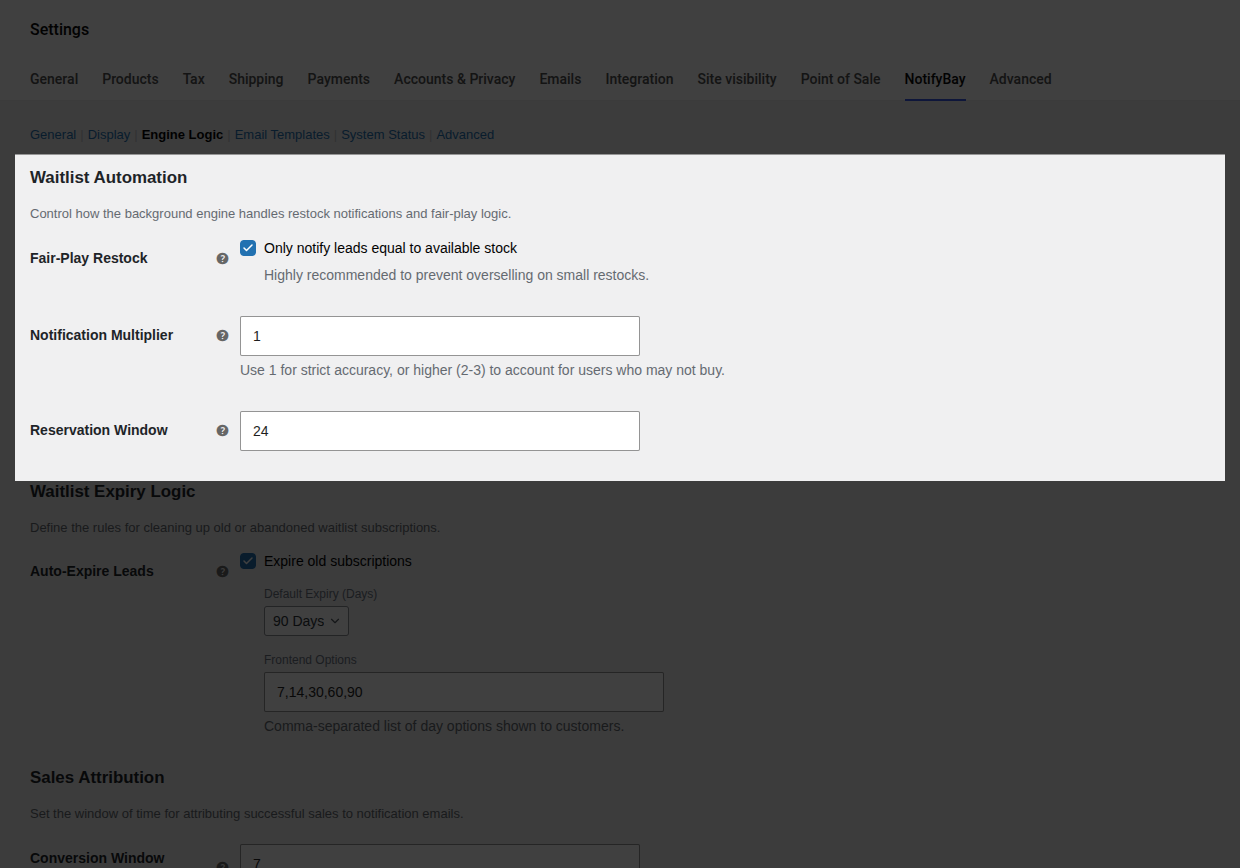
- Fair-Play Restock: When enabled, the engine only notifies a batch of people proportional to the units restocked.
- Notification Multiplier: Not everyone will buy immediately. A multiplier of
2means the system will email 20 people if 10 units are restocked, increasing your chances of a total sell-out without overwhelming the 10 units. - Reservation Window: How long (in hours) the stock is “held” for the notified batch. If they don’t purchase within this window, the system assumes they aren’t interested and automatically notifies the next group in the queue.
2. Inventory Safety (Minimum Threshold)
Section titled “2. Inventory Safety (Minimum Threshold)”Avoid “trigger-happy” notifications on single returns or small inventory adjustments.
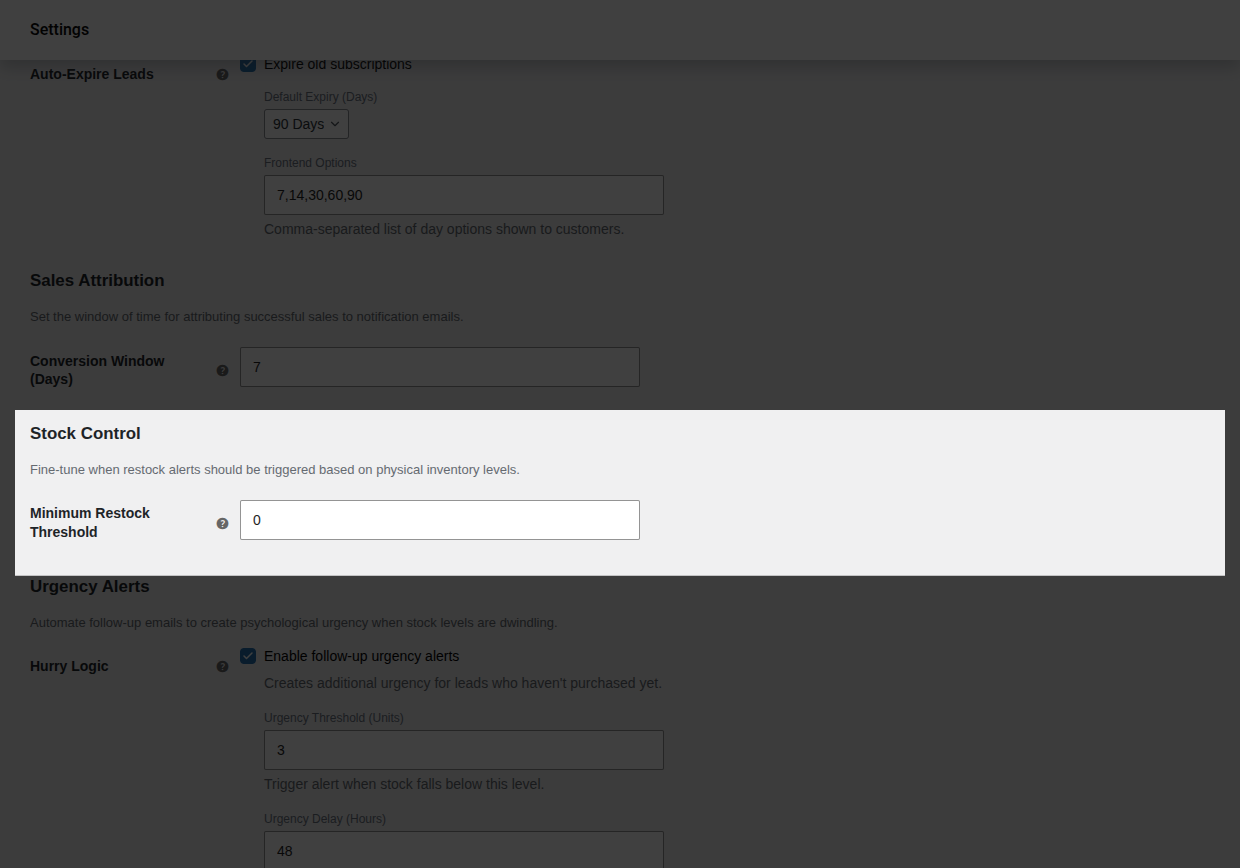
- Minimum Restock Threshold: By default, NotifyBay triggers as soon as stock is
> 0. You can set this to a higher number (e.g.,5) to wait until you have a meaningful amount of stock before firing off alerts. This is perfect for avoiding notifications on items that might be returned in a damaged state or miscounted.
3. Urgency (Hurry) Alerts
Section titled “3. Urgency (Hurry) Alerts”Psychological urgency is a powerful closer. NotifyBay can automatically send a second “Hurry” email when a recently restocked item is about to sell out again.
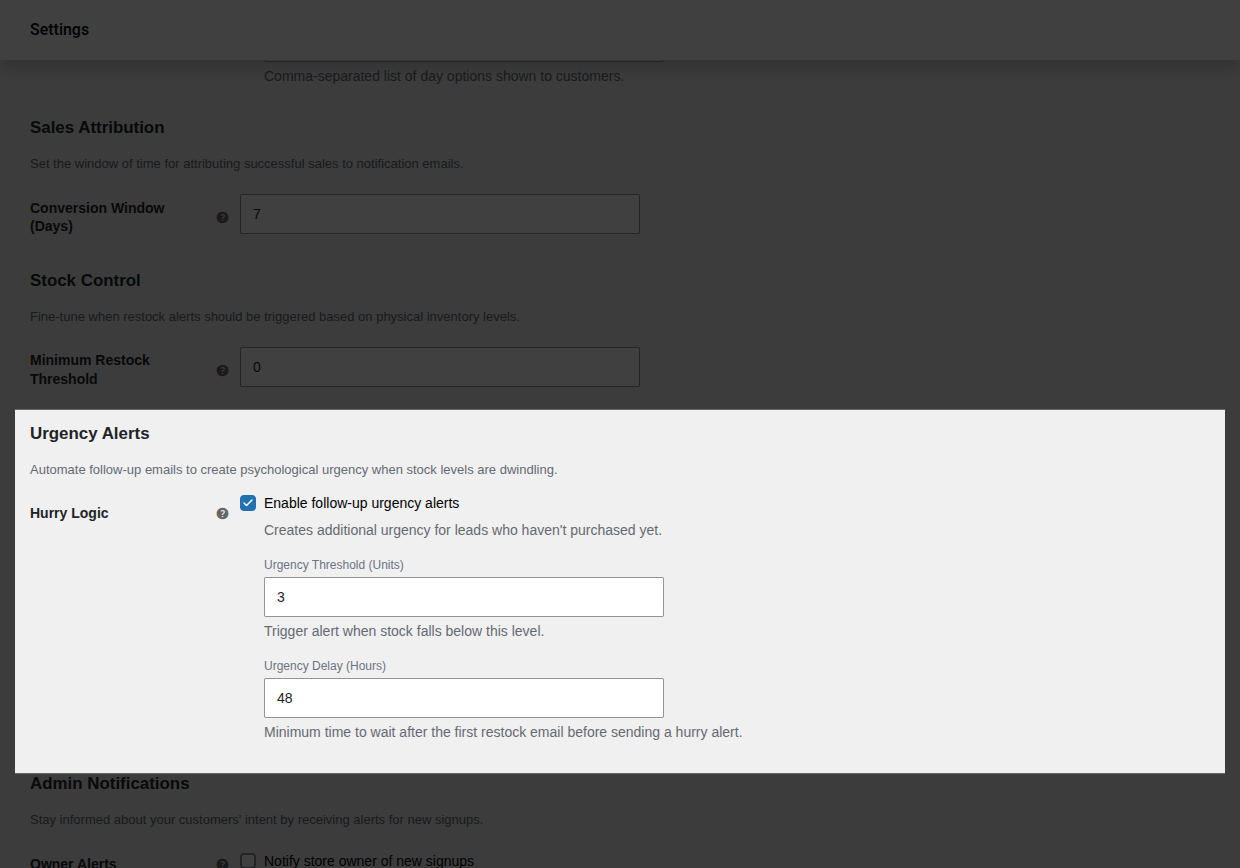
- Hurry Logic: Toggles the automated follow-up email functionality.
- Urgency Threshold: The stock quantity that triggers the follow-up (e.g., trigger when only
3units are left). - Urgency Delay: The minimum time (in hours) to wait after the initial restock email before sending a “Hurry” alert. This prevents customers from feeling spammed if they just received an email.
4. List Hygiene (Expiry Logic)
Section titled “4. List Hygiene (Expiry Logic)”Protect your sender reputation and server performance by not emailing users who subscribed months or years ago.
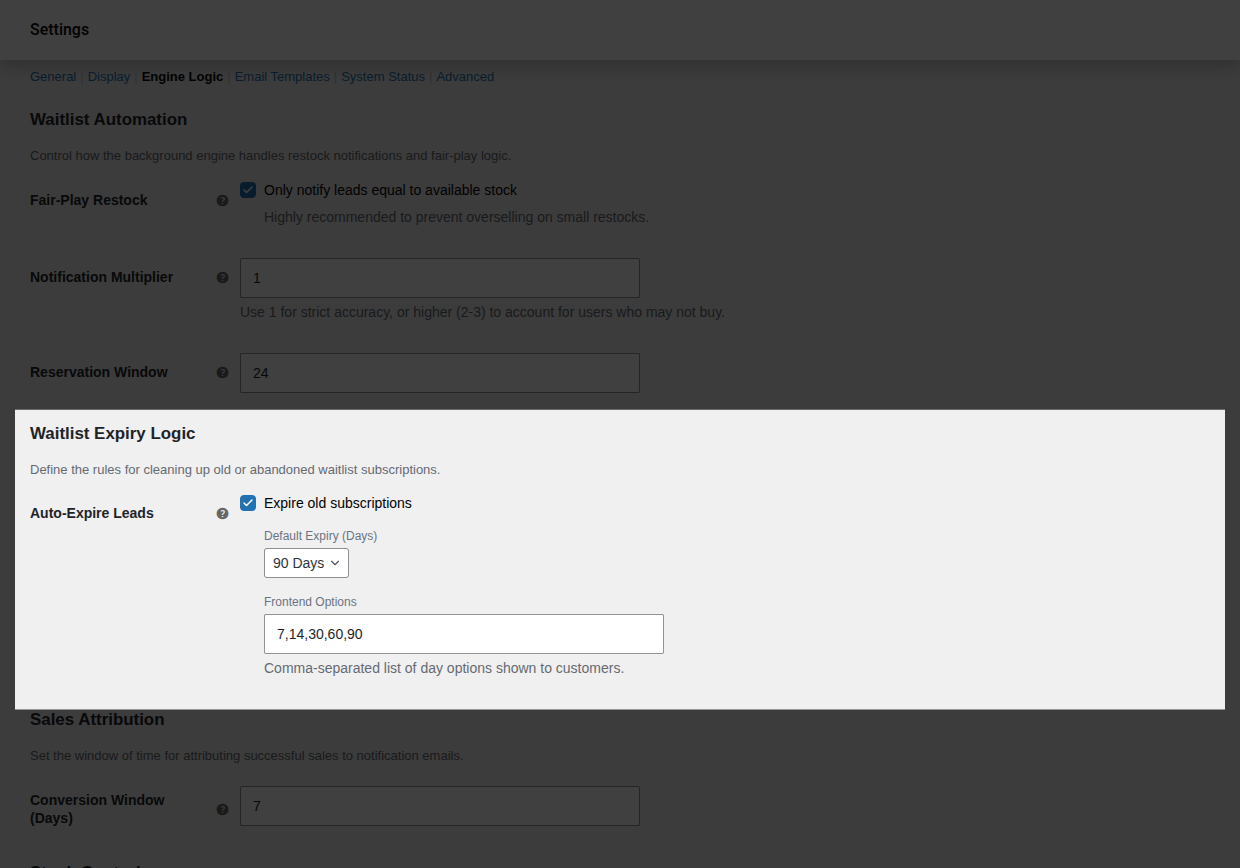
- Auto-Expire Leads: Automatically retires leads after a certain number of days if no restock has occurred.
- Default Expiry: The standard duration applied to new subscriptions (e.g., 90 days).
- Frontend Options: (Guest Mode only) Allows customers to choose their own “interest window” (e.g., 7, 30, or 60 days) during signup.
5. Sales Attribution & ROI
Section titled “5. Sales Attribution & ROI”Understand exactly how much money NotifyBay is making for your store.
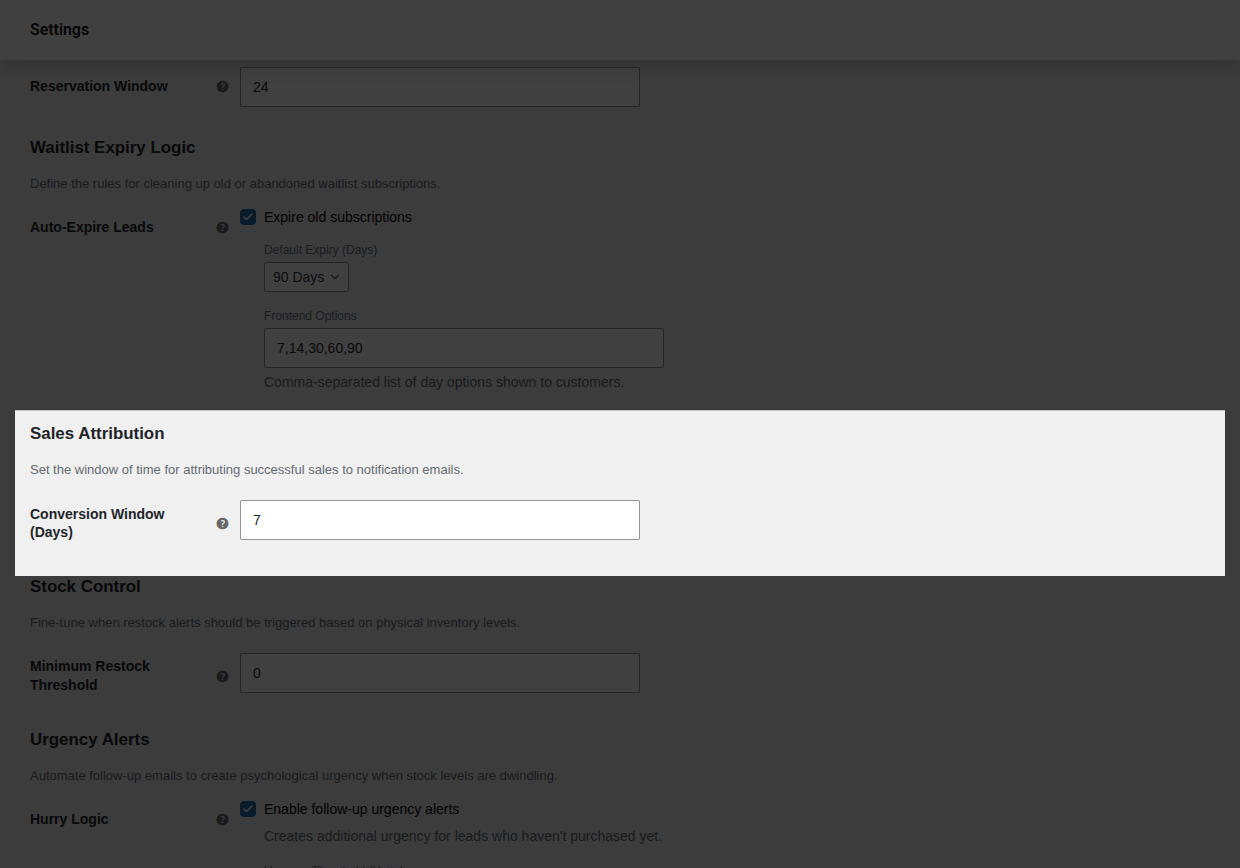
- Conversion Window: The number of days after an email is sent during which a purchase is credited to the plugin.
- Example: If set to
7 days, and a customer clicks a restock email on Monday and buys on Friday, the sale is recorded as a “Converted Sale” in your analytics dashboard.
- Example: If set to
6. Self-Healing Maintenance
Section titled “6. Self-Healing Maintenance”NotifyBay includes a built-in maintenance engine that runs in the background to ensure your data stays accurate. These tasks run automatically:
- Crash Recovery: Every 30 minutes, the engine looks for any jobs that got “stuck” due to a server hiccup and resets them to ensure the customer eventually gets their email.
- Verification Cleanup: Every 24 hours, the system removes “Pending Verification” leads that never confirmed their email, keeping your database clean.
- Expiry Audit: A daily task that identifies and retires leads that have passed their expiration date.
7. Admin Awareness
Section titled “7. Admin Awareness”Stay informed about your store’s growing demand.
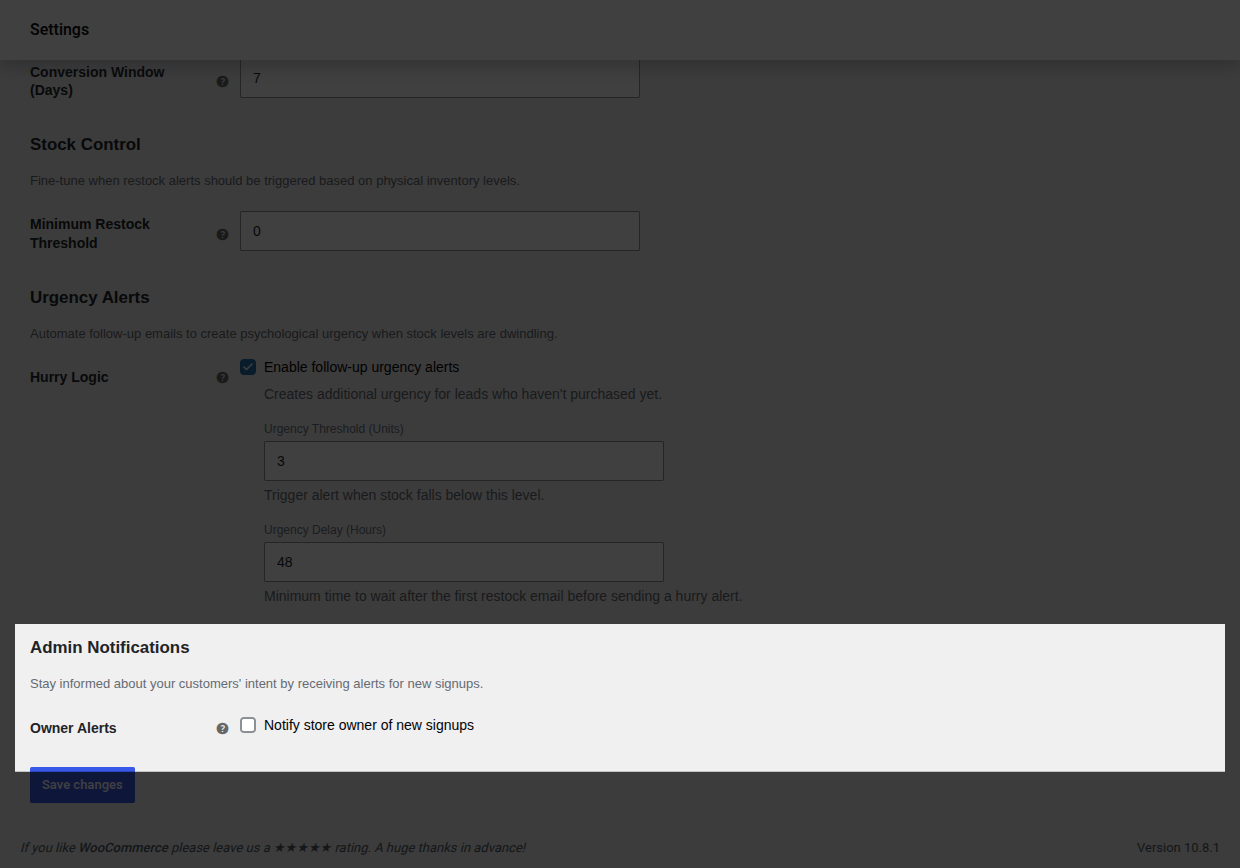
- Owner Alerts: Enable this to receive a real-time email whenever a new shopper joins a waitlist or wishlist.
[!TIP] For busy stores, we recommend keeping this OFF to avoid inbox clutter and instead reviewing your Dashboard Analytics once a day.