

Bulk Actions & Data Export
As your store grows, your waitlists and wishlists will naturally scale. Managing subscribers one by one becomes impossible. NotifyBay provides professional bulk management tools and high-fidelity CSV exports to help you maintain a clean database and drive external marketing campaigns.
Managing Leads in Bulk
Section titled “Managing Leads in Bulk”The NotifyBay > Leads interface includes a bulk processing engine that allows you to update hundreds of records in seconds.
1. How to Select Multiple Leads
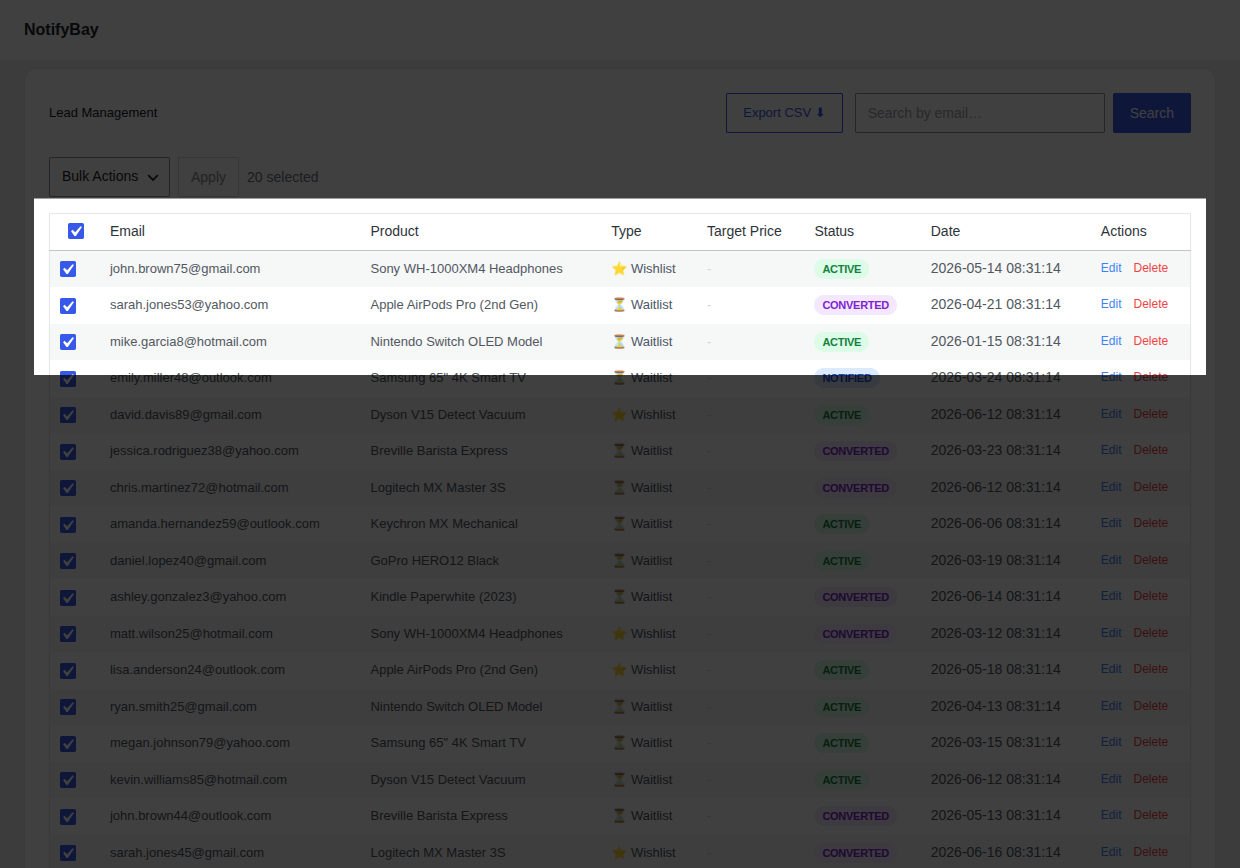
Section titled “1. How to Select Multiple Leads”- Individual Selection: Click the checkbox on the far left of any row.
- Page Selection: Click the master checkbox in the table header to select all 20 leads on the current page.
- Search & Select: Use the search bar to find a specific segment (e.g., all
@gmail.comusers), then use the master checkbox to select just that group.
2. Available Bulk Actions
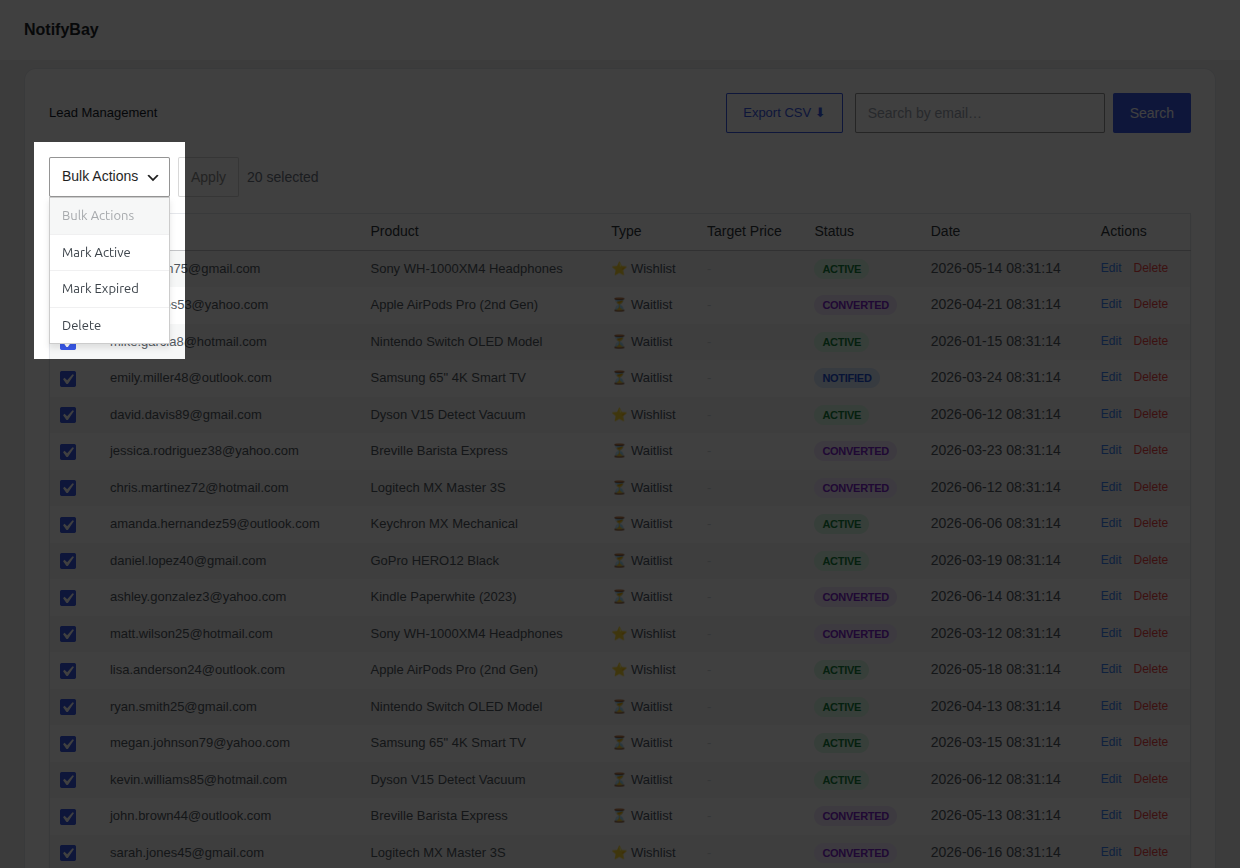
Section titled “2. Available Bulk Actions”Once you have selected your leads, choose one of the following actions from the dropdown menu and click Apply:
- Mark Active: Resets the status to Active. Useful if you want to re-notify customers about a second restock or a new price drop.
- Mark Expired: Manually retires leads that have been in the system for too long.
- Mark Unsubscribed: Respects customer privacy by manually removing them from your active queue if they contact you via other channels.
- Delete: Permanently wipes the records from your database.
[!WARNING] Deletion is permanent. Once you delete a lead, it cannot be recovered, and its historical data will be removed from your analytics.
Exporting Your Data (CSV)
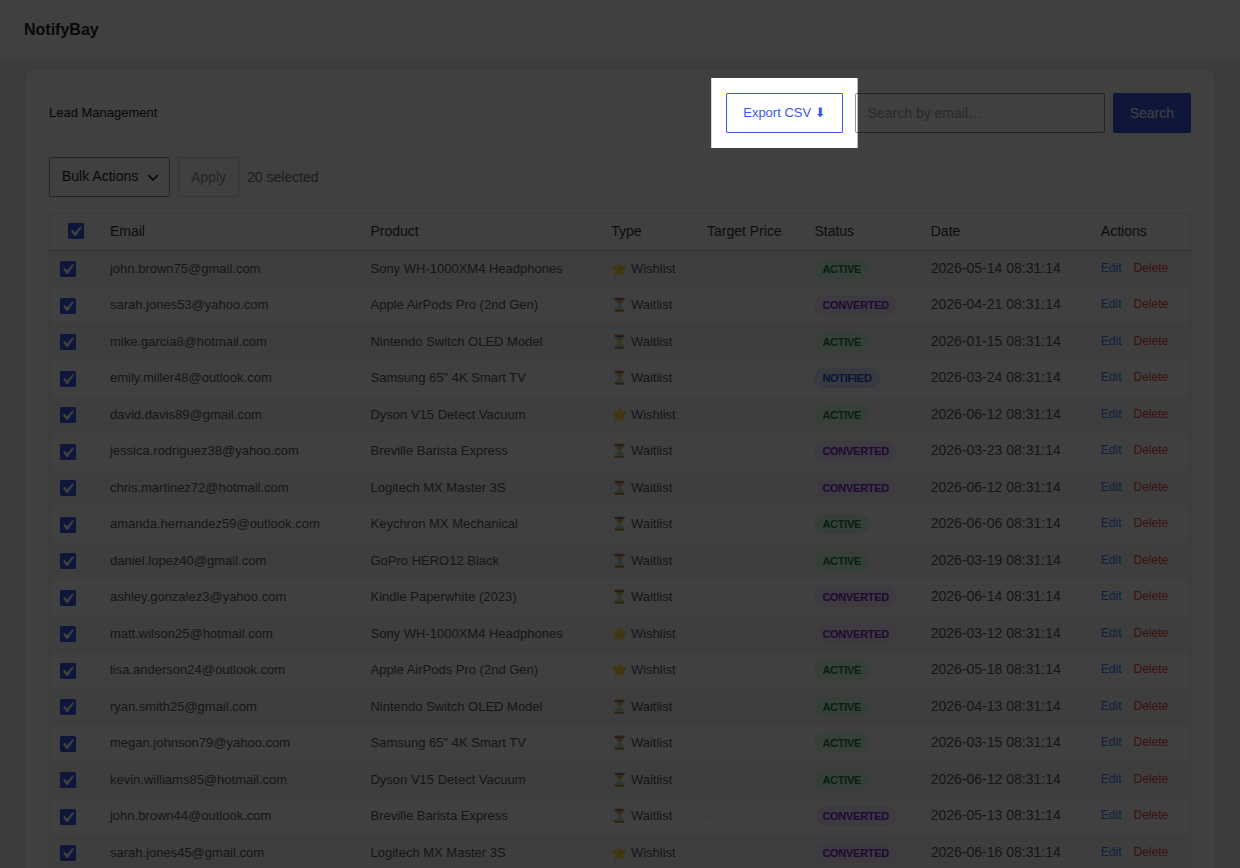
Section titled “Exporting Your Data (CSV)”NotifyBay provides a “one-click” export feature that generates a professionally formatted CSV file of your entire subscriber database.
How to Export:
Section titled “How to Export:”- Navigate to NotifyBay > Leads.
- Click the Export CSV ⬇ button at the top right of the page.
- The file (e.g.,
notifybay-leads-2024-06-18.csv) will download immediately.
What’s Inside the Export?
Section titled “What’s Inside the Export?”The CSV file includes every detail needed for advanced marketing analysis:
- Email: The customer’s primary contact.
- Product & Variation IDs: For precise targeting of specific colors or sizes.
- Subscription Type: Clearly labels Waitlist vs. Wishlist intent.
- Target Price: (Wishlist only) The exact dollar amount they are waiting for.
- Created Date: Helps you calculate the “Time to Conversion.”
Strategic Marketing Value
Section titled “Strategic Marketing Value”Your subscriber list is a goldmine of high-intent data. Here is how to use your exported CSV to scale your store:
1. Hyper-Targeted Email Marketing
Section titled “1. Hyper-Targeted Email Marketing”Import your CSV into tools like Klaviyo or Mailchimp. Instead of generic newsletters, send “We haven’t forgotten about you” emails specifically to people waiting for a high-value product.
2. Meta (Facebook) & Google Retargeting
Section titled “2. Meta (Facebook) & Google Retargeting”Upload your CSV as a Custom Audience. You can show highly relevant ads to the exact people who wanted a specific out-of-stock item, reminding them of your brand while they wait.
3. Lookalike Audiences
Section titled “3. Lookalike Audiences”Use your subscriber list to find “more people like these.” Facebook’s algorithm can analyze your waitlist CSV to find new potential customers who share the same purchasing intent as your most eager fans.
4. Inventory Forecasting
Section titled “4. Inventory Forecasting”Share your CSV with your purchasing team. Sorting by Product ID in Excel will instantly reveal which items have the highest hidden demand, helping you prioritize your next manufacturing run or purchase order.
[!TIP] Periodically use the Mark Expired bulk action on leads older than 6 months to keep your active list clean and ensure your restock emails are always going to “warm” leads.