

Installation
Installing NotifyBay is a straightforward process. Because NotifyBay is a premium, high-performance suite, it is currently available exclusively through our official website.
Step 0: Purchase & Download
Section titled “Step 0: Purchase & Download”Before you can install the plugin, you must have a valid copy of the NotifyBay .zip file.
- Visit NotifyBay.com and complete your purchase.
- Log into your Customer Dashboard on our site.
- Download the latest version of the plugin (e.g.,
notifybay.zip). - Keep this file on your computer—you will need it for the next step.
Step 1: Upload to WordPress
Section titled “Step 1: Upload to WordPress”- Log into your WordPress admin dashboard.
- Navigate to Plugins > Add New Plugin.
- Click the Upload Plugin button at the top of the page.
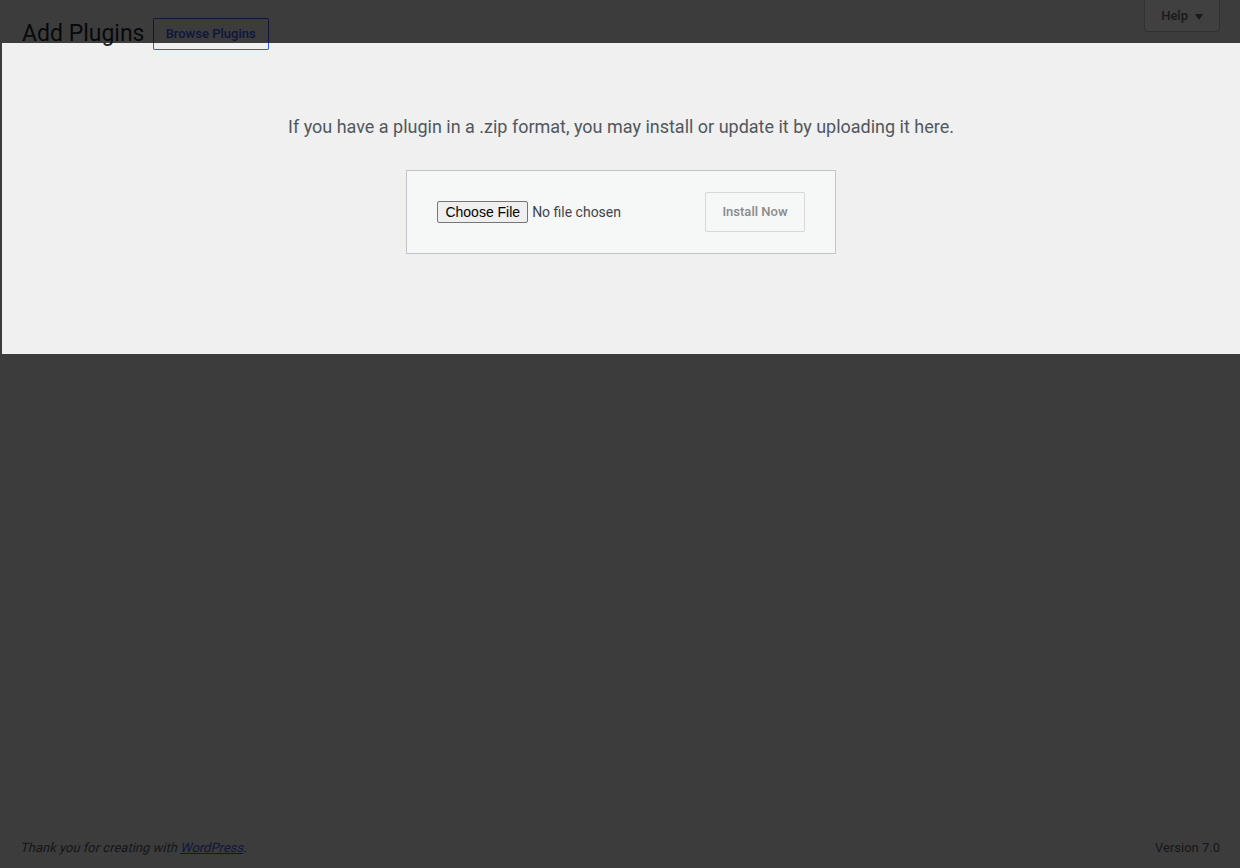
- Click Choose File and select the
notifybay.zipfile you downloaded in Step 0. - Click Install Now.
Step 2: Activation
Section titled “Step 2: Activation”Once WordPress has finished uploading the file, you will be taken to a success screen.
- Click the blue Activate Plugin button.
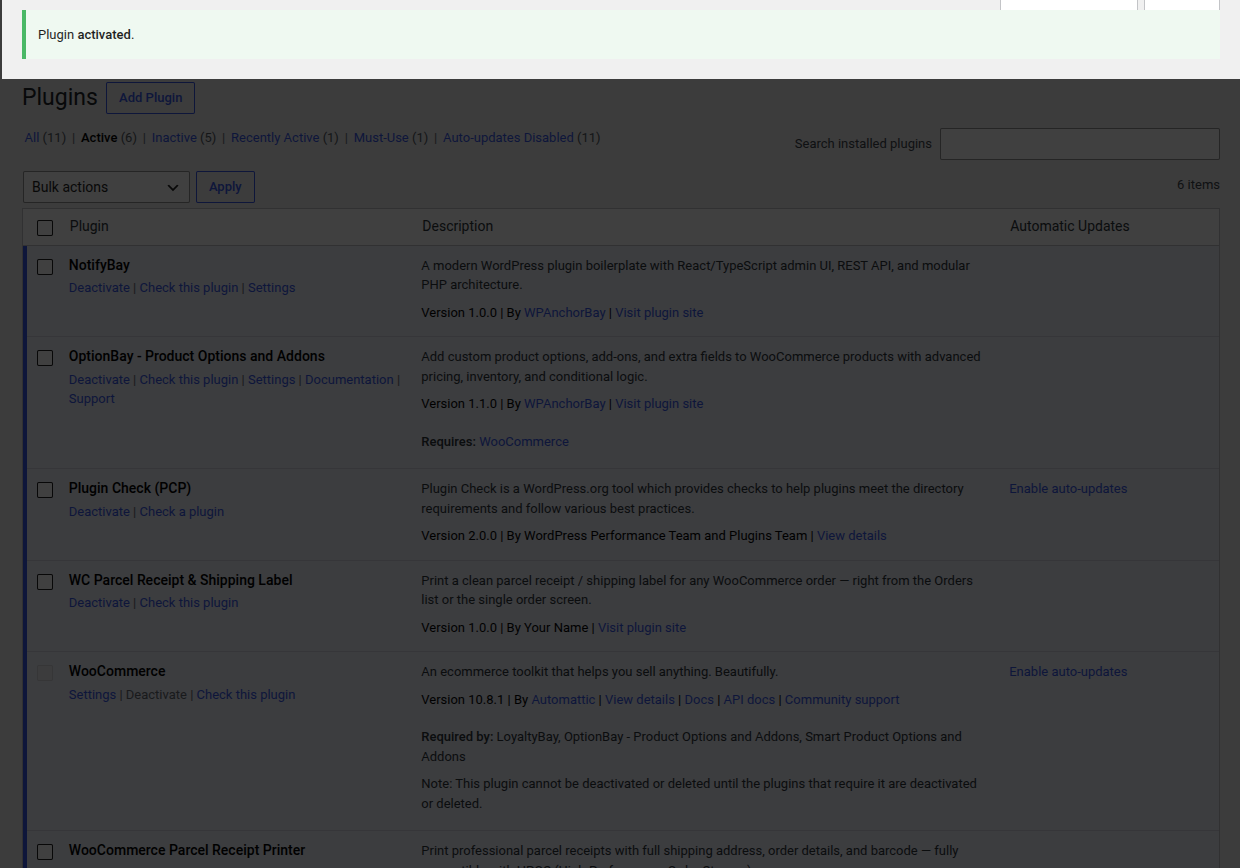
- NotifyBay is now active on your site!
Step 3: Verify the Menu
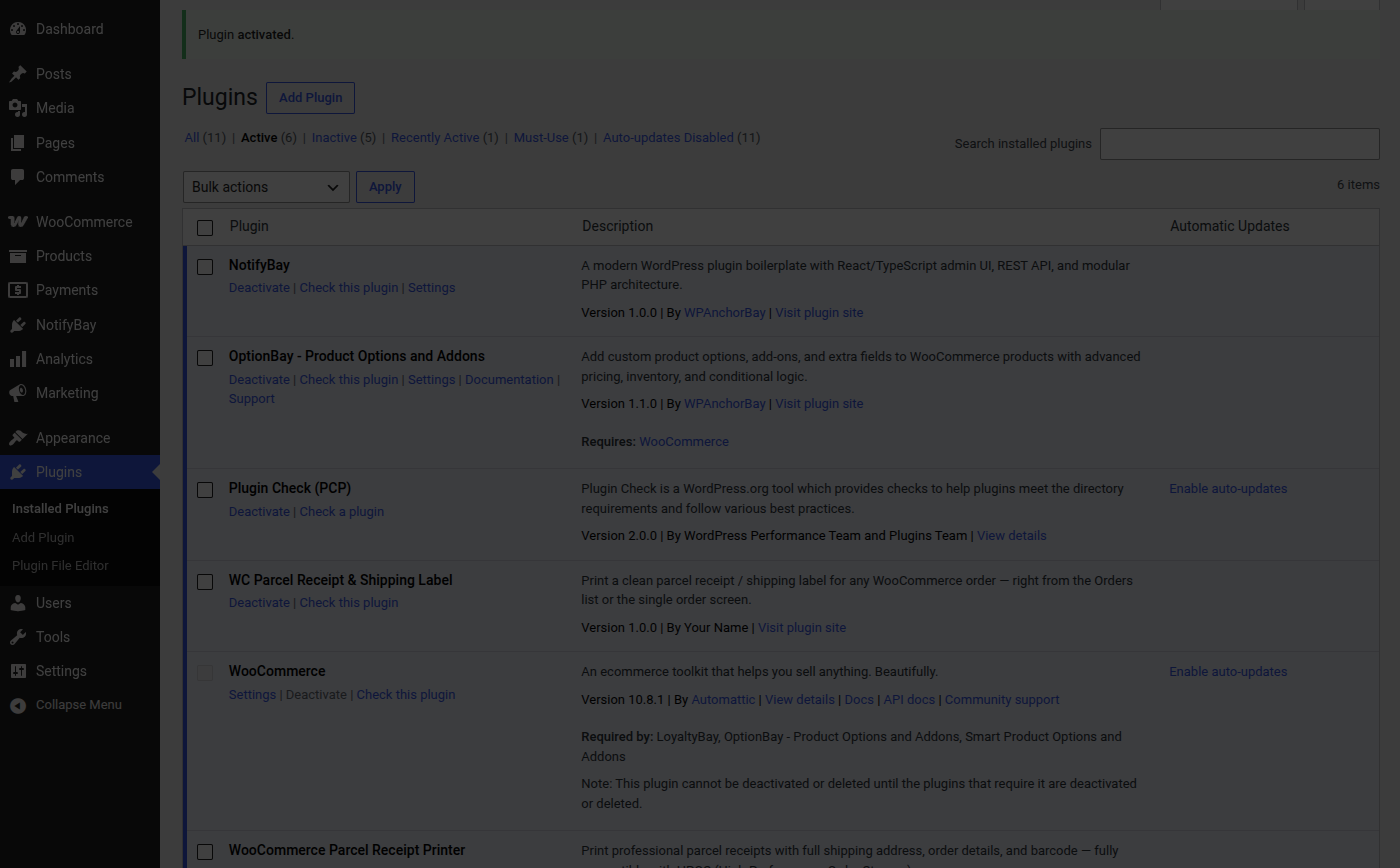
Section titled “Step 3: Verify the Menu”After activation, a new menu item will appear in your WordPress sidebar.
- Look for the NotifyBay menu item, typically located just below the “WooCommerce” or “Marketing” menus.
Troubleshooting Installation
Section titled “Troubleshooting Installation””The uploaded file exceeds the upload_max_filesize…”
Section titled “”The uploaded file exceeds the upload_max_filesize…””This is a common server limit. You have two options:
- Ask your Host: Contact your hosting provider and ask them to increase your “PHP Upload Limit” to 10MB or higher.
- Use FTP: Upload the unzipped
notifybayfolder directly to/wp-content/plugins/using an SFTP client like FileZilla.
”No NotifyBay menu appears after activation”
Section titled “”No NotifyBay menu appears after activation””NotifyBay requires WooCommerce to be active. If you don’t see the NotifyBay menu, please verify that WooCommerce is installed and enabled. If WooCommerce is missing, NotifyBay will stay dormant to prevent errors on your site.
[!TIP] Ready to start recovering revenue? Head over to the Quick Start Guide to set up your first waitlist!