
Clear All Data
This guide explains how to completely reset ProductBay and remove all its data from your WordPress site.
When to Use "Clear Data"
You might want to use the Clear Data feature if:
- You want to start from scratch with a clean installation.
- You are moving from a staging environment to production and want to remove test tables.
- You want to troubleshoot issues by resetting to factory defaults.
How to Reset Data
The Clear Data feature is a powerful tool that resets the plugin to its "freshly installed" state.
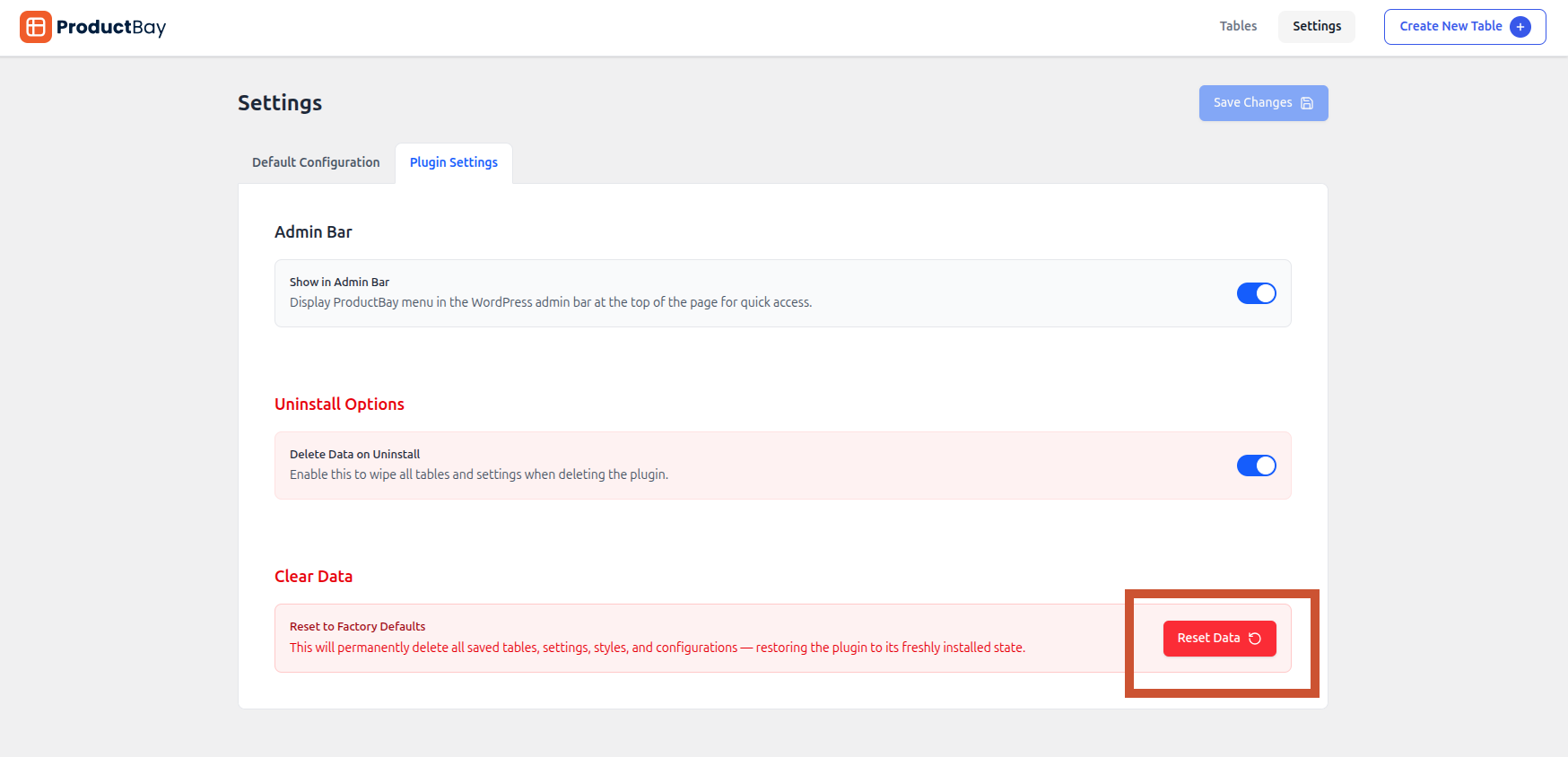
- Go to ProductBay → Settings in your WordPress admin.
- Select the Plugin Settings tab.
- Scroll down to the Clear Data section.
- Click the Reset Data button.
- A confirmation modal will appear. To prevent accidental resets, you must type "RESET" (all caps) into the confirmation field.
- Click Yes, Reset Everything.
Resetting is Permanent
This action is irreversible. Once you confirm the reset, all your saved tables, custom styles, and plugin configurations will be permanently deleted from the database.
Visual Example
- Click on Reset Data button.
- Type "RESET" (all caps) into the confirmation field and then click Yes, Reset Everything button.
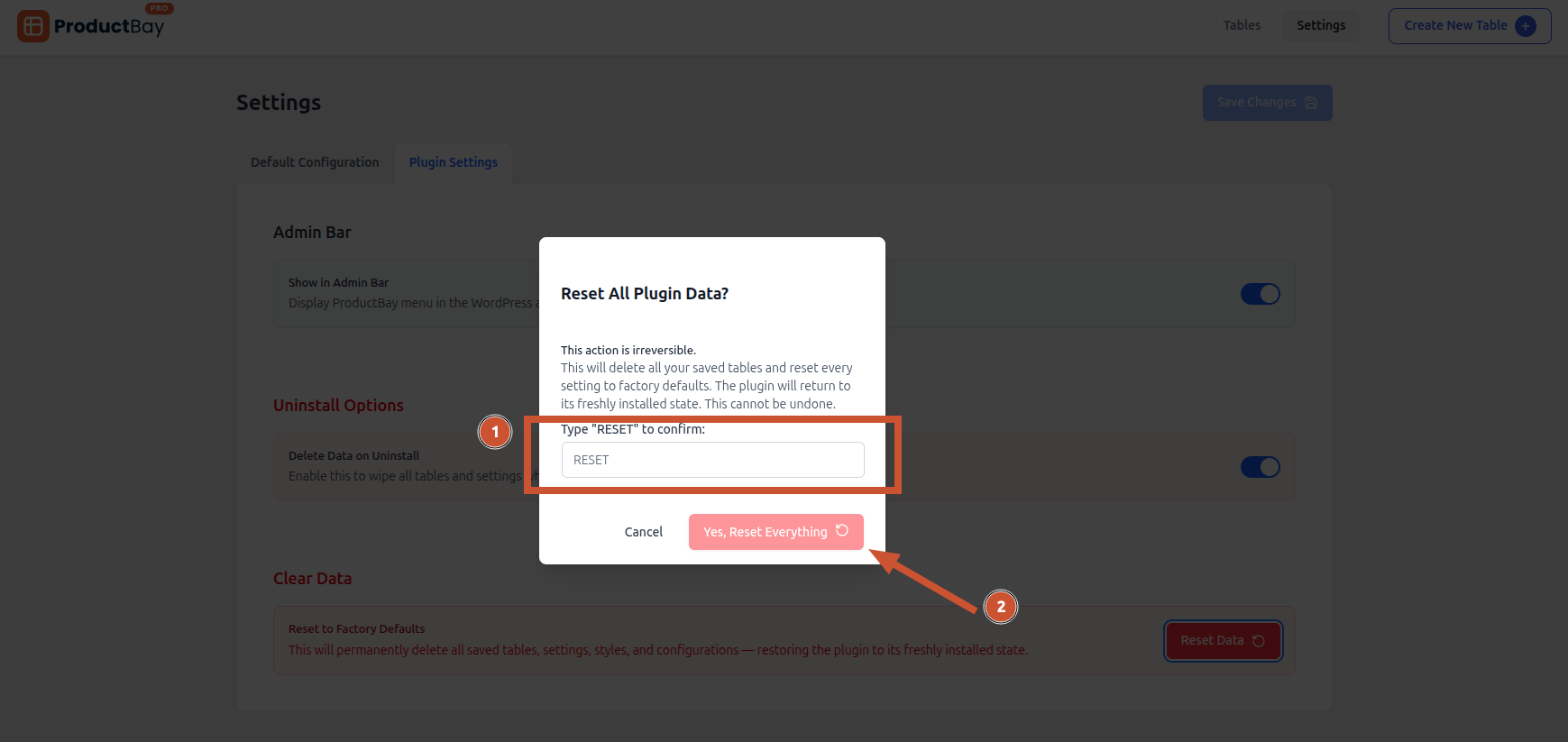
Do not refresh the page until the process is complete. And that's it. You will see a success notification.
Success Notification
Once the process is complete, you will see a success notification indicating how many tables were deleted. The page will automatically reload to reflect the clean state.
What Gets Reset
When you perform a factory reset, the following happens:
- Product Tables are Deleted: Every table you've created will be permanently removed.
- Settings are Restored: All plugin settings are reverted to their default values.
- Onboarding is Reset: The onboarding wizard will reappear the next time you visit the plugin dashboard.
- Styles are Cleared: Any custom CSS or design configurations are removed.