
Table Dashboard
The Table Dashboard is the homepage of the plugin and your central hub for managing all product tables in ProductBay.
Overview
When you navigate to ProductBay in the WordPress admin, you'll see the Product Tables view. This dashboard provides a complete overview of your tables with powerful management tools.
Dashboard States
Empty State
If you haven't created any tables yet, the dashboard displays a clean empty state.
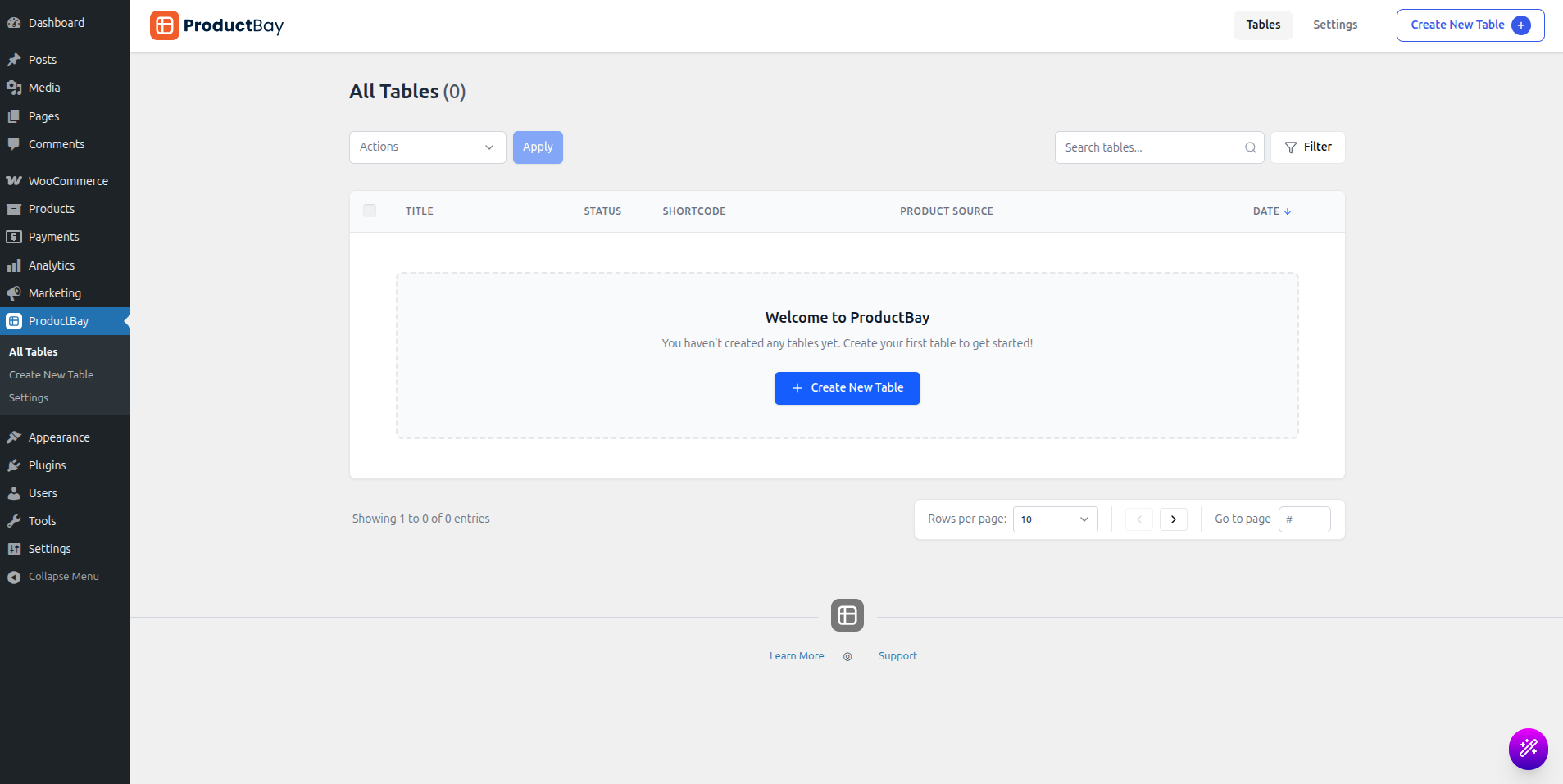
Active Tables List
Once tables are created, they appear in a structured list. Hovering over a table row reveals a contextual action menu directly below the title, allowing you to Edit, Duplicate, Toggle Status, or Delete the table instantly.
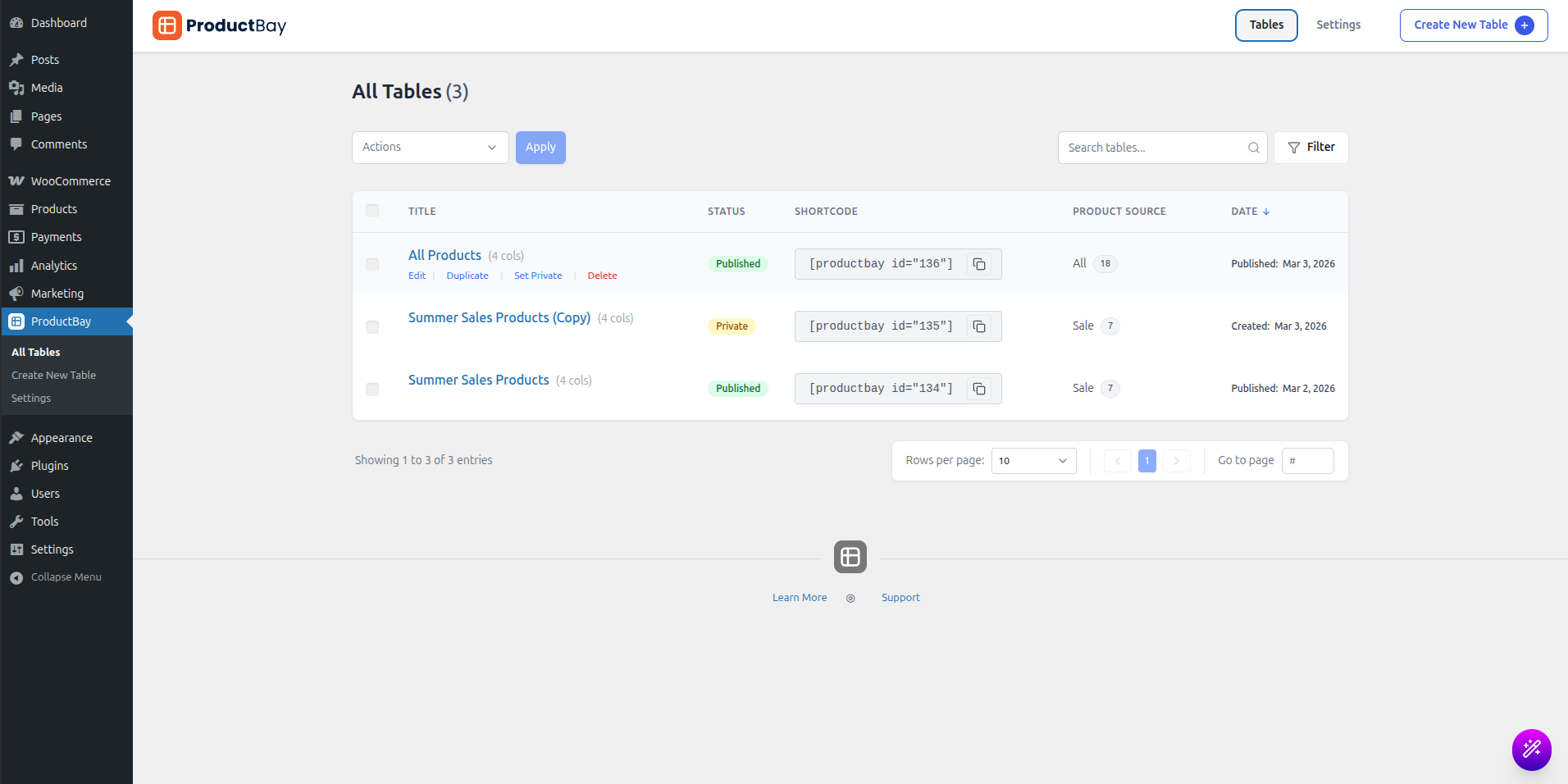
Table List
Each table in the list displays:
| Column | Description |
|---|---|
| Checkbox | Select tables for bulk actions |
| Title | The name you gave your table |
| Shortcode | The embed code (e.g., [productbay id="1"]) - click to copy |
| Permalink | The shareable URL for the table's dedicated page - click to copy |
| Source | Where products come from (All, Category, Sale, Specific) |
| Status | Published or Private |
| Date | When the table was created/published and modified |
Search & Filtering
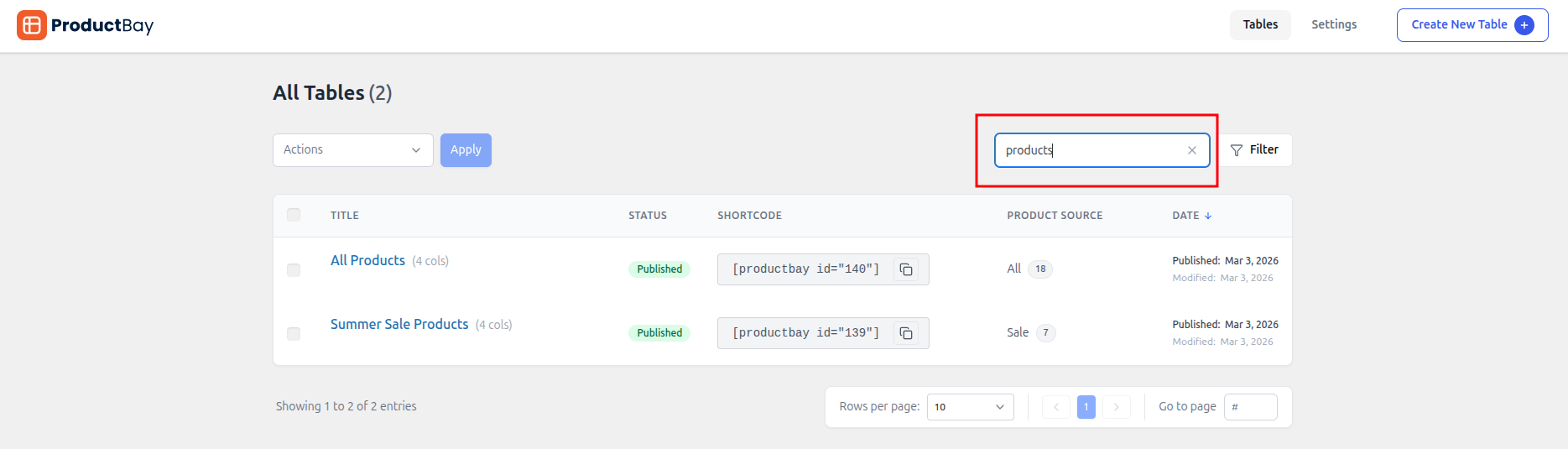
Search
Use the search bar at the top to quickly find tables by name.
Filters
Filter your tables by:
- Status: Published, Private, or All
- Source: All Products, Category, Sale, or Specific
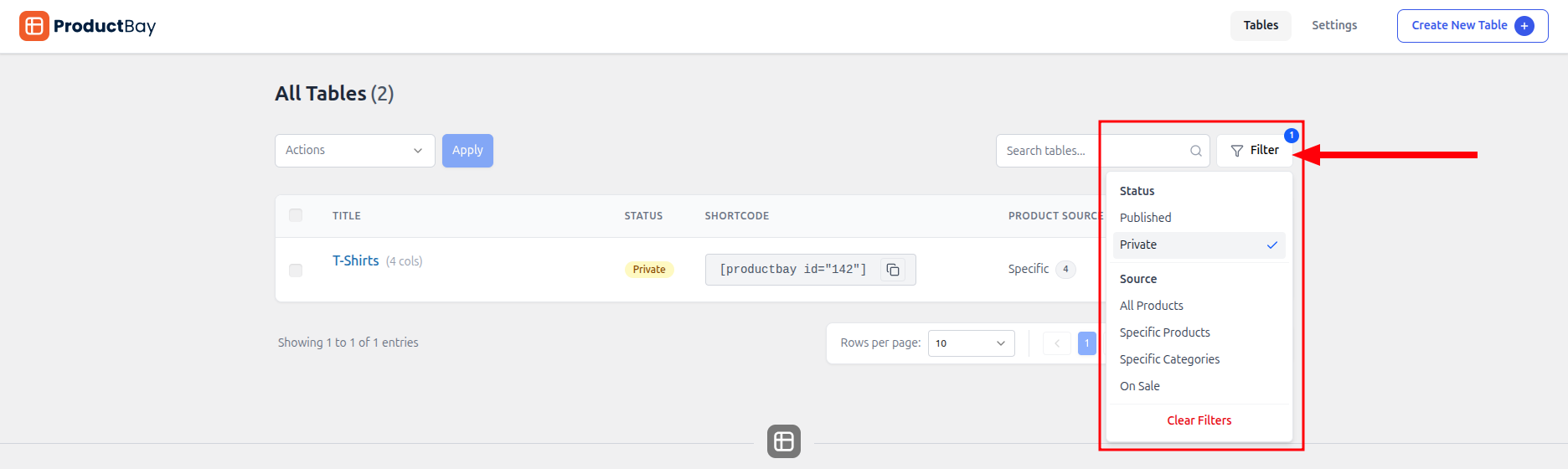
You can combine multiple filters and use the Clear all filters option to reset.
Table Actions
Bulk Actions
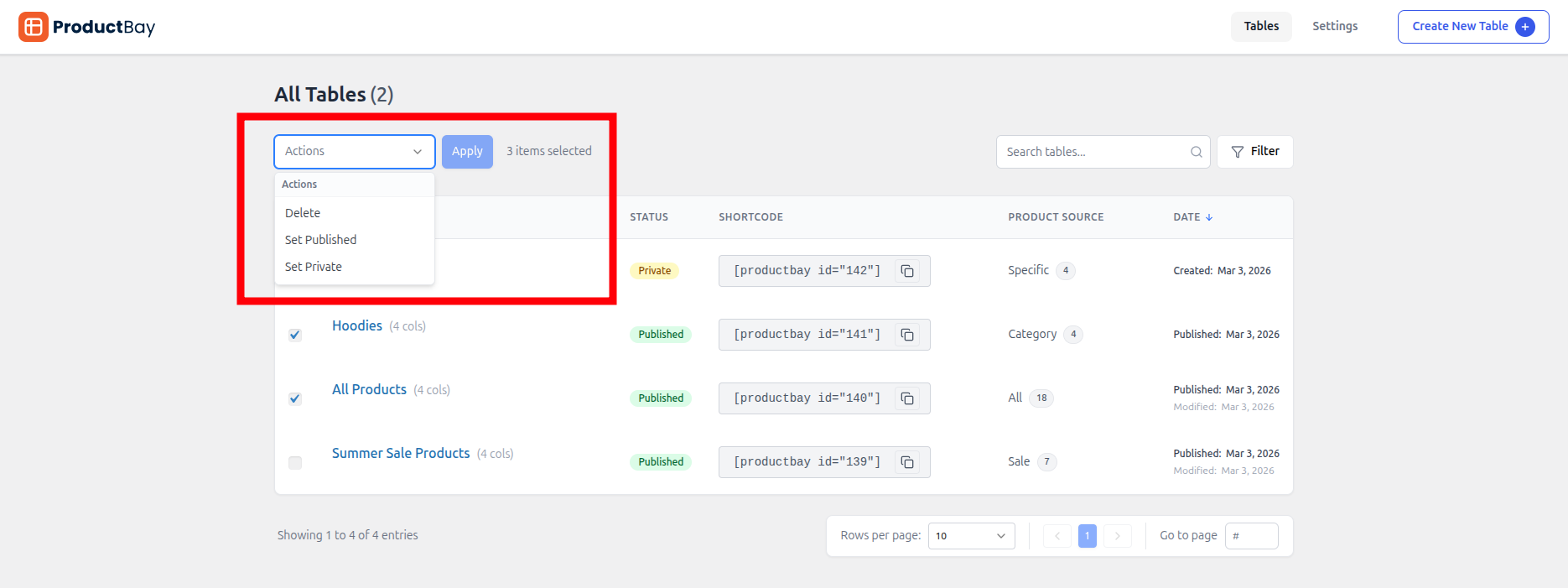
To manage multiple tables at once:
- Select tables using the checkboxes on the left.
- Click the Bulk Actions dropdown menu.
- Choose an action: Delete, Set Published, Set Private or Export Selected (PRO).
- Click Apply to execute the changes.
Individual Actions
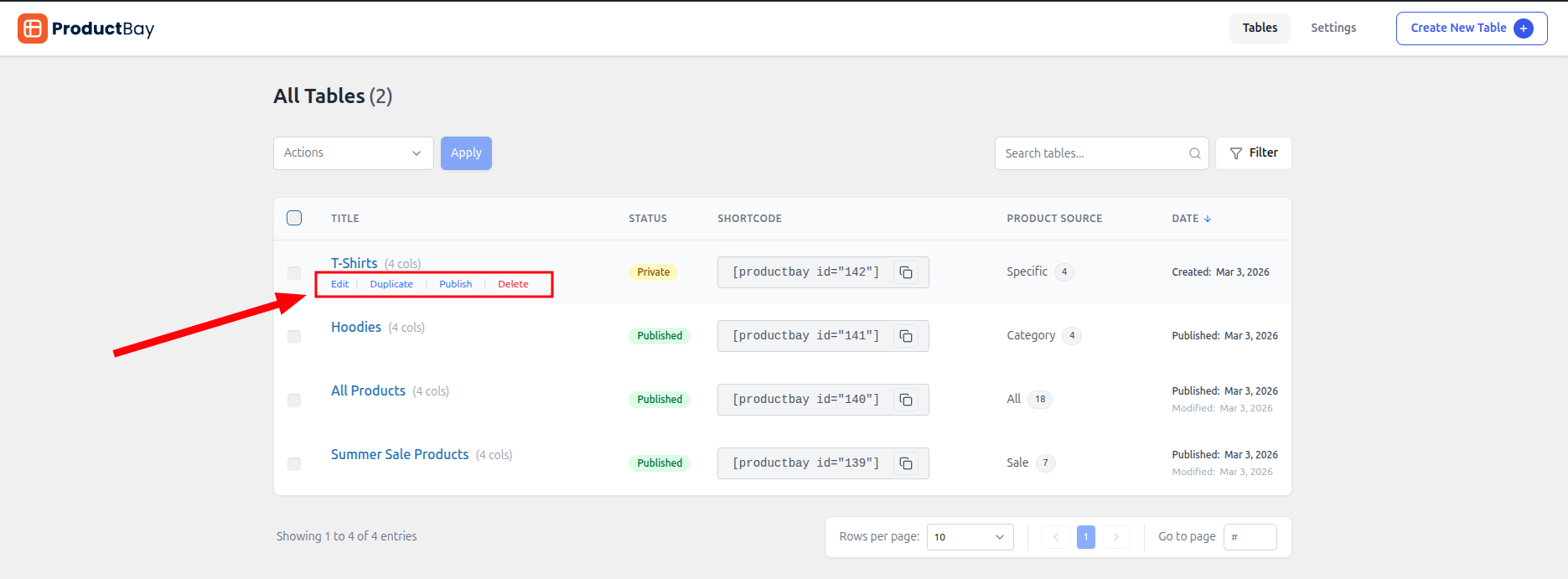
Hover over any table row to reveal the following management options:
- Edit: Opens the table in the edit page for deep configuration.
- Duplicate: Instantly creates a complete copy of the table and its settings.
- Set Private / Publish: Quickly toggle the visibility status of the table.
- Preview: View the table on the frontend using the permalink.
- Delete: Permanently removes the table (requires user confirmation).
WARNING
Deleted tables cannot be recovered. Ensure you have backups or no longer need the data before confirming deletion.
Permalinks Since v1.3.0
Every saved product table automatically receives a native WordPress permalink — a clean, shareable URL that displays the table on a standalone page.
How It Works
- Permalinks use the
productbay_tableCustom Post Type registered by the plugin. - The URL structure follows your WordPress permalink settings (e.g.,
yoursite.com/productbay/product-table/my-table-slug/). - The permalink is displayed in both the table listing page and the table editor sidebar for quick copying.
- Automatic Setup: ProductBay automatically flushes WordPress rewrite rules upon activation, ensuring permalinks work instantly after installation.
Use Cases
- Share direct links to a specific product table via email, social media, or chat.
- Embed via URL in platforms that support oEmbed or link previews.
- Dedicated landing pages — each table has its own page without needing to manually create a page and paste a shortcode.
Troubleshooting
If your permalinks give a 404 error, you can manually force a refresh by going to Settings → Permalinks in WordPress and clicking Save.
Table Statuses
Maintenance of table visibility is controlled by two primary statuses:
| Status | Visibility |
|---|---|
| Published | Publicly visible on your site via Gutenberg block or shortcode and permalink. |
| Private | Invisible to visitors. Admins will see a placeholder notice where the table would normally appear. |
How to Change Status
You can toggle a table's visibility in three ways:
- Bulk Actions: Select one or more tables and use the "Set Published" or "Set Private" bulk options.
- Quick Toggle: Hover over a table row and click the status action (Publish or Set Private).
- Table Editor: Click the table title to enter the editor, change the status in the top-right sidebar, and Save.