
Product Sources
Product sources determine which products appear in your table. ProductBay offers several flexible source options.
Source Types
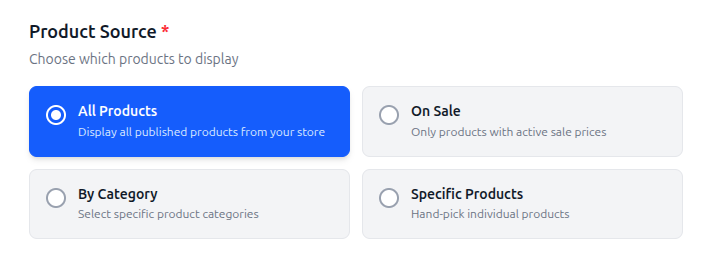
All Products
Displays all published products from your WooCommerce store.
- Best for: General product catalogs, store-wide listings
- Products included: All products with "Published" status
On Sale
Automatically includes only products currently on sale. This uses WooCommerce's native sale detection, which accounts for:
Regular sale prices
Scheduled sales (start/end dates)
Variable product sales (if any variation is on sale)
Best for: Sale pages, promotional landing pages
Dynamic: Products automatically appear/disappear as sales start and end
By Category
Select one or more WooCommerce product categories to populate your table.
- Best for: Category-specific pages, seasonal collections
- Search: Type to search and select categories from a dropdown
- Multiple categories: You can select multiple categories — products from all selected categories will be included.
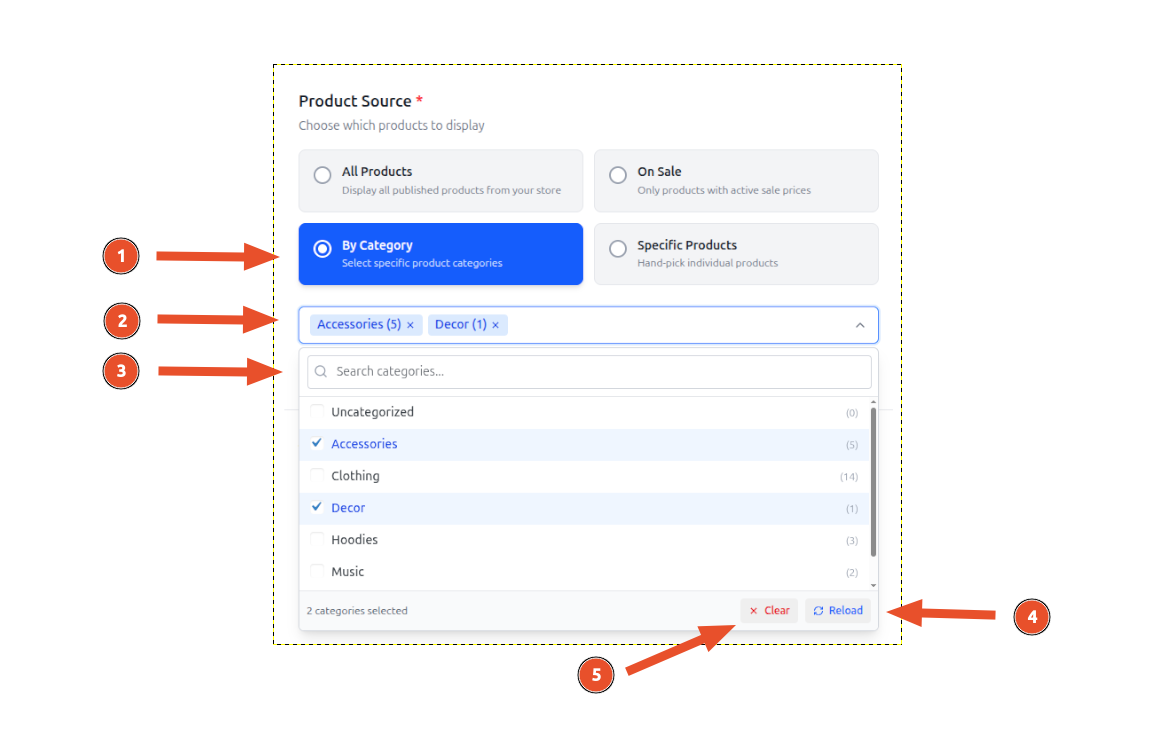
- Select "By Category" as the product source.
- You will selected categories here and you can also remove any category by clicking on the cross icon.
- You can also search for categories by typing in the search bar.
- You reload categories by clicking on the reload icon if needed.
- You can clear all categories by clicking on the clear icon if needed.
Select one or more categories to include in the table and the table will display all the products from the selected categories.
Specific Products
Hand-pick individual products by searching for them.
Search by name — Type a product name for fuzzy matching
Search by ID — Enter an exact product ID
Search by SKU — Enter a full or partial SKU
Best for: Curated lists, featured products, comparison tables
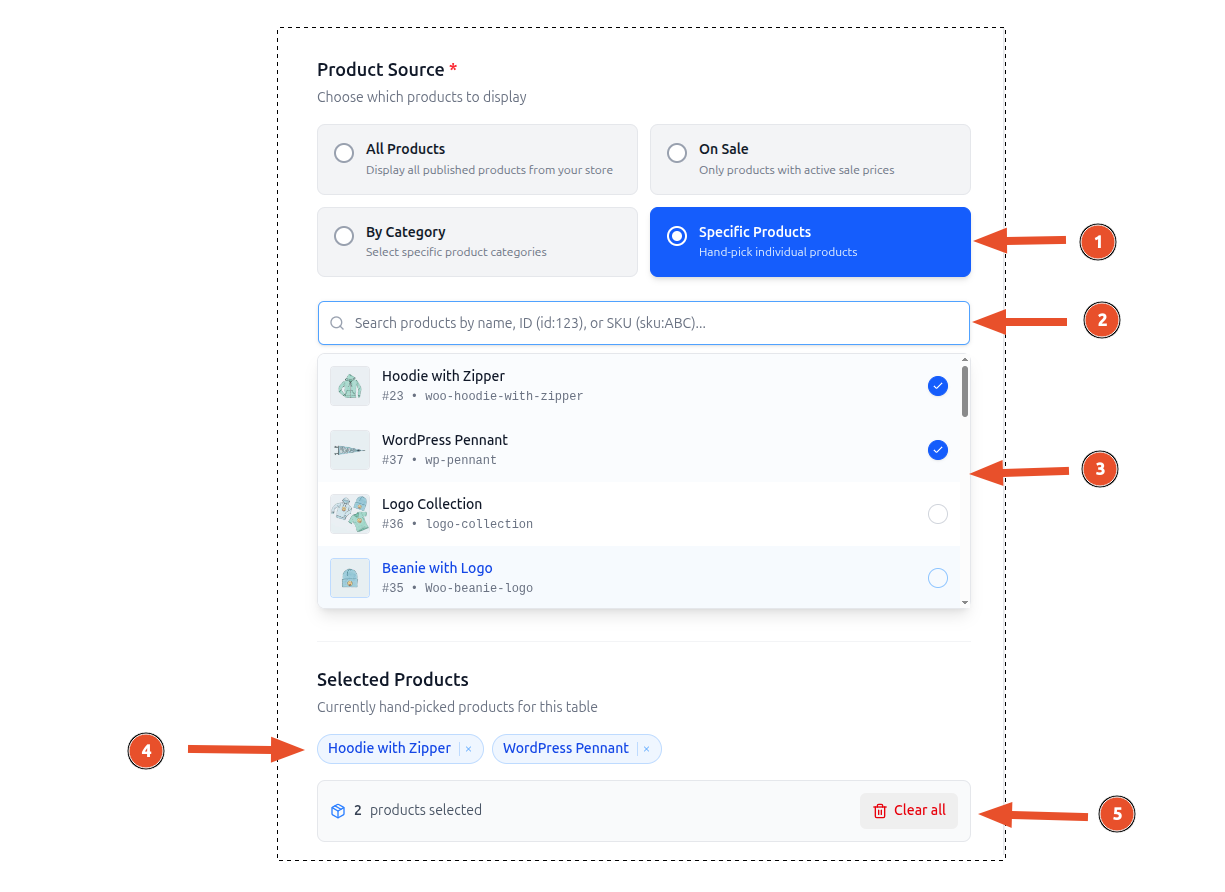
- Select "Specific Products" as the product source.
- You will see a search bar to search for products, you can search for products by typing in the search bar.
- You will see a dropdown of products that match your search query. You can select one or more products from the dropdown. By default, some products will be visible in the dropdown.
- You will see selected products here and be able to remove them by clicking on the cross icon. On hover of the product, you will see the product name, id and sku.
- You can clear all products by clicking on the clear icon if needed.
Select one or more products to include in the table and the table will display all the products from the selected products.