
License Since v1.2.0
The License tab, found under ProductBay → Settings, is the control center for your ProductBay Pro subscription.
Depending on your active plugin, this tab displays different content:
Free Version
If you are using the free version of ProductBay, this tab serves as an overview of what ProductBay Pro unlocks. It shows:
- A promotional view highlighting premium features (like Custom Fields, Combined Columns, and Advanced Variable Modes).
- A quick link to upgrade to the Pro version.
Pro Version
Once you install and activate the Pro version, this tab transforms into your license management center. It allows you to:
- Enter and activate your license key to unlock the Pro features.
- View your current license status (Active, Expired, Invalid).
- Check your license expiration dates.
- Manage site activations (useful if you are changing URLs or migrating from staging to live).
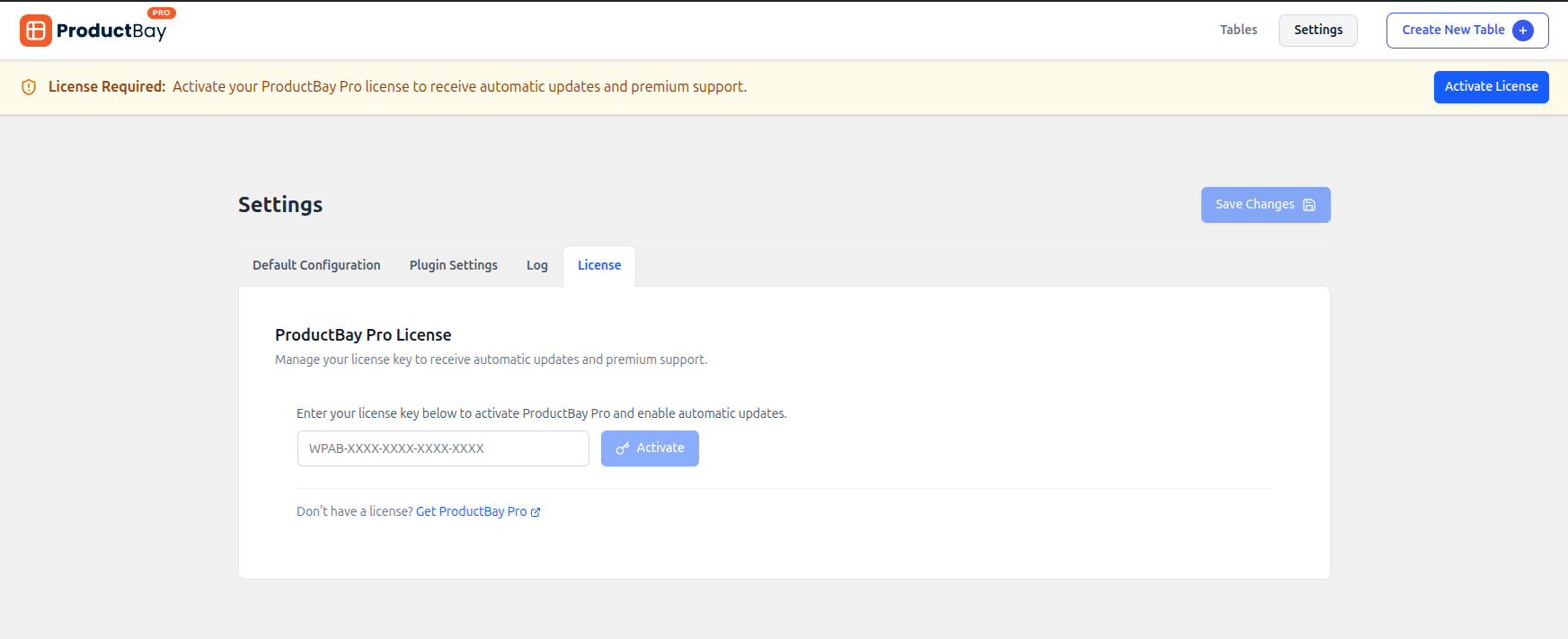
Activating Your License
To gain access to premium features, fast support, and automatic updates directly from your WordPress dashboard, you must activate your license key.
Finding Your License Key
After purchasing ProductBay Pro, your license key will be available in two places:
- Purchase Email: The confirmation email sent to the address you provided during checkout.
- Account Dashboard: Log in to your account on WPAnchorBay and navigate to the Licenses tab.
Activation Steps
To activate your license and enable Pro features:
- In your WordPress admin, go to ProductBay → Settings.
- Click on the License tab.
- Paste your license key into the input field.
- Click the Activate button.
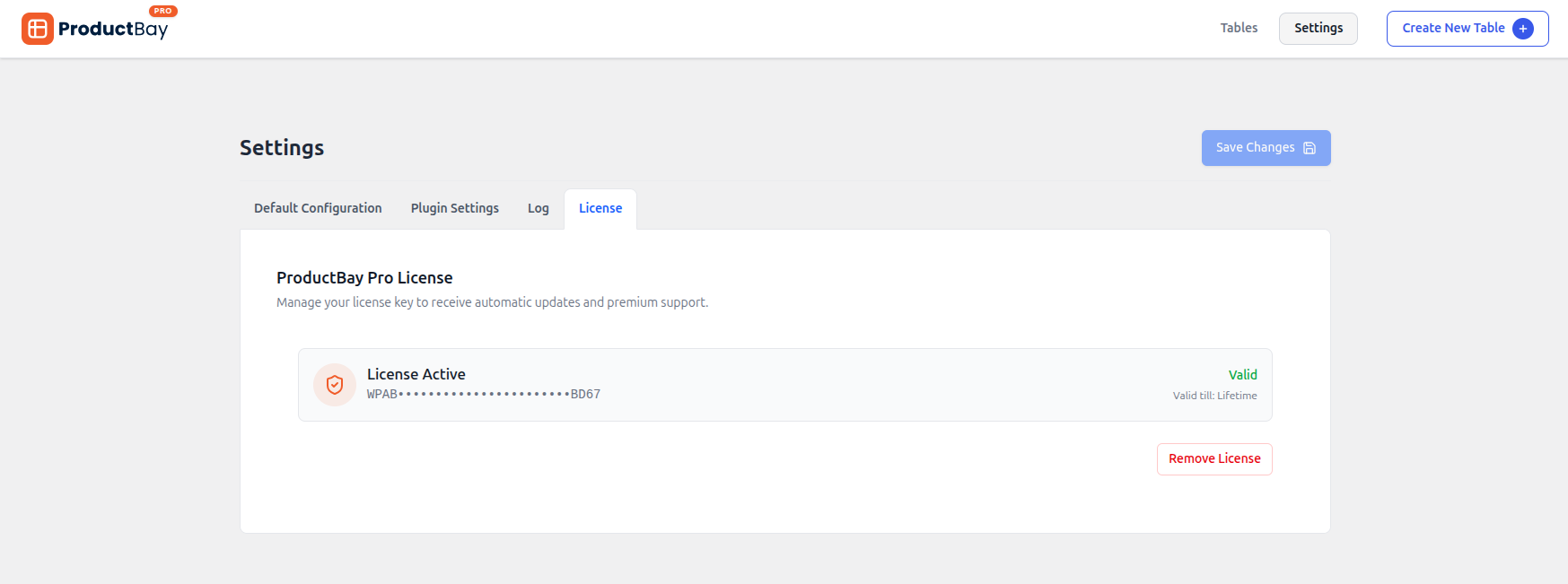
Once successfully activated, the status will change to "License Active" and display the expiration date.
Removing License
If needed, you can remove your license by going to Settings → License, where you’ll find the Remove License button.
Once removed, the license must be activated again to continue using Pro features. You can reactivate it using the same license key.
Note: Removing a license from one site does not allow you to use it on a different site.
License Status Indicators
Your license tab will display one of the following statuses:
- Active: Your license is valid, and you have full access to features and updates.
- Expired: Your subscription has ended. You'll lose access to automatic updates and premium support, but the plugin will continue to function.
- Invalid / Deactivated: The key is incorrect or has been deactivated from this site.
Moving a License
When a license is activated for the first time, it becomes locked to that specific domain. To transfer the license to a different website, you will need to contact the support team for assistance.
Automatic and Manual Updates
Automatic Updates: ProductBay Pro integrates seamlessly with the standard WordPress update system. Whenever a new version is released, you will see an update notification on the Plugins page, provided your license is active.
Manual Updates: If you prefer not to use automatic updates or your license has expired:
- Download the latest
productbay-pro.zipfrom your WPAnchorBay account. - Upload the zip in WordPress via Plugins → Add New → Upload Plugin.
- Overwrite the existing plugin when prompted.
Troubleshooting
- Firewall Blocking License Server: Ensure your hosting environment doesn't block outgoing connections to the WPAnchorBay license server. This is required to validate the key.
- Domain Mismatch: Once you activate your license, your domain is locked to that license. So you can't use the same license key on two different domains. If you change your domain name, you may need to contact us to reactivate the license key on new domain.
- "Requires ProductBay Free Version" Notice: ProductBay Pro requires the free version of ProductBay (v1.2.0 or higher) to be active simultaneously. Please install and activate the free version of ProductBay to use ProductBay Pro.