
Import & Export PRO Since v1.2.0
ProductBay Pro includes a robust Import/Export utility that allows you to back up, migrate, and share your table configurations across different WordPress installations using simple JSON files.
You can access these tools by navigating to ProductBay → Tables → Import / Export.
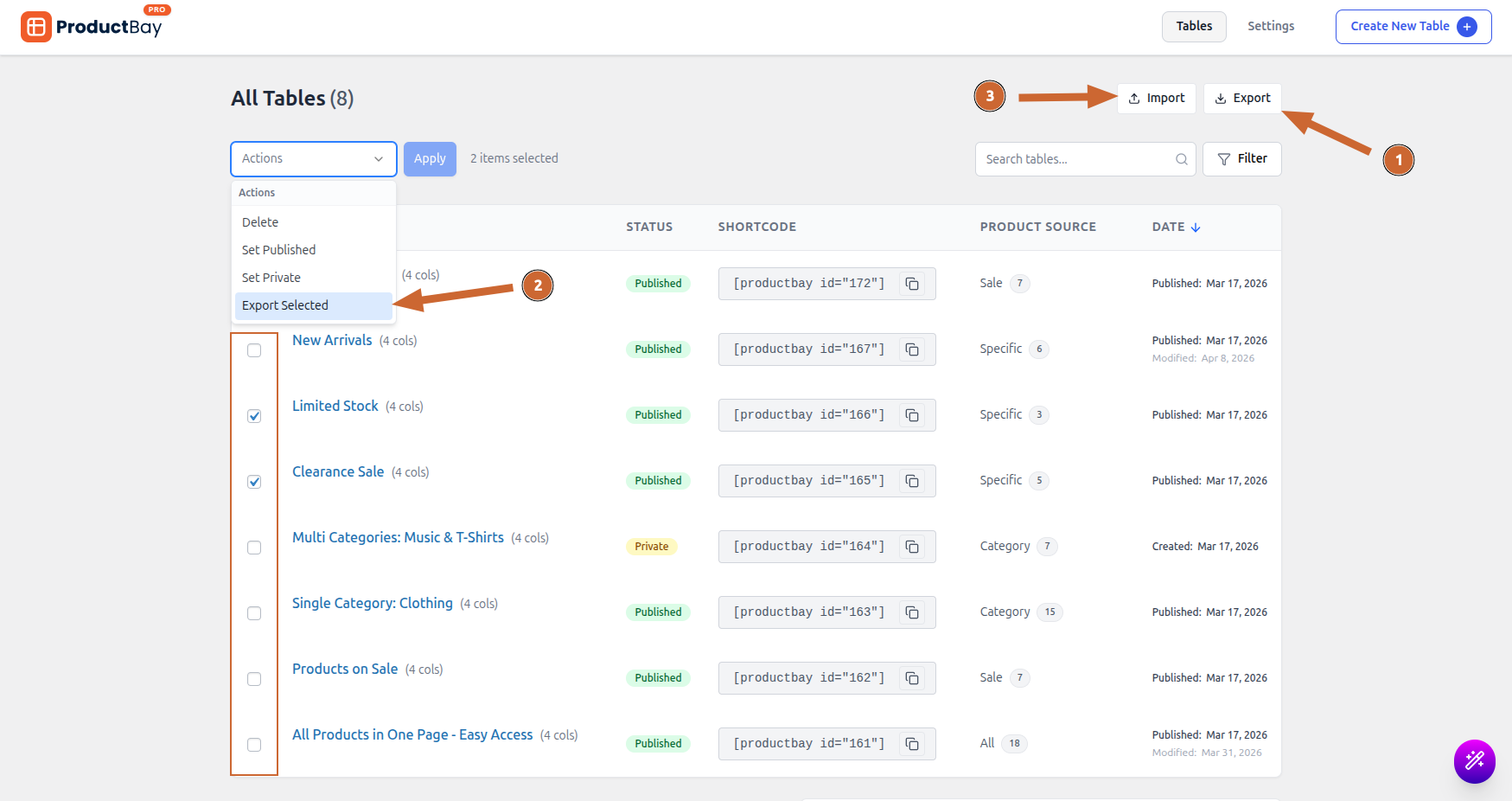
- Click on the Export button to open export modal.
- You can select one or more tables and click on the Export Selected unders Actions and click Apply to open Export Modal with those table selected.
- Click on the Import button to open import modal.
Exporting Tables
The Export tool generates a .json file containing all configuration data for your selected tables.
How to Export:
After clicking on the Export button you will see the Export Modal.
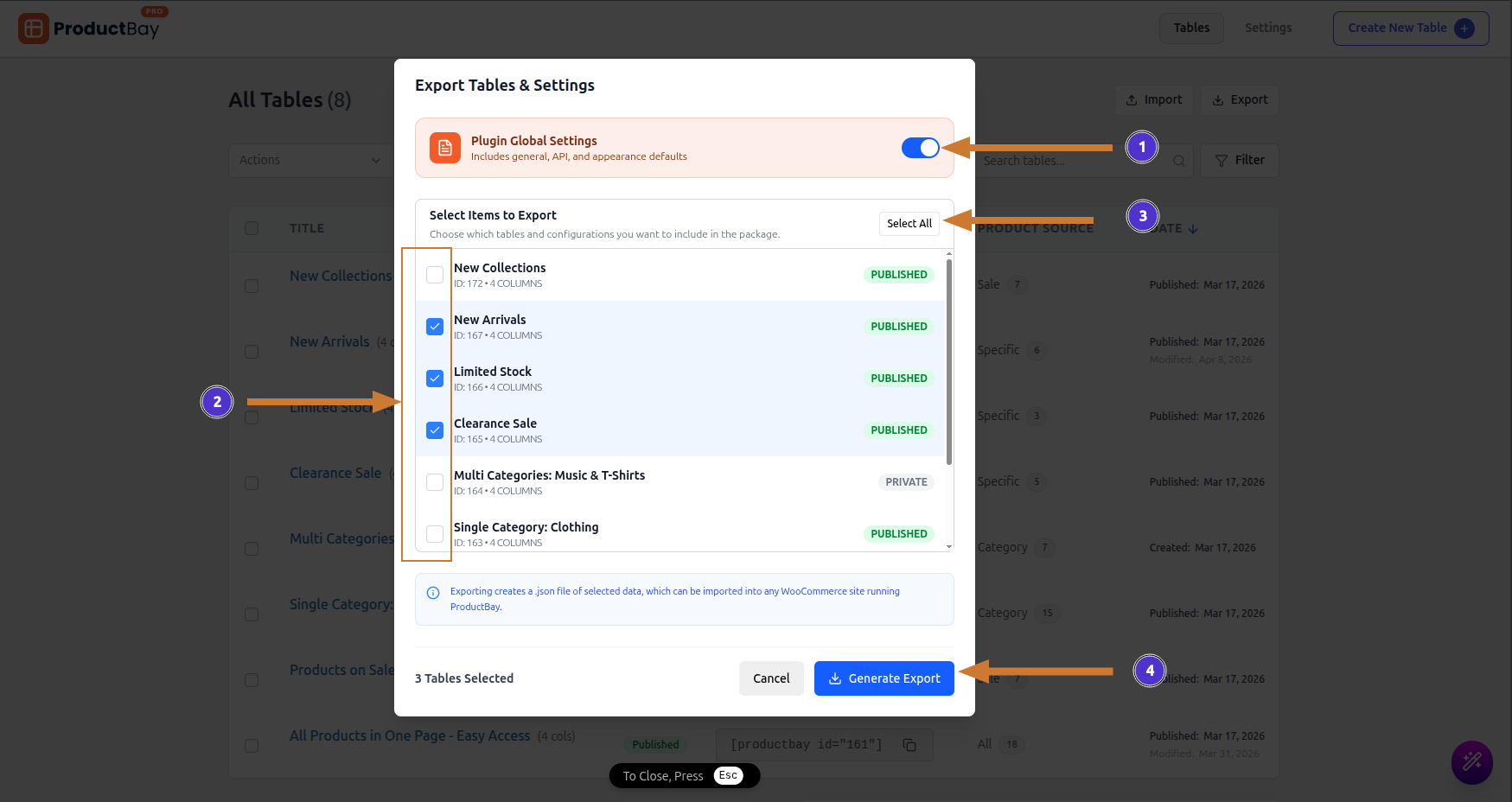
- You can select Plugin Global Settings at the top to include your configuration under the General and Styling settings tabs.
- You can select specific tables to export by checking the checkbox next to each table.
- You can Select All or Deselect All tables using the buttons at the top.
- Click on the Generate Export button to generate the export file. A
productbay-export-[date].jsonfile will download to your device.
Importing Tables
The Import tool allows you to upload a previously exported .json file to restore or migrate tables.
How to Import:
After clicking on the Import button you will see the Import Modal.
- Under the Import section, browse for your
.jsonexport file. - Select an Overlap Handling Mode (see below).
- Choose whether to Import Global Settings (if they exist in the file). Warning: This will overwrite your current global settings.
- Click the Import Tables button.
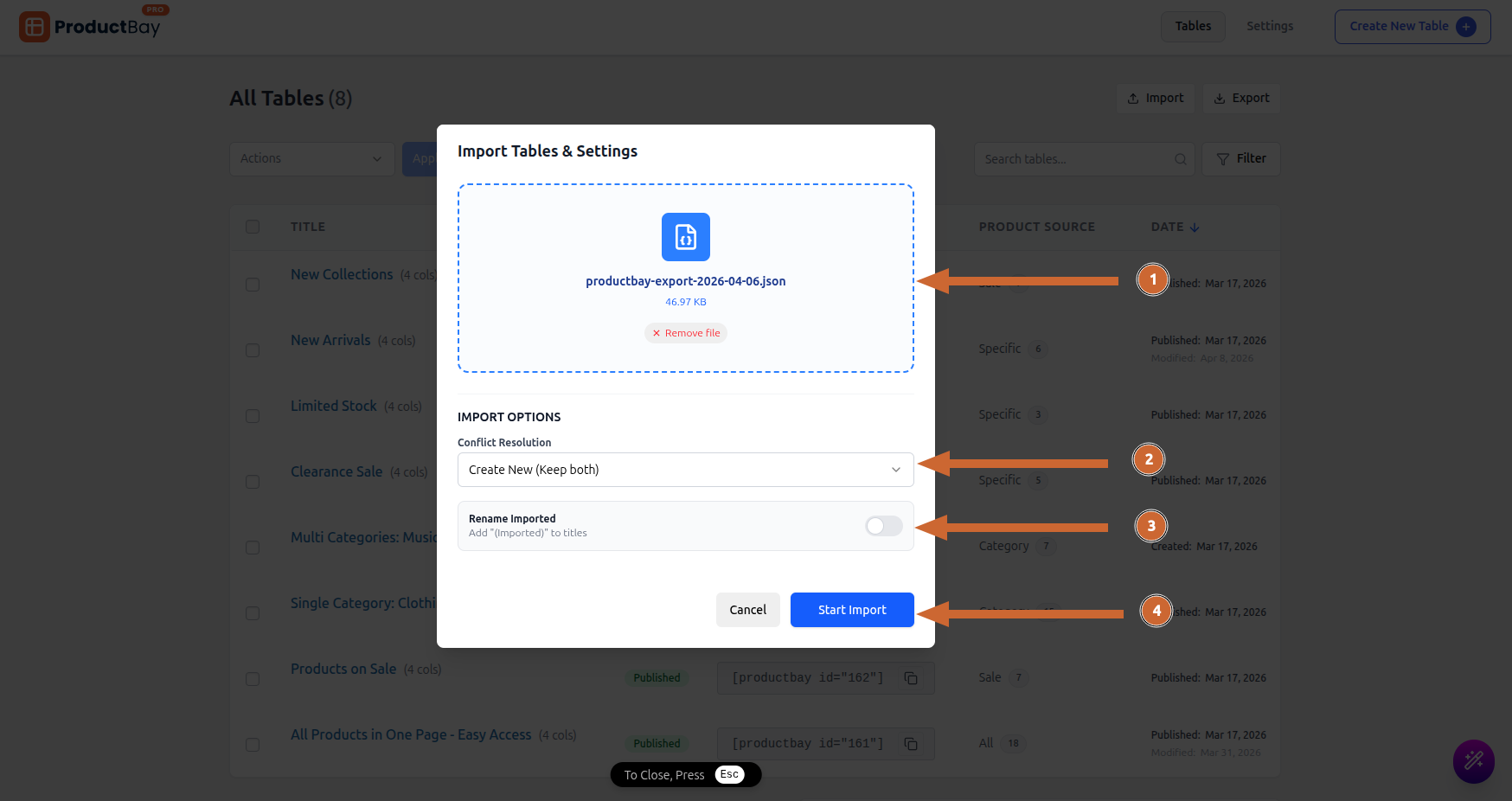
- Click on the upload box or drag and drop your
productbay-export-[date].jsonfile that you exported earlier into the box. - Select how to manage Conflict Resolution.
- Rename Imported: If enabled, it will appends "(Imported)" to titles of imported tables.
- Click the Start Import button.
Conflict Resolution
- Create New (Keep both): If two tables have the same configuration, it will create a new table with the imported configuration, keeping your existing table as well.
- Overlap Existing: If two tables have the same configuration, it will update the existing table with the imported configuration.
- Skip Duplicates: If two tables have the same configuration, it will skip the import process for that table.
Cross-Site Product Matching
While importing tables to a different website, you may encounter an issue where the product IDs do not match (e.g., Product ID 10 on your staging site might be an orange, but ID 10 on production might be an apple), this mostly happens when you are importing with Specific Products source. This is because each website has its own set of product IDs.
ProductBay Pro's Smart Matching: During the import process, ProductBay attempts to resolve this issue automatically:
- SKU Matching: It first tries to find a product on the new site with the exact same SKU.
- Title Matching: If no SKU matches, it attempts to find a product with the exact same title.
- If neither matches, that specific product condition is dropped from the imported table to prevent errors.
Use Cases
- Staging to Production: Build your perfect tables on a staging server and migrate them to your live server without rebuilding them from scratch.
- Cross-site Syncing: Agencies can build a master configuration and import it across multiple client sites.
- Safe Backups: Export your table configurations before making major changes.