

Quick Setup
This is the fastest path to a working loyalty program enough to have customers earning and redeeming points today. It assumes PointBay is already installed and active; if it isn’t yet, start with Installation & Licensing first.
Prerequisites
Section titled “Prerequisites”- PointBay is installed and active (see Installation & Licensing).
- WooCommerce is set up with at least one purchasable product, so you can place a real test order.
- A test customer account you can log into separately from your admin account you’ll need to check out as a customer, not as the store owner.
Walkthrough: Configure and Test Your Program
Section titled “Walkthrough: Configure and Test Your Program”All settings below are at WooCommerce → Settings → Loyalty Points, and every group is saved together with WooCommerce’s own Save changes button at the bottom of the page there’s no separate save per section.
Step 1: Set your earning rate
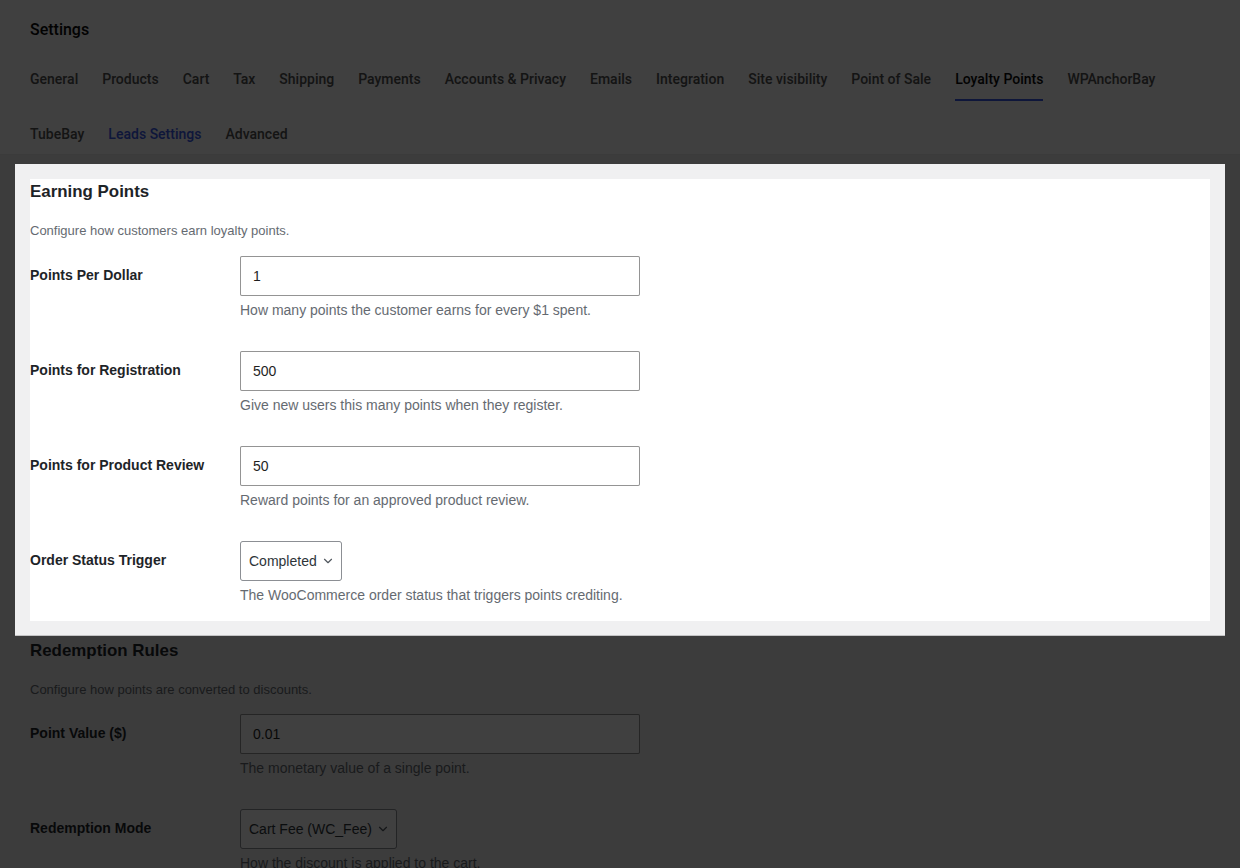
Section titled “Step 1: Set your earning rate”- In the Earning Points group, set Points Per Dollar how many points a customer earns for each $1 of order subtotal. The default is
1. - Optionally set Points for Registration and Points for Product Review to reward those actions too (both default to
0, which turns them off). - Choose the Order Status Trigger the order status that awards purchase points. The default is Completed.
- Click Save changes.
Full details on every field: Settings Reference → Earning Points.
Step 2: Set your redemption rules
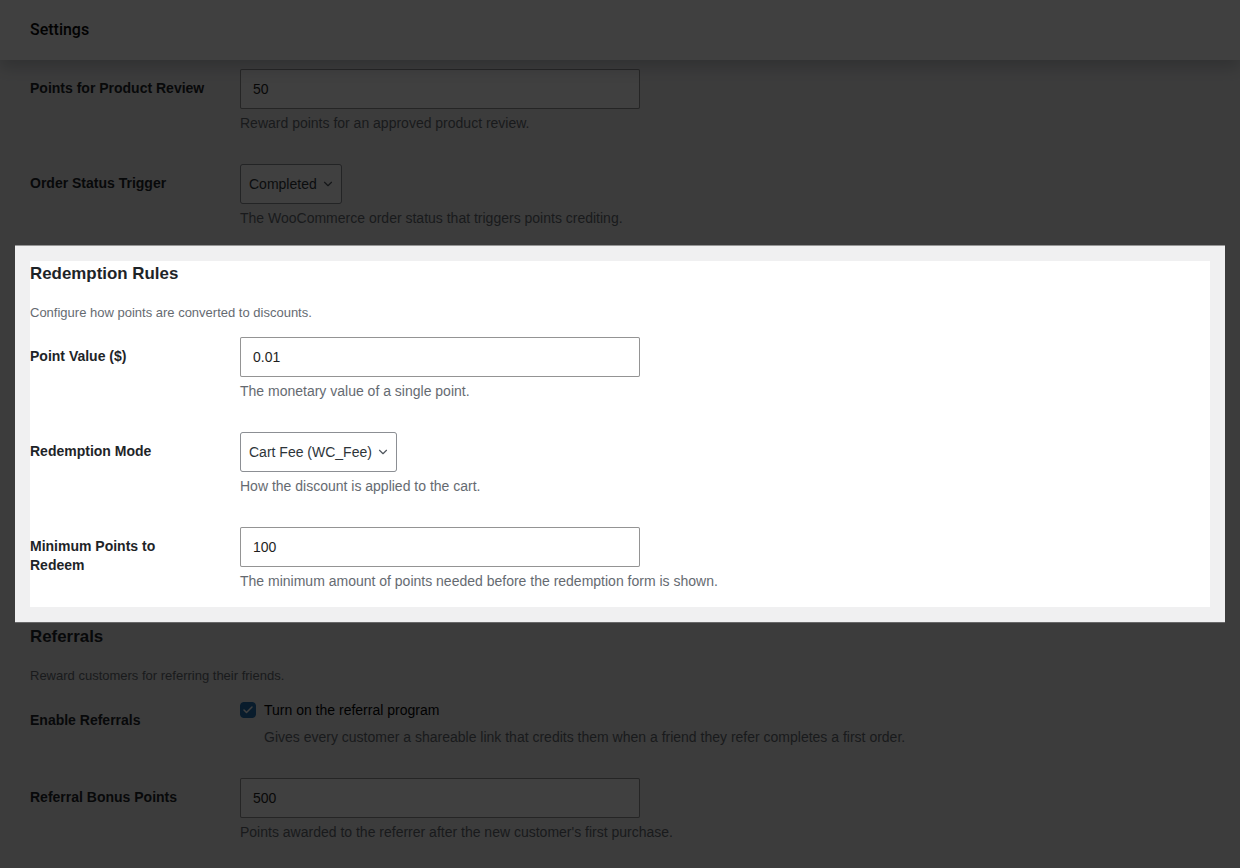
Section titled “Step 2: Set your redemption rules”- In the Redemption Rules group, set Point Value ($) what one point is worth as a discount. The default is
0.01(100 points = $1.00 off). - Choose a Redemption Mode Cart Fee or Virtual Coupon. Cart Fee is the simpler default; switch to Virtual Coupon only if an automated tax service reports incorrect totals once redemption is live.
- Set Minimum Points to Redeem the balance a customer needs before the redeem option appears at checkout (default
100).
- Click Save changes.
Full details on every field: Settings Reference → Redemption Rules.
Step 3: Test earning
Section titled “Step 3: Test earning”- In an incognito window (or logged in as a separate test customer), buy a product and complete checkout.
- In the admin, go to WooCommerce → Orders and set that order to your trigger status (for example, Completed), if it isn’t already.
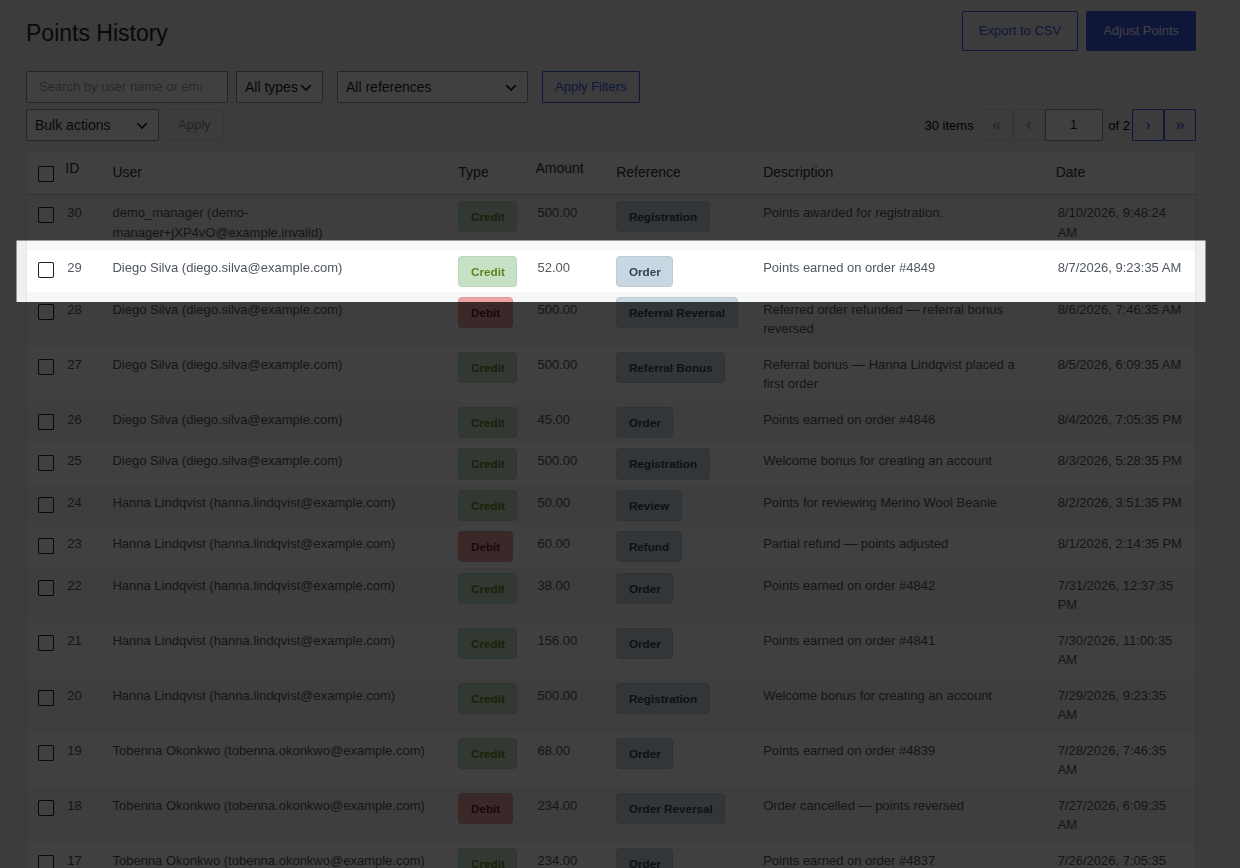
- Open WooCommerce → Points History you should see a new Credit entry for that customer, referencing the order number.
Step 4: Test redeeming
Section titled “Step 4: Test redeeming”- Make sure your test customer’s balance is at or above your Minimum Points to Redeem.
- As that customer, add items to the cart and go to checkout.
- In the Redeem Loyalty Points panel, choose an amount and click Apply Discount the order total should drop by the corresponding amount.
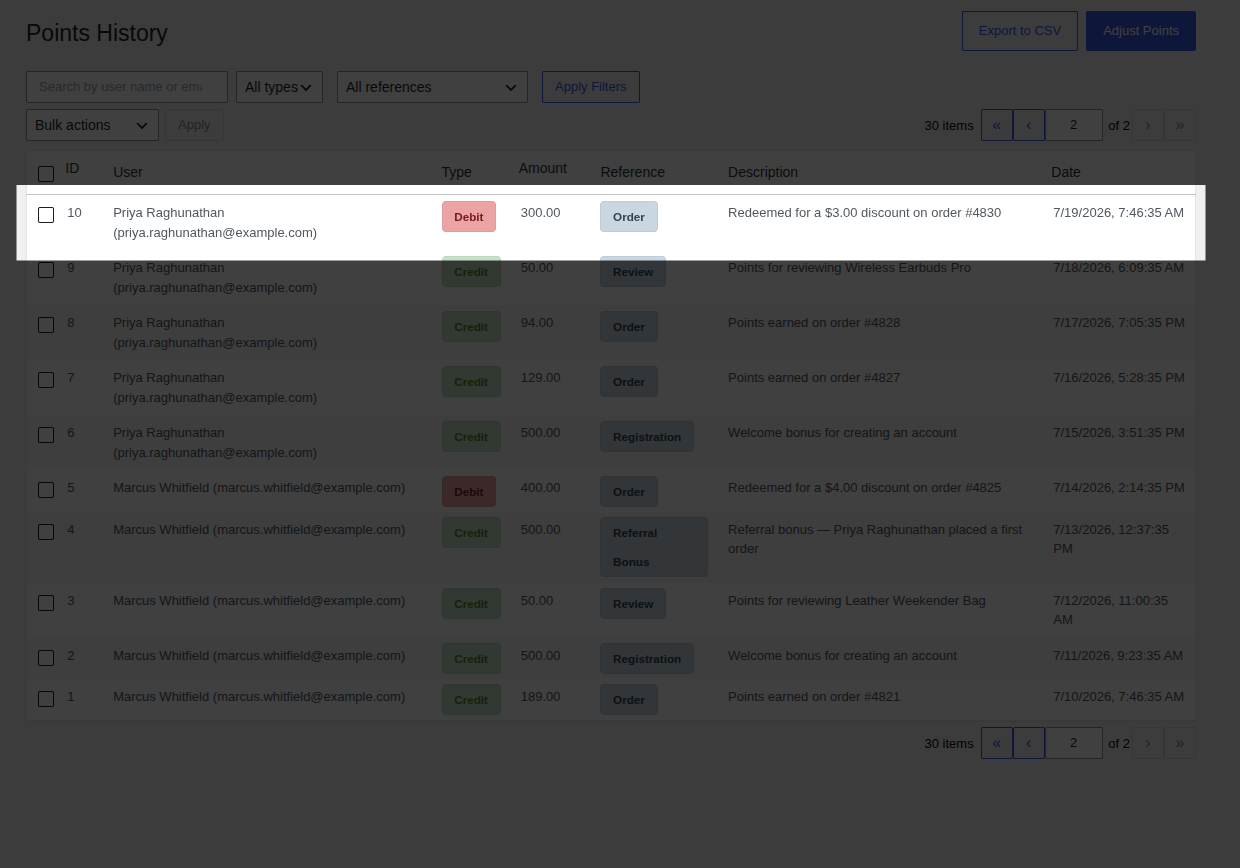
- Place the order, then check Points History again for the matching Debit entry.
Verify It Worked
Section titled “Verify It Worked”If Step 3 produced a Credit and Step 4 produced a Debit in Points History, matching the order and amount you’d expect, your program is fully wired up end to end earning and redeeming both work.
What’s Next
Section titled “What’s Next”Your basic program is live. To go further:
- Earning Points the full detail on how points are calculated, including refunds.
- Redeeming Points checkout behavior, Cart Fee vs. Virtual Coupon, and edge cases.
With PointBay Pro active, you can also layer on:
- VIP Tiers reward repeat customers with a faster earning rate.
- Referral Program turn customers into advocates with a refer-a-friend link.