

Earning Points
Points are the currency your customers build up every time they shop with you, and Earning Points is where you decide how they get them. Customers earn points automatically on purchases, and you can optionally reward them for creating an account or leaving a product review both are quick, low-cost ways to nudge shoppers toward the actions that grow your store.
Everything on this page is configured at WooCommerce → Settings → Loyalty Points, under the Earning Points group. Full field-by-field details are in the Settings Reference.
How It Works
Section titled “How It Works”There are three independent ways a customer can earn points, and you can enable any combination of them:
- Purchases points are awarded automatically once an order reaches the status you choose (Completed by default).
- Account registration an optional one-time bonus the moment someone creates an account, even before their first order.
- Product reviews an optional bonus when a logged-in customer’s product review is approved by you.
You can also credit points to any customer by hand at any time see Manual Adjustments for goodwill credits, corrections, or promotions that don’t fit the automatic rules.
Walkthrough: Turn On All Three Earning Methods
Section titled “Walkthrough: Turn On All Three Earning Methods”- Go to WooCommerce → Settings → Loyalty Points (or click Loyalty in the WooCommerce admin menu).
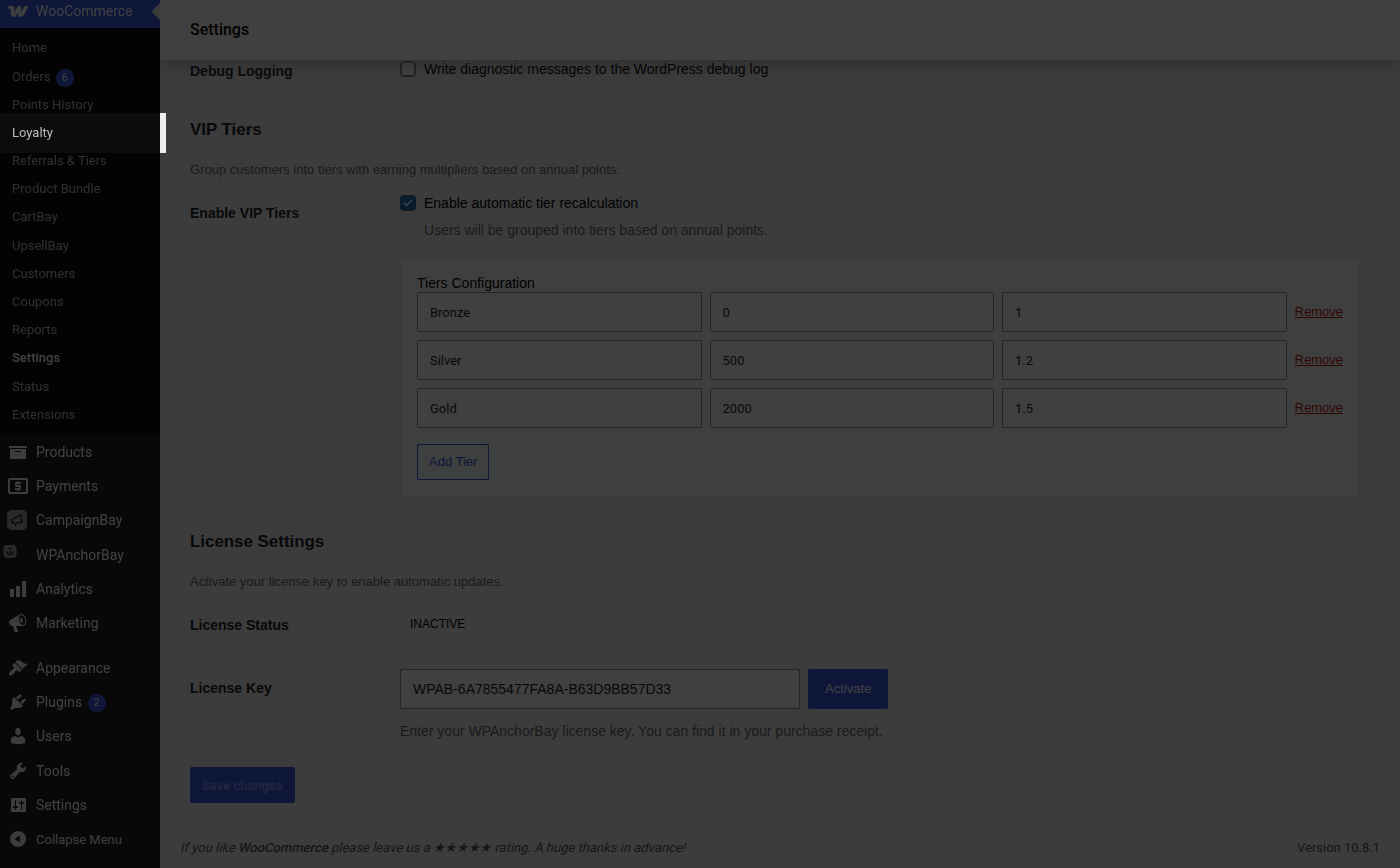
- In the Earning Points group, confirm Points Per Dollar is set to the rate you want (the default is
1). - Set Points for Registration to a nonzero value, for example
50, to reward new accounts. - Set Points for Product Review to a nonzero value, for example
20, to reward approved reviews. - Check Order Status Trigger matches how your store actually processes orders if you ship immediately on payment,
Processingcredits points sooner than the defaultCompleted.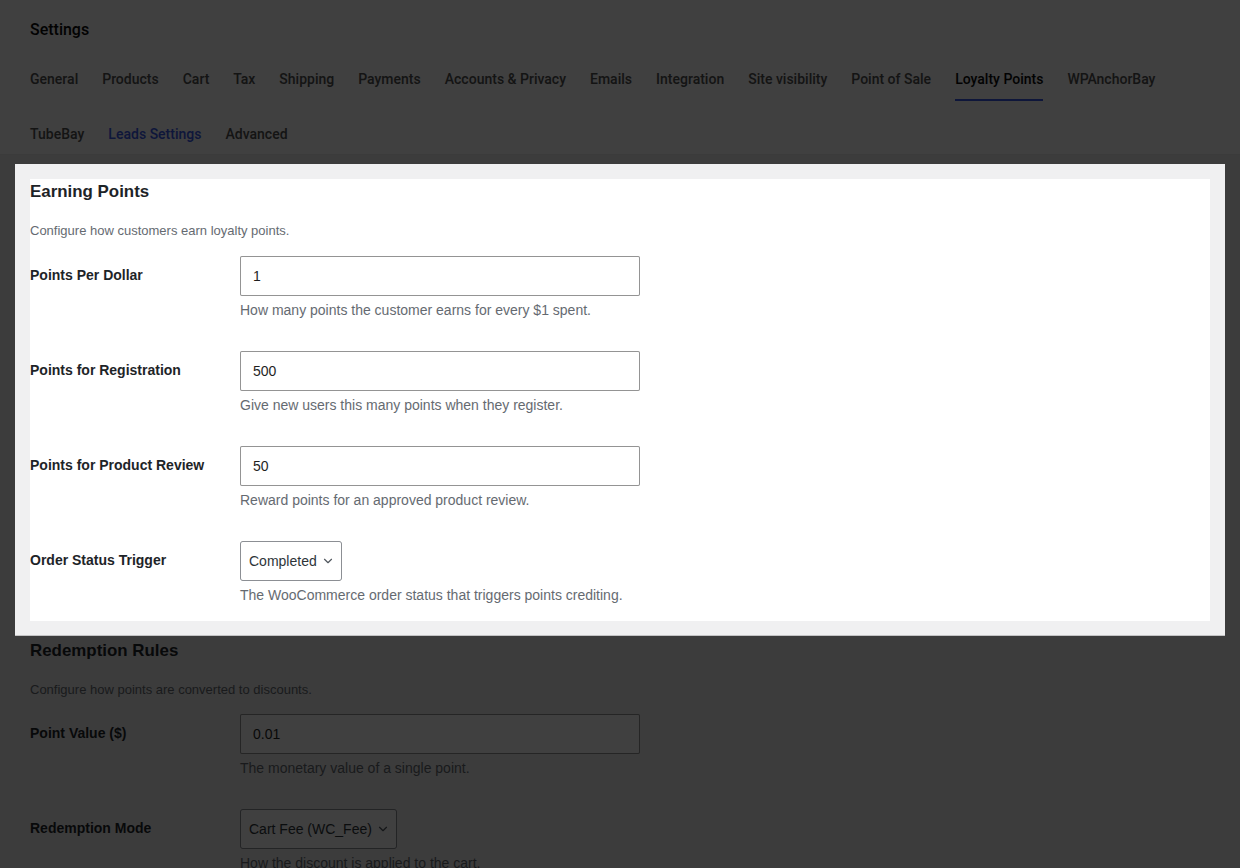
- Click Save changes at the bottom of the page.
- Verify it worked: place a small test order (or create a test account) and check Points History for a new Order or Registration entry crediting the expected amount.
How Points Are Calculated
Section titled “How Points Are Calculated”Purchase points are based on the item subtotal after any coupon discounts, but before shipping and tax. Shipping charges, tax, and any points redeemed on the same order are never counted toward how many points that order earns.
Example 1 a standard purchase. A customer buys $110 worth of products (already net of a $10 coupon), plus $15 shipping and $10 tax, for an order total of $135. At the default rate of 1 point per $1 of subtotal, they earn 110 points the shipping and tax are ignored entirely, even though the customer paid $135.
Example 2 a refund claws points back. That same customer later returns half their order and receives a $55 refund. Because the refund is 50% of the $110 subtotal that earned points, PointBay automatically removes 50% of the 110 points earned 55 points are debited from their balance. See Refunds and Reversals below for how this plays out when points have already been spent.
The Checkout Earn Notice
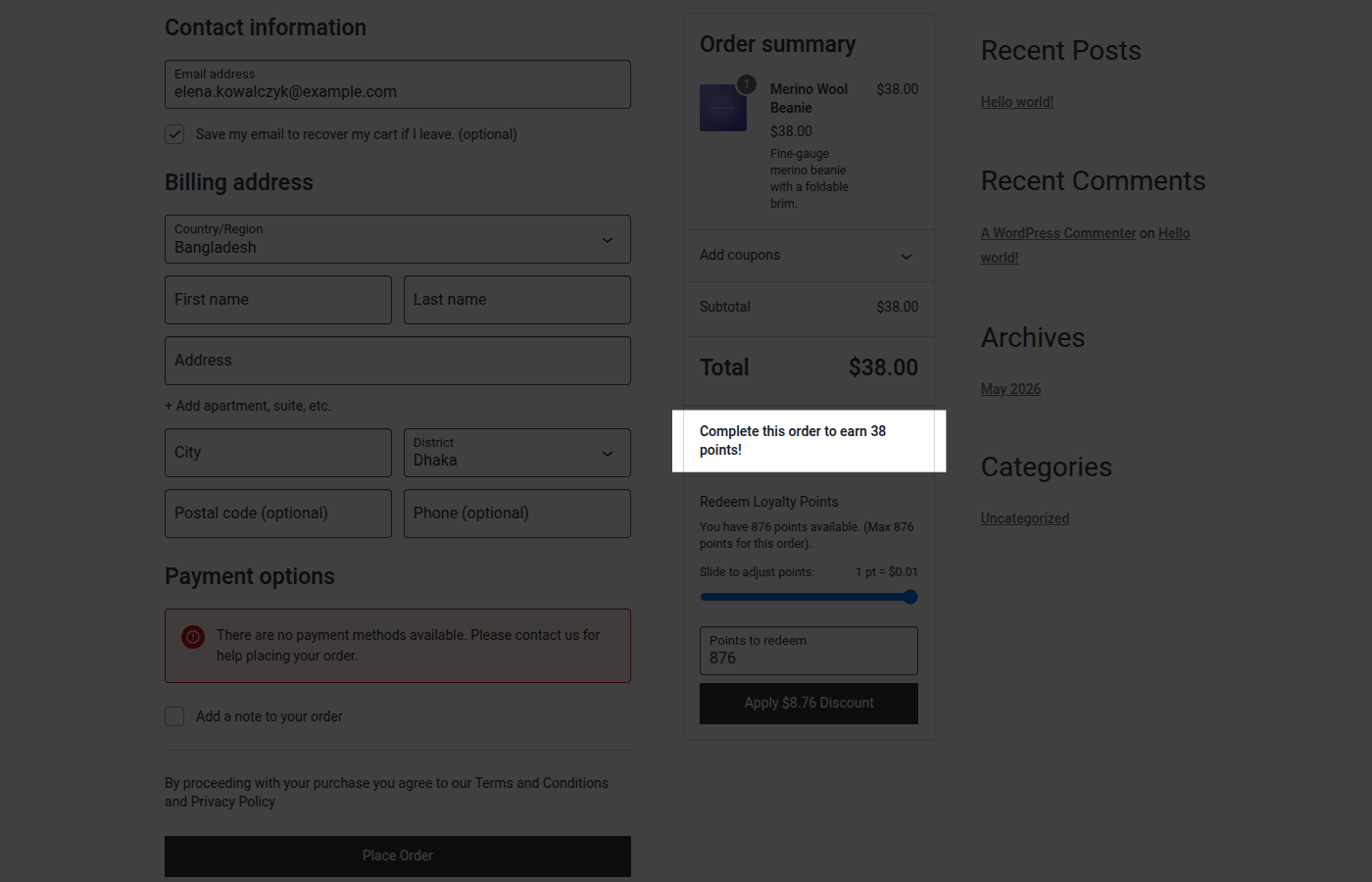
Section titled “The Checkout Earn Notice”At the cart and checkout, PointBay shows shoppers how many points their order will earn a small, motivating reminder that completing the purchase pays them back. Logged-in shoppers see a message telling them how many points this order will earn; logged-out shoppers see a prompt to log in or register instead, so they don’t complete a purchase without realizing they missed out on points.
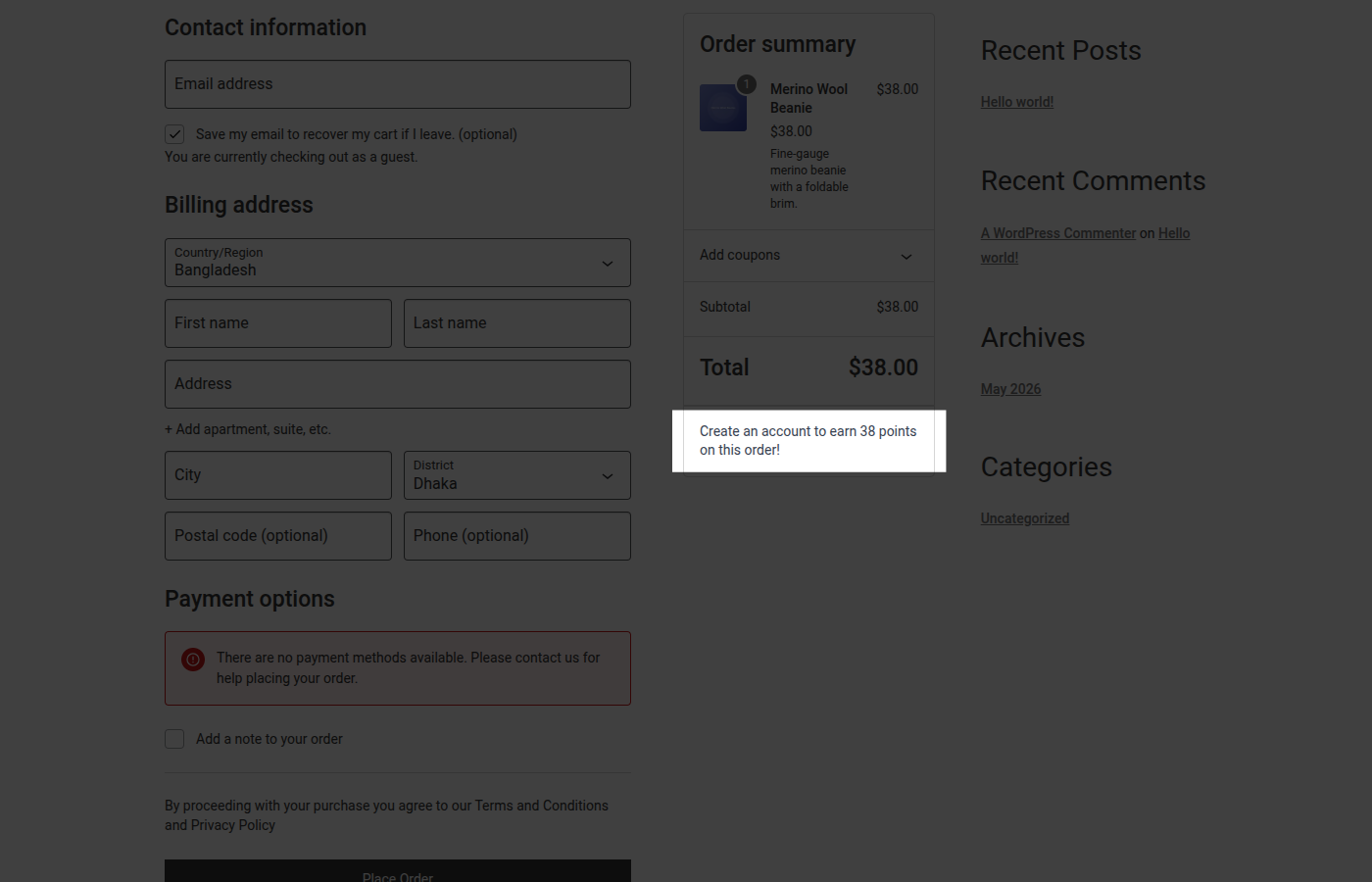
You can turn the guest-facing prompt on or off with the Guest Notice option under Display & System see Settings Reference.
Refunds and Reversals
Section titled “Refunds and Reversals”If an order that earned points is later refunded, PointBay automatically takes those points back so customers can’t keep points for merchandise they returned:
- Full refund every point earned on the order is removed.
- Partial refund points are removed in proportion to the amount refunded (see Example 2 above).
If the customer has already spent the points being clawed back, their balance can go negative. They aren’t blocked from shopping they simply need to earn their way back to a positive balance before they can redeem points again. Points are also reversed automatically if a cash-on-delivery order is cancelled or fails before payment completes.
Every credit and every reversal is recorded as its own line in Points History, so you can always see exactly why a customer’s balance changed.
Troubleshooting
Section titled “Troubleshooting”- Points weren’t awarded on a completed order check that Order Status Trigger matches the status the order actually reached. If your store’s workflow ends at “Processing” rather than “Completed,” orders will never trigger points unless the trigger is set to match.
- Review bonus wasn’t given only a customer’s first approved review of a given product counts, and reviews from logged-out guests never qualify.
- Registration bonus wasn’t given confirm Points for Registration isn’t still
0, which is the default (off) state. - A refunded order’s points didn’t reverse reversals are triggered by WooCommerce’s own refund process; a manual balance edit outside WooCommerce (e.g. directly in the database) won’t trigger one. Use Manual Adjustments to correct balances by hand instead.
See Troubleshooting for more general issues.