

VIP Tiers
VIP Tiers let you group customers into membership levels for example Bronze, Silver, and Gold and reward your most loyal shoppers with an earning multiplier that makes every purchase they make earn points faster. It’s a way to give your best customers a visible reason to keep coming back instead of shopping elsewhere. Customers move up (and, if they go quiet, back down) automatically, with no manual work on your part.
The Enable VIP Tiers toggle and the tier editor both live at WooCommerce → Settings → Loyalty Points, under the VIP Tiers group turning the toggle on reveals the editor right there on the same page. The separate Referrals & Tiers admin page only shows a read-only summary of your configured tiers, with a link back to this settings screen to make changes. Full field details are in the Settings Reference.
How It Works
Section titled “How It Works”- Qualifying for a tier. A customer’s tier is based on the points they’ve earned in the last 365 days a rolling window, not their current spendable balance. This means members need to stay active to keep their status: points earned more than a year ago stop counting toward their tier, even if they haven’t spent them.
- Earning faster. When a member makes a purchase, their tier’s multiplier is applied on top of the normal Points Per Dollar rate.
- Automatic updates. A customer is promoted the moment they cross a threshold. Every customer’s tier is also re-checked automatically once a day, so members who drop below a threshold because their older points aged out of the 365-day window are moved down to the correct tier without you having to intervene.
Walkthrough: Turn On Tiers and Set Your Thresholds
Section titled “Walkthrough: Turn On Tiers and Set Your Thresholds”- Go to WooCommerce → Settings → Loyalty Points, in the VIP Tiers group.
- Turn on Enable VIP Tiers the tier editor appears directly below the toggle, pre-filled with three starter tiers.
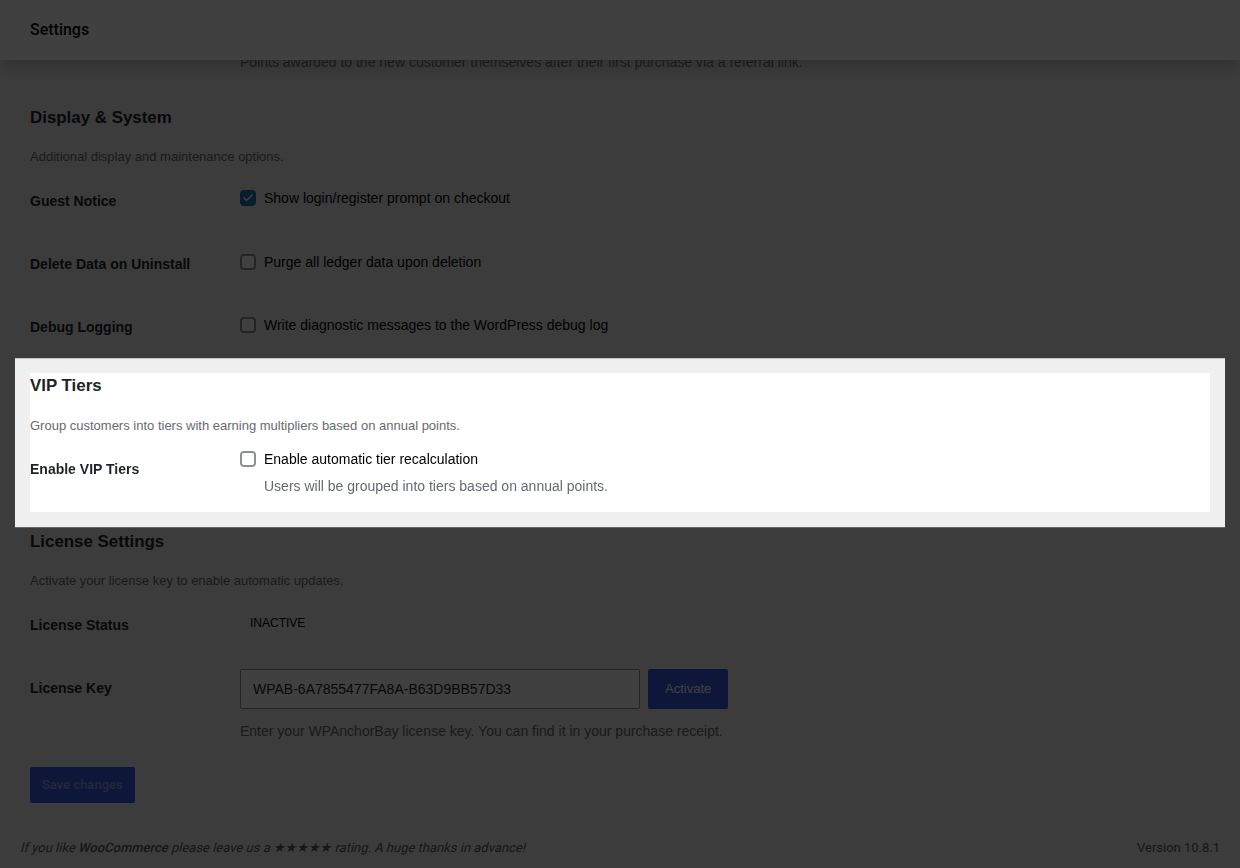
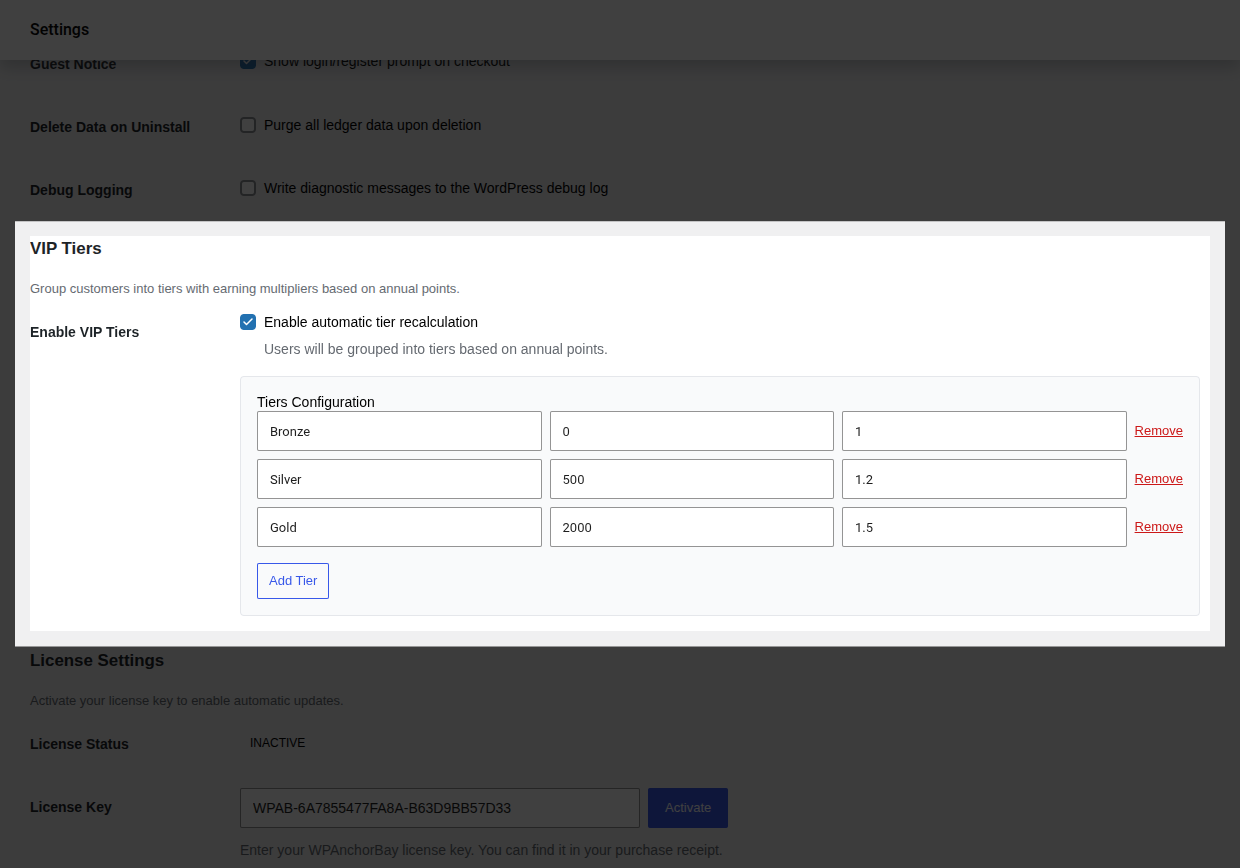
- Each row is one tier with three fields, in this order: Tier Name, Points Threshold (points per year needed to reach it), and Multiplier. The rows don’t have a persistent column header above them only placeholder text inside each empty field so remember the order is always Name → Threshold → Multiplier.
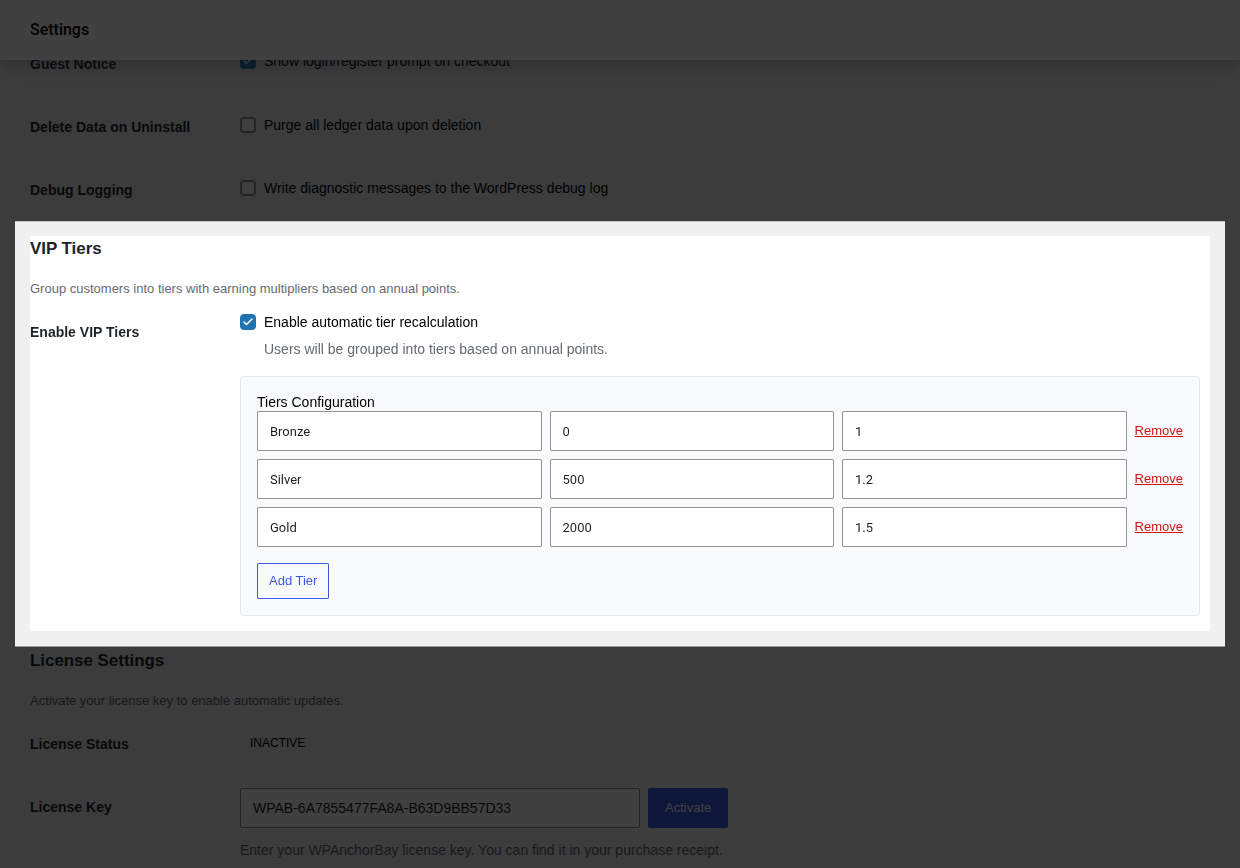
- Edit the starter tiers to match your program, or use Add Tier / Remove to change how many tiers you offer.
- Click Save changes at the bottom of the page there’s no separate save for this group.
- Verify it worked: place a test order as a customer who qualifies for a non-Bronze tier and confirm in Points History that the multiplier was applied to the credited amount. You can also check WooCommerce → Referrals & Tiers for a read-only summary of your configured tiers.
Starter Tiers
Section titled “Starter Tiers”PointBay Pro ships with a ready-to-use set of three tiers that you’re free to rename, re-threshold, remove, or add to:
| Tier | Points needed (per year) | Earning multiplier |
|---|---|---|
| Bronze | 0 | 1.0× (standard rate) |
| Silver | 500 | 1.2× (20% faster) |
| Gold | 2,000 | 1.5× (50% faster) |
Worked Examples
Section titled “Worked Examples”Example 1 a Gold member’s purchase. A Gold member (1.5×) places a $100 order at the default rate of 1 point per $1. Instead of the standard 100 points, they earn 150 points.
Example 2 a member drops a tier. A Silver member (1.2×) earned 600 points 13 months ago and nothing since. Because those points have aged out of the 365-day qualifying window, the next daily tier check moves them back down to Bronze (1.0×) until they earn again.
Edge Cases & Interactions
Section titled “Edge Cases & Interactions”- Tier multipliers apply only to purchase points (see Earning Points) registration and review bonuses are always credited at their flat configured amount, unaffected by tier.
- If a purchase that benefited from a multiplier is later refunded, the reversal removes exactly what was credited (the multiplied amount), not a recalculated non-multiplied amount.
- Customers see their current tier and progress toward the next one on their Customer Dashboard.
Troubleshooting
Section titled “Troubleshooting”- A customer’s tier didn’t update after a big purchase tier promotions on crossing a threshold are immediate, but if it still looks wrong, confirm Enable VIP Tiers is actually on; the setting can be saved off after testing and forgotten.
- A loyal customer got demoted unexpectedly check whether their qualifying points simply aged out of the 365-day window; this is expected behavior, not a bug.
- The tier editor rows are confusing remember the fixed left-to-right order: Name, Threshold, Multiplier.
See Troubleshooting for more general issues.