

Settings Reference
This page is the complete reference for every PointBay setting. Every other page in this documentation links back here instead of re-explaining a setting from scratch, so if you only remember one page for “what does this field do,” make it this one.
All settings live in one place: WooCommerce → Settings → Loyalty Points. In the WordPress admin sidebar this same screen is also reachable from the shorter Loyalty menu link under WooCommerce. The free plugin shows four fully working groups on this screen Earning Points, Redemption Rules, Referrals, and Display & System plus a locked preview of the two Pro-only groups, VIP Tiers and License Settings, each marked with a PRO badge and a lock icon you can hover for a link to buy Pro. With PointBay Pro active, those two groups unlock, and one extra field (New Customer Bonus Points) is added inside the existing Referrals group. There is no separate “save” per group one Save changes button at the bottom of the page saves everything on the screen at once.
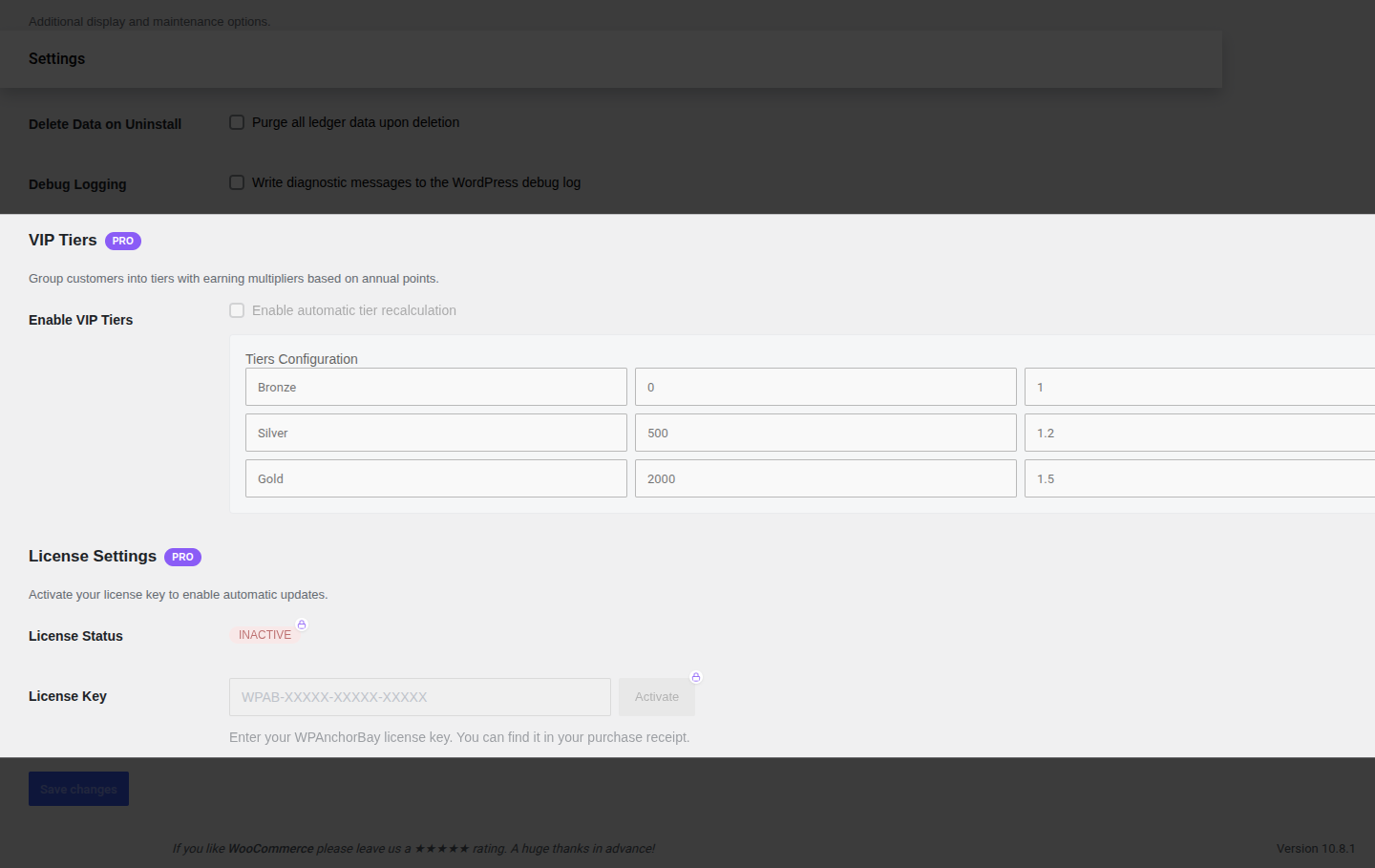
The screenshot above is what free-plugin users see for these two groups every field is visible but disabled, so you know exactly what Pro adds before buying.
Earning Points
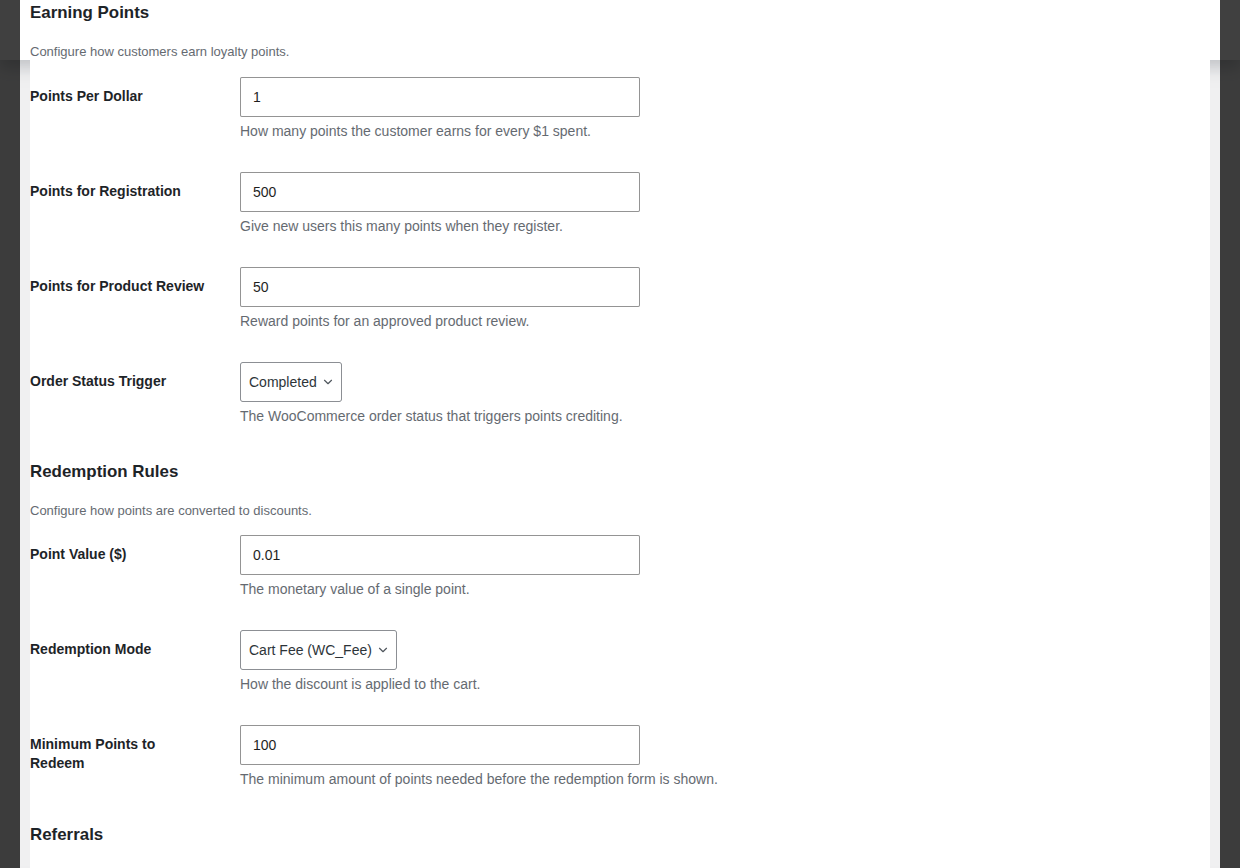
Section titled “Earning Points”Controls how customers accumulate points in the first place.
| Setting | Default | What it does | Valid values |
|---|---|---|---|
| Points Per Dollar | 1 | How many points a customer earns for every $1 of order subtotal (tax and shipping excluded). | Any whole number, 0 or higher. |
| Points for Registration | 0 | A one-time bonus credited when someone creates an account. | Any whole number. 0 turns the bonus off. |
| Points for Product Review | 0 | Points credited when a customer’s product review is approved by a store manager. | Any whole number. 0 turns the bonus off. |
| Order Status Trigger | Completed | The WooCommerce order status that has to be reached before purchase points are credited. | Completed, Processing, or On Hold. |
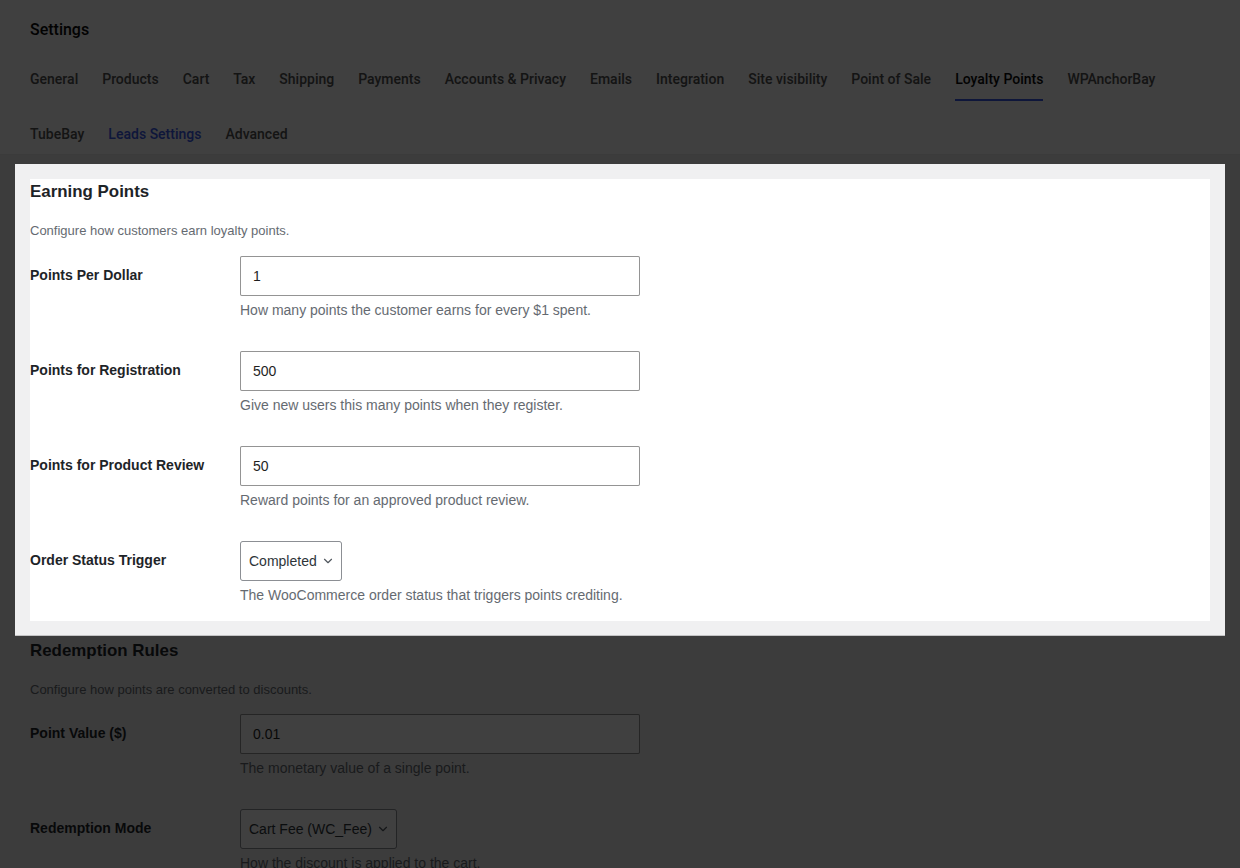
See the full walkthrough on Earning Points.
Redemption Rules
Section titled “Redemption Rules”Controls how accumulated points convert into a discount at checkout.
| Setting | Default | What it does | Valid values |
|---|---|---|---|
| Point Value ($) | 0.01 | The monetary value of a single point when redeemed. At the default, 100 points = $1.00 off. | Any decimal amount greater than 0. |
| Redemption Mode | Cart Fee | How the discount is applied to the cart. On screen this option is still labeled Cart Fee (WC_Fee) the (WC_Fee) is an internal WooCommerce class name, not something you need to know; think of it simply as “Cart Fee.” | Cart Fee (a negative line-item fee is added to the cart) or Virtual Coupon (a single-use coupon is generated and applied automatically). |
| Minimum Points to Redeem | 100 | The balance a customer must have before the redemption option appears at checkout. | Any whole number, 0 or higher. |
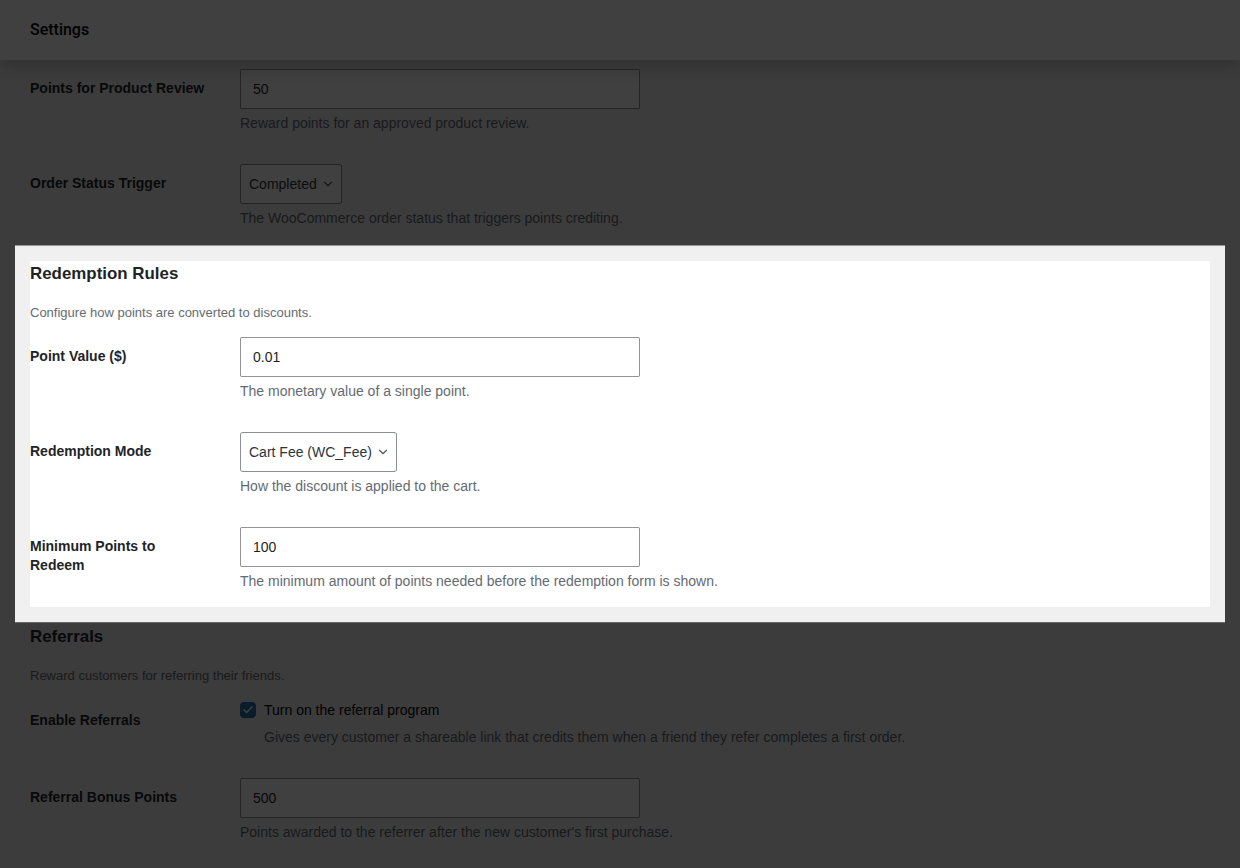
See the full walkthrough on Redeeming Points.
Referrals
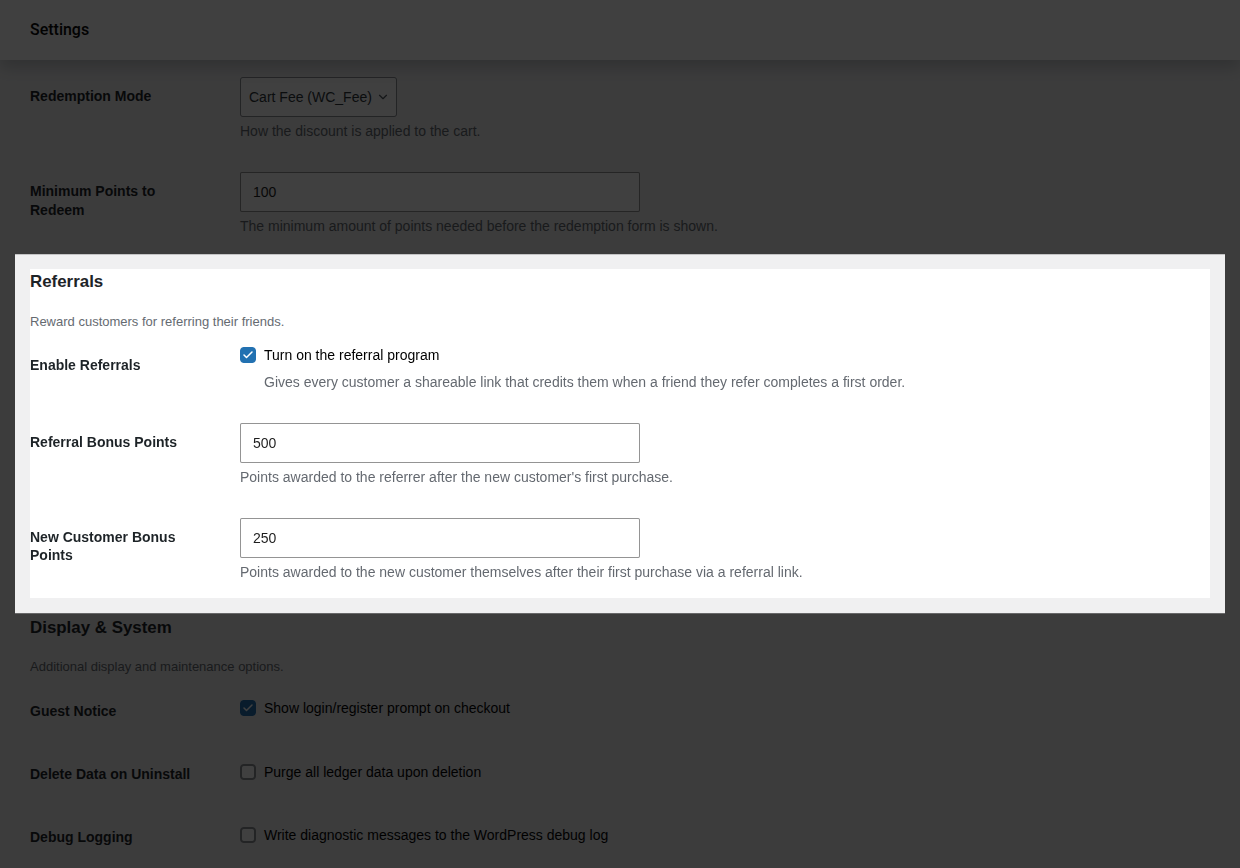
Section titled “Referrals”Controls the refer-a-friend program, split across two settings owned by the free plugin and one owned by Pro.
| Setting | Default | What it does | Valid values |
|---|---|---|---|
| Enable Referrals | Off | Turns the referral program on. When off, no referral links or bonuses are generated anywhere on the site. | On / Off. |
| Referral Bonus Points | 1000 | Points credited to the referrer after the friend they referred completes their first order. | Any whole number, 0 or higher. |
| New Customer Bonus Points | 100 | A separate welcome bonus credited to the new customer (the person who was referred) after their own first purchase. This is a distinct field from Referral Bonus Points the referrer and the new customer are each rewarded independently. | Any whole number. 0 skips this bonus, so only the referrer is rewarded. |
See the full walkthrough on Referral Program.
Display & System
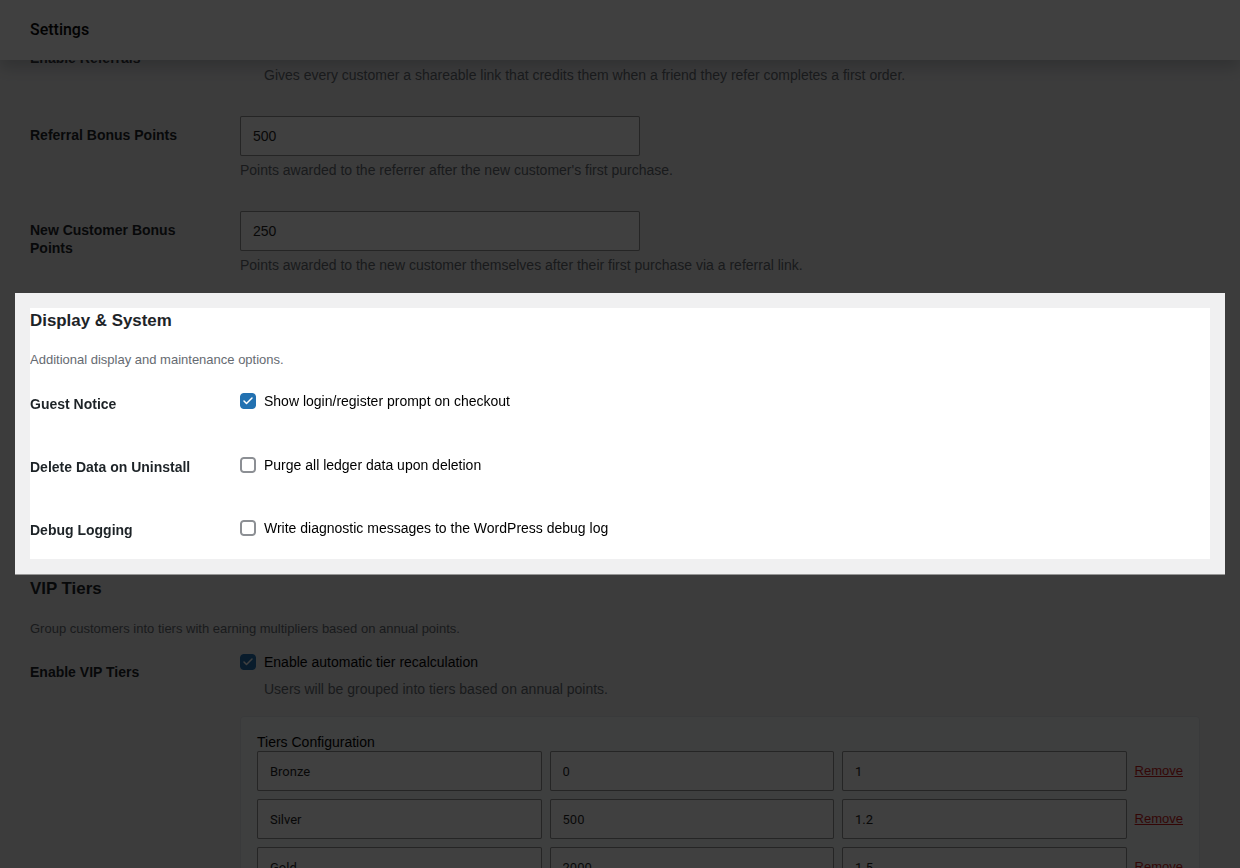
Section titled “Display & System”Options that don’t change how points are earned or redeemed, but affect what shoppers see and how the plugin behaves behind the scenes.
| Setting | Default | What it does | Valid values |
|---|---|---|---|
| Guest Notice | On | Shows a login/register prompt at checkout to logged-out shoppers, reminding them they could be earning points. | On / Off. |
| Delete Data on Uninstall | Off | When on, deleting the plugin permanently erases every customer’s points ledger, balances, and referral data. This cannot be undone. | On / Off. |
| Debug Logging | Off | Writes diagnostic messages about PointBay’s own activity into WooCommerce’s logging system, viewable under WooCommerce → Status → Logs (filed under the pointbay source). Leave this off unless you’re troubleshooting an issue with support. | On / Off. |
VIP Tiers
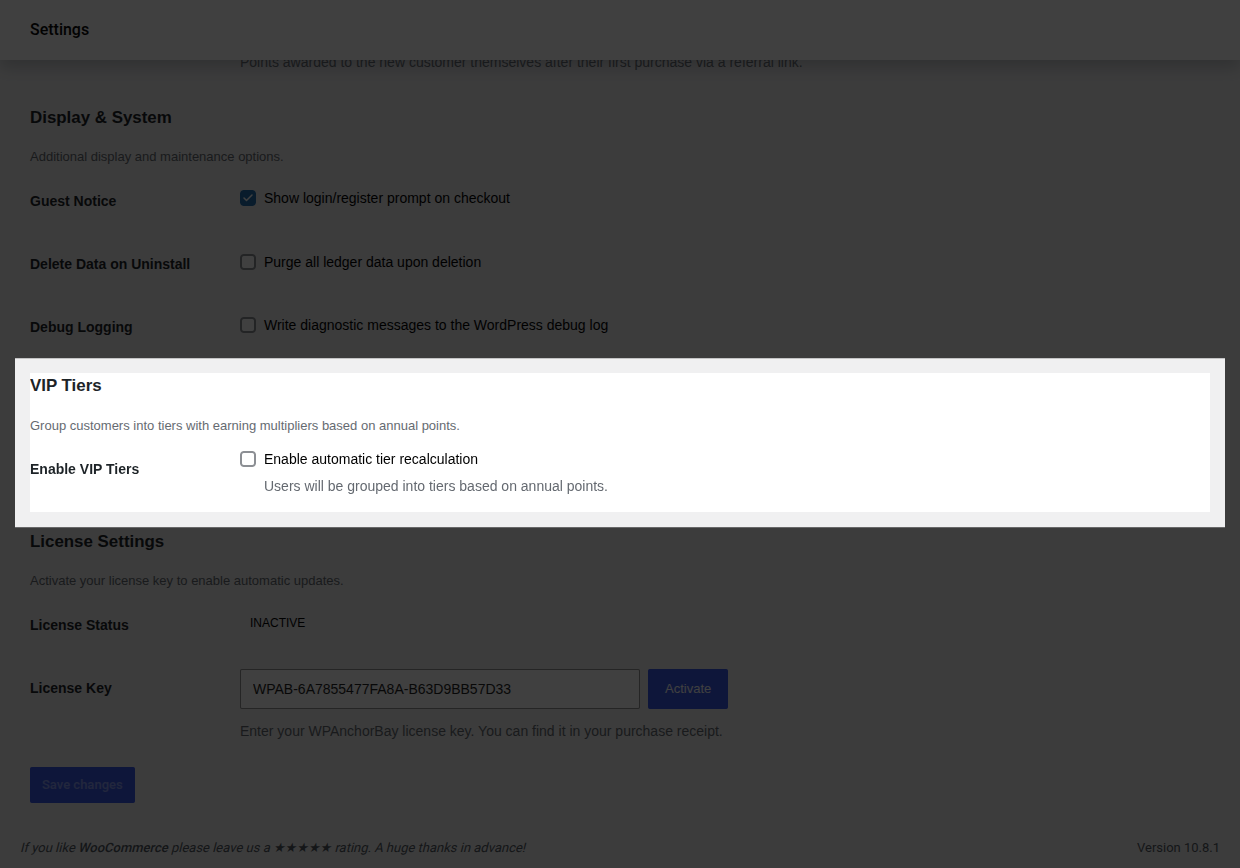
Section titled “VIP Tiers”Groups customers into membership tiers that multiply how many points they earn, based on how many points they’ve accumulated in the last 12 months.
| Setting | Default | What it does | Valid values |
|---|---|---|---|
| Enable VIP Tiers | Off | Turns on tier grouping and daily automatic tier recalculation. | On / Off. |
| Tiers Configuration | Bronze (0 pts, 1.0×) · Silver (500 pts, 1.2×) · Gold (2000 pts, 1.5×) | The tier editor itself, right here in this settings group (it appears once Enable VIP Tiers is on). Each row defines a Tier Name, a Points Threshold (annual points needed to reach that tier), and a Multiplier applied to every point a member of that tier earns. The separate Referrals & Tiers admin page is a read-only summary of this configuration, not an editor. | Any number of tiers; threshold and multiplier accept any positive number. |
See the full walkthrough on VIP Tiers.
License Settings
Section titled “License Settings”| Setting | What it does |
|---|---|
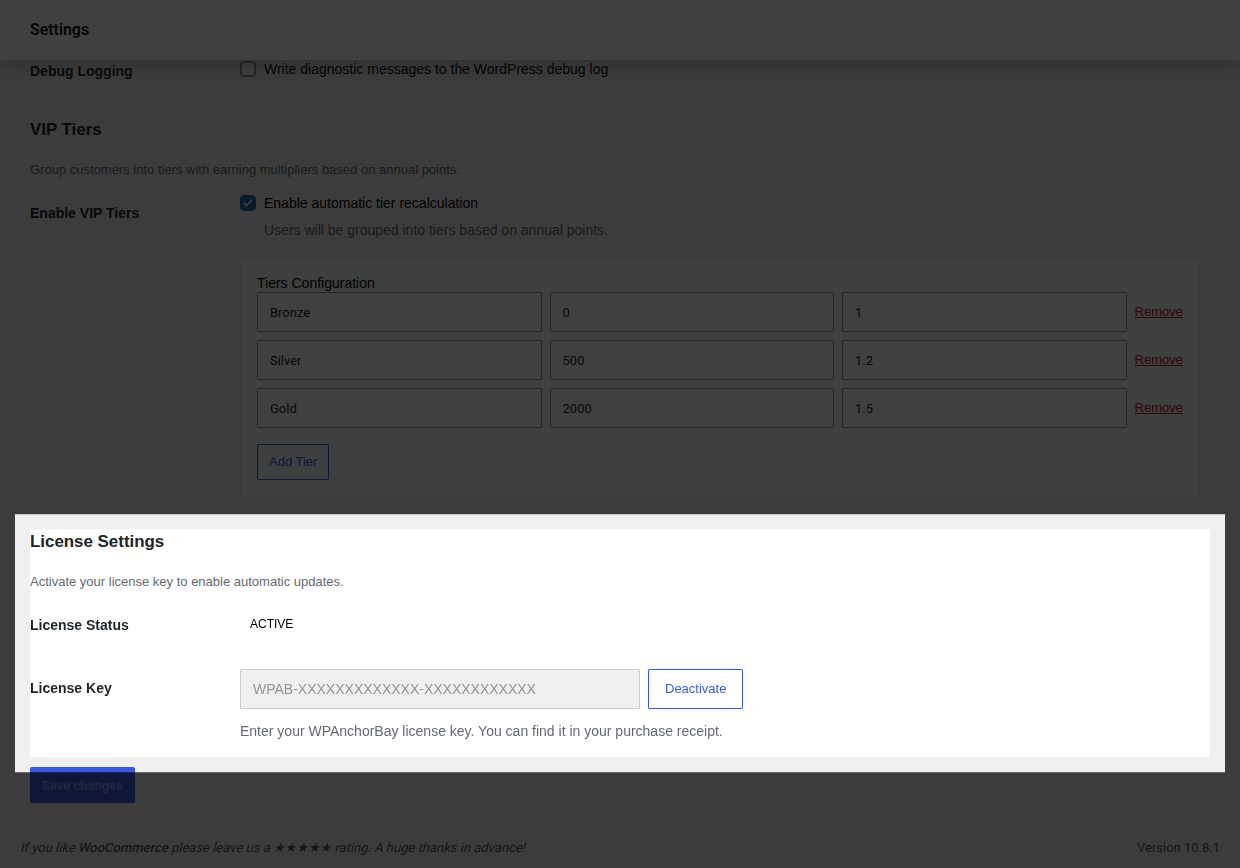
| License Status | Read-only. Shows Active, Inactive, or Invalid depending on whether your license key has been accepted. |
| License Key | Your WPAnchorBay license key, in the format WPAB-XXXXX-XXXXX-XXXXX. Paste it in and click Activate to unlock automatic updates and support. Once active, the field is locked and a Deactivate button appears in its place, letting you free up the license (for example, to move it to a different site). |
See Installation & Licensing for the full activation walkthrough.