

Manual Adjustments
Automatic rules can’t cover every situation sometimes you need to reward a customer for something that happened outside the store, or fix a balance that an automated rule got wrong. Manual Adjustments let you credit or debit any customer’s points by hand from WooCommerce → Points History, and every adjustment is recorded exactly like an automatic one, so you always have a full audit trail.
Walkthrough: Adjust a Customer’s Points
Section titled “Walkthrough: Adjust a Customer’s Points”- Go to WooCommerce → Points History and click Adjust Points at the top of the page.
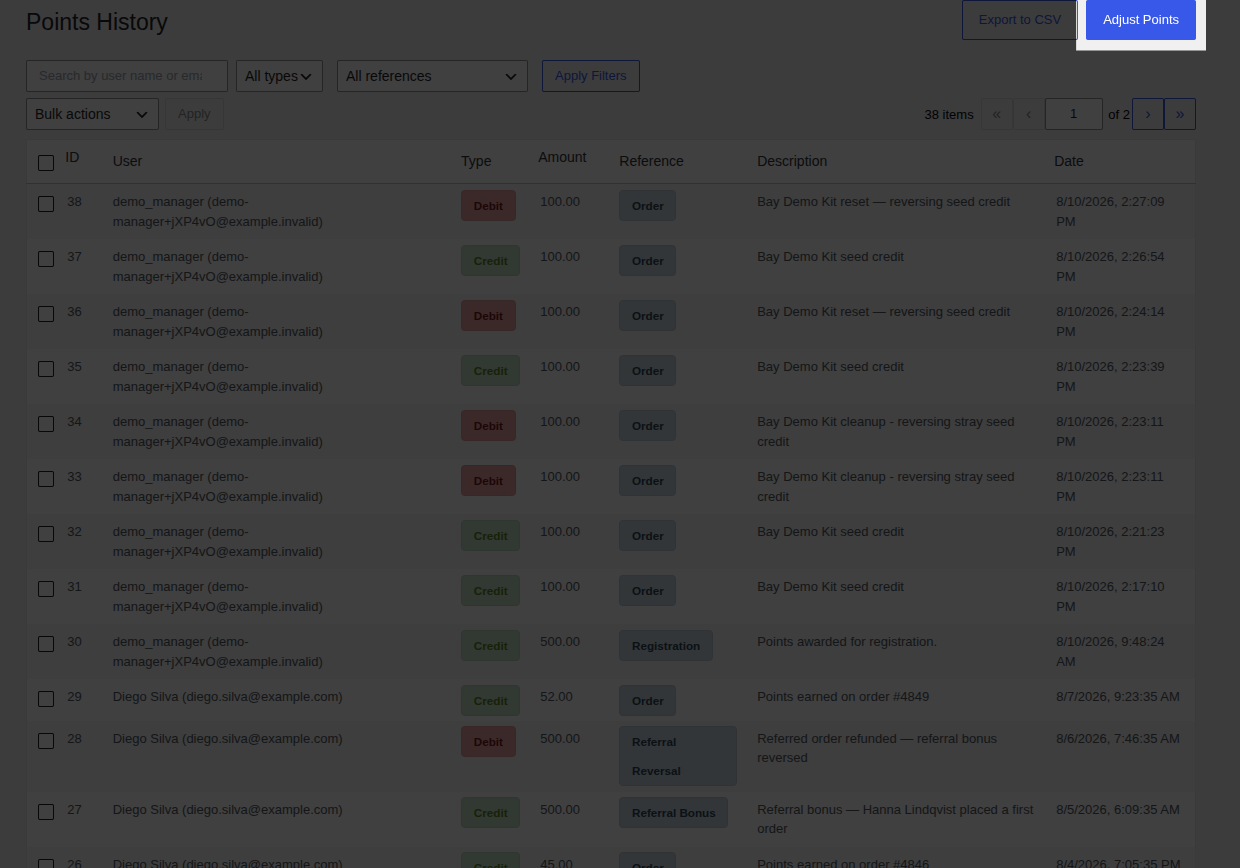
- In the Adjust Points dialog that opens, fill in each field:
- User search for the customer by name or email and select them from the dropdown.
- Type choose Credit (+) to add points or Debit (-) to remove them.
- Amount the number of points to adjust (at least 1).
- Reason why you’re making the adjustment. This field is required, and it’s visible to the customer on their own dashboard, so write it the way you’d want a customer to read it.
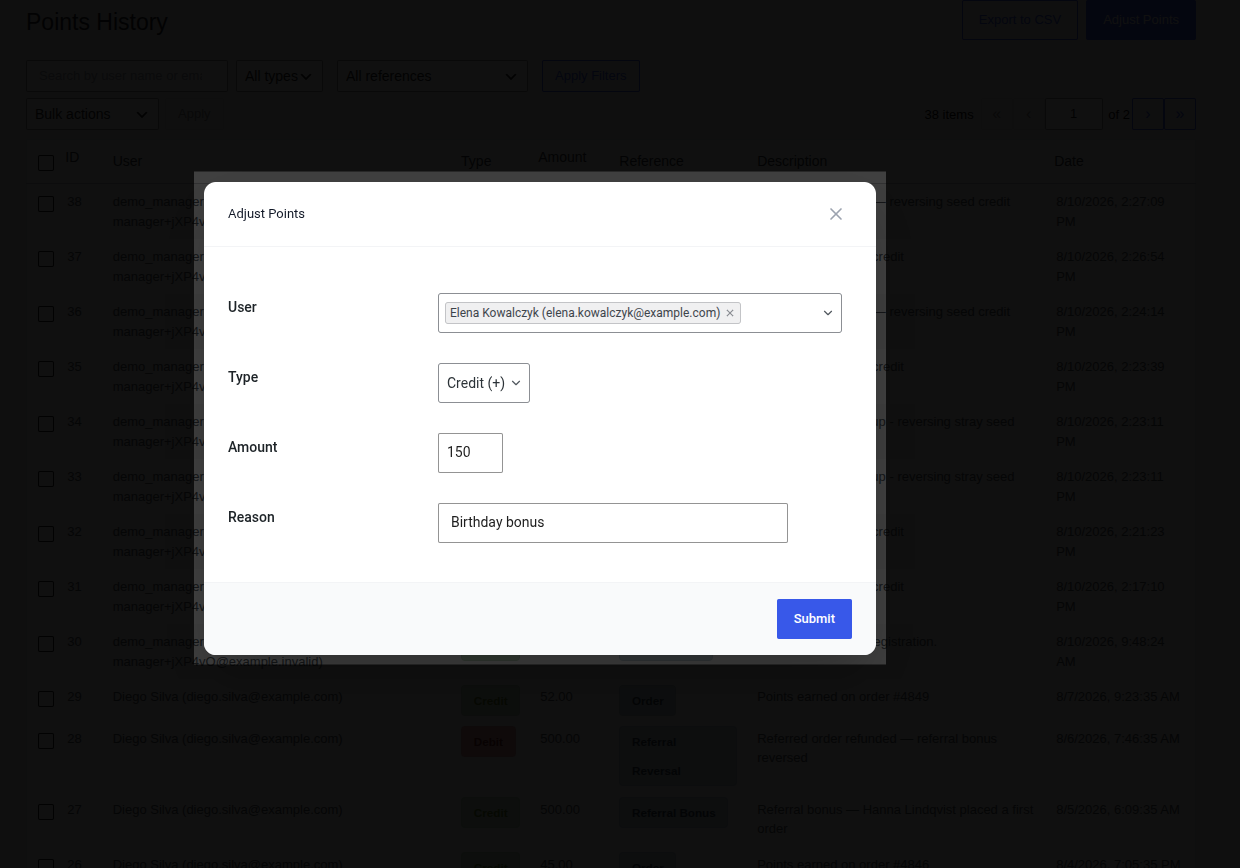
- Click Submit.
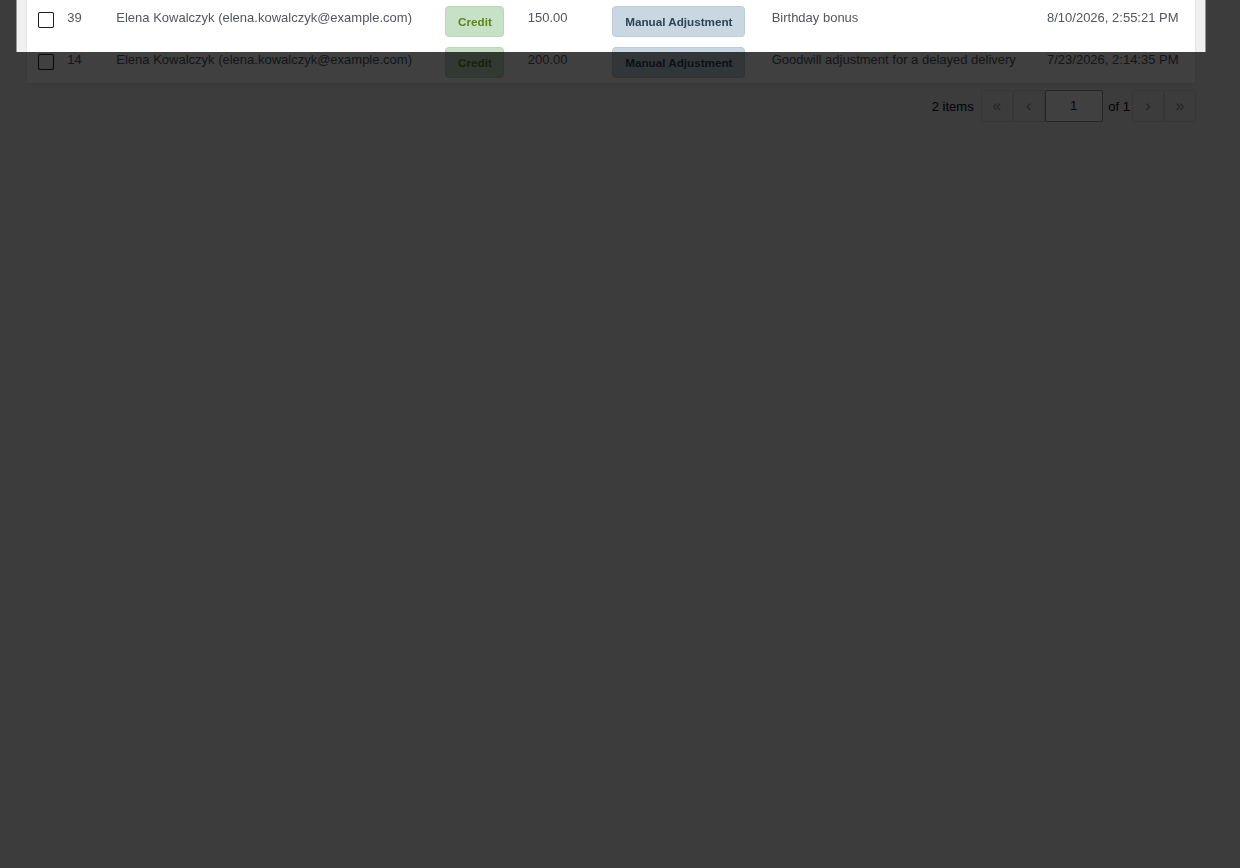
- Verify it worked: the dialog closes and a new row appears at the top of the Points History table with Reference Manual Adjustment, showing your entered amount and reason.
Common Uses
Section titled “Common Uses”- Goodwill award points to make up for a shipping delay or a product issue, without waiting on a refund process.
- Offline campaigns credit points for activity outside the store, like following a social account or attending an event.
- Corrections fix a balance if a customer was mistakenly missed by an automated rule (for example, an order was manually marked Completed outside the normal workflow and points were never triggered).
- Enforcement debit points if a customer abused the review or referral programs.
Worked Example
Section titled “Worked Example”A customer’s order shipped a week late. Rather than issue a refund, you decide to credit them 200 goodwill points:
- Open Adjust Points, search for the customer, select Credit (+), enter
200as the Amount, and write “Goodwill credit for a delayed delivery” as the Reason. - Submit. The customer’s balance increases by 200 points immediately, and they’ll see “Goodwill credit for a delayed delivery” the next time they check their Customer Dashboard.
Audit Trail
Section titled “Audit Trail”Every manual adjustment appears in Points History with Reference Manual Adjustment and the Reason you entered, permanently. Because that reason is also shown to the customer, keep it clear and customer-friendly rather than an internal shorthand note.
Who Can Make Adjustments
Section titled “Who Can Make Adjustments”Only users who can manage PointBay administrators by default can view Points History and make adjustments. To give other roles (such as shop managers) access, grant them the PointBay management permission with a WordPress user-role plugin.
Troubleshooting
Section titled “Troubleshooting”- Submit does nothing confirm Reason isn’t blank; it’s a required field and the form won’t submit without it.
- You can’t find the customer in the User search search by their exact registered name or email; the search doesn’t match on partial order numbers or usernames.
See Troubleshooting for more general issues.