
Campaign Type: Product In Cart
Pro Feature
This is a CampaignBayPro feature. Upgrade to Pro to unlock Product In Cart discounts and other powerful features.
The Product In Cart campaign is a conditional discount type. It allows you to offer a discount on specific items (or the entire cart) only if a particular "trigger product" is present in the customer's cart.
This is ideal for membership-style perks or "lock and key" offers:
- "Buy this Membership Card and get 10% off everything else."
- "Add a Gift Box to your cart to get $5 off your jewelry purchase."
Step 1: Select Your Campaign Type
To begin, navigate to CampaignBay → Add Campaign.
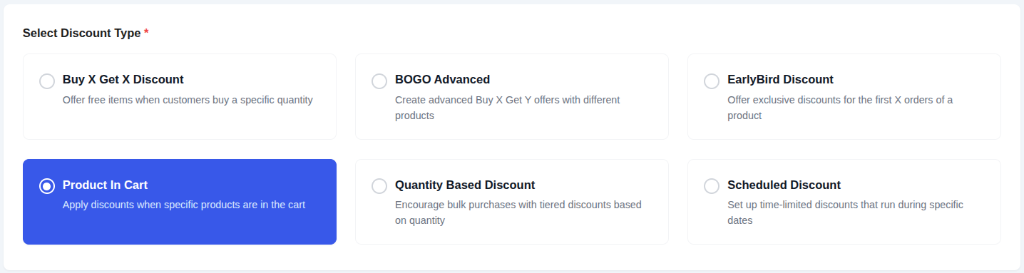
- Select Discount Type: Choose
Product In Cartfrom the list. This unlocks the conditional logic fields for trigger-based discounts.

- Campaign Title: Give your campaign a clear and descriptive name (e.g., "VIP Membership Perk").

- Select Status:
- Active: The campaign will be live immediately (or on its scheduled start time).
- Inactive: Save the campaign as a draft.
Step 2: Define the Conditions & Discount
This campaign relies on a simple "If This, Then That" logic. You define which product triggers the discount and how that discount is applied.
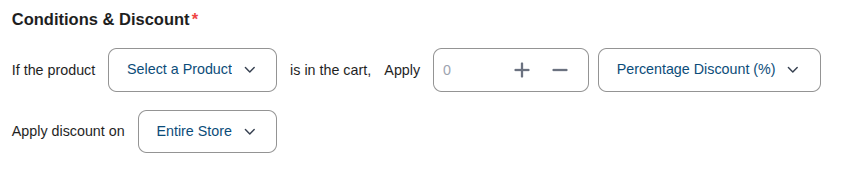
1. The Trigger (If product...)
Select the trigger product. This is the item that must be in the customer's cart for the discount to activate.
- Select a Product: Search for and select the item (e.g., "VIP Membership").
2. The Discount (Apply...)
Enter the numeric value of the discount and choose the Discount Type:
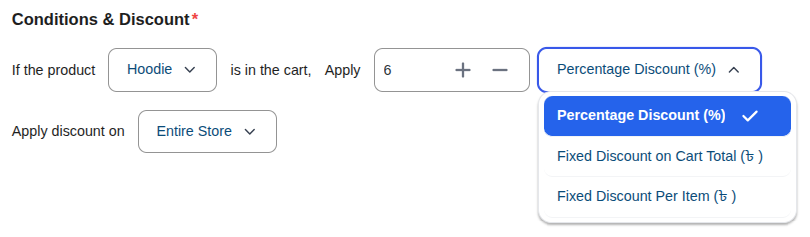
- Percentage Discount (%): A percentage off the target items.
- Fixed Discount on Cart Total: A fixed amount off the total subtotal of the target items.
- Fixed Discount Per Item: A fixed amount off every individual target item in the cart.
3. The Target (Apply discount on...)
Choose which products are eligible for the discount once the trigger item is added:
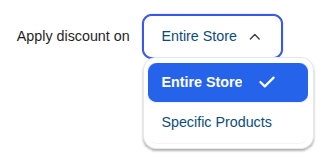
- Entire Store: Every other item in the cart gets the discount.
- Specific Products: Only specific items or categories you choose will be discounted.
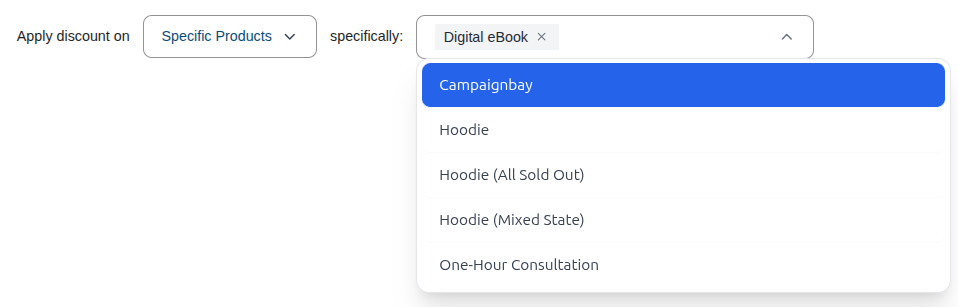
If you chose Specific Products, search for and select the eligible items in the secondary dropdown.
Step 3: Set Conditions (Optional)
You can add specific rules to restrict who can use this discount.
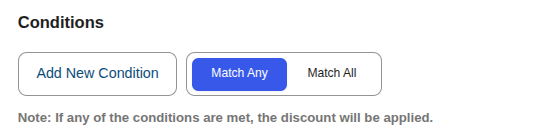
Read the Full Guide: How to Use Conditions →
Step 4: Set Other Configurations (Optional)
This section provides additional rules for your campaign.

- Exclude Sale Items: Check this box if you do not want this campaign's discount to apply to products that are already on sale in WooCommerce. This is useful for preventing "double discounting."

- Enable Usage Limit: Check this box to set a maximum number of times this campaign can be used across your entire store. Once the limit is reached, the campaign will automatically become inactive.
Step 5: Set the Schedule (Optional)
You can optionally schedule your campaign to run during a specific time window. This section controls when your campaign will automatically start and end.
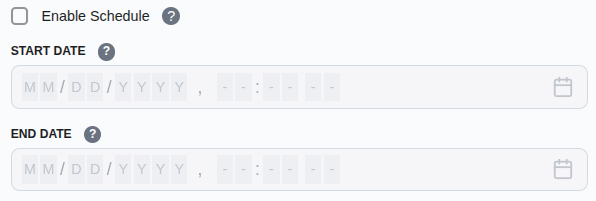
- Start Time / End Time: Use the date and time pickers to set the exact moment for the campaign to activate and expire.
Timezone Information
All dates and times are based on the timezone you have configured in your main WordPress settings under Settings → General → Timezone. The system automatically handles all UTC conversions for you.
Learn More About Automation
The status of your campaign is closely tied to the scheduling system, which uses WordPress Cron to automate activation and expiration.
Step 6: Define Display Configurations

- Show Product Page Message: Toggle this to enable or disable the custom message on the target product pages.
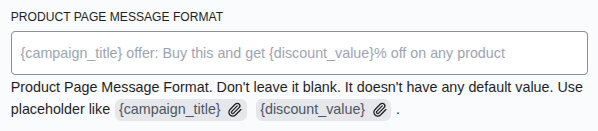
Product Page Message Format: Customize the text using placeholders like
{campaign_title}and{discount_value}.- Example:
{campaign_title} offer: Buy the VIP Pass and get {discount_value}% off this item!
- Example:
Cart Page Discount Message Format: Enter a message to display on the cart page when the discount is applied.
Cart Page Message Location: Choose where the cart message should appear.
Step 7: Save the Campaign
Once you have configured all the options, click the Save Campaign button. You will be redirected to the "All Campaigns" list.
You have now learned about all campaign types. It's time to explore the global settings that control your entire discount system.