
Settings
The Settings section contains CartBay’s operational controls. It is where administrators manage retention, uninstall behavior, admin menu placement, logs, test mode, and mail-delivery warnings. With CartBay Pro, it also manages licensing and updates.
Where to Find It
Section titled “Where to Find It”Open WooCommerce > CartBay > Settings. or
WooCommerce > Settings > Cart > Settings.
Purpose
Section titled “Purpose”Use Settings after the recovery workflow is configured to manage site-level behavior: data lifecycle, admin convenience, and troubleshooting. With CartBay Pro, it also manages update access.
License & Updates Pro
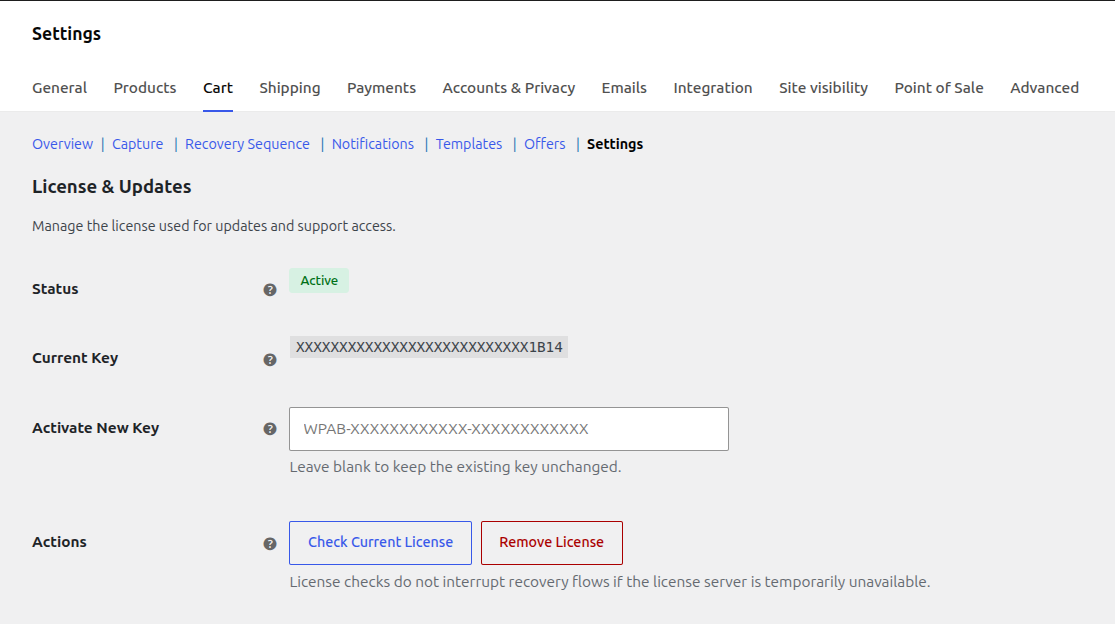
Section titled “License & Updates Pro”Manage the license used for private updates and support access.
Status
Section titled “Status”Status shows the most recent local license state returned by CartBay licensing.
Common statuses:
| Status | Meaning |
|---|---|
| Active | The license server accepted the key. |
| Inactive | No active license state is stored locally. |
| Expired | The license server reported an expired license. |
| Invalid | The stored key was rejected. |
| Server Error | The license server was unreachable. CartBay fails open for runtime continuity. |
License checks do not interrupt checkout capture, recovery emails, or restore behavior if the license server is temporarily unavailable.
Current Key
Section titled “Current Key”Current Key shows only a masked version of the stored license key.
CartBay stores the full key only in cartbay_license_data. The settings UI does not display the full key after activation.
Expires and Plan
Section titled “Expires and Plan”When the license server returns expiry or plan data, CartBay shows:
Expires: the current license term end date.Plan: the product plan associated with the license.
These fields are informational and depend on license server response data. May not appear of life time licenses.
Activate New Key
Section titled “Activate New Key”Activate New Key lets an administrator activate or replace the stored WPAnchorBay license key.
Expected format:
WPAB-XXXXXXXXXXXX-XXXXXXXXXXXXActivation sends the key, product slug, and site domain to the WPAnchorBay license server through the local WordPress admin request. The browser does not call the license server directly.
License Actions
Section titled “License Actions”CartBay licenses are provided after purchase. Most users receive the license key in the purchase confirmation email. Users can also retrieve their license by logging in to their WPAnchorBay account dashboard at wpanchorbay.com.
If a user cannot find their license key or needs account help, contact WPAnchorBay support at support@wpanchorbay.com.
Check Current License
Section titled “Check Current License”Check Current License requests a fresh license status check from the license server.
Use it after renewal, domain changes, or support troubleshooting.
Remove License
Section titled “Remove License”Remove License removes the locally stored license key and cached license transient.
Removing the local license disconnects this site from CartBay updates and support checks until a new key is activated. Recovery flows continue running.
Data Retention
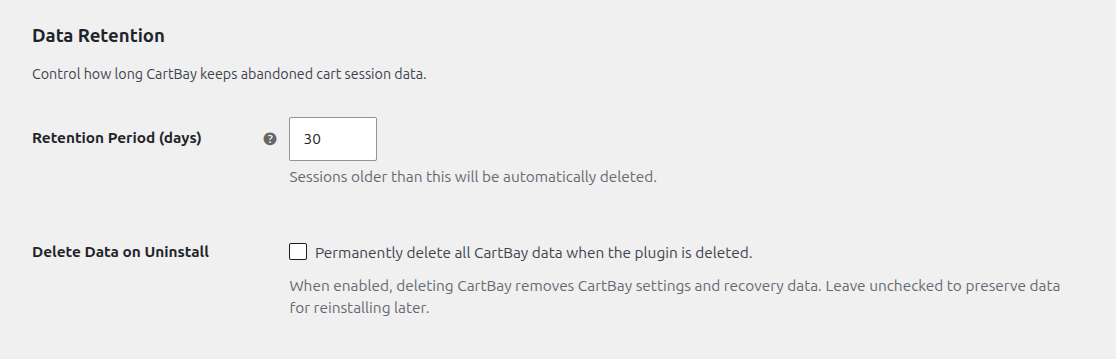
Section titled “Data Retention”Control how long CartBay keeps abandoned cart session data.
Retention Period
Section titled “Retention Period”Retention Period controls how long CartBay keeps abandoned cart session data.
Default: 30 days.
Allowed range: 7 to 90 days.
The daily cartbay_prune_sessions background job handles retention cleanup for expired sessions.
Use shorter retention when privacy policy or storage requirements demand it. Use longer retention when reporting and support analysis need more history.
Delete Data on Uninstall
Section titled “Delete Data on Uninstall”Delete Data on Uninstall controls whether CartBay deletes its data when the plugin is deleted.
Default: off.
When off:
- Deleting the plugin preserves CartBay settings and recovery data for a future reinstall.
When on:
- Deleting the plugin removes CartBay settings, campaign settings, sessions, template records, suppression records, scheduled actions, transients, and log entries — plus, if CartBay Pro is installed, its license data and generated coupons.
Admin Navigation
Section titled “Admin Navigation”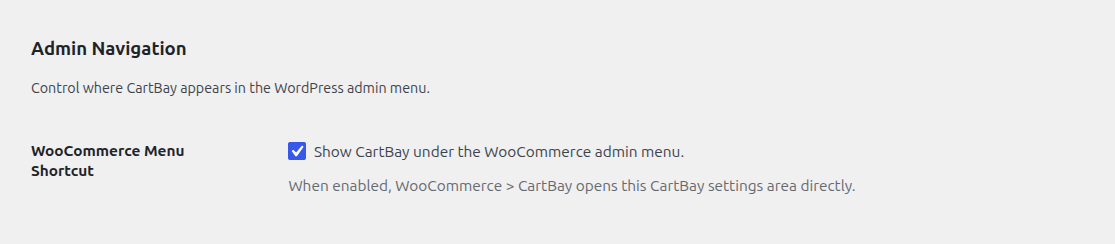
WooCommerce Menu Shortcut
Section titled “WooCommerce Menu Shortcut”WooCommerce Menu Shortcut controls whether CartBay appears under the WooCommerce admin menu.
Default: enabled.
When enabled, WooCommerce > CartBay opens the CartBay settings area directly. When disabled, CartBay remains available through WooCommerce > Settings > Cart.
Debug & Testing
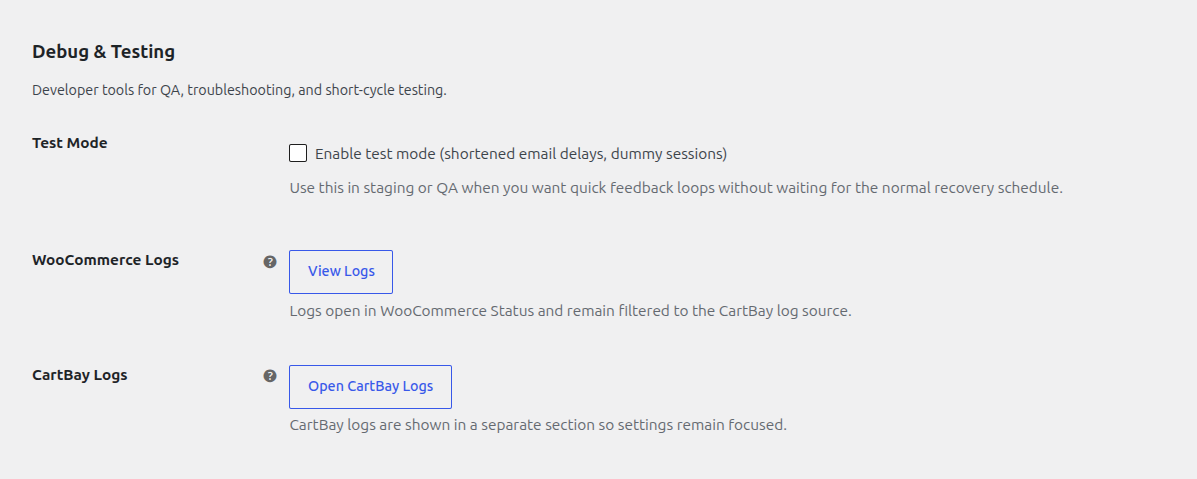
Section titled “Debug & Testing”Developer tools for QA, troubleshooting, and short-cycle testing.
Test Mode
Section titled “Test Mode”Test Mode enables QA-oriented behavior, such as the Templates Trigger Test Flow tool and dummy test sessions.
Default: off.
Test Mode does not shorten the normal recovery schedule. Its purpose is to let you trigger a one-off test recovery email quickly for QA. Use it in staging or controlled production testing.
Test Mode is required for the Templates section’s Trigger Test Flow button.
WooCommerce Logs
Section titled “WooCommerce Logs”WooCommerce Logs opens the WooCommerce Status log viewer filtered to the cartbay log source.
Use it to inspect checkout capture, Action Scheduler, restore, and recovery messages written through WooCommerce logging.
CartBay Logs
Section titled “CartBay Logs”CartBay Logs opens CartBay’s built-in Logs section.
CartBay stores its sanitized log entries in the database, in the non-autoloaded option cartbay_log_entries, which is bounded to roughly the most recent 500 entries. The same messages are also written to the WooCommerce logger under the cartbay source, viewable at WooCommerce > Status > Logs.
The Logs section supports filtering, pagination, a details modal, and copy controls for support workflows.
Miscellaneous
Section titled “Miscellaneous”Mail Environment Warnings
Section titled “Mail Environment Warnings”CartBay passively detects known SMTP/mail delivery plugins and email logger plugins. If no delivery plugin is detected, the admin UI may warn that recovery emails may not reliably reach inboxes.
Detection does not send a test email. Use the Templates test flow and SMTP/ESP logs for real delivery verification.
Best Practices
Section titled “Best Practices”- With CartBay Pro, keep the license active for private updates and support.
- Use 30 days retention unless privacy or reporting requirements say otherwise.
- Keep uninstall deletion disabled unless removing CartBay permanently.
- Use Test Mode only for controlled QA.
- Check both WooCommerce Logs and CartBay Logs when troubleshooting.