
Setup Wizard
First-Run Wizard
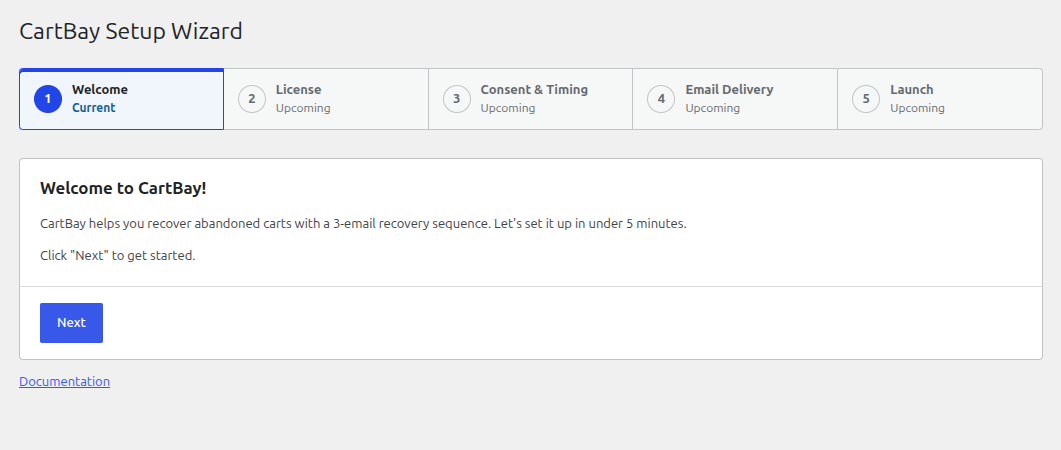
Section titled “First-Run Wizard”On first install, CartBay may redirect administrators to a setup wizard. The free wizard has four steps — Welcome, Consent & Timing, Email Delivery, and Launch — and takes under 5 minutes. It helps configure consent, timing, email delivery awareness, and launch settings.
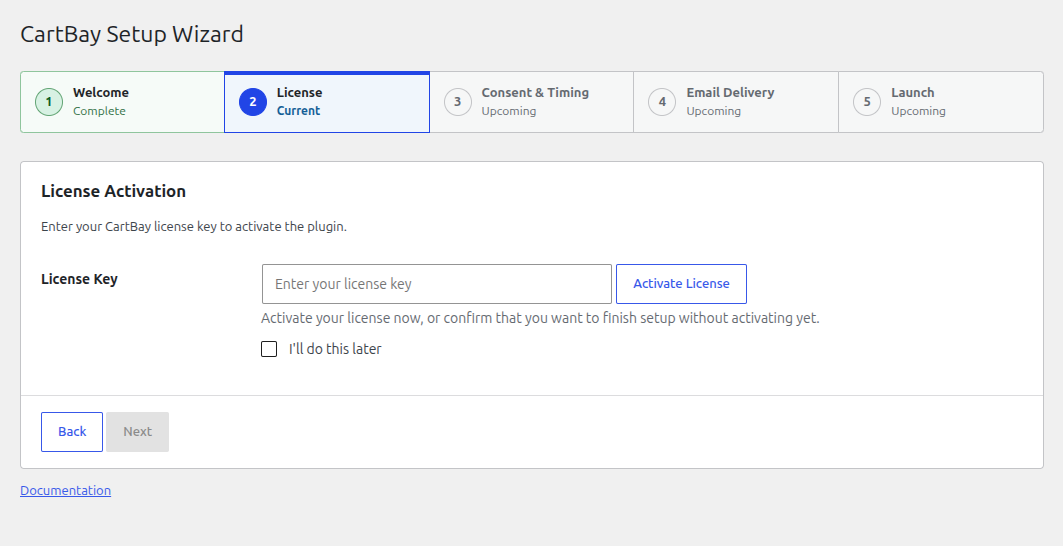
When CartBay Pro Pro is active, the wizard adds a License step (covered at the end of this page).
1. Welcome
Section titled “1. Welcome”An introduction to CartBay. The setup wizard helps you configure a 3-email recovery sequence for abandoned carts in under 5 minutes.
2. Consent & Timing
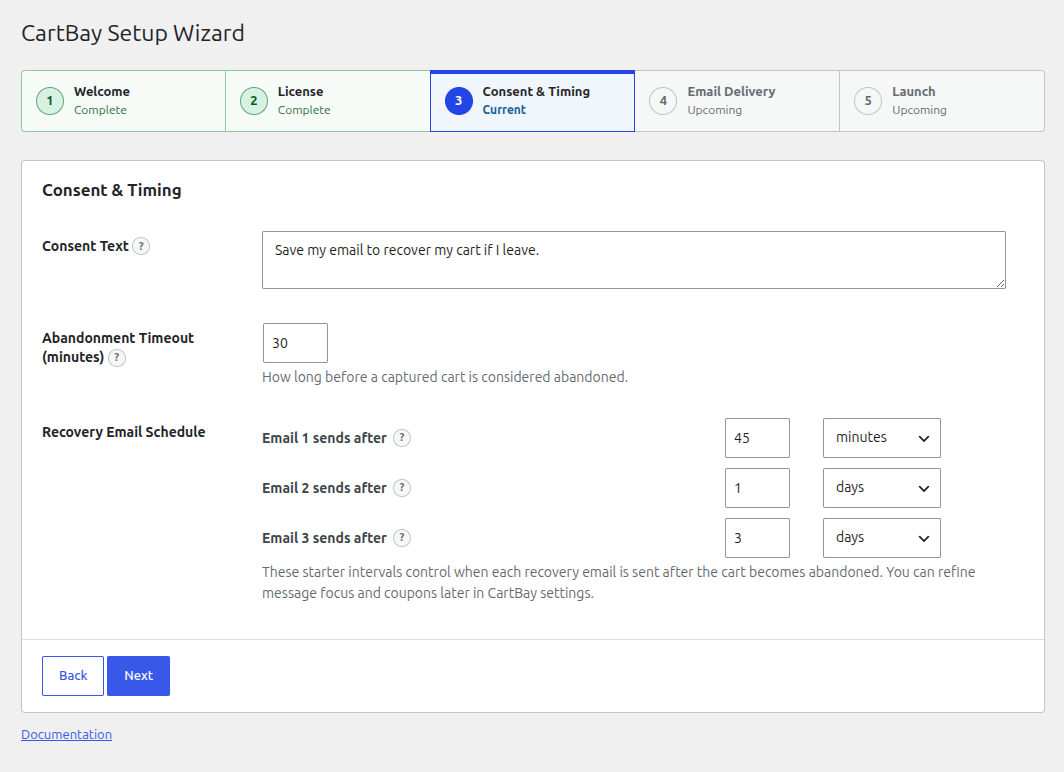
Section titled “2. Consent & Timing”Configure when carts are considered abandoned and how shoppers consent to recovery emails.
- Consent Text: The text that appears beside the checkout consent checkbox. This tells shoppers that CartBay may save their email and cart to send recovery reminders.
- Consent Checkbox Default State: Choose whether the checkout consent checkbox starts unchecked (recommended) or checked. CartBay only captures a shopper’s email and cart while the box is checked, so leaving it unchecked keeps capture opt-in.
- Abandonment Timeout: The time (in minutes) CartBay waits after the shopper’s last interaction with checkout before marking the cart as abandoned.
- Recovery Email Schedule: Configure the delay intervals for the 3-email recovery sequence (e.g., minutes, hours, or days) after a cart becomes abandoned.
3. Email Delivery
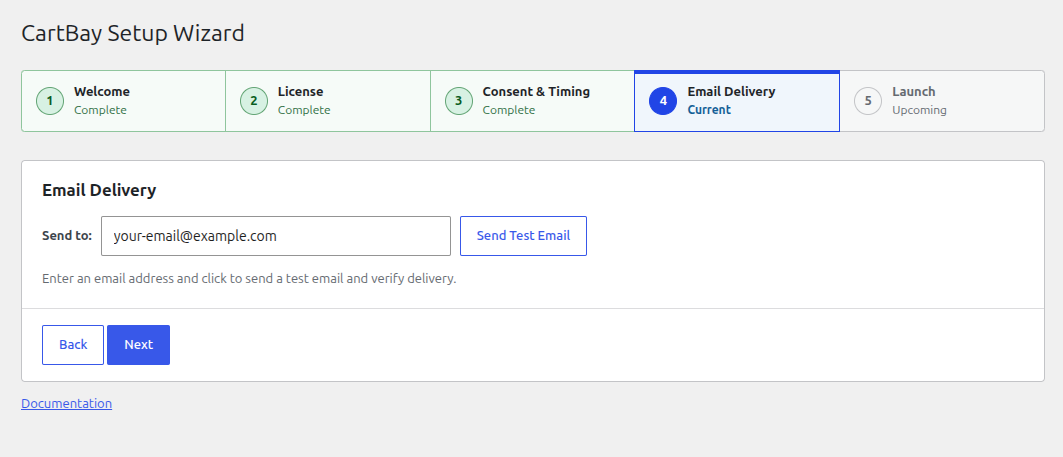
Section titled “3. Email Delivery”CartBay checks your environment for an active SMTP delivery service or an email logging plugin.
- If an SMTP service is detected, your emails should deliver reliably.
- If no SMTP service is detected, CartBay will warn you that recovery emails may land in spam and recommend installing an SMTP plugin.
- Test Email: You can enter an email address and send a test email to verify that your site can successfully deliver emails.
See Email Delivery Setup for a step-by-step guide to choosing and configuring an SMTP or ESP-native plugin.
4. Launch
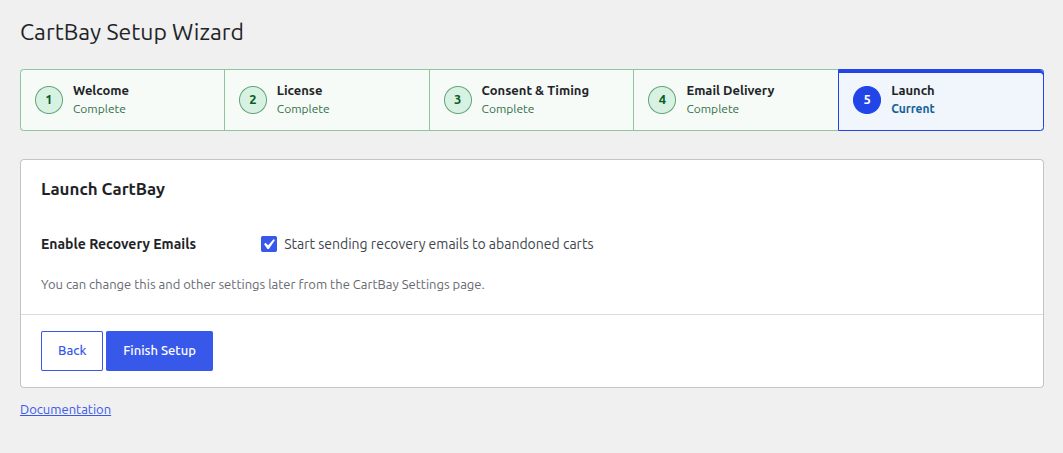
Section titled “4. Launch”Enable recovery emails to start sending them to abandoned carts immediately, or leave them disabled if you want to further customize the email content and coupons from the CartBay Settings page first.
License Pro
Section titled “License Pro”The License step appears in the wizard only when CartBay Pro Pro is installed and active. The free plugin has no License step and needs no key.
When present, this step lets you enter your CartBay Pro license key to activate it. If your license is already active, the step confirms it. You can also skip it by selecting “I’ll do this later” and activating your license from the settings later.
You can learn more about License Activation if you skipped the license step.