
Notifications
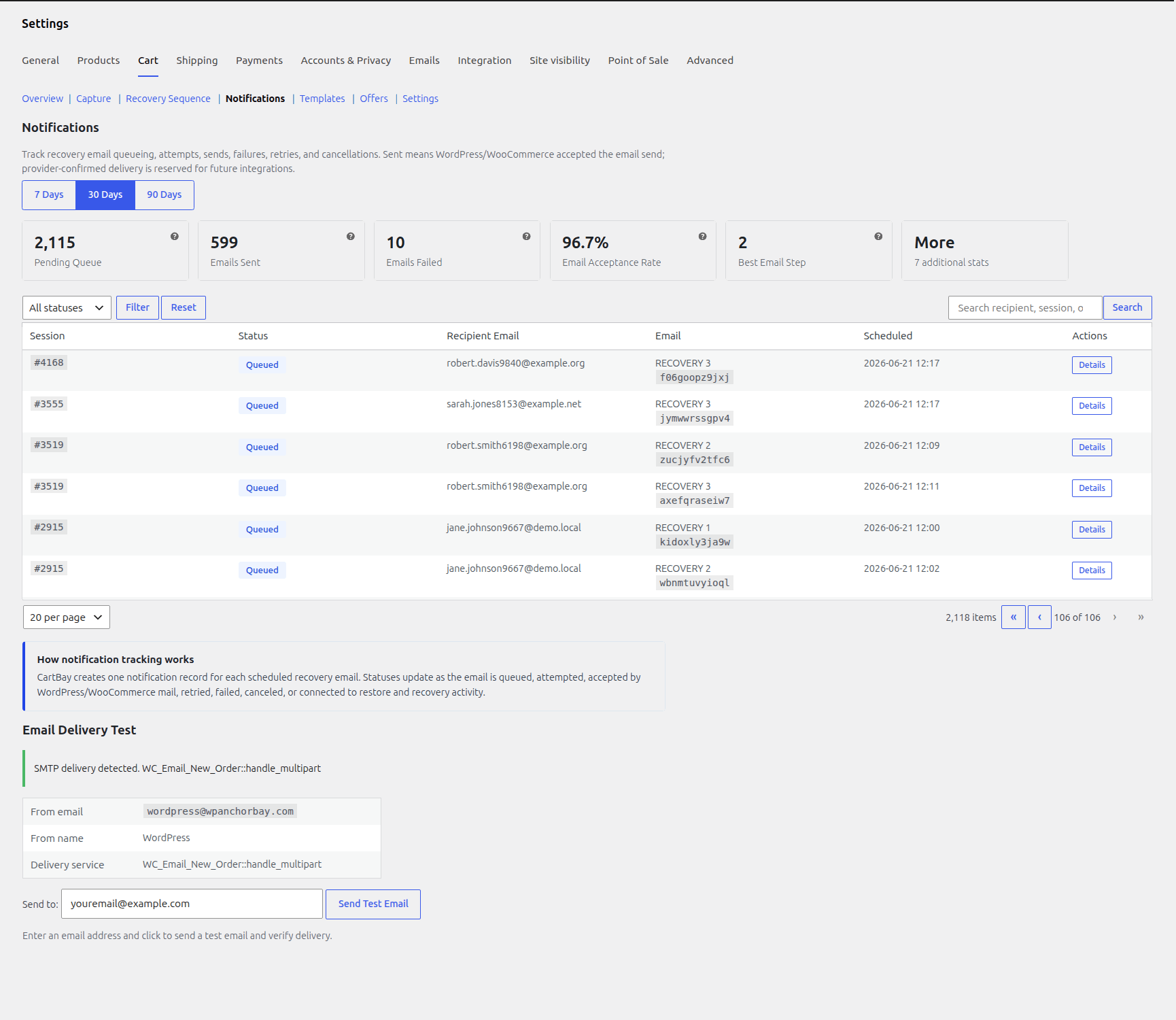
The Notifications section shows the lifecycle of CartBay recovery emails. It helps administrators confirm that emails were queued, attempted, accepted by WordPress/WooCommerce mail, retried after failures, canceled when no longer needed, and connected to restore or recovery activity.
Where to Find It
Section titled “Where to Find It”Open WooCommerce > CartBay > Notifications or WooCommerce > Settings > Cart > Notifications.
Purpose
Section titled “Purpose”CartBay creates one notification record for each scheduled recovery email. These records are stored on the CartBay session and updated as the email moves through the queue, send attempt, success, failure, retry, cancellation, restore click, and recovery lifecycle.
Use this page when verifying email delivery, diagnosing failed recovery emails, or understanding why future emails were canceled.
Filter by Days
Section titled “Filter by Days”The period selector changes the notification reporting window.
| Filter | Use it for |
|---|---|
| 7 Days | Recent launch checks, template tests, or delivery debugging. |
| 30 Days | Standard email performance review. |
| 90 Days | Longer-term sequence and delivery trend review. |
The selected period affects the metric cards and notification rows shown on the page.
Stat Cards
Section titled “Stat Cards”CartBay Free shows the core delivery-health cards — Pending Queue, Emails Sent, Emails Failed, and Acceptance Rate — plus the email delivery test.
Pending Queue
Section titled “Pending Queue”Pending Queue shows current recovery emails waiting to send, including first-time queued notifications and retry-queued notifications.
If this number stays high, check whether Action Scheduler is processing jobs.
Emails Sent
Section titled “Emails Sent”Emails Sent shows recovery emails accepted by WordPress/WooCommerce mail or marked delivered by an integration.
Sent does not necessarily mean the shopper’s inbox accepted the email. It means WordPress/WooCommerce accepted the send.
Emails Failed
Section titled “Emails Failed”Emails Failed shows recovery emails tied to sessions in the selected period that ended in failed status.
Review failed rows with the Details action to find the last recorded error.
Acceptance Rate
Section titled “Acceptance Rate”Acceptance Rate compares sent or delivered emails against attempted sends.
A low acceptance rate usually points to WordPress mail configuration, SMTP, or provider issues.
Best Email Step Pro
Section titled “Best Email Step Pro”Best Email Step identifies the sequence step with the strongest tracked recovery performance in the selected period.
Use it to understand whether Email 1, Email 2, or Email 3 is driving the most recovery value.
More Pro
Section titled “More Pro”The More card opens a modal with additional status-level counts for queued, attempted, sent, delivered, failed, retry-queued, and canceled notifications.
Status Filter Pro
Section titled “Status Filter Pro”The status dropdown filters notification rows by lifecycle status.
| Status | Meaning |
|---|---|
| Queued | A notification record exists and is waiting for its send job. |
| Attempted | CartBay began a send attempt. |
| Sent | WordPress/WooCommerce accepted the message for sending. |
| Delivered | Reserved for explicit provider-confirmed delivery integrations. |
| Retry queued | A failed attempt will be retried. |
| Failed | CartBay could not send after the allowed attempts or a failure was recorded. |
| Canceled | The notification was canceled because it was no longer needed. |
Search
Section titled “Search”The search box can match notification rows by recipient, session ID, notification ID, email type, or trigger source.
Use search when a customer or support ticket references a specific email, session, or notification ID.
Notifications Table Pro
Section titled “Notifications Table Pro”The table shows:
| Column | Meaning |
|---|---|
| Session | CartBay session ID tied to the notification. |
| Status | Current notification lifecycle state. |
| Recipient Email | Captured email address for the recovery message. |
| Recovery email type and notification ID. | |
| Scheduled | Scheduled send time. |
| Actions | Opens the notification Details modal. |
Pagination
Section titled “Pagination”The table displays 20 notifications per page by default. Pagination controls appear when the selected period and filters return more than one page of notifications. You can also adjust the number of items shown per page using the page size selector (options include 20, 50, 100, and 200).
Details Modal Pro
Section titled “Details Modal Pro”The Details action opens a modal with deeper lifecycle data.
It includes:
- Status.
- Recipient.
- Session ID.
- Email type.
- Notification ID.
- Trigger source.
- Scheduled time.
- Lifecycle timestamps.
- Attempt and retry counts.
- Restore click and recovered order linkage.
- Last recorded error.
How Notifications Interact With Recovery
Section titled “How Notifications Interact With Recovery”- Abandonment schedules recovery email jobs.
- Each recovery job creates or updates notification tracking.
wp_mail_succeededmarks mail as sent when WordPress accepts it.wp_mail_failedrecords failure details and can trigger retry behavior.- Restore clicks can link back to the related notification.
- Recovered sessions cancel future pending notifications.
- Unsubscribed sessions cancel pending notifications.
Troubleshooting
Section titled “Troubleshooting”| Symptom | Likely cause | Action |
|---|---|---|
| Many queued notifications | Action Scheduler is not running promptly. | Check WooCommerce scheduled actions and server cron. |
| Many failed notifications | WordPress mail is failing. | Configure SMTP or transactional email and check WooCommerce logs. |
| Sent but no inbox delivery | WordPress accepted the email, but the provider may have rejected, delayed, or spam-foldered it. | Check SMTP or ESP logs. |
| Notifications canceled | Session recovered, shopper unsubscribed, or pending work was canceled. | Open Details to confirm context. |
| No notifications after abandonment | Recovery sequence may be disabled. | Check Recovery Sequence. |
Email Delivery Test
Section titled “Email Delivery Test”The Email Delivery Test section at the bottom of the Notifications page lets you verify that your WordPress email system can send mail before relying on recovery email delivery.
Delivery Service Detection
Section titled “Delivery Service Detection”CartBay automatically detects which SMTP or transactional email plugin is active by scanning installed plugins and registered mail hooks. Known delivery plugins are identified with high confidence; any plugin hooking phpmailer_init or pre_wp_mail is detected with medium confidence.
| Detection | Detail column shows |
|---|---|
| High confidence | Known plugin name (e.g. WP Mail SMTP, FluentSMTP, Brevo, Mailgun, Post SMTP) |
| Medium confidence | Callback class or function name hooked to phpmailer_init / pre_wp_mail |
| Low confidence | Callback on wp_mail that contains delivery keywords |
Mail Configuration Details
Section titled “Mail Configuration Details”A table below the status notice shows the resolved mail configuration:
| Field | Source |
|---|---|
| From email | Your WooCommerce store sender address (WooCommerce > Settings > Emails). Falls back to the site admin email if unset. |
| From name | Your WooCommerce store sender name (WooCommerce > Settings > Emails). Falls back to the site title if unset. |
| Delivery service | The detected plugin or integration name. Only shown when a service is found. |
Recovery emails are sent with your WooCommerce store sender details — the same From name and address as your other WooCommerce emails. Change them under WooCommerce > Settings > Emails. If your SMTP plugin overrides the from address at delivery, the overridden value is what actually reaches the inbox.
Sending a Test Email
Section titled “Sending a Test Email”- Enter the recipient email address (defaults to your admin email).
- Click Send Test Email.
- A status message appears next to the button. Check the recipient inbox within a few minutes.
The test email uses wp_mail() — the standard WordPress mail function — and is sent from the same WooCommerce store sender as real recovery emails, so what you receive reflects the actual From name and address shoppers see. This means it works with any SMTP plugin (WP Mail SMTP, Post SMTP, FluentSMTP, Brevo, Mailgun, SendGrid, etc.). If the send fails, CartBay captures the real error WordPress raised on the wp_mail_failed hook and appends it to the result message — for example, “Failed to send test email. SMTP Error: Could not authenticate.” — instead of only a generic failure notice.
When the Test Fails
Section titled “When the Test Fails”| Symptom | Likely cause | Action |
|---|---|---|
”Failed to send test email.” followed by a specific reason (e.g. SMTP Error: Could not authenticate.) | wp_mail() returned false, and WordPress reported the underlying PHPMailer/SMTP error. | Fix the reported problem first — usually bad credentials, an unreachable host, or a blocked port — then confirm your SMTP plugin is configured correctly. |
| ”Failed to send test email.” with no further detail | wp_mail() returned false without a captured reason. | Check that your SMTP plugin is configured with valid credentials and the WordPress site can reach the SMTP server. |
| Status message reports success, but the email is not received | The SMTP provider may have rejected, spam-foldered, or delayed the message. | Check the SMTP plugin’s log, your provider’s dashboard, or the recipient spam folder. |
See Email Delivery Setup for a full walkthrough of choosing and configuring an SMTP or ESP-native plugin.
Best Practices
Section titled “Best Practices”- Check Notifications after changing sequence timing.
- Investigate failed and retry-queued emails before changing templates.
- Use provider logs for bounce, spam, and inbox placement analysis.
- Treat provider-confirmed
deliveredas unavailable unless a delivery integration explicitly marks it.