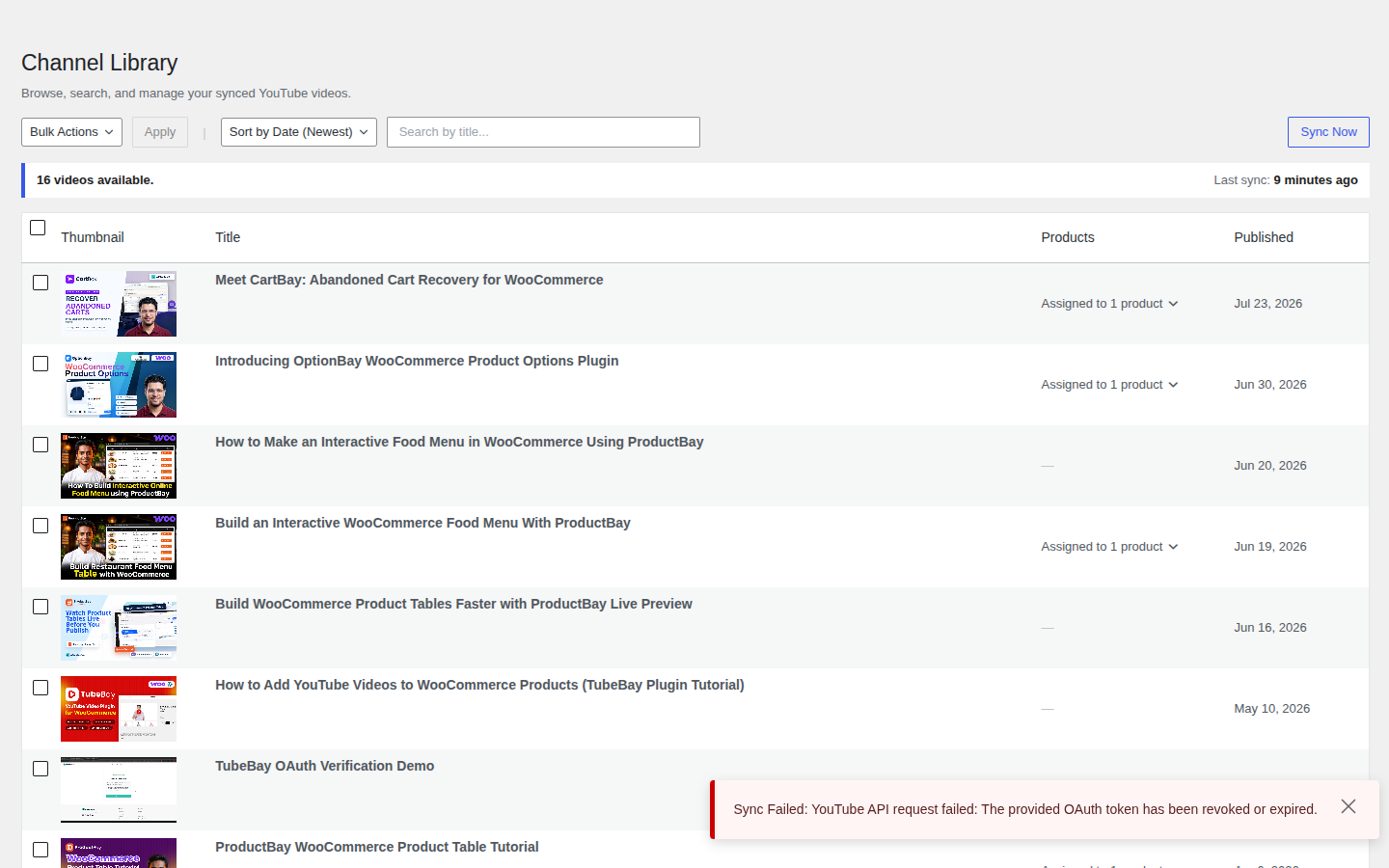
Syncing Your Library
Once connected, TubeBay's primary job is to keep a local cache of your YouTube video library within WordPress. This makes searching and mapping videos extremely fast without hitting YouTube's rate limits constantly.
Automatic Sync
When Enable daily automatic sync is on (the default), TubeBay refreshes your video library once a day via WP-Cron.
- How it works: A background WP-Cron job fetches the channel's latest uploads once per day.
- What is fetched: Your latest 50 uploads.
- Between syncs: Video data stays cached for the duration set by Cache Duration (default 12 hours) in WooCommerce → Settings → TubeBay → Sync.
Background Processing
The automatic sync happens in the background. If you just uploaded a video to YouTube and want to see it immediately in TubeBay, use Manual Sync instead of waiting for the next scheduled run.
Manual Sync
If you need to fetch your latest videos immediately, trigger a manual sync from either the Library page or Settings:
- Go to Products → TubeBay Library.
- Click the Sync Library button.
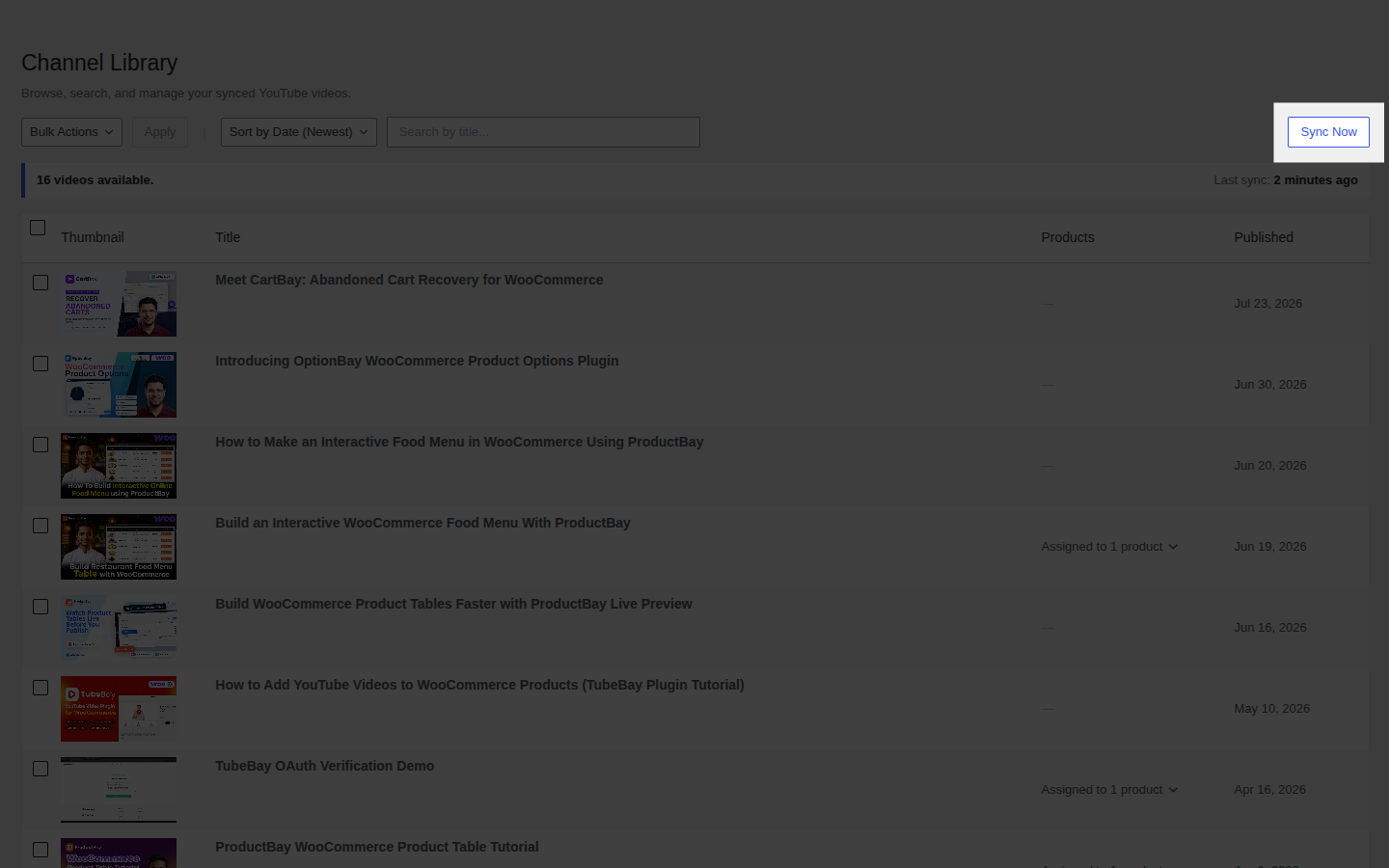
- Wait for the process to complete. You'll see a notification once the new videos are cached.
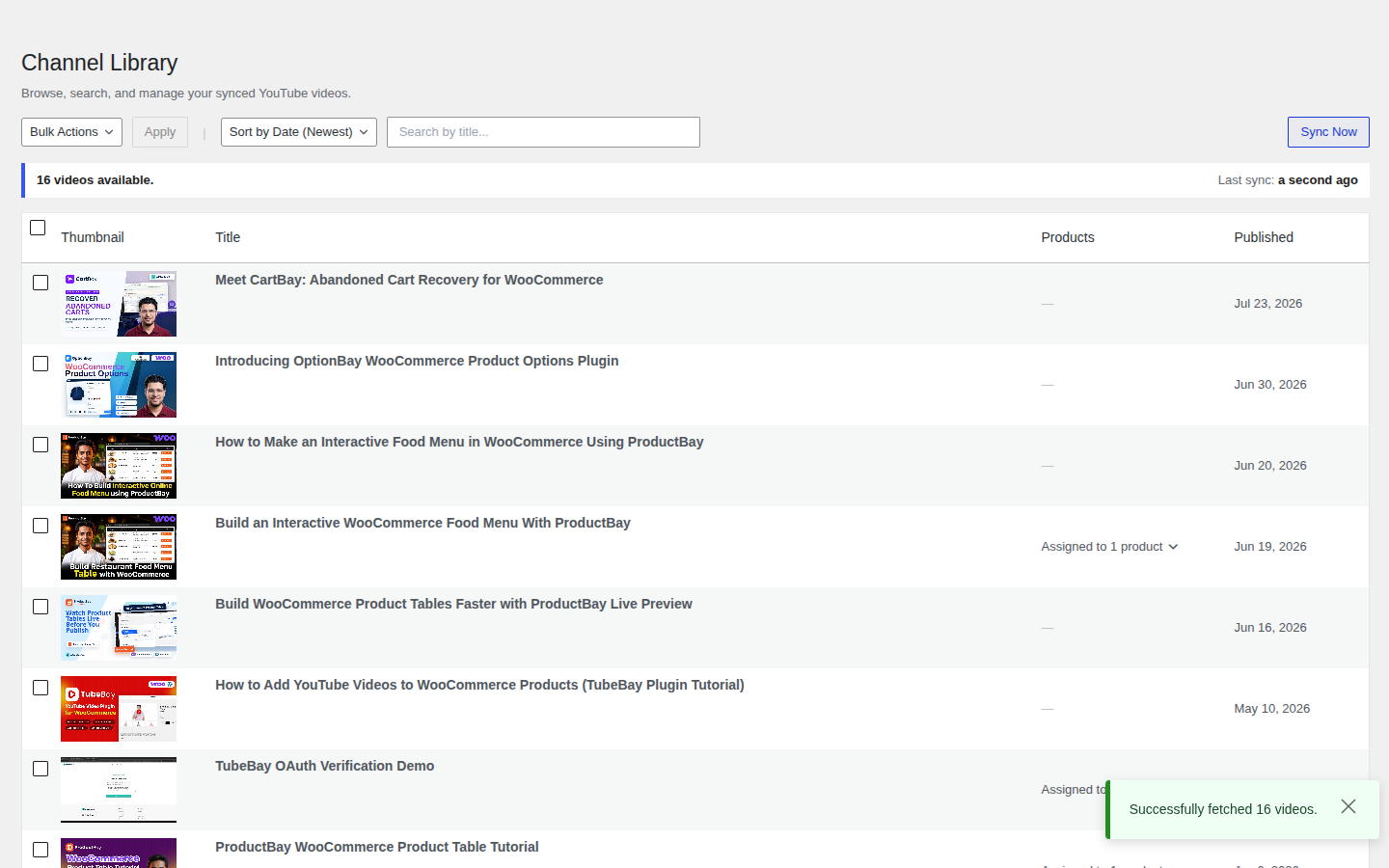
You can also trigger a sync from WooCommerce → Settings → TubeBay → Sync using the Manual Sync button.
Sync Status
The Library page shows the current connection and sync status.
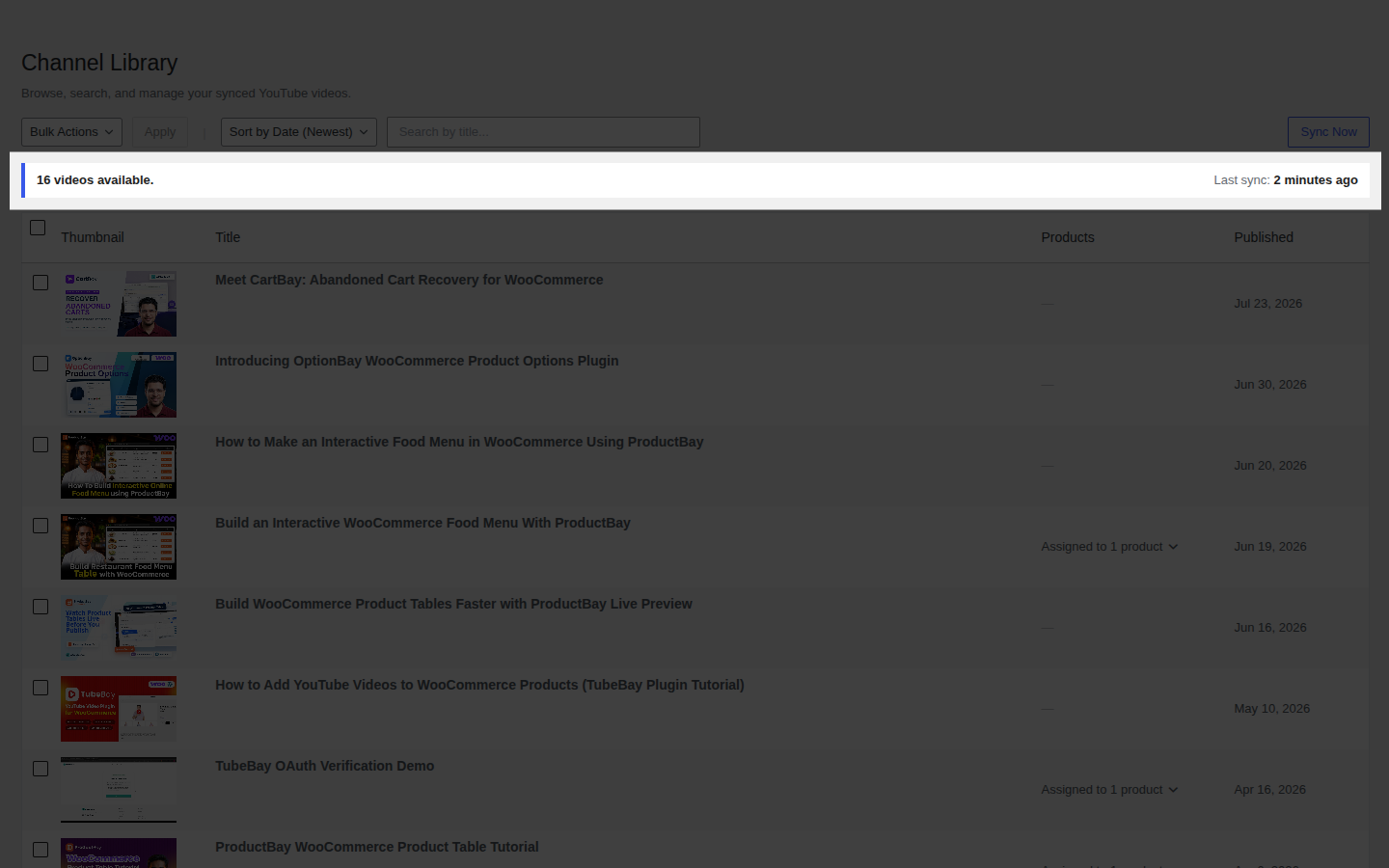
- Connected: The last sync was successful.
- Failed: There was an error during the last sync attempt (usually due to an expired token or API quota).
- Last Sync: Displays the timestamp of the most recent successful update.
Troubleshooting Sync
- Quota Exceeded: YouTube limits the number of requests per day. If you reach this limit, sync will pause until the next day.
- Invalid Credentials: If your OAuth token expires or your API key is deleted, the sync will fail. Reconnect your account from WooCommerce → Settings → TubeBay → Connection.