
Getting Started
Welcome to TubeBay! This guide will help you install, connect, and start showcasing your YouTube content on your WooCommerce store in minutes.
1. Installation
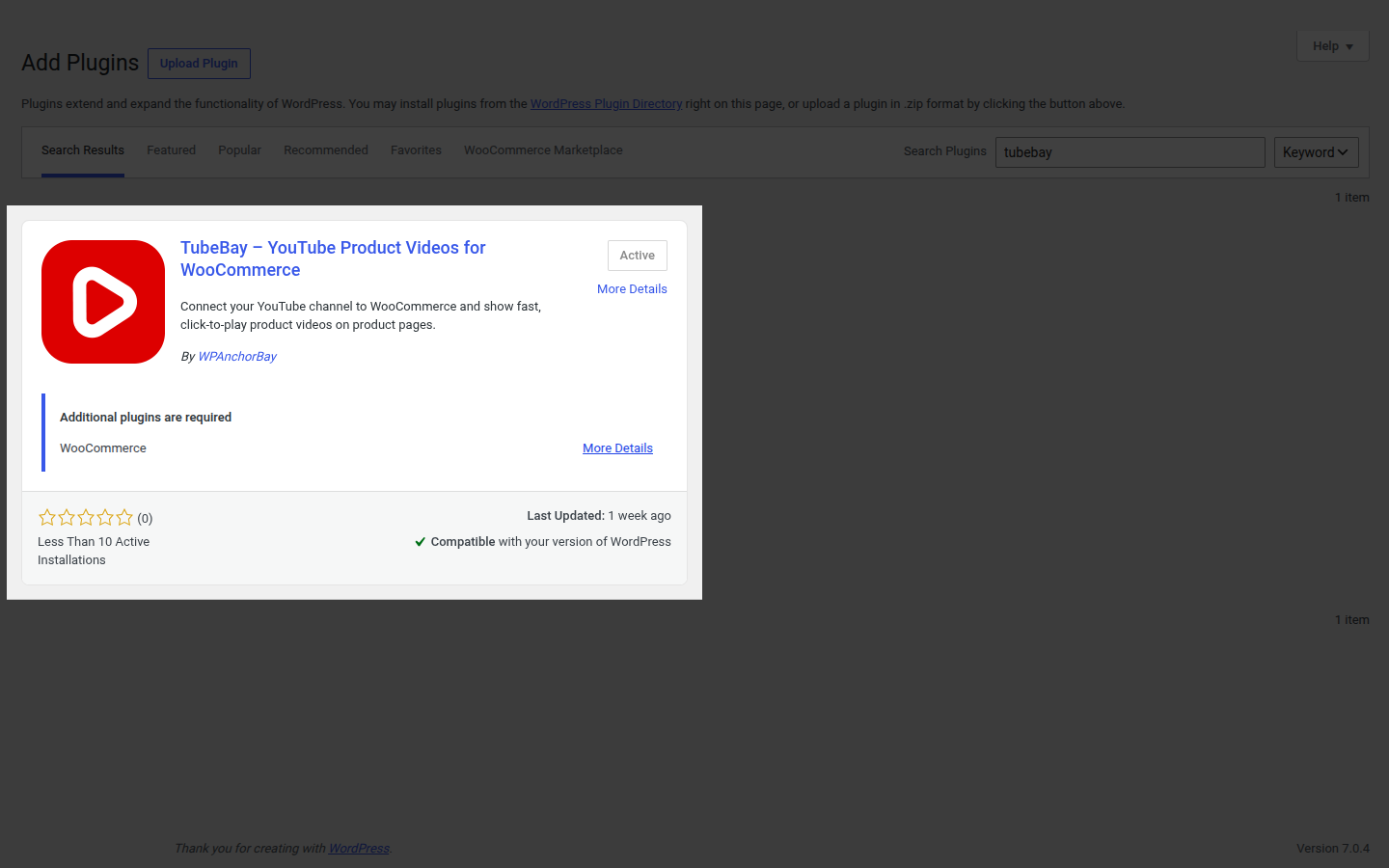
First, ensure you have the plugin installed and activated. You can find TubeBay under the Plugins section of your WordPress dashboard.
2. Welcome & Onboarding
Once activated, navigate to Products → TubeBay Library in your WordPress sidebar. On first visit, you'll be greeted by the Welcome to TubeBay onboarding screen.
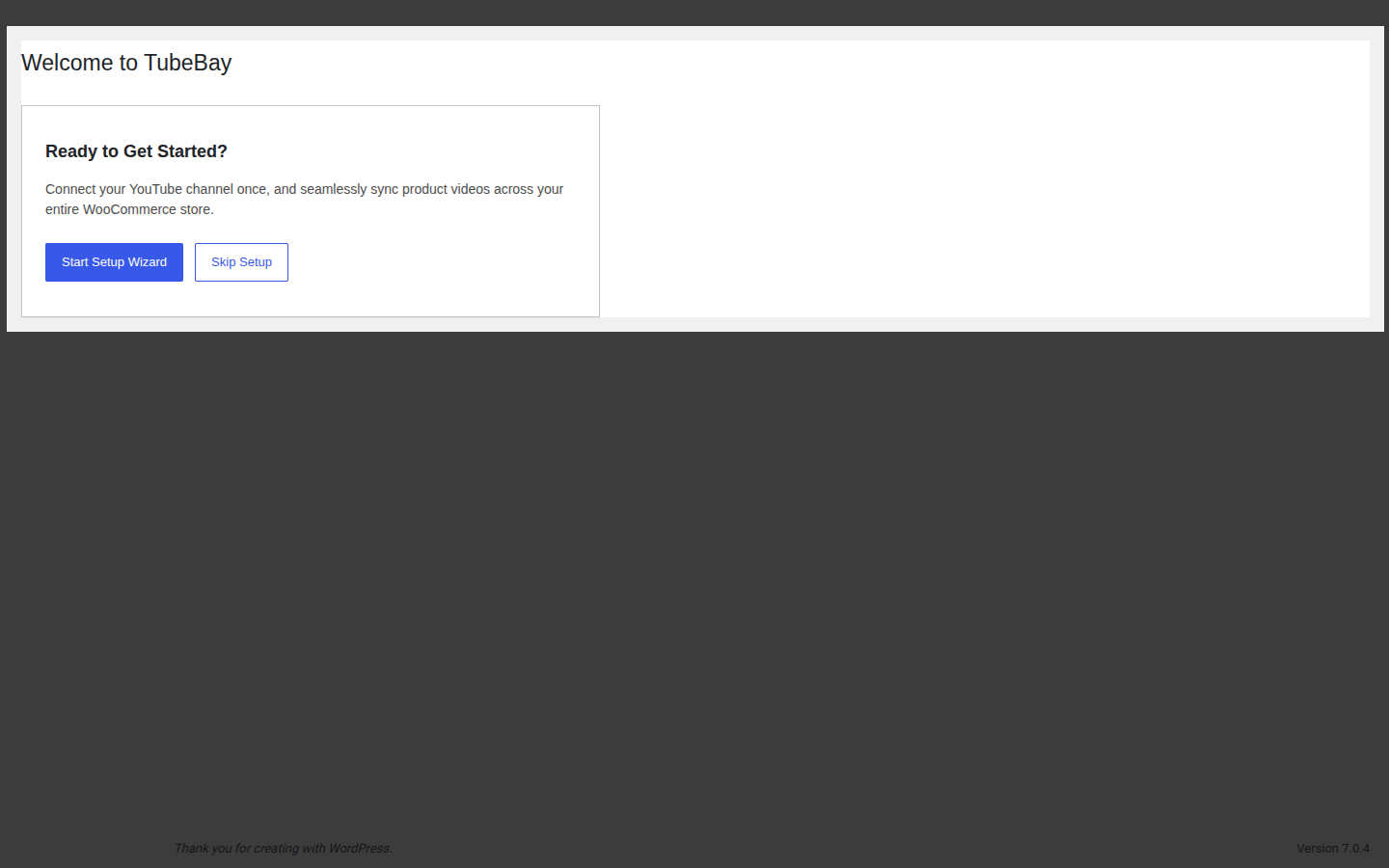
You have two choices on this screen:
- Start Setup Wizard: Recommended for most users. This will guide you through connecting your YouTube account step-by-step.
- Skip Setup: Best for advanced users who want to manually configure API keys or other global settings immediately, from WooCommerce → Settings → TubeBay.
3. The Setup Wizard
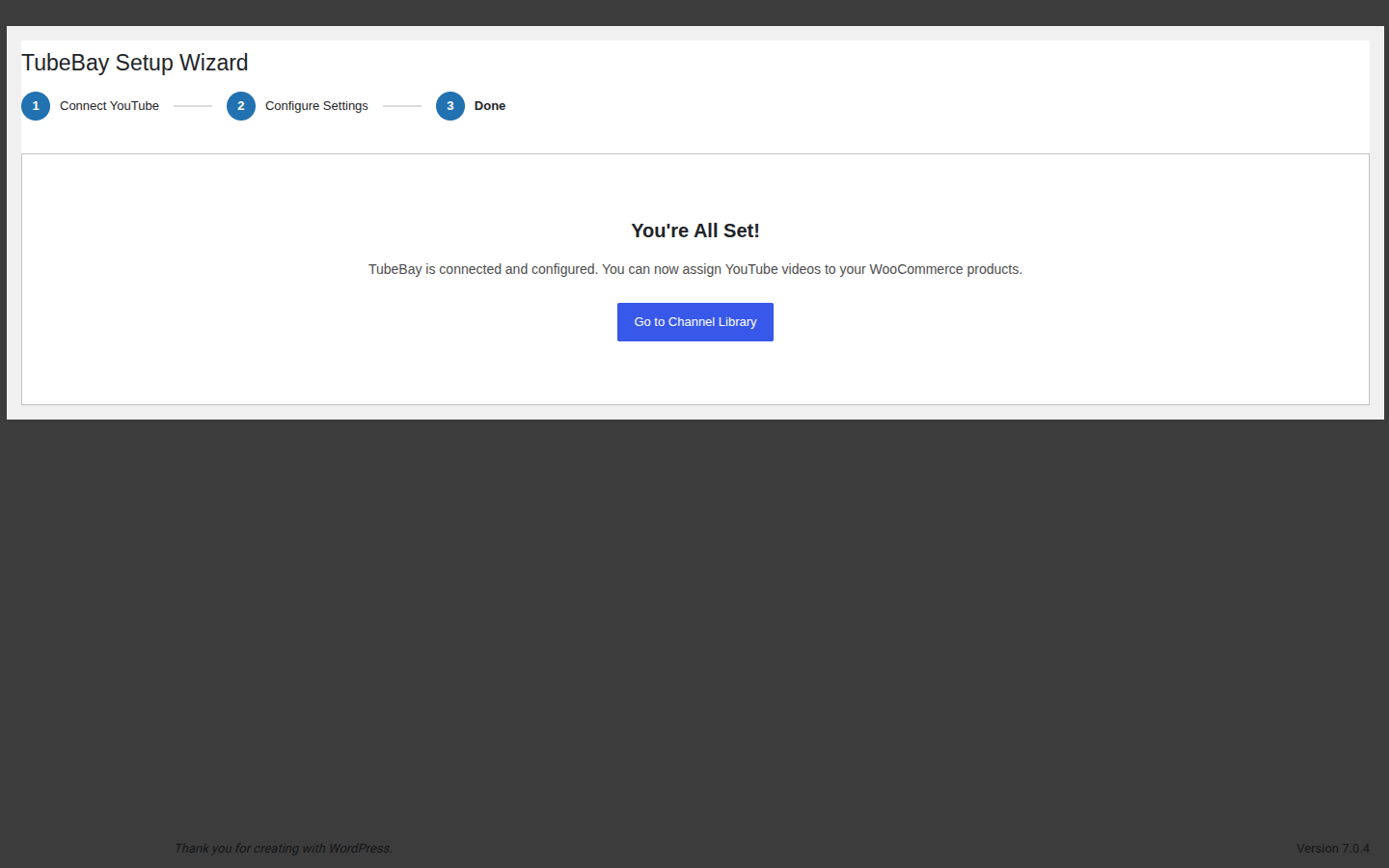
The wizard walks you through three steps: Connect YouTube, Configure Settings, and Done.
Step 1: Connect YouTube
Choose between OAuth 2.0 (recommended) or API Key (Legacy). For most users, OAuth is the easiest:
- Click Sign in with YouTube.
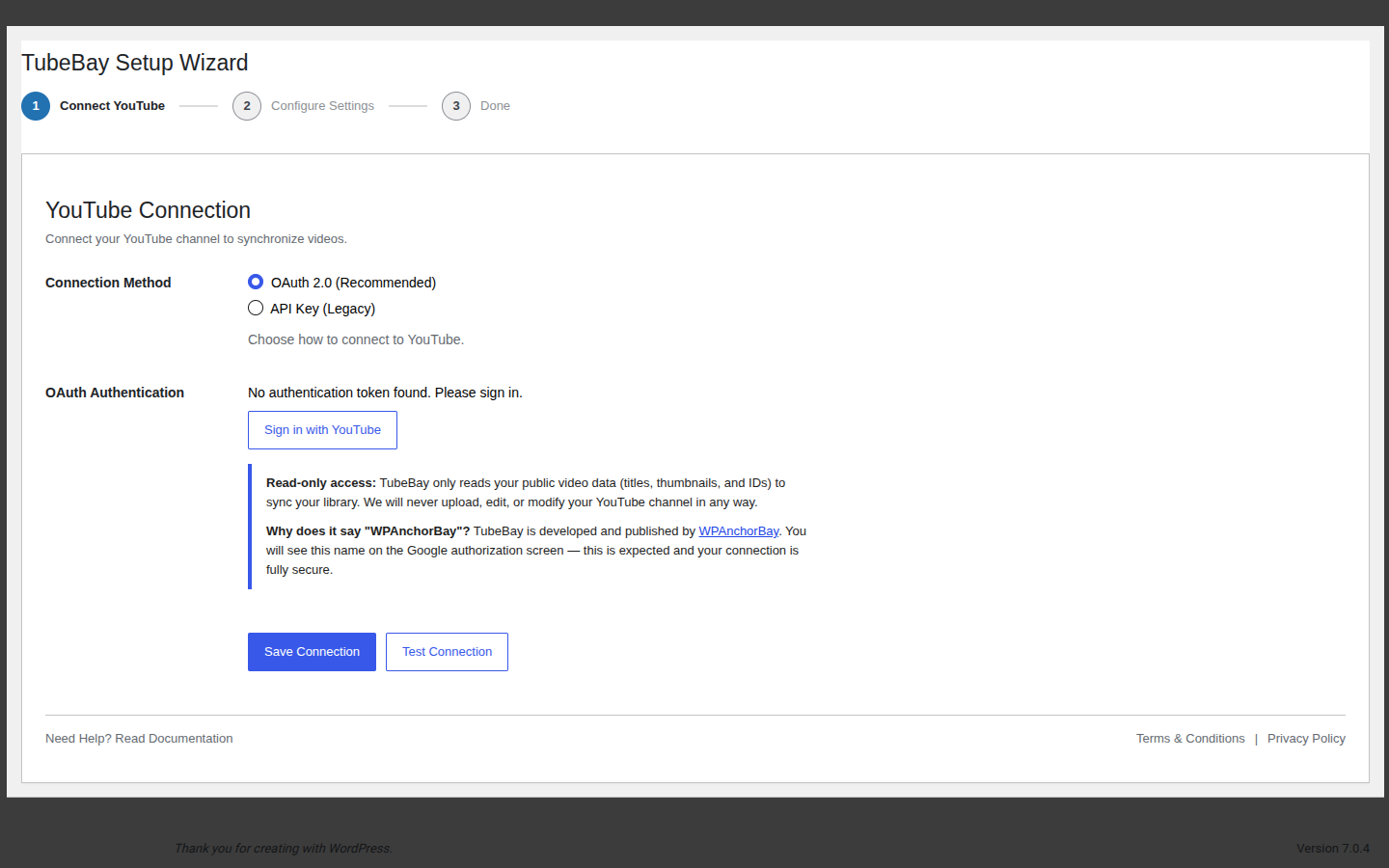
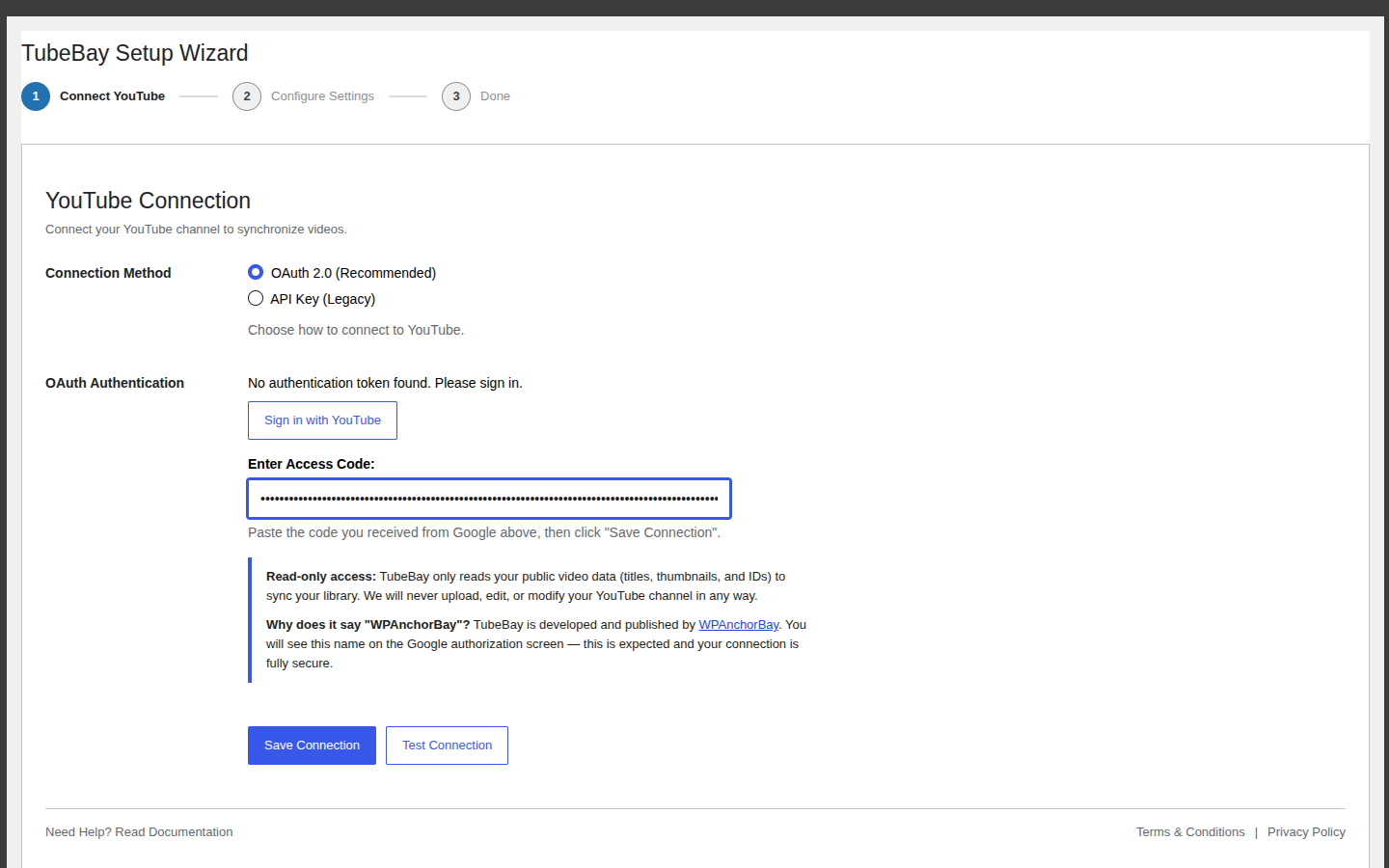
- A new tab opens. Authorize your account and copy the Access Code provided.
- Return to the wizard and paste the code into the Enter Access Code field, then click Save Connection. The wizard automatically advances once the connection succeeds.
Step 2: Configure Settings
Once connected, set your default player preferences — the same fields as the Player tab in Settings (Max Videos, Video Position, Autoplay First Video, Show Duration Badge, Privacy Mode, Show Controls). These apply to every product unless overridden individually (Pro).
Click Save & Continue to finish.
Step 3: Done!
Your account is connected and your default player settings are configured. Click Go to Channel Library to start browsing your synced videos.
4. Sync Your Library
TubeBay automatically fetches your video library after connecting, and refreshes it once a day after that. You can monitor sync status on the Channel Library page, or trigger an immediate refresh — see Syncing Your Library.
5. Map Videos to Products
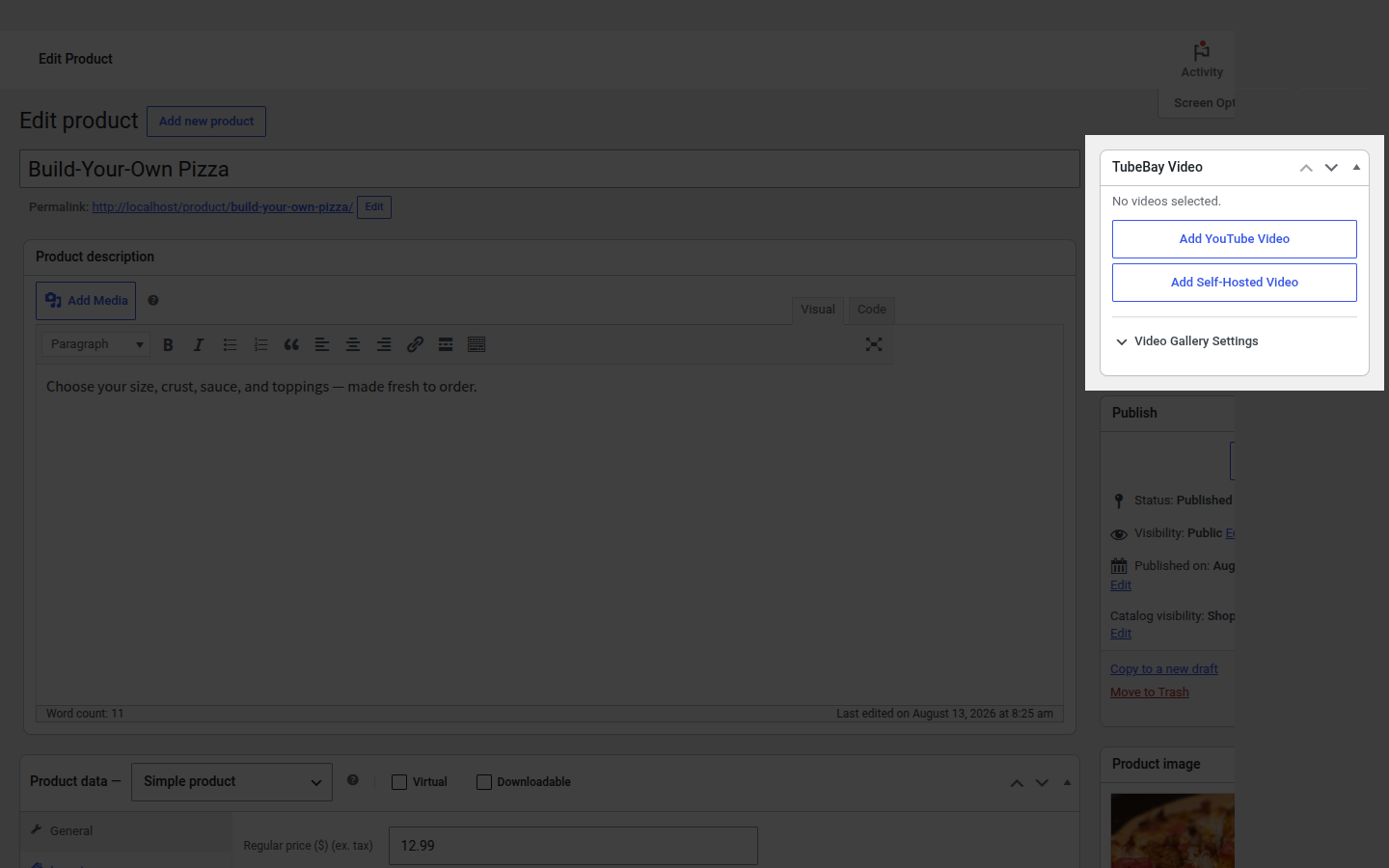
Now the fun part! Go to Products → All Products and edit a product. In the sidebar, you'll find the TubeBay Video meta box, where you can attach one or more YouTube or self-hosted videos — see Product Mapping for the full walkthrough.
6. Configure the Video Player
Before viewing the video on the frontend, check how it should behave:
- Navigate to WooCommerce → Settings → TubeBay.
- Go to the Player tab.
- Set your preferred Video Position in Gallery (e.g., "Last (After images)").
- Toggle options like Autoplay First Video or Show Player Controls.
- Click Save Changes.
7. Showcase on Your Site
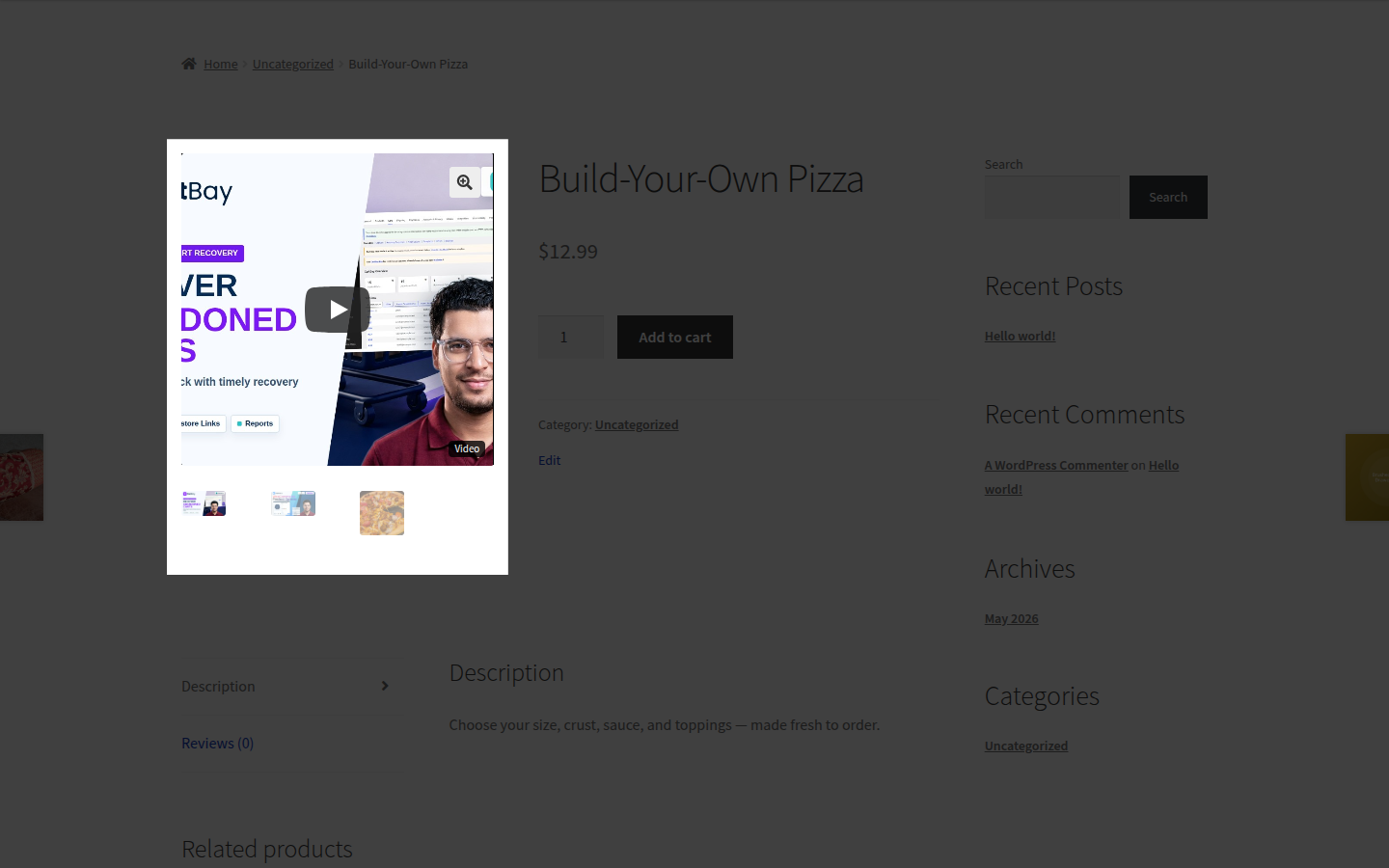
Visit the product page you just mapped a video to — you should see it rendered as a slide in the product image gallery. You can also use Shortcodes to place a video anywhere else on your site.
What's Next?
- Learn more about Connection Methods.
- Optimize your Sync Schedule.
- Explore Shortcodes for custom video placement.
- See what TubeBay Pro adds on top of this, or buy a license.