
Connection Guide
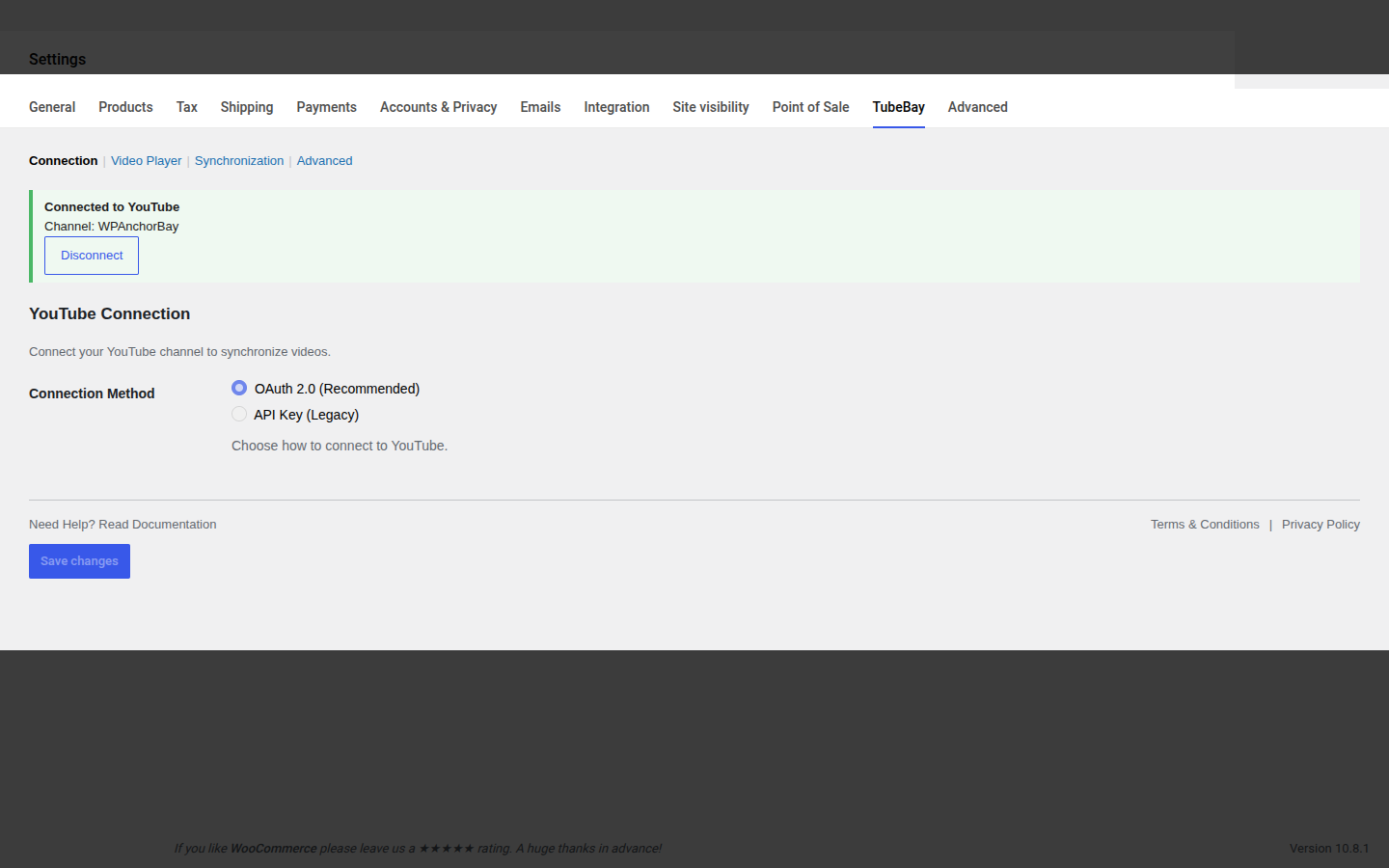
To start using TubeBay, connect your YouTube channel from WooCommerce → Settings → TubeBay → Connection. This lets the plugin read your video library and sync content to your WooCommerce store.
TubeBay offers two connection methods: OAuth 2.0 (Recommended) and API Key (Legacy).
OAuth 2.0 (Recommended)
This is the easiest and most secure way to connect. It uses a secure authentication proxy so you don't need to create your own Google Cloud project.
Step 1: Start Sign-In
- Go to WooCommerce → Settings → TubeBay → Connection.
- Select OAuth 2.0 (Recommended) as the Connection Method.
- Click Sign in with YouTube. This opens the TubeBay Authorization Proxy in a new tab.
Step 2: Grant Permissions
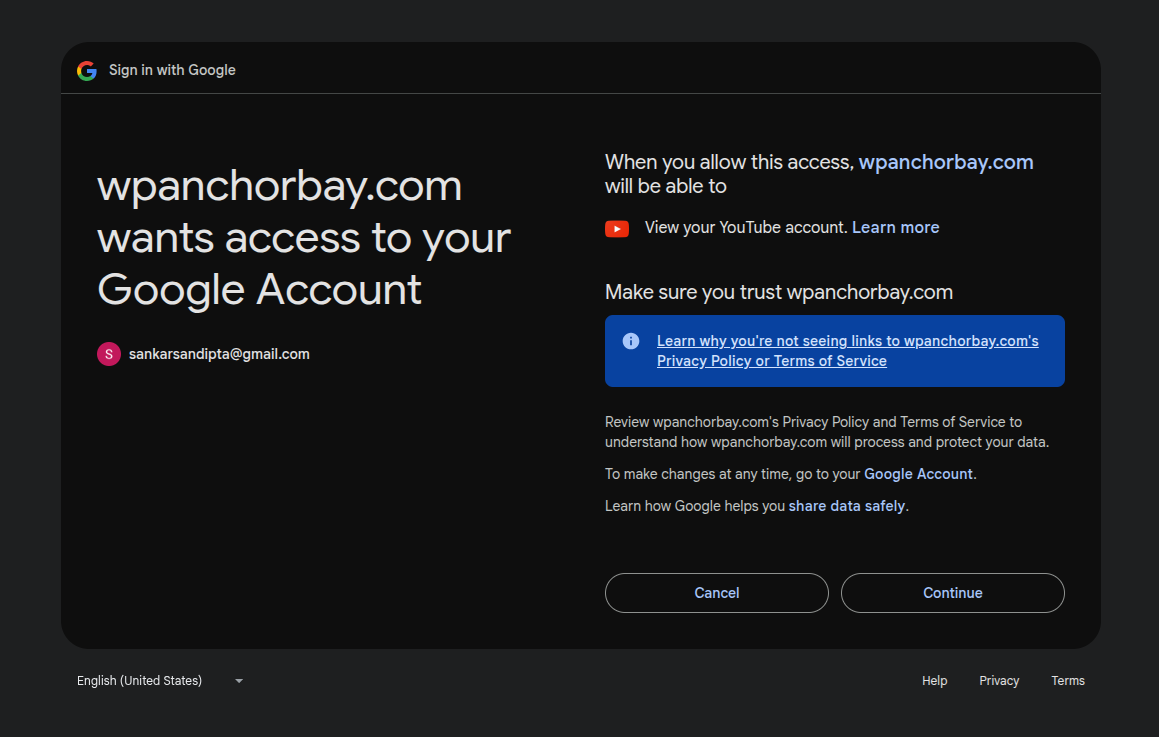
- Choose the Google Account associated with your YouTube channel.
- Grant TubeBay read-only access to your YouTube account.
- Confirm on Google's consent screen. You'll see "WPAnchorBay" as the requesting app — that's TubeBay's publisher, and is expected.
Step 3: Copy & Paste the Access Code
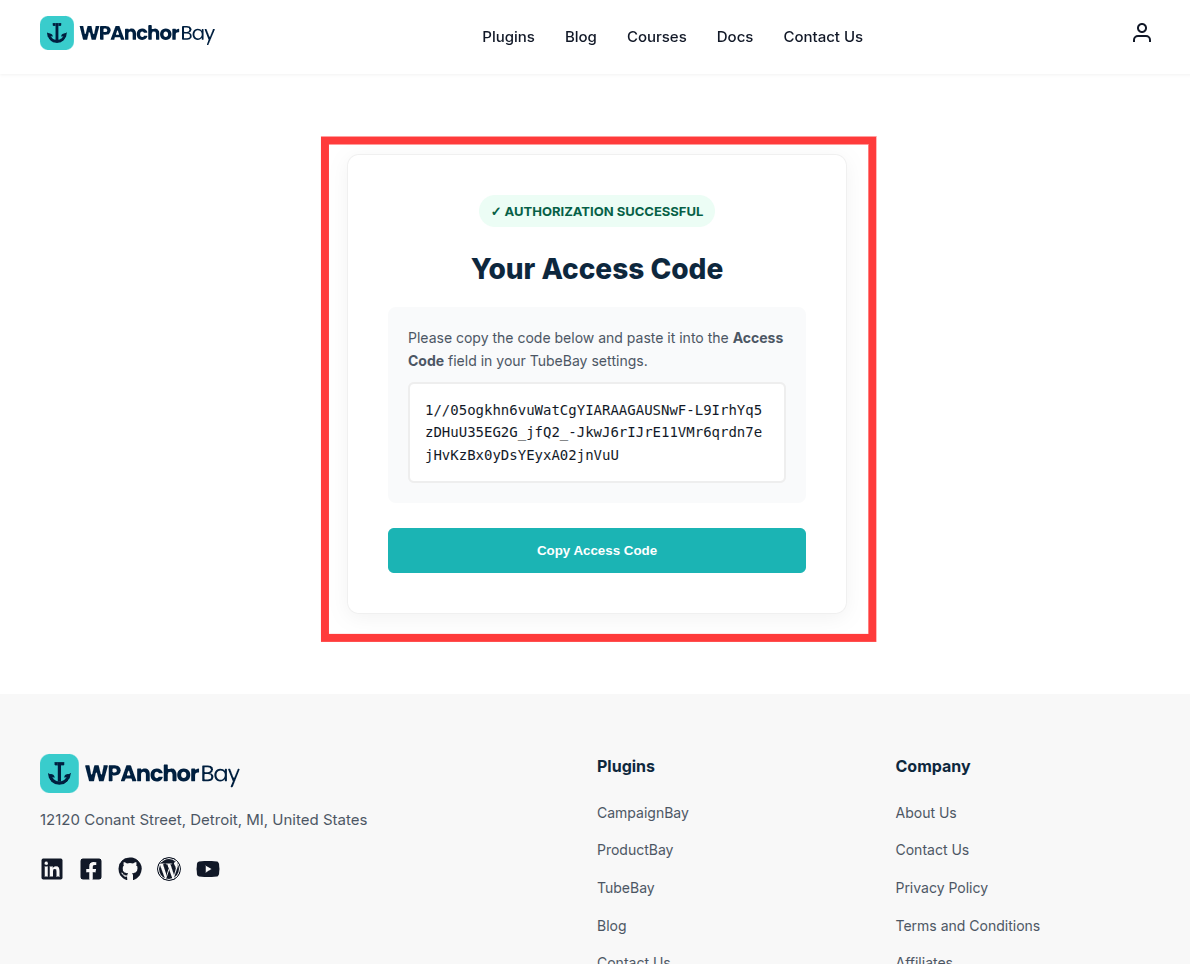
- Once authorized, the proxy displays a secure Access Code.
- Copy it.
- Return to your WordPress dashboard and paste it into the Enter Access Code field.
- Click Save Connection.
API Key (Legacy)
If you'd rather use your own Google Cloud project and API credentials, use the API Key method.
How to get your Google Cloud API Key:
- Visit the Google Cloud Console.
- Create a new project (e.g., "My TubeBay App").
- Navigate to APIs & Services > Library and search for YouTube Data API v3. Click Enable.
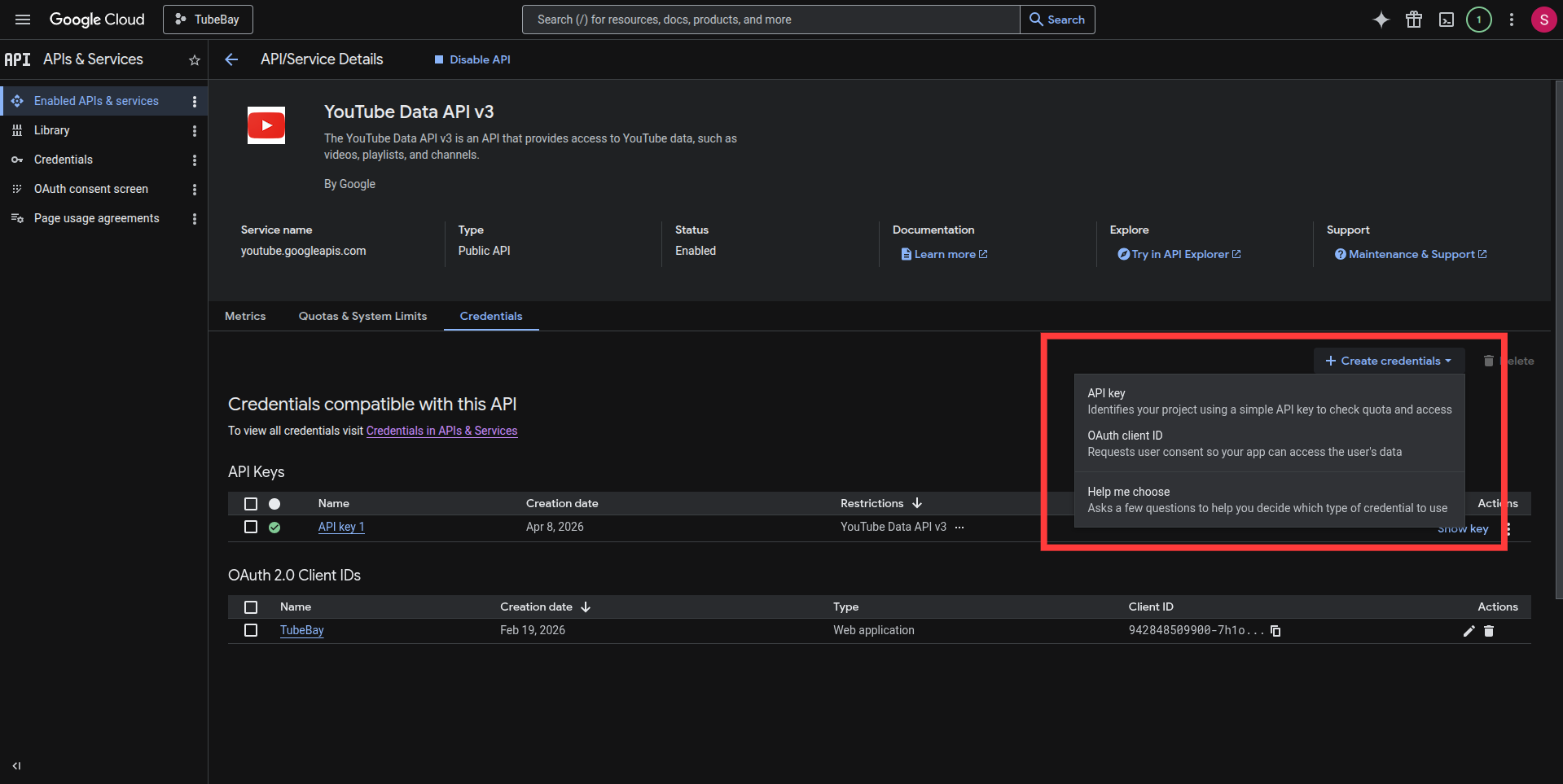
- Go to APIs & Services > Credentials.
- Click + Create Credentials and select API Key.
- Copy the generated key. (We recommend restricting this key to your website URL for extra security).
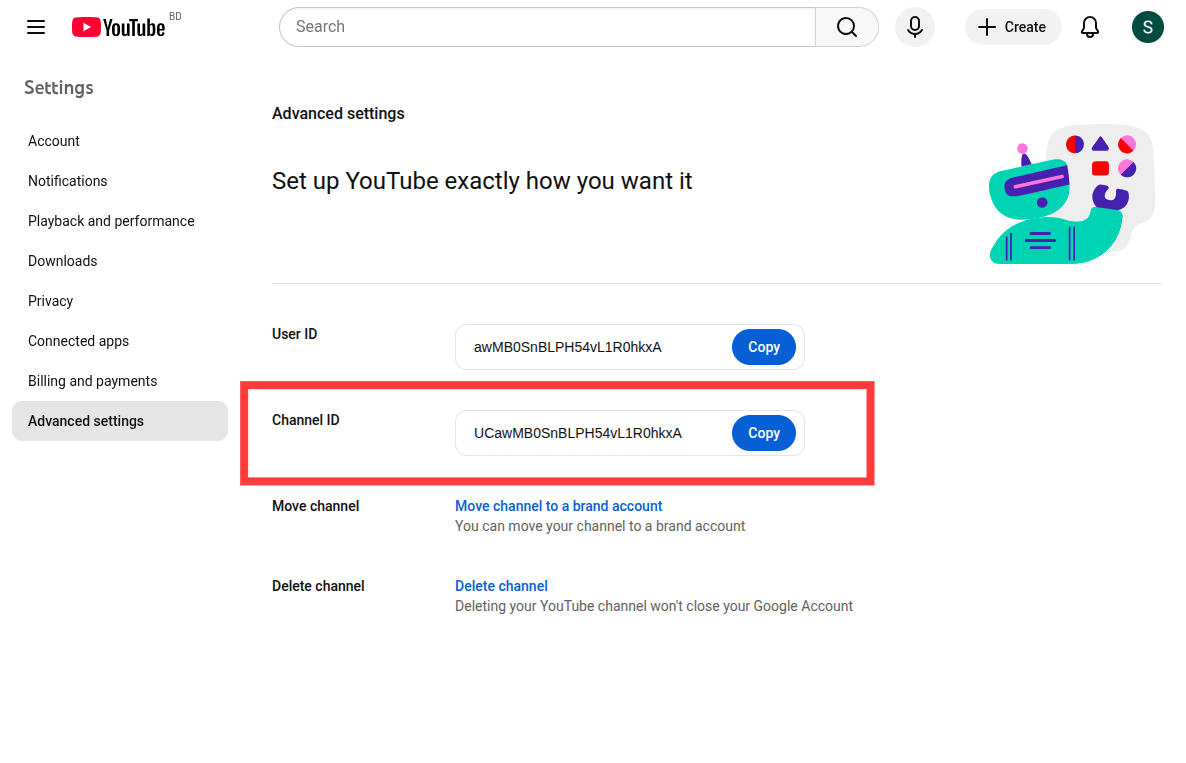
How to find your YouTube Channel ID:
- Sign in to your YouTube account.
- Visit your YouTube Account Advanced Settings.
- Locate the Channel ID field (it starts with
UC...). - Click Copy.
Finalizing the API Key Connection:
- In WooCommerce → Settings → TubeBay → Connection, select API Key (Legacy) as the Connection Method.
- Enter your YouTube API Key and YouTube Channel ID.
- Optionally click Test Connection to verify before saving.
- Click Save Connection.
Verifying the Connection
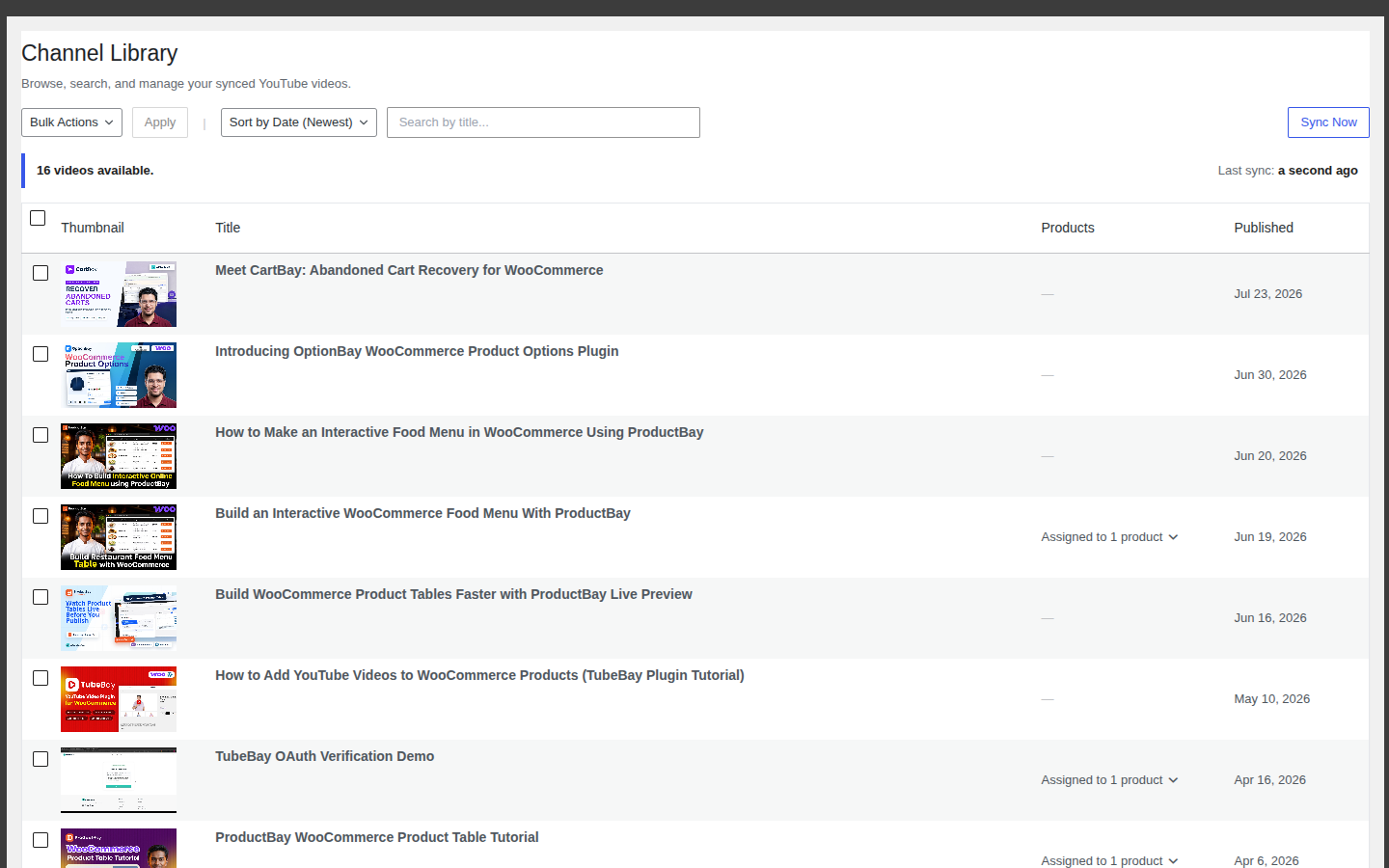
Once connected, the Connection tab shows a green Connected to YouTube notice with your channel name, and a Disconnect button.
Security Note
We never store your Google password. TubeBay only uses secure tokens (OAuth) or a public API key (API Key mode) to read your public video data.