

Getting Started
Learn what CartBay does, confirm requirements, install the plugin, activate your license, and launch your first recovery sequence.

CartBay helps WooCommerce stores recover abandoned checkout revenue. It captures opted-in checkout visitors, tracks abandoned carts, sends a focused three-email recovery sequence, restores carts through secure links, offers optional recovery coupons, and reports recovered revenue inside the WordPress admin.
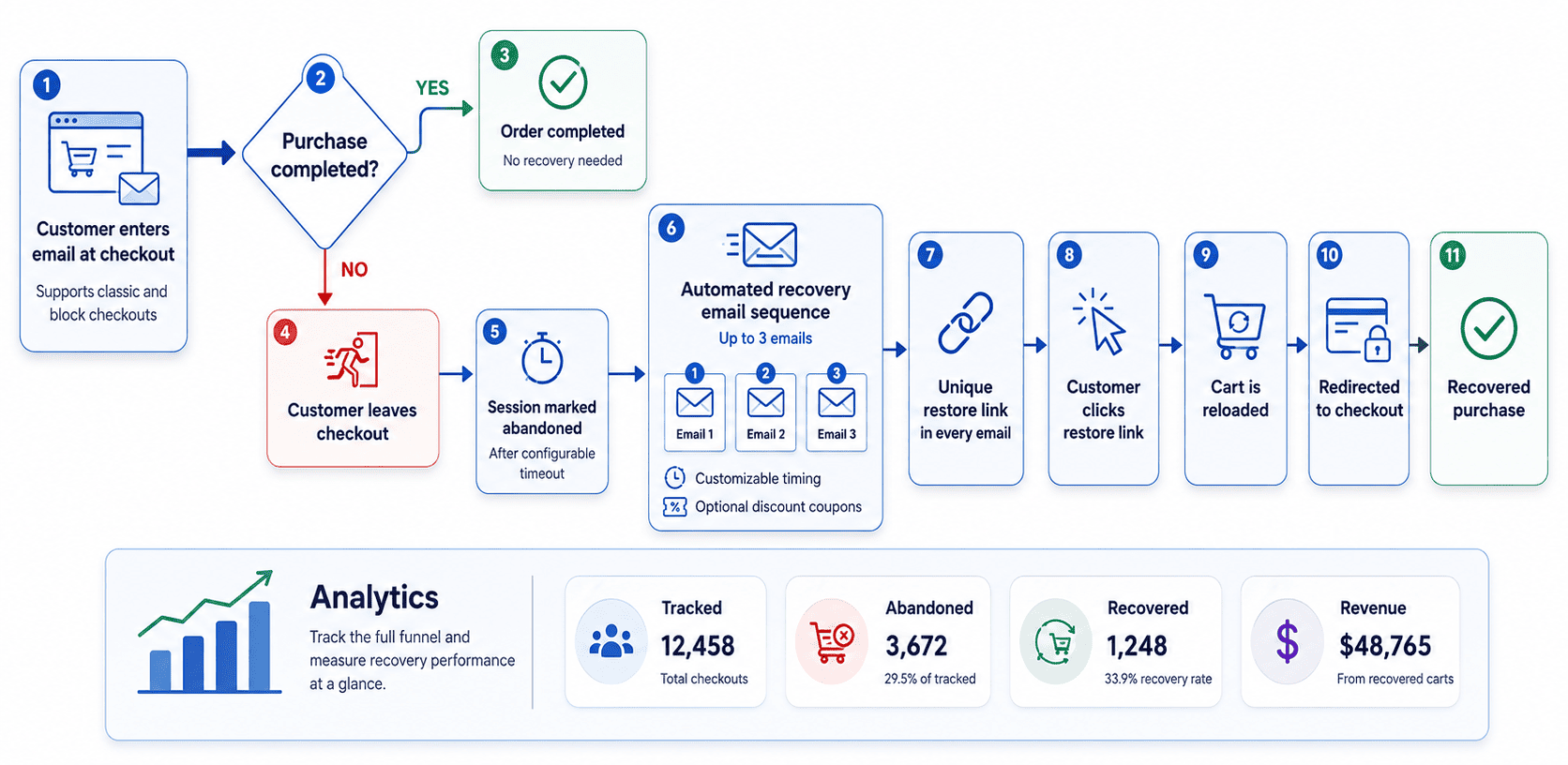
CartBay captures a customer’s email from the checkout page when they enter it (classic and block checkouts are both supported). If the customer leaves without completing the purchase, CartBay marks the session as abandoned after a configurable timeout. A sequence of up to three recovery emails is then sent automatically, each with customizable timing and optional discount coupons. Every email includes a unique restore link that, when clicked, reloads the customer’s cart and redirects them to checkout. Analytics track the full funnel — tracked, abandoned, recovered, and revenue — so you can measure recovery performance at a glance.
Getting Started
Learn what CartBay does, confirm requirements, install the plugin, activate your license, and launch your first recovery sequence.
User Guide
Configure CartBay admin sections for capture, recovery sequence, notifications, templates, offers, settings, and troubleshooting.
Developers
Review CartBay architecture, storage, REST routes, hooks, background jobs, templates, emails, build, and QA references.
AI Agents
Use protected agent access, safe automation workflows, and operational guardrails for CartBay AI-agent integrations.
Start with Getting Started if you are installing CartBay for the first time. Use the User Guide when configuring a specific CartBay admin section. Use Developers for architecture, integration, and extension details. Use AI Agents when enabling automation or MCP-based workflows. Use Others for FAQ, discovery endpoints, and documentation metadata.