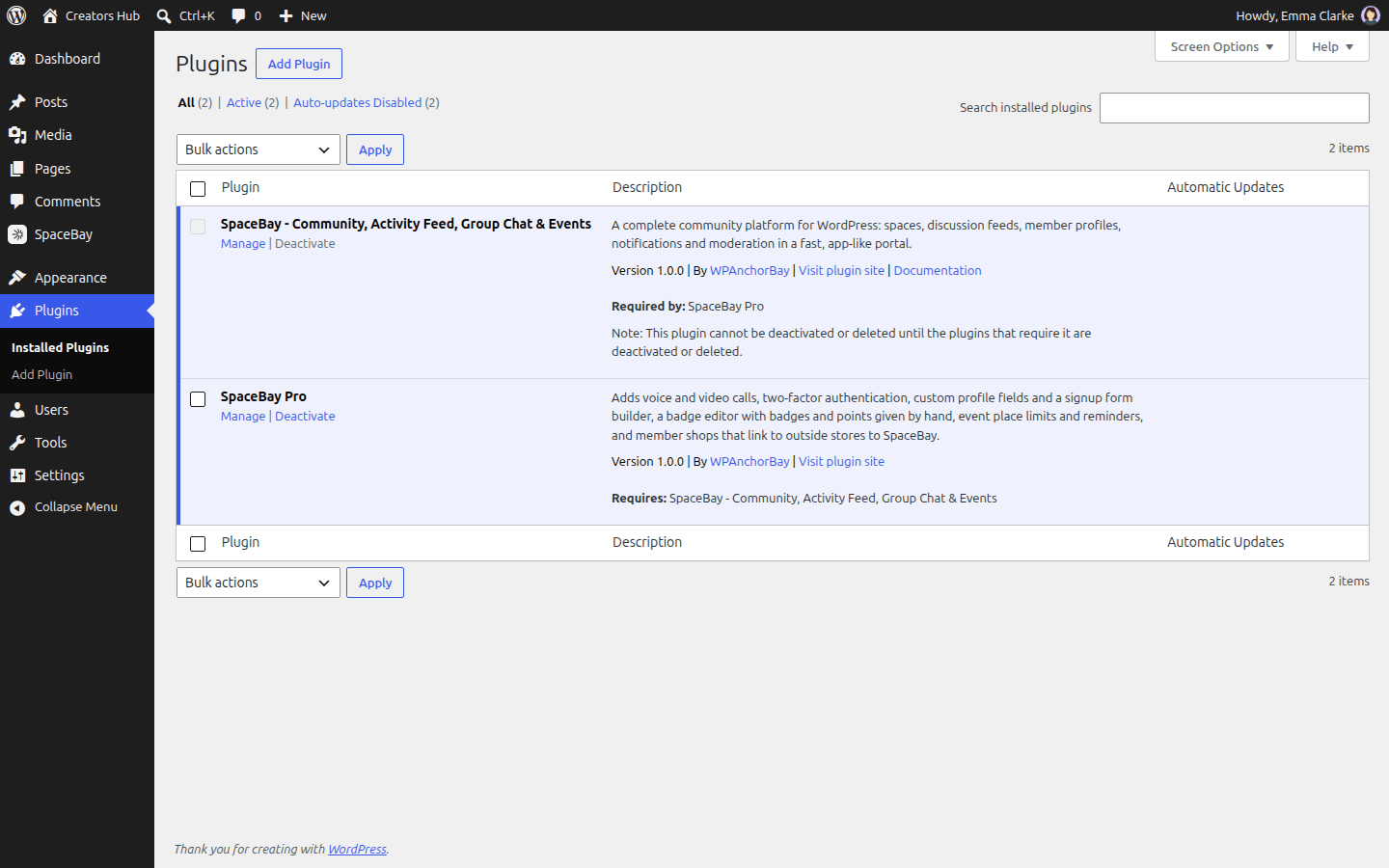
 *The Plugins screen with SpaceBay and SpaceBay Pro active.*
## SpaceBay Pro Pro
1. Install and activate the free SpaceBay plugin first.
2. Download **spacebay-pro.zip** from your wpanchorbay.com account.
3. Go to **Plugins → Add New Plugin → Upload Plugin**, choose the zip, click **Install Now**, then **Activate**.
Pro has no licence key. See [Licence and activation](/spacebay/pro/licence-and-activation/).
## Bought on CodeCanyon
The CodeCanyon download contains both zips: **spacebay.zip** and **spacebay-pro.zip**. Upload and activate **spacebay.zip** first, then **spacebay-pro.zip**, with **Plugins → Add New Plugin → Upload Plugin**.
## Introduction
URL: https://docs.wpanchorbay.com/spacebay/getting-started/introduction/
Description: SpaceBay turns a WordPress site into a community with spaces, a feed, events, messages, points and moderation. Free on WordPress.org, with an optional Pro add-on.
SpaceBay turns your WordPress site into a community: members join spaces, post, comment and react in a fast portal that works on desktop and mobile, in light and dark mode.
SpaceBay 1.0.0 · SpaceBay Pro 1.0.0 · By WPAnchorBay
SpaceBay is free on WordPress.org. **SpaceBay Pro** is an optional add-on with calls, two-factor login and a few tools for community managers. Features that need Pro are marked Pro. See [Free and Pro](/spacebay/pro/overview/).
*The Plugins screen with SpaceBay and SpaceBay Pro active.*
## SpaceBay Pro Pro
1. Install and activate the free SpaceBay plugin first.
2. Download **spacebay-pro.zip** from your wpanchorbay.com account.
3. Go to **Plugins → Add New Plugin → Upload Plugin**, choose the zip, click **Install Now**, then **Activate**.
Pro has no licence key. See [Licence and activation](/spacebay/pro/licence-and-activation/).
## Bought on CodeCanyon
The CodeCanyon download contains both zips: **spacebay.zip** and **spacebay-pro.zip**. Upload and activate **spacebay.zip** first, then **spacebay-pro.zip**, with **Plugins → Add New Plugin → Upload Plugin**.
## Introduction
URL: https://docs.wpanchorbay.com/spacebay/getting-started/introduction/
Description: SpaceBay turns a WordPress site into a community with spaces, a feed, events, messages, points and moderation. Free on WordPress.org, with an optional Pro add-on.
SpaceBay turns your WordPress site into a community: members join spaces, post, comment and react in a fast portal that works on desktop and mobile, in light and dark mode.
SpaceBay 1.0.0 · SpaceBay Pro 1.0.0 · By WPAnchorBay
SpaceBay is free on WordPress.org. **SpaceBay Pro** is an optional add-on with calls, two-factor login and a few tools for community managers. Features that need Pro are marked Pro. See [Free and Pro](/spacebay/pro/overview/).
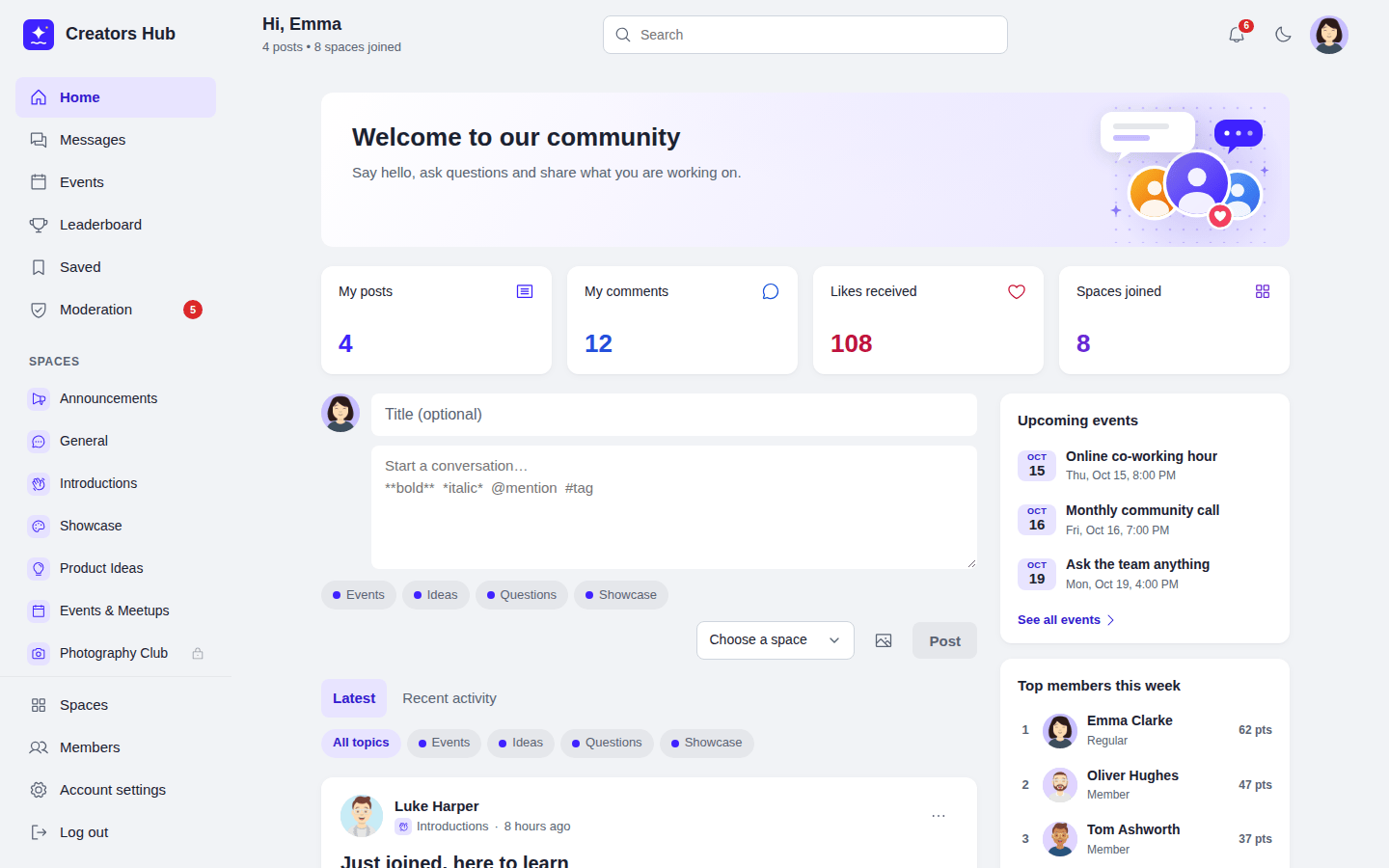 *The community portal at yoursite.com/community/.*
## What you get
- **Spaces and groups** where members meet, with public, private and secret spaces.
- **A feed** with posts, images, link previews, comments, likes, saved posts, topics and hashtags.
- **Events** with going, maybe and can't go answers, a calendar and Add to calendar.
- **Private messages and group chats.**
- **Profiles and a member directory.**
- **Points, levels, badges and a leaderboard.**
- **Notifications and emails**, and **search**.
- **Moderation:** reports, blocked words, member approval and community moderators.
- **Login and signup pages** in your community's design, with optional Google and Facebook login.
- **Privacy tools, a REST API, hooks and template overrides** for developers.
## Where to start
1. Check the [requirements](/spacebay/getting-started/requirements/).
2. [Install](/spacebay/getting-started/installation/) the plugin.
3. Run the [setup wizard](/spacebay/getting-started/setup-wizard/).
4. Take the [community portal tour](/spacebay/user-guide/community-portal/).
## Requirements
URL: https://docs.wpanchorbay.com/spacebay/getting-started/requirements/
Description: WordPress, PHP and database versions SpaceBay needs, and what SpaceBay Pro needs on top.
| Item | SpaceBay (free) 1.0.0 | SpaceBay Pro 1.0.0 Pro |
| --- | --- | --- |
| WordPress | 6.2 or newer (tested up to 7.1) | 6.5 or newer (tested up to 7.1) |
| PHP | 7.4 or newer (tested up to 8.4) | 7.4 or newer |
| Other plugins | None | SpaceBay (free) 1.0.0 or newer, installed and active |
| Database | The MySQL or MariaDB version your WordPress needs | The same |
| Permalinks | Any. Pretty permalinks give the community its own address such as /community/. | The same |
SpaceBay Pro is an add-on. If the free plugin is missing or too old, Pro shows a notice asking you to install or update SpaceBay.
Voice and video calls in Pro also need your site to use HTTPS.
See [Compatibility](/spacebay/others/compatibility/) for the themes, plugins and languages SpaceBay was tested with.
## Setup wizard and dashboard
URL: https://docs.wpanchorbay.com/spacebay/getting-started/setup-wizard/
Description: The five-step setup wizard and the SpaceBay admin dashboard.
The first time you open **SpaceBay** after activating the plugin, a short wizard helps you set up the community in five steps:
1. **Basics:** community name, address and who can view it. If WordPress registration is off, the wizard reminds you to turn on *Anyone can register* in **Settings → General**.
2. **Look:** logo, brand colour, colour mode and layout.
3. **Spaces:** create starter spaces: Announcements (only admins post), General and Introductions. You become admin of each one. Spaces that already exist with the same name are skipped.
4. **Moderation:** member approval, review of new posts and blocked words.
5. **Done:** open your community.
*The community portal at yoursite.com/community/.*
## What you get
- **Spaces and groups** where members meet, with public, private and secret spaces.
- **A feed** with posts, images, link previews, comments, likes, saved posts, topics and hashtags.
- **Events** with going, maybe and can't go answers, a calendar and Add to calendar.
- **Private messages and group chats.**
- **Profiles and a member directory.**
- **Points, levels, badges and a leaderboard.**
- **Notifications and emails**, and **search**.
- **Moderation:** reports, blocked words, member approval and community moderators.
- **Login and signup pages** in your community's design, with optional Google and Facebook login.
- **Privacy tools, a REST API, hooks and template overrides** for developers.
## Where to start
1. Check the [requirements](/spacebay/getting-started/requirements/).
2. [Install](/spacebay/getting-started/installation/) the plugin.
3. Run the [setup wizard](/spacebay/getting-started/setup-wizard/).
4. Take the [community portal tour](/spacebay/user-guide/community-portal/).
## Requirements
URL: https://docs.wpanchorbay.com/spacebay/getting-started/requirements/
Description: WordPress, PHP and database versions SpaceBay needs, and what SpaceBay Pro needs on top.
| Item | SpaceBay (free) 1.0.0 | SpaceBay Pro 1.0.0 Pro |
| --- | --- | --- |
| WordPress | 6.2 or newer (tested up to 7.1) | 6.5 or newer (tested up to 7.1) |
| PHP | 7.4 or newer (tested up to 8.4) | 7.4 or newer |
| Other plugins | None | SpaceBay (free) 1.0.0 or newer, installed and active |
| Database | The MySQL or MariaDB version your WordPress needs | The same |
| Permalinks | Any. Pretty permalinks give the community its own address such as /community/. | The same |
SpaceBay Pro is an add-on. If the free plugin is missing or too old, Pro shows a notice asking you to install or update SpaceBay.
Voice and video calls in Pro also need your site to use HTTPS.
See [Compatibility](/spacebay/others/compatibility/) for the themes, plugins and languages SpaceBay was tested with.
## Setup wizard and dashboard
URL: https://docs.wpanchorbay.com/spacebay/getting-started/setup-wizard/
Description: The five-step setup wizard and the SpaceBay admin dashboard.
The first time you open **SpaceBay** after activating the plugin, a short wizard helps you set up the community in five steps:
1. **Basics:** community name, address and who can view it. If WordPress registration is off, the wizard reminds you to turn on *Anyone can register* in **Settings → General**.
2. **Look:** logo, brand colour, colour mode and layout.
3. **Spaces:** create starter spaces: Announcements (only admins post), General and Introductions. You become admin of each one. Spaces that already exist with the same name are skipped.
4. **Moderation:** member approval, review of new posts and blocked words.
5. **Done:** open your community.
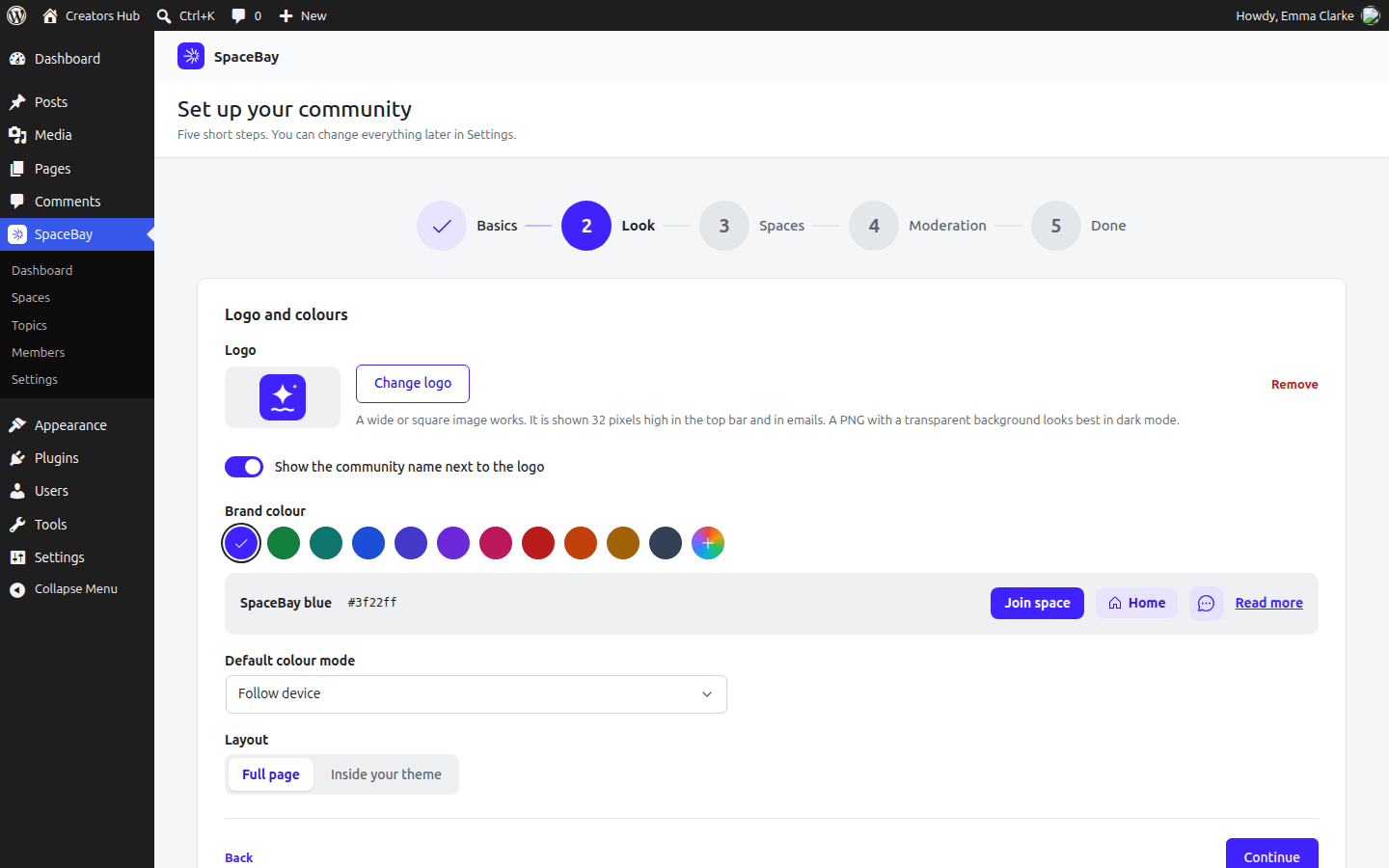 *Step 2 of the setup wizard.*
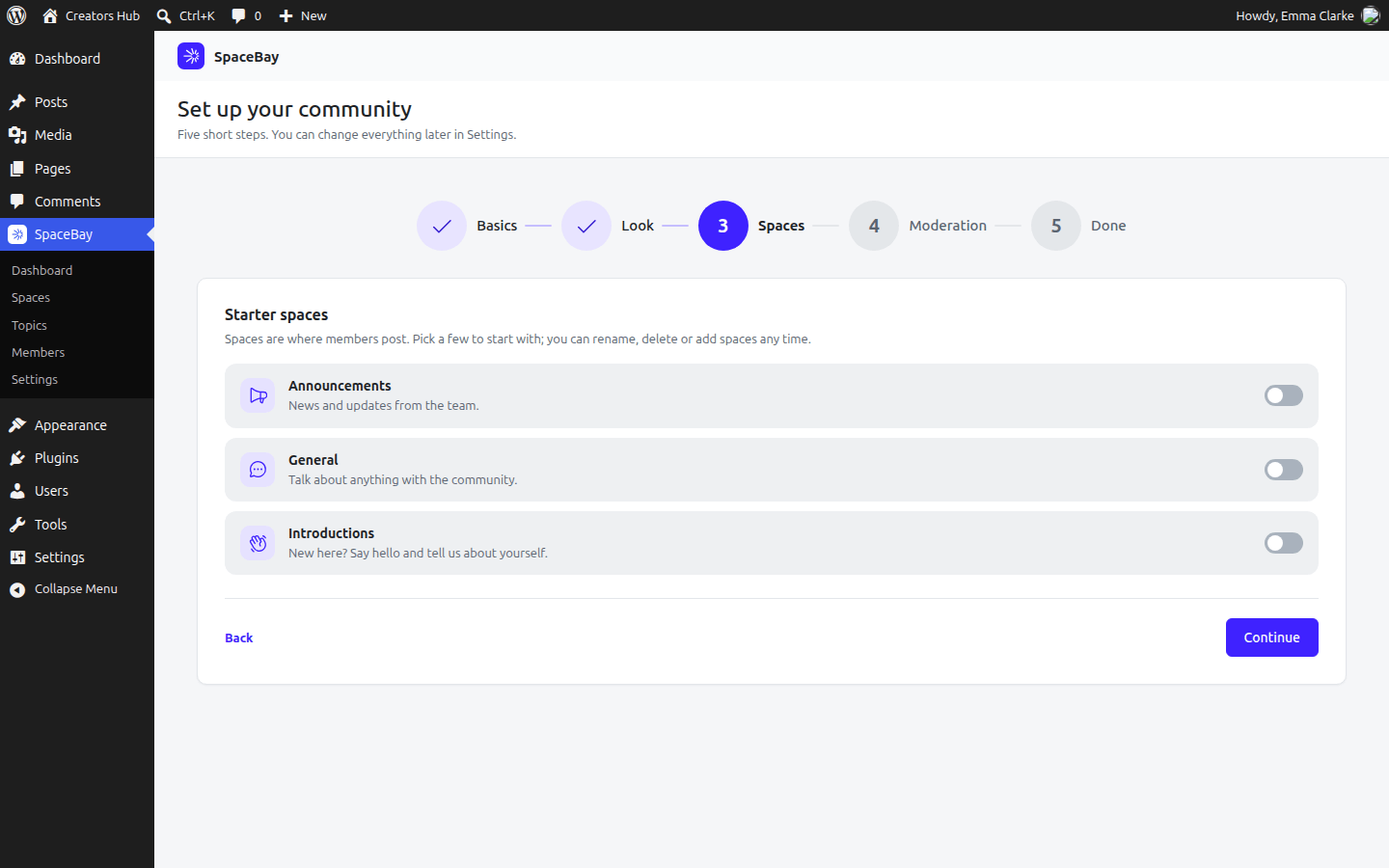 *Step 3: starter spaces.*
Select **Skip setup** to go straight to the dashboard. You can run the wizard again from the dashboard at any time.
## The SpaceBay admin menu
The SpaceBay menu in the WordPress admin has five pages: **Dashboard**, **Spaces**, **Topics**, **Members** and **Settings**. The dashboard shows totals for members, spaces, posts and comments, the number of items waiting for review and members waiting for approval, and your community address.
*Step 3: starter spaces.*
Select **Skip setup** to go straight to the dashboard. You can run the wizard again from the dashboard at any time.
## The SpaceBay admin menu
The SpaceBay menu in the WordPress admin has five pages: **Dashboard**, **Spaces**, **Topics**, **Members** and **Settings**. The dashboard shows totals for members, spaces, posts and comments, the number of items waiting for review and members waiting for approval, and your community address.
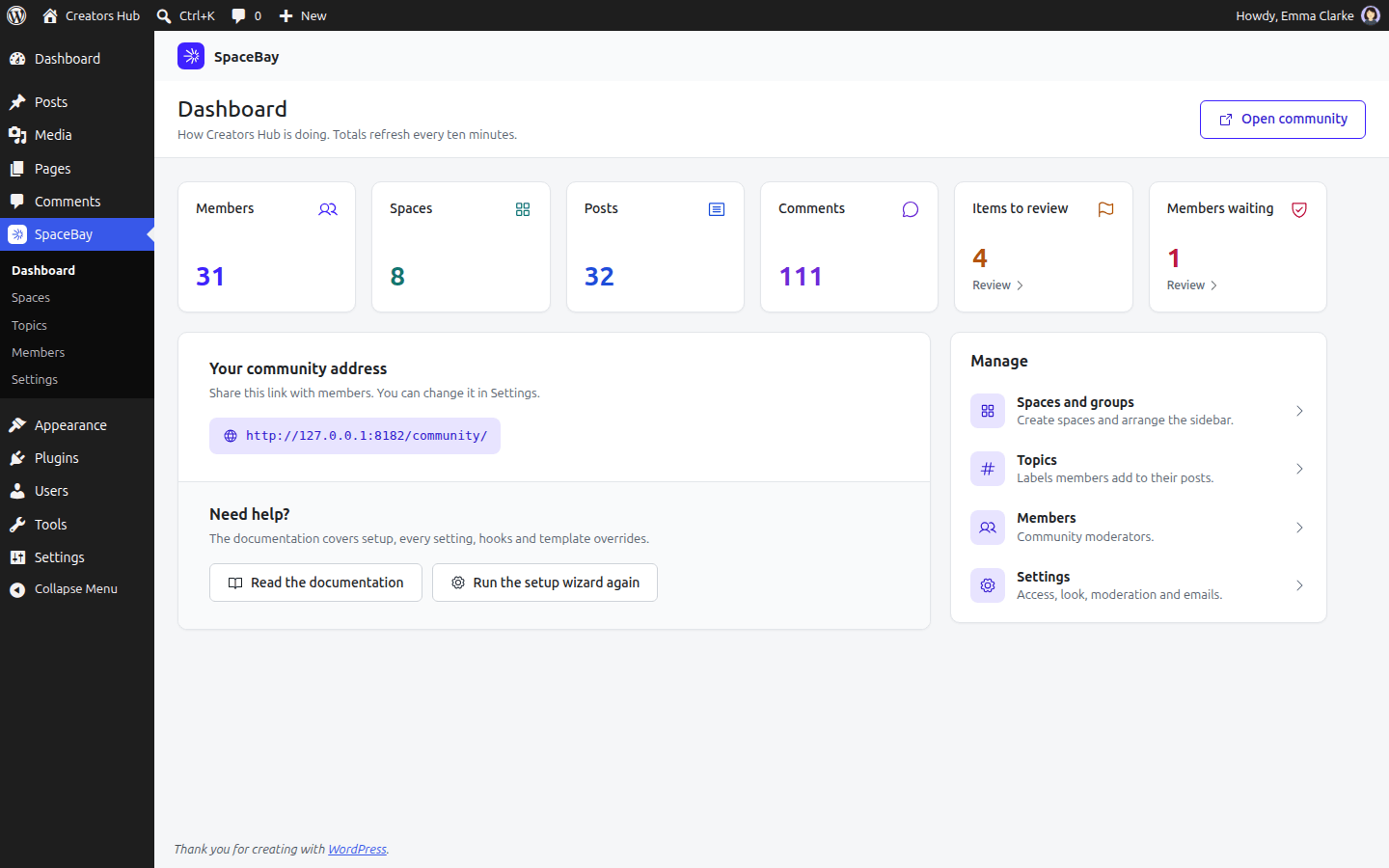 *The admin dashboard. Totals refresh every ten minutes.*
## Changelog
URL: https://docs.wpanchorbay.com/spacebay/others/changelog/
Description: Release notes for SpaceBay and SpaceBay Pro.
## 1.0.0
### SpaceBay 1.0.0
- Initial release.
- Spaces and groups, feed, comments, likes, saved posts, topics and hashtags.
- Profiles, member directory, notifications and emails, search.
- Private messages and group chats.
- Events with going, maybe and can't go answers, a calendar, Add to calendar and notifications.
- Points, levels, nine ready-made badges and a leaderboard.
- Community login, signup and password reset pages, Google and Facebook login, limits on login attempts.
- Moderation, reports, blocked words, member approval and suspension, community moderators.
- Setup wizard, branding, light and dark mode, privacy export and erasure, REST API, hooks, template overrides and WP-CLI sample content.
### SpaceBay Pro 1.0.0 Pro
- Initial release.
- Voice and video calls in chats.
- Two-factor authentication with an authenticator app, codes by email and backup codes.
- Signup form builder and custom profile fields.
- Badge editor, and badges and points given by hand.
- Event place limits and reminders.
- Member shops.
SpaceBay Pro 1.0.0 needs SpaceBay 1.0.0 or newer.
## Compatibility: themes, multisite and languages
URL: https://docs.wpanchorbay.com/spacebay/others/compatibility/
Description: What SpaceBay was tested with, how it works inside your theme, on a multisite network, in right-to-left languages and with page-cache plugins.
| Area | Tested |
| --- | --- |
| WordPress | 6.2 and 7.1, single site and multisite (network activation, sub-sites) |
| PHP | 7.4, 8.3 and 8.4 |
| Themes (inside theme layout) | Twenty Twenty-Five (block theme), Twenty Twenty-One, Astra, GeneratePress, Kadence |
| Plugins active together | WooCommerce, Yoast SEO, Elementor, Contact Form 7, Wordfence |
| Languages | English and Arabic (right to left) |
| Accessibility | Automated WCAG 2.1 AA checks (axe) on every portal and admin screen, light and dark mode |
| Size | 5,000 members, 25,000 posts, 100,000 comments and 60,000 chat messages. See [Large communities and speed](/spacebay/others/large-communities-and-speed/). |
## Themes and layout
In **Settings → Appearance**, **Layout** can be **Full page**, which shows the community as a full-screen app, or **Inside your theme**, which places it between your theme header and footer. You can override the layout files: see [Template overrides](/spacebay/developers/template-overrides/).
## Multisite
- SpaceBay was tested on single sites and on multisite (network activation and sub-sites).
- Signing up only works when the network administrator allows new accounts (**Network Admin → Settings → Allow new registrations**).
- The two-factor policy is set per site. Someone who logs in on another site of the network where no code is required is logged in on every site, so use the same policy on each site.
- Deleting the plugin with **Delete all data when the plugin is deleted** on removes the data and images from every site in a network.
## Right-to-left languages and translation
The portal supports right-to-left languages and was tested in Arabic. SpaceBay is translation ready: see [Translation](/spacebay/developers/translation-and-building/).
## Page-cache plugins
SpaceBay marks portal pages as not cacheable (`DONOTCACHEPAGE` and no-cache headers), so members always see their own data.
## FAQ
URL: https://docs.wpanchorbay.com/spacebay/others/faq/
Description: Short answers to common questions about SpaceBay and SpaceBay Pro.
## Is SpaceBay free?
Yes. SpaceBay is free on WordPress.org. SpaceBay Pro is a separate paid add-on. See [Free and Pro](/spacebay/pro/overview/).
## Do I need the free plugin to use Pro?
Yes. SpaceBay Pro is an add-on. It needs SpaceBay installed and active, and WordPress 6.5 or newer. See [Requirements](/spacebay/getting-started/requirements/).
## Does Pro have a licence key?
No. You install the Pro zip and activate it like any plugin. See [Licence and activation](/spacebay/pro/licence-and-activation/).
## Where do members use the community?
On the community pages, which SpaceBay adds to your site. They work on phones and desktops, in light and dark mode. See [The community portal](/spacebay/user-guide/community-portal/).
## Can I use SpaceBay inside my theme?
Yes. In **Settings → Appearance**, set **Layout** to **Inside your theme**. See [Compatibility](/spacebay/others/compatibility/).
## Can members sell things?
With SpaceBay Pro, members can open a shop and list products that link to their own store. SpaceBay never takes payments. See [Member shops](/spacebay/pro/member-shops/).
## Can people log in with Google or Facebook?
Yes. See [Log in with Google or Facebook](/spacebay/user-guide/social-login/).
## Does SpaceBay work on multisite and in right-to-left languages?
Yes. It was tested on multisite and in Arabic. See [Compatibility](/spacebay/others/compatibility/).
## Can I export or erase a member's data?
Yes, with the WordPress privacy tools. See [Privacy and personal data](/spacebay/user-guide/privacy-and-gdpr/).
## What happens to my data if I delete the plugin?
Nothing, unless **Delete all data when the plugin is deleted** is on. See [Updates and uninstall](/spacebay/others/updates-and-uninstall/).
## How do I add demo content?
Use WP-CLI: `wp spacebay demo`. See [WP-CLI](/spacebay/developers/wp-cli/).
## Where can I get help?
- **SpaceBay (free):** ask in the [SpaceBay support forum on WordPress.org](https://wordpress.org/support/plugin/spacebay/).
- **SpaceBay Pro:** get help at [wpanchorbay.com](https://wpanchorbay.com/plugins/spacebay/).
- **Bought on CodeCanyon:** you can also use the Support tab on the CodeCanyon item page.
Please include your WordPress version, PHP version, the SpaceBay (and Pro) version and the steps that cause the issue. The latest documentation is at [docs.wpanchorbay.com/spacebay](https://docs.wpanchorbay.com/spacebay/).
## Large communities and speed
URL: https://docs.wpanchorbay.com/spacebay/others/large-communities-and-speed/
Description: Load-test results for 5,000 members, what SpaceBay does for speed, and what you can do for a busy community.
SpaceBay keeps its content in its own database tables with indexes for every list it shows, so pages stay fast as a community grows. Version 1.0.0 was load-tested with 5,000 members, 50 spaces (three of them with about 4,400 members each), 25,000 posts, 100,000 comments, 200,000 likes, 60,000 chat messages, 300 events and 120,000 notifications.
| What a member opens | Time SpaceBay needs |
| --- | --- |
| Home feed, a space's feed | 13 to 25 ms |
| Comments of a post with 1,700 comments | 15 ms |
| Spaces list, one space | 13 ms, 3 ms |
| Member directory, a member's profile | 8 ms, 14 ms |
| Leaderboard for this week or this month | 10 ms (60 to 90 ms once every five minutes, when it is added up again) |
| Chat list with 50 chats, an open chat | 25 ms, 6 ms |
| Notifications, events, search | 7 ms, 13 ms, 18 ms |
These times are for SpaceBay's own work on a small test server (PHP 8.3, MariaDB 10.11, no object cache). WordPress, your theme and your other plugins add their own loading time to every request, usually more than SpaceBay itself.
**What SpaceBay does for you.**
- The weekly and monthly leaderboards are added up once every five minutes, not on every view.
- The number of members in each space is remembered between page loads and updated when someone joins or leaves.
- The feed and the search do not count every post; they only check whether there is more to load.
- The portal page already carries its first answers, so the first screen needs no extra requests: the spaces list and topics for everyone, and for logged-in members their numbers, the notification count and, for moderators, the review counts. Each answer is used once, then the portal asks the server as usual. An answer larger than 200 KB is left out of the page and loaded normally, which keeps the page small in a very large community. Developers can change that limit with the `spacebay_bootstrap_max_bytes` filter.
- The portal keeps recent answers for a short time, so going back to a page you just left is quick. Any change you make, such as posting a comment, clears them.
- Lists load the people they show together, not one by one.
- Notification emails leave through one background job, also when an event is announced to thousands of members.
- Each open community page asks the server for news less often while nobody is using it.
**What you can do for a busy community.**
- **Enough PHP workers.** What limits a community is the number of members who have it open at the same moment, not the number who signed up. Every open page asks for news about every 15 seconds while it is in use (every 5 seconds when Pro calls are on), and an open chat every 3 seconds. As a rough guide from our test, 4 to 8 PHP workers are comfortable for a few hundred members online at once, but your theme and other plugins change this a lot; ask your host for more workers if pages start to wait.
- **A persistent object cache** (Redis or Memcached), when your host offers one. SpaceBay uses it without any setting.
- **A real scheduled task.** WordPress runs background jobs when someone visits the site. On a busy community, ask your host to call `wp-cron.php` every minute, so notification emails and reminders leave on time.
- **A current PHP version.** PHP 8.2 or newer is clearly faster than 7.4.
**The community page shows “Page not found”.** This could happen after activation on some sites, when another plugin rebuilt the site's addresses without the community address. Since 1.0.0 SpaceBay notices this and repairs it on the next page load. If it ever stays, open *Settings → Permalinks* and click **Save Changes**.
## Troubleshooting
URL: https://docs.wpanchorbay.com/spacebay/others/troubleshooting/
Description: Fixes for common SpaceBay problems: page not found, late emails, posting problems, locked-out members, calls, social login and missing Pro features.
## The community page shows "Page not found"
Open **Settings → Permalinks** in WordPress and select **Save Changes**. This could happen after activation on some sites, when another plugin rebuilt the site's addresses without the community address. SpaceBay notices this and repairs it on the next page load, but saving the permalinks fixes it at once.
## Emails arrive late or not at all
- WordPress runs background jobs when someone visits the site. On a busy community, ask your host to call `wp-cron.php` every minute. See [Large communities and speed](/spacebay/others/large-communities-and-speed/).
- Check that emails from your site arrive at all: log out and use **Forgot your password?**. An SMTP plugin makes delivery reliable.
- Check **Settings → Emails**: **Send notification emails** must be on. See [Emails, welcome banner and advanced](/spacebay/user-guide/settings/emails-banner-and-advanced/).
## A member cannot post
- The member may be waiting for approval, or be suspended. See [Member approval and community moderators](/spacebay/user-guide/member-approval-and-moderators/).
- The space may limit who can post. See [Feed and posts](/spacebay/user-guide/feed-and-posts/) and [Spaces and groups](/spacebay/user-guide/spaces/).
- The member may have reached a limit, such as 5 new posts a minute. See [Security and limits](/spacebay/user-guide/security-and-limits/).
## A post is "held for review"
New posts can be held by the **Moderation** settings or because of a blocked word. A moderator approves them on the Moderation page. See [Moderation and reports](/spacebay/user-guide/moderation/).
## The leaderboard is a few minutes behind
The weekly and monthly leaderboards are added up once every five minutes, not on every view.
## A link preview does not show
Link previews only fetch public web addresses on ports 80 and 443. Check that **Show link previews** is on. See [Feed and posts](/spacebay/user-guide/feed-and-posts/).
## People cannot sign up
- In **Settings → Login and signup**, check that **Let people sign up** is on.
- On multisite, the network administrator must allow new accounts (**Network Admin → Settings → Allow new registrations**).
- Only 5 new accounts an hour are allowed from one network address. See [Security and limits](/spacebay/user-guide/security-and-limits/).
## A member is locked out by two-factor authentication
An administrator can reset it. See [Two-factor authentication](/spacebay/pro/two-factor-authentication/).
## Google or Facebook login does not work
- Check that the redirect (callback) address in the Google or Facebook app is exactly the one shown in SpaceBay.
- Make sure the app is **Live**, not in test mode.
- A Facebook account without an email address cannot be used to sign up.
- Changed the community address? Update the apps too. See [Log in with Google or Facebook](/spacebay/user-guide/social-login/).
## Calls do not connect
Calls need HTTPS. Behind strict firewalls, add a TURN server in **Settings → Messages**. See [Voice and video calls](/spacebay/pro/voice-and-video-calls/).
## Pro features are missing
- SpaceBay Pro needs the free SpaceBay plugin installed and active, and WordPress 6.5 or newer.
- Check **Plugins** and make sure both plugins are active. See [Installation](/spacebay/getting-started/installation/).
- SpaceBay Pro is not updated from the WordPress Plugins screen yet. Upload the new zip. See [Updates and uninstall](/spacebay/others/updates-and-uninstall/).
## Still stuck?
See [Support](/spacebay/others/faq/#where-can-i-get-help) in the FAQ.
## Updates and uninstall
URL: https://docs.wpanchorbay.com/spacebay/others/updates-and-uninstall/
Description: How SpaceBay and SpaceBay Pro are updated, and what happens when you deactivate or delete them.
## Updates
### SpaceBay (free)
Updates come from WordPress.org. New versions appear on **Dashboard → Updates** and on the Plugins screen like any other plugin, and WordPress can install them automatically.
### SpaceBay Pro Pro
Pro does not update itself yet. To update it:
1. Download the new **spacebay-pro.zip** from your wpanchorbay.com account.
2. Go to **Plugins → Add New Plugin → Upload Plugin**, choose the zip and click **Install Now**.
3. Confirm **Replace current with uploaded**.
### Bought on CodeCanyon
CodeCanyon buyers can keep using the free Envato Market plugin for updates:
1. Download and install the Envato Market plugin from [envato.com/lp/market-plugin](https://www.envato.com/lp/market-plugin/).
2. Create a personal token at [build.envato.com/create-token](https://build.envato.com/create-token/) with the default permissions.
3. Paste the token in **Envato Market** in your WordPress admin and save.
4. New versions now appear on **Dashboard → Updates**.
You can also download the latest zips from your CodeCanyon Downloads page and upload each one with **Replace current with uploaded**.
Your community data is kept during updates. SpaceBay Pro 1.0.0 needs SpaceBay 1.0.0 or newer.
## Deactivate and uninstall
Deactivating keeps all data. Deleting the plugin keeps all data unless **Delete all data when the plugin is deleted** is on in Settings. When it is on, deleting removes SpaceBay tables, settings, capabilities (including the moderator capability given to single members), cached data and the uploaded images in `wp-content/uploads/spacebay/` from every site in a network.
**SpaceBay Pro** Pro keeps its data the same way. When **Delete all data when the plugin is deleted** is on, deleting Pro also removes the calls tables, the custom profile fields and members' two-factor settings. With that setting off, deleting Pro keeps its data, so installing Pro again brings the features back as they were.
When a WordPress user is deleted, their SpaceBay profile, photo, cover, notifications, posts, comments, likes, images, memberships, points, badges, event answers and the events they organized are deleted too. Images uploaded but never posted are removed after a day.
## Badge editor
URL: https://docs.wpanchorbay.com/spacebay/pro/badge-editor/
Description: Add up to 40 badges and change the name, description, colour, icon and rule of any badge.
With Pro, **Settings → Points and badges** has a badge editor. Add up to 40 badges, and change the name, description, colour, icon and rule of any badge. A rule is a number of posts, comments, likes received, points, daily visits or events, or *given by hand*. Pro adds two badges that the team gives by hand: **Founding member** and **Helper**.
The nine ready-made badges are in the free plugin. See [Points, levels, badges and leaderboard](/spacebay/user-guide/points-badges-and-leaderboard/).
## Custom profile fields
URL: https://docs.wpanchorbay.com/spacebay/pro/custom-profile-fields/
Description: Add up to 20 extra profile fields such as Company, Country or Skills.
Add up to 20 extra profile fields in **SpaceBay → Members**, such as Company, Country or Skills. Each field is optional for members.
*The admin dashboard. Totals refresh every ten minutes.*
## Changelog
URL: https://docs.wpanchorbay.com/spacebay/others/changelog/
Description: Release notes for SpaceBay and SpaceBay Pro.
## 1.0.0
### SpaceBay 1.0.0
- Initial release.
- Spaces and groups, feed, comments, likes, saved posts, topics and hashtags.
- Profiles, member directory, notifications and emails, search.
- Private messages and group chats.
- Events with going, maybe and can't go answers, a calendar, Add to calendar and notifications.
- Points, levels, nine ready-made badges and a leaderboard.
- Community login, signup and password reset pages, Google and Facebook login, limits on login attempts.
- Moderation, reports, blocked words, member approval and suspension, community moderators.
- Setup wizard, branding, light and dark mode, privacy export and erasure, REST API, hooks, template overrides and WP-CLI sample content.
### SpaceBay Pro 1.0.0 Pro
- Initial release.
- Voice and video calls in chats.
- Two-factor authentication with an authenticator app, codes by email and backup codes.
- Signup form builder and custom profile fields.
- Badge editor, and badges and points given by hand.
- Event place limits and reminders.
- Member shops.
SpaceBay Pro 1.0.0 needs SpaceBay 1.0.0 or newer.
## Compatibility: themes, multisite and languages
URL: https://docs.wpanchorbay.com/spacebay/others/compatibility/
Description: What SpaceBay was tested with, how it works inside your theme, on a multisite network, in right-to-left languages and with page-cache plugins.
| Area | Tested |
| --- | --- |
| WordPress | 6.2 and 7.1, single site and multisite (network activation, sub-sites) |
| PHP | 7.4, 8.3 and 8.4 |
| Themes (inside theme layout) | Twenty Twenty-Five (block theme), Twenty Twenty-One, Astra, GeneratePress, Kadence |
| Plugins active together | WooCommerce, Yoast SEO, Elementor, Contact Form 7, Wordfence |
| Languages | English and Arabic (right to left) |
| Accessibility | Automated WCAG 2.1 AA checks (axe) on every portal and admin screen, light and dark mode |
| Size | 5,000 members, 25,000 posts, 100,000 comments and 60,000 chat messages. See [Large communities and speed](/spacebay/others/large-communities-and-speed/). |
## Themes and layout
In **Settings → Appearance**, **Layout** can be **Full page**, which shows the community as a full-screen app, or **Inside your theme**, which places it between your theme header and footer. You can override the layout files: see [Template overrides](/spacebay/developers/template-overrides/).
## Multisite
- SpaceBay was tested on single sites and on multisite (network activation and sub-sites).
- Signing up only works when the network administrator allows new accounts (**Network Admin → Settings → Allow new registrations**).
- The two-factor policy is set per site. Someone who logs in on another site of the network where no code is required is logged in on every site, so use the same policy on each site.
- Deleting the plugin with **Delete all data when the plugin is deleted** on removes the data and images from every site in a network.
## Right-to-left languages and translation
The portal supports right-to-left languages and was tested in Arabic. SpaceBay is translation ready: see [Translation](/spacebay/developers/translation-and-building/).
## Page-cache plugins
SpaceBay marks portal pages as not cacheable (`DONOTCACHEPAGE` and no-cache headers), so members always see their own data.
## FAQ
URL: https://docs.wpanchorbay.com/spacebay/others/faq/
Description: Short answers to common questions about SpaceBay and SpaceBay Pro.
## Is SpaceBay free?
Yes. SpaceBay is free on WordPress.org. SpaceBay Pro is a separate paid add-on. See [Free and Pro](/spacebay/pro/overview/).
## Do I need the free plugin to use Pro?
Yes. SpaceBay Pro is an add-on. It needs SpaceBay installed and active, and WordPress 6.5 or newer. See [Requirements](/spacebay/getting-started/requirements/).
## Does Pro have a licence key?
No. You install the Pro zip and activate it like any plugin. See [Licence and activation](/spacebay/pro/licence-and-activation/).
## Where do members use the community?
On the community pages, which SpaceBay adds to your site. They work on phones and desktops, in light and dark mode. See [The community portal](/spacebay/user-guide/community-portal/).
## Can I use SpaceBay inside my theme?
Yes. In **Settings → Appearance**, set **Layout** to **Inside your theme**. See [Compatibility](/spacebay/others/compatibility/).
## Can members sell things?
With SpaceBay Pro, members can open a shop and list products that link to their own store. SpaceBay never takes payments. See [Member shops](/spacebay/pro/member-shops/).
## Can people log in with Google or Facebook?
Yes. See [Log in with Google or Facebook](/spacebay/user-guide/social-login/).
## Does SpaceBay work on multisite and in right-to-left languages?
Yes. It was tested on multisite and in Arabic. See [Compatibility](/spacebay/others/compatibility/).
## Can I export or erase a member's data?
Yes, with the WordPress privacy tools. See [Privacy and personal data](/spacebay/user-guide/privacy-and-gdpr/).
## What happens to my data if I delete the plugin?
Nothing, unless **Delete all data when the plugin is deleted** is on. See [Updates and uninstall](/spacebay/others/updates-and-uninstall/).
## How do I add demo content?
Use WP-CLI: `wp spacebay demo`. See [WP-CLI](/spacebay/developers/wp-cli/).
## Where can I get help?
- **SpaceBay (free):** ask in the [SpaceBay support forum on WordPress.org](https://wordpress.org/support/plugin/spacebay/).
- **SpaceBay Pro:** get help at [wpanchorbay.com](https://wpanchorbay.com/plugins/spacebay/).
- **Bought on CodeCanyon:** you can also use the Support tab on the CodeCanyon item page.
Please include your WordPress version, PHP version, the SpaceBay (and Pro) version and the steps that cause the issue. The latest documentation is at [docs.wpanchorbay.com/spacebay](https://docs.wpanchorbay.com/spacebay/).
## Large communities and speed
URL: https://docs.wpanchorbay.com/spacebay/others/large-communities-and-speed/
Description: Load-test results for 5,000 members, what SpaceBay does for speed, and what you can do for a busy community.
SpaceBay keeps its content in its own database tables with indexes for every list it shows, so pages stay fast as a community grows. Version 1.0.0 was load-tested with 5,000 members, 50 spaces (three of them with about 4,400 members each), 25,000 posts, 100,000 comments, 200,000 likes, 60,000 chat messages, 300 events and 120,000 notifications.
| What a member opens | Time SpaceBay needs |
| --- | --- |
| Home feed, a space's feed | 13 to 25 ms |
| Comments of a post with 1,700 comments | 15 ms |
| Spaces list, one space | 13 ms, 3 ms |
| Member directory, a member's profile | 8 ms, 14 ms |
| Leaderboard for this week or this month | 10 ms (60 to 90 ms once every five minutes, when it is added up again) |
| Chat list with 50 chats, an open chat | 25 ms, 6 ms |
| Notifications, events, search | 7 ms, 13 ms, 18 ms |
These times are for SpaceBay's own work on a small test server (PHP 8.3, MariaDB 10.11, no object cache). WordPress, your theme and your other plugins add their own loading time to every request, usually more than SpaceBay itself.
**What SpaceBay does for you.**
- The weekly and monthly leaderboards are added up once every five minutes, not on every view.
- The number of members in each space is remembered between page loads and updated when someone joins or leaves.
- The feed and the search do not count every post; they only check whether there is more to load.
- The portal page already carries its first answers, so the first screen needs no extra requests: the spaces list and topics for everyone, and for logged-in members their numbers, the notification count and, for moderators, the review counts. Each answer is used once, then the portal asks the server as usual. An answer larger than 200 KB is left out of the page and loaded normally, which keeps the page small in a very large community. Developers can change that limit with the `spacebay_bootstrap_max_bytes` filter.
- The portal keeps recent answers for a short time, so going back to a page you just left is quick. Any change you make, such as posting a comment, clears them.
- Lists load the people they show together, not one by one.
- Notification emails leave through one background job, also when an event is announced to thousands of members.
- Each open community page asks the server for news less often while nobody is using it.
**What you can do for a busy community.**
- **Enough PHP workers.** What limits a community is the number of members who have it open at the same moment, not the number who signed up. Every open page asks for news about every 15 seconds while it is in use (every 5 seconds when Pro calls are on), and an open chat every 3 seconds. As a rough guide from our test, 4 to 8 PHP workers are comfortable for a few hundred members online at once, but your theme and other plugins change this a lot; ask your host for more workers if pages start to wait.
- **A persistent object cache** (Redis or Memcached), when your host offers one. SpaceBay uses it without any setting.
- **A real scheduled task.** WordPress runs background jobs when someone visits the site. On a busy community, ask your host to call `wp-cron.php` every minute, so notification emails and reminders leave on time.
- **A current PHP version.** PHP 8.2 or newer is clearly faster than 7.4.
**The community page shows “Page not found”.** This could happen after activation on some sites, when another plugin rebuilt the site's addresses without the community address. Since 1.0.0 SpaceBay notices this and repairs it on the next page load. If it ever stays, open *Settings → Permalinks* and click **Save Changes**.
## Troubleshooting
URL: https://docs.wpanchorbay.com/spacebay/others/troubleshooting/
Description: Fixes for common SpaceBay problems: page not found, late emails, posting problems, locked-out members, calls, social login and missing Pro features.
## The community page shows "Page not found"
Open **Settings → Permalinks** in WordPress and select **Save Changes**. This could happen after activation on some sites, when another plugin rebuilt the site's addresses without the community address. SpaceBay notices this and repairs it on the next page load, but saving the permalinks fixes it at once.
## Emails arrive late or not at all
- WordPress runs background jobs when someone visits the site. On a busy community, ask your host to call `wp-cron.php` every minute. See [Large communities and speed](/spacebay/others/large-communities-and-speed/).
- Check that emails from your site arrive at all: log out and use **Forgot your password?**. An SMTP plugin makes delivery reliable.
- Check **Settings → Emails**: **Send notification emails** must be on. See [Emails, welcome banner and advanced](/spacebay/user-guide/settings/emails-banner-and-advanced/).
## A member cannot post
- The member may be waiting for approval, or be suspended. See [Member approval and community moderators](/spacebay/user-guide/member-approval-and-moderators/).
- The space may limit who can post. See [Feed and posts](/spacebay/user-guide/feed-and-posts/) and [Spaces and groups](/spacebay/user-guide/spaces/).
- The member may have reached a limit, such as 5 new posts a minute. See [Security and limits](/spacebay/user-guide/security-and-limits/).
## A post is "held for review"
New posts can be held by the **Moderation** settings or because of a blocked word. A moderator approves them on the Moderation page. See [Moderation and reports](/spacebay/user-guide/moderation/).
## The leaderboard is a few minutes behind
The weekly and monthly leaderboards are added up once every five minutes, not on every view.
## A link preview does not show
Link previews only fetch public web addresses on ports 80 and 443. Check that **Show link previews** is on. See [Feed and posts](/spacebay/user-guide/feed-and-posts/).
## People cannot sign up
- In **Settings → Login and signup**, check that **Let people sign up** is on.
- On multisite, the network administrator must allow new accounts (**Network Admin → Settings → Allow new registrations**).
- Only 5 new accounts an hour are allowed from one network address. See [Security and limits](/spacebay/user-guide/security-and-limits/).
## A member is locked out by two-factor authentication
An administrator can reset it. See [Two-factor authentication](/spacebay/pro/two-factor-authentication/).
## Google or Facebook login does not work
- Check that the redirect (callback) address in the Google or Facebook app is exactly the one shown in SpaceBay.
- Make sure the app is **Live**, not in test mode.
- A Facebook account without an email address cannot be used to sign up.
- Changed the community address? Update the apps too. See [Log in with Google or Facebook](/spacebay/user-guide/social-login/).
## Calls do not connect
Calls need HTTPS. Behind strict firewalls, add a TURN server in **Settings → Messages**. See [Voice and video calls](/spacebay/pro/voice-and-video-calls/).
## Pro features are missing
- SpaceBay Pro needs the free SpaceBay plugin installed and active, and WordPress 6.5 or newer.
- Check **Plugins** and make sure both plugins are active. See [Installation](/spacebay/getting-started/installation/).
- SpaceBay Pro is not updated from the WordPress Plugins screen yet. Upload the new zip. See [Updates and uninstall](/spacebay/others/updates-and-uninstall/).
## Still stuck?
See [Support](/spacebay/others/faq/#where-can-i-get-help) in the FAQ.
## Updates and uninstall
URL: https://docs.wpanchorbay.com/spacebay/others/updates-and-uninstall/
Description: How SpaceBay and SpaceBay Pro are updated, and what happens when you deactivate or delete them.
## Updates
### SpaceBay (free)
Updates come from WordPress.org. New versions appear on **Dashboard → Updates** and on the Plugins screen like any other plugin, and WordPress can install them automatically.
### SpaceBay Pro Pro
Pro does not update itself yet. To update it:
1. Download the new **spacebay-pro.zip** from your wpanchorbay.com account.
2. Go to **Plugins → Add New Plugin → Upload Plugin**, choose the zip and click **Install Now**.
3. Confirm **Replace current with uploaded**.
### Bought on CodeCanyon
CodeCanyon buyers can keep using the free Envato Market plugin for updates:
1. Download and install the Envato Market plugin from [envato.com/lp/market-plugin](https://www.envato.com/lp/market-plugin/).
2. Create a personal token at [build.envato.com/create-token](https://build.envato.com/create-token/) with the default permissions.
3. Paste the token in **Envato Market** in your WordPress admin and save.
4. New versions now appear on **Dashboard → Updates**.
You can also download the latest zips from your CodeCanyon Downloads page and upload each one with **Replace current with uploaded**.
Your community data is kept during updates. SpaceBay Pro 1.0.0 needs SpaceBay 1.0.0 or newer.
## Deactivate and uninstall
Deactivating keeps all data. Deleting the plugin keeps all data unless **Delete all data when the plugin is deleted** is on in Settings. When it is on, deleting removes SpaceBay tables, settings, capabilities (including the moderator capability given to single members), cached data and the uploaded images in `wp-content/uploads/spacebay/` from every site in a network.
**SpaceBay Pro** Pro keeps its data the same way. When **Delete all data when the plugin is deleted** is on, deleting Pro also removes the calls tables, the custom profile fields and members' two-factor settings. With that setting off, deleting Pro keeps its data, so installing Pro again brings the features back as they were.
When a WordPress user is deleted, their SpaceBay profile, photo, cover, notifications, posts, comments, likes, images, memberships, points, badges, event answers and the events they organized are deleted too. Images uploaded but never posted are removed after a day.
## Badge editor
URL: https://docs.wpanchorbay.com/spacebay/pro/badge-editor/
Description: Add up to 40 badges and change the name, description, colour, icon and rule of any badge.
With Pro, **Settings → Points and badges** has a badge editor. Add up to 40 badges, and change the name, description, colour, icon and rule of any badge. A rule is a number of posts, comments, likes received, points, daily visits or events, or *given by hand*. Pro adds two badges that the team gives by hand: **Founding member** and **Helper**.
The nine ready-made badges are in the free plugin. See [Points, levels, badges and leaderboard](/spacebay/user-guide/points-badges-and-leaderboard/).
## Custom profile fields
URL: https://docs.wpanchorbay.com/spacebay/pro/custom-profile-fields/
Description: Add up to 20 extra profile fields such as Company, Country or Skills.
Add up to 20 extra profile fields in **SpaceBay → Members**, such as Company, Country or Skills. Each field is optional for members.
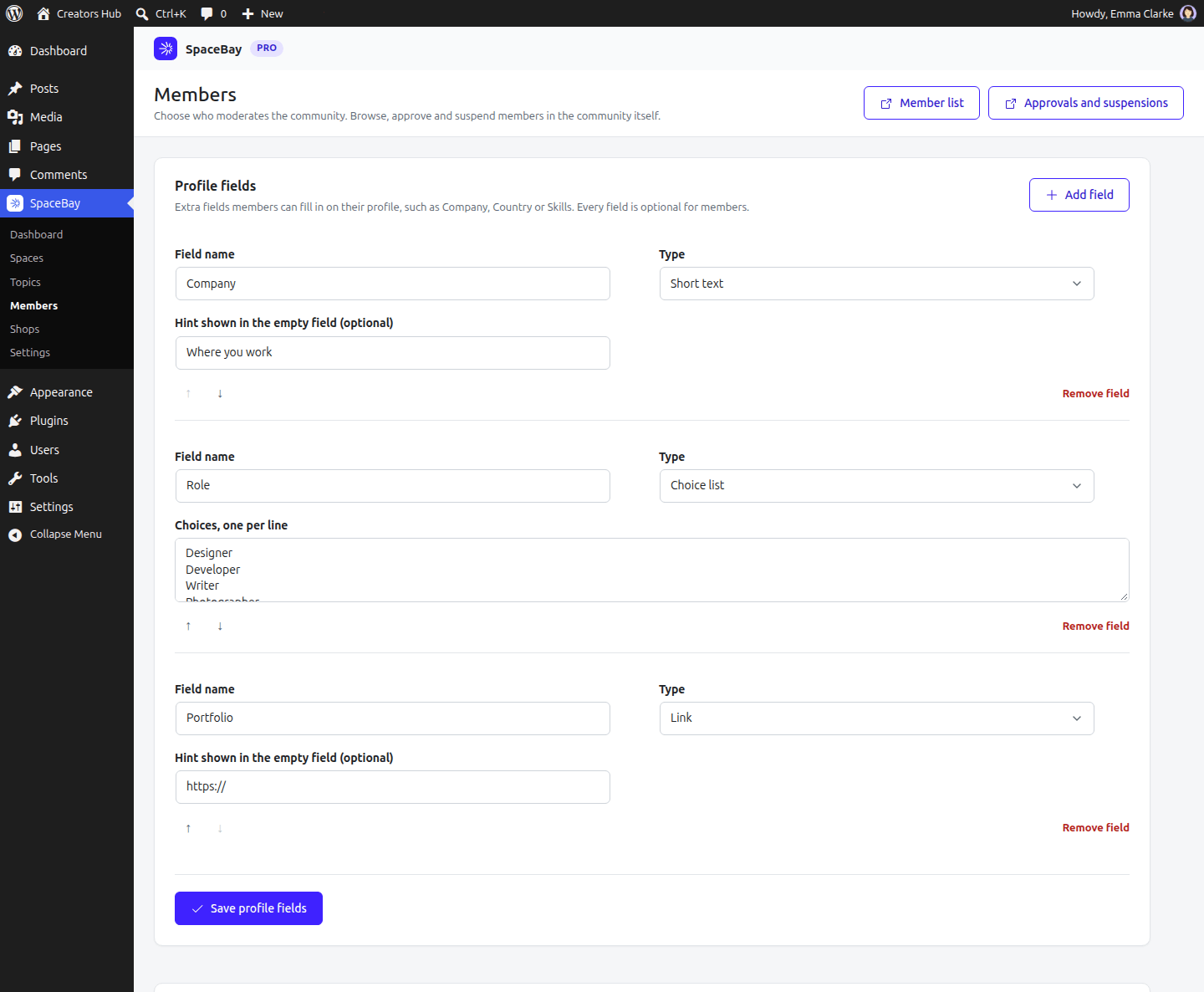 *SpaceBay → Members → Profile fields.*
| Type | Members see |
| --- | --- |
| Short text | A one-line text box, up to 200 characters. |
| Long text | A text area, up to 1000 characters. |
| Link | A web address, shown as a link on the profile. |
| Choice list | A drop-down with the choices you enter, one per line. |
Removing a field hides it everywhere. Answers members already gave are kept, so adding the field back with the same name brings them back.
Without Pro, custom fields are not shown on profiles or the signup form, and the **Members** admin page shows only [Community moderators](/spacebay/user-guide/member-approval-and-moderators/#community-moderators). The fields and answers are kept.
## Event place limits and reminders
URL: https://docs.wpanchorbay.com/spacebay/pro/event-limits-and-reminders/
Description: Limit the number of places in an event, and send reminders before it starts.
## Place limits Pro
:::tip[SpaceBay Pro]
This feature is part of SpaceBay Pro. See [Licence and activation](/spacebay/pro/licence-and-activation/).
:::
With Pro, an event can have a number of places. The event shows how many places are left, and when all places are taken the event is full: members can no longer answer going, but can still answer maybe. In an event with a place limit, the online link is shown only to members who answered going and to the people who manage the event.
## Reminders Pro
:::tip[SpaceBay Pro]
This feature is part of SpaceBay Pro. See [Licence and activation](/spacebay/pro/licence-and-activation/).
:::
With Pro, members who answered going or maybe get a reminder before an event starts. Choose 1 hour, 3 hours, 1 day, 2 days or 1 week, or no reminders, under **Settings → Events** (24 hours by default). Reminders are sent by WP-Cron once an hour. On sites with little traffic, set up a real cron job for `wp-cron.php`.
## Licence and activation
URL: https://docs.wpanchorbay.com/spacebay/pro/licence-and-activation/
Description: How to get, install, activate and update SpaceBay Pro. Pro has no licence key.
:::note
SpaceBay Pro has **no licence key** to enter. Install the zip and activate the plugin.
:::
## Getting Pro
Buy SpaceBay Pro at [wpanchorbay.com/plugins/spacebay](https://wpanchorbay.com/plugins/spacebay/) and download **spacebay-pro.zip** from your account. Pro is an add-on: it needs the free SpaceBay plugin installed and active, and WordPress 6.5 or newer. Pro has no licence key. SpaceBay is also sold on CodeCanyon as a bundle with both plugins.
## Install and activate
1. Install and activate the free SpaceBay plugin first.
2. Download **spacebay-pro.zip** from your wpanchorbay.com account.
3. Go to **Plugins → Add New Plugin → Upload Plugin**, choose the zip, click **Install Now**, then **Activate**.
Bought on CodeCanyon? Both zips are in your download. See [Installation](/spacebay/getting-started/installation/).
## Updates
Pro has no licence check and no updater of its own yet, so WordPress does not offer Pro updates on its own (CodeCanyon buyers can use Envato Market, see below). The plugin header points at wpanchorbay.com/plugins/spacebay, which also keeps WordPress.org from offering updates for it. To update it:
1. Download the new **spacebay-pro.zip** from your wpanchorbay.com account.
2. Go to **Plugins → Add New Plugin → Upload Plugin**, choose the zip and click **Install Now**.
3. Confirm **Replace current with uploaded**.
## CodeCanyon updates
CodeCanyon buyers can keep using the free Envato Market plugin for updates:
1. Download and install the Envato Market plugin from [envato.com/lp/market-plugin](https://www.envato.com/lp/market-plugin/).
2. Create a personal token at [build.envato.com/create-token](https://build.envato.com/create-token/) with the default permissions.
3. Paste the token in **Envato Market** in your WordPress admin and save.
4. New versions now appear on **Dashboard → Updates**.
You can also download the latest zips from your CodeCanyon Downloads page and upload each one with **Replace current with uploaded**.
Your community data is kept during updates. SpaceBay Pro 1.0.0 needs SpaceBay 1.0.0 or newer.
## Manual badges and points
URL: https://docs.wpanchorbay.com/spacebay/pro/manual-badges-and-points/
Description: Give or take away badges, and add or take away points, by hand from a member's profile.
Admins and community moderators open a member's profile and select **Give a badge** to give or take away any badge. Community managers (administrators) can also add or take away points with a note, for example for a great answer or to clean up spam. Nobody can give badges or points to themselves.
## Member shops
URL: https://docs.wpanchorbay.com/spacebay/pro/member-shops/
Description: Let members open a shop on their profile and list products that link to their own store. SpaceBay never takes payments.
Members can open a shop on their profile and show what they make or sell. Every product has a name, an optional price, up to four photos, a description and a link to the page where people buy it: their own online store, a marketplace page or a social page. The button on the product opens that page in a new tab. **SpaceBay never takes payments** and has no cart or checkout.
*SpaceBay → Members → Profile fields.*
| Type | Members see |
| --- | --- |
| Short text | A one-line text box, up to 200 characters. |
| Long text | A text area, up to 1000 characters. |
| Link | A web address, shown as a link on the profile. |
| Choice list | A drop-down with the choices you enter, one per line. |
Removing a field hides it everywhere. Answers members already gave are kept, so adding the field back with the same name brings them back.
Without Pro, custom fields are not shown on profiles or the signup form, and the **Members** admin page shows only [Community moderators](/spacebay/user-guide/member-approval-and-moderators/#community-moderators). The fields and answers are kept.
## Event place limits and reminders
URL: https://docs.wpanchorbay.com/spacebay/pro/event-limits-and-reminders/
Description: Limit the number of places in an event, and send reminders before it starts.
## Place limits Pro
:::tip[SpaceBay Pro]
This feature is part of SpaceBay Pro. See [Licence and activation](/spacebay/pro/licence-and-activation/).
:::
With Pro, an event can have a number of places. The event shows how many places are left, and when all places are taken the event is full: members can no longer answer going, but can still answer maybe. In an event with a place limit, the online link is shown only to members who answered going and to the people who manage the event.
## Reminders Pro
:::tip[SpaceBay Pro]
This feature is part of SpaceBay Pro. See [Licence and activation](/spacebay/pro/licence-and-activation/).
:::
With Pro, members who answered going or maybe get a reminder before an event starts. Choose 1 hour, 3 hours, 1 day, 2 days or 1 week, or no reminders, under **Settings → Events** (24 hours by default). Reminders are sent by WP-Cron once an hour. On sites with little traffic, set up a real cron job for `wp-cron.php`.
## Licence and activation
URL: https://docs.wpanchorbay.com/spacebay/pro/licence-and-activation/
Description: How to get, install, activate and update SpaceBay Pro. Pro has no licence key.
:::note
SpaceBay Pro has **no licence key** to enter. Install the zip and activate the plugin.
:::
## Getting Pro
Buy SpaceBay Pro at [wpanchorbay.com/plugins/spacebay](https://wpanchorbay.com/plugins/spacebay/) and download **spacebay-pro.zip** from your account. Pro is an add-on: it needs the free SpaceBay plugin installed and active, and WordPress 6.5 or newer. Pro has no licence key. SpaceBay is also sold on CodeCanyon as a bundle with both plugins.
## Install and activate
1. Install and activate the free SpaceBay plugin first.
2. Download **spacebay-pro.zip** from your wpanchorbay.com account.
3. Go to **Plugins → Add New Plugin → Upload Plugin**, choose the zip, click **Install Now**, then **Activate**.
Bought on CodeCanyon? Both zips are in your download. See [Installation](/spacebay/getting-started/installation/).
## Updates
Pro has no licence check and no updater of its own yet, so WordPress does not offer Pro updates on its own (CodeCanyon buyers can use Envato Market, see below). The plugin header points at wpanchorbay.com/plugins/spacebay, which also keeps WordPress.org from offering updates for it. To update it:
1. Download the new **spacebay-pro.zip** from your wpanchorbay.com account.
2. Go to **Plugins → Add New Plugin → Upload Plugin**, choose the zip and click **Install Now**.
3. Confirm **Replace current with uploaded**.
## CodeCanyon updates
CodeCanyon buyers can keep using the free Envato Market plugin for updates:
1. Download and install the Envato Market plugin from [envato.com/lp/market-plugin](https://www.envato.com/lp/market-plugin/).
2. Create a personal token at [build.envato.com/create-token](https://build.envato.com/create-token/) with the default permissions.
3. Paste the token in **Envato Market** in your WordPress admin and save.
4. New versions now appear on **Dashboard → Updates**.
You can also download the latest zips from your CodeCanyon Downloads page and upload each one with **Replace current with uploaded**.
Your community data is kept during updates. SpaceBay Pro 1.0.0 needs SpaceBay 1.0.0 or newer.
## Manual badges and points
URL: https://docs.wpanchorbay.com/spacebay/pro/manual-badges-and-points/
Description: Give or take away badges, and add or take away points, by hand from a member's profile.
Admins and community moderators open a member's profile and select **Give a badge** to give or take away any badge. Community managers (administrators) can also add or take away points with a note, for example for a great answer or to clean up spam. Nobody can give badges or points to themselves.
## Member shops
URL: https://docs.wpanchorbay.com/spacebay/pro/member-shops/
Description: Let members open a shop on their profile and list products that link to their own store. SpaceBay never takes payments.
Members can open a shop on their profile and show what they make or sell. Every product has a name, an optional price, up to four photos, a description and a link to the page where people buy it: their own online store, a marketplace page or a social page. The button on the product opens that page in a new tab. **SpaceBay never takes payments** and has no cart or checkout.
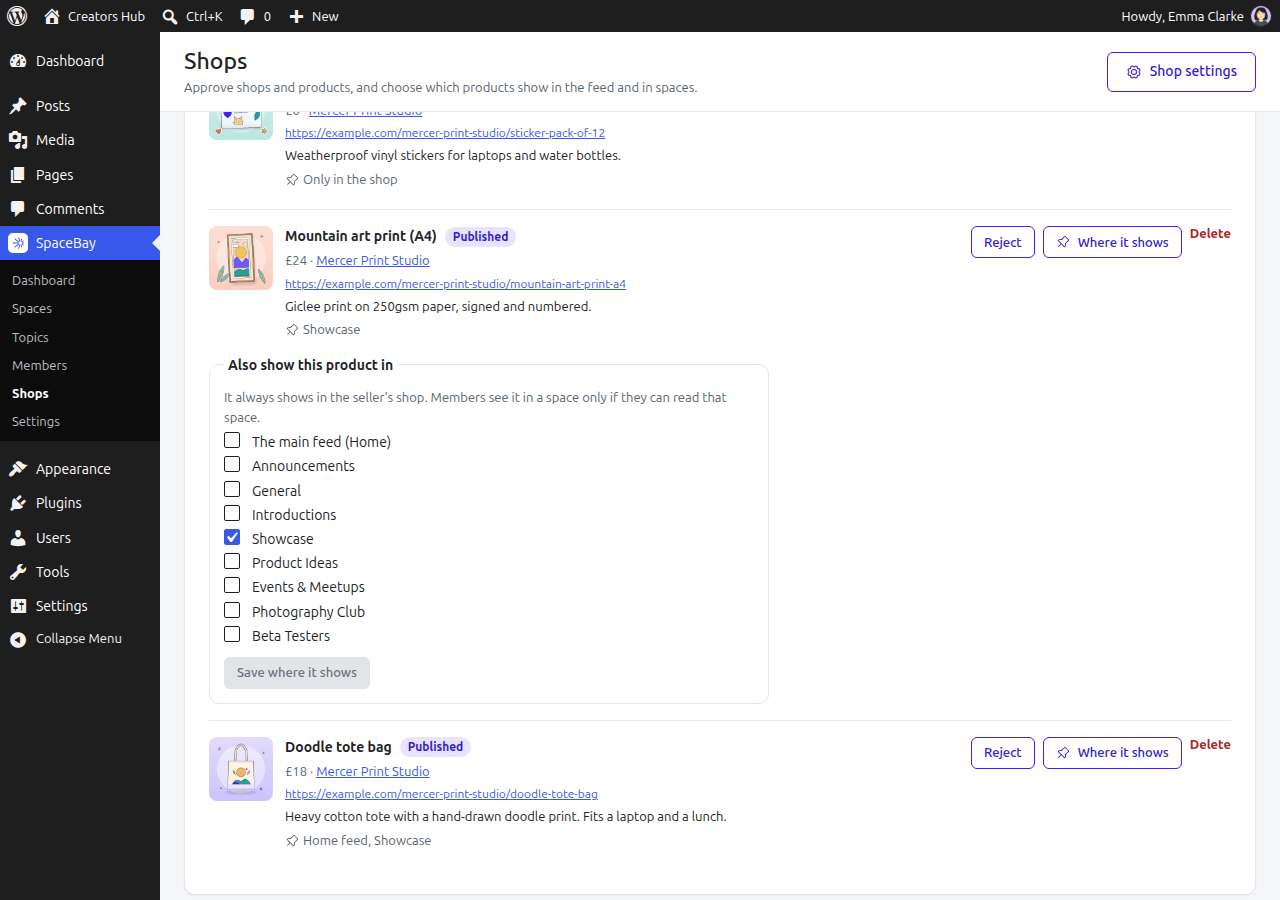 *SpaceBay → Shops, All products, with “Where it shows” open.*
## Closing a shop
On the **Sellers** tab, **Close shop** hides every product of that shop. The seller sees your reason and can still delete their products. **Open shop again** brings everything back. Products of suspended members and of members with a hidden profile are also hidden.
## The Shop page
With **Shop page** on, the community menu has a **Shop** link with every published product and a search. Each product has its own link (for example `/community/shop?product=12`) to share.
*SpaceBay → Shops, All products, with “Where it shows” open.*
## Closing a shop
On the **Sellers** tab, **Close shop** hides every product of that shop. The seller sees your reason and can still delete their products. **Open shop again** brings everything back. Products of suspended members and of members with a hidden profile are also hidden.
## The Shop page
With **Shop page** on, the community menu has a **Shop** link with every published product and a search. Each product has its own link (for example `/community/shop?product=12`) to share.
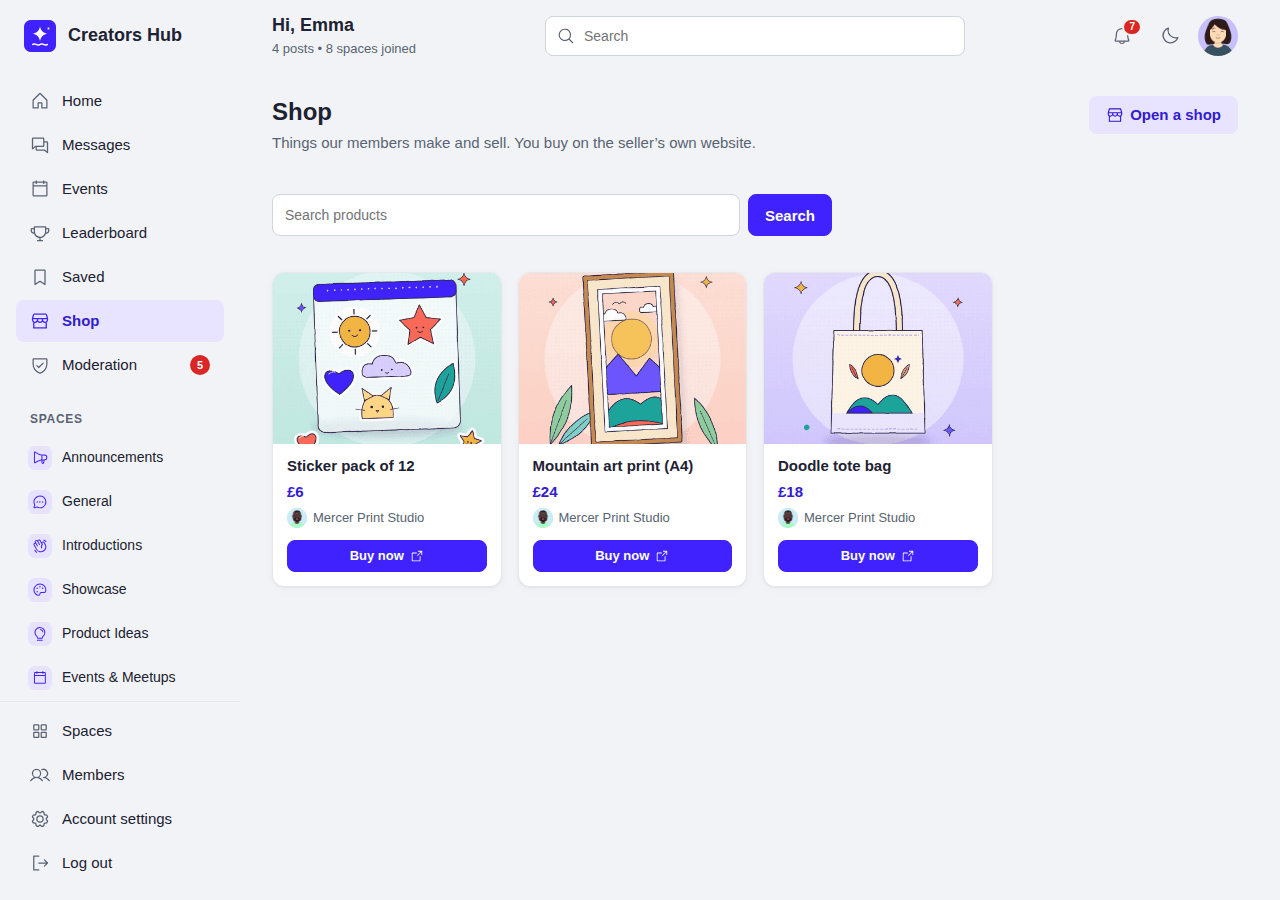 *The Shop page.*
**Privacy.** Shops and products are part of the WordPress personal data export and erasure. Deleting a member deletes their shop, products and photos.
## SpaceBay Pro overview
URL: https://docs.wpanchorbay.com/spacebay/pro/overview/
Description: What SpaceBay Pro adds to the free plugin, a Free versus Pro table, and what happens without Pro.
SpaceBay Pro is an optional paid add-on. It adds calls, two-factor login, a signup form builder, custom profile fields, a badge editor, event place limits and reminders, and member shops.
SpaceBay is a free plugin on WordPress.org. **SpaceBay Pro** is a paid add-on. Everything not listed as Pro below is in the free plugin, with no limits on members, spaces, posts or events.
| Feature | Free | Pro |
| --- | --- | --- |
| Spaces and groups, feed, posts, comments, likes, saved posts, topics and hashtags, search | Yes | Yes |
| Profiles, member directory, notifications and emails | Yes | Yes |
| Private messages and group chats | Yes | Yes |
| Voice and video calls in chats | No | Yes |
| Community login, signup and password reset pages, members-only mode, limits on login attempts | Yes | Yes |
| Signup form with name, email address and password, and an optional “I agree to the terms” tick box | Yes | Yes |
| Signup form builder (choose fields, required fields and order) | No | Yes |
| Custom profile fields | No | Yes |
| Two-factor authentication (authenticator app, codes by email, backup codes) | No | Yes |
| Points, levels, leaderboard and points history | Yes | Yes |
| Nine ready-made badges, each one switchable | Yes | Yes |
| Badge editor (create and edit badges), the hand-given badges Founding member and Helper | No | Yes |
| Giving badges and adding or taking away points by hand | No | Yes |
| Events with going, maybe and can't go answers, calendar, My events, past events, Add to calendar, notifications for new, changed and cancelled events | Yes | Yes |
| Event place limits (“places left”, full events) | No | Yes |
| Event reminders before the start | No | Yes |
| Member shops: a Shop tab on profiles, products that link to the seller's own store, approval by admins, products in the feed and in spaces, a Shop page | No | Yes |
| Moderation, reports, blocked words, member approval and suspension, community moderators | Yes | Yes |
| Setup wizard, branding, light and dark mode, privacy tools, REST API, hooks, template overrides, WP-CLI sample content | Yes | Yes |
## Pro pages
- [Member shops](/spacebay/pro/member-shops/)
- [Voice and video calls](/spacebay/pro/voice-and-video-calls/)
- [Two-factor authentication](/spacebay/pro/two-factor-authentication/)
- [Signup form builder](/spacebay/pro/signup-form-builder/)
- [Custom profile fields](/spacebay/pro/custom-profile-fields/)
- [Badge editor](/spacebay/pro/badge-editor/)
- [Manual badges and points](/spacebay/pro/manual-badges-and-points/)
- [Event place limits and reminders](/spacebay/pro/event-limits-and-reminders/)
- [Licence and activation](/spacebay/pro/licence-and-activation/)
## Without Pro
When Pro is switched off or removed, the settings and data of its features are kept. Until Pro is active again these features are off: members log in with their password only, chats have no call buttons and the signup form shows the standard fields. Activate Pro and they come back as they were.
## Signup form builder
URL: https://docs.wpanchorbay.com/spacebay/pro/signup-form-builder/
Description: Choose the fields on the signup form, which are required and their order, with a live preview.
With Pro, **Settings → Login and signup** has a signup form builder.
*The Shop page.*
**Privacy.** Shops and products are part of the WordPress personal data export and erasure. Deleting a member deletes their shop, products and photos.
## SpaceBay Pro overview
URL: https://docs.wpanchorbay.com/spacebay/pro/overview/
Description: What SpaceBay Pro adds to the free plugin, a Free versus Pro table, and what happens without Pro.
SpaceBay Pro is an optional paid add-on. It adds calls, two-factor login, a signup form builder, custom profile fields, a badge editor, event place limits and reminders, and member shops.
SpaceBay is a free plugin on WordPress.org. **SpaceBay Pro** is a paid add-on. Everything not listed as Pro below is in the free plugin, with no limits on members, spaces, posts or events.
| Feature | Free | Pro |
| --- | --- | --- |
| Spaces and groups, feed, posts, comments, likes, saved posts, topics and hashtags, search | Yes | Yes |
| Profiles, member directory, notifications and emails | Yes | Yes |
| Private messages and group chats | Yes | Yes |
| Voice and video calls in chats | No | Yes |
| Community login, signup and password reset pages, members-only mode, limits on login attempts | Yes | Yes |
| Signup form with name, email address and password, and an optional “I agree to the terms” tick box | Yes | Yes |
| Signup form builder (choose fields, required fields and order) | No | Yes |
| Custom profile fields | No | Yes |
| Two-factor authentication (authenticator app, codes by email, backup codes) | No | Yes |
| Points, levels, leaderboard and points history | Yes | Yes |
| Nine ready-made badges, each one switchable | Yes | Yes |
| Badge editor (create and edit badges), the hand-given badges Founding member and Helper | No | Yes |
| Giving badges and adding or taking away points by hand | No | Yes |
| Events with going, maybe and can't go answers, calendar, My events, past events, Add to calendar, notifications for new, changed and cancelled events | Yes | Yes |
| Event place limits (“places left”, full events) | No | Yes |
| Event reminders before the start | No | Yes |
| Member shops: a Shop tab on profiles, products that link to the seller's own store, approval by admins, products in the feed and in spaces, a Shop page | No | Yes |
| Moderation, reports, blocked words, member approval and suspension, community moderators | Yes | Yes |
| Setup wizard, branding, light and dark mode, privacy tools, REST API, hooks, template overrides, WP-CLI sample content | Yes | Yes |
## Pro pages
- [Member shops](/spacebay/pro/member-shops/)
- [Voice and video calls](/spacebay/pro/voice-and-video-calls/)
- [Two-factor authentication](/spacebay/pro/two-factor-authentication/)
- [Signup form builder](/spacebay/pro/signup-form-builder/)
- [Custom profile fields](/spacebay/pro/custom-profile-fields/)
- [Badge editor](/spacebay/pro/badge-editor/)
- [Manual badges and points](/spacebay/pro/manual-badges-and-points/)
- [Event place limits and reminders](/spacebay/pro/event-limits-and-reminders/)
- [Licence and activation](/spacebay/pro/licence-and-activation/)
## Without Pro
When Pro is switched off or removed, the settings and data of its features are kept. Until Pro is active again these features are off: members log in with their password only, chats have no call buttons and the signup form shows the standard fields. Activate Pro and they come back as they were.
## Signup form builder
URL: https://docs.wpanchorbay.com/spacebay/pro/signup-form-builder/
Description: Choose the fields on the signup form, which are required and their order, with a live preview.
With Pro, **Settings → Login and signup** has a signup form builder.
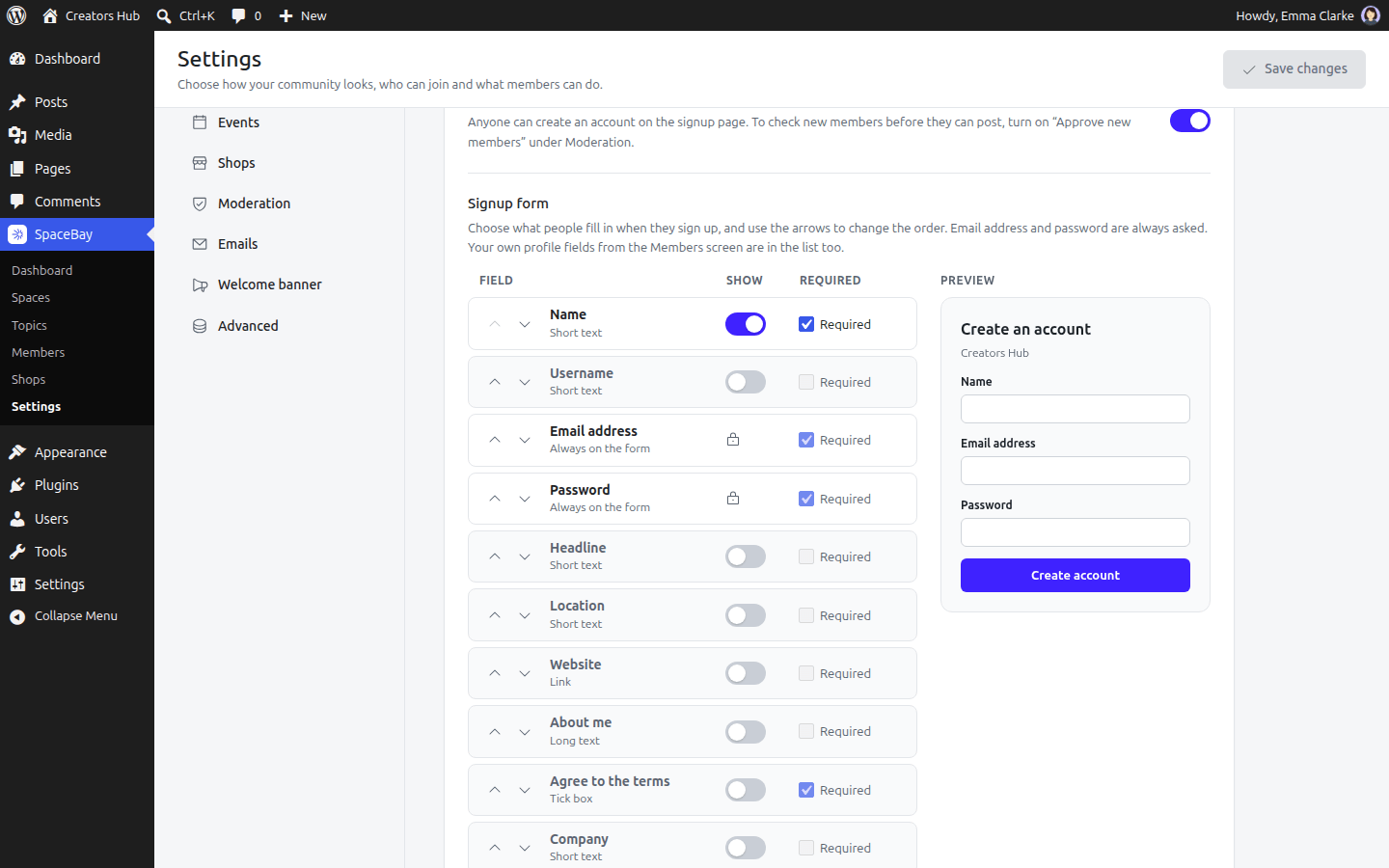 *Settings → Login and signup: the signup form builder with its preview.*
1. Use the **Show** switch to put a field on the form or take it off.
2. Tick **Required** when people must fill it in. Other fields are marked “(optional)” on the form.
3. Use the arrows to change the order. The **Preview** shows the form as visitors will see it.
4. Select **Save changes**.
- **Email address** and **Password** are always on the form.
- You can add **Name**, **Username**, **Headline**, **Location**, **Website**, **About me** and every [custom profile field](/spacebay/pro/custom-profile-fields/) you created. What people enter is saved on their profile.
- Without the Username field, the username is the name plus 4 random characters (for example `jane-doe-k3x9`).
- **Agree to the terms** adds the terms tick box. Enter the address of your terms under **Terms page** to link to them.
Without Pro, the form goes back to the standard fields. The fields you chose are kept for when Pro is active again.
## Two-factor authentication
URL: https://docs.wpanchorbay.com/spacebay/pro/two-factor-authentication/
Description: Ask for a 6-digit code after the password: authenticator app, codes by email and backup codes. Includes what to do when someone is locked out.
With two-factor authentication a password alone is not enough to log in. After the password, the member enters a 6-digit code. Choose the policy under **Settings → Login and signup**:
| Policy | What happens |
| --- | --- |
| Off | Members log in with their password only. This is the default. |
| Optional | Each member can turn it on under **Account settings → Password and security**. With **Require it for admins and moderators**, those accounts always need a code. |
| Required for everyone | Every member needs a code at each login. |
Members can get their code in two ways. You choose which ones are on offer:
- **Authenticator app.** The member scans a QR code once with an app such as Google Authenticator, Microsoft Authenticator or Authy (or types the key shown next to it). The app then shows a new code every 30 seconds. This is the safest way and needs no email.
- **Code by email.** A code is sent to the member's email address at each login. It works for 10 minutes. A new code can be requested after 30 seconds.
*Settings → Login and signup: the signup form builder with its preview.*
1. Use the **Show** switch to put a field on the form or take it off.
2. Tick **Required** when people must fill it in. Other fields are marked “(optional)” on the form.
3. Use the arrows to change the order. The **Preview** shows the form as visitors will see it.
4. Select **Save changes**.
- **Email address** and **Password** are always on the form.
- You can add **Name**, **Username**, **Headline**, **Location**, **Website**, **About me** and every [custom profile field](/spacebay/pro/custom-profile-fields/) you created. What people enter is saved on their profile.
- Without the Username field, the username is the name plus 4 random characters (for example `jane-doe-k3x9`).
- **Agree to the terms** adds the terms tick box. Enter the address of your terms under **Terms page** to link to them.
Without Pro, the form goes back to the standard fields. The fields you chose are kept for when Pro is active again.
## Two-factor authentication
URL: https://docs.wpanchorbay.com/spacebay/pro/two-factor-authentication/
Description: Ask for a 6-digit code after the password: authenticator app, codes by email and backup codes. Includes what to do when someone is locked out.
With two-factor authentication a password alone is not enough to log in. After the password, the member enters a 6-digit code. Choose the policy under **Settings → Login and signup**:
| Policy | What happens |
| --- | --- |
| Off | Members log in with their password only. This is the default. |
| Optional | Each member can turn it on under **Account settings → Password and security**. With **Require it for admins and moderators**, those accounts always need a code. |
| Required for everyone | Every member needs a code at each login. |
Members can get their code in two ways. You choose which ones are on offer:
- **Authenticator app.** The member scans a QR code once with an app such as Google Authenticator, Microsoft Authenticator or Authy (or types the key shown next to it). The app then shows a new code every 30 seconds. This is the safest way and needs no email.
- **Code by email.** A code is sent to the member's email address at each login. It works for 10 minutes. A new code can be requested after 30 seconds.
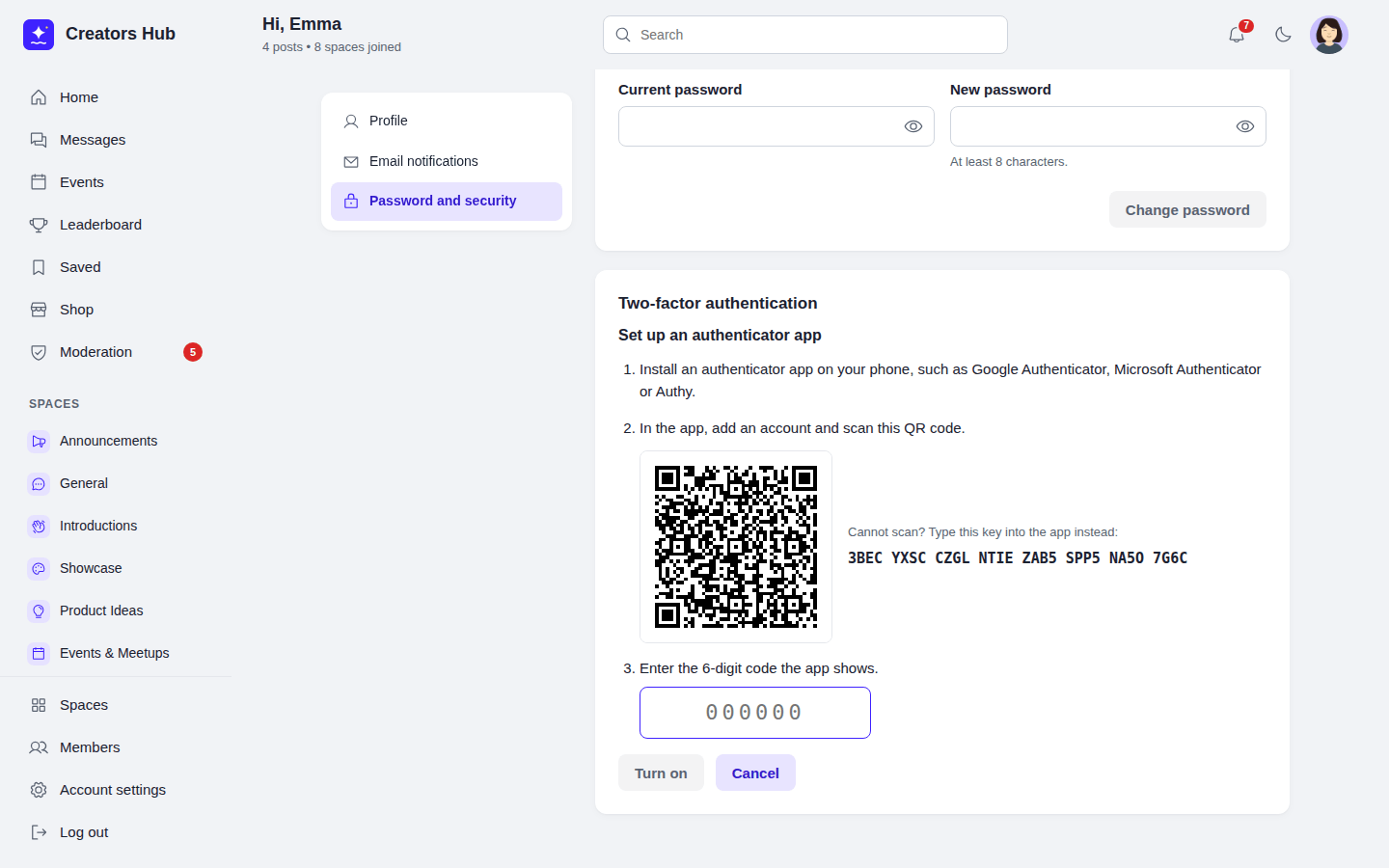 *A member sets up an authenticator app.*
- **Backup codes.** When a member turns two-factor authentication on, they get 10 backup codes to copy or download. Each works once at login, for example when their phone is lost. They can create new codes at any time.
- **Required members without an app.** When email codes are on offer, they get a code by email until they set up an app. With *Authenticator app only*, they see a “Protect your account” page (`/community/secure-account`) and must set up the app before they can use the community.
- **Changes need the password.** Turning it on or off and creating new backup codes ask for the current password. Turning it on logs out the member's other devices.
- **The WordPress login page is protected too.** A member with two-factor authentication who logs in on `wp-login.php` (or on a form of another plugin that uses the WordPress login) is sent to the code step before they are logged in. Password logins over XML-RPC are refused for these accounts; application passwords keep working for apps.
## When someone is locked out
- **A member lost their phone and backup codes:** go to **Users** in WordPress, point at the member and select **Reset two-factor**. They can log in with their password and set it up again. With WP-CLI: `wp spacebay two-factor reset
*A member sets up an authenticator app.*
- **Backup codes.** When a member turns two-factor authentication on, they get 10 backup codes to copy or download. Each works once at login, for example when their phone is lost. They can create new codes at any time.
- **Required members without an app.** When email codes are on offer, they get a code by email until they set up an app. With *Authenticator app only*, they see a “Protect your account” page (`/community/secure-account`) and must set up the app before they can use the community.
- **Changes need the password.** Turning it on or off and creating new backup codes ask for the current password. Turning it on logs out the member's other devices.
- **The WordPress login page is protected too.** A member with two-factor authentication who logs in on `wp-login.php` (or on a form of another plugin that uses the WordPress login) is sent to the code step before they are logged in. Password logins over XML-RPC are refused for these accounts; application passwords keep working for apps.
## When someone is locked out
- **A member lost their phone and backup codes:** go to **Users** in WordPress, point at the member and select **Reset two-factor**. They can log in with their password and set it up again. With WP-CLI: `wp spacebay two-factor reset `define( 'SPACEBAY_DISABLE_TWO_FACTOR', true );` **Before you require codes by email,** check that emails from your site arrive: log out and use *Forgot your password?*. An SMTP plugin makes delivery reliable. Good to know: - Two-factor authentication needs the community login pages. When you turn those off, it is switched off as well. - If you change the security keys (salts) in `wp-config.php`, authenticator apps have to be set up again, because their keys are stored encrypted with those salts. - On a network of sites the policy is set per site. Someone who logs in on another site of the network where no code is required is logged in on every site, so use the same policy on each site. - Plugins that log people in without the WordPress login form (some social login plugins) are not covered by the code step. ## Voice and video calls URL: https://docs.wpanchorbay.com/spacebay/pro/voice-and-video-calls/ Description: Add voice and video calls to chats with SpaceBay Pro. Needs HTTPS. Calls go directly between browsers. Turn calls on under **Settings → Messages**. A phone and a camera button then appear at the top of each chat. The other people get a ringing call card wherever they are in the community; in group chats everyone is invited and can join. During a call members can mute, turn their camera off, make the call window smaller and keep browsing, or hang up. Finished and missed calls are noted in the chat. Things to know before turning calls on: - **HTTPS is required.** Browsers only allow the microphone and camera on secure sites. - **Sound and video go directly between browsers** (WebRTC). They never pass through your server, so calls do not use your hosting bandwidth. Your site only passes small connection messages while a call starts. - **Group calls work best for up to 4 people.** Every person sends their video to every other person. - **Some networks need a TURN server.** Most calls connect with the default STUN server alone, but strict office, school and some mobile networks block direct connections. Add a TURN server (from a provider such as Cloudflare, Twilio or Metered, or your own coturn server) under Settings so these calls connect too. Developers can hand out short-lived TURN credentials with the `spacebay_call_ice_servers` filter. - **Privacy.** In a direct connection the people in a call can see each other's network (IP) address. With a TURN server, calls can be relayed instead.
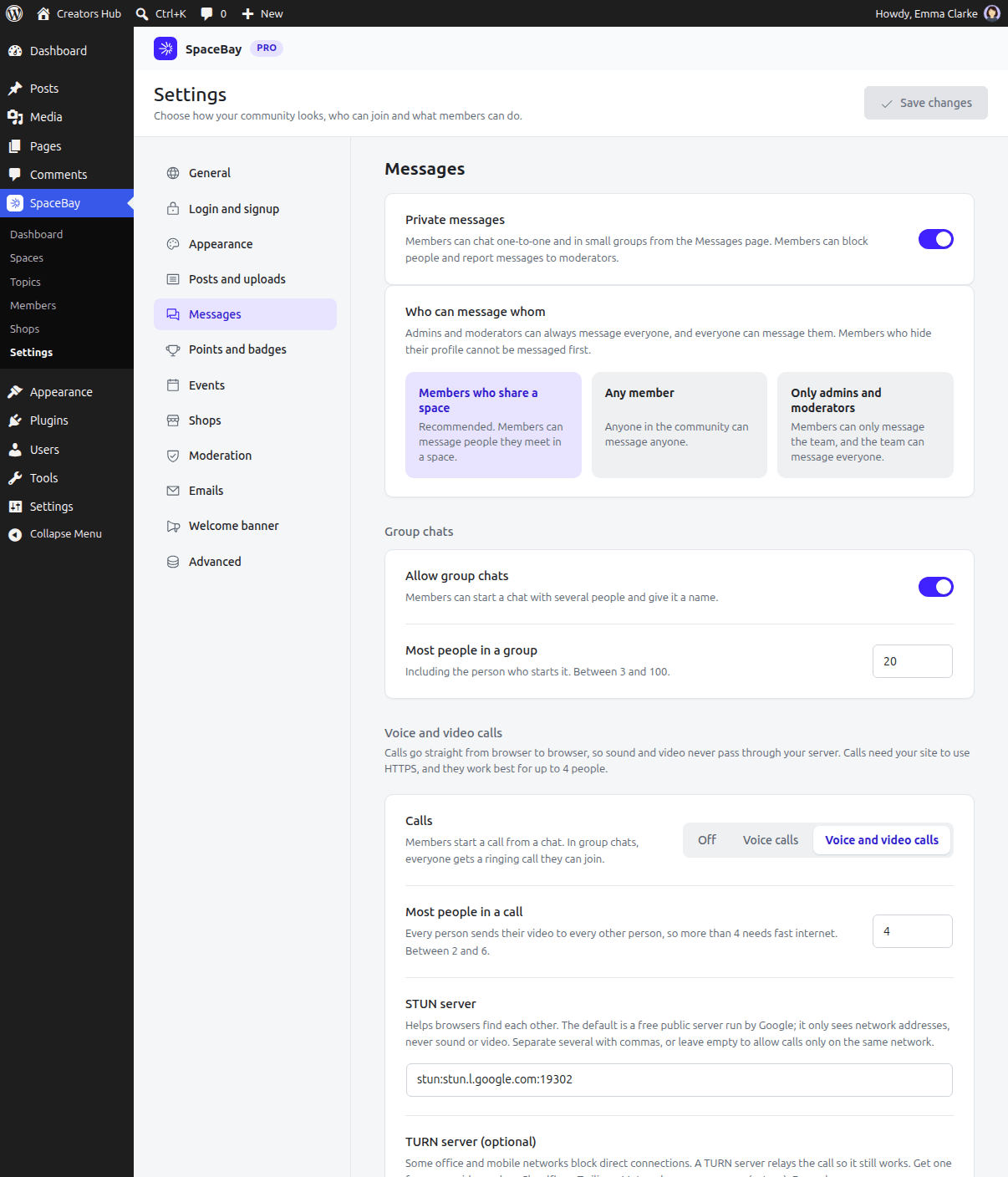 *Settings → Messages, with SpaceBay Pro active.*
## Trademarks
URL: https://docs.wpanchorbay.com/spacebay/trademarks/
Description: Trademark and copyright notice for the SpaceBay documentation: whose names, logos and icons appear here, and on what terms.
This documentation shows the names, logos and icons of companies, products and platforms. All of them are trademarks or registered trademarks of their respective owners, and every right in them stays with those owners.
They appear here for identification and reference only: to say which service a feature works with, or which assistant a page can be opened in. Their use does not imply any affiliation with, endorsement by, or sponsorship from the owners, and nothing here claims otherwise.
## Where the marks come from
Brand icons are taken from [Simple Icons](https://simpleicons.org/), a public collection of brand marks. Being listed in a collection does not change who owns a mark.
SpaceBay, SpaceBay Pro and WPAnchorBay are names of the authors of this documentation. Their logos, and the text and screenshots in these pages, are not licensed for reuse without permission.
## Marks used in this documentation
The lists below name the owners of the marks currently used, so you can see what is shown and credit it correctly. They are not a complete roll, and there could be more: a mark can appear in a page or a screenshot without being listed here. The same notice covers every one of them.
### AI assistants
Shown on the "Ask AI" icons on the home page and in the page tools menu, which open the assistant with the page as context.
- ChatGPT and OpenAI
- Claude and Anthropic
- Perplexity
- Grok and xAI
- Gemini and Google
- DeepSeek
- Qwen and Alibaba Cloud
- Mistral AI
### Platforms and services
Named where SpaceBay works with them.
- WordPress and the WordPress logo are trademarks of the WordPress Foundation. SpaceBay is a community plugin and is not endorsed by, or affiliated with, the WordPress Foundation.
- Google and Facebook, named for the login options they provide.
## Questions
If you own a mark shown here and want it credited differently or removed, write to [support@wpanchorbay.com](mailto:support@wpanchorbay.com).
## The community portal
URL: https://docs.wpanchorbay.com/spacebay/user-guide/community-portal/
Description: A tour of the SpaceBay community portal: three-column layout, header, bottom tab bar, dark mode, phones and page caching.
The portal is a fast single-page app. It works on phones, supports right-to-left languages and has a dark mode. The left column holds the navigation and the spaces list, the centre shows the feed or page, and a right rail shows short community cards. The header greets the member and shows search, notifications, the colour mode button and the account menu. On Home, logged-in members see their own activity: posts, comments, likes received and spaces joined.
*Settings → Messages, with SpaceBay Pro active.*
## Trademarks
URL: https://docs.wpanchorbay.com/spacebay/trademarks/
Description: Trademark and copyright notice for the SpaceBay documentation: whose names, logos and icons appear here, and on what terms.
This documentation shows the names, logos and icons of companies, products and platforms. All of them are trademarks or registered trademarks of their respective owners, and every right in them stays with those owners.
They appear here for identification and reference only: to say which service a feature works with, or which assistant a page can be opened in. Their use does not imply any affiliation with, endorsement by, or sponsorship from the owners, and nothing here claims otherwise.
## Where the marks come from
Brand icons are taken from [Simple Icons](https://simpleicons.org/), a public collection of brand marks. Being listed in a collection does not change who owns a mark.
SpaceBay, SpaceBay Pro and WPAnchorBay are names of the authors of this documentation. Their logos, and the text and screenshots in these pages, are not licensed for reuse without permission.
## Marks used in this documentation
The lists below name the owners of the marks currently used, so you can see what is shown and credit it correctly. They are not a complete roll, and there could be more: a mark can appear in a page or a screenshot without being listed here. The same notice covers every one of them.
### AI assistants
Shown on the "Ask AI" icons on the home page and in the page tools menu, which open the assistant with the page as context.
- ChatGPT and OpenAI
- Claude and Anthropic
- Perplexity
- Grok and xAI
- Gemini and Google
- DeepSeek
- Qwen and Alibaba Cloud
- Mistral AI
### Platforms and services
Named where SpaceBay works with them.
- WordPress and the WordPress logo are trademarks of the WordPress Foundation. SpaceBay is a community plugin and is not endorsed by, or affiliated with, the WordPress Foundation.
- Google and Facebook, named for the login options they provide.
## Questions
If you own a mark shown here and want it credited differently or removed, write to [support@wpanchorbay.com](mailto:support@wpanchorbay.com).
## The community portal
URL: https://docs.wpanchorbay.com/spacebay/user-guide/community-portal/
Description: A tour of the SpaceBay community portal: three-column layout, header, bottom tab bar, dark mode, phones and page caching.
The portal is a fast single-page app. It works on phones, supports right-to-left languages and has a dark mode. The left column holds the navigation and the spaces list, the centre shows the feed or page, and a right rail shows short community cards. The header greets the member and shows search, notifications, the colour mode button and the account menu. On Home, logged-in members see their own activity: posts, comments, likes received and spaces joined.
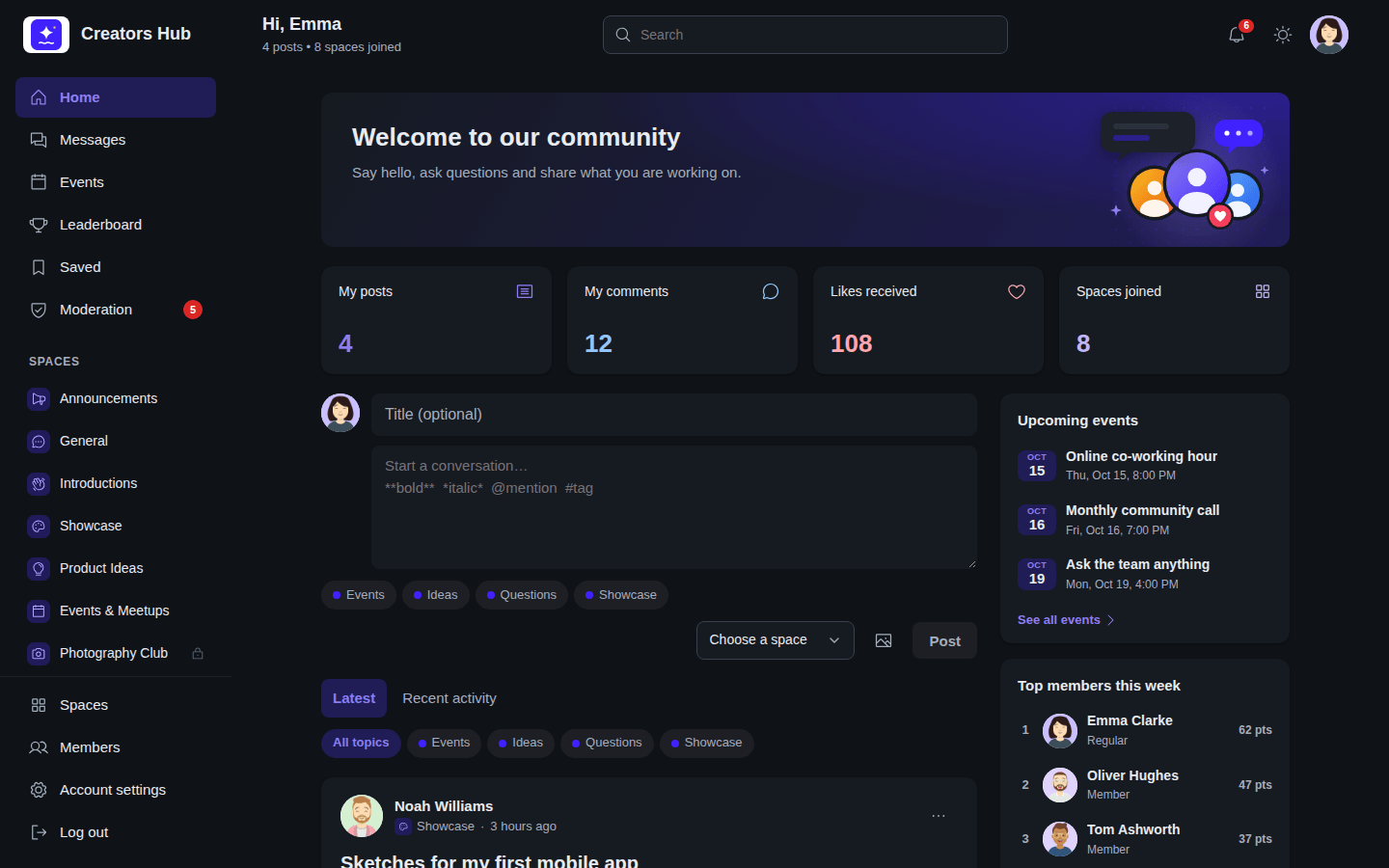 *Dark mode.*
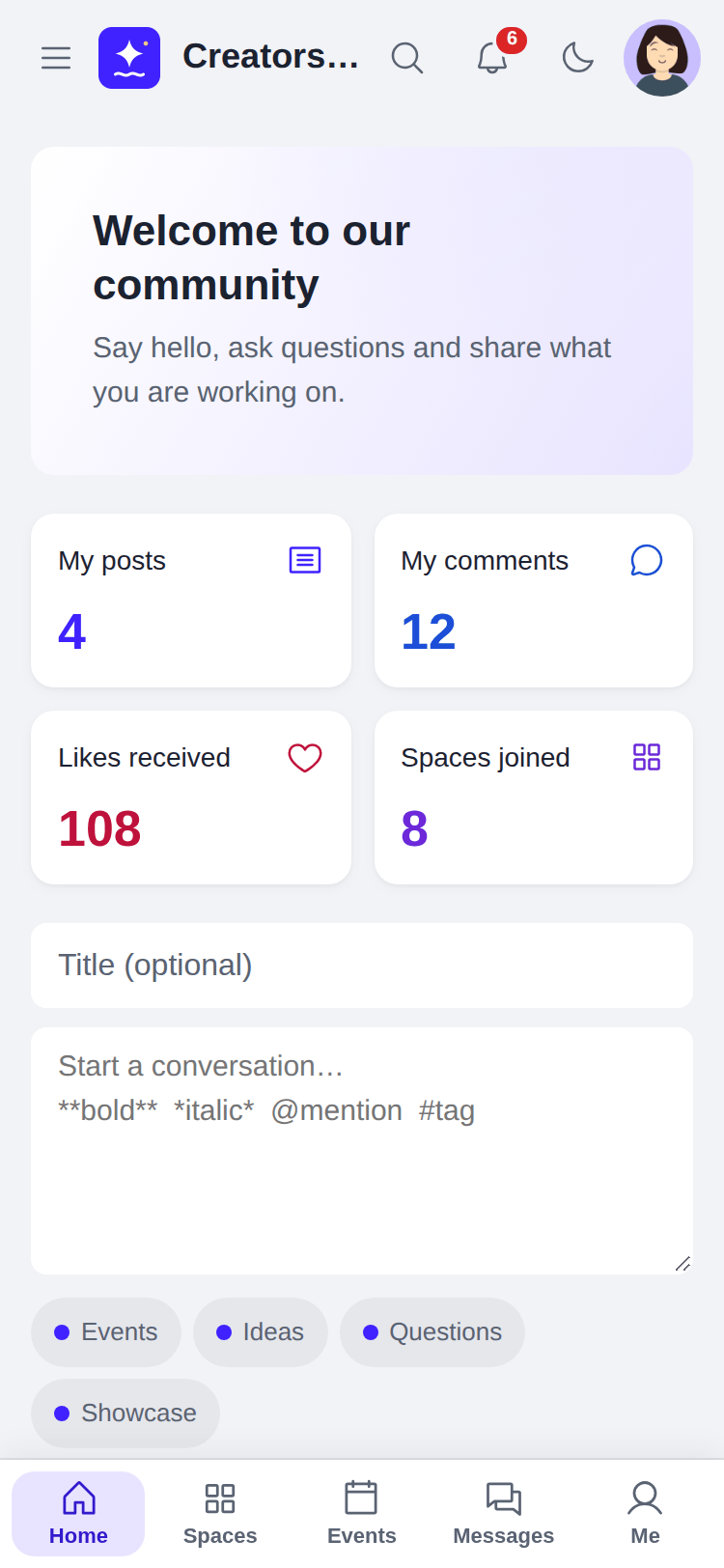 *The portal on a phone.*
:::note
Page-cache plugins: SpaceBay marks portal pages as not cacheable (`DONOTCACHEPAGE` and no-cache headers), so members always see their own data.
:::
## Where things are
On a computer screen the portal has three columns.
**Left: the navigation.**
- At the top: **Home**, **Messages** (for active members, when messages are on), **Events** (when events are on), **Leaderboard** (for active members, when the leaderboard is on) and **Saved** (for active members). Add-ons can add items here; SpaceBay Pro adds **Shop**. Moderators and administrators also see **Moderation**, with a count of items to review.
- In the middle, a scrolling list of your spaces under their group headings. Invitations come first, and a lock marks spaces that are not public.
- Pinned at the bottom, always in view: **Spaces**, **Members** (for active members, when the member directory is on) and, for logged-in members, **Account settings** and **Log out**.
**Centre: the feed or page.** On Home this is the post box and the feed. The header above it greets the member and shows search, notifications, the colour mode button and the account menu. Visitors who are not logged in see **Log in** and, when sign-up is open, **Join**.
**Right: the rail.** On Home it holds short cards that fill in after the page loads:
| Card | Logged-in members | Visitors who are not logged in |
| --- | --- | --- |
| Upcoming events | The next 3, with a **See all events** link. | The same, unless the community is members-only. |
| Top members this week | The top 5 with their points, and **See the leaderboard**. Only when the leaderboard is on. | Not shown. |
| New members | Up to 5 recent members, and **See all members**. Only when the member directory is on. | Not shown. |
| Your spaces | Up to 6 spaces you joined, or other spaces if you have joined none, and **Browse all spaces**. | Titled **Spaces**: up to 6 spaces, and **Browse all spaces**. |
A card with nothing to show is left out. On a space page the rail shows **About this space** (description, number of members, who can join and the date it was created) and the space's upcoming events. On the Events page it shows **Up next**. On medium-sized screens the rail moves below the feed, and on phones it is hidden on Home.
**On phones** the left column opens from the **Menu** button, and a tab bar at the bottom of the screen shows **Home**, **Spaces**, **Events** (when events are on), **Messages** (for active members, when messages are on) and **Me**. Visitors see **Log in** instead of **Me**. The bar slides out of the way while you type in a text box.
On **Home**, logged-in members also see their own activity: posts, comments, likes received and spaces joined.
## Events
URL: https://docs.wpanchorbay.com/spacebay/user-guide/events/
Description: Add events to spaces, answer going, maybe or can't go, add to your calendar, and get notified.
Events belong to a space. Every space gets an **Events** tab, and the **Events** page in the sidebar shows events from all spaces the member can read: **Upcoming**, a month **Calendar**, the events they are **Going** to and **Past** events. Home shows the next events in the side column.
*The portal on a phone.*
:::note
Page-cache plugins: SpaceBay marks portal pages as not cacheable (`DONOTCACHEPAGE` and no-cache headers), so members always see their own data.
:::
## Where things are
On a computer screen the portal has three columns.
**Left: the navigation.**
- At the top: **Home**, **Messages** (for active members, when messages are on), **Events** (when events are on), **Leaderboard** (for active members, when the leaderboard is on) and **Saved** (for active members). Add-ons can add items here; SpaceBay Pro adds **Shop**. Moderators and administrators also see **Moderation**, with a count of items to review.
- In the middle, a scrolling list of your spaces under their group headings. Invitations come first, and a lock marks spaces that are not public.
- Pinned at the bottom, always in view: **Spaces**, **Members** (for active members, when the member directory is on) and, for logged-in members, **Account settings** and **Log out**.
**Centre: the feed or page.** On Home this is the post box and the feed. The header above it greets the member and shows search, notifications, the colour mode button and the account menu. Visitors who are not logged in see **Log in** and, when sign-up is open, **Join**.
**Right: the rail.** On Home it holds short cards that fill in after the page loads:
| Card | Logged-in members | Visitors who are not logged in |
| --- | --- | --- |
| Upcoming events | The next 3, with a **See all events** link. | The same, unless the community is members-only. |
| Top members this week | The top 5 with their points, and **See the leaderboard**. Only when the leaderboard is on. | Not shown. |
| New members | Up to 5 recent members, and **See all members**. Only when the member directory is on. | Not shown. |
| Your spaces | Up to 6 spaces you joined, or other spaces if you have joined none, and **Browse all spaces**. | Titled **Spaces**: up to 6 spaces, and **Browse all spaces**. |
A card with nothing to show is left out. On a space page the rail shows **About this space** (description, number of members, who can join and the date it was created) and the space's upcoming events. On the Events page it shows **Up next**. On medium-sized screens the rail moves below the feed, and on phones it is hidden on Home.
**On phones** the left column opens from the **Menu** button, and a tab bar at the bottom of the screen shows **Home**, **Spaces**, **Events** (when events are on), **Messages** (for active members, when messages are on) and **Me**. Visitors see **Log in** instead of **Me**. The bar slides out of the way while you type in a text box.
On **Home**, logged-in members also see their own activity: posts, comments, likes received and spaces joined.
## Events
URL: https://docs.wpanchorbay.com/spacebay/user-guide/events/
Description: Add events to spaces, answer going, maybe or can't go, add to your calendar, and get notified.
Events belong to a space. Every space gets an **Events** tab, and the **Events** page in the sidebar shows events from all spaces the member can read: **Upcoming**, a month **Calendar**, the events they are **Going** to and **Past** events. Home shows the next events in the side column.
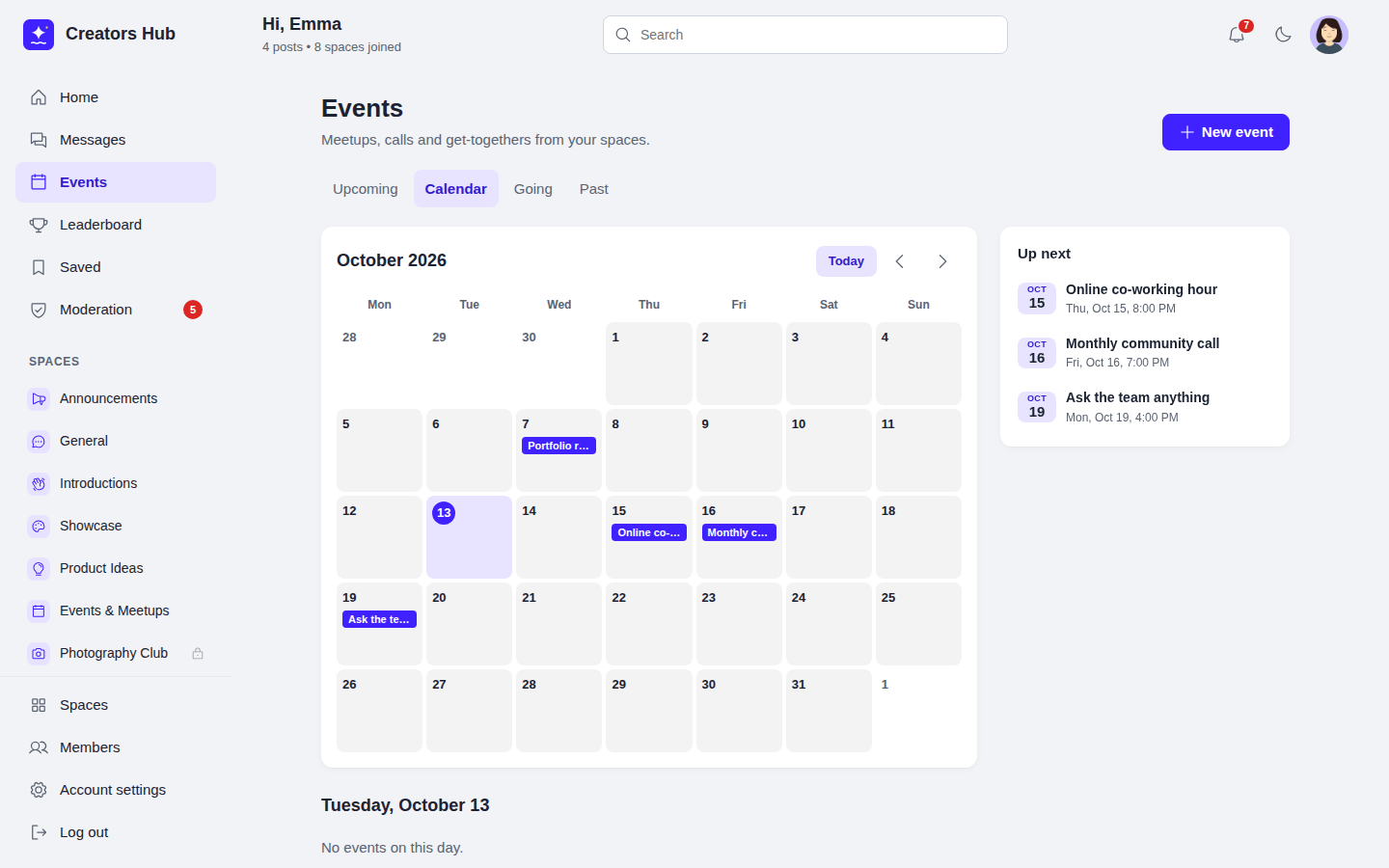 *Events → Calendar.*
- **Adding an event.** Space admins and moderators add events from the space's Events tab or the Events page with **New event**. Set *Who can add events* to let every member who can post in the space add events too. An event has a title, a description, a start and end time (shown to each member in their own time zone), online with a link or in person with an address. Events can last up to 14 days.
- **Answers.** Members of the space answer **Going**, **Maybe** or **Can't go**. The page shows who is going; hidden profiles are left out of that list.
- **Online link.** The meeting link is shown only to members who answered going or maybe, and to the people who manage the event.
- **Notifications.** Admins can tell all members of the space about a new event. Members who answered going or maybe are told when the time or place changes or the event is cancelled. Members choose the email for these in *Account settings → Email notifications*.
- **Add to calendar.** Every event has a **Calendar file (.ics)** for Apple Calendar, Outlook and others, and a **Google Calendar** link.
- **Change, cancel or delete.** The organizer and space moderators can change an event, cancel it (it stays visible as cancelled) or delete it.
*Events → Calendar.*
- **Adding an event.** Space admins and moderators add events from the space's Events tab or the Events page with **New event**. Set *Who can add events* to let every member who can post in the space add events too. An event has a title, a description, a start and end time (shown to each member in their own time zone), online with a link or in person with an address. Events can last up to 14 days.
- **Answers.** Members of the space answer **Going**, **Maybe** or **Can't go**. The page shows who is going; hidden profiles are left out of that list.
- **Online link.** The meeting link is shown only to members who answered going or maybe, and to the people who manage the event.
- **Notifications.** Admins can tell all members of the space about a new event. Members who answered going or maybe are told when the time or place changes or the event is cancelled. Members choose the email for these in *Account settings → Email notifications*.
- **Add to calendar.** Every event has a **Calendar file (.ics)** for Apple Calendar, Outlook and others, and a **Google Calendar** link.
- **Change, cancel or delete.** The organizer and space moderators can change an event, cancel it (it stays visible as cancelled) or delete it.
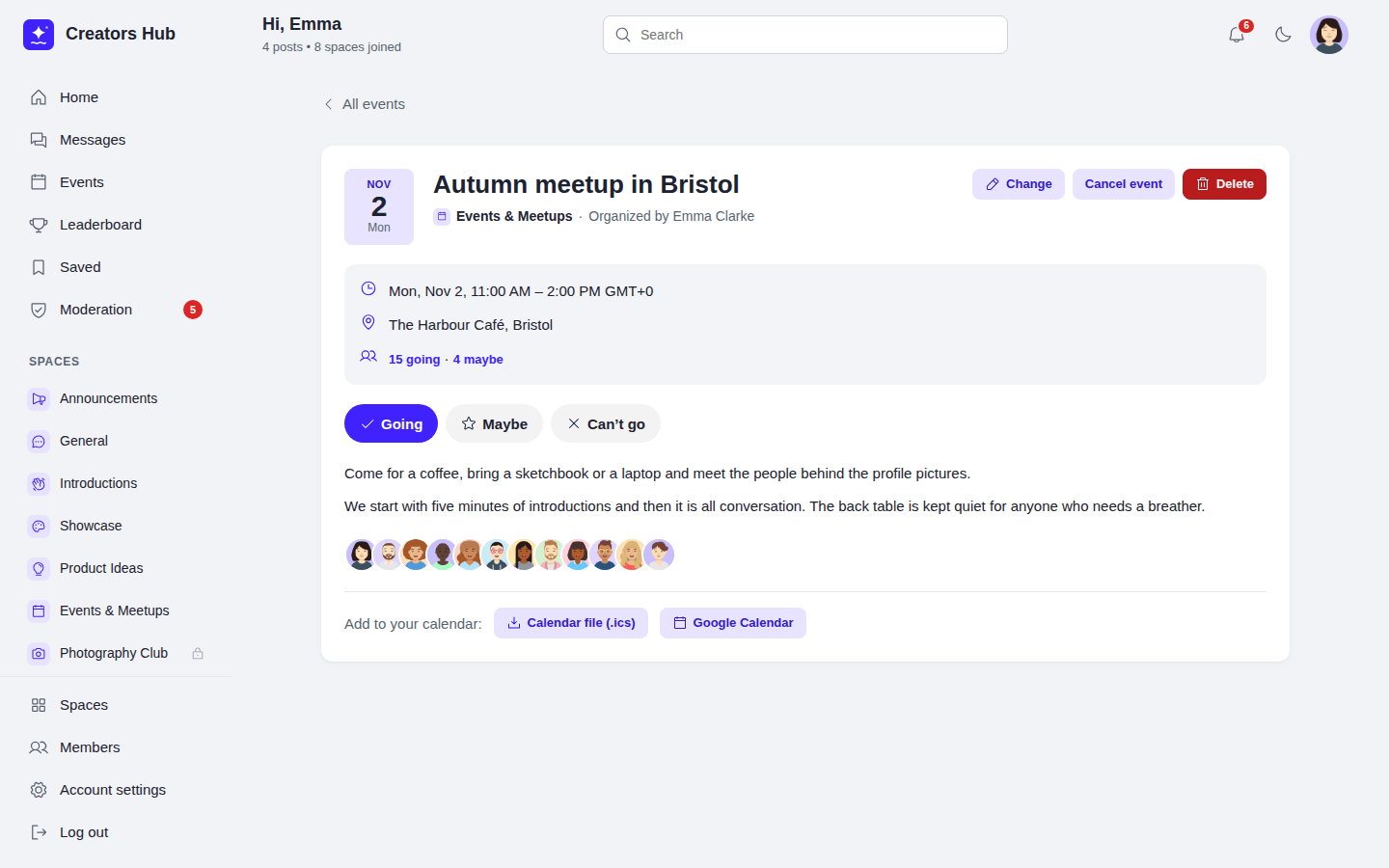 *An event, with going and maybe counts and Add to calendar.*
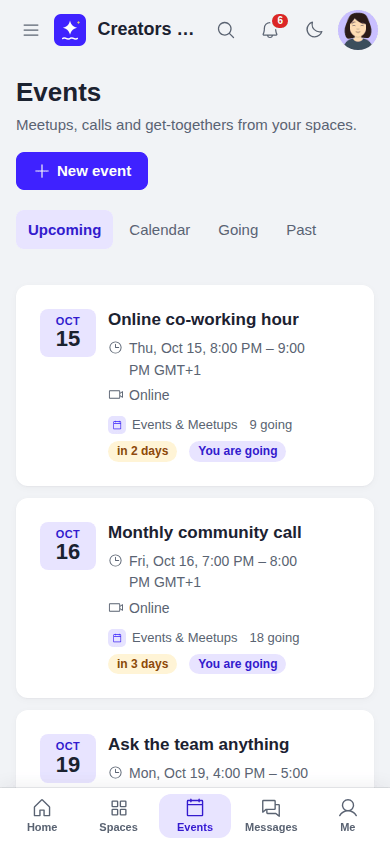 *Upcoming events on a phone.*
Place limits and reminders are part of SpaceBay Pro: see [Event place limits and reminders](/spacebay/pro/event-limits-and-reminders/).
## Feed and posts
URL: https://docs.wpanchorbay.com/spacebay/user-guide/feed-and-posts/
Description: How the home feed works, writing posts with images, topics and mentions, formatting, link previews, comments, likes, saved posts, topics and hashtags.
Members post in the spaces they belong to. The **Home** feed shows posts from every space the member can read, newest first; **Recent activity** puts posts with new comments first. Each space has its own feed on its **Posts** tab, where pinned posts stay at the top.
*Upcoming events on a phone.*
Place limits and reminders are part of SpaceBay Pro: see [Event place limits and reminders](/spacebay/pro/event-limits-and-reminders/).
## Feed and posts
URL: https://docs.wpanchorbay.com/spacebay/user-guide/feed-and-posts/
Description: How the home feed works, writing posts with images, topics and mentions, formatting, link previews, comments, likes, saved posts, topics and hashtags.
Members post in the spaces they belong to. The **Home** feed shows posts from every space the member can read, newest first; **Recent activity** puts posts with new comments first. Each space has its own feed on its **Posts** tab, where pinned posts stay at the top.
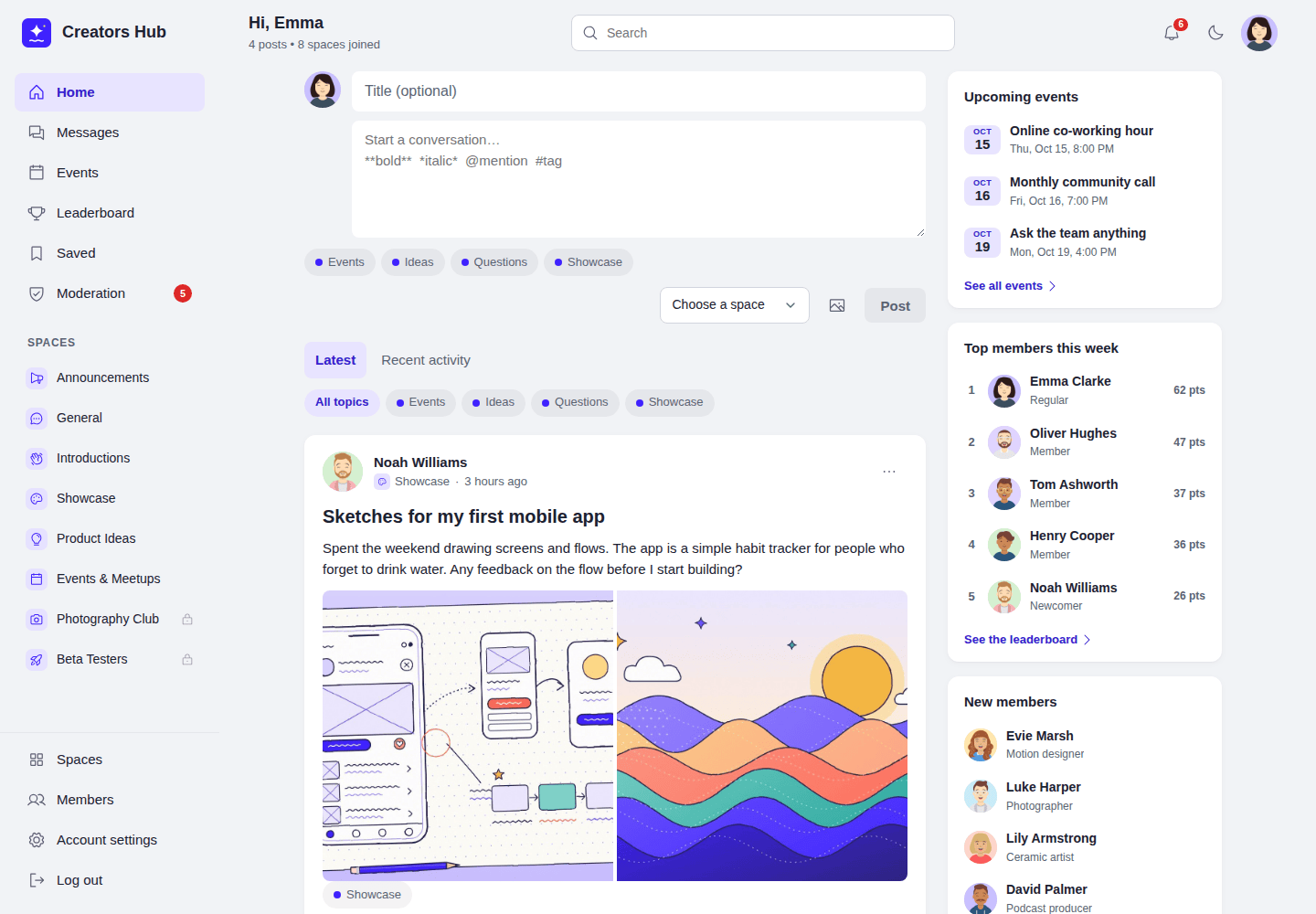 *The home feed.*
## Writing a post
- Click the post box, write, choose a space and press **Post**. Ctrl or Cmd + Enter also posts.
- The **Title (optional)** field is always shown above the text. Fill it in to give the post a heading, or leave it empty.
- The image button, next to **Post**, adds up to 10 JPG, PNG, GIF or WebP images. Large photos are resized and their hidden data, such as GPS location, is removed.
- Choose up to three topics.
- Type `@` and a name to mention a member.
*The home feed.*
## Writing a post
- Click the post box, write, choose a space and press **Post**. Ctrl or Cmd + Enter also posts.
- The **Title (optional)** field is always shown above the text. Fill it in to give the post a heading, or leave it empty.
- The image button, next to **Post**, adds up to 10 JPG, PNG, GIF or WebP images. Large photos are resized and their hidden data, such as GPS location, is removed.
- Choose up to three topics.
- Type `@` and a name to mention a member.
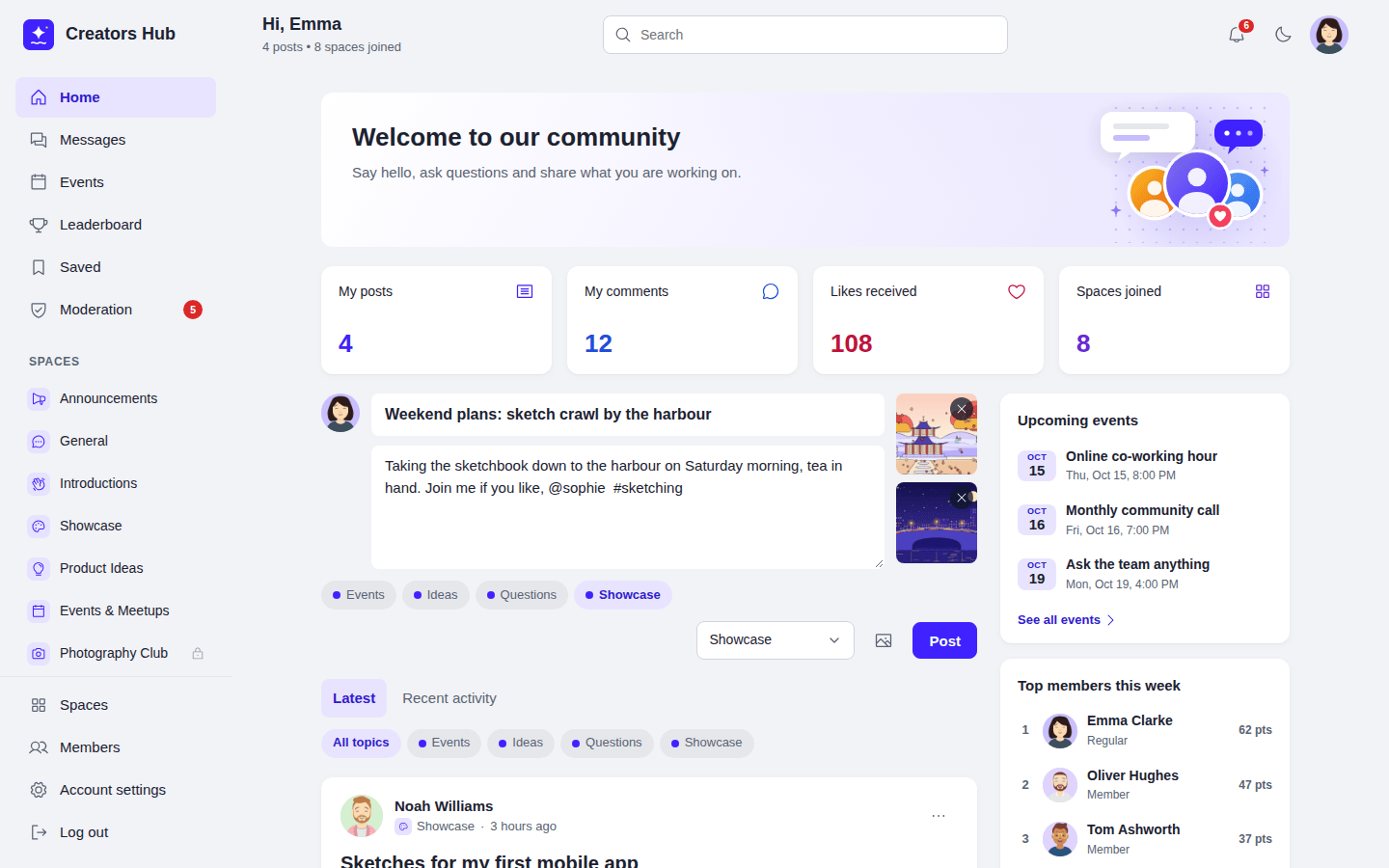 *The post box with images, topics and a mention.*
| Type | To get |
| --- | --- |
| `**bold**` | **bold** |
| `*italic*` or `_italic_` | *italic* |
| `` `code` `` | `code` |
| Lines starting with `- ` or `1. ` | A list |
| Lines starting with `> ` | A quote |
| `@name` | A mention linking to the member |
| `#word` | A hashtag |
| A web address | A link |
*The post box with images, topics and a mention.*
| Type | To get |
| --- | --- |
| `**bold**` | **bold** |
| `*italic*` or `_italic_` | *italic* |
| `` `code` `` | `code` |
| Lines starting with `- ` or `1. ` | A list |
| Lines starting with `> ` | A quote |
| `@name` | A mention linking to the member |
| `#word` | A hashtag |
| A web address | A link |
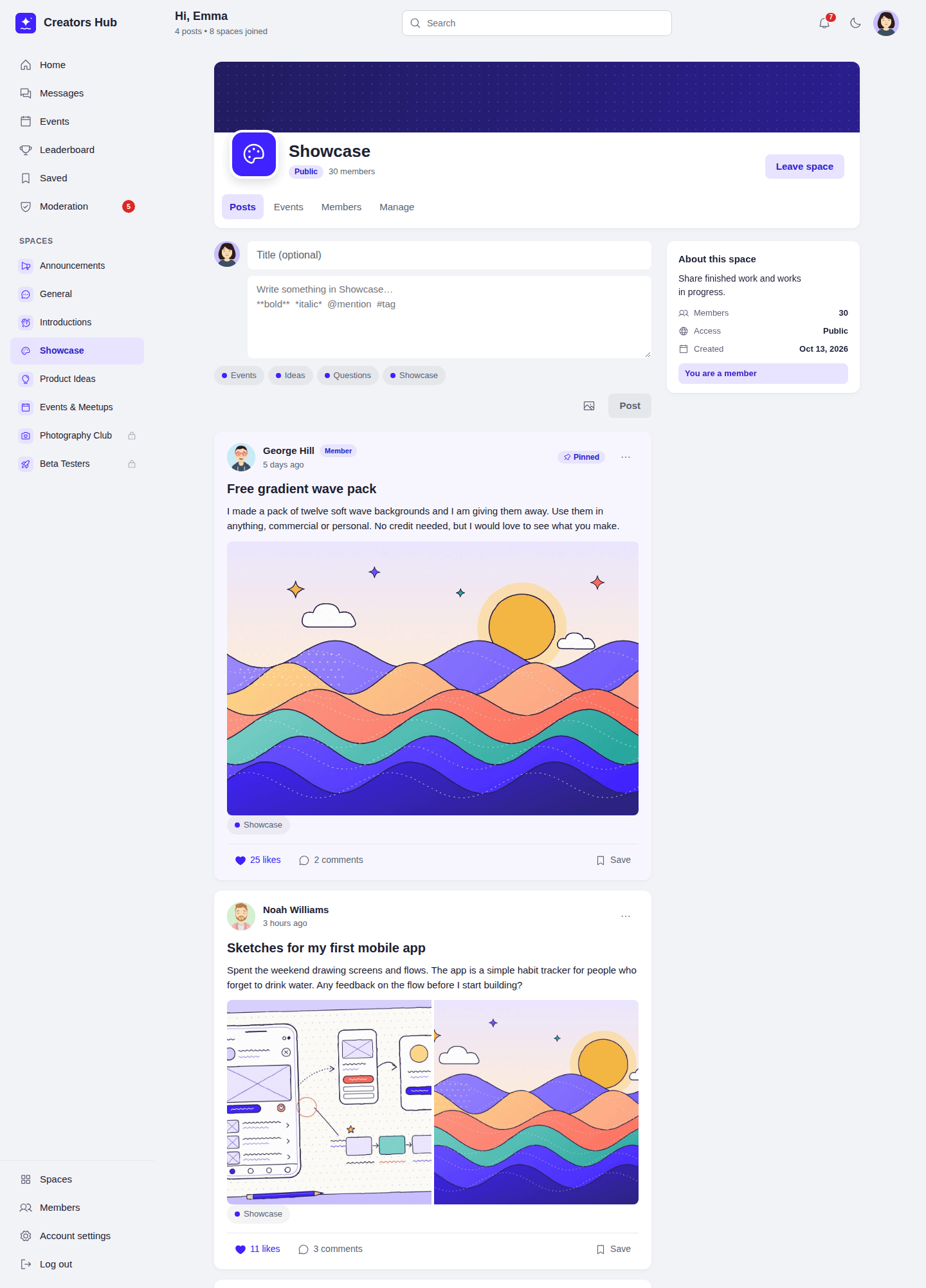 *A space feed with a pinned post.*
## Comments, likes and saved posts
Members of a space comment on its posts and reply to comments. Replies nest up to 5 levels deep, with a top-level comment counting as level 1. A reply to a comment on the last level appears next to that comment instead of below it. Developers can change the limit with the `spacebay_comment_max_depth` filter. Members can like posts and comments, and **Save** any post they can read; saved posts appear on the **Saved** page, which only they can see.
*A space feed with a pinned post.*
## Comments, likes and saved posts
Members of a space comment on its posts and reply to comments. Replies nest up to 5 levels deep, with a top-level comment counting as level 1. A reply to a comment on the last level appears next to that comment instead of below it. Developers can change the limit with the `spacebay_comment_max_depth` filter. Members can like posts and comments, and **Save** any post they can read; saved posts appear on the **Saved** page, which only they can see.
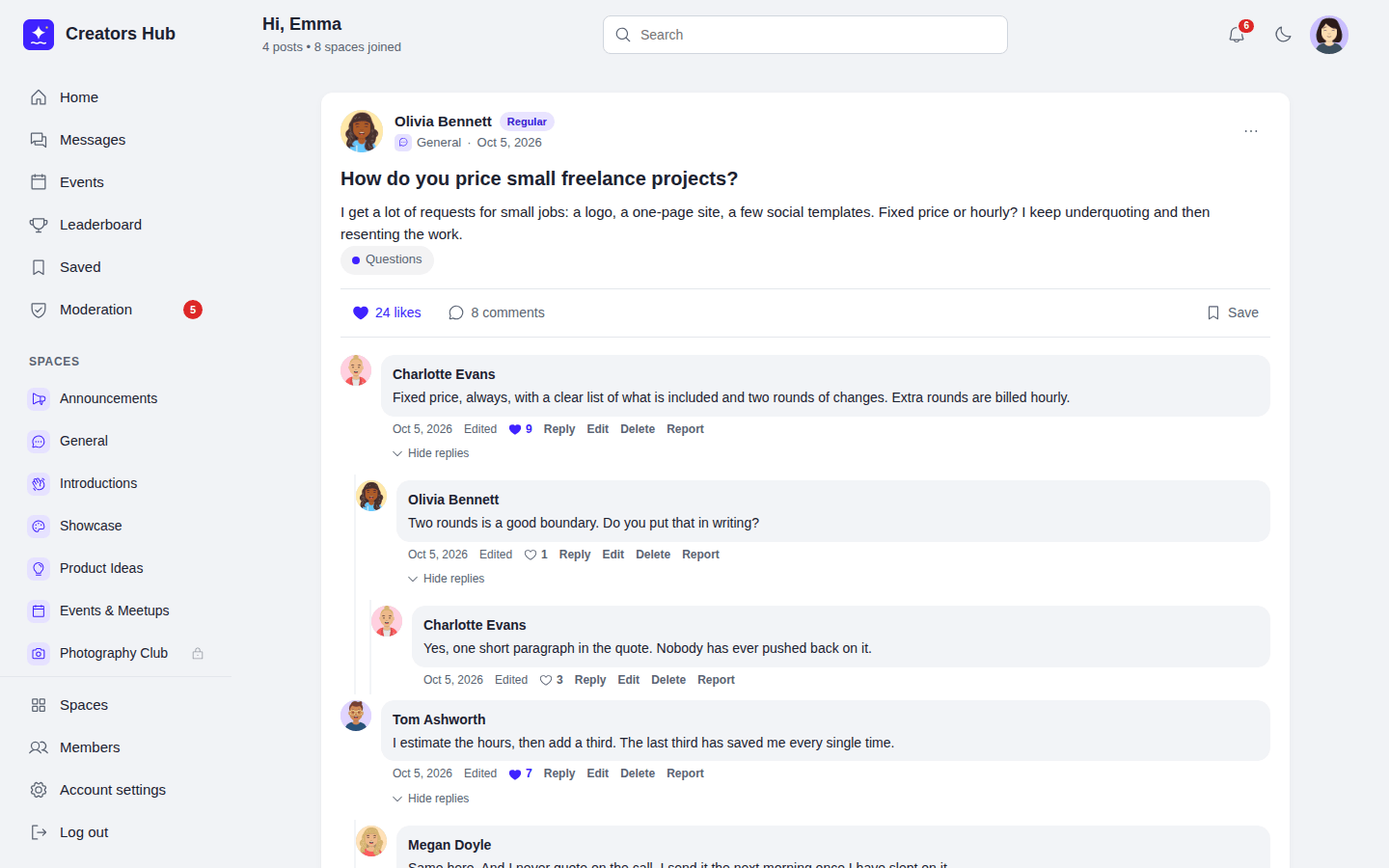 *Comments and nested replies.*
Authors can edit and delete their own comments. Space admins, moderators and WordPress administrators can edit and delete any comment in the space. What happens to the replies depends on who deletes:
- When a space admin, moderator or WordPress administrator deletes a comment, every reply below it is deleted too.
- When the author deletes their own comment, replies from other members are kept and move up to the deleted comment's parent, or to the top level if it had none. The author's own direct replies are deleted with the comment, and the replies to those move up as well.
- When a member's account is erased through the privacy tools, their comments are deleted the same way, so other members' replies stay.
To slow down spam, a member can publish 5 posts and 20 comments per minute. WordPress administrators are not limited. Developers can change the limits with the `spacebay_rate_limit` filter.
## Topics and hashtags
Create topics such as Questions, Ideas or Events in **SpaceBay → Topics**. Members add up to three topics to a post, and everyone can filter the home feed by topic. Hashtags are created automatically from `#words` in posts; clicking one shows every post with that hashtag.
*Comments and nested replies.*
Authors can edit and delete their own comments. Space admins, moderators and WordPress administrators can edit and delete any comment in the space. What happens to the replies depends on who deletes:
- When a space admin, moderator or WordPress administrator deletes a comment, every reply below it is deleted too.
- When the author deletes their own comment, replies from other members are kept and move up to the deleted comment's parent, or to the top level if it had none. The author's own direct replies are deleted with the comment, and the replies to those move up as well.
- When a member's account is erased through the privacy tools, their comments are deleted the same way, so other members' replies stay.
To slow down spam, a member can publish 5 posts and 20 comments per minute. WordPress administrators are not limited. Developers can change the limits with the `spacebay_rate_limit` filter.
## Topics and hashtags
Create topics such as Questions, Ideas or Events in **SpaceBay → Topics**. Members add up to three topics to a post, and everyone can filter the home feed by topic. Hashtags are created automatically from `#words` in posts; clicking one shows every post with that hashtag.
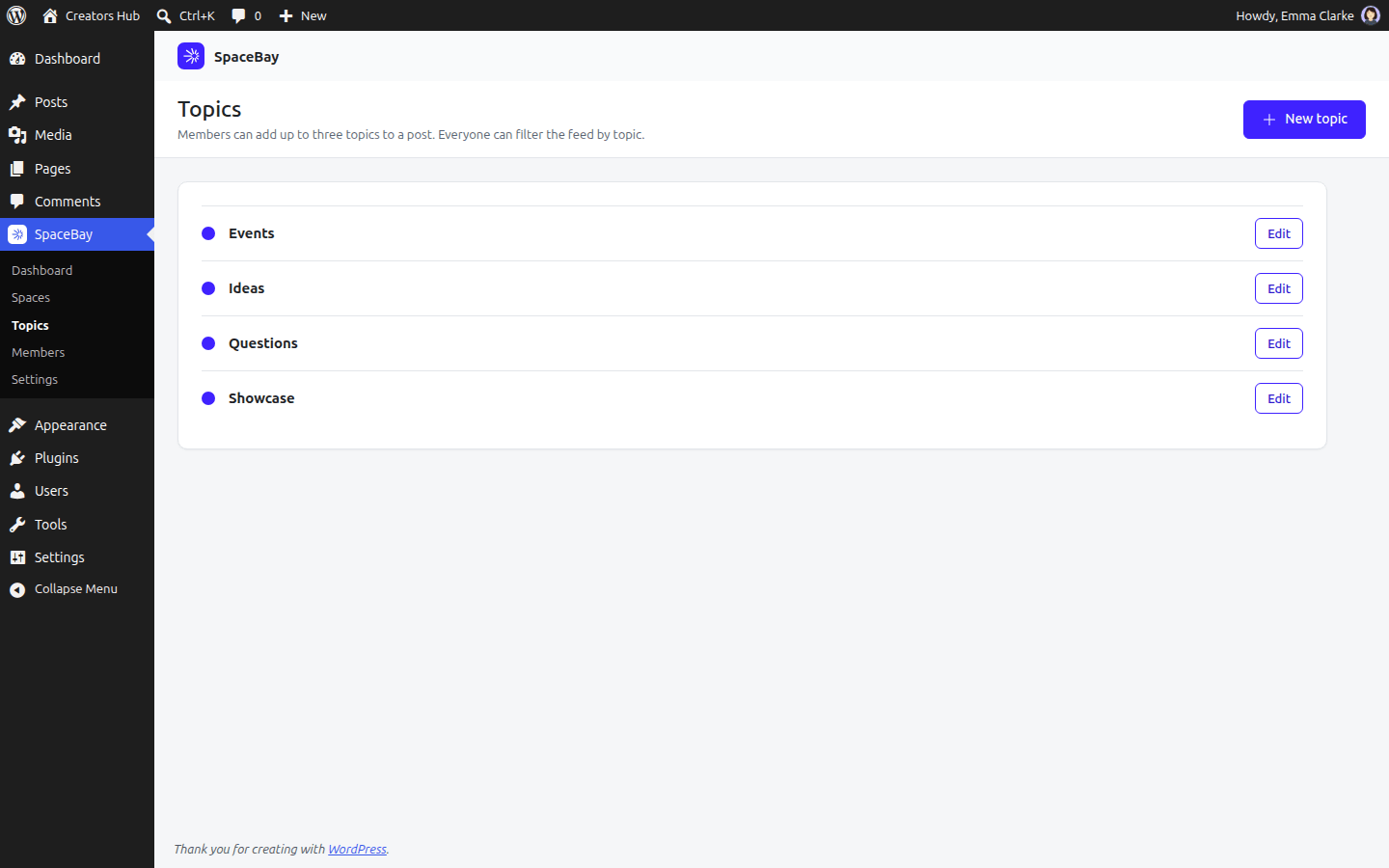 *SpaceBay → Topics.*
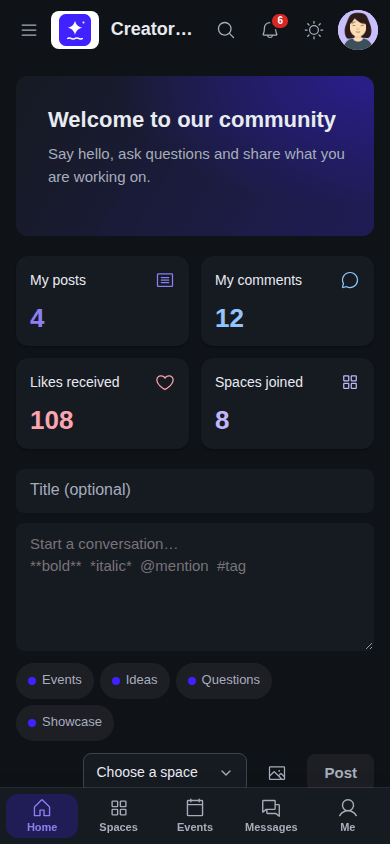 *The feed on a phone, in dark mode.*
## Login and signup
URL: https://docs.wpanchorbay.com/spacebay/user-guide/login-and-signup/
Description: SpaceBay's own login, signup and password reset pages, the signup form, and password and security for members.
SpaceBay has its own pages for logging in, signing up and resetting a password. They use your logo, brand colour and dark mode, and work on phones.
*The feed on a phone, in dark mode.*
## Login and signup
URL: https://docs.wpanchorbay.com/spacebay/user-guide/login-and-signup/
Description: SpaceBay's own login, signup and password reset pages, the signup form, and password and security for members.
SpaceBay has its own pages for logging in, signing up and resetting a password. They use your logo, brand colour and dark mode, and work on phones.
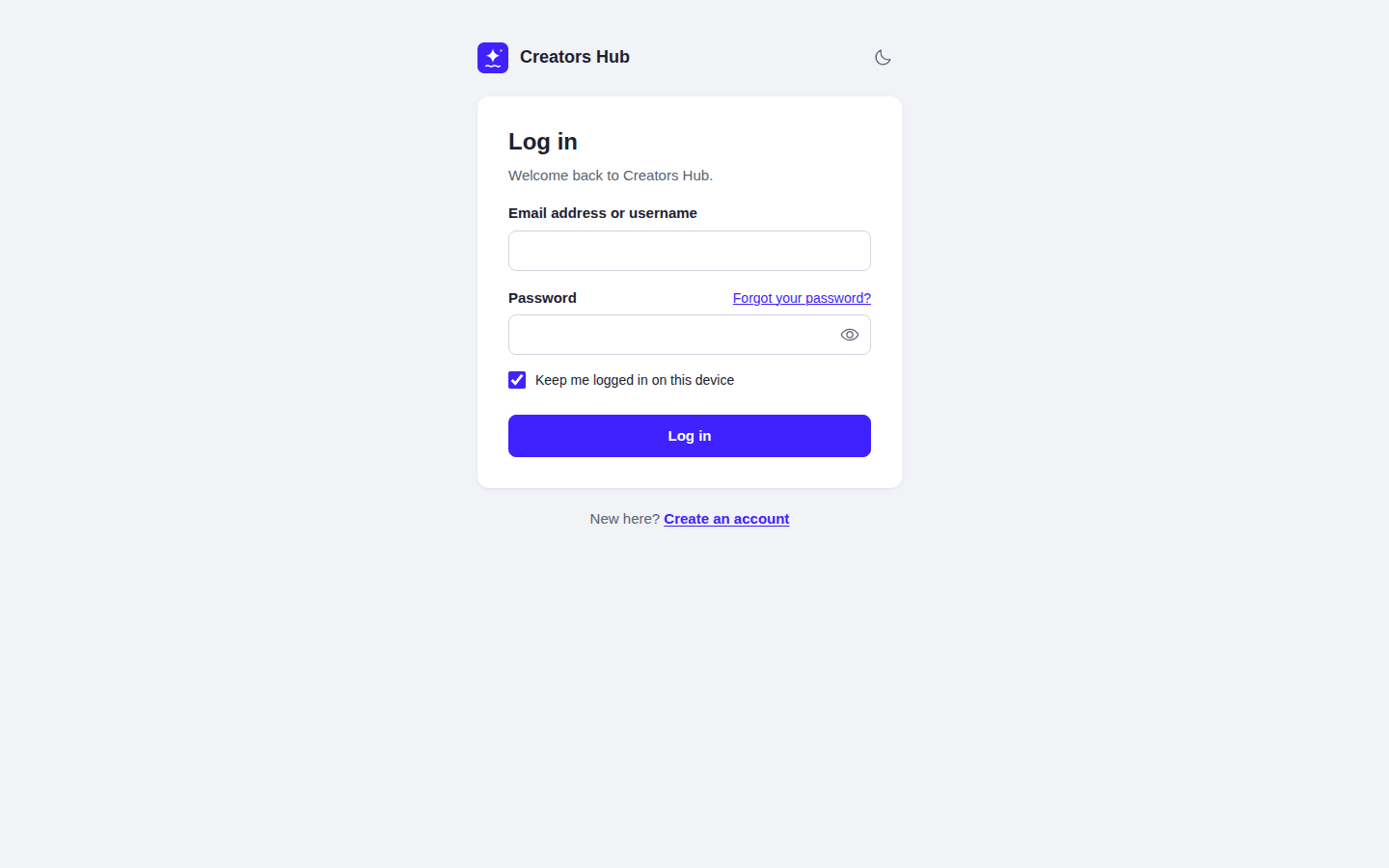 *The login page at yoursite.com/community/login.*
| Page | Address | What it does |
| --- | --- | --- |
| Log in | `/community/login` | Email address or username and password, with “Keep me logged in on this device”. Members return to the page they came from. |
| Create an account | `/community/signup` | The signup form. New members are logged in right away and receive a welcome email. |
| Forgot your password? | `/community/login/forgot` | Emails a link that works for 24 hours. The link opens a page in the community to choose a new password. |
The **Log in** and **Join** buttons in the community lead to these pages. In a members-only community, visitors see the login page instead of the community. The WordPress login page (`wp-login.php`) keeps working, so you can always log in there as well.
## The signup form
Go to **SpaceBay → Settings → Login and signup** and turn on **Let people sign up**. The signup form asks for **Name**, **Email address** and **Password**. Passwords need at least 8 characters.
**Terms tick box.** Enter the address of your terms under **Terms page**. The form then shows an “I agree to the terms” tick box with a link to them, and people must tick it to create an account. Leave the address empty to hide the tick box.
- The username, which is also the profile address, is the name plus 4 random characters (for example `jane-doe-k3x9`). The email address is not used.
- To check new members before they can post, turn on **Approve new members** under Moderation. The signup page then tells people that a moderator reviews new accounts.
- New members get the role set in WordPress under **Settings → General → New User Default Role**. The site administrator receives the usual WordPress email about each new user.
- On a network of sites, signing up only works when the network administrator allows new accounts (**Network Admin → Settings → Allow new registrations**).
To stop spam signups, the form has a hidden field that only automated signups fill in, and one network address can create at most 5 accounts an hour.
## Password and security for members
Members change their password under **Account settings → Password and security**. They enter their current password first. Changing the password logs out their other devices.
Looking for the extra fields? The signup form builder is a [Pro feature](/spacebay/pro/signup-form-builder/).
## Member approval and community moderators
URL: https://docs.wpanchorbay.com/spacebay/user-guide/member-approval-and-moderators/
Description: Approve new members, suspend and restore accounts, and add community moderators.
## Member approval and suspension
With **Approve new members before they can take part** on, people who sign up can log in but see a message that their account is waiting for approval. They can read public content like a visitor, but cannot post, comment, react, join spaces or see the member directory. Moderators approve or decline them on **Moderation → New members**; approved members get a notification and an email. Turning the setting on does not affect existing members.
*The login page at yoursite.com/community/login.*
| Page | Address | What it does |
| --- | --- | --- |
| Log in | `/community/login` | Email address or username and password, with “Keep me logged in on this device”. Members return to the page they came from. |
| Create an account | `/community/signup` | The signup form. New members are logged in right away and receive a welcome email. |
| Forgot your password? | `/community/login/forgot` | Emails a link that works for 24 hours. The link opens a page in the community to choose a new password. |
The **Log in** and **Join** buttons in the community lead to these pages. In a members-only community, visitors see the login page instead of the community. The WordPress login page (`wp-login.php`) keeps working, so you can always log in there as well.
## The signup form
Go to **SpaceBay → Settings → Login and signup** and turn on **Let people sign up**. The signup form asks for **Name**, **Email address** and **Password**. Passwords need at least 8 characters.
**Terms tick box.** Enter the address of your terms under **Terms page**. The form then shows an “I agree to the terms” tick box with a link to them, and people must tick it to create an account. Leave the address empty to hide the tick box.
- The username, which is also the profile address, is the name plus 4 random characters (for example `jane-doe-k3x9`). The email address is not used.
- To check new members before they can post, turn on **Approve new members** under Moderation. The signup page then tells people that a moderator reviews new accounts.
- New members get the role set in WordPress under **Settings → General → New User Default Role**. The site administrator receives the usual WordPress email about each new user.
- On a network of sites, signing up only works when the network administrator allows new accounts (**Network Admin → Settings → Allow new registrations**).
To stop spam signups, the form has a hidden field that only automated signups fill in, and one network address can create at most 5 accounts an hour.
## Password and security for members
Members change their password under **Account settings → Password and security**. They enter their current password first. Changing the password logs out their other devices.
Looking for the extra fields? The signup form builder is a [Pro feature](/spacebay/pro/signup-form-builder/).
## Member approval and community moderators
URL: https://docs.wpanchorbay.com/spacebay/user-guide/member-approval-and-moderators/
Description: Approve new members, suspend and restore accounts, and add community moderators.
## Member approval and suspension
With **Approve new members before they can take part** on, people who sign up can log in but see a message that their account is waiting for approval. They can read public content like a visitor, but cannot post, comment, react, join spaces or see the member directory. Moderators approve or decline them on **Moderation → New members**; approved members get a notification and an email. Turning the setting on does not affect existing members.
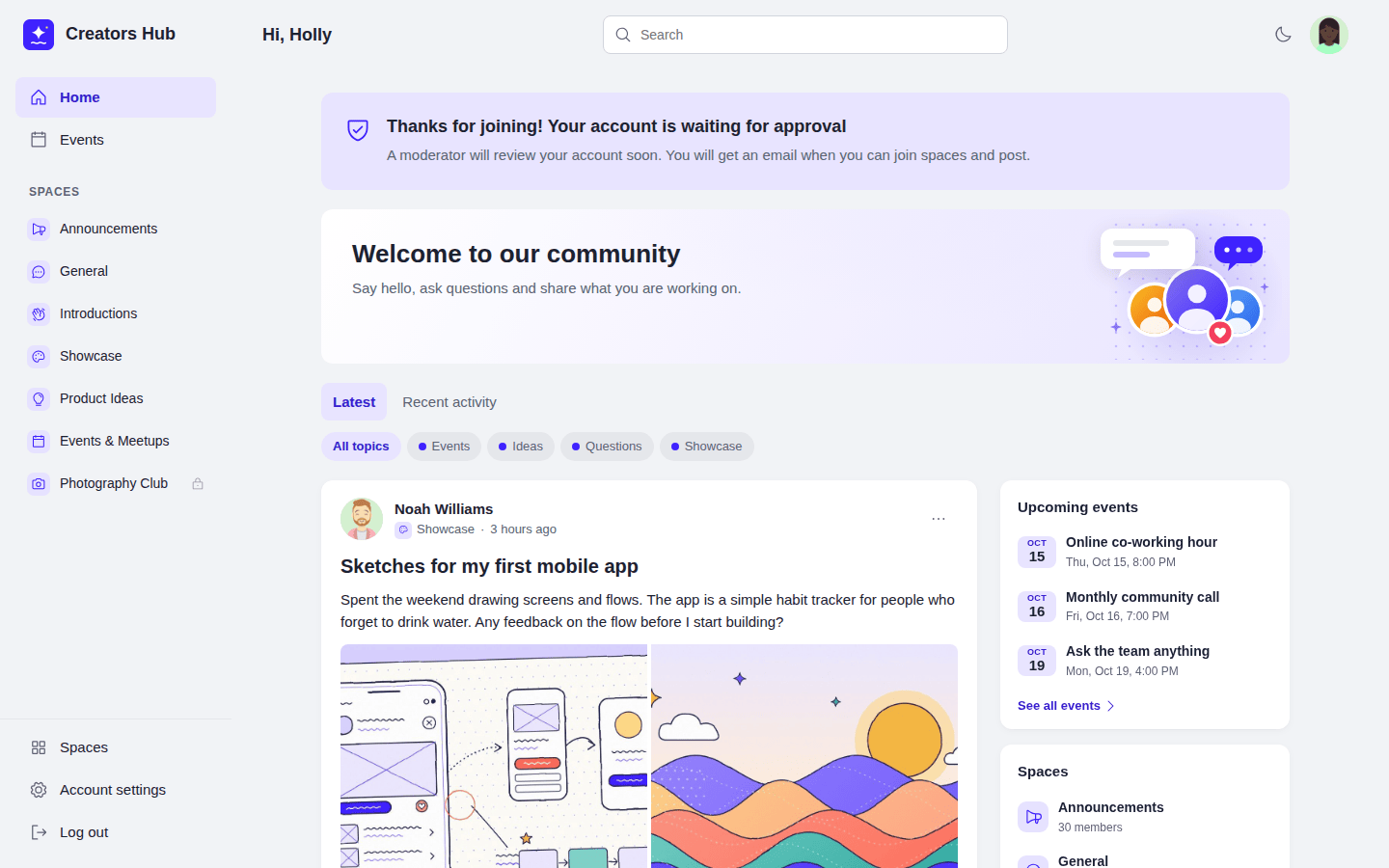 *A new member waiting for approval.*
Suspended members (declined sign-ups and members suspended after a report) see a message that their account is suspended and use the community like a visitor. Restore them on **Moderation → Suspended**. Administrators and community moderators cannot be suspended. Administrators also see members' email addresses on these lists; moderators do not.
*A new member waiting for approval.*
Suspended members (declined sign-ups and members suspended after a report) see a message that their account is suspended and use the community like a visitor. Restore them on **Moderation → Suspended**. Administrators and community moderators cannot be suspended. Administrators also see members' email addresses on these lists; moderators do not.
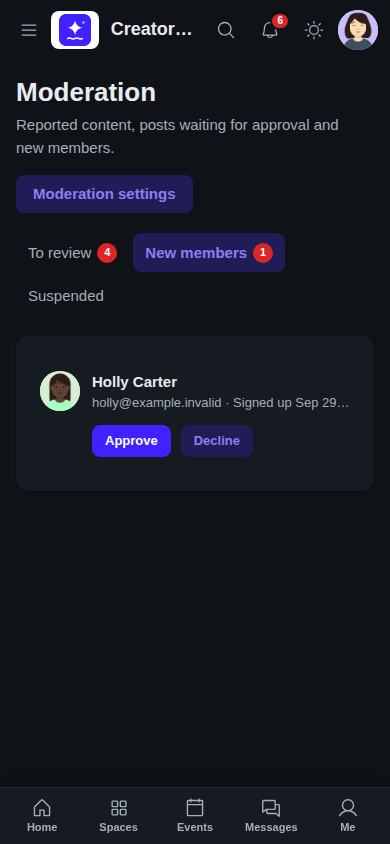 *The Moderation page on a phone.*
When a community is set to **Logged-in members only**, waiting and suspended members see only the message.
## Community moderators
Add moderators in **SpaceBay → Members → Community moderators**: search for a member and select **Make moderator**. Moderators review reports, held content and new members, and can edit, pin or delete content in every space, but cannot change settings or open the SpaceBay admin. Administrators are always moderators. Technically, moderators get the `spacebay_moderate` capability, so you can also give it to a whole role with a role editor plugin.
*The Moderation page on a phone.*
When a community is set to **Logged-in members only**, waiting and suspended members see only the message.
## Community moderators
Add moderators in **SpaceBay → Members → Community moderators**: search for a member and select **Make moderator**. Moderators review reports, held content and new members, and can edit, pin or delete content in every space, but cannot change settings or open the SpaceBay admin. Administrators are always moderators. Technically, moderators get the `spacebay_moderate` capability, so you can also give it to a whole role with a role editor plugin.
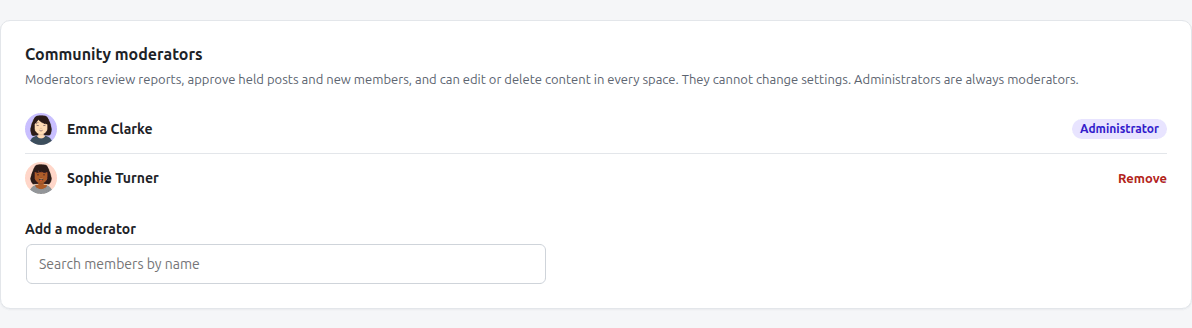 *SpaceBay → Members → Community moderators.*
Each space can also have its own admins and moderators, chosen on the space's **Members** tab. They can edit and delete posts and comments in that space, and their own posts are never held for review.
## Messages and group chat
URL: https://docs.wpanchorbay.com/spacebay/user-guide/messages/
Description: Private messages, group chats, blocking and reporting, and how often chats update. Voice and video calls are in SpaceBay Pro.
Members send private messages from **Messages** in the sidebar, where a red number shows unread messages. They start a chat with **New**, or with the **Message** button on someone's profile.
*SpaceBay → Members → Community moderators.*
Each space can also have its own admins and moderators, chosen on the space's **Members** tab. They can edit and delete posts and comments in that space, and their own posts are never held for review.
## Messages and group chat
URL: https://docs.wpanchorbay.com/spacebay/user-guide/messages/
Description: Private messages, group chats, blocking and reporting, and how often chats update. Voice and video calls are in SpaceBay Pro.
Members send private messages from **Messages** in the sidebar, where a red number shows unread messages. They start a chat with **New**, or with the **Message** button on someone's profile.
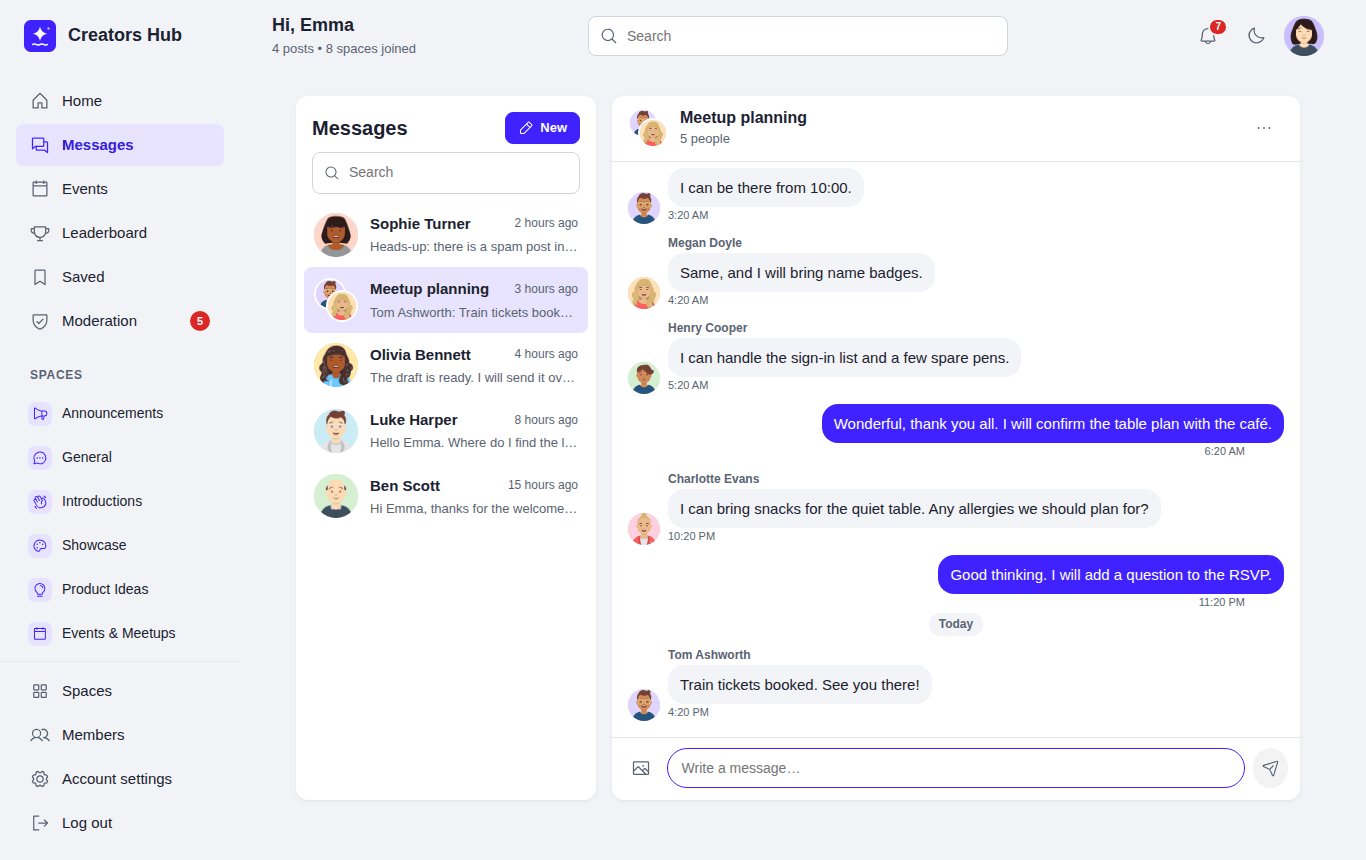 *Messages: conversations on the left, the open chat on the right.*
- **One-to-one and group chats.** Pick one person for a private chat, or several to start a group and give it a name. The person who starts a group can add and remove people; anyone can leave. People added to a group later see only messages from the day they joined. One-to-one chats keep the full history. When the owner leaves, the longest-standing member takes over.
- **Writing.** Enter sends, Shift+Enter adds a new line. Messages support **bold**, *italic*, links, lists and up to 10 images. Blocked words are hidden with stars, or the message is refused if blocked words are set to refuse. Members can delete their own messages.
- **Live updates.** An open chat checks for new messages every 3 seconds while the conversation is going, and less often once it has been quiet for a minute (every 6 seconds, then every 15). The unread badge refreshes every 15 seconds while the member is using the community (every 5 seconds when Pro calls are on) and every 30 to 60 seconds when the page is open but nobody is using it. Coming back to the page checks at once. "Seen" appears under your last message once the other person has read it.
- **Emails.** If a message is still unread after 15 minutes, the member gets one email for that conversation (not one per message). Members can turn this off under **Account settings → Email notifications**, or mute the conversation (see below).
- **Muting.** Open a chat and choose the three-dot **Conversation options** button in its header, then **Mute this conversation**. Muting is private to the member who does it and only changes their own view. A muted conversation sends no unread-messages email and its messages are left out of the red unread number in the sidebar. It keeps its place in the list with a small crossed-out bell, and its own unread count still shows next to it. Muting does not stop messages arriving, hide the chat or block the person. To undo it, open the same menu and choose **Turn notifications on**.
- **Safety.** Members can **block** someone from their profile or the chat menu; neither can then message the other. **Report** under a message sends it to the moderation queue, where moderators can keep or delete it. Moderators only see messages that were reported. Suspended or waiting members cannot send messages.
Choose who can message whom and whether group chats are allowed under **Settings → Messages**.
Voice and video calls in chats are part of SpaceBay Pro: see [Voice and video calls](/spacebay/pro/voice-and-video-calls/).
## Moderation and reports
URL: https://docs.wpanchorbay.com/spacebay/user-guide/moderation/
Description: The Moderation page, content held for review, blocked words, and reports from members.
Community moderators and administrators see **Moderation** in the community sidebar, with a red number when something needs a decision. The page has three tabs: **To review**, **New members** and **Suspended**.
*Messages: conversations on the left, the open chat on the right.*
- **One-to-one and group chats.** Pick one person for a private chat, or several to start a group and give it a name. The person who starts a group can add and remove people; anyone can leave. People added to a group later see only messages from the day they joined. One-to-one chats keep the full history. When the owner leaves, the longest-standing member takes over.
- **Writing.** Enter sends, Shift+Enter adds a new line. Messages support **bold**, *italic*, links, lists and up to 10 images. Blocked words are hidden with stars, or the message is refused if blocked words are set to refuse. Members can delete their own messages.
- **Live updates.** An open chat checks for new messages every 3 seconds while the conversation is going, and less often once it has been quiet for a minute (every 6 seconds, then every 15). The unread badge refreshes every 15 seconds while the member is using the community (every 5 seconds when Pro calls are on) and every 30 to 60 seconds when the page is open but nobody is using it. Coming back to the page checks at once. "Seen" appears under your last message once the other person has read it.
- **Emails.** If a message is still unread after 15 minutes, the member gets one email for that conversation (not one per message). Members can turn this off under **Account settings → Email notifications**, or mute the conversation (see below).
- **Muting.** Open a chat and choose the three-dot **Conversation options** button in its header, then **Mute this conversation**. Muting is private to the member who does it and only changes their own view. A muted conversation sends no unread-messages email and its messages are left out of the red unread number in the sidebar. It keeps its place in the list with a small crossed-out bell, and its own unread count still shows next to it. Muting does not stop messages arriving, hide the chat or block the person. To undo it, open the same menu and choose **Turn notifications on**.
- **Safety.** Members can **block** someone from their profile or the chat menu; neither can then message the other. **Report** under a message sends it to the moderation queue, where moderators can keep or delete it. Moderators only see messages that were reported. Suspended or waiting members cannot send messages.
Choose who can message whom and whether group chats are allowed under **Settings → Messages**.
Voice and video calls in chats are part of SpaceBay Pro: see [Voice and video calls](/spacebay/pro/voice-and-video-calls/).
## Moderation and reports
URL: https://docs.wpanchorbay.com/spacebay/user-guide/moderation/
Description: The Moderation page, content held for review, blocked words, and reports from members.
Community moderators and administrators see **Moderation** in the community sidebar, with a red number when something needs a decision. The page has three tabs: **To review**, **New members** and **Suspended**.
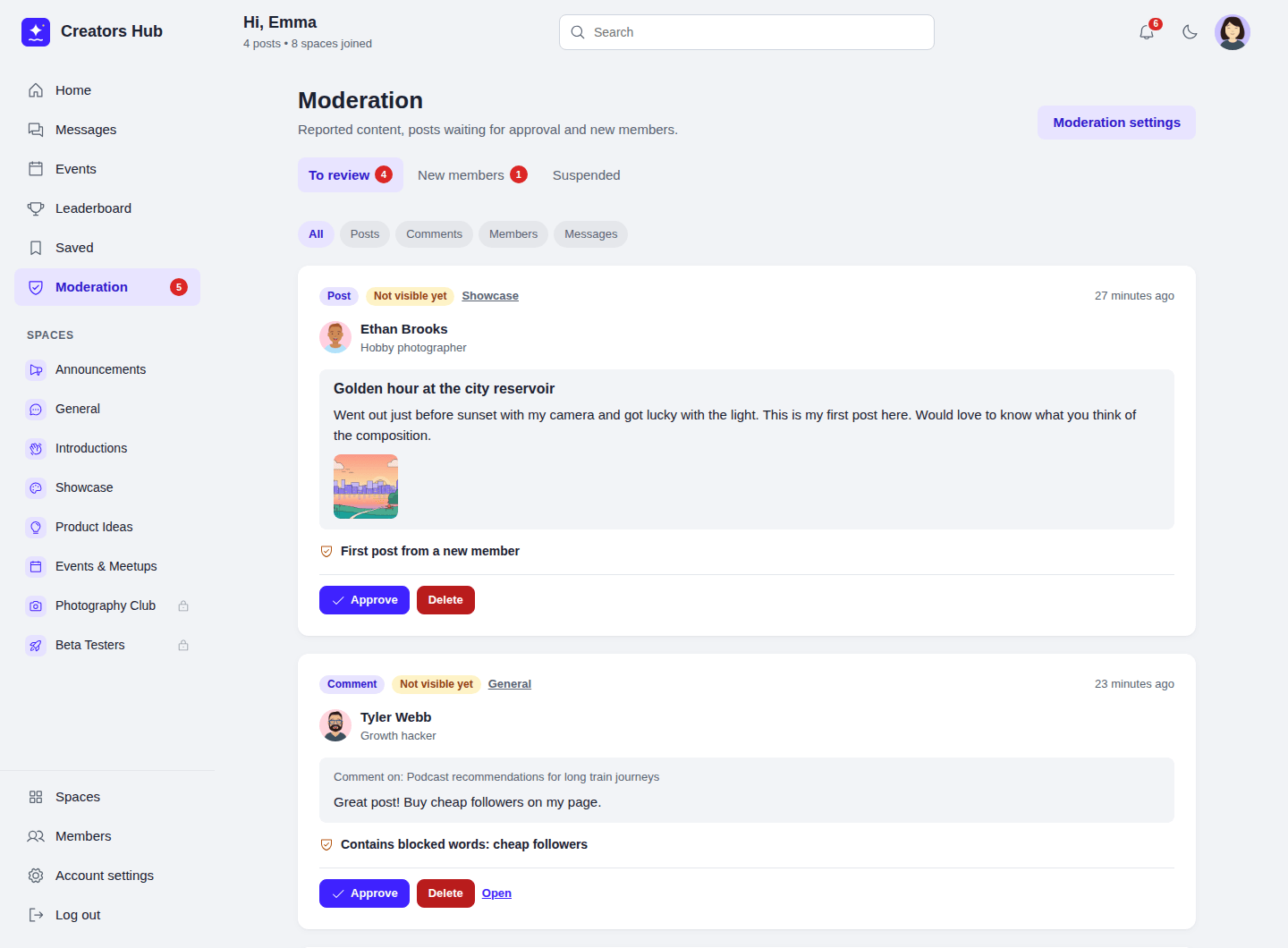 *Posts and comments waiting for review.*
Each item shows the post or comment, its author, its space and why it is there. Choose **Approve** (or **Keep** for visible content) to publish it and close its reports, or **Delete** to remove it. Delete asks you to click a second time. Authors are told when their post or comment is approved or removed, but never who reported it.
Content is held for review when:
- it contains a **blocked word** and the blocked-word action is *Hold for review*;
- it is a member's **first post** and *New posts* is set to review the first post (after one approval the member posts freely);
- *New posts* is set to review **every new post**;
- enough members **reported** it (see [Reports](/spacebay/user-guide/moderation/#reports)).
The author sees a message that a moderator will review it. Held content is not shown in feeds, search or notifications, and mentions are sent only after approval. Space admins, space moderators and community moderators are never held, and edits that add a blocked word are refused with a message. Blocked words match whole words in any letter case, so `cat` does not match `category`.
*Posts and comments waiting for review.*
Each item shows the post or comment, its author, its space and why it is there. Choose **Approve** (or **Keep** for visible content) to publish it and close its reports, or **Delete** to remove it. Delete asks you to click a second time. Authors are told when their post or comment is approved or removed, but never who reported it.
Content is held for review when:
- it contains a **blocked word** and the blocked-word action is *Hold for review*;
- it is a member's **first post** and *New posts* is set to review the first post (after one approval the member posts freely);
- *New posts* is set to review **every new post**;
- enough members **reported** it (see [Reports](/spacebay/user-guide/moderation/#reports)).
The author sees a message that a moderator will review it. Held content is not shown in feeds, search or notifications, and mentions are sent only after approval. Space admins, space moderators and community moderators are never held, and edits that add a blocked word are refused with a message. Blocked words match whole words in any letter case, so `cat` does not match `category`.
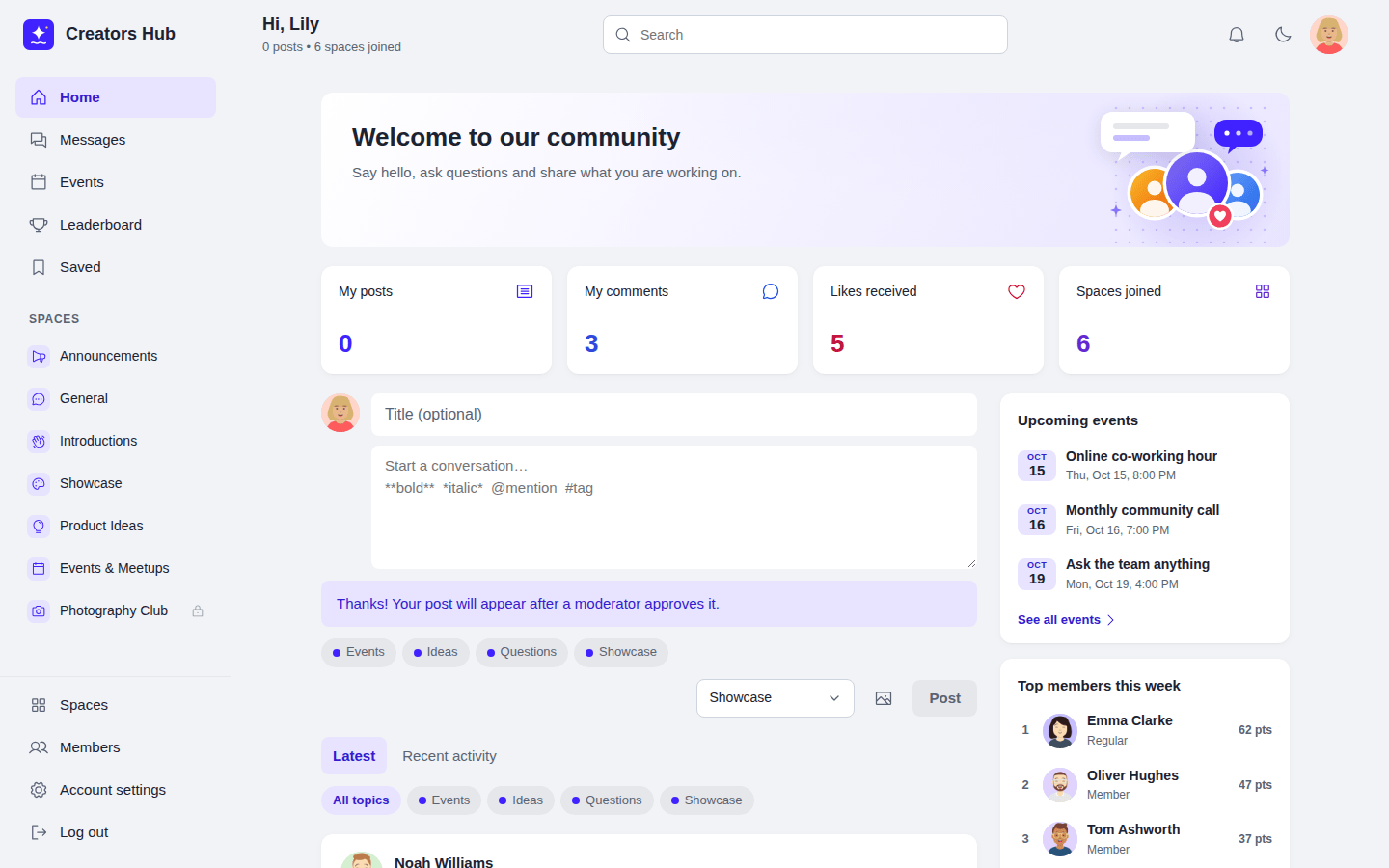 *What a member sees when their post is held.*
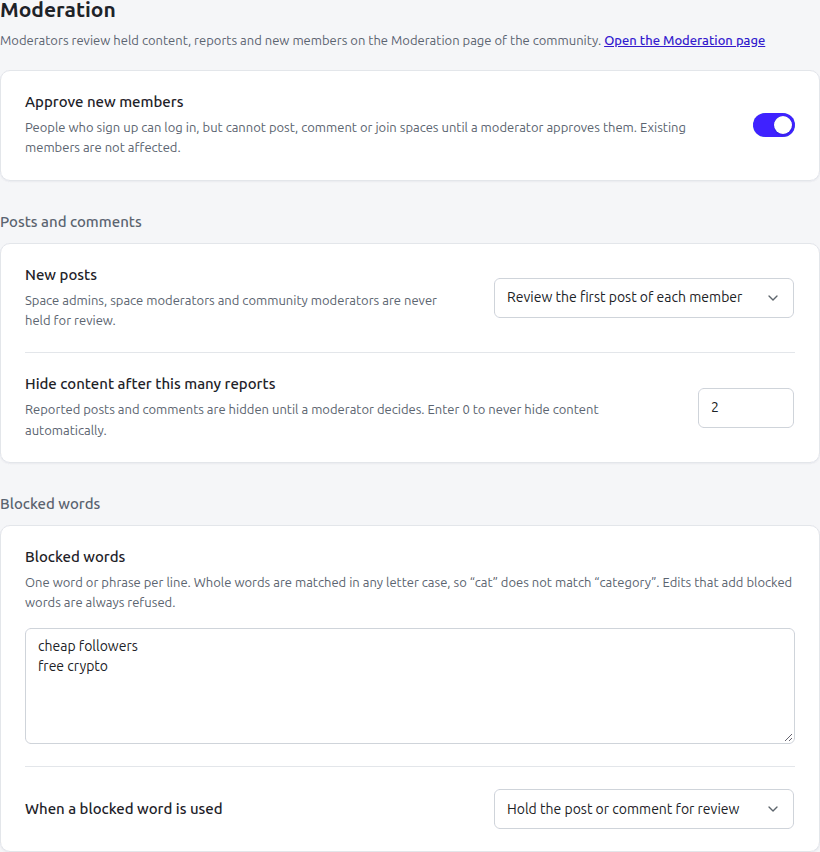 *SpaceBay → Settings → Moderation.*
## Reports
Logged-in members can report a post or comment from its menu, and a member from the flag button on their profile. They choose a reason (spam, harassment or hate, inappropriate content, or something else) and can add a note for moderators. A member can report the same thing once; members cannot report themselves.
*SpaceBay → Settings → Moderation.*
## Reports
Logged-in members can report a post or comment from its menu, and a member from the flag button on their profile. They choose a reason (spam, harassment or hate, inappropriate content, or something else) and can add a note for moderators. A member can report the same thing once; members cannot report themselves.
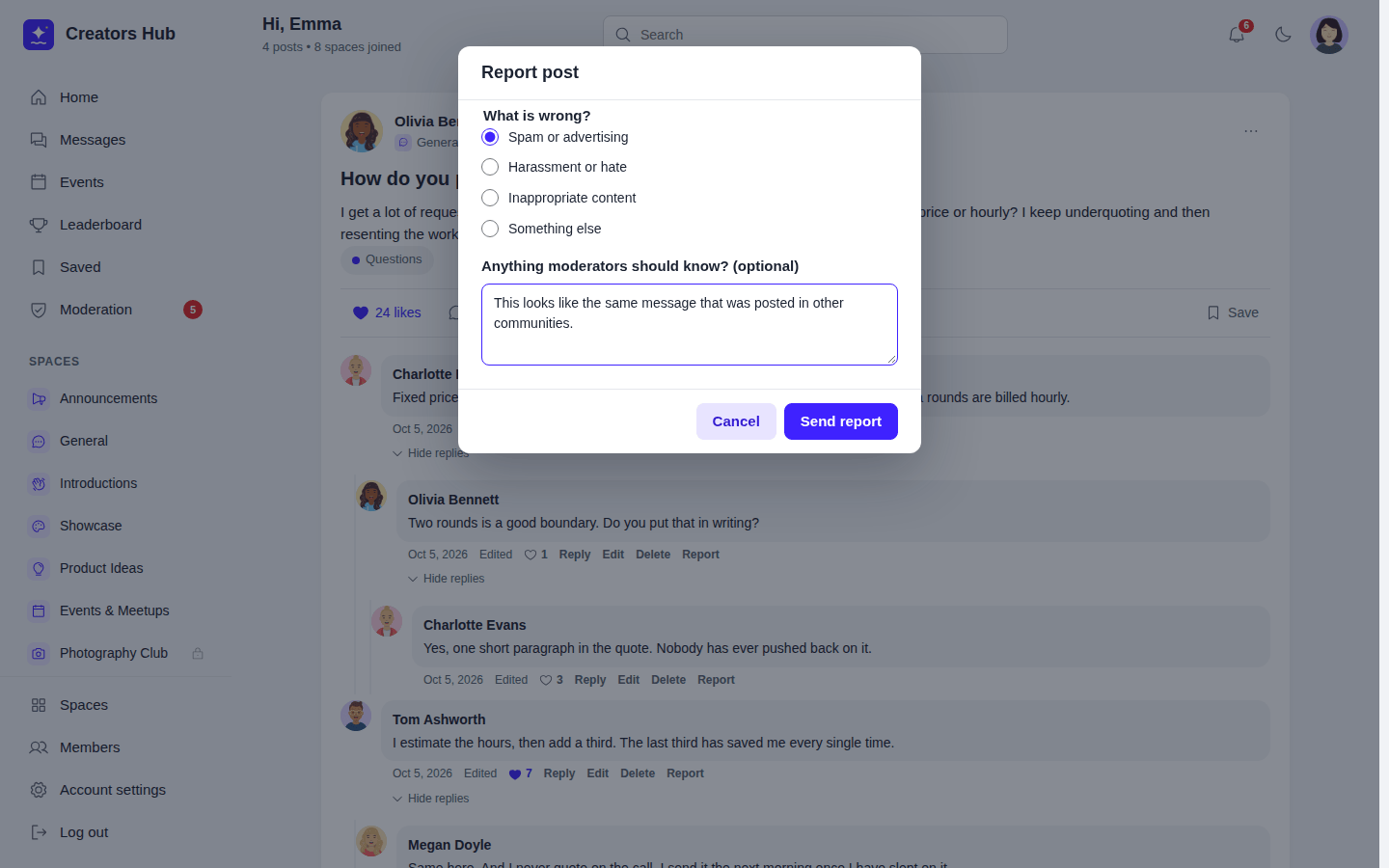 *Reporting a post.*
When a post or comment reaches the number of reports set in **Hide content after this many reports**, it is hidden until a moderator decides. **Keep** shows it again in its original place; **Delete** removes it. For a reported member, **Dismiss** closes the reports and **Suspend member** suspends the account. Content written by moderators is never hidden automatically.
*Reporting a post.*
When a post or comment reaches the number of reports set in **Hide content after this many reports**, it is hidden until a moderator decides. **Keep** shows it again in its original place; **Delete** removes it. For a reported member, **Dismiss** closes the reports and **Suspend member** suspends the account. Content written by moderators is never hidden automatically.
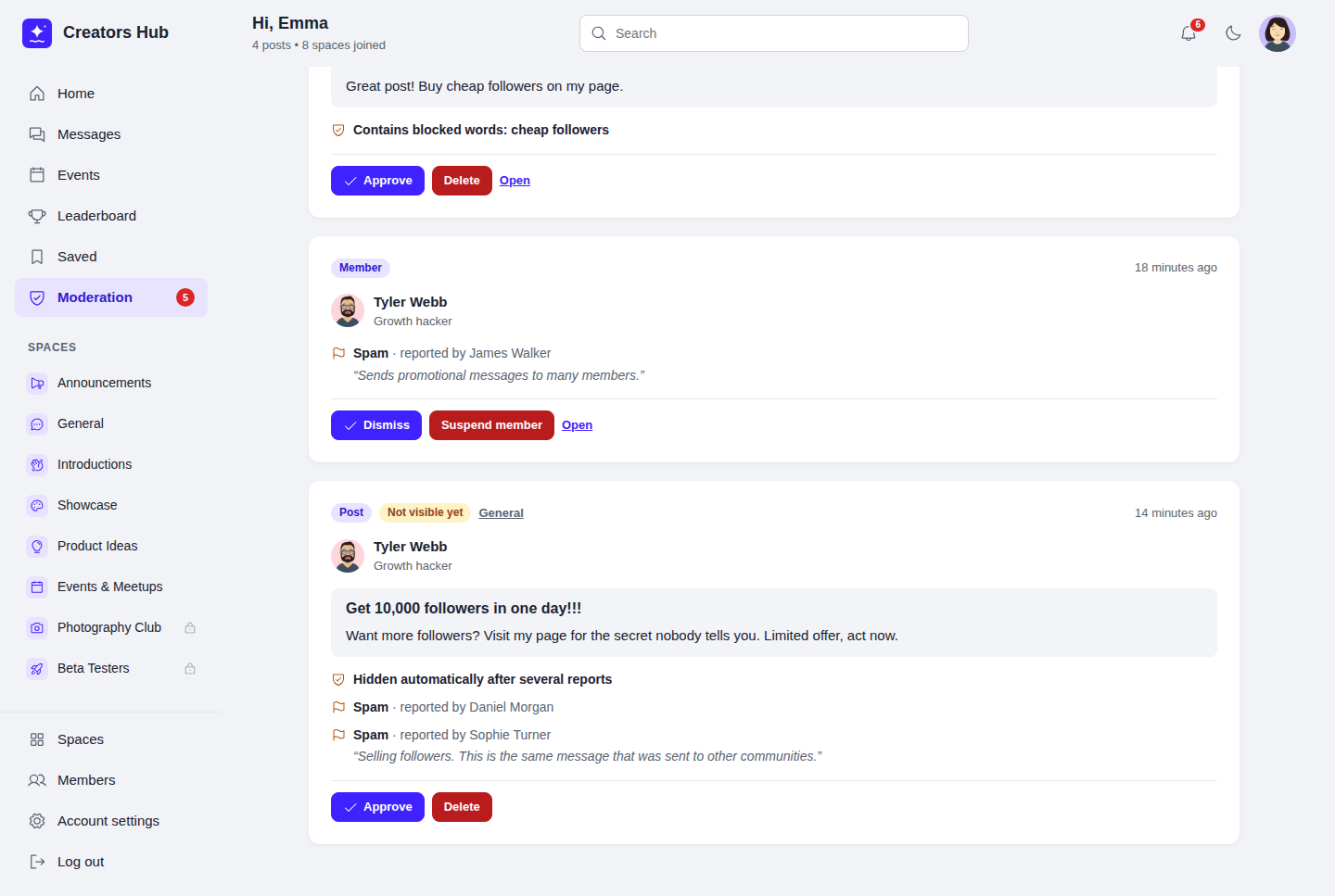 *Reports with reasons, reporters and notes.*
## Notifications and emails
URL: https://docs.wpanchorbay.com/spacebay/user-guide/notifications/
Description: The notification bell, the Notifications page, which events send emails, and how email delivery works.
The bell in the top bar shows how many notifications a member has not read. It updates every minute while the page is open. Clicking a notification opens the post and marks it read. **See all notifications** opens the full list, with an **Unread** filter and **Mark all as read**.
Notification emails are sent in the background, a little after the notification itself: one background job sends everything that is waiting, so an announcement to a large space does not slow the site down. How soon they leave depends on how often your site runs its scheduled tasks (see [Large communities and speed](/spacebay/others/large-communities-and-speed/)).
*Reports with reasons, reporters and notes.*
## Notifications and emails
URL: https://docs.wpanchorbay.com/spacebay/user-guide/notifications/
Description: The notification bell, the Notifications page, which events send emails, and how email delivery works.
The bell in the top bar shows how many notifications a member has not read. It updates every minute while the page is open. Clicking a notification opens the post and marks it read. **See all notifications** opens the full list, with an **Unread** filter and **Mark all as read**.
Notification emails are sent in the background, a little after the notification itself: one background job sends everything that is waiting, so an announcement to a large space does not slow the site down. How soon they leave depends on how often your site runs its scheduled tasks (see [Large communities and speed](/spacebay/others/large-communities-and-speed/)).
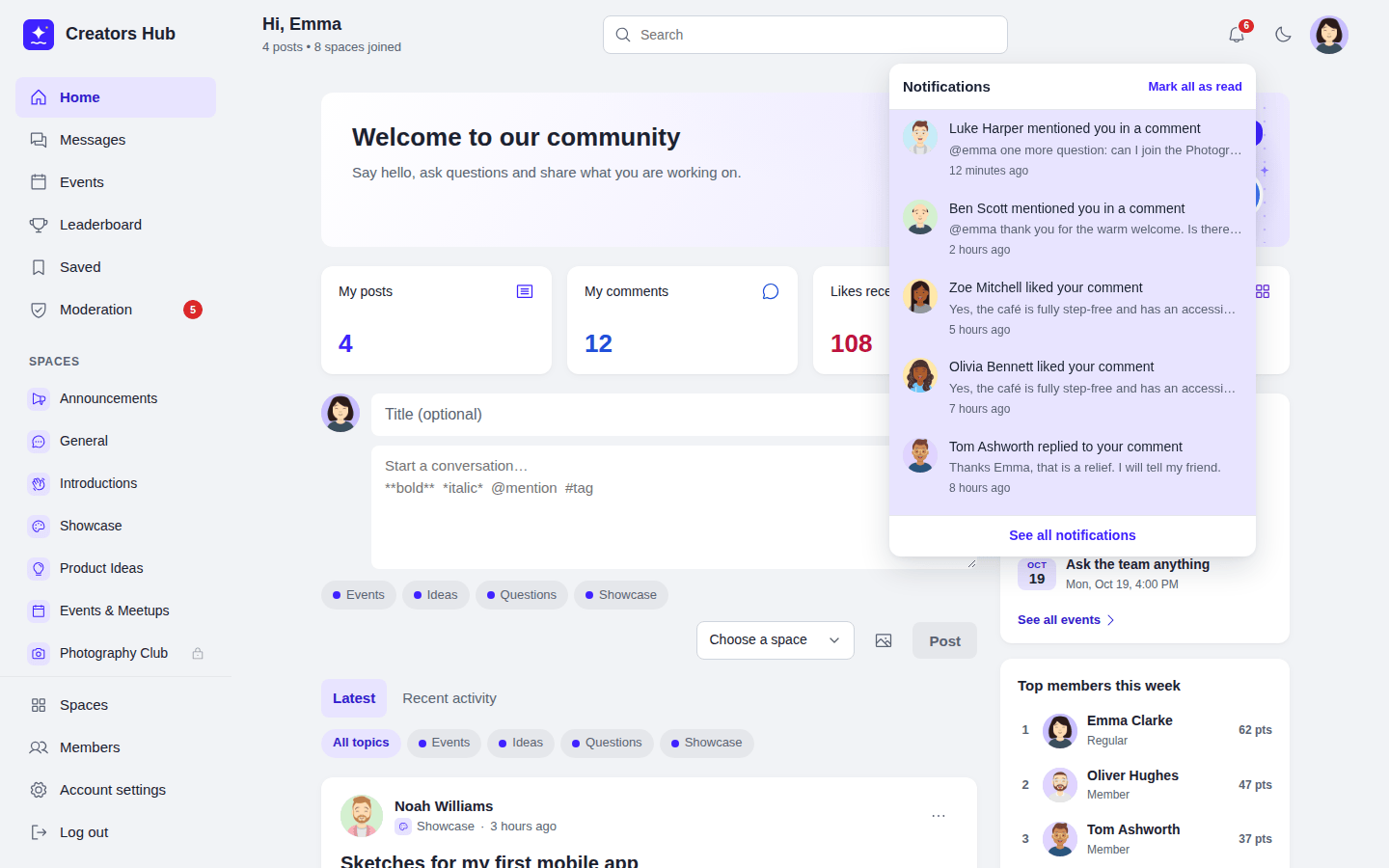 *The notification bell.*
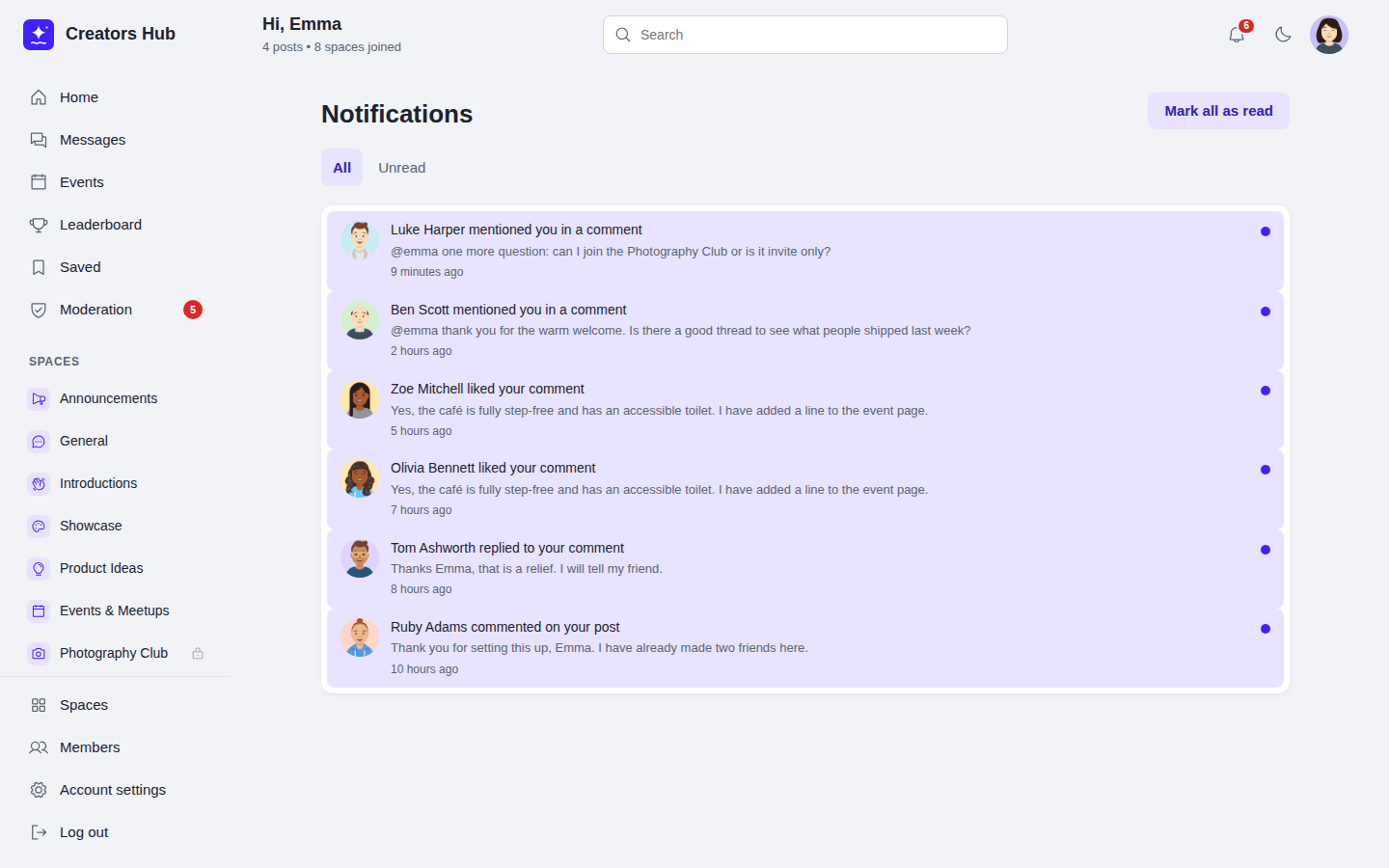 *The Notifications page.*
| Members are notified when | Email by default |
| --- | --- |
| Someone mentions them in a post or comment | Yes |
| Someone comments on their post or replies to their comment | Yes |
| They are invited to a space, or their join request is approved | Yes |
| Someone asks to join a private space they manage | Yes |
| Someone likes their post or comment | No |
| A new event in their space, or an event they answered changes, is cancelled, or starts soon (reminders need [Pro](/spacebay/pro/event-limits-and-reminders/)) | Yes |
| They earn a badge (or are given one, with Pro), or reach a new level | No |
| Their held post or comment is approved, or a moderator removes it | Yes |
| Their account is approved | Yes |
| Moderators only: content or reports wait for review, or a new member waits for approval | Yes |
Members choose their emails in **Account settings → Email notifications**, under the heading **Email me when…**. There are up to eight tick boxes:
- Someone sends me a private message (only if I have not read it after 15 minutes). Shown when messages are on.
- Someone mentions me.
- Someone comments on my post or replies to my comment.
- Space invitations, join requests and approvals.
- Someone likes my post or comment.
- New events in my spaces, changes to events I am going to, and reminders. Shown when events are on.
- I earn a badge or reach a new level. Shown when points, levels and badges are on.
- Moderation updates: my posts are approved or removed, or (for moderators) items wait for review.
With messages, events and points, levels and badges all turned on, all eight are shown. Notifications under the bell are always shown. Members are only notified about posts they can still read, and never about their own actions.
*The Notifications page.*
| Members are notified when | Email by default |
| --- | --- |
| Someone mentions them in a post or comment | Yes |
| Someone comments on their post or replies to their comment | Yes |
| They are invited to a space, or their join request is approved | Yes |
| Someone asks to join a private space they manage | Yes |
| Someone likes their post or comment | No |
| A new event in their space, or an event they answered changes, is cancelled, or starts soon (reminders need [Pro](/spacebay/pro/event-limits-and-reminders/)) | Yes |
| They earn a badge (or are given one, with Pro), or reach a new level | No |
| Their held post or comment is approved, or a moderator removes it | Yes |
| Their account is approved | Yes |
| Moderators only: content or reports wait for review, or a new member waits for approval | Yes |
Members choose their emails in **Account settings → Email notifications**, under the heading **Email me when…**. There are up to eight tick boxes:
- Someone sends me a private message (only if I have not read it after 15 minutes). Shown when messages are on.
- Someone mentions me.
- Someone comments on my post or replies to my comment.
- Space invitations, join requests and approvals.
- Someone likes my post or comment.
- New events in my spaces, changes to events I am going to, and reminders. Shown when events are on.
- I earn a badge or reach a new level. Shown when points, levels and badges are on.
- Moderation updates: my posts are approved or removed, or (for moderators) items wait for review.
With messages, events and points, levels and badges all turned on, all eight are shown. Notifications under the bell are always shown. Members are only notified about posts they can still read, and never about their own actions.
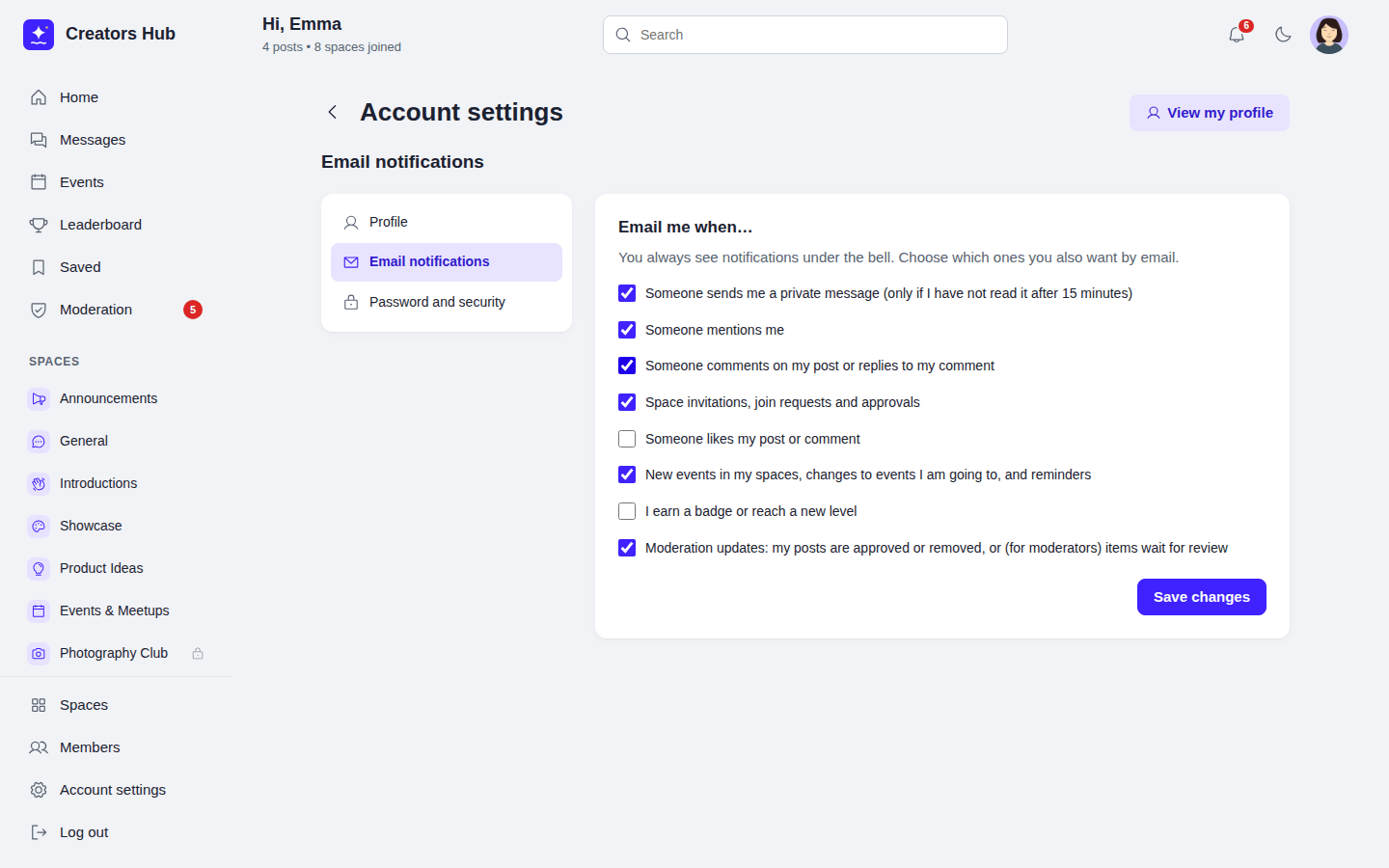 *Account settings → Email notifications.*
Emails are sent in the background a few seconds later by WP-Cron, using `wp_mail()`, so they work with any SMTP plugin. If a member reads the notification first, the email is skipped. On sites with little traffic, set up a real cron job for `wp-cron.php` so emails are not delayed. Read notifications are deleted after 90 days and all notifications after 180 days.
*Account settings → Email notifications.*
Emails are sent in the background a few seconds later by WP-Cron, using `wp_mail()`, so they work with any SMTP plugin. If a member reads the notification first, the email is skipped. On sites with little traffic, set up a real cron job for `wp-cron.php` so emails are not delayed. Read notifications are deleted after 90 days and all notifications after 180 days.
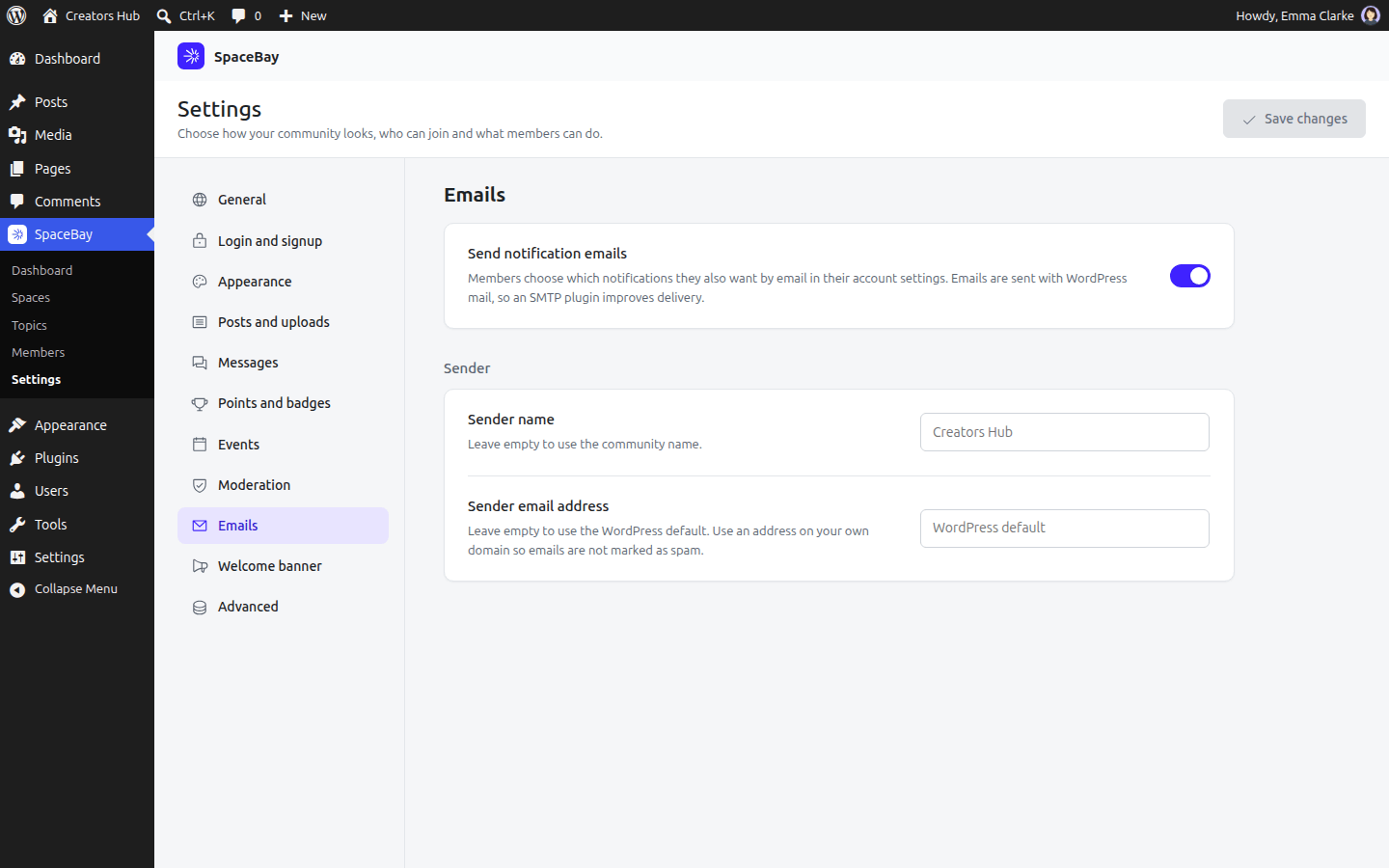 *SpaceBay → Settings → Emails.*
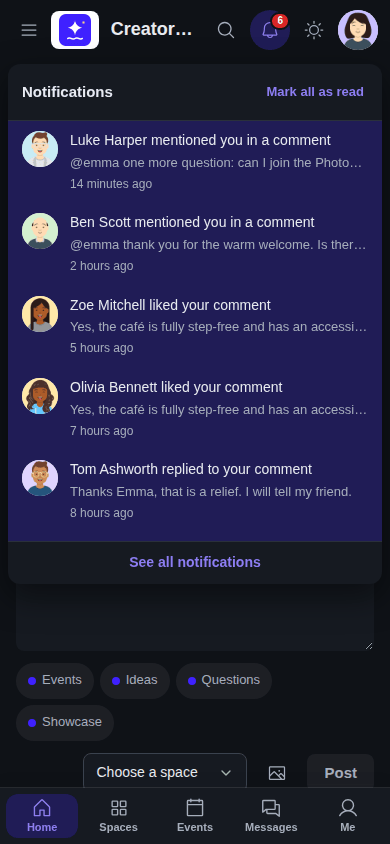 *Notifications on a phone, in dark mode.*
## Points, levels, badges and leaderboard
URL: https://docs.wpanchorbay.com/spacebay/user-guide/points-badges-and-leaderboard/
Description: How members earn points, levels and nine ready-made badges, and how the leaderboard works.
Members earn points for taking part. You choose how many points each action gives in **SpaceBay → Settings → Points and badges**.
| Action | Points by default |
| --- | --- |
| A published post | 5 |
| A comment | 2 |
| A like from someone else on their post or comment (likes on your own content do not count) | 1 |
| Opening the community, once a day | 1 |
| Answering “going” to an event | 2 |
Points are taken back when the post or comment is deleted, the like is removed, the member changes their event answer or the event is cancelled. Posts held for review earn points when a moderator approves them. Suspended members do not earn points.
*Notifications on a phone, in dark mode.*
## Points, levels, badges and leaderboard
URL: https://docs.wpanchorbay.com/spacebay/user-guide/points-badges-and-leaderboard/
Description: How members earn points, levels and nine ready-made badges, and how the leaderboard works.
Members earn points for taking part. You choose how many points each action gives in **SpaceBay → Settings → Points and badges**.
| Action | Points by default |
| --- | --- |
| A published post | 5 |
| A comment | 2 |
| A like from someone else on their post or comment (likes on your own content do not count) | 1 |
| Opening the community, once a day | 1 |
| Answering “going” to an event | 2 |
Points are taken back when the post or comment is deleted, the like is removed, the member changes their event answer or the event is cancelled. Posts held for review earn points when a moderator approves them. Suspended members do not earn points.
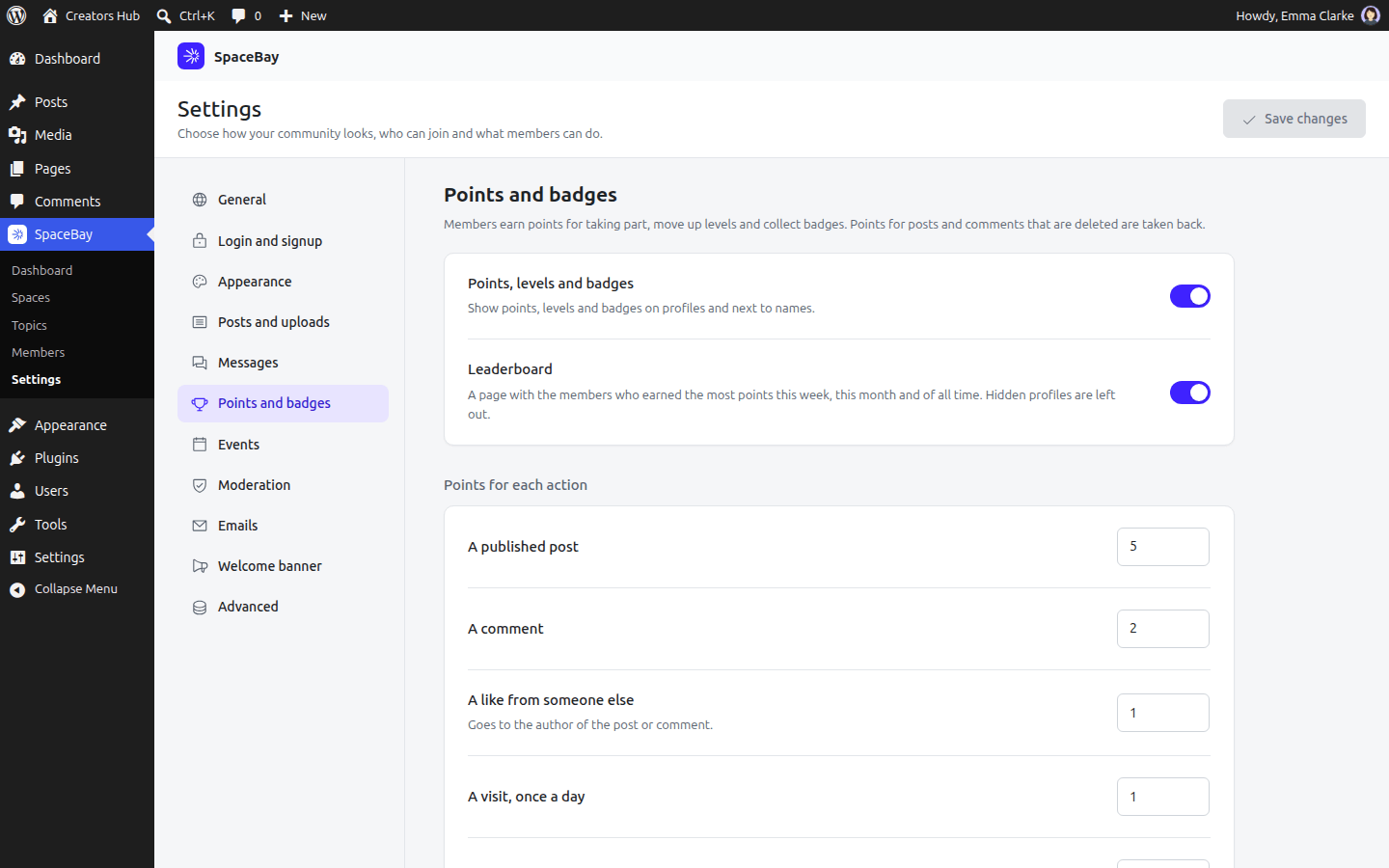 *SpaceBay → Settings → Points and badges.*
**Levels.** Each level has a name and the points needed to reach it. A member's level shows on their profile, in the member directory, on the leaderboard and next to their name on posts (from the second level up). Members get a notification when they reach a new level.
**Badges.** SpaceBay comes with nine badges that members earn on their own: First post, First reply, Storyteller (10 posts), Conversationalist (50 comments), Well liked (25 likes), Crowd favourite (100 likes), Regular (30 daily visits), Event goer (5 events) and Community champion (1,000 points). Switch each one on or off in **Settings → Points and badges**. Members get a notification for every badge (and an email when they choose it). Badges are kept once earned, also when a rule changes or the member deletes what earned it.
**Profiles.** A member's profile shows their level, points, place on the leaderboard and badges. On their own profile, members also see how far they are from the next level, the badges they can still earn with their progress, and a **Points history**.
*SpaceBay → Settings → Points and badges.*
**Levels.** Each level has a name and the points needed to reach it. A member's level shows on their profile, in the member directory, on the leaderboard and next to their name on posts (from the second level up). Members get a notification when they reach a new level.
**Badges.** SpaceBay comes with nine badges that members earn on their own: First post, First reply, Storyteller (10 posts), Conversationalist (50 comments), Well liked (25 likes), Crowd favourite (100 likes), Regular (30 daily visits), Event goer (5 events) and Community champion (1,000 points). Switch each one on or off in **Settings → Points and badges**. Members get a notification for every badge (and an email when they choose it). Badges are kept once earned, also when a rule changes or the member deletes what earned it.
**Profiles.** A member's profile shows their level, points, place on the leaderboard and badges. On their own profile, members also see how far they are from the next level, the badges they can still earn with their progress, and a **Points history**.
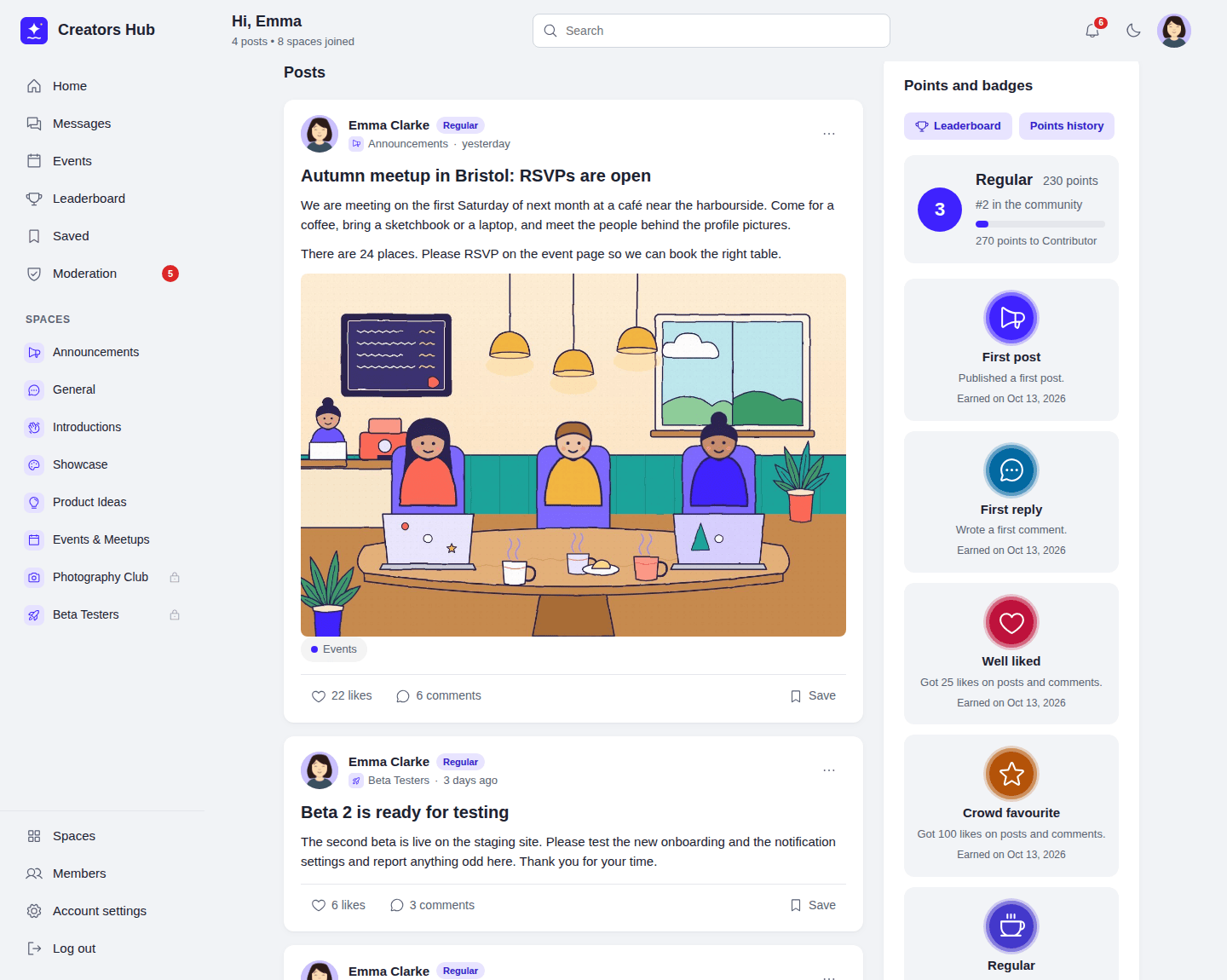 *Points and badges on a member's own profile.*
**Leaderboard.** The Leaderboard page lists the members with the most points this week, this month and of all time, with a top three. Weeks start on the day set in the WordPress setting *Settings → General → Week Starts On*; dates follow your site's time zone. Members with a hidden profile and suspended members are left out. The lists for this week and this month are added up every five minutes, so new points can take up to five minutes to show there; the all-time list is always current. Developers can change the time with the `spacebay_leaderboard_cache_seconds` filter (see [Hooks and filters](/spacebay/developers/hooks-and-filters/)).
*Points and badges on a member's own profile.*
**Leaderboard.** The Leaderboard page lists the members with the most points this week, this month and of all time, with a top three. Weeks start on the day set in the WordPress setting *Settings → General → Week Starts On*; dates follow your site's time zone. Members with a hidden profile and suspended members are left out. The lists for this week and this month are added up every five minutes, so new points can take up to five minutes to show there; the all-time list is always current. Developers can change the time with the `spacebay_leaderboard_cache_seconds` filter (see [Hooks and filters](/spacebay/developers/hooks-and-filters/)).
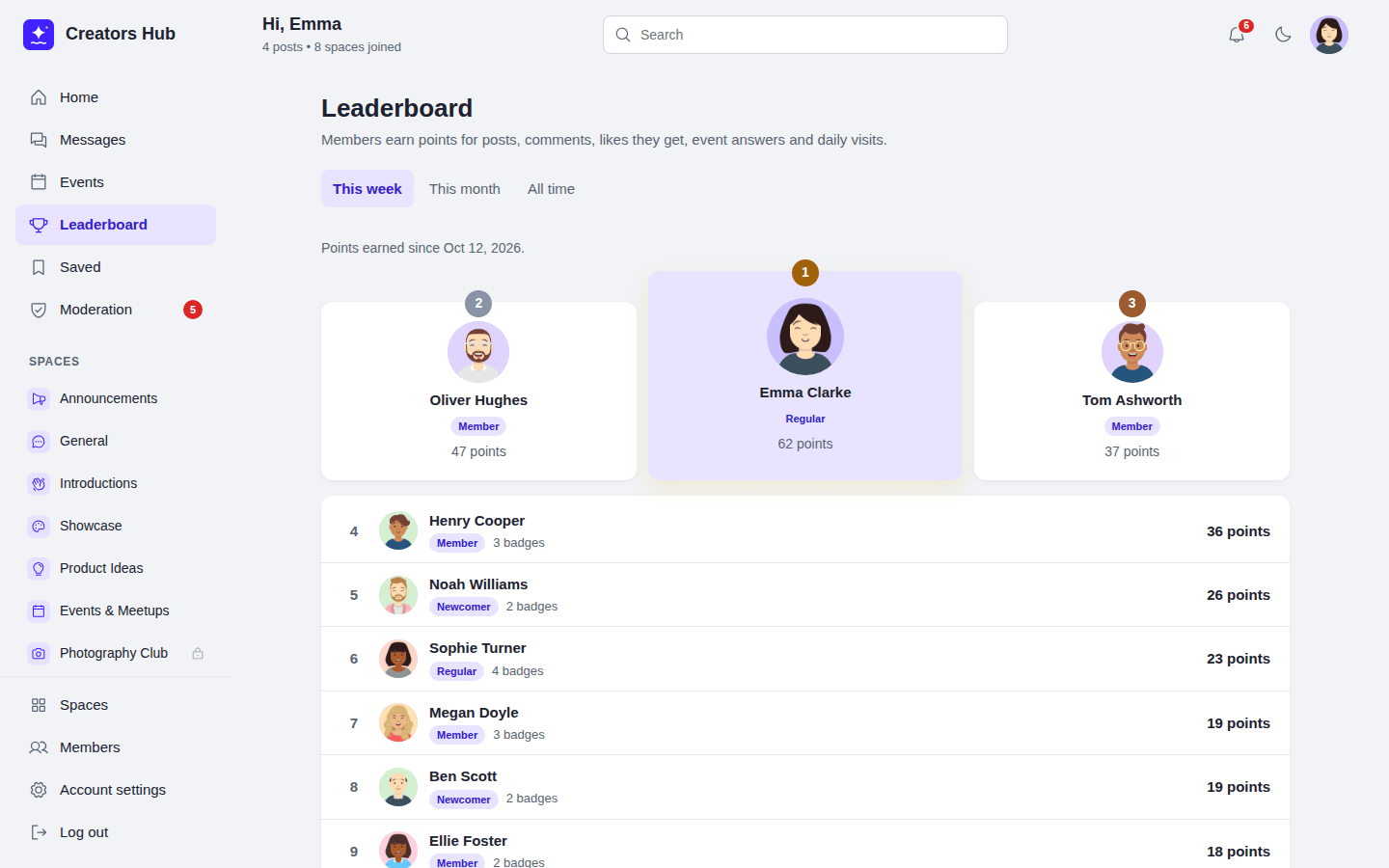 *The Leaderboard page, this month.*
**Earlier content.** When SpaceBay is installed or updated on a site that already has posts, comments and likes without points, members get points for them once, with the original dates, and badges they already reached are given without notifications.
The badge editor and giving badges and points by hand are part of SpaceBay Pro: see [Badge editor](/spacebay/pro/badge-editor/) and [Manual badges and points](/spacebay/pro/manual-badges-and-points/).
## Privacy and personal data
URL: https://docs.wpanchorbay.com/spacebay/user-guide/privacy-and-gdpr/
Description: Export and erase personal data with the WordPress privacy tools, and what SpaceBay adds to your privacy policy.
SpaceBay works with the WordPress privacy tools in **Tools → Export Personal Data** and **Tools → Erase Personal Data**.
- **Export** includes the member's profile and custom fields, email choices, space memberships, posts, comments, private messages they sent, likes and saved posts, uploaded images, reports they sent, notifications they received, points, badges, event answers and events they organized.
- **Erase** deletes the member's posts, comments, private messages (a "Message deleted" line stays in the chat), likes, images, blocked members list, profile, memberships, notifications, reports, points, badges, event answers and events they organized. Replies that other members wrote to their comments are kept as separate comments.
- Deleting a WordPress user also deletes their community data, including their two-factor setup when Pro is active.
SpaceBay adds suggested text to **Settings → Privacy → Policy Guide**. Review it and add what fits to your privacy policy.
## Images and privacy
Uploads are kept in a private folder with random file names, and the original file name is not kept. A private image is shown only to people who may see it: the members of a chat, people who can read a private space's posts, or the member who uploaded it and has not posted it yet. Everyone else, including logged-out visitors, gets "Image not found". Avatars, cover images and images in public spaces are normal public files. Photo details such as GPS location and camera are removed from every uploaded image. Images are included in the personal data export and deleted when a member is erased or SpaceBay is uninstalled. Sites on nginx need one extra rule, see [Security and limits](/spacebay/user-guide/security-and-limits/#images-and-privacy).
## What happens when a user is deleted
When a WordPress user is deleted, their SpaceBay profile, photo, cover, notifications, posts, comments, likes, images, memberships, points, badges, event answers and the events they organized are deleted too. Images uploaded but never posted are removed after a day.
## Profiles and member directory
URL: https://docs.wpanchorbay.com/spacebay/user-guide/profiles-and-directory/
Description: Member profiles, photo and cover, hiding a profile, last active, and the member directory.
Every member has a profile with a photo, a cover image, a headline, an *About me* text, location and website. With Pro, profiles also show any [custom fields](/spacebay/pro/custom-profile-fields/) you add. Members edit it from the account menu → **Account settings**, or with **Edit profile** on their own profile page.
*The Leaderboard page, this month.*
**Earlier content.** When SpaceBay is installed or updated on a site that already has posts, comments and likes without points, members get points for them once, with the original dates, and badges they already reached are given without notifications.
The badge editor and giving badges and points by hand are part of SpaceBay Pro: see [Badge editor](/spacebay/pro/badge-editor/) and [Manual badges and points](/spacebay/pro/manual-badges-and-points/).
## Privacy and personal data
URL: https://docs.wpanchorbay.com/spacebay/user-guide/privacy-and-gdpr/
Description: Export and erase personal data with the WordPress privacy tools, and what SpaceBay adds to your privacy policy.
SpaceBay works with the WordPress privacy tools in **Tools → Export Personal Data** and **Tools → Erase Personal Data**.
- **Export** includes the member's profile and custom fields, email choices, space memberships, posts, comments, private messages they sent, likes and saved posts, uploaded images, reports they sent, notifications they received, points, badges, event answers and events they organized.
- **Erase** deletes the member's posts, comments, private messages (a "Message deleted" line stays in the chat), likes, images, blocked members list, profile, memberships, notifications, reports, points, badges, event answers and events they organized. Replies that other members wrote to their comments are kept as separate comments.
- Deleting a WordPress user also deletes their community data, including their two-factor setup when Pro is active.
SpaceBay adds suggested text to **Settings → Privacy → Policy Guide**. Review it and add what fits to your privacy policy.
## Images and privacy
Uploads are kept in a private folder with random file names, and the original file name is not kept. A private image is shown only to people who may see it: the members of a chat, people who can read a private space's posts, or the member who uploaded it and has not posted it yet. Everyone else, including logged-out visitors, gets "Image not found". Avatars, cover images and images in public spaces are normal public files. Photo details such as GPS location and camera are removed from every uploaded image. Images are included in the personal data export and deleted when a member is erased or SpaceBay is uninstalled. Sites on nginx need one extra rule, see [Security and limits](/spacebay/user-guide/security-and-limits/#images-and-privacy).
## What happens when a user is deleted
When a WordPress user is deleted, their SpaceBay profile, photo, cover, notifications, posts, comments, likes, images, memberships, points, badges, event answers and the events they organized are deleted too. Images uploaded but never posted are removed after a day.
## Profiles and member directory
URL: https://docs.wpanchorbay.com/spacebay/user-guide/profiles-and-directory/
Description: Member profiles, photo and cover, hiding a profile, last active, and the member directory.
Every member has a profile with a photo, a cover image, a headline, an *About me* text, location and website. With Pro, profiles also show any [custom fields](/spacebay/pro/custom-profile-fields/) you add. Members edit it from the account menu → **Account settings**, or with **Edit profile** on their own profile page.
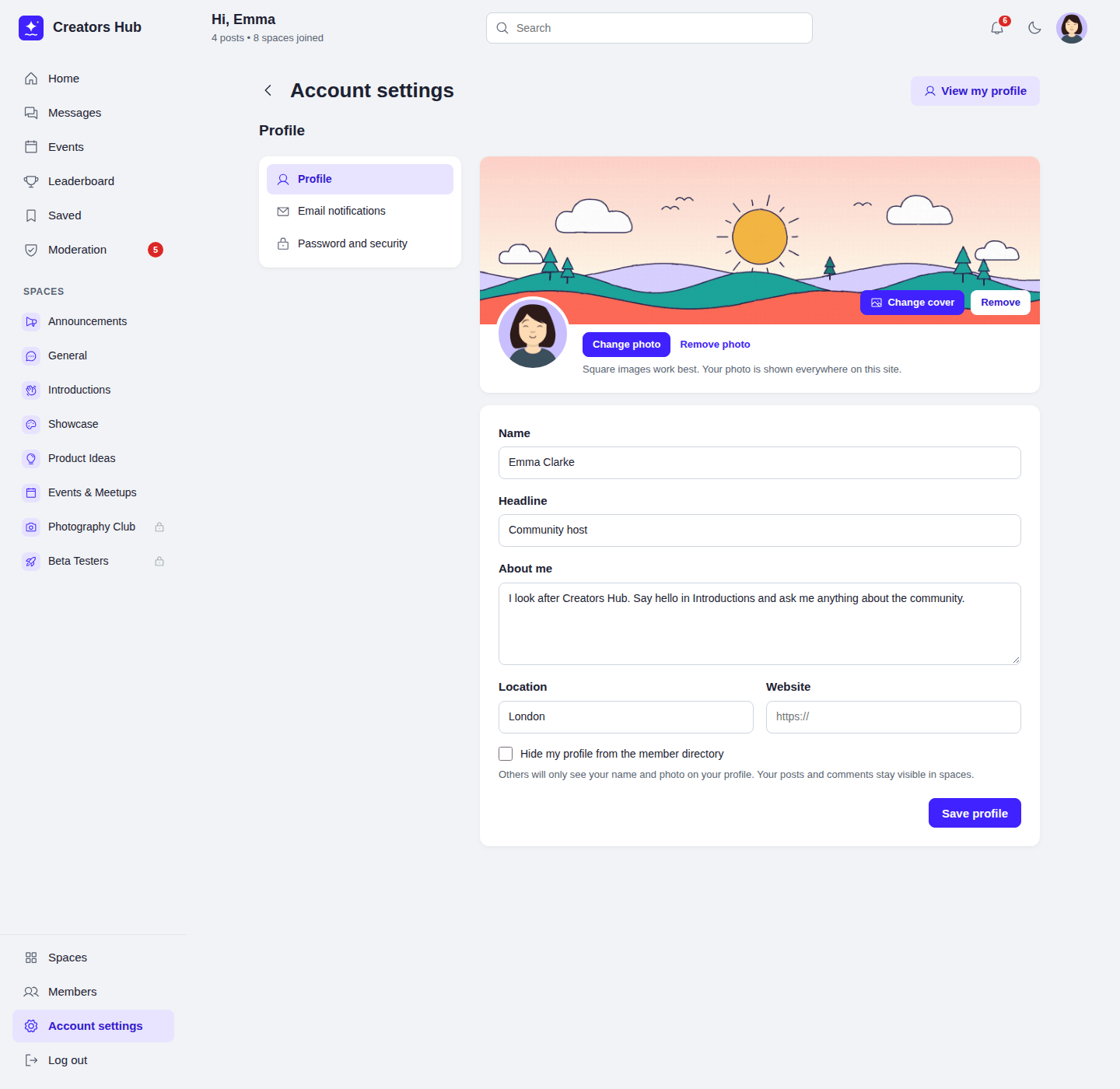 *Account settings → Profile.*
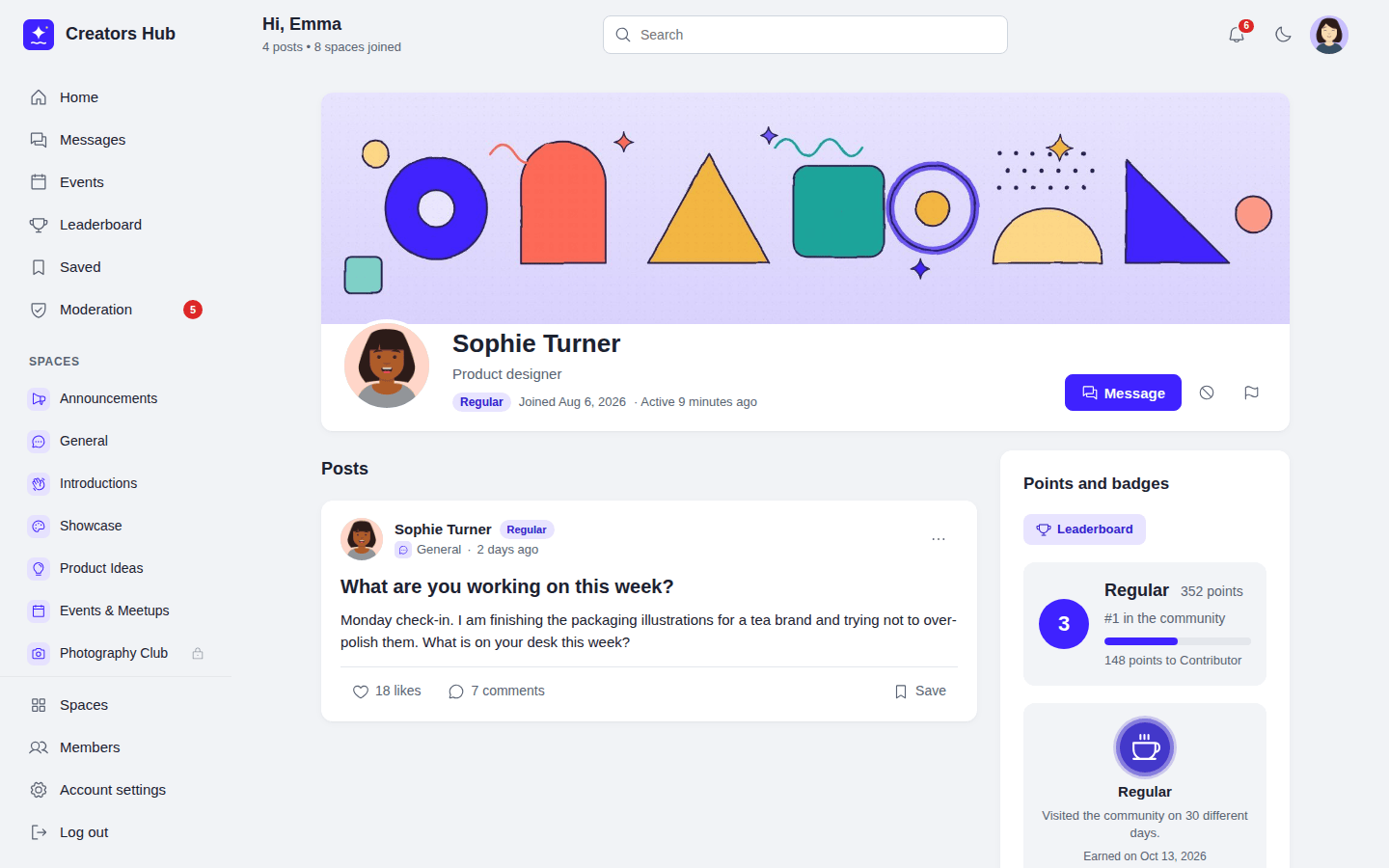 *A member profile.*
- **Photo and cover.** JPEG, PNG or WebP. Photos are cropped to a 400 × 400 square and covers to 1600 × 480. Images are re-saved by WordPress, so hidden data such as GPS location is removed. The photo replaces the Gravatar everywhere on your site, including WordPress comments.
- **Hide my profile.** Hidden members do not appear in the member directory or in search. Their profile page only shows their name and photo. Their posts and comments stay visible in spaces. Administrators can still see them.
- **Last active.** Profiles show when a member was last active in the community, updated at most every five minutes.
## Member directory
Logged-in members can browse and search everyone in the community on the Members page. Email addresses and login names are never shown. Turn the directory off in Settings with **Show the member directory to logged-in members**; WordPress administrators can still see it.
*A member profile.*
- **Photo and cover.** JPEG, PNG or WebP. Photos are cropped to a 400 × 400 square and covers to 1600 × 480. Images are re-saved by WordPress, so hidden data such as GPS location is removed. The photo replaces the Gravatar everywhere on your site, including WordPress comments.
- **Hide my profile.** Hidden members do not appear in the member directory or in search. Their profile page only shows their name and photo. Their posts and comments stay visible in spaces. Administrators can still see them.
- **Last active.** Profiles show when a member was last active in the community, updated at most every five minutes.
## Member directory
Logged-in members can browse and search everyone in the community on the Members page. Email addresses and login names are never shown. Turn the directory off in Settings with **Show the member directory to logged-in members**; WordPress administrators can still see it.
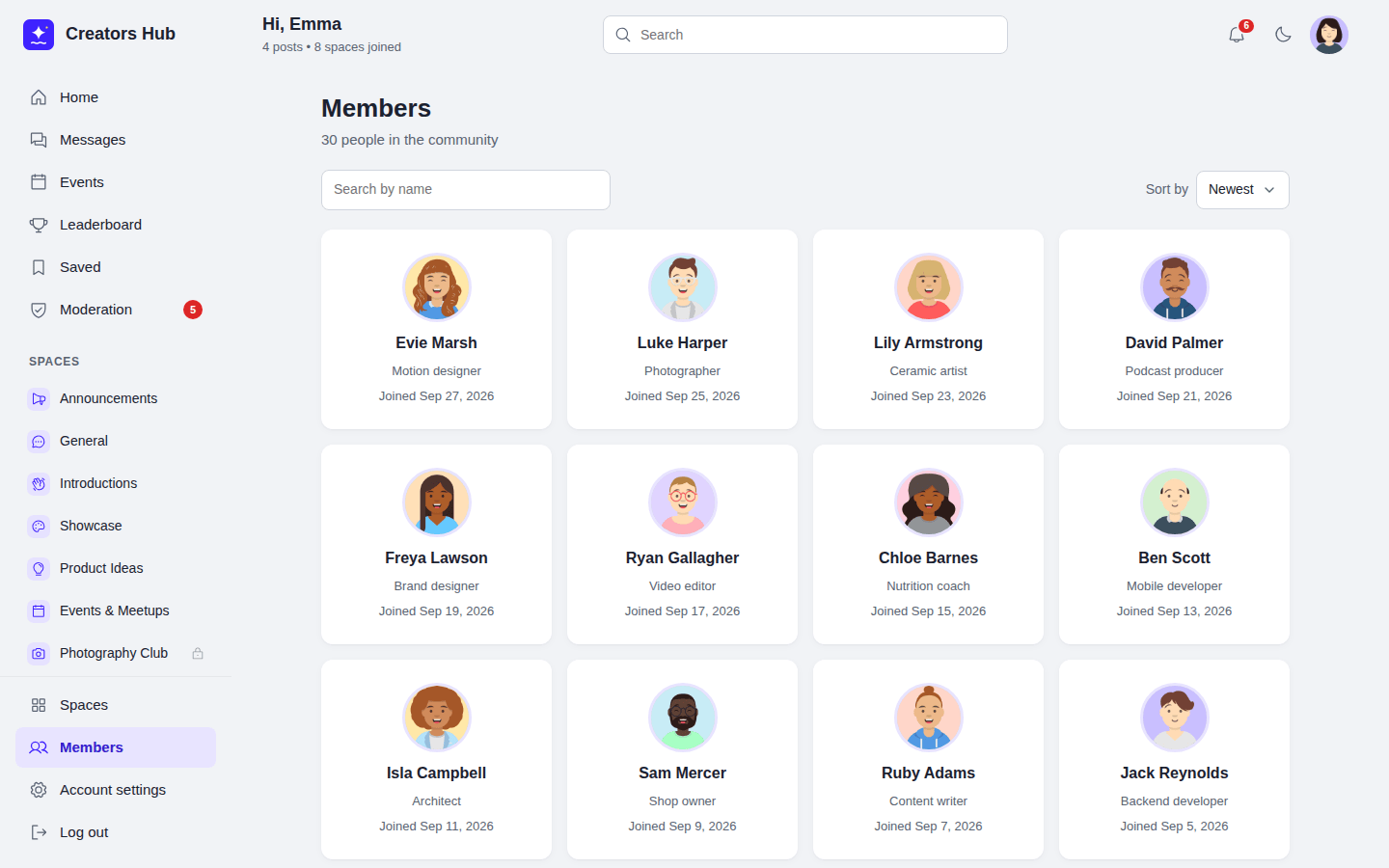 *The member directory.*
With Pro, profiles can also show your own [custom fields](/spacebay/pro/custom-profile-fields/).
## Search
URL: https://docs.wpanchorbay.com/spacebay/user-guide/search/
Description: What the search box finds and who sees which results.
The search box in the top bar finds posts, spaces and members. Results only include posts and spaces the person may see. Members are searched by name, only for logged-in people while the member directory is on, and hidden profiles are left out. On phones, use the search icon in the top bar.
*The member directory.*
With Pro, profiles can also show your own [custom fields](/spacebay/pro/custom-profile-fields/).
## Search
URL: https://docs.wpanchorbay.com/spacebay/user-guide/search/
Description: What the search box finds and who sees which results.
The search box in the top bar finds posts, spaces and members. Results only include posts and spaces the person may see. Members are searched by name, only for logged-in people while the member directory is on, and hidden profiles are left out. On phones, use the search icon in the top bar.
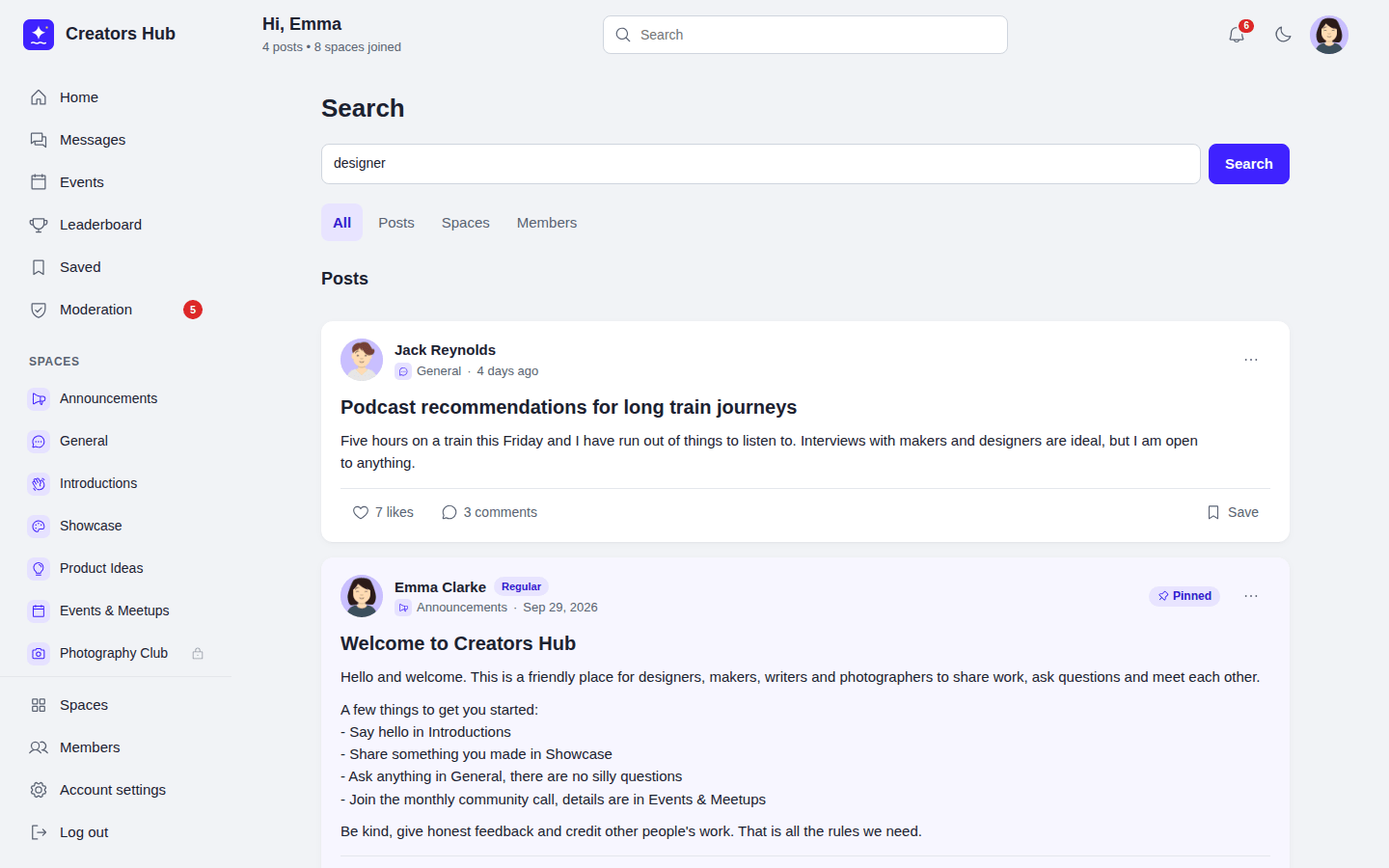 *Search results.*
## Security and limits
URL: https://docs.wpanchorbay.com/spacebay/user-guide/security-and-limits/
Description: Permission checks, upload handling, and the limits that slow down spam and password guessing.
Every REST request checks the member's permission and the WordPress nonce. Posts, comments and profile text are cleaned before they are saved and shown. Link previews only fetch public web addresses on ports 80 and 443. The request goes to the public address the link resolved to, and every redirect is checked again.
| Action | Limit per member |
| --- | --- |
| New posts | 5 a minute |
| Comments | 20 a minute |
| Edits of posts and comments | 20 a minute |
| Image uploads | 20 a minute, up to 30 images not yet posted |
| Likes and saves | 60 a minute |
| Joining or leaving spaces | 20 a minute |
| Invitations | 30 a minute |
| Profile saves | 20 a minute |
| Reports | 10 a minute |
| Messages | 30 a minute |
| New events | 10 an hour. Counted only after the form is valid. |
| Starting a call Pro | 10 a minute. Joining a call that is already running does not count. |
| Shop requests Pro | 3 an hour |
| New shop products Pro | 10 a minute |
| Edits of shop products Pro | 30 a minute |
| Members mentioned in one post or comment | 20 |
Logging in and signing up have their own limits, which apply to everyone:
| Action | Limit |
| --- | --- |
| Wrong passwords for one account | 5 in 15 minutes from one network address, 20 in 15 minutes in total. The limit for one network address applies only after failed attempts; a correct password is never refused. |
| Wrong login codes for one login Pro | 5, then the member logs in again |
| Wrong login codes for one account Pro | 10 in 15 minutes and 30 a day. The member gets an email when the daily limit is reached. |
| Login codes by email for one account Pro | 10 an hour |
| New accounts from one network address | 5 an hour |
| Password reset emails | 3 an hour for one account, 5 requests in 15 minutes from one network address |
Change these with the `spacebay_auth_attempts` filter. They cover the community login page; to also limit attempts on `wp-login.php`, use a login protection plugin or your host's firewall. If your site is behind a proxy or CDN that hides visitor addresses, return the real address with the `spacebay_client_ip` filter, otherwise all visitors share one limit. With Pro, authenticator keys are stored encrypted, and backup codes and emailed codes are stored as hashes.
For the other actions, administrators are not limited. Change limits with the `spacebay_rate_limit` filter. Images can be up to 8000 pixels on the longest side; the server's memory limit can lower this.
## Images and privacy
Uploads are stored in a private folder, `wp-content/uploads/spacebay-private/
*SpaceBay → Settings → Emails.*
## Welcome banner
| Setting | What it does |
| --- | --- |
| Title | Shown at the top of the home feed. Default: “Welcome to our community”. |
| Message | A sentence or two that tells members what the community is for. Default: “Say hello, ask questions and share what you are working on.” |
## Advanced
| Setting | What it does |
| --- | --- |
| Delete all data when the plugin is deleted | When on, deleting the plugin removes all SpaceBay data. Off by default. |
## Events settings
URL: https://docs.wpanchorbay.com/spacebay/user-guide/settings/events/
Description: Turn events on or off, choose who can add events, and set the Pro reminder time.
Open **SpaceBay → Settings** and choose the **Events** section in the left column. Select **Save changes** at the top right when you are done.
| Setting | What it does |
| --- | --- |
| Events | Adds the Events page, the calendar and an Events tab in every space. On by default. See [Events](/spacebay/user-guide/events/). |
| Who can add events | **Space admins and moderators** (default) or **Members who can post in the space**. |
| Reminder Pro | No reminders, or 1 hour, 3 hours, 1 day, 2 days or 1 week before an event starts (1 day by default). Goes to members who answered going or maybe. |
## General settings
URL: https://docs.wpanchorbay.com/spacebay/user-guide/settings/general/
Description: Community name, community address, who can view the community, the member directory, and the Posts and uploads section.
Open **SpaceBay → Settings** and choose the **General** section in the left column. Select **Save changes** at the top right when you are done.
| Setting | Default | What it does |
| --- | --- | --- |
| Community name | Your site name | Shown in the top bar, in emails and in page titles, which read "Page - Community name". |
| Community address | `community` | The part of the URL after your domain. Needs pretty permalinks; without them the field is greyed out. |
| Who can view the community | Everyone | **Everyone** lets visitors read public content. **Logged-in members only** shows visitors a login page. |
| Member directory | On | Shows the list of members to logged-in members. WordPress administrators can see it even when it is off. |
## Posts and uploads
Choose the **Posts and uploads** section in the left column.
| Setting | Default | What it does |
| --- | --- | --- |
| Link previews | On | When a post contains a link, your site visits that page once to read its title, description and image. YouTube and Vimeo links always show a video that loads only when someone presses play. Turn it off if you do not want your site to contact other websites. See [Feed and posts](/spacebay/user-guide/feed-and-posts/#link-previews-and-videos). |
| Largest image upload (MB) | 5 | A number from 1 to 50. Members can attach up to 10 JPG, PNG, GIF or WebP images per post. Large images are resized to 2048 pixels on the longest side. Your server's own upload limit also applies, and the lower of the two wins. |
For how images are stored and who can open them, see [Security and limits](/spacebay/user-guide/security-and-limits/#images-and-privacy).
## Login and signup settings
URL: https://docs.wpanchorbay.com/spacebay/user-guide/settings/login-and-signup/
Description: Community login pages, letting people sign up, the terms page, and the Pro signup form and two-factor settings.
Open **SpaceBay → Settings** and choose the **Login and signup** section in the left column. Select **Save changes** at the top right when you are done.
| Setting | What it does |
| --- | --- |
| Community login pages | Members log in, sign up and reset their password on pages that match your community. On by default. Turn it off to use the WordPress login page. See [Login and signup](/spacebay/user-guide/login-and-signup/). |
| Let people sign up | Opens the signup page. On a new site it follows the WordPress setting *Anyone can register*. |
| Terms page | Address of your terms. When an address is set, the signup form shows an “I agree to the terms” tick box that links to it. |
| Signup form Pro | Which fields are on the signup form, which are required, and their order, with a live preview. |
| Two-factor authentication Pro | **Off** (default), **Optional** or **Required for everyone**. See [Two-factor authentication](/spacebay/pro/two-factor-authentication/). |
| Require it for admins and moderators Pro | With **Optional**: accounts that can manage or moderate the community always need a code. |
| How members get their code Pro | Authenticator app or email (default), authenticator app only, or email only. |
Google and Facebook buttons are turned on in the same section. See [Log in with Google or Facebook](/spacebay/user-guide/social-login/).
## Messages settings
URL: https://docs.wpanchorbay.com/spacebay/user-guide/settings/messages/
Description: Turn private messages and group chats on or off, choose who can message whom, and set up calls with Pro.
Open **SpaceBay → Settings** and choose the **Messages** section in the left column. Select **Save changes** at the top right when you are done.
| Setting | What it does |
| --- | --- |
| Private messages | Turns the Messages page on or off. On by default. See [Messages](/spacebay/user-guide/messages/). |
| Who can message whom | **Members who share a space** (default), **Any member**, or **Only admins and moderators**. Admins and moderators can always message everyone and be messaged. |
| Allow group chats / Most people in a group | Lets members start named group chats. Up to 20 people by default (3–100). |
| Calls Pro | **Off** (default), **Voice calls**, or **Voice and video calls**. Needs HTTPS. See [Voice and video calls](/spacebay/pro/voice-and-video-calls/). |
| Most people in a call Pro | 2–6, 4 by default. Every person sends sound and video to every other person, so big calls need fast internet. |
| STUN server Pro | Helps browsers find each other. The default is Google's free public server. |
| TURN server, username and password Pro | Optional relay for strict office or mobile networks. Members who make a call receive these details. |
*Settings → Messages, with SpaceBay Pro active.*
## Moderation settings
URL: https://docs.wpanchorbay.com/spacebay/user-guide/settings/moderation/
Description: Member approval, review of new posts, blocked words and the number of reports that hides content.
Open **SpaceBay → Settings** and choose the **Moderation** section in the left column. Select **Save changes** at the top right when you are done.
| Setting | What it does |
| --- | --- |
| Approve new members | New sign-ups wait for a moderator before they can post, comment or join spaces. See [Member approval](/spacebay/user-guide/member-approval-and-moderators/). |
| New posts | Publish posts right away, review the first post of each member, or review every new post. |
| Blocked words | One word or phrase per line, and what happens when someone uses one: hold for review, hide the words with stars, or refuse the post. |
| Hide content after this many reports | Reported posts and comments are hidden until a moderator decides. 3 by default; 0 turns it off. |
*SpaceBay → Settings → Moderation.*
## Settings overview
URL: https://docs.wpanchorbay.com/spacebay/user-guide/settings/overview/
Description: How the SpaceBay settings screen is organised, with a link to every section.
*Search results.*
## Security and limits
URL: https://docs.wpanchorbay.com/spacebay/user-guide/security-and-limits/
Description: Permission checks, upload handling, and the limits that slow down spam and password guessing.
Every REST request checks the member's permission and the WordPress nonce. Posts, comments and profile text are cleaned before they are saved and shown. Link previews only fetch public web addresses on ports 80 and 443. The request goes to the public address the link resolved to, and every redirect is checked again.
| Action | Limit per member |
| --- | --- |
| New posts | 5 a minute |
| Comments | 20 a minute |
| Edits of posts and comments | 20 a minute |
| Image uploads | 20 a minute, up to 30 images not yet posted |
| Likes and saves | 60 a minute |
| Joining or leaving spaces | 20 a minute |
| Invitations | 30 a minute |
| Profile saves | 20 a minute |
| Reports | 10 a minute |
| Messages | 30 a minute |
| New events | 10 an hour. Counted only after the form is valid. |
| Starting a call Pro | 10 a minute. Joining a call that is already running does not count. |
| Shop requests Pro | 3 an hour |
| New shop products Pro | 10 a minute |
| Edits of shop products Pro | 30 a minute |
| Members mentioned in one post or comment | 20 |
Logging in and signing up have their own limits, which apply to everyone:
| Action | Limit |
| --- | --- |
| Wrong passwords for one account | 5 in 15 minutes from one network address, 20 in 15 minutes in total. The limit for one network address applies only after failed attempts; a correct password is never refused. |
| Wrong login codes for one login Pro | 5, then the member logs in again |
| Wrong login codes for one account Pro | 10 in 15 minutes and 30 a day. The member gets an email when the daily limit is reached. |
| Login codes by email for one account Pro | 10 an hour |
| New accounts from one network address | 5 an hour |
| Password reset emails | 3 an hour for one account, 5 requests in 15 minutes from one network address |
Change these with the `spacebay_auth_attempts` filter. They cover the community login page; to also limit attempts on `wp-login.php`, use a login protection plugin or your host's firewall. If your site is behind a proxy or CDN that hides visitor addresses, return the real address with the `spacebay_client_ip` filter, otherwise all visitors share one limit. With Pro, authenticator keys are stored encrypted, and backup codes and emailed codes are stored as hashes.
For the other actions, administrators are not limited. Change limits with the `spacebay_rate_limit` filter. Images can be up to 8000 pixels on the longest side; the server's memory limit can lower this.
## Images and privacy
Uploads are stored in a private folder, `wp-content/uploads/spacebay-private/
*SpaceBay → Settings → Emails.*
## Welcome banner
| Setting | What it does |
| --- | --- |
| Title | Shown at the top of the home feed. Default: “Welcome to our community”. |
| Message | A sentence or two that tells members what the community is for. Default: “Say hello, ask questions and share what you are working on.” |
## Advanced
| Setting | What it does |
| --- | --- |
| Delete all data when the plugin is deleted | When on, deleting the plugin removes all SpaceBay data. Off by default. |
## Events settings
URL: https://docs.wpanchorbay.com/spacebay/user-guide/settings/events/
Description: Turn events on or off, choose who can add events, and set the Pro reminder time.
Open **SpaceBay → Settings** and choose the **Events** section in the left column. Select **Save changes** at the top right when you are done.
| Setting | What it does |
| --- | --- |
| Events | Adds the Events page, the calendar and an Events tab in every space. On by default. See [Events](/spacebay/user-guide/events/). |
| Who can add events | **Space admins and moderators** (default) or **Members who can post in the space**. |
| Reminder Pro | No reminders, or 1 hour, 3 hours, 1 day, 2 days or 1 week before an event starts (1 day by default). Goes to members who answered going or maybe. |
## General settings
URL: https://docs.wpanchorbay.com/spacebay/user-guide/settings/general/
Description: Community name, community address, who can view the community, the member directory, and the Posts and uploads section.
Open **SpaceBay → Settings** and choose the **General** section in the left column. Select **Save changes** at the top right when you are done.
| Setting | Default | What it does |
| --- | --- | --- |
| Community name | Your site name | Shown in the top bar, in emails and in page titles, which read "Page - Community name". |
| Community address | `community` | The part of the URL after your domain. Needs pretty permalinks; without them the field is greyed out. |
| Who can view the community | Everyone | **Everyone** lets visitors read public content. **Logged-in members only** shows visitors a login page. |
| Member directory | On | Shows the list of members to logged-in members. WordPress administrators can see it even when it is off. |
## Posts and uploads
Choose the **Posts and uploads** section in the left column.
| Setting | Default | What it does |
| --- | --- | --- |
| Link previews | On | When a post contains a link, your site visits that page once to read its title, description and image. YouTube and Vimeo links always show a video that loads only when someone presses play. Turn it off if you do not want your site to contact other websites. See [Feed and posts](/spacebay/user-guide/feed-and-posts/#link-previews-and-videos). |
| Largest image upload (MB) | 5 | A number from 1 to 50. Members can attach up to 10 JPG, PNG, GIF or WebP images per post. Large images are resized to 2048 pixels on the longest side. Your server's own upload limit also applies, and the lower of the two wins. |
For how images are stored and who can open them, see [Security and limits](/spacebay/user-guide/security-and-limits/#images-and-privacy).
## Login and signup settings
URL: https://docs.wpanchorbay.com/spacebay/user-guide/settings/login-and-signup/
Description: Community login pages, letting people sign up, the terms page, and the Pro signup form and two-factor settings.
Open **SpaceBay → Settings** and choose the **Login and signup** section in the left column. Select **Save changes** at the top right when you are done.
| Setting | What it does |
| --- | --- |
| Community login pages | Members log in, sign up and reset their password on pages that match your community. On by default. Turn it off to use the WordPress login page. See [Login and signup](/spacebay/user-guide/login-and-signup/). |
| Let people sign up | Opens the signup page. On a new site it follows the WordPress setting *Anyone can register*. |
| Terms page | Address of your terms. When an address is set, the signup form shows an “I agree to the terms” tick box that links to it. |
| Signup form Pro | Which fields are on the signup form, which are required, and their order, with a live preview. |
| Two-factor authentication Pro | **Off** (default), **Optional** or **Required for everyone**. See [Two-factor authentication](/spacebay/pro/two-factor-authentication/). |
| Require it for admins and moderators Pro | With **Optional**: accounts that can manage or moderate the community always need a code. |
| How members get their code Pro | Authenticator app or email (default), authenticator app only, or email only. |
Google and Facebook buttons are turned on in the same section. See [Log in with Google or Facebook](/spacebay/user-guide/social-login/).
## Messages settings
URL: https://docs.wpanchorbay.com/spacebay/user-guide/settings/messages/
Description: Turn private messages and group chats on or off, choose who can message whom, and set up calls with Pro.
Open **SpaceBay → Settings** and choose the **Messages** section in the left column. Select **Save changes** at the top right when you are done.
| Setting | What it does |
| --- | --- |
| Private messages | Turns the Messages page on or off. On by default. See [Messages](/spacebay/user-guide/messages/). |
| Who can message whom | **Members who share a space** (default), **Any member**, or **Only admins and moderators**. Admins and moderators can always message everyone and be messaged. |
| Allow group chats / Most people in a group | Lets members start named group chats. Up to 20 people by default (3–100). |
| Calls Pro | **Off** (default), **Voice calls**, or **Voice and video calls**. Needs HTTPS. See [Voice and video calls](/spacebay/pro/voice-and-video-calls/). |
| Most people in a call Pro | 2–6, 4 by default. Every person sends sound and video to every other person, so big calls need fast internet. |
| STUN server Pro | Helps browsers find each other. The default is Google's free public server. |
| TURN server, username and password Pro | Optional relay for strict office or mobile networks. Members who make a call receive these details. |
*Settings → Messages, with SpaceBay Pro active.*
## Moderation settings
URL: https://docs.wpanchorbay.com/spacebay/user-guide/settings/moderation/
Description: Member approval, review of new posts, blocked words and the number of reports that hides content.
Open **SpaceBay → Settings** and choose the **Moderation** section in the left column. Select **Save changes** at the top right when you are done.
| Setting | What it does |
| --- | --- |
| Approve new members | New sign-ups wait for a moderator before they can post, comment or join spaces. See [Member approval](/spacebay/user-guide/member-approval-and-moderators/). |
| New posts | Publish posts right away, review the first post of each member, or review every new post. |
| Blocked words | One word or phrase per line, and what happens when someone uses one: hold for review, hide the words with stars, or refuse the post. |
| Hide content after this many reports | Reported posts and comments are hidden until a moderator decides. 3 by default; 0 turns it off. |
*SpaceBay → Settings → Moderation.*
## Settings overview
URL: https://docs.wpanchorbay.com/spacebay/user-guide/settings/overview/
Description: How the SpaceBay settings screen is organised, with a link to every section.
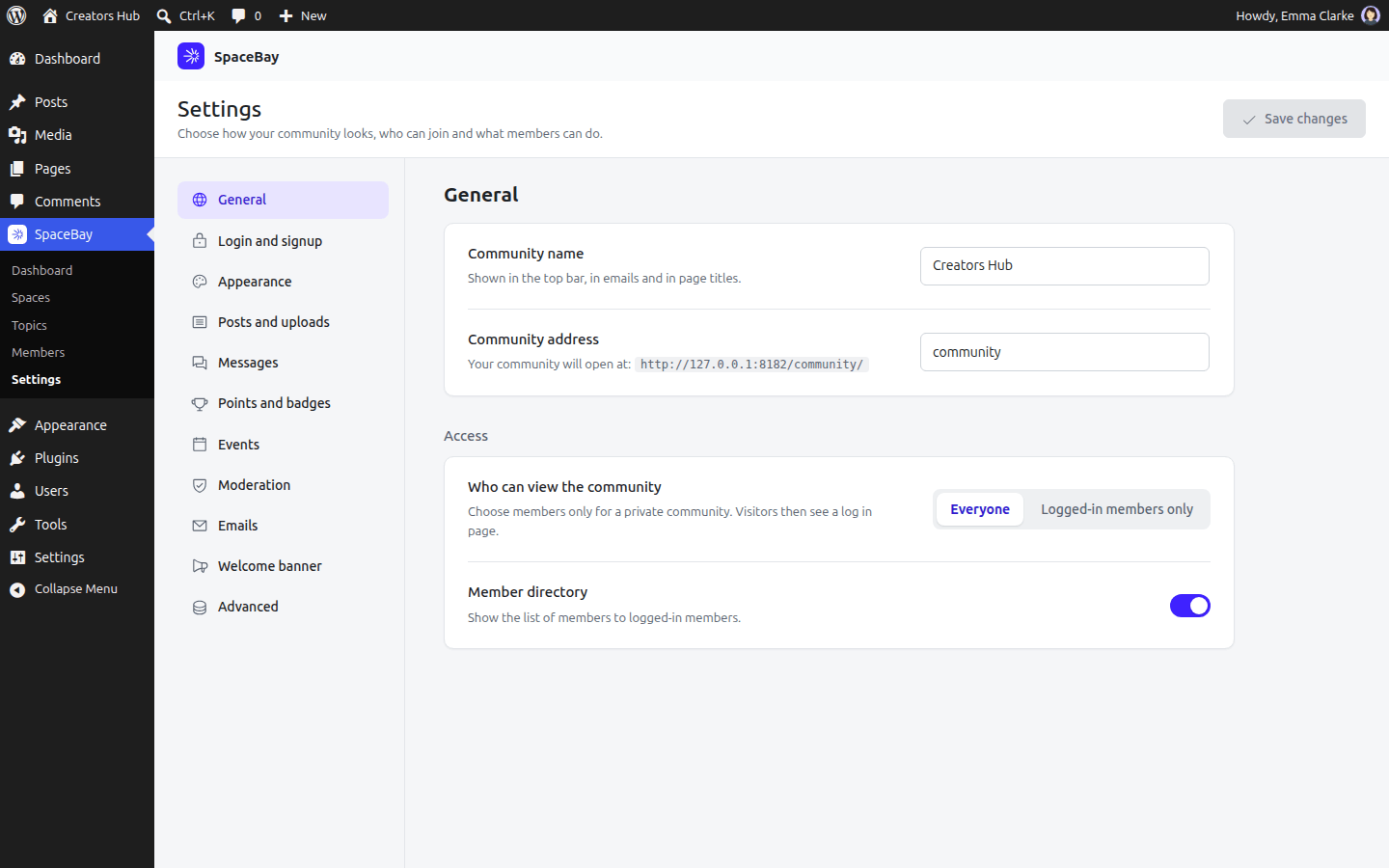 *SpaceBay → Settings.*
Settings are grouped into sections in the left column: **General**, **Login and signup**, **Appearance**, **Posts and uploads**, **Messages**, **Points and badges**, **Events**, **Shops** (Pro), **Moderation**, **Emails**, **Welcome banner** and **Advanced**. Change what you need in any section, then select **Save changes** at the top right. The button is active only when something has changed.
*SpaceBay → Settings → Points and badges.*
## Log in with Google or Facebook
URL: https://docs.wpanchorbay.com/spacebay/user-guide/social-login/
Description: Let members log in and sign up with Google or Facebook, and how to create the Google and Facebook apps.
Members can log in and sign up with their Google or Facebook account. The login and signup pages then show **Continue with Google** and **Continue with Facebook** under the form. Both are off until you turn them on.
- **One button for both.** Someone who used the button before is logged in. Someone whose email address already belongs to a member is logged in to that account, when Google or Facebook has confirmed the address and the account's email counts as verified. If it does not, the member is asked to log in with their password first (or to use **Forgot your password?**). An email counts as verified when the account was created by a social login or after a password reset. Changing the email address makes it unverified again. Anyone else gets a new account.
- **Administrators and community managers log in with their password.** The buttons never connect to an account that can manage the site or the community, so a Google or Facebook account cannot be used to get into one.
- **When signing up is closed** (Let people sign up is off), the buttons only log in existing members. A new person sees a message that the community is not open for new members.
- **New accounts** get the name and email address from Google or Facebook and a password nobody knows. To also log in with a password, the member uses **Forgot your password?** once. New accounts follow your settings like any signup, including **Approve new members**.
- **With two-factor authentication** Pro the member still enters their 6-digit code after Google or Facebook.
- Each service needs an app of your own. Creating one is free. Your keys stay on your site, and nothing is sent to Google or Facebook before a visitor clicks the button.
## Set up Google
1. In SpaceBay, go to **Settings → Login and signup**, turn on **Continue with Google** and copy the **Callback address**.
2. Open **console.cloud.google.com** and create a project (or pick one).
3. Go to **APIs and services → OAuth consent screen**. Choose **External**, enter your community name, support email and the address of your privacy policy, and publish the app.
4. Go to **APIs and services → Credentials → Create credentials → OAuth client ID**. Choose **Web application** and paste the callback address under **Authorized redirect URIs**.
5. Copy the **Client ID** and **Client secret** into SpaceBay and select **Save changes**.
## Set up Facebook
1. In SpaceBay, turn on **Continue with Facebook** and copy the **Callback address**.
2. Open **developers.facebook.com**, create an app and choose the use case **Authenticate and request data from users with Facebook Login**. The **email** and **public_profile** permissions it needs do not need a review by Meta.
3. Under **Facebook Login → Settings**, paste the callback address under **Valid OAuth Redirect URIs**.
4. Under **App settings → Basic**, add your privacy policy address and a data deletion page, then switch the app to **Live**. While it is in development, only people added to the app can log in.
5. Copy the **App ID** and **App secret** into SpaceBay and select **Save changes**.
## When the community address changes
If the community address changes (for example from http to https), the callback address changes too: update it in your Google and Facebook apps. Facebook accounts made with a phone number and no email address cannot be used; those people sign up with their email address.
## Spaces and groups
URL: https://docs.wpanchorbay.com/spacebay/user-guide/spaces/
Description: Create spaces and groups, set privacy, roles and archiving, and manage members.
Spaces are where members meet. Create them in **SpaceBay → Spaces**, or with **Create space** on the Spaces page of the community. Space groups organise spaces under headings in the community sidebar. Use the arrows to change the order.
Each space has an icon from a set of 28 line icons (announcements, chat, ideas, events, photos and more), or the first letter of its name. Icons are drawn in one colour, so they always match your brand. Spaces created with an emoji in earlier versions show the matching icon automatically.
*SpaceBay → Settings.*
Settings are grouped into sections in the left column: **General**, **Login and signup**, **Appearance**, **Posts and uploads**, **Messages**, **Points and badges**, **Events**, **Shops** (Pro), **Moderation**, **Emails**, **Welcome banner** and **Advanced**. Change what you need in any section, then select **Save changes** at the top right. The button is active only when something has changed.
*SpaceBay → Settings → Points and badges.*
## Log in with Google or Facebook
URL: https://docs.wpanchorbay.com/spacebay/user-guide/social-login/
Description: Let members log in and sign up with Google or Facebook, and how to create the Google and Facebook apps.
Members can log in and sign up with their Google or Facebook account. The login and signup pages then show **Continue with Google** and **Continue with Facebook** under the form. Both are off until you turn them on.
- **One button for both.** Someone who used the button before is logged in. Someone whose email address already belongs to a member is logged in to that account, when Google or Facebook has confirmed the address and the account's email counts as verified. If it does not, the member is asked to log in with their password first (or to use **Forgot your password?**). An email counts as verified when the account was created by a social login or after a password reset. Changing the email address makes it unverified again. Anyone else gets a new account.
- **Administrators and community managers log in with their password.** The buttons never connect to an account that can manage the site or the community, so a Google or Facebook account cannot be used to get into one.
- **When signing up is closed** (Let people sign up is off), the buttons only log in existing members. A new person sees a message that the community is not open for new members.
- **New accounts** get the name and email address from Google or Facebook and a password nobody knows. To also log in with a password, the member uses **Forgot your password?** once. New accounts follow your settings like any signup, including **Approve new members**.
- **With two-factor authentication** Pro the member still enters their 6-digit code after Google or Facebook.
- Each service needs an app of your own. Creating one is free. Your keys stay on your site, and nothing is sent to Google or Facebook before a visitor clicks the button.
## Set up Google
1. In SpaceBay, go to **Settings → Login and signup**, turn on **Continue with Google** and copy the **Callback address**.
2. Open **console.cloud.google.com** and create a project (or pick one).
3. Go to **APIs and services → OAuth consent screen**. Choose **External**, enter your community name, support email and the address of your privacy policy, and publish the app.
4. Go to **APIs and services → Credentials → Create credentials → OAuth client ID**. Choose **Web application** and paste the callback address under **Authorized redirect URIs**.
5. Copy the **Client ID** and **Client secret** into SpaceBay and select **Save changes**.
## Set up Facebook
1. In SpaceBay, turn on **Continue with Facebook** and copy the **Callback address**.
2. Open **developers.facebook.com**, create an app and choose the use case **Authenticate and request data from users with Facebook Login**. The **email** and **public_profile** permissions it needs do not need a review by Meta.
3. Under **Facebook Login → Settings**, paste the callback address under **Valid OAuth Redirect URIs**.
4. Under **App settings → Basic**, add your privacy policy address and a data deletion page, then switch the app to **Live**. While it is in development, only people added to the app can log in.
5. Copy the **App ID** and **App secret** into SpaceBay and select **Save changes**.
## When the community address changes
If the community address changes (for example from http to https), the callback address changes too: update it in your Google and Facebook apps. Facebook accounts made with a phone number and no email address cannot be used; those people sign up with their email address.
## Spaces and groups
URL: https://docs.wpanchorbay.com/spacebay/user-guide/spaces/
Description: Create spaces and groups, set privacy, roles and archiving, and manage members.
Spaces are where members meet. Create them in **SpaceBay → Spaces**, or with **Create space** on the Spaces page of the community. Space groups organise spaces under headings in the community sidebar. Use the arrows to change the order.
Each space has an icon from a set of 28 line icons (announcements, chat, ideas, events, photos and more), or the first letter of its name. Icons are drawn in one colour, so they always match your brand. Spaces created with an emoji in earlier versions show the matching icon automatically.
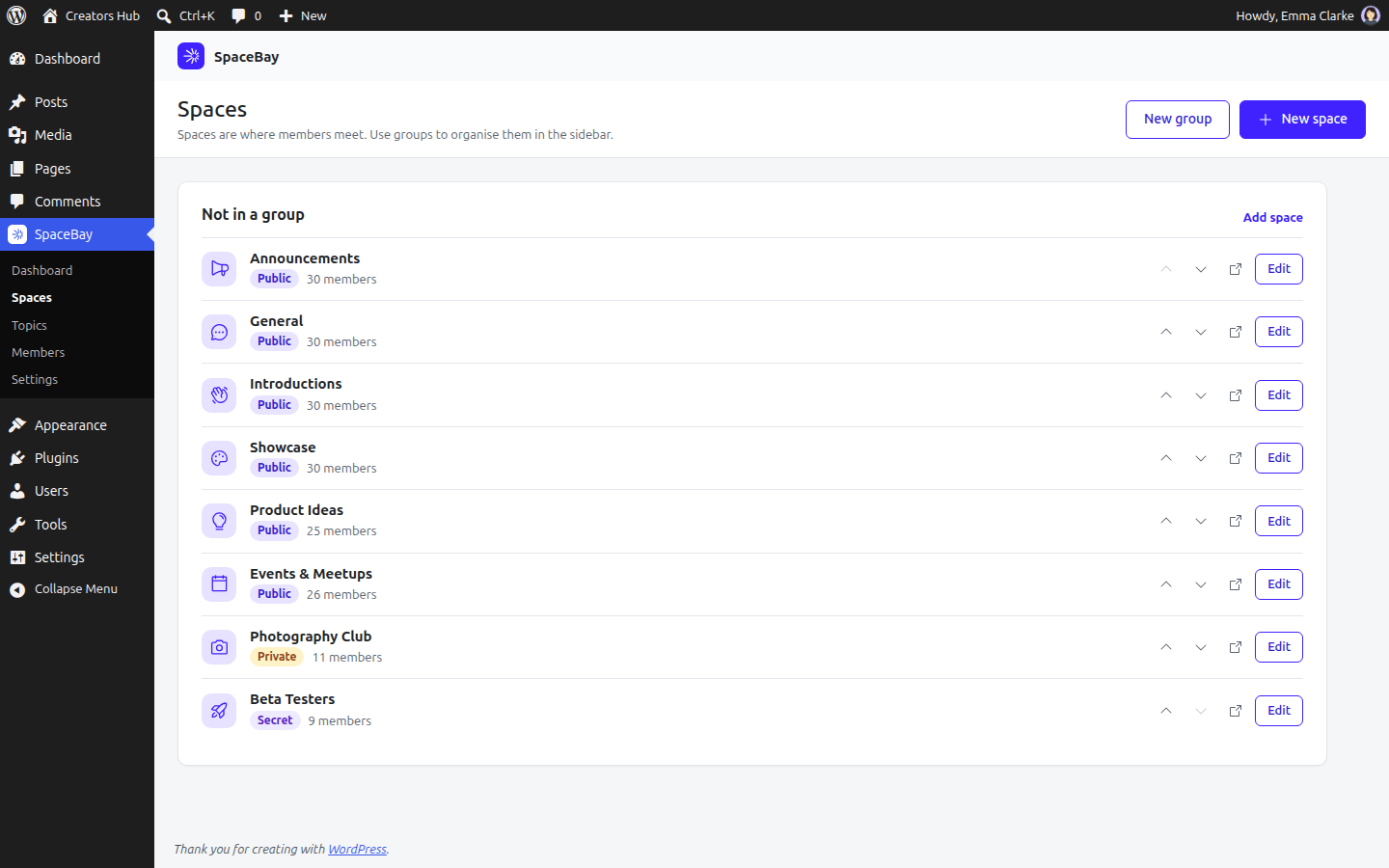 *SpaceBay → Spaces.*
| Privacy | Who sees it | Who reads posts | How people join |
| --- | --- | --- | --- |
| Public | Everyone who can open the community | Everyone | Click Join space |
| Private | Everyone who can open the community | Members only | Ask to join, then a space admin approves |
| Secret | Members and invited people only | Members only | By invitation only |
*SpaceBay → Spaces.*
| Privacy | Who sees it | Who reads posts | How people join |
| --- | --- | --- | --- |
| Public | Everyone who can open the community | Everyone | Click Join space |
| Private | Everyone who can open the community | Members only | Ask to join, then a space admin approves |
| Secret | Members and invited people only | Members only | By invitation only |
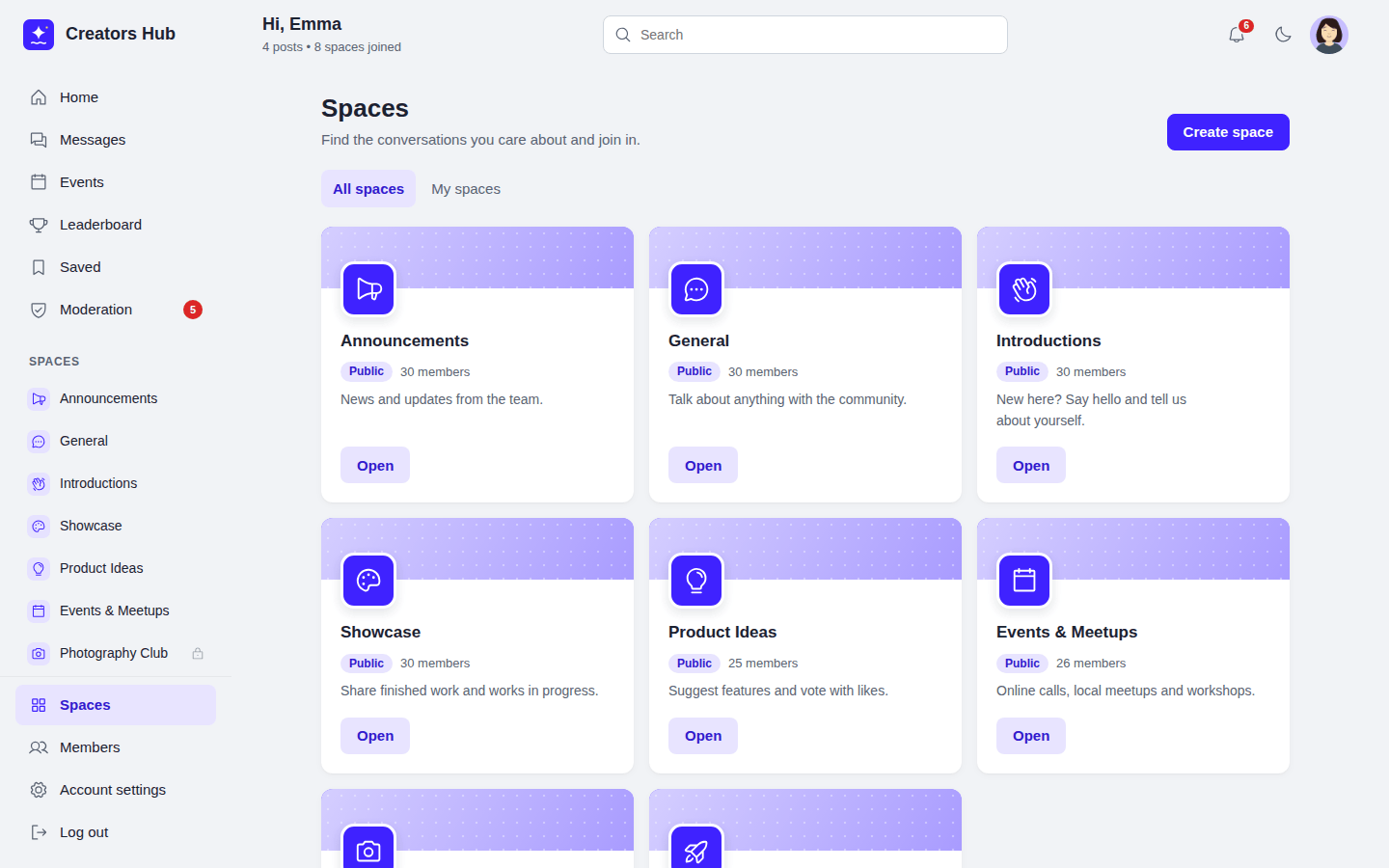 *Members browse spaces and join them.*
In the portal, the left navigation lists the spaces a member can see under their group headings, with a lock on spaces that are not public. The **Spaces** link is pinned at the bottom of that column and opens this page. A space page has tabs for **Posts**, **Events**, **Members** and, for space admins, **Manage**. Its right rail has an **About this space** card with the description, the member count, who can join, the creation date and the viewer's status (for example "You are a member"), and below it the space's upcoming events. On a phone the right rail is not shown and the bottom tab bar has a **Spaces** tab. See [the community portal](/spacebay/user-guide/community-portal/).
*Members browse spaces and join them.*
In the portal, the left navigation lists the spaces a member can see under their group headings, with a lock on spaces that are not public. The **Spaces** link is pinned at the bottom of that column and opens this page. A space page has tabs for **Posts**, **Events**, **Members** and, for space admins, **Manage**. Its right rail has an **About this space** card with the description, the member count, who can join, the creation date and the viewer's status (for example "You are a member"), and below it the space's upcoming events. On a phone the right rail is not shown and the bottom tab bar has a **Spaces** tab. See [the community portal](/spacebay/user-guide/community-portal/).
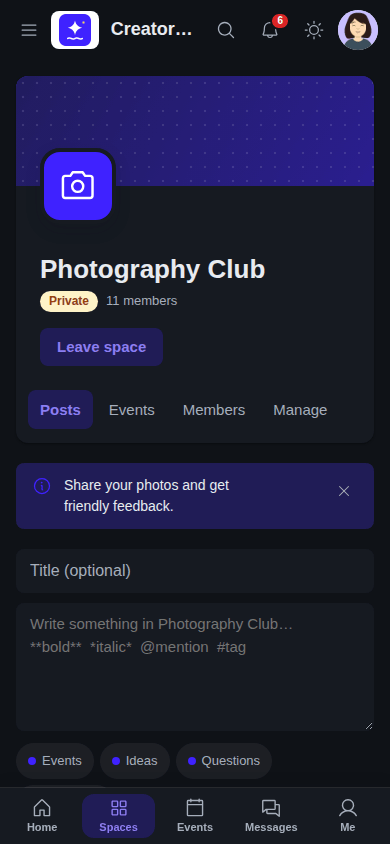 *A private space on a phone, in dark mode.*
## Space roles
| Role | Can do |
| --- | --- |
| Admin | Edit the space, approve requests, invite, change roles, block and remove members. |
| Moderator | Moderate content in the space. |
| Member | Read and take part. |
Whoever creates a space becomes its first admin. A space always keeps at least one admin. WordPress administrators manage every space, and only they can archive a space, delete it or move it to another group.
## Managing a space
Space admins open the space and choose **Manage** to approve join requests, invite members, see open invitations, unblock members and edit the space details. Blocking an invited person withdraws the invitation.
*A private space on a phone, in dark mode.*
## Space roles
| Role | Can do |
| --- | --- |
| Admin | Edit the space, approve requests, invite, change roles, block and remove members. |
| Moderator | Moderate content in the space. |
| Member | Read and take part. |
Whoever creates a space becomes its first admin. A space always keeps at least one admin. WordPress administrators manage every space, and only they can archive a space, delete it or move it to another group.
## Managing a space
Space admins open the space and choose **Manage** to approve join requests, invite members, see open invitations, unblock members and edit the space details. Blocking an invited person withdraws the invitation.
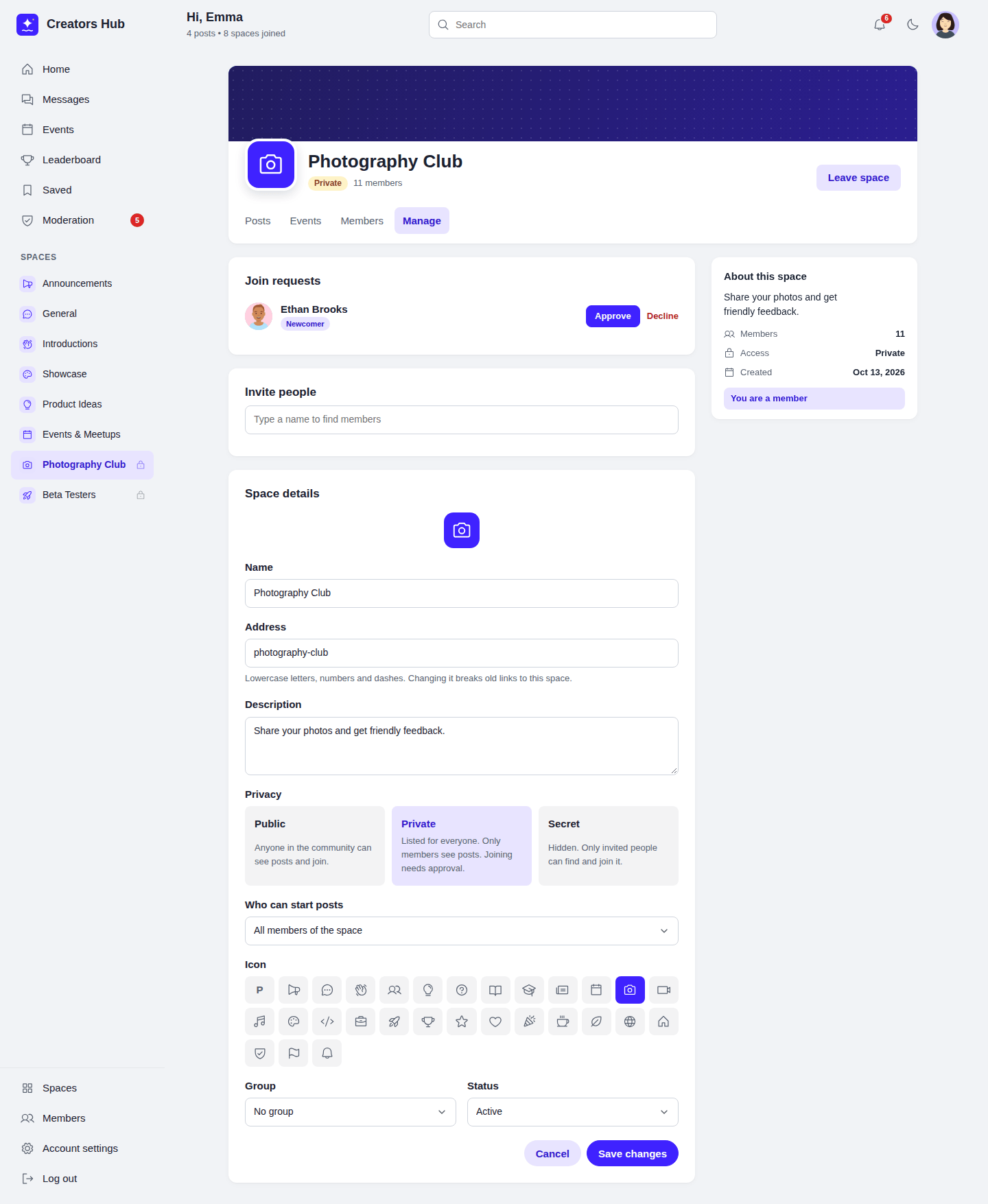 *The Manage tab of a space.*
**Archived** spaces are hidden from people who are not members and do not accept new members.
*The Manage tab of a space.*
**Archived** spaces are hidden from people who are not members and do not accept new members.