---
title: License Settings
description: Full documentation for license status, masked key handling, renewal visibility, and all license actions.
---
 ## What The License Section Controls
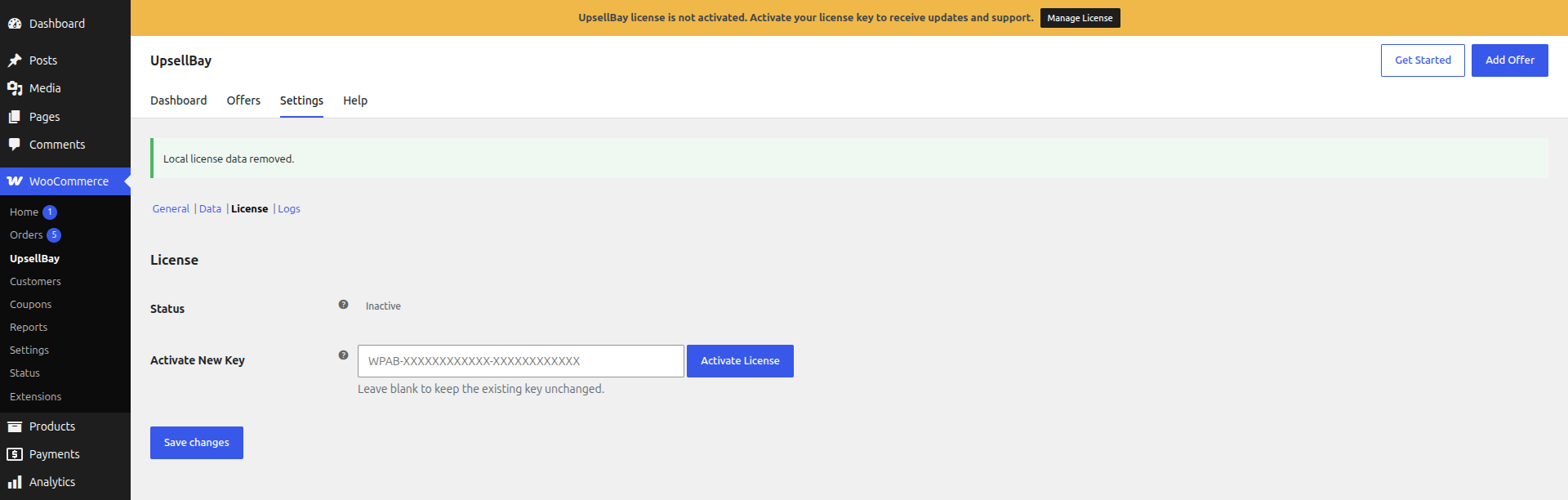
Go to **WooCommerce -> UpsellBay -> Settings -> License** to manage the commercial connection between this site and your UpsellBay license.
This section does not control how offers look or where they render. It exists so store owners and operators can safely confirm licensing state, renew access, and replace keys without exposing secrets in routine admin workflows.
## Status
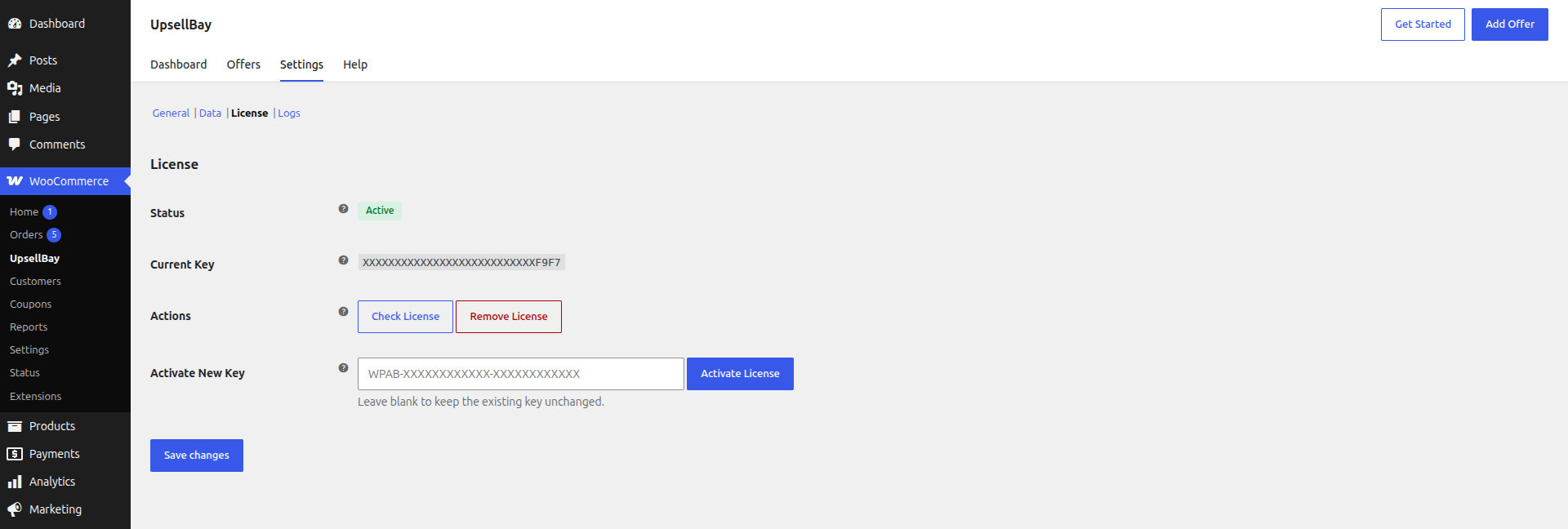
The **Status** badge shows the latest local license state known to the plugin.
Why it matters:
- it tells you whether the site is in a healthy update and support state
- it helps you understand whether a renewal, reactivation, or replacement is needed
- it gives support teams a fast first signal when diagnosing license issues
Common states you may see:
- `Active`: the license is connected and currently valid
- `Inactive`: no healthy active state is currently confirmed
- `Expired`: the license term has ended
- `Invalid`: the stored key was rejected or is no longer accepted
- `Dev Mode`: a non-production domain is being treated as a development environment
- `Server Error`: the license server could not be reached recently
- `Unknown`: the plugin does not currently have a confirmed state
When to act:
- if the badge is `Expired`, renew or replace the key
- if it is `Invalid`, confirm the key and activate again
- if it is `Inactive`, run a check or reactivate
- if it is `Server Error`, retry after connectivity is restored
## Current Key
If a key is already stored, UpsellBay shows only a masked version.
What it means:
- the plugin keeps the real key protected
- the Settings UI only shows a safe masked representation
- screenshots and shared admin sessions are less likely to expose secrets
Why it matters:
- you can confirm which key family is attached to the store
- you can verify whether a replacement likely succeeded
- you can share the screen internally without revealing the full key
## Expires
When the license server provides an expiration date, the **Expires** row shows the current term end date.
Why it matters:
- it helps you plan renewals before access becomes a support issue
- it makes it easier to explain status changes to clients or stakeholders
- it confirms whether an expired badge is expected
When to review it:
- before releases or update windows
- when handing over store operations
- during renewal planning
## Plan
If available, the **Plan** row shows the commercial plan associated with the active license.
Why it matters:
- it helps confirm the site is attached to the expected entitlement
- it is useful when agencies or support teams manage multiple license tiers
## Check License
This action performs a fresh check against the licensing service.
Use it when:
- the site has moved domains
- a renewal has just completed
- the status looks stale
- support asks for a fresh validation
Why use it:
- it confirms whether the current local status still matches the remote license record
- it is the least disruptive first step when diagnosing license health
## Reactivate
This action appears when the stored key is not currently in an active or valid state. It retries activation using the key that is already saved locally.
Use it when:
- the key should still be correct
- the domain or activation record may need to be refreshed
- support has asked you to retry activation without replacing the key
Why it matters:
- it avoids retyping the key when the current saved value should still be valid
- it is safer than replacing a key unnecessarily
## Remove License
This action removes the local license association from the site.
What happens after removal:
- this site is disconnected from update and support-related license checks
- live offers continue running
- a new key can be activated later when needed
When to use it:
- before transferring store ownership
- before attaching a different purchased key
- when intentionally moving the license elsewhere
## Activate New Key
This field is used to replace the current stored key with a different one.
Expected format:
`WPAB-XXXXXXXXXXXX-XXXXXXXXXXXX`
What it means:
- leaving the field blank keeps the current key unchanged
- entering a new key attempts activation during save
- invalid formatting is blocked before a malformed request is sent
When to use it:
- replacing an expired license
- moving from an older or wrong key
- switching to a new entitlement or plan
- reattaching the site after a transfer
## What The License Section Controls
Go to **WooCommerce -> UpsellBay -> Settings -> License** to manage the commercial connection between this site and your UpsellBay license.
This section does not control how offers look or where they render. It exists so store owners and operators can safely confirm licensing state, renew access, and replace keys without exposing secrets in routine admin workflows.
## Status
The **Status** badge shows the latest local license state known to the plugin.
Why it matters:
- it tells you whether the site is in a healthy update and support state
- it helps you understand whether a renewal, reactivation, or replacement is needed
- it gives support teams a fast first signal when diagnosing license issues
Common states you may see:
- `Active`: the license is connected and currently valid
- `Inactive`: no healthy active state is currently confirmed
- `Expired`: the license term has ended
- `Invalid`: the stored key was rejected or is no longer accepted
- `Dev Mode`: a non-production domain is being treated as a development environment
- `Server Error`: the license server could not be reached recently
- `Unknown`: the plugin does not currently have a confirmed state
When to act:
- if the badge is `Expired`, renew or replace the key
- if it is `Invalid`, confirm the key and activate again
- if it is `Inactive`, run a check or reactivate
- if it is `Server Error`, retry after connectivity is restored
## Current Key
If a key is already stored, UpsellBay shows only a masked version.
What it means:
- the plugin keeps the real key protected
- the Settings UI only shows a safe masked representation
- screenshots and shared admin sessions are less likely to expose secrets
Why it matters:
- you can confirm which key family is attached to the store
- you can verify whether a replacement likely succeeded
- you can share the screen internally without revealing the full key
## Expires
When the license server provides an expiration date, the **Expires** row shows the current term end date.
Why it matters:
- it helps you plan renewals before access becomes a support issue
- it makes it easier to explain status changes to clients or stakeholders
- it confirms whether an expired badge is expected
When to review it:
- before releases or update windows
- when handing over store operations
- during renewal planning
## Plan
If available, the **Plan** row shows the commercial plan associated with the active license.
Why it matters:
- it helps confirm the site is attached to the expected entitlement
- it is useful when agencies or support teams manage multiple license tiers
## Check License
This action performs a fresh check against the licensing service.
Use it when:
- the site has moved domains
- a renewal has just completed
- the status looks stale
- support asks for a fresh validation
Why use it:
- it confirms whether the current local status still matches the remote license record
- it is the least disruptive first step when diagnosing license health
## Reactivate
This action appears when the stored key is not currently in an active or valid state. It retries activation using the key that is already saved locally.
Use it when:
- the key should still be correct
- the domain or activation record may need to be refreshed
- support has asked you to retry activation without replacing the key
Why it matters:
- it avoids retyping the key when the current saved value should still be valid
- it is safer than replacing a key unnecessarily
## Remove License
This action removes the local license association from the site.
What happens after removal:
- this site is disconnected from update and support-related license checks
- live offers continue running
- a new key can be activated later when needed
When to use it:
- before transferring store ownership
- before attaching a different purchased key
- when intentionally moving the license elsewhere
## Activate New Key
This field is used to replace the current stored key with a different one.
Expected format:
`WPAB-XXXXXXXXXXXX-XXXXXXXXXXXX`
What it means:
- leaving the field blank keeps the current key unchanged
- entering a new key attempts activation during save
- invalid formatting is blocked before a malformed request is sent
When to use it:
- replacing an expired license
- moving from an older or wrong key
- switching to a new entitlement or plan
- reattaching the site after a transfer
 ## When The License Section Should Be Reviewed
Open this section when:
- updates or support access matter for upcoming work
- the site was cloned, migrated, or moved to a new domain
- the stored key may have changed
- the status badge is anything other than healthy
## Important Behavior Notes
- the full license key is not exposed in normal settings output
- non-production domains may be treated differently for activation handling
- transport problems should not immediately disable live offers
- the License section is for commercial state, not storefront merchandising
## When The License Section Should Be Reviewed
Open this section when:
- updates or support access matter for upcoming work
- the site was cloned, migrated, or moved to a new domain
- the stored key may have changed
- the status badge is anything other than healthy
## Important Behavior Notes
- the full license key is not exposed in normal settings output
- non-production domains may be treated differently for activation handling
- transport problems should not immediately disable live offers
- the License section is for commercial state, not storefront merchandising