---
title: License Activation
description: Activate, check, reactivate, remove, and understand your UpsellBay license state.
---
## Where License Management Lives
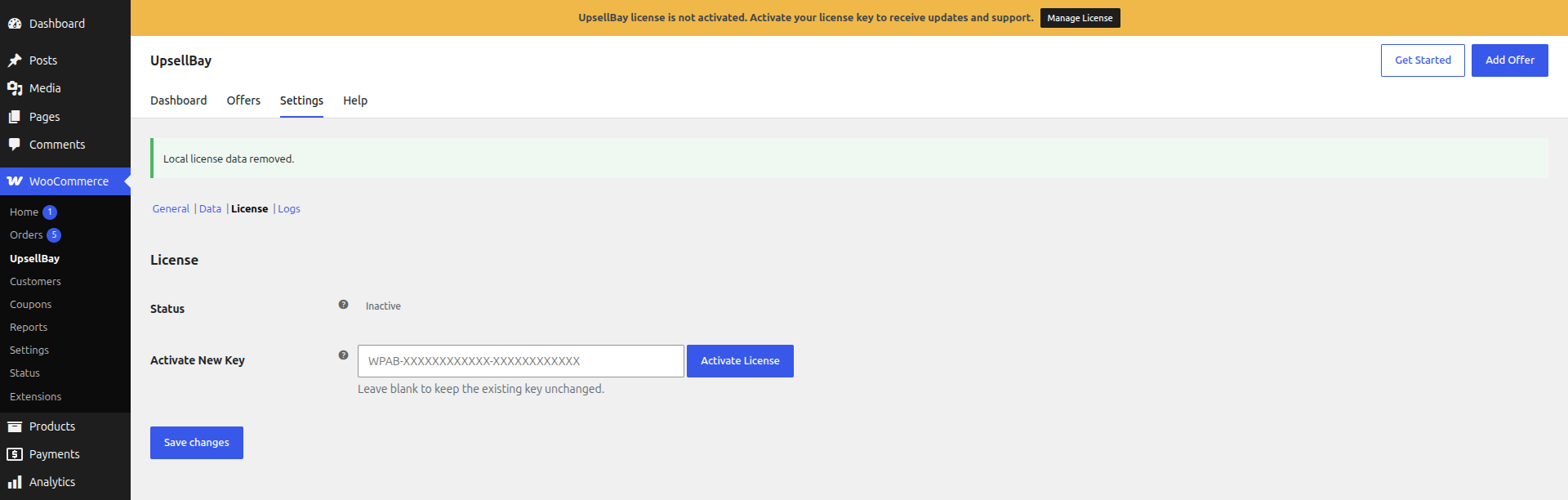
Go to **WooCommerce -> UpsellBay -> Settings -> License**.
 ### Activate New Key
When you purchase a license, you receive a license key through your email or you can get it from your account page on [wpachorbay.com](https://wpanchorbay.com/my-account/) or the platform where you purchased it.
Input your license key on the **Activate New Key** field and click **Activate License** button. The expected license key format is:
`WPAB-XXXXXXXXXXXX-XXXXXXXXXXXX`
If the format is invalid, Settings returns a validation error instead of sending a malformed request.
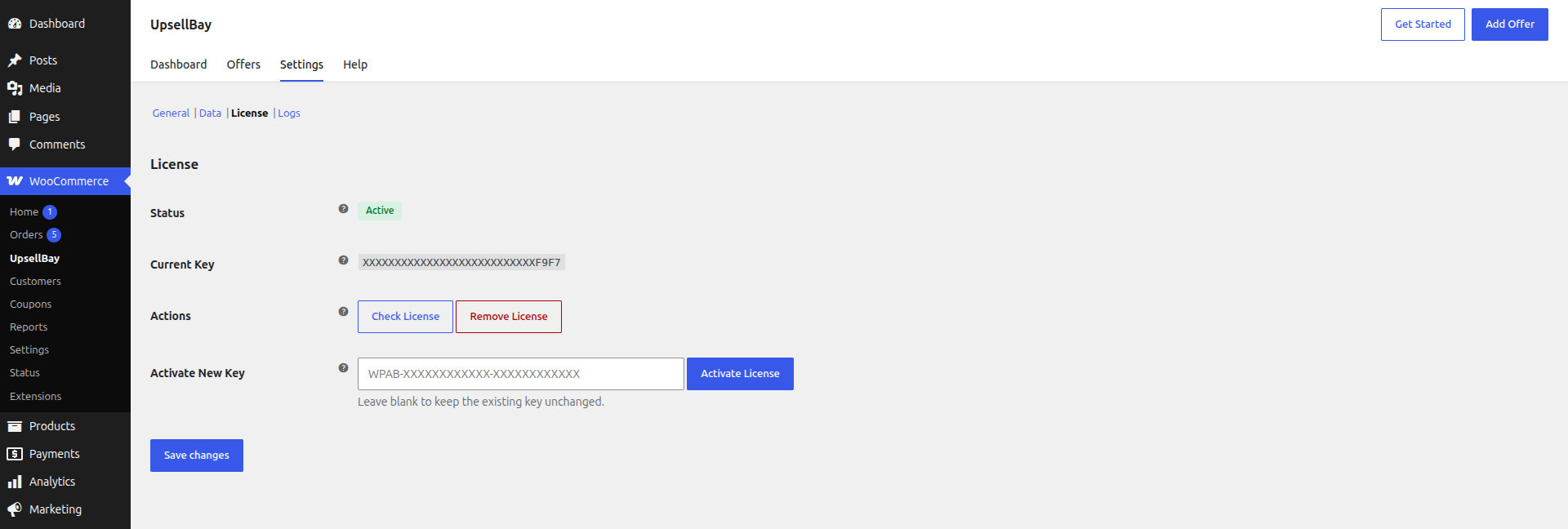
If the license key is valid, the plugin sends a request to the UpsellBay API to activate the license. Once activated, you will see status **Active**.
### Activate New Key
When you purchase a license, you receive a license key through your email or you can get it from your account page on [wpachorbay.com](https://wpanchorbay.com/my-account/) or the platform where you purchased it.
Input your license key on the **Activate New Key** field and click **Activate License** button. The expected license key format is:
`WPAB-XXXXXXXXXXXX-XXXXXXXXXXXX`
If the format is invalid, Settings returns a validation error instead of sending a malformed request.
If the license key is valid, the plugin sends a request to the UpsellBay API to activate the license. Once activated, you will see status **Active**.
 ## Related Settings Reference
For the full field-by-field documentation of this area, see [License Settings](/upsellbay/usage/settings/03-license/).
## Related Settings Reference
For the full field-by-field documentation of this area, see [License Settings](/upsellbay/usage/settings/03-license/).