---
title: Installation
description: Install and activate the private UpsellBay WooCommerce plugin safely on a WordPress site.
---
UpsellBay is distributed as a private premium plugin from WPAnchorBay. Install it like a normal WordPress plugin ZIP, then activate it from the WordPress admin.
## Before You Install
Confirm the store meets the [Requirements](/upsellbay/getting-started/requirements/), especially WooCommerce, PHP, checkout, and email delivery requirements.
## Install from WordPress Admin
Get the UpsellBay plugin ZIP (`upsellbay.zip`) file from WPAnchorBay site, or from your purchase email or the marketplace you purchased from. Then follow these steps:
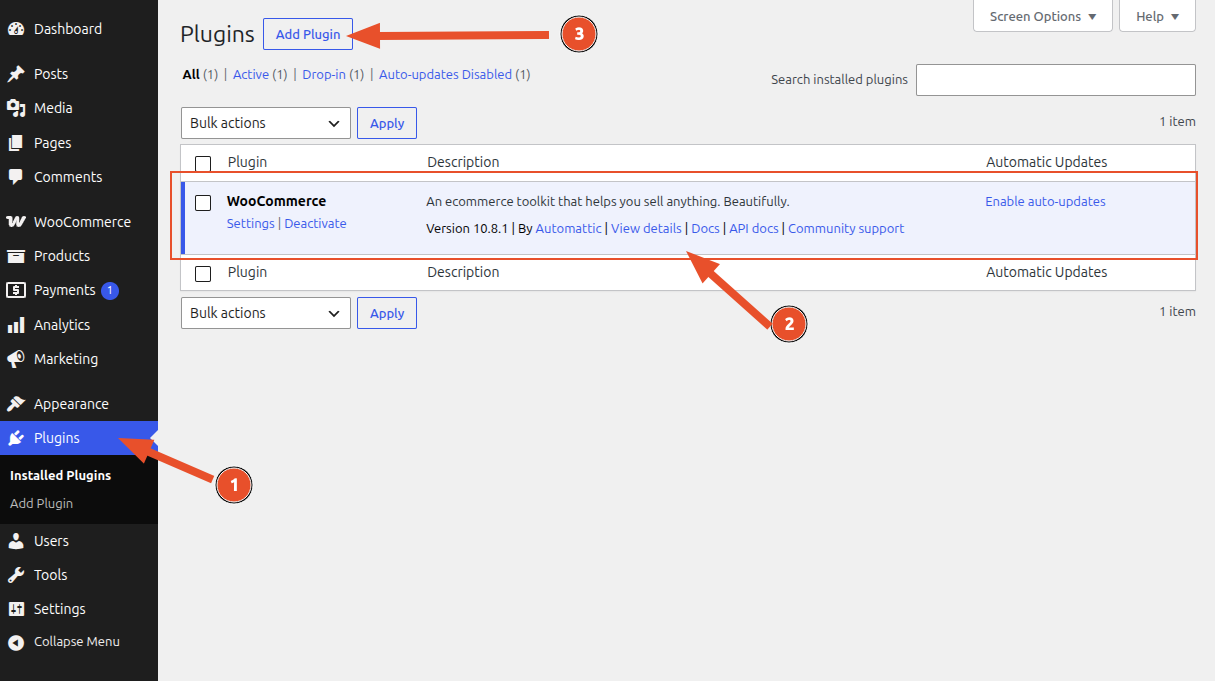 1. In WordPress admin, go to **Plugins**.
2. Make sure you have already installed [WooCommerce](/upsellbay/getting-started/requirements/#woocommerce) and activated it.
3. Click **Add New**.
1. In WordPress admin, go to **Plugins**.
2. Make sure you have already installed [WooCommerce](/upsellbay/getting-started/requirements/#woocommerce) and activated it.
3. Click **Add New**.
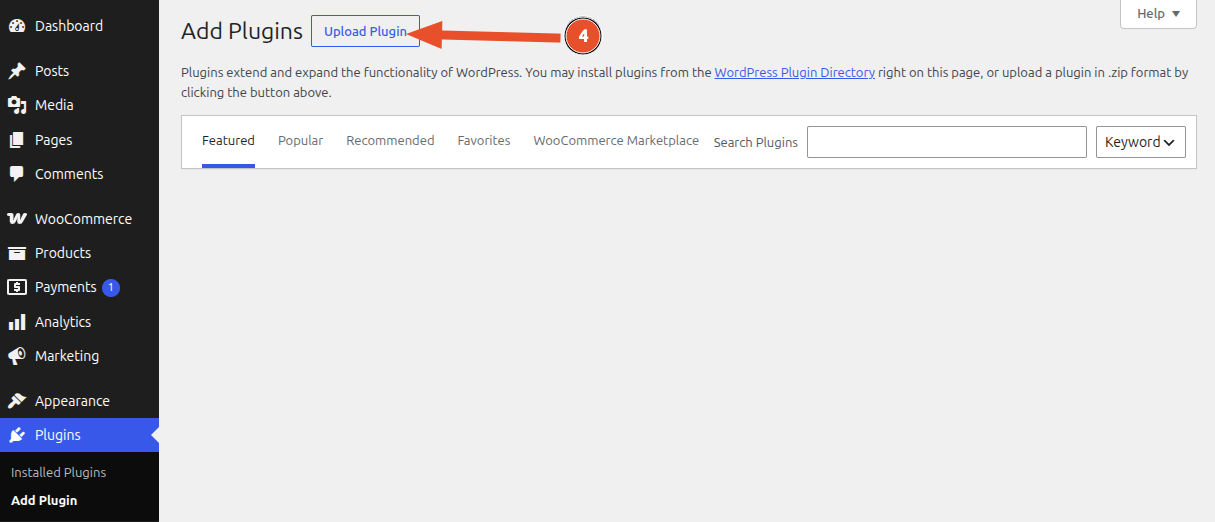 4. Click **Upload Plugin**.
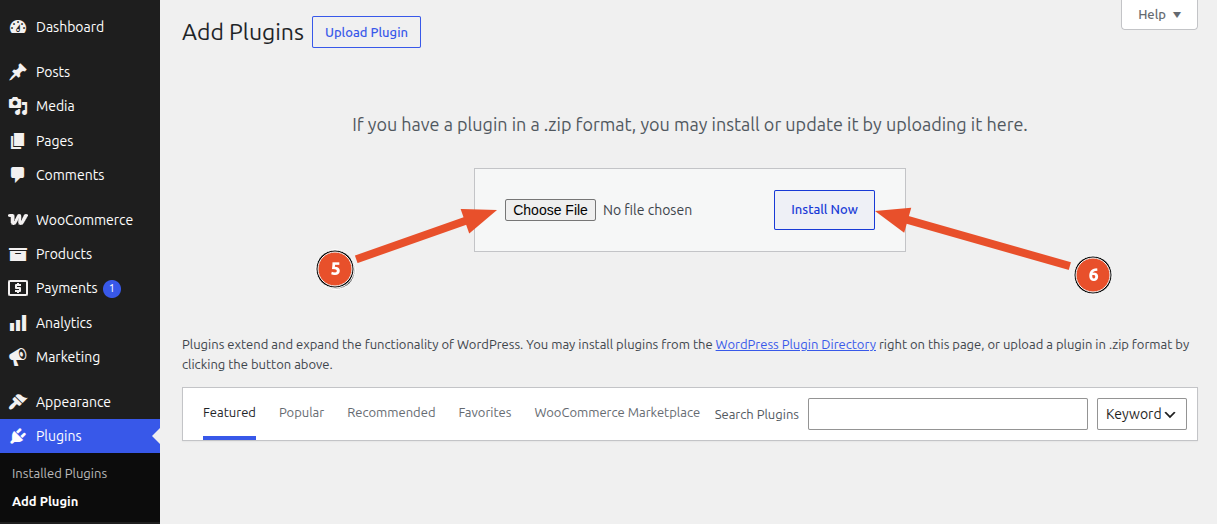 5. Choose the UpsellBay ZIP (`upsellbay.zip`) file.
6. Click **Install Now**.
5. Choose the UpsellBay ZIP (`upsellbay.zip`) file.
6. Click **Install Now**.
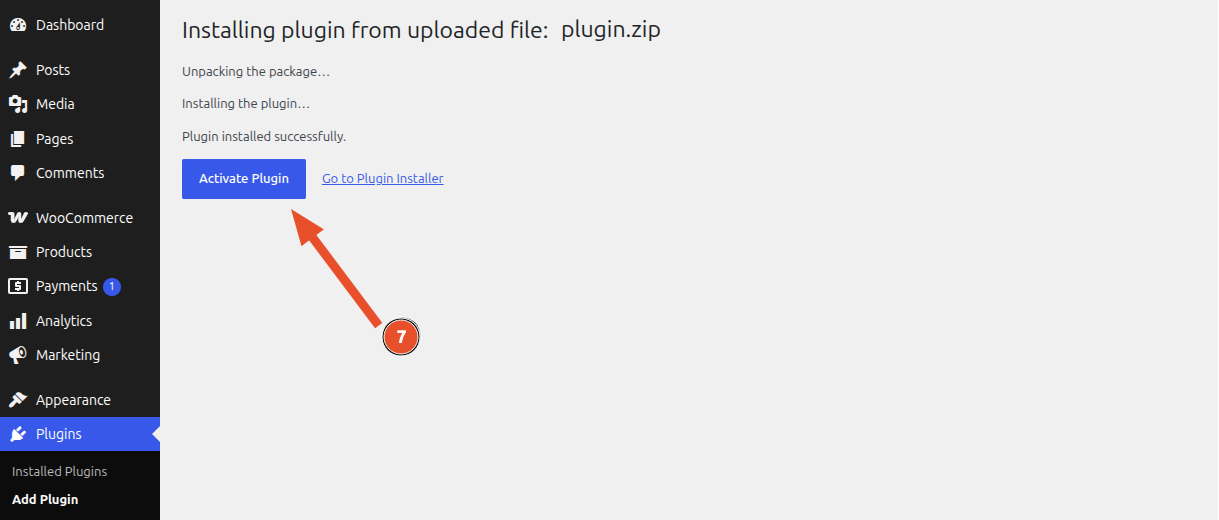 7. Click **Activate Plugin**.
:::note
If WooCommerce is not active, UpsellBay shows an admin notice and does not initialize its recovery runtime.
:::
## After Activation
After plugin activation, UpsellBay creates its default options, registers recovery session statuses, seeds default recovery email content, and schedules recurring Action Scheduler jobs.
You can go to the UpsellBay dashboard by clicking on the **Overview** link on the UpsellBay row of the plugins list.
7. Click **Activate Plugin**.
:::note
If WooCommerce is not active, UpsellBay shows an admin notice and does not initialize its recovery runtime.
:::
## After Activation
After plugin activation, UpsellBay creates its default options, registers recovery session statuses, seeds default recovery email content, and schedules recurring Action Scheduler jobs.
You can go to the UpsellBay dashboard by clicking on the **Overview** link on the UpsellBay row of the plugins list.
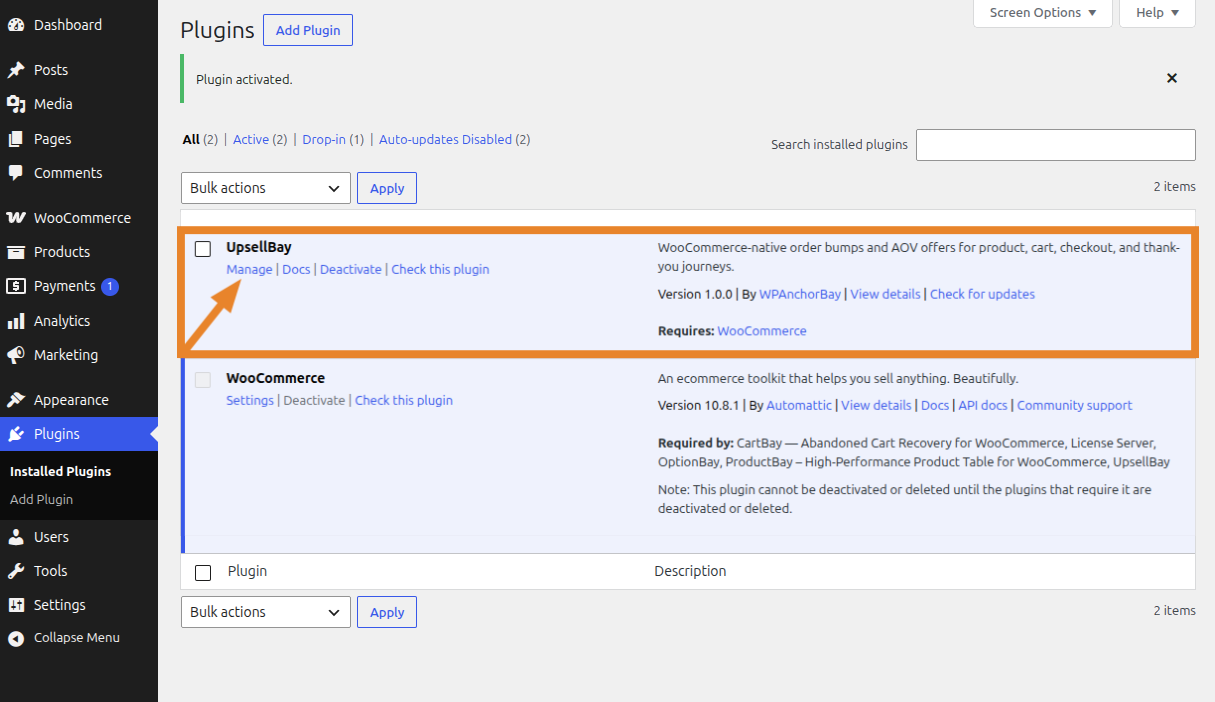 **UpsellBay appears in:**
There are several ways to access UpsellBay:
- **WordPress Admin Direct:** `WooCommerce > UpsellBay`
- **From Plugins Page:** `Plugins > UpsellBay > Manage`
**Verify Installation:**
- Confirm `WooCommerce > UpsellBay`can be found and opens.
- Confirm no WooCommerce-missing notice appears.
- Continue to [Setup Wizard](/upsellbay/getting-started/setup-wizard/).
## Updating UpsellBay
UpsellBay uses a private updater connected to the WPAnchorBay license server. Activate a valid license key to receive continuous updates.
:::note
UpsellBay is not intended for WordPress.org hosting. The private updater and proprietary license metadata are intentional.
:::
**UpsellBay appears in:**
There are several ways to access UpsellBay:
- **WordPress Admin Direct:** `WooCommerce > UpsellBay`
- **From Plugins Page:** `Plugins > UpsellBay > Manage`
**Verify Installation:**
- Confirm `WooCommerce > UpsellBay`can be found and opens.
- Confirm no WooCommerce-missing notice appears.
- Continue to [Setup Wizard](/upsellbay/getting-started/setup-wizard/).
## Updating UpsellBay
UpsellBay uses a private updater connected to the WPAnchorBay license server. Activate a valid license key to receive continuous updates.
:::note
UpsellBay is not intended for WordPress.org hosting. The private updater and proprietary license metadata are intentional.
:::