---
title: "Installation"
description: "Install SpaceBay from WordPress.org, add SpaceBay Pro, and what to do if you bought on CodeCanyon."
---
## SpaceBay (free)
1. In WordPress go to **Plugins → Add New Plugin** and search for “SpaceBay”. You can also download the zip from WordPress.org and use **Upload Plugin**.
2. Click **Install Now**, then **Activate**.
3. WordPress opens the SpaceBay dashboard. Your community is live at `yoursite.com/community/`.
On the Plugins screen, SpaceBay has a **Manage** link, which opens the SpaceBay dashboard, and, under its description, **Documentation** and **Get Pro** links. Get Pro is hidden once Pro is active.
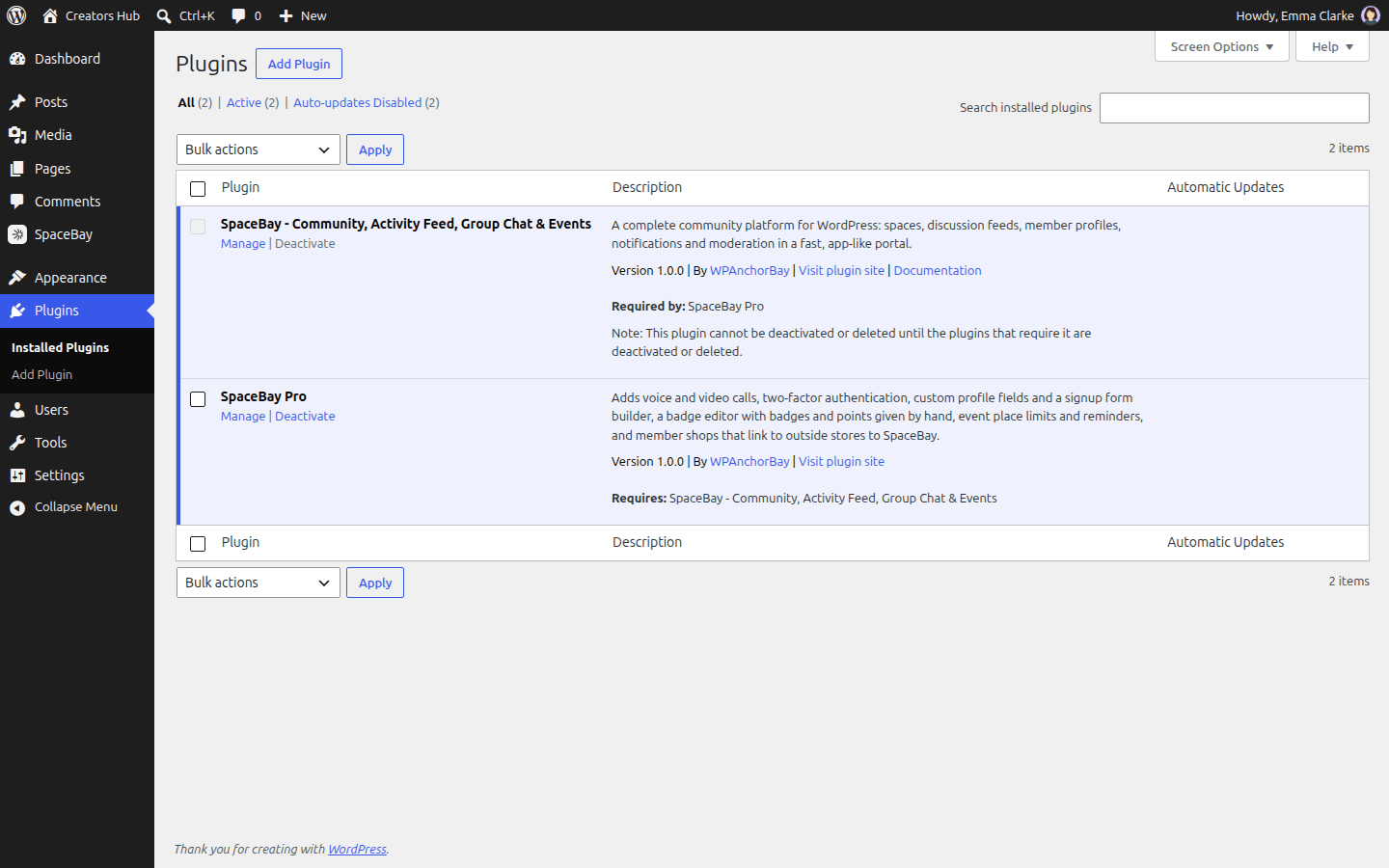 *The Plugins screen with SpaceBay and SpaceBay Pro active.*
## SpaceBay Pro Pro
1. Install and activate the free SpaceBay plugin first.
2. Download **spacebay-pro.zip** from your wpanchorbay.com account.
3. Go to **Plugins → Add New Plugin → Upload Plugin**, choose the zip, click **Install Now**, then **Activate**.
Pro has no licence key. See [Licence and activation](/spacebay/pro/licence-and-activation/).
## Bought on CodeCanyon
The CodeCanyon download contains both zips: **spacebay.zip** and **spacebay-pro.zip**. Upload and activate **spacebay.zip** first, then **spacebay-pro.zip**, with **Plugins → Add New Plugin → Upload Plugin**.
*The Plugins screen with SpaceBay and SpaceBay Pro active.*
## SpaceBay Pro Pro
1. Install and activate the free SpaceBay plugin first.
2. Download **spacebay-pro.zip** from your wpanchorbay.com account.
3. Go to **Plugins → Add New Plugin → Upload Plugin**, choose the zip, click **Install Now**, then **Activate**.
Pro has no licence key. See [Licence and activation](/spacebay/pro/licence-and-activation/).
## Bought on CodeCanyon
The CodeCanyon download contains both zips: **spacebay.zip** and **spacebay-pro.zip**. Upload and activate **spacebay.zip** first, then **spacebay-pro.zip**, with **Plugins → Add New Plugin → Upload Plugin**.