---
title: Installation & Licensing
description: Install PointBay, see what it adds to your store, and activate your PointBay Pro license.
---
This is the first stop before you can reward a single point it covers installing PointBay, confirming it took hold in your store, and, if you're using PointBay Pro, activating your license so it keeps itself updated.
---
## Prerequisites
Before you install, make sure your store meets these minimums:
- **WordPress** 6.8 or higher
- **WooCommerce** 6.1 or higher (required PointBay is a WooCommerce extension and won't do anything without it active)
- **PHP** 7.0 or higher (8.0+ recommended for best performance)
- **MySQL** 5.6+ or **MariaDB** 10.1+ using the InnoDB storage engine (the modern default on virtually every host)
If you're using PointBay Pro, have your license key ready you'll find it in your purchase receipt, in the format `WPAB-XXXXX-XXXXX-XXXXX`.
---
## Walkthrough: Install the Plugin
Choose whichever method matches how you normally manage plugins on this site.
### Option A: Upload in WordPress (recommended)
1. Download the plugin `.zip` file from your account.
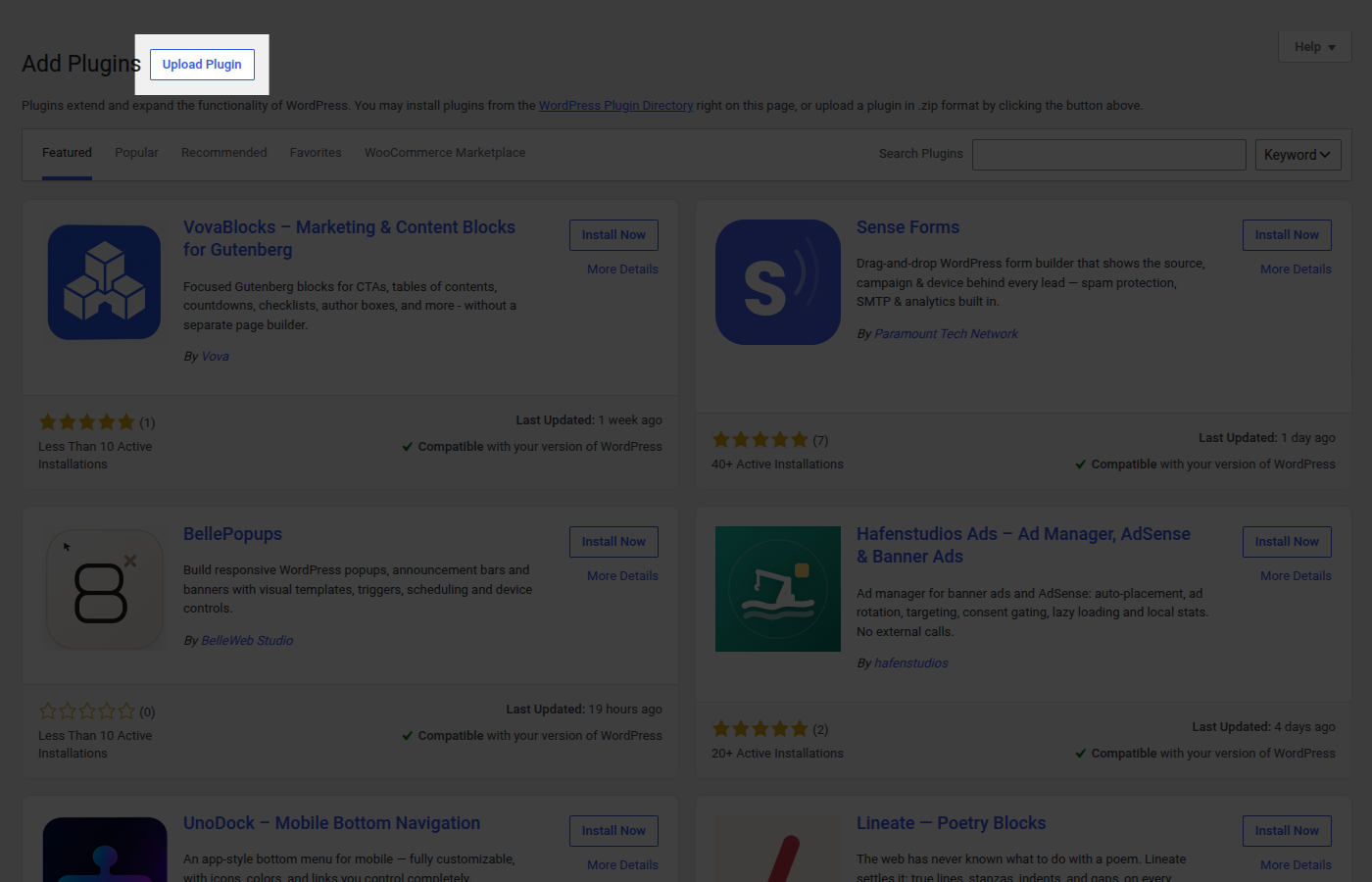
2. In your WordPress admin, go to **Plugins → Add New** and click **Upload Plugin**.
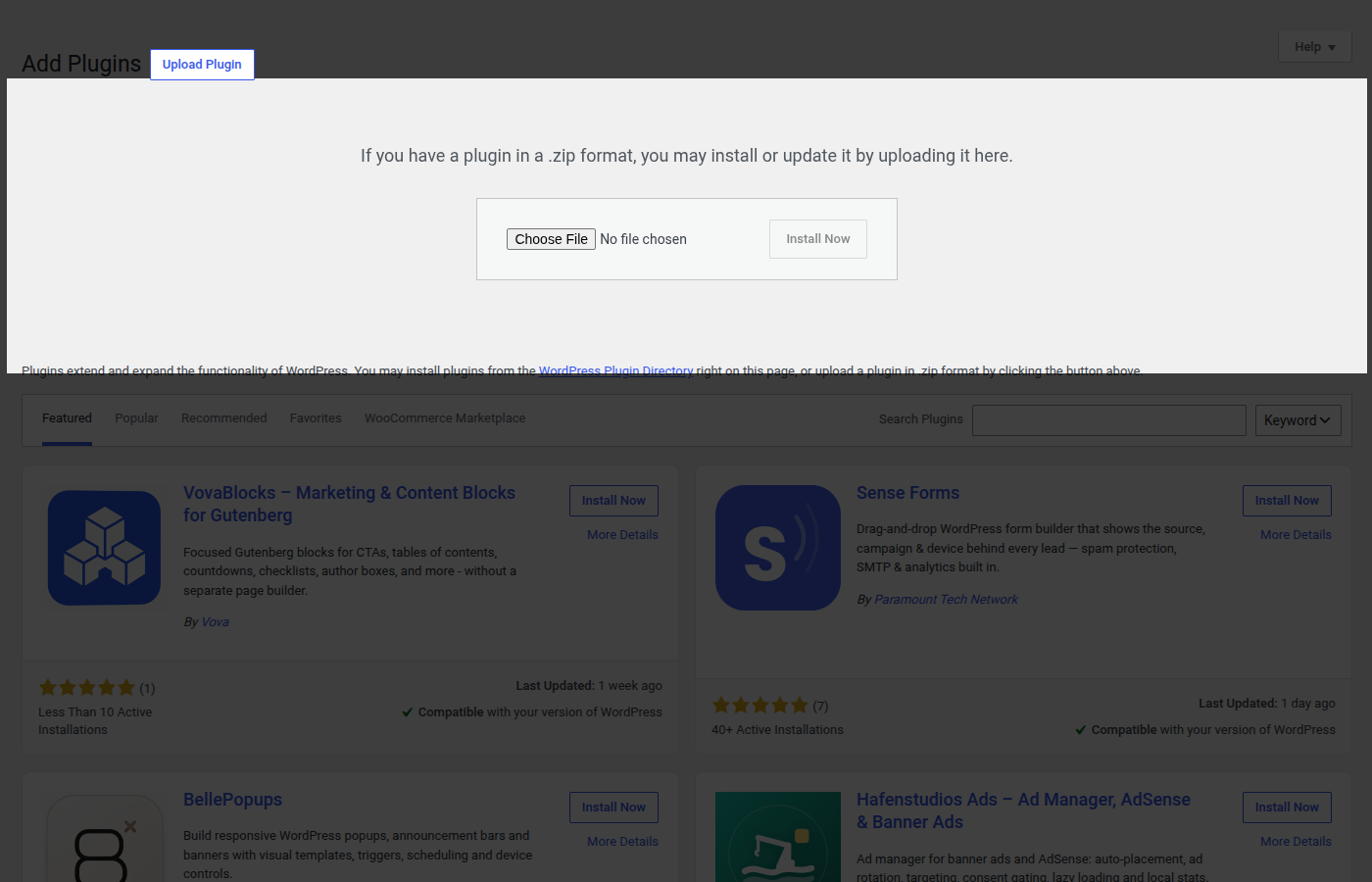
 3. Click **Choose File**, select the `.zip` you downloaded, and click **Install Now**.
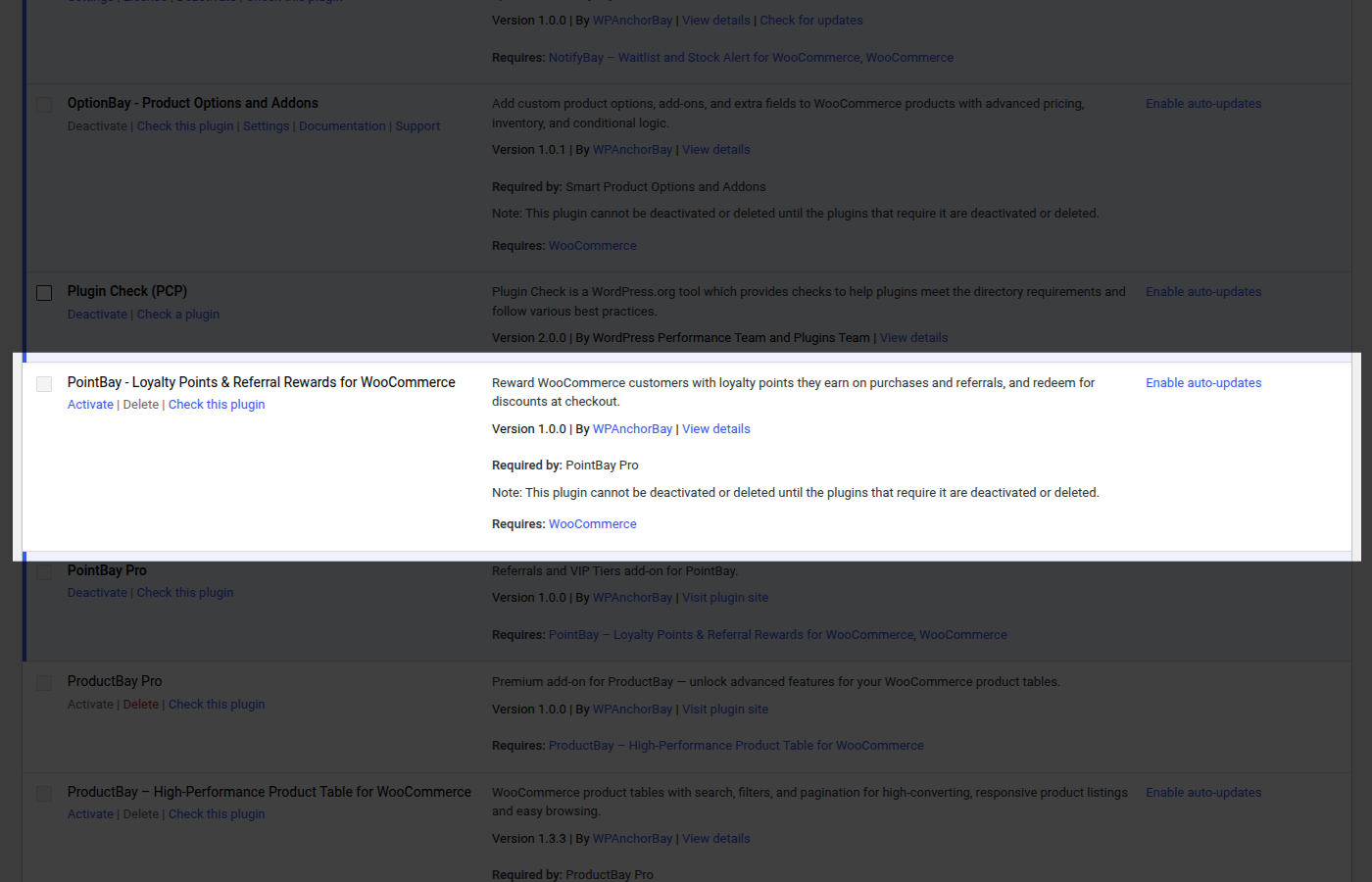
 4. When the upload finishes, click **Activate Plugin**.
### Option B: Upload by FTP
Use this if your host limits web-based uploads (some shared-hosting plans do):
1. Unzip the download on your computer to get the plugin folder.
2. Connect to your server with an FTP/SFTP client and open `/wp-content/plugins/`.
3. Upload the plugin folder there.
4. In WordPress, go to **Plugins → Installed Plugins**, find PointBay in the list, and click **Activate**.
---
## Verify It Worked
Once activation finishes, everything PointBay adds lives under the **WooCommerce** menu in your admin sidebar:
- **WooCommerce → Settings → Loyalty Points** the settings screen where you configure the whole program. This same screen is also reachable via the shorter **Loyalty** link that appears directly under the WooCommerce menu.
- **WooCommerce → Points History** the full record of every points transaction, and where you can make manual adjustments.
- A **My Rewards** page inside every customer's **My Account** area, showing their balance and history.
4. When the upload finishes, click **Activate Plugin**.

### Option B: Upload by FTP
Use this if your host limits web-based uploads (some shared-hosting plans do):
1. Unzip the download on your computer to get the plugin folder.
2. Connect to your server with an FTP/SFTP client and open `/wp-content/plugins/`.
3. Upload the plugin folder there.
4. In WordPress, go to **Plugins → Installed Plugins**, find PointBay in the list, and click **Activate**.
---
## Verify It Worked
Once activation finishes, everything PointBay adds lives under the **WooCommerce** menu in your admin sidebar:
- **WooCommerce → Settings → Loyalty Points** the settings screen where you configure the whole program. This same screen is also reachable via the shorter **Loyalty** link that appears directly under the WooCommerce menu.
- **WooCommerce → Points History** the full record of every points transaction, and where you can make manual adjustments.
- A **My Rewards** page inside every customer's **My Account** area, showing their balance and history.
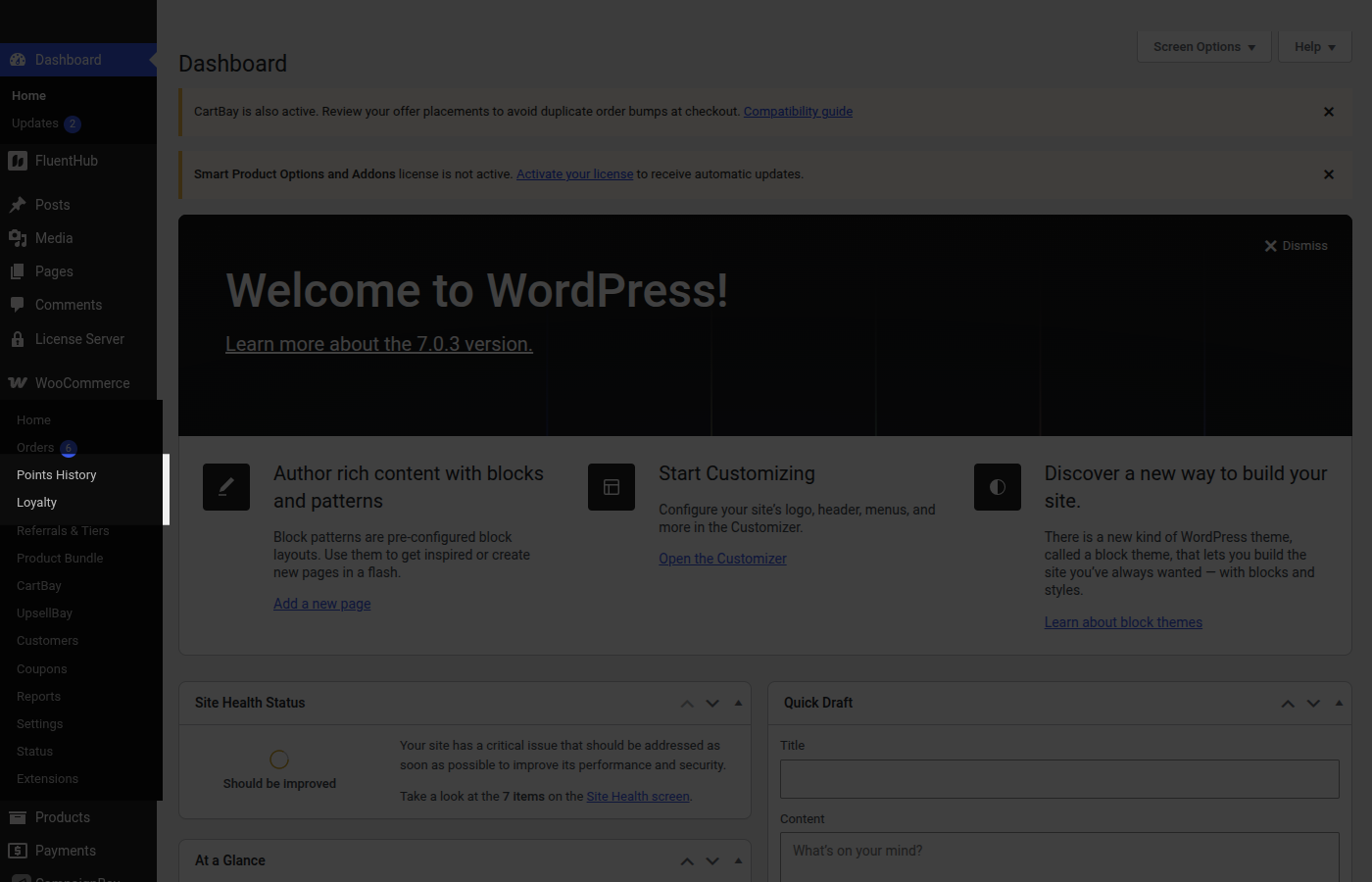 If you see the **Loyalty** and **Points History** links in the WooCommerce menu, installation succeeded and you're ready to configure the plugin see [Quick Setup](/pointbay/getting-started/quick-setup/).
---
## Activating Your Pro License
:::note[Pro feature]
Licensing applies to **PointBay Pro** only. The free plugin doesn't require a license at all.
:::
Activating your license unlocks automatic updates for PointBay Pro, so you don't have to manually reinstall it every time a new version ships.
1. Go to **WooCommerce → Settings → Loyalty Points** and scroll to the **License Settings** group.
2. Paste in your license key (`WPAB-XXXXX-XXXXX-XXXXX`).
3. Click **Activate**.
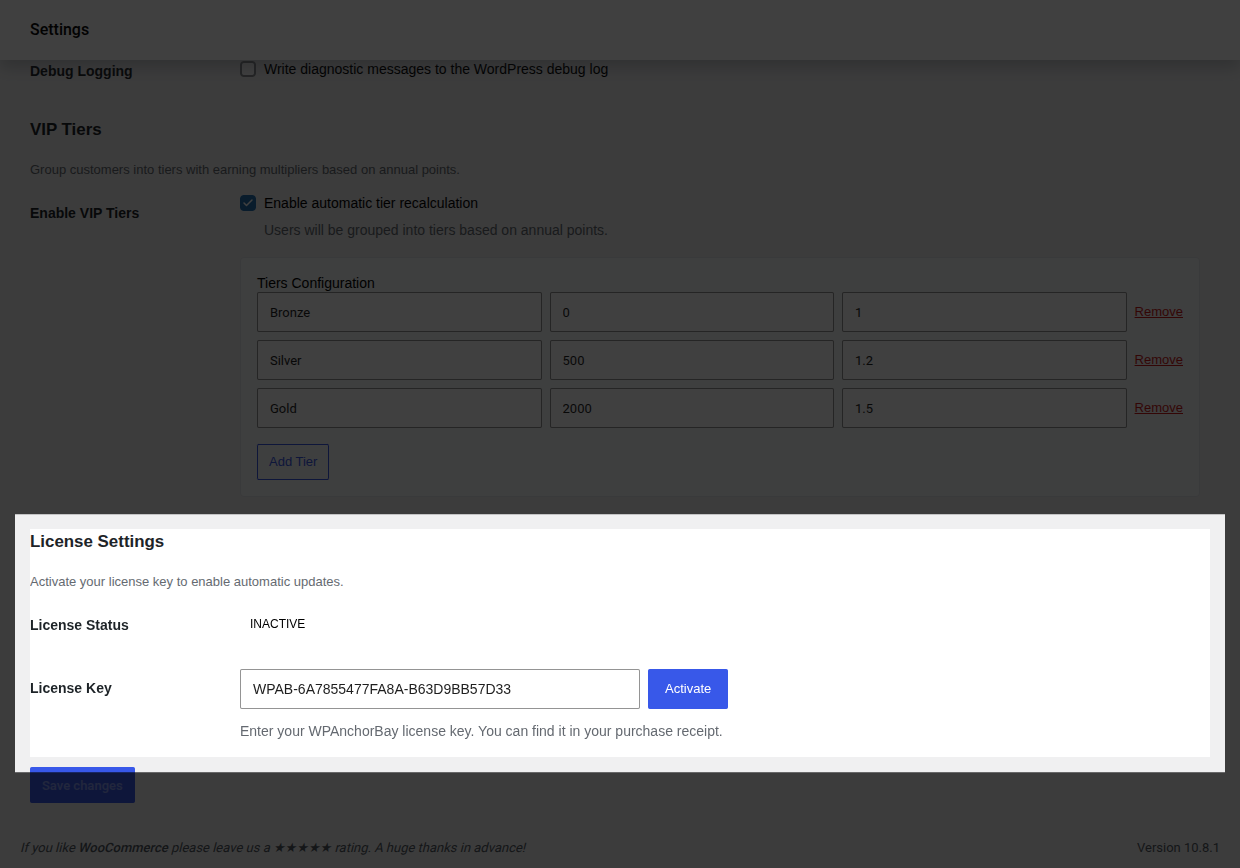
4. **Verify it worked:** confirm **License Status** now reads **Active**. The key field locks and a **Deactivate** button appears in its place.
To move the license to a different site later, come back to this screen and click **Deactivate** first a license can only be active on one site at a time.
:::caution
If **License Status** shows **Invalid** instead of **Active**, double-check the key for typos before contacting support a mistyped character is the most common cause.
:::
## What's Next
Head to [Quick Setup](/pointbay/getting-started/quick-setup/) to configure your first earning and redemption rules.
If you see the **Loyalty** and **Points History** links in the WooCommerce menu, installation succeeded and you're ready to configure the plugin see [Quick Setup](/pointbay/getting-started/quick-setup/).
---
## Activating Your Pro License
:::note[Pro feature]
Licensing applies to **PointBay Pro** only. The free plugin doesn't require a license at all.
:::
Activating your license unlocks automatic updates for PointBay Pro, so you don't have to manually reinstall it every time a new version ships.
1. Go to **WooCommerce → Settings → Loyalty Points** and scroll to the **License Settings** group.
2. Paste in your license key (`WPAB-XXXXX-XXXXX-XXXXX`).
3. Click **Activate**.

4. **Verify it worked:** confirm **License Status** now reads **Active**. The key field locks and a **Deactivate** button appears in its place.
To move the license to a different site later, come back to this screen and click **Deactivate** first a license can only be active on one site at a time.
:::caution
If **License Status** shows **Invalid** instead of **Active**, double-check the key for typos before contacting support a mistyped character is the most common cause.
:::
## What's Next
Head to [Quick Setup](/pointbay/getting-started/quick-setup/) to configure your first earning and redemption rules.