---
title: Redeeming Points
description: How customers turn loyalty points into a discount at checkout, and the settings that control it.
---
Earning points only pays off if customers can actually spend them redemption is where their balance turns into real money off their next order. PointBay works with both the modern WooCommerce **Block** checkout and the **Classic** checkout, and the discount updates the order total in place as soon as it's applied.
Everything on this page is configured at **WooCommerce → Settings → Loyalty Points**, under the **Redemption Rules** group. Full field-by-field details are in the [Settings Reference](/pointbay/admin/settings-reference/#redemption-rules).
---
## How It Works
1. **The redeem panel appears.** A logged-in customer whose balance meets your minimum sees a **Redeem Loyalty Points** panel at checkout.
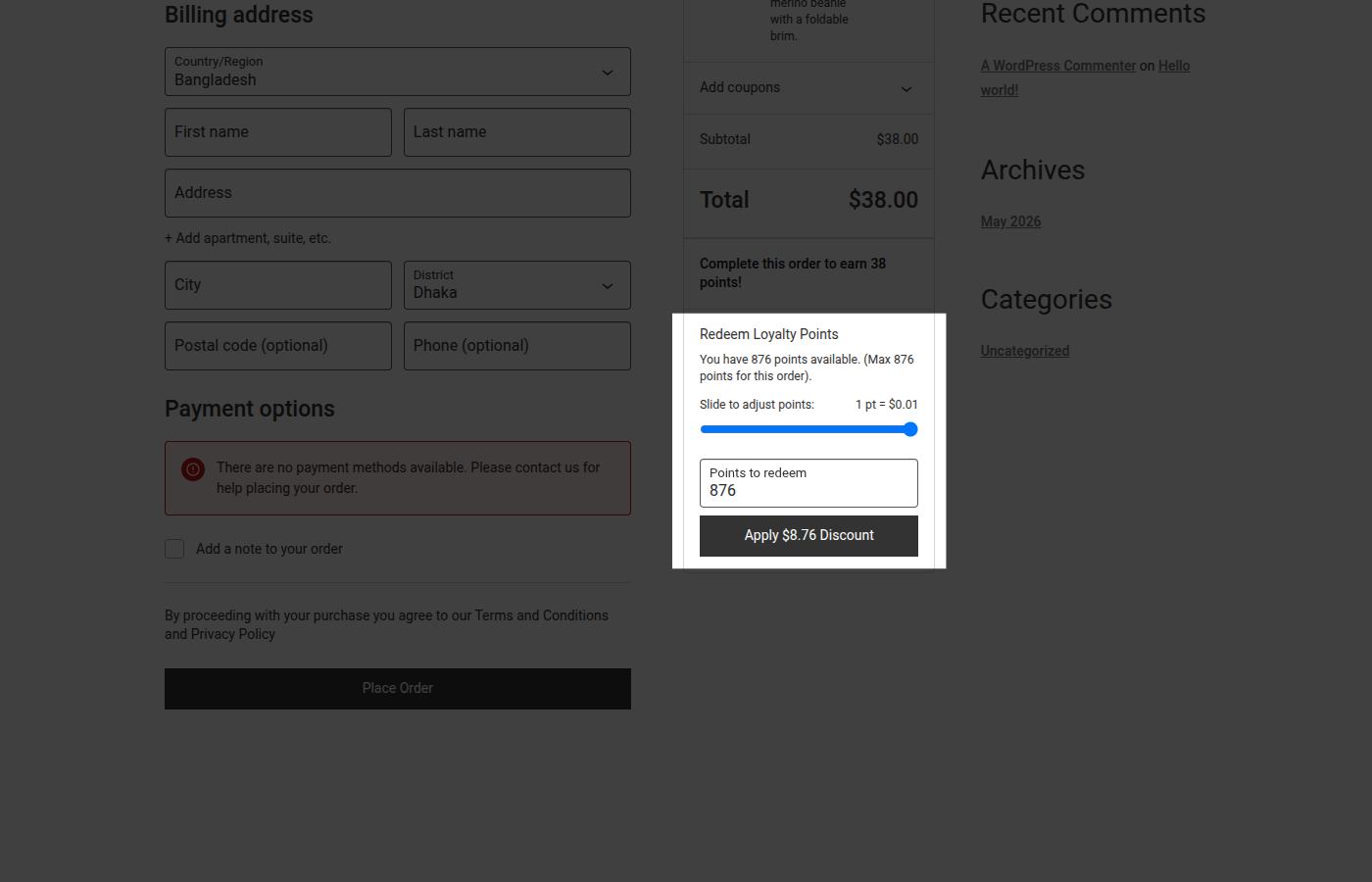 2. **They choose an amount.** Using the slider or number field, the customer picks how many points to apply and sees a live discount preview update as they move it.
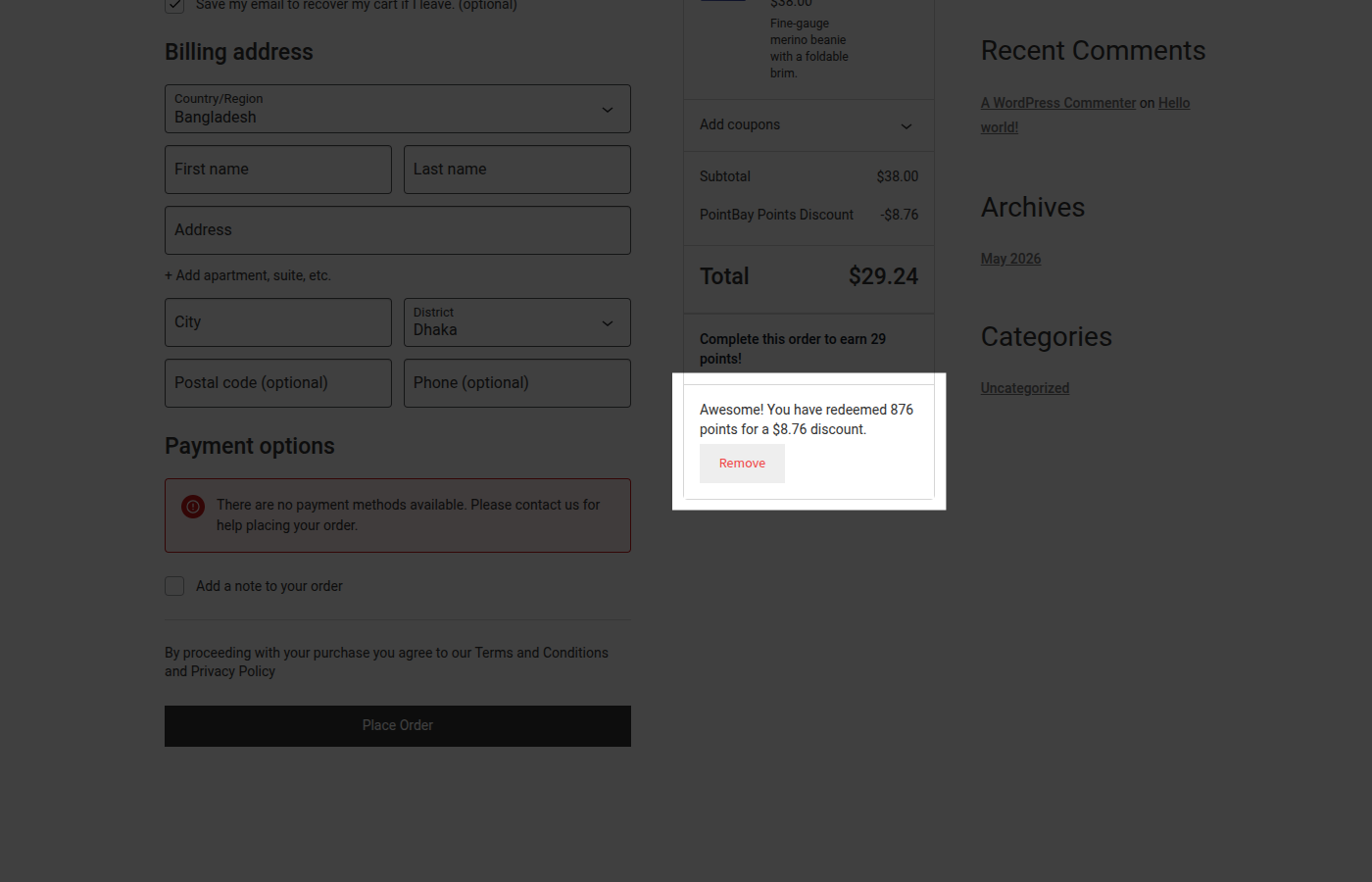
3. **They apply it.** Clicking **Apply Discount** updates the order total immediately. A confirmation shows how many points were redeemed and the discount given, with an option to **Remove** them and start over.
2. **They choose an amount.** Using the slider or number field, the customer picks how many points to apply and sees a live discount preview update as they move it.
3. **They apply it.** Clicking **Apply Discount** updates the order total immediately. A confirmation shows how many points were redeemed and the discount given, with an option to **Remove** them and start over.
 4. **The order is placed.** When the order goes through, the points are deducted from the customer's balance and recorded as a debit in [Points History](/pointbay/admin/points-history/).
Points can never be spent twice even if a customer opens several tabs and tries to check out at once, PointBay ensures the same points are only ever used on one order.
---
## Walkthrough: Set a Redemption Rate and Test It
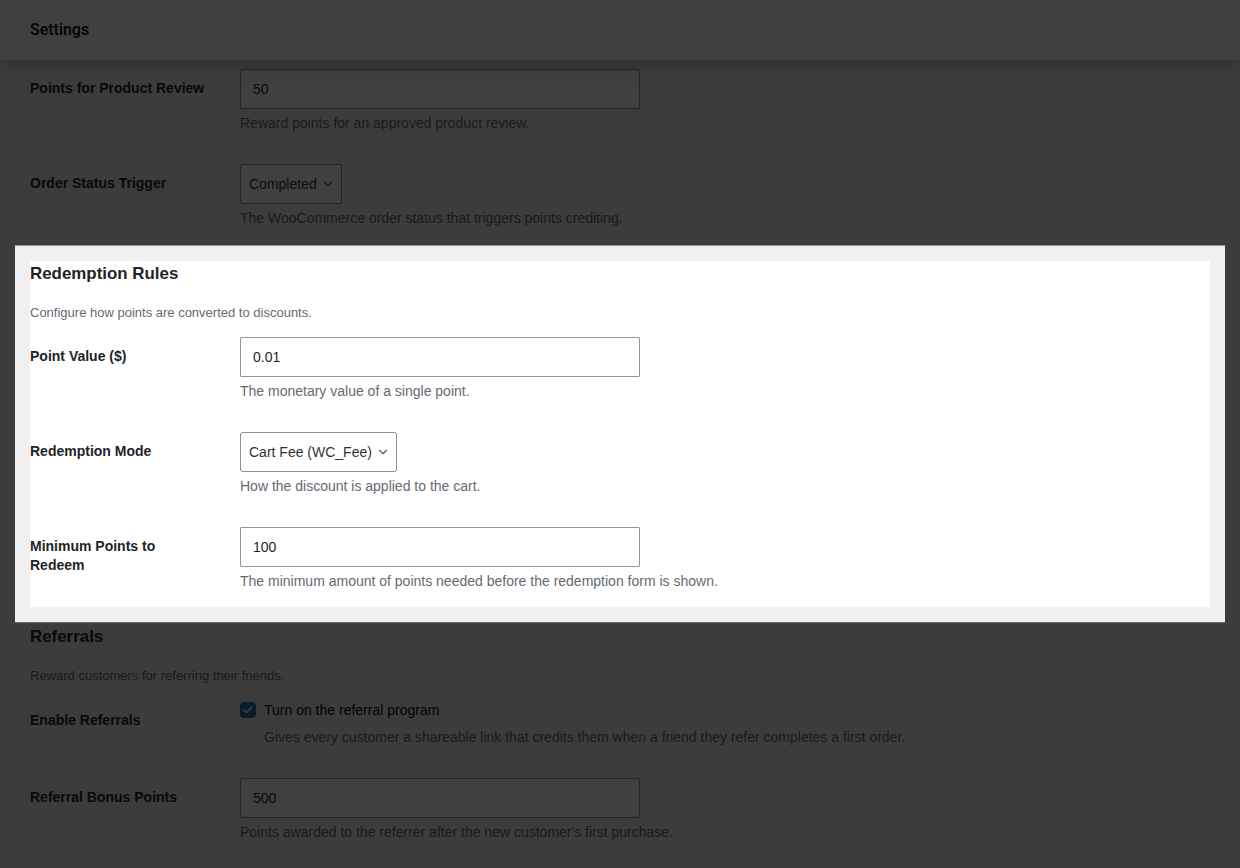
1. Go to **WooCommerce → Settings → Loyalty Points**, in the **Redemption Rules** group.
2. Set **Point Value ($)** to what one point should be worth the default is `$0.01`.
3. Set **Minimum Points to Redeem** to the smallest balance a customer should be allowed to cash in, for example `100`.
4. Leave **Redemption Mode** on **Cart Fee** unless you have a reason to switch it (see below).
5. Click **Save changes**.
4. **The order is placed.** When the order goes through, the points are deducted from the customer's balance and recorded as a debit in [Points History](/pointbay/admin/points-history/).
Points can never be spent twice even if a customer opens several tabs and tries to check out at once, PointBay ensures the same points are only ever used on one order.
---
## Walkthrough: Set a Redemption Rate and Test It
1. Go to **WooCommerce → Settings → Loyalty Points**, in the **Redemption Rules** group.
2. Set **Point Value ($)** to what one point should be worth the default is `$0.01`.
3. Set **Minimum Points to Redeem** to the smallest balance a customer should be allowed to cash in, for example `100`.
4. Leave **Redemption Mode** on **Cart Fee** unless you have a reason to switch it (see below).
5. Click **Save changes**.
 6. **Verify it worked:** log in as a test customer who has at least the minimum balance, go to checkout, and confirm the **Redeem Loyalty Points** panel appears and correctly discounts the order total.
---
## Worked Examples
**Example 1 a simple redemption.** At the default $0.01 per point and a 100-point minimum, a customer with 350 points redeems all of them: 350 × $0.01 = a **$3.50 discount** on their order.
**Example 2 the discount can't exceed the order.** A customer with 5,000 points tries to redeem all of them ($50.00 worth) on a $30 order. PointBay caps the discount at the order total, so the discount applied is **$30.00**, not $50.00 the customer's remaining points stay in their balance for next time rather than being wasted.
---
## Redemption Mode: Cart Fee vs. Virtual Coupon
Both modes give the customer the exact same discount amount the difference is purely how it's applied under the hood:
- **Cart Fee** (default) applies the discount as a negative line-item fee on the cart. This is the simplest option and works correctly for the vast majority of stores. On the settings screen this option is labeled **Cart Fee (WC_Fee)** the `(WC_Fee)` part is an internal WooCommerce class name you can ignore.
- **Virtual Coupon** applies the discount as an automatically generated, single-use coupon instead. Choose this if you use an automated tax service (such as TaxJar or Avalara) and notice incorrect tax totals when points are redeemed, since coupon-based discounts are handled natively by WooCommerce's own tax calculation.
:::tip
If redeeming points ever produces incorrect tax totals at checkout, switch **Redemption Mode** from Cart Fee to Virtual Coupon and re-test. See [Troubleshooting](/pointbay/resources/troubleshooting/) for more.
:::
---
## Classic vs. Block Checkout
The redeem experience is identical on both checkout types a **Redeem Loyalty Points** panel with a slider and an **Apply Discount** button so there's nothing extra to configure for either one. Only logged-in customers who meet the minimum-points threshold see the panel at all; guests and customers below the minimum see no redemption UI.
---
## Troubleshooting
- **The redeem panel doesn't appear** confirm the customer is logged in and their balance meets **Minimum Points to Redeem**. Guests never see the panel regardless of balance.
- **The discount looks right but taxes are wrong** switch **Redemption Mode** to **Virtual Coupon**; see above.
- **A customer says they redeemed points but their order shows no discount** check [Points History](/pointbay/admin/points-history/) for a matching debit; if none exists, the redemption likely wasn't completed (e.g. the order was abandoned before payment).
See [Troubleshooting](/pointbay/resources/troubleshooting/) for more general issues.
## Related
- [Earning Points](/pointbay/features/earning-points/)
- [Points History](/pointbay/admin/points-history/)
- [Settings Reference](/pointbay/admin/settings-reference/)
6. **Verify it worked:** log in as a test customer who has at least the minimum balance, go to checkout, and confirm the **Redeem Loyalty Points** panel appears and correctly discounts the order total.
---
## Worked Examples
**Example 1 a simple redemption.** At the default $0.01 per point and a 100-point minimum, a customer with 350 points redeems all of them: 350 × $0.01 = a **$3.50 discount** on their order.
**Example 2 the discount can't exceed the order.** A customer with 5,000 points tries to redeem all of them ($50.00 worth) on a $30 order. PointBay caps the discount at the order total, so the discount applied is **$30.00**, not $50.00 the customer's remaining points stay in their balance for next time rather than being wasted.
---
## Redemption Mode: Cart Fee vs. Virtual Coupon
Both modes give the customer the exact same discount amount the difference is purely how it's applied under the hood:
- **Cart Fee** (default) applies the discount as a negative line-item fee on the cart. This is the simplest option and works correctly for the vast majority of stores. On the settings screen this option is labeled **Cart Fee (WC_Fee)** the `(WC_Fee)` part is an internal WooCommerce class name you can ignore.
- **Virtual Coupon** applies the discount as an automatically generated, single-use coupon instead. Choose this if you use an automated tax service (such as TaxJar or Avalara) and notice incorrect tax totals when points are redeemed, since coupon-based discounts are handled natively by WooCommerce's own tax calculation.
:::tip
If redeeming points ever produces incorrect tax totals at checkout, switch **Redemption Mode** from Cart Fee to Virtual Coupon and re-test. See [Troubleshooting](/pointbay/resources/troubleshooting/) for more.
:::
---
## Classic vs. Block Checkout
The redeem experience is identical on both checkout types a **Redeem Loyalty Points** panel with a slider and an **Apply Discount** button so there's nothing extra to configure for either one. Only logged-in customers who meet the minimum-points threshold see the panel at all; guests and customers below the minimum see no redemption UI.
---
## Troubleshooting
- **The redeem panel doesn't appear** confirm the customer is logged in and their balance meets **Minimum Points to Redeem**. Guests never see the panel regardless of balance.
- **The discount looks right but taxes are wrong** switch **Redemption Mode** to **Virtual Coupon**; see above.
- **A customer says they redeemed points but their order shows no discount** check [Points History](/pointbay/admin/points-history/) for a matching debit; if none exists, the redemption likely wasn't completed (e.g. the order was abandoned before payment).
See [Troubleshooting](/pointbay/resources/troubleshooting/) for more general issues.
## Related
- [Earning Points](/pointbay/features/earning-points/)
- [Points History](/pointbay/admin/points-history/)
- [Settings Reference](/pointbay/admin/settings-reference/)